

Write the env file
Open WebUI reads its settings from the environment. Keep the token in a file that only you can read, and never put it on the command line. Create the env file without echoing the token. Paste the token at the prompt:<your-tenant-host> with your tenant host, for example app.example.com. The base URL ends in /api/llm/v1.
Check that both keys are present, without printing the token:
Start the container
Create a named volume for Open WebUI’s data, then start the container from the pinned image. The volume keeps accounts, chats and settings across restarts and upgrades.health: starting for about a minute.
(healthy), then check the health endpoint:
000, the container has not finished starting. Read its log with docker logs open-webui.
Create the first admin
Openhttp://localhost:3000 in a browser. The first account you create becomes the admin. Enter a name, an email and a password in the sign-up form, then submit it.
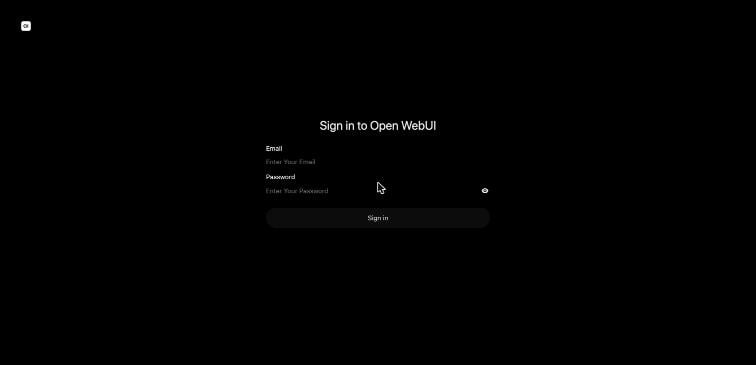
The sign-in page. The first account created on a new install becomes the admin.
After the first admin exists, turn off public sign-up. Add
ENABLE_SIGNUP=false to openwebui.env, then recreate the container with docker rm -f open-webui and the same docker run command. The volume keeps the accounts.Check the gateway path
Run the checks in order. Each one uses the same key the container uses, loaded from the env file. Load the env file into your shell for these checks only:1. List the models
403, as step 3 shows. To see the IDs, run the same call without -o /dev/null. The granted model appears as azure-openai-main/o4-mini, with the provider prefix.
2. Call a granted model
3. Call a model without a grant
User openwebui-gw is not authorized to access model openai-main/gpt-4o-mini or model does not exist. A 403 here is the grant working. It is not an error in the install.
4. Call a bare model name
Send the first chat
- Open
http://localhost:3000and sign in as the admin. - Open a new chat.
- In the model picker at the top, choose azure-openai-main/o4-mini. If the model does not appear, check the grant in Gateway access.
- Send a short prompt, for example
Reply with the word: ready.
Next steps
- Rotate, revoke or upgrade the install: Operate and troubleshoot.
- Permissions for other models: add a grant on the same account. See Gateway access.