Documentation Index
Fetch the complete documentation index at: https://www.truefoundry.com/llms.txt
Use this file to discover all available pages before exploring further.
Deploy NIM Models from New Deployment MenuWhile this guide is useful to deploy any container image from NGC Catalog, if you are looking to deploy NIM Models, we have a dedicated deployment option for them. Please check Deploying NVIDIA NIM docs page
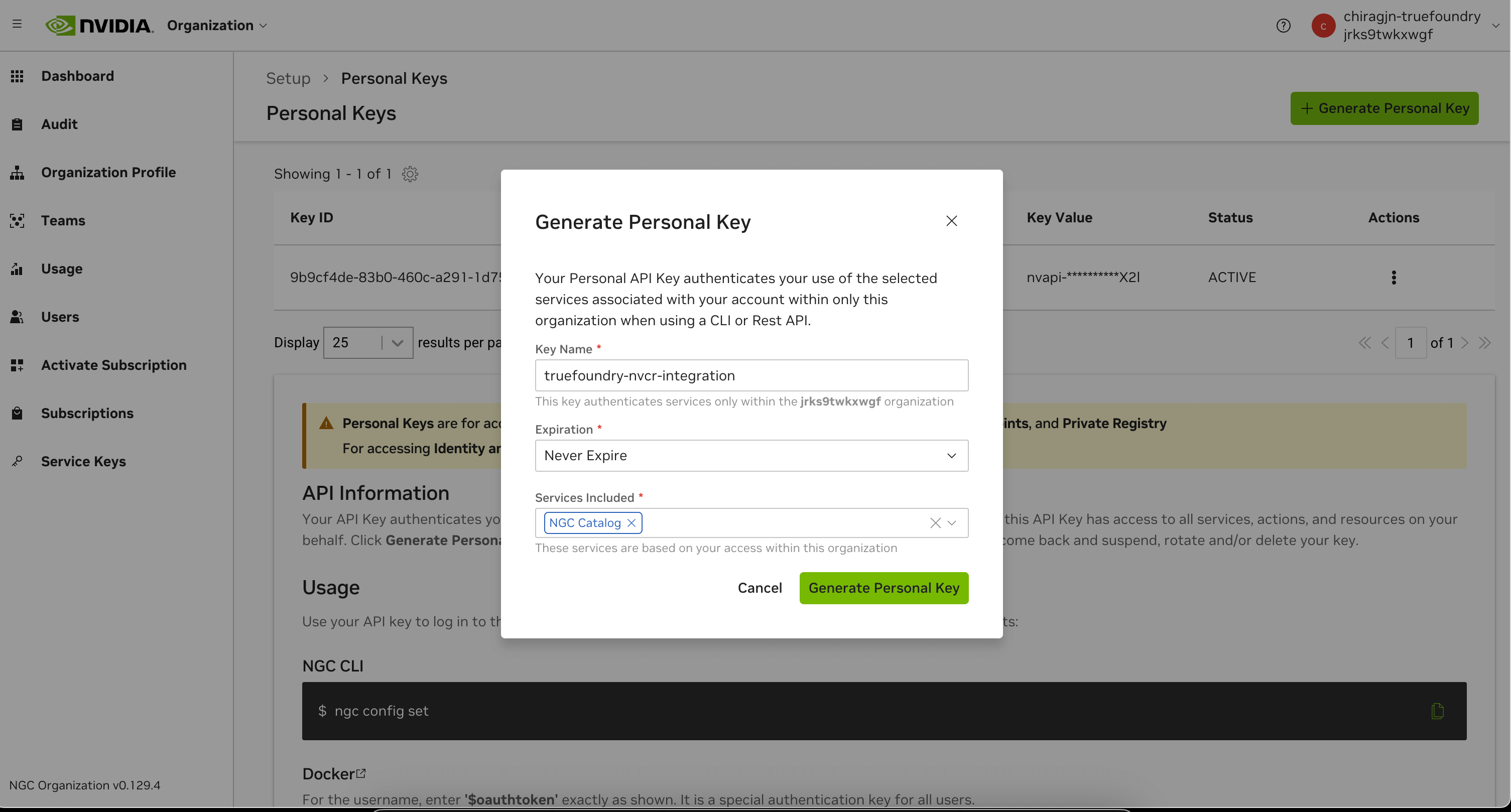
Create a NGC Personal Token
- Sign up at https://ngc.nvidia.com/
- Generate a Personal Key from https://org.ngc.nvidia.com/setup/api-keys
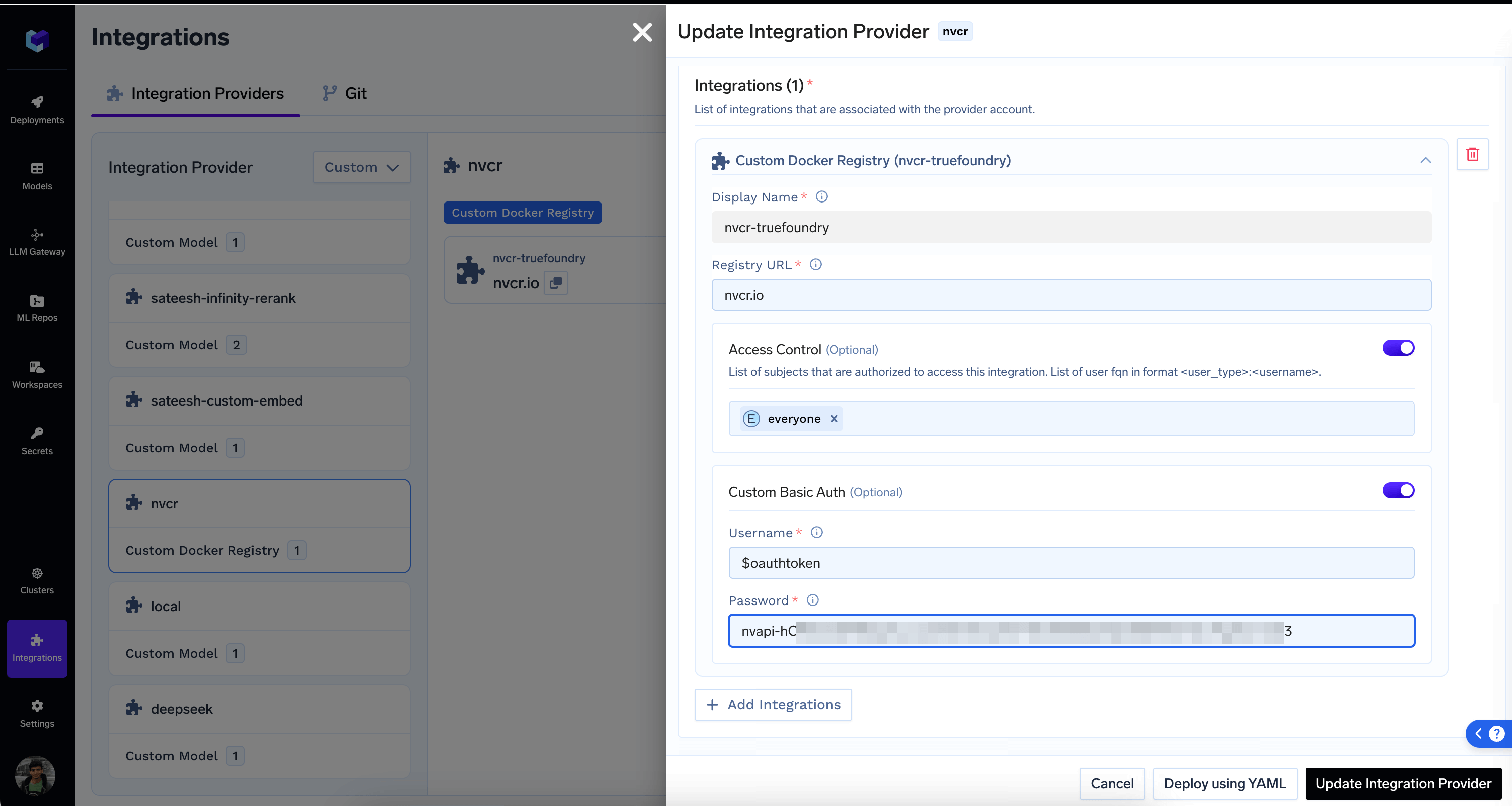
Add nvcr.io as Custom Docker Registry
- Under Integrations Tab, Click
+Add Integration Provider on top right
- Under Integrations, select Custom Docker Registry and enter as follows:
- Registry URL:
nvcr.io
- Username:
$oauthtoken
- Password: Enter the Personal Token you created earlier
- Save
Use the Integration - E.g. Deploying Nvidia NIM Container
Save the API Key as a Secret
We recommend saving the generated token as a Secret on the platform to be able to use it for other purposes
We can now deploy a Nvidia NIM LLM Container for Inference. You can find the list of all Supported Models from the docs page
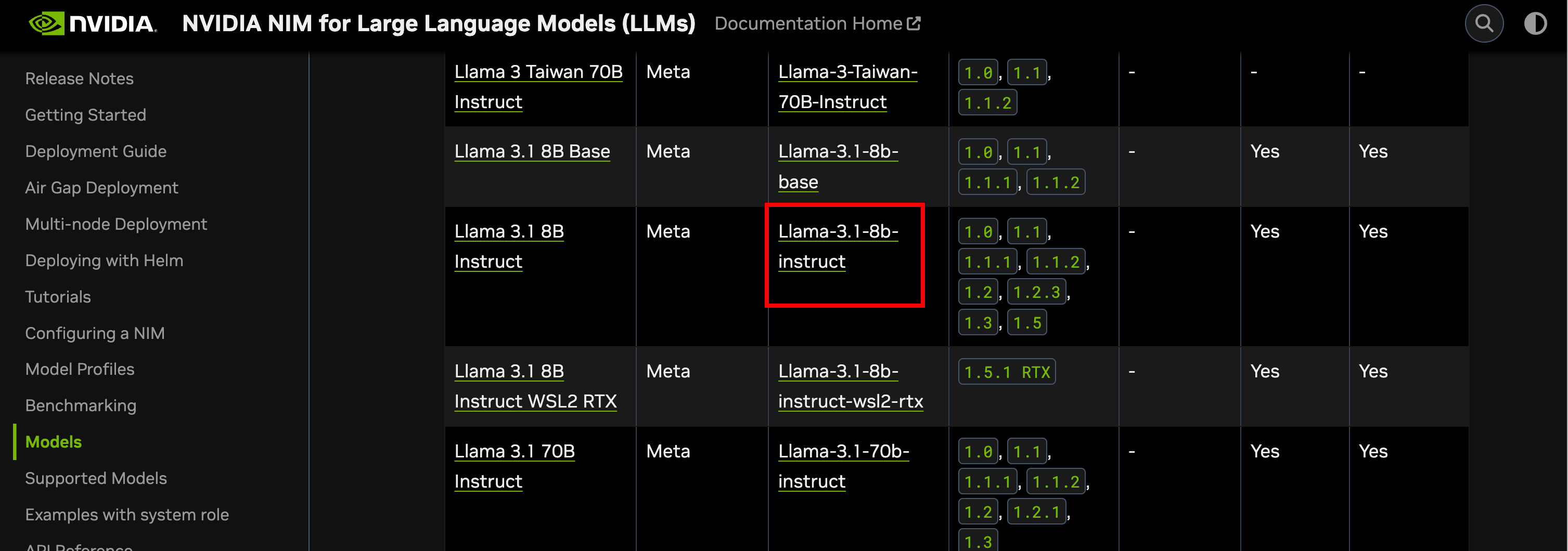
- We will pick the Llama 3.1 8B Instruct model as an example. From the list of models page, click the NGC Catalog link
-
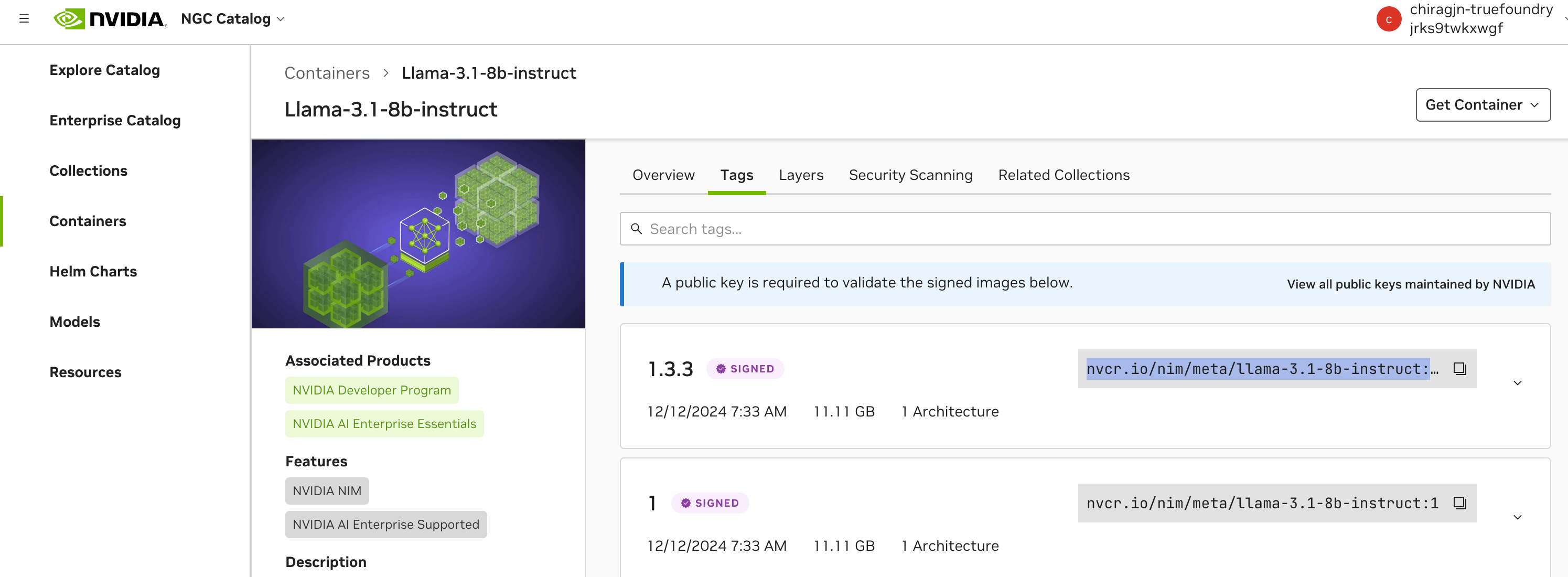
From the Container page, copy the image tag
-
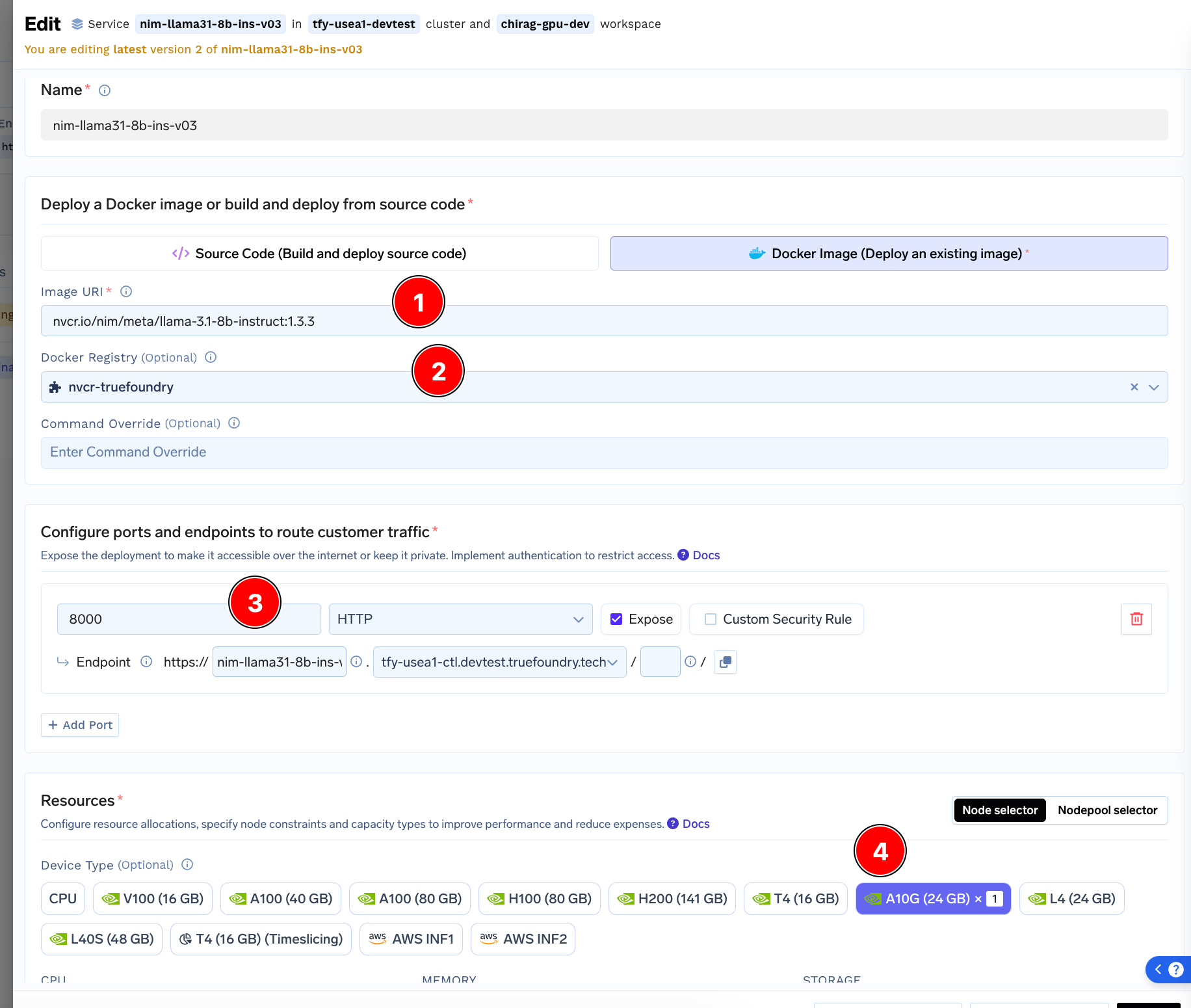
Next, Start a new Service deployment on TrueFoundry
- In the Image Section, add the Image URI we copied from NGC Page
- Select the nvcr Docker Registry we added earlier
- Enter
8000 for port
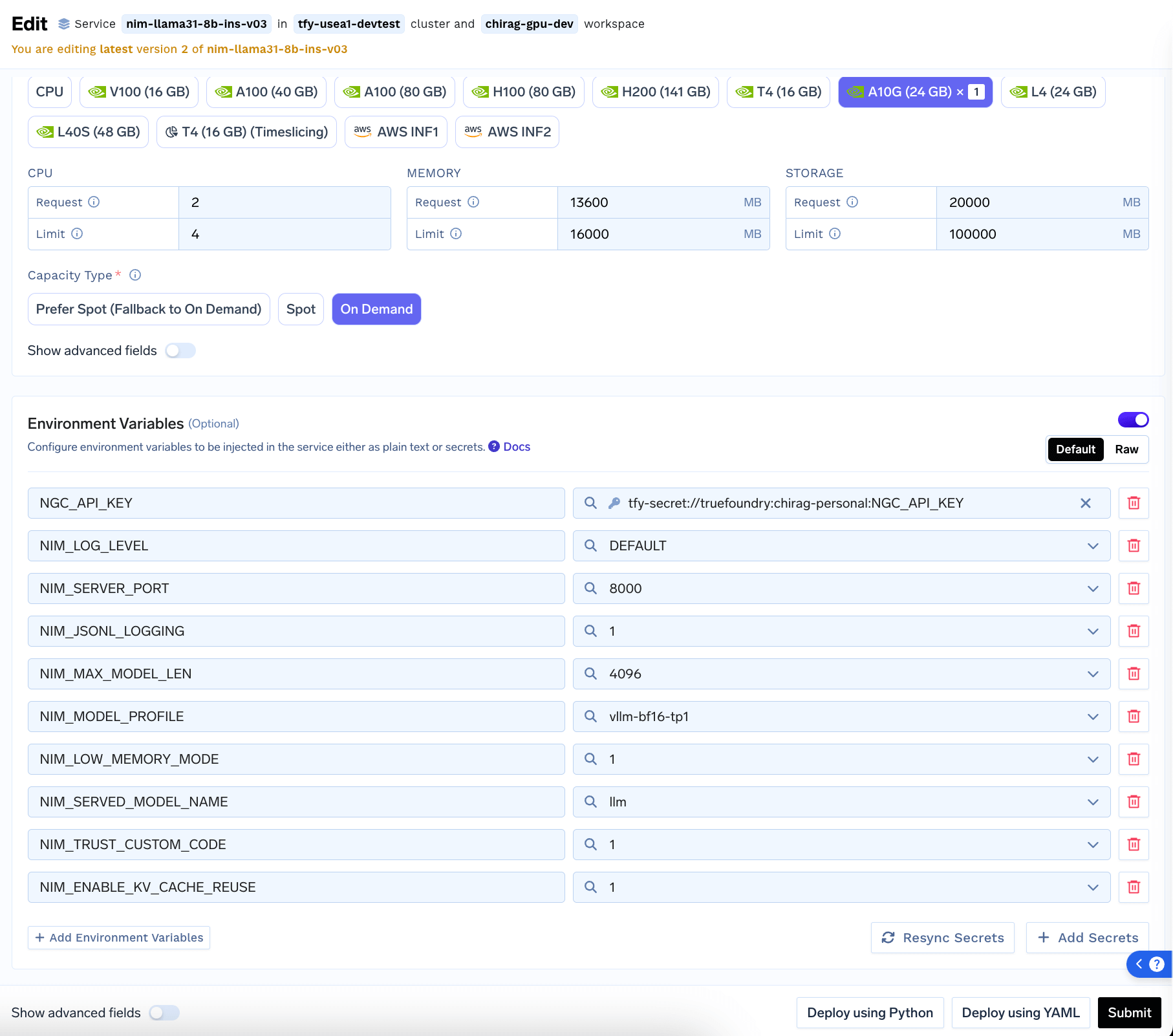
- Select a GPU
- Optionally add Environment Variables (See Configuring NIM docs page)
- Submit
Here is the full spec for reference for 2 x Nvidia T4
name: nim-llama31-8b-ins-v03
type: service
image:
type: image
image_uri: nvcr.io/nim/meta/llama-3.1-8b-instruct:1.3.3
docker_registry: tenant:custom:nvcr:docker-registry:nvcr-truefoundry
ports:
- host: <your-host>
port: 8000
expose: true
protocol: TCP
app_protocol: http
env:
NGC_API_KEY: tfy-secret://tenant:secret-group:NGC_API_KEY
NIM_LOG_LEVEL: DEFAULT
NIM_SERVER_PORT: '8000'
NIM_JSONL_LOGGING: '1'
NIM_MAX_MODEL_LEN: '4096'
NIM_MODEL_PROFILE: vllm-bf16-tp2
NIM_LOW_MEMORY_MODE: '1'
NIM_SERVED_MODEL_NAME: llm
NIM_TRUST_CUSTOM_CODE: '1'
NIM_ENABLE_KV_CACHE_REUSE: '1'
NIM_CACHE_PATH: /opt/nim/.cache
labels:
tfy_model_server: vLLM
tfy_openapi_path: openapi.json
tfy_sticky_session_header_name: x-truefoundry-sticky-session-id
replicas: 1
resources:
node:
type: node_selector
capacity_type: on_demand
devices:
- name: T4
type: nvidia_gpu
count: 2
cpu_limit: 8
cpu_request: 6
memory_limit: 32000
memory_request: 27200
shared_memory_size: 24000
ephemeral_storage_limit: 100000
ephemeral_storage_request: 20000
workspace_fqn: <your-workspace-fqn>
readiness_probe:
config:
path: /v1/health/ready
port: 8000
type: http
period_seconds: 10
timeout_seconds: 1
failure_threshold: 3
success_threshold: 1
initial_delay_seconds: 0
allow_interception: false
-
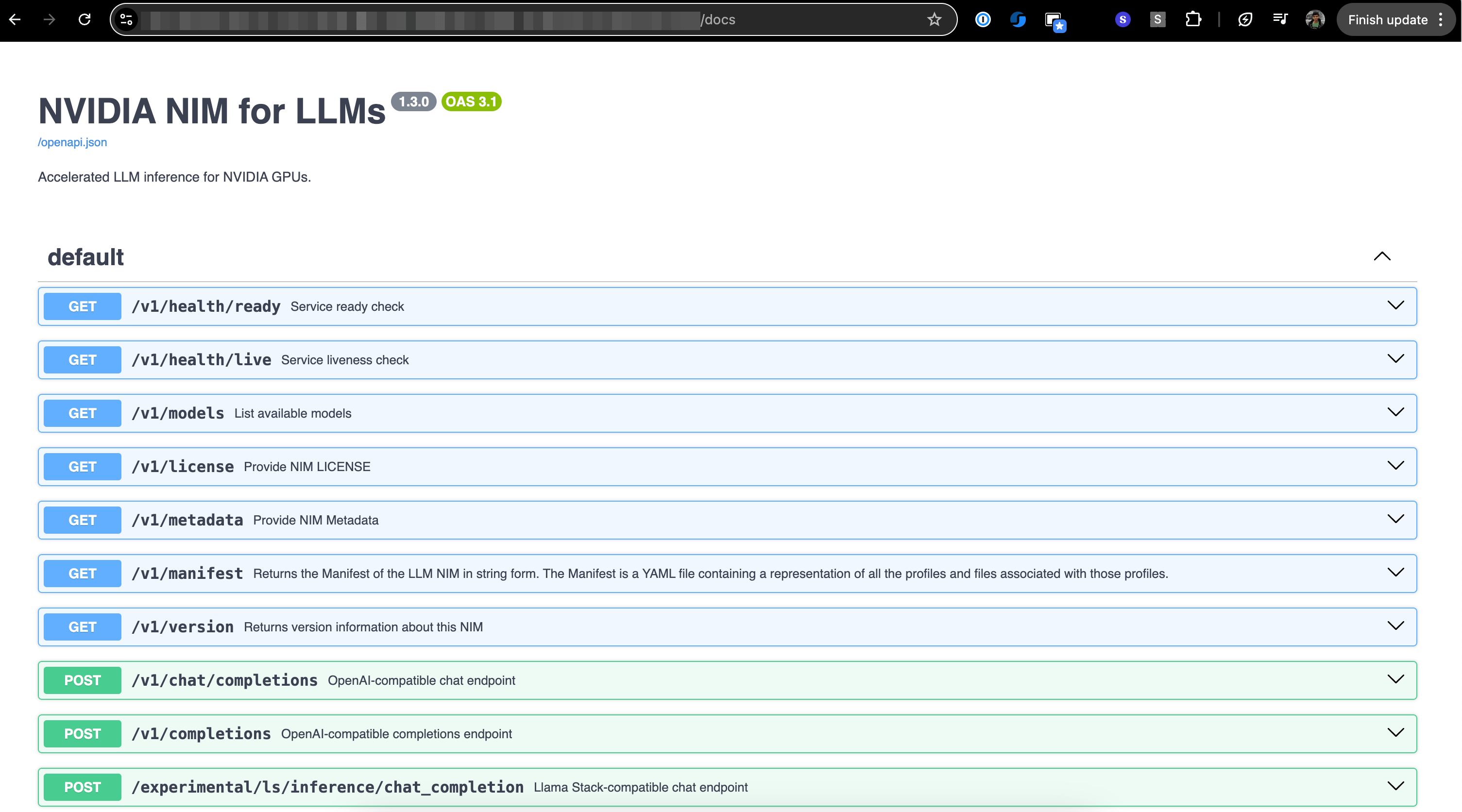
Once Deployed and ready, you can visit
/docs route on the endpoint to try it out\
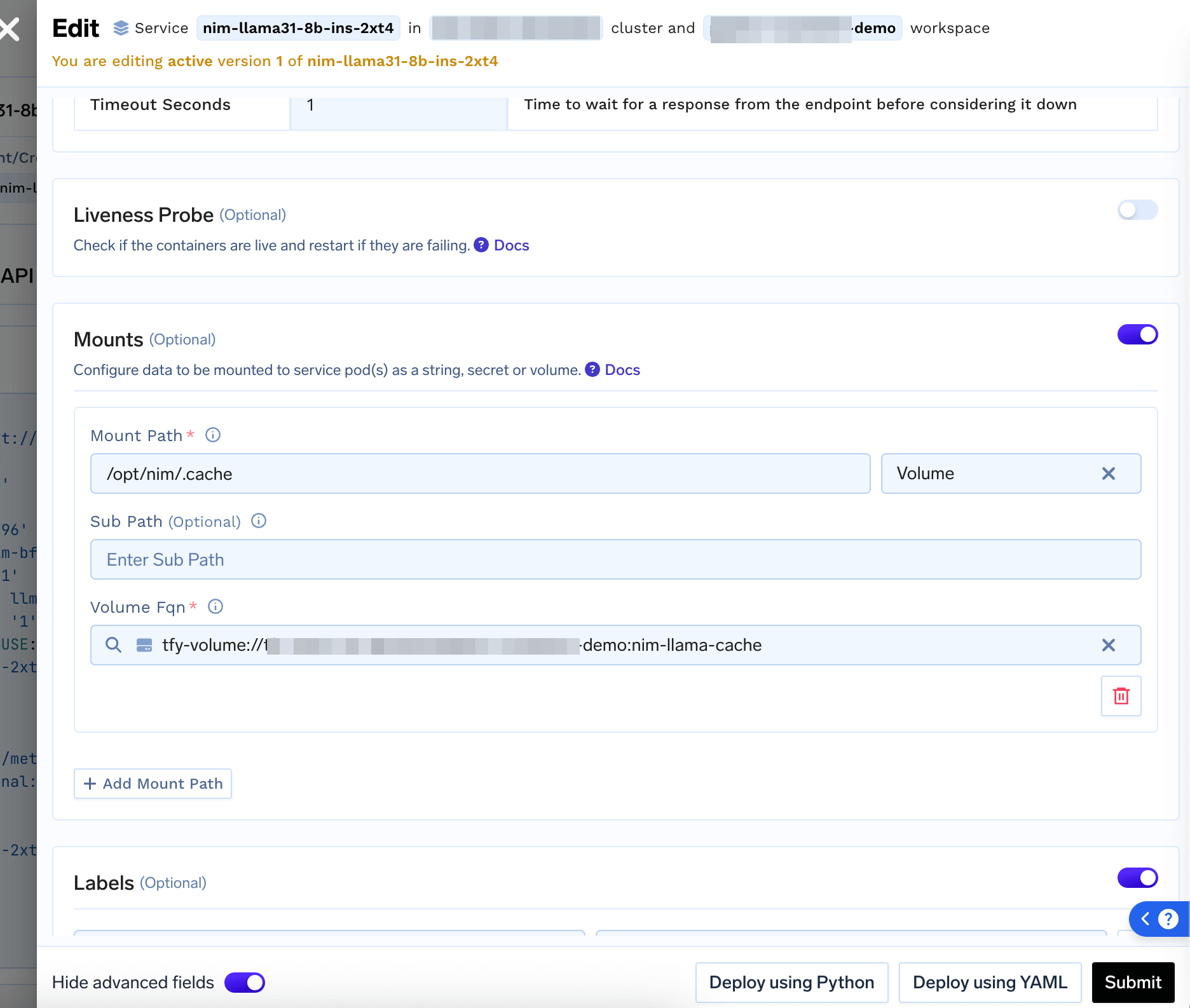
Model Caching using a Volume
To ensure fast startup , you can Create a Read Write Many Volume in the same workspace and mount the volume at /opt/nim/.cache (the value of NIM_CACHE_PATH environment variable) to cache the model weights.