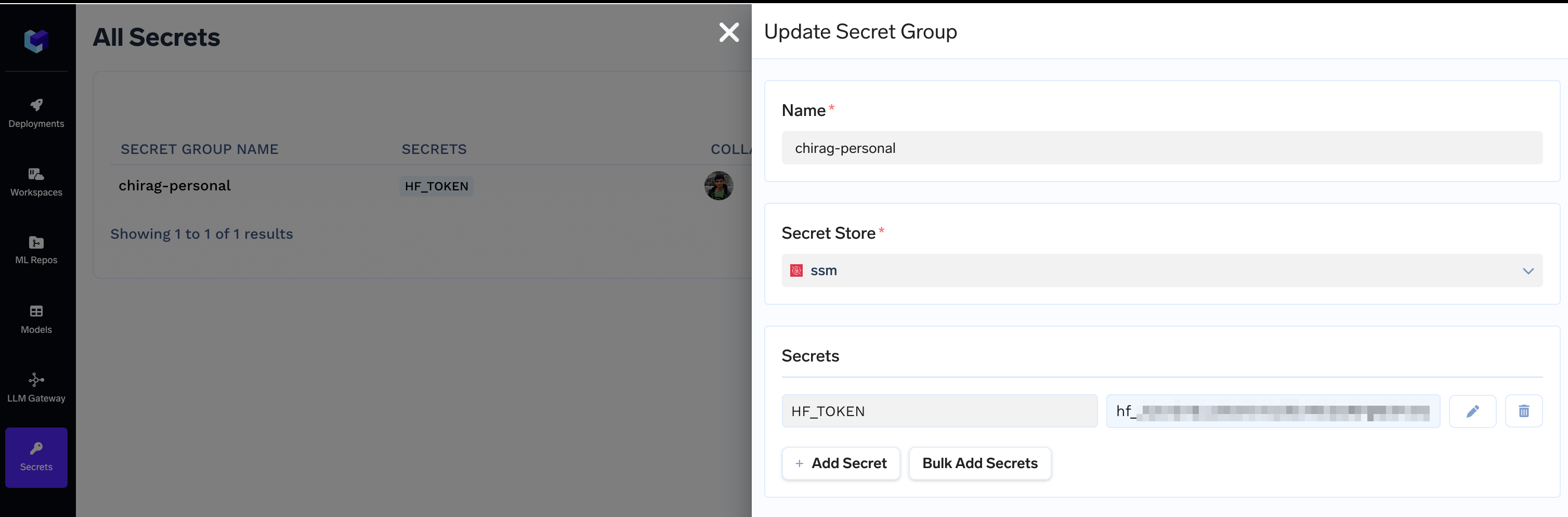
1. Add your Huggingface Token as a Secret
Since we are going to deploy the official Llama 3.1 8B Instruct model, we’d need a Huggingface Token that has access to the model. Visit the model page and fill the access form. You’d get access to the model in 10-15 mins.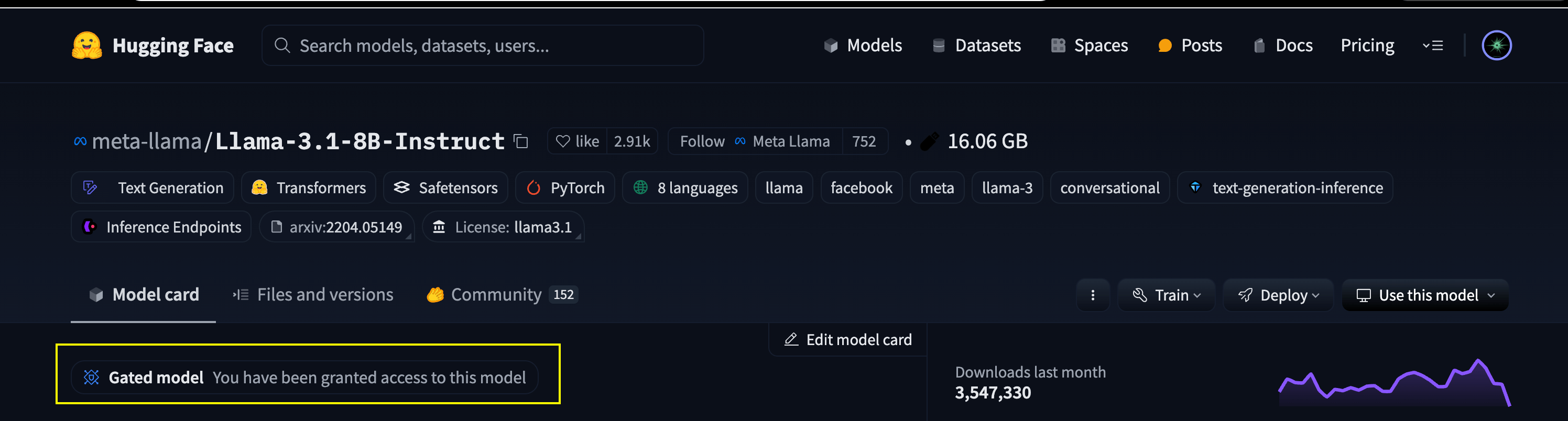
2. Create a ML Repo and a Workspace with access to ML Repo
Follow the docs at Creating a ML Repo to create a ML Repo backed by your Storage Integration. We will use this to store and version TRT-LLM engines.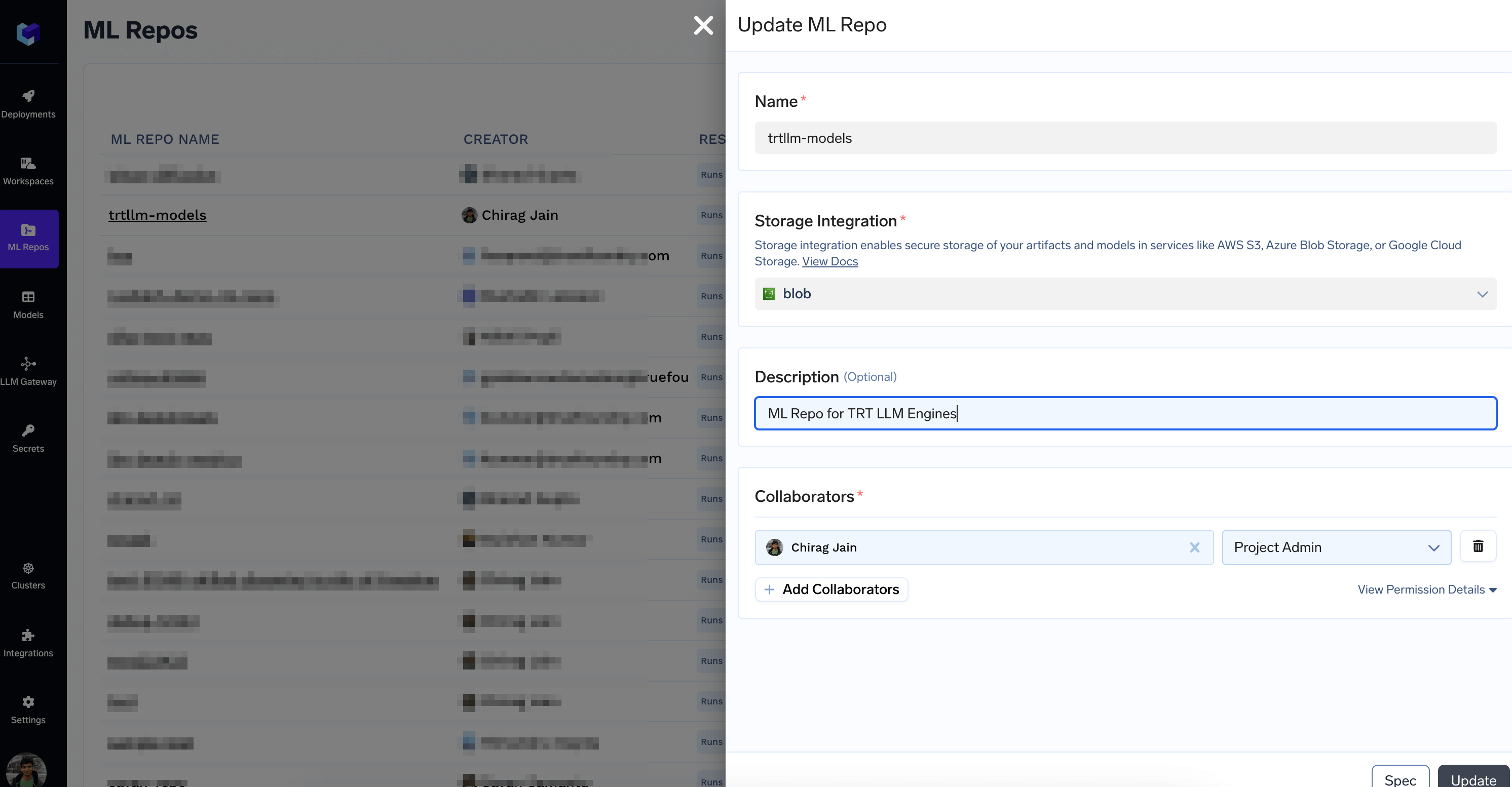
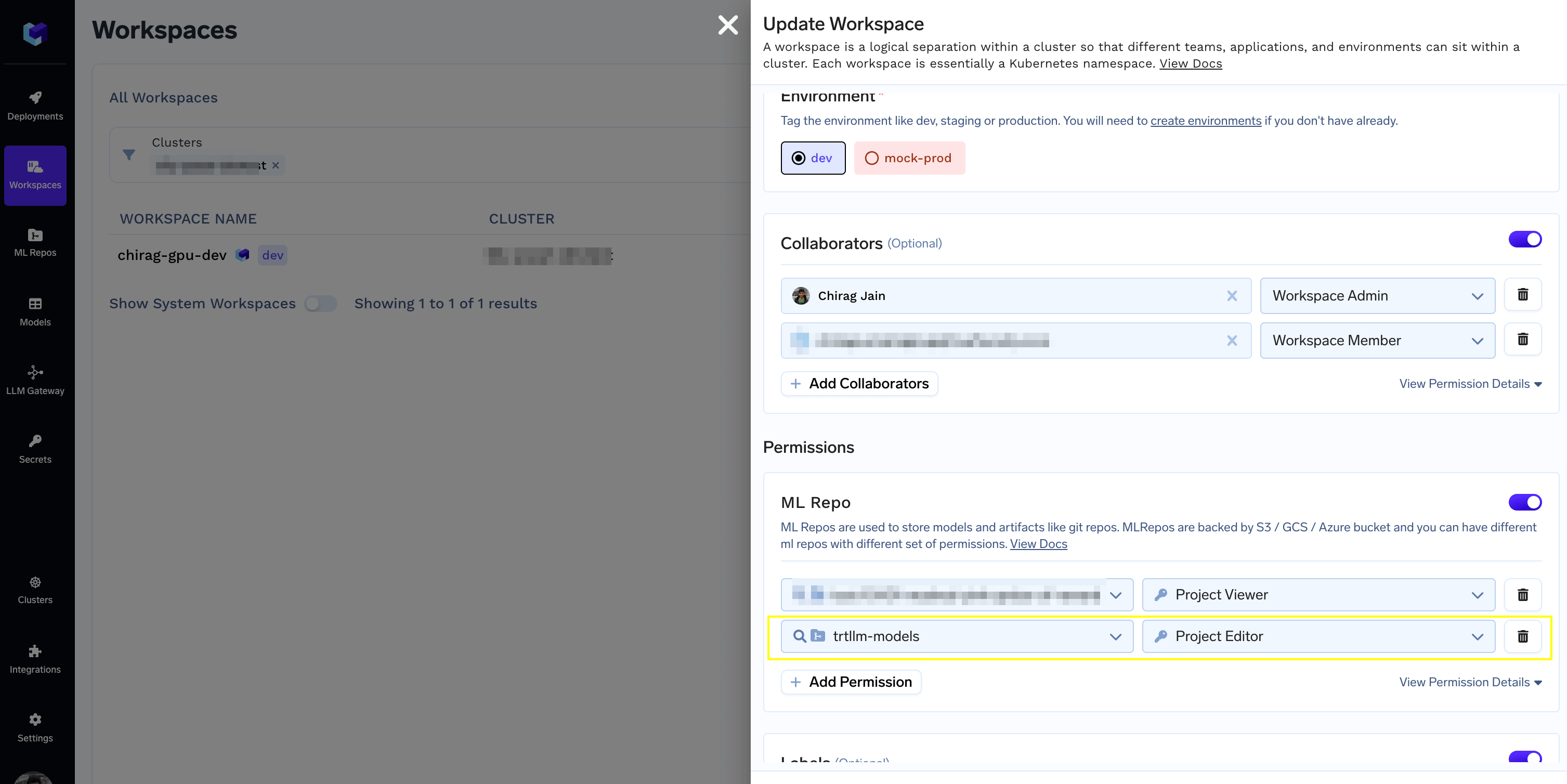
3. Deploy the Engine Builder Job
- Save the following YAML in a file called
builder.truefoundry.yaml
- Replace
YOUR-HF-TOKEN-SECRET-FQNwith the Secret FQN we created at the beginning. E.g.
- Generating correct
resourcessection your configuration.
Resources section and select the GPU type and Count and click on the Spec button
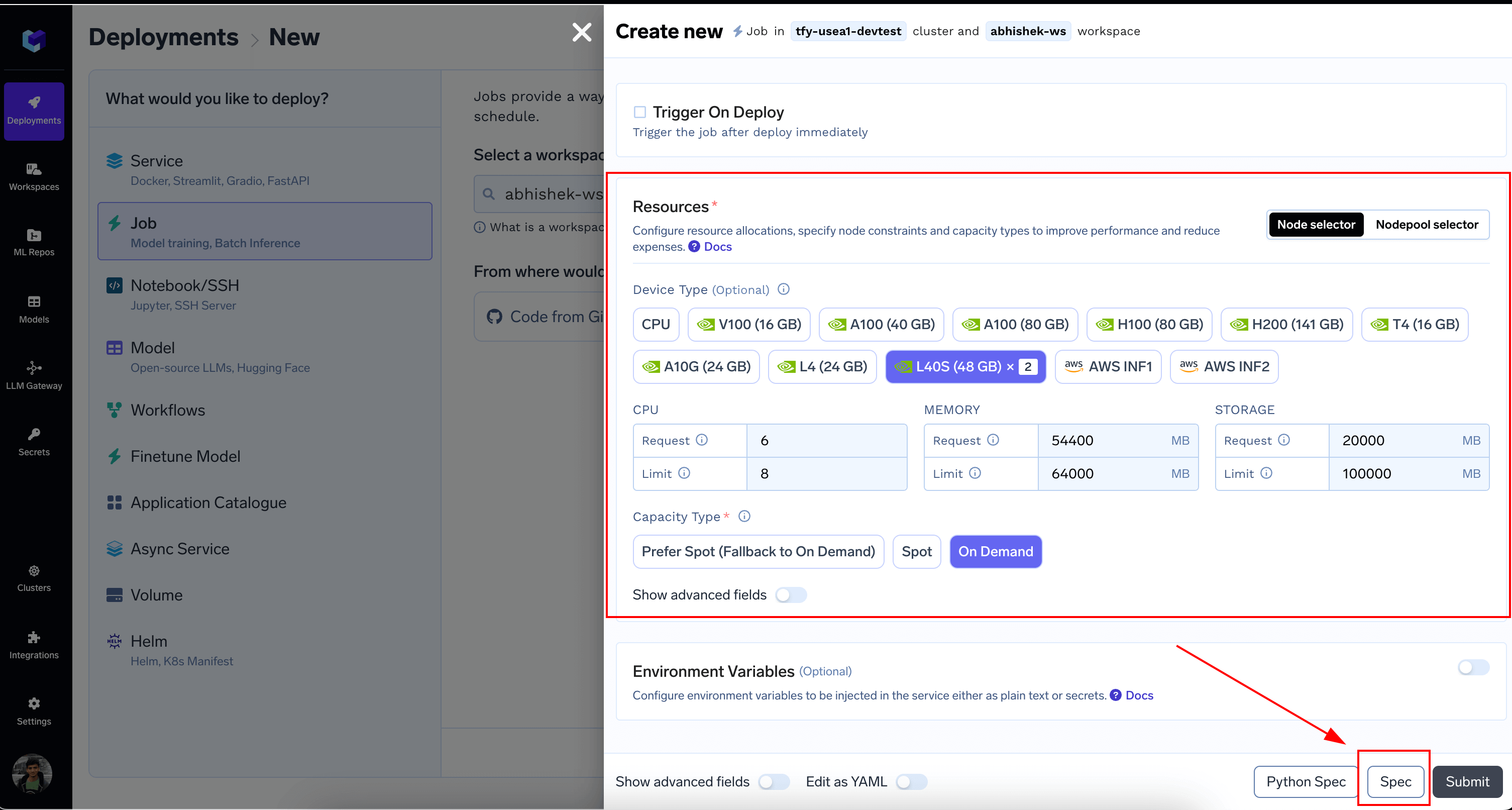
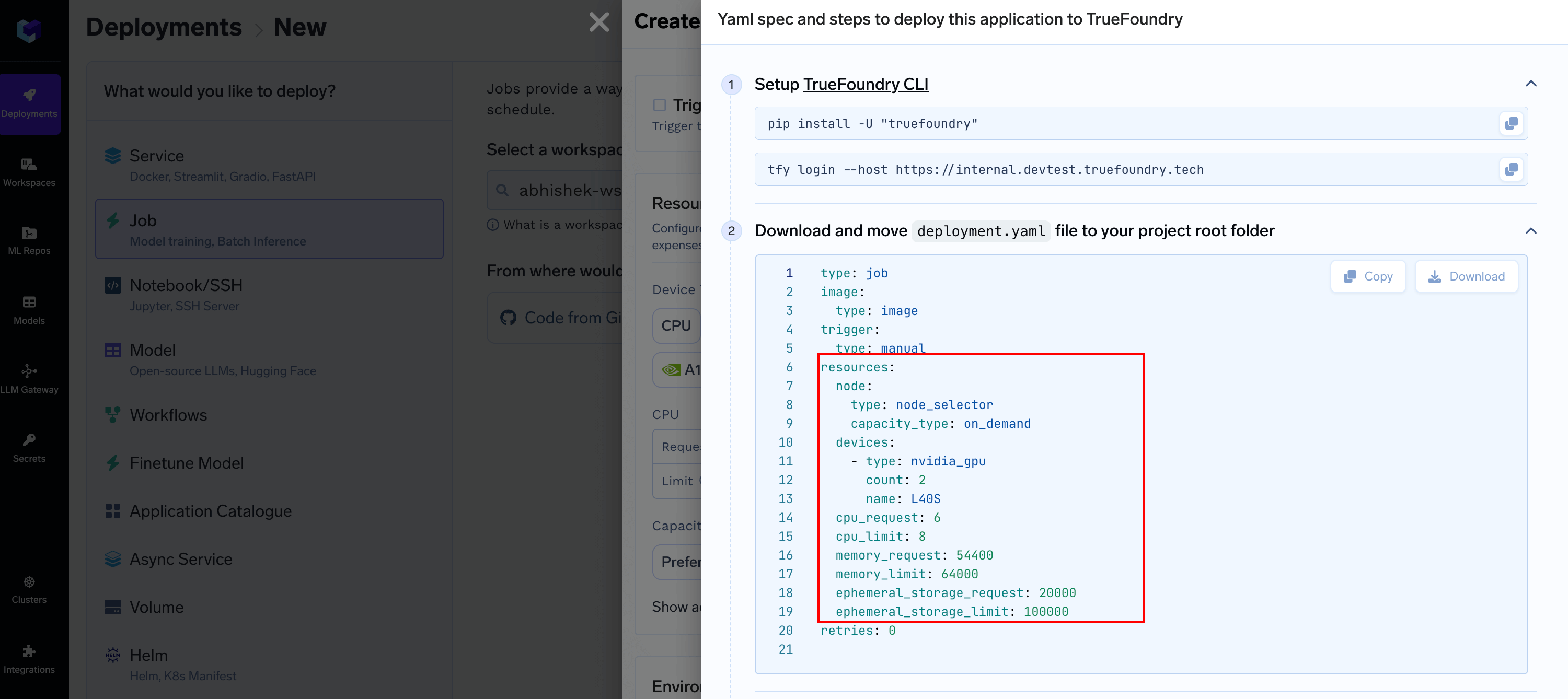
resources section and replace it in builder.truefoundry.yaml
- After Setting up CLI, deploy the job by mentioning the Workspace FQN
- Once the Job is deployed, Trigger it

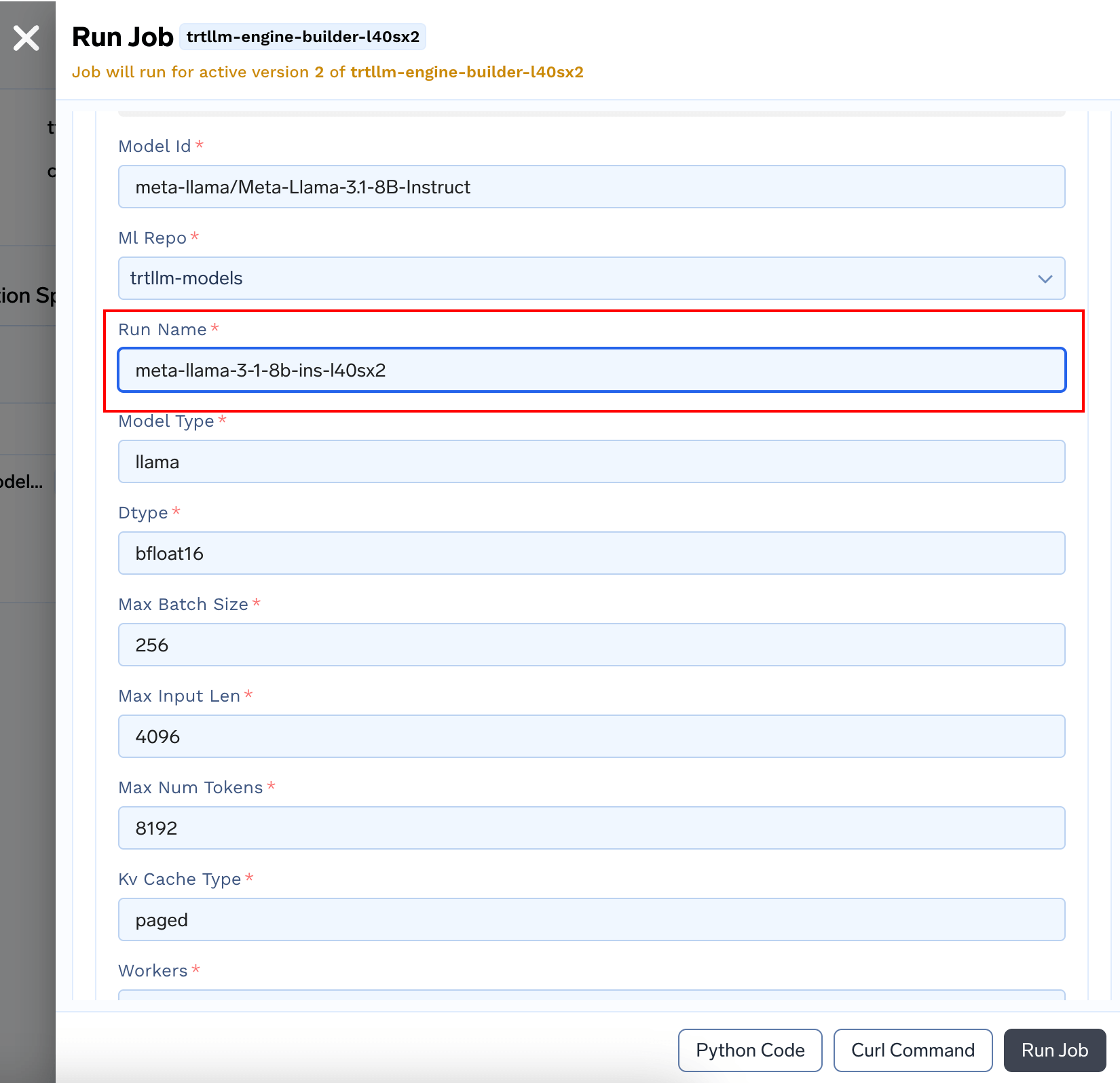
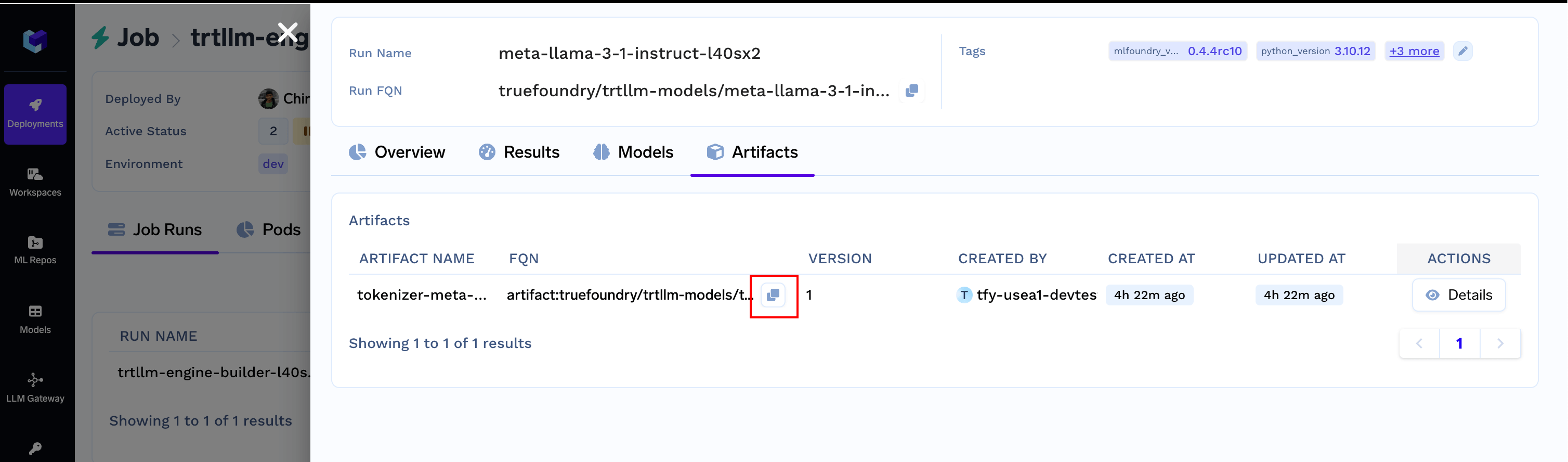
- When the run finishes, you’d have the
tokenizerandengineready to use under the Run Details section
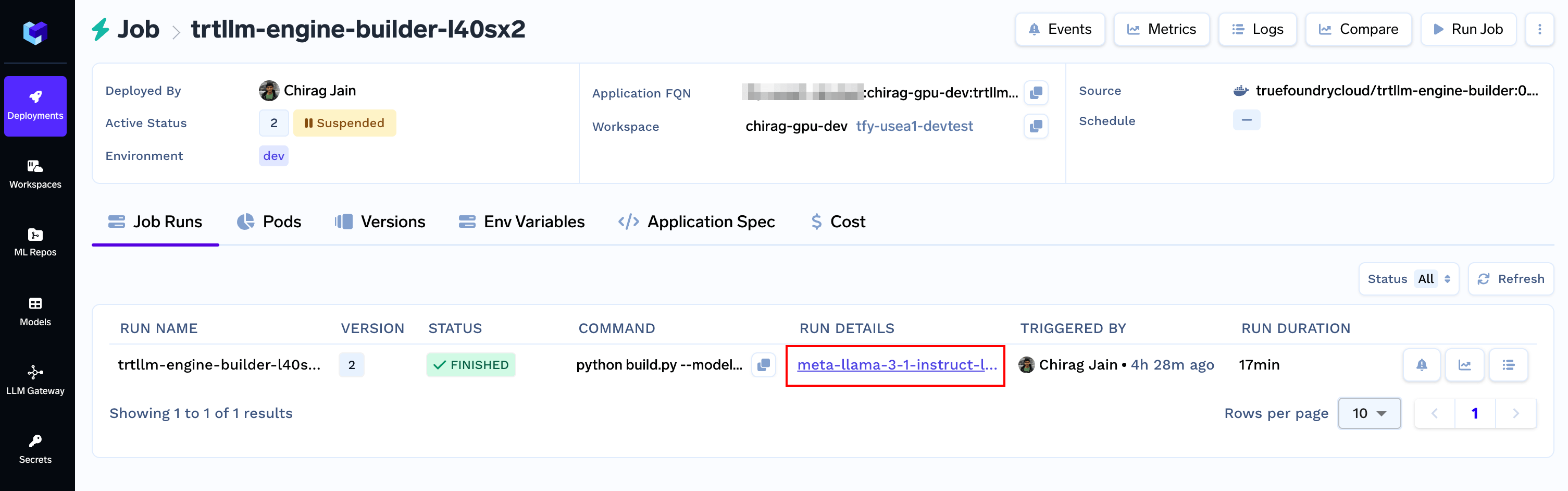
Models section. Copy the FQN and keep it handy.
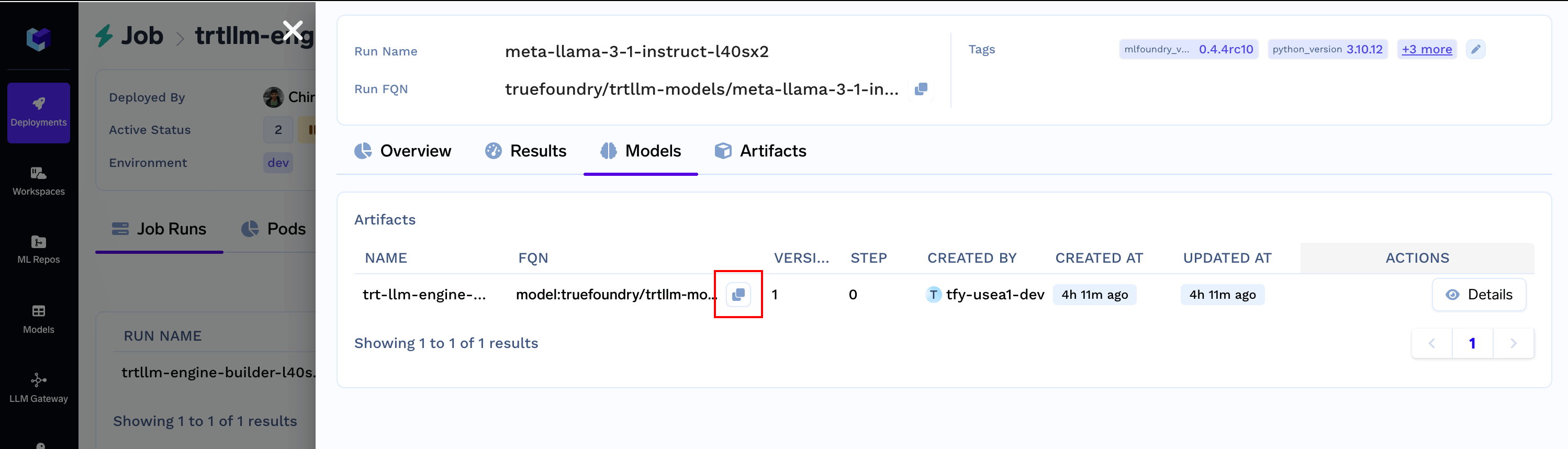
Artifacts section. Copy the FQN and keep it handy.
4. Deploy with Nvidia Triton Server
Finally, let’s deploy the engine using Nvidia Triton Server as a TrueFoundry Service. Here is the spec in full:- Adjust the
resourcessection like we did for the builder Job
- In
artifacts_download, you’d need to changeartifact_version_fqnto the tokenizer and engine obtained at the end of the Job Run from previous section - Deploy the Service by mentioning the Workspace FQN
-
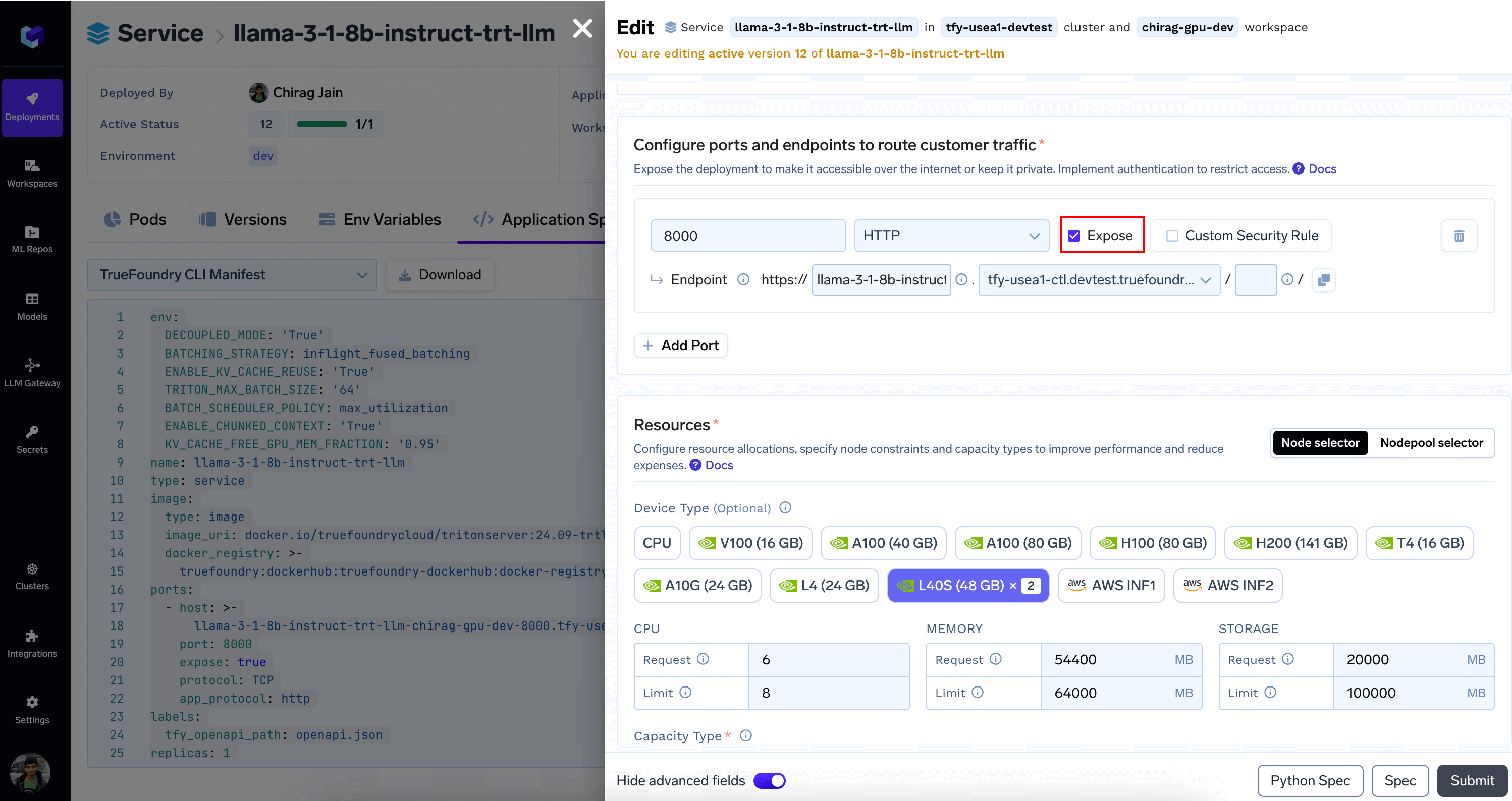
Once deployed, we’ll make some final adjustments by editing the Service
- From
Portssection EnableExposeand configure Endpoint as needed
- (Optional) Configure Download Models and Artifacts to prevent re-downloads
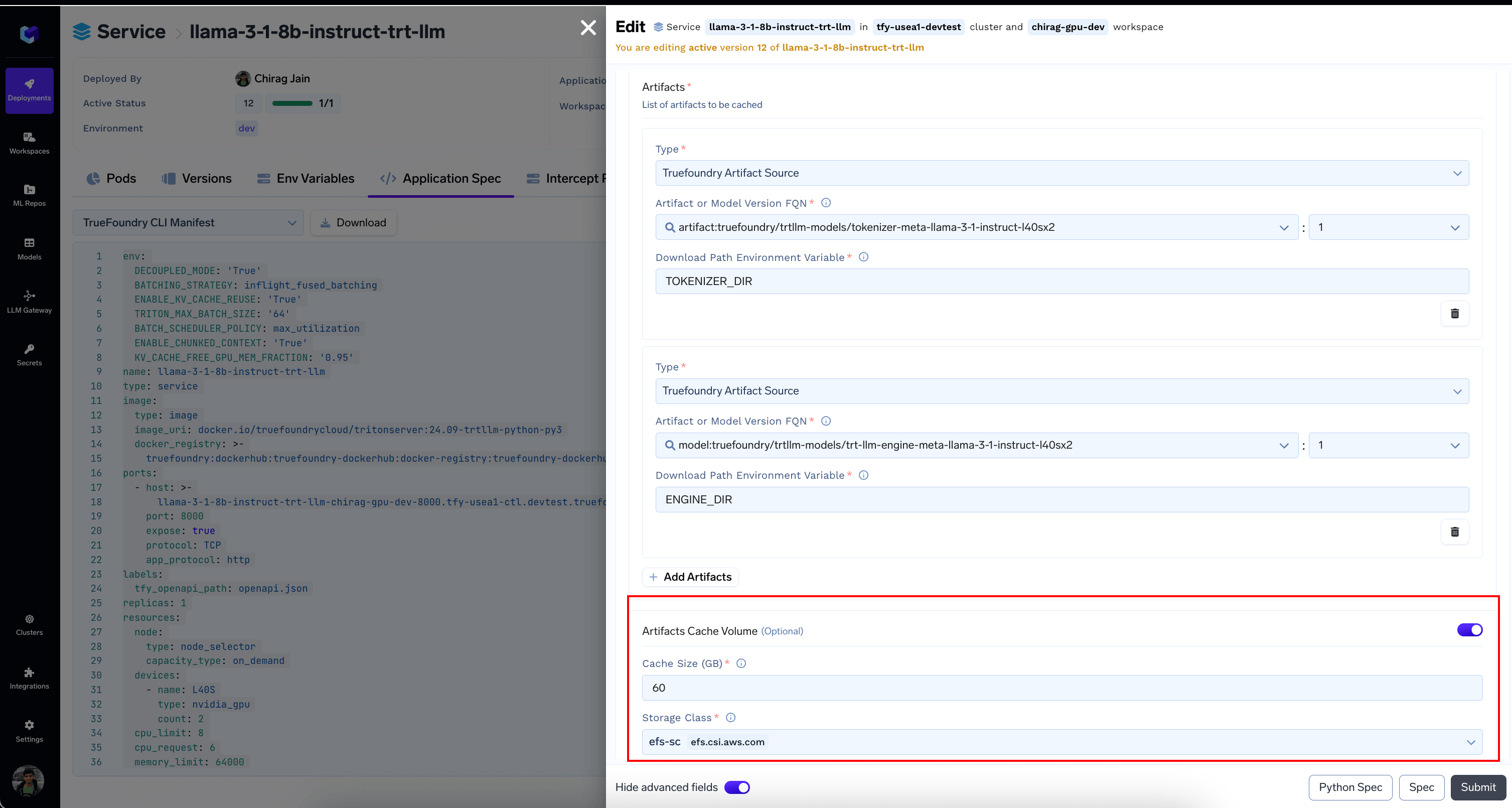
- From
5. Run Inferences
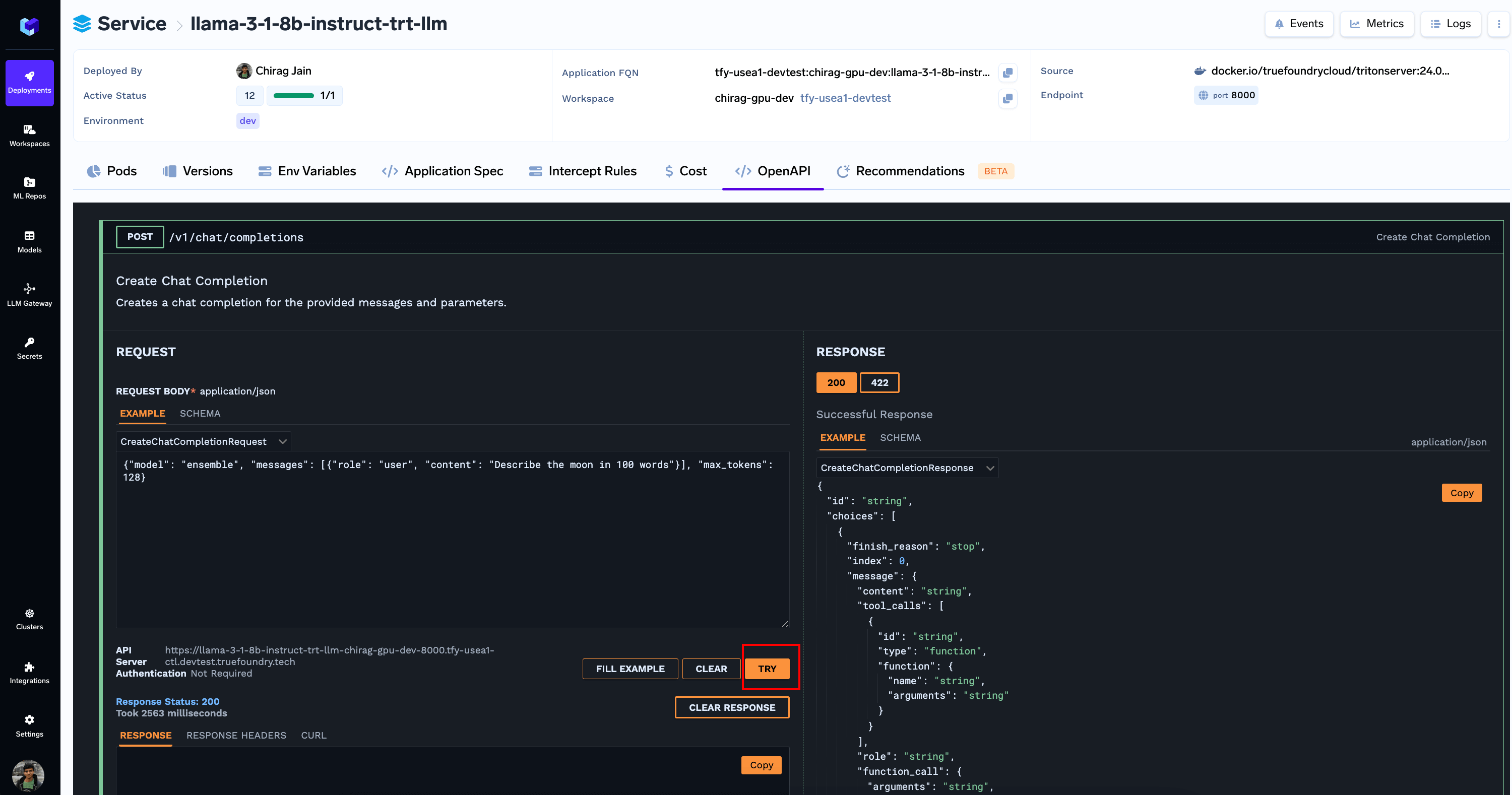
You can now send a payload like follows to/v1/chat/completions Endpoint via the OpenAPI tab