

1
Create a tracing project
- Navigate to your Tracing.
- Click
New Tracing Projectsand enter the project name, collaborators - Click Submit.
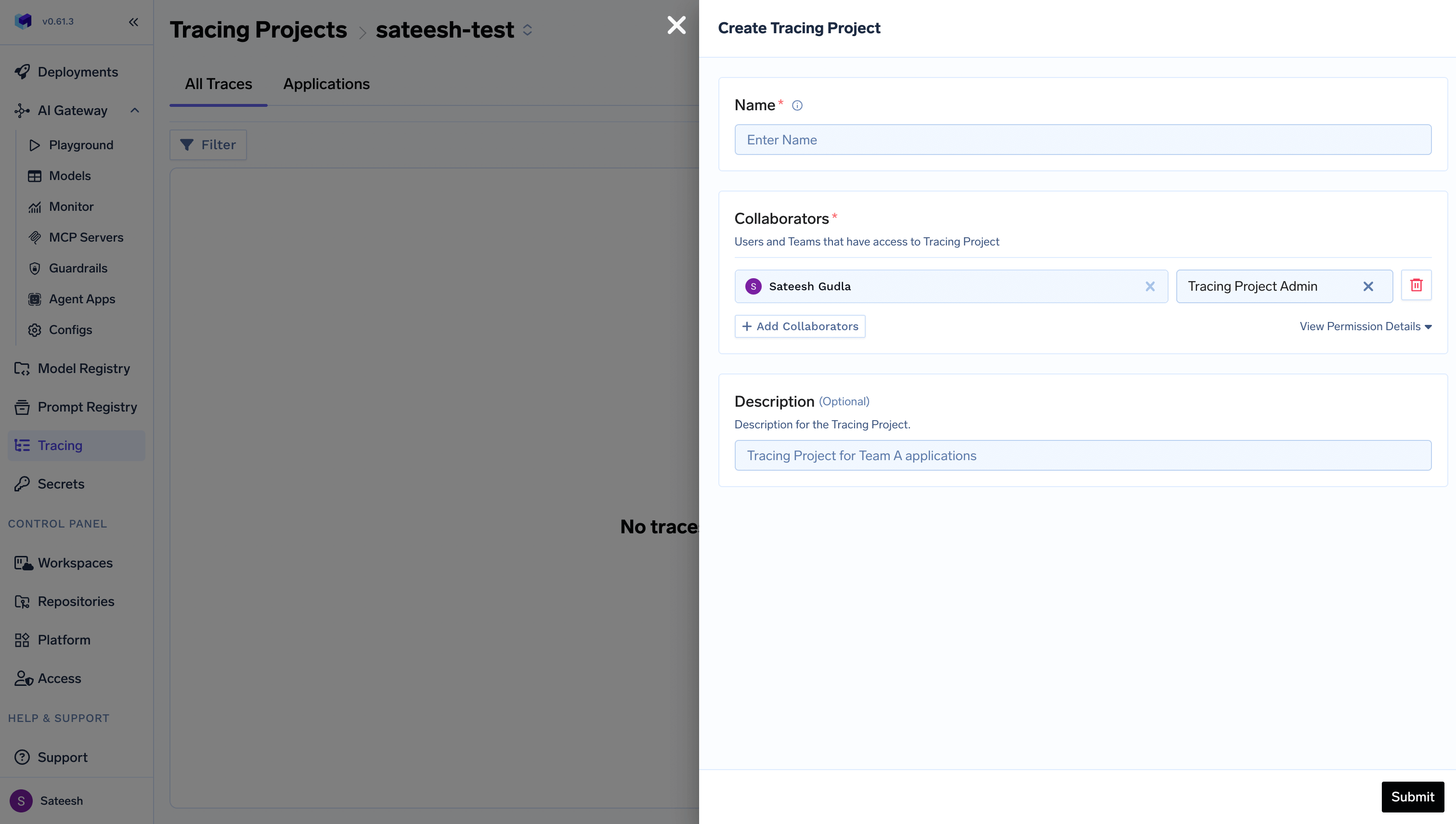
Creating tracing projects
2
Create a tracing application
- Select the Tracing project created in the previous steps
- Navigate to
Applications - Click
New Tracing Applicationsand enter the application name - Click Submit.
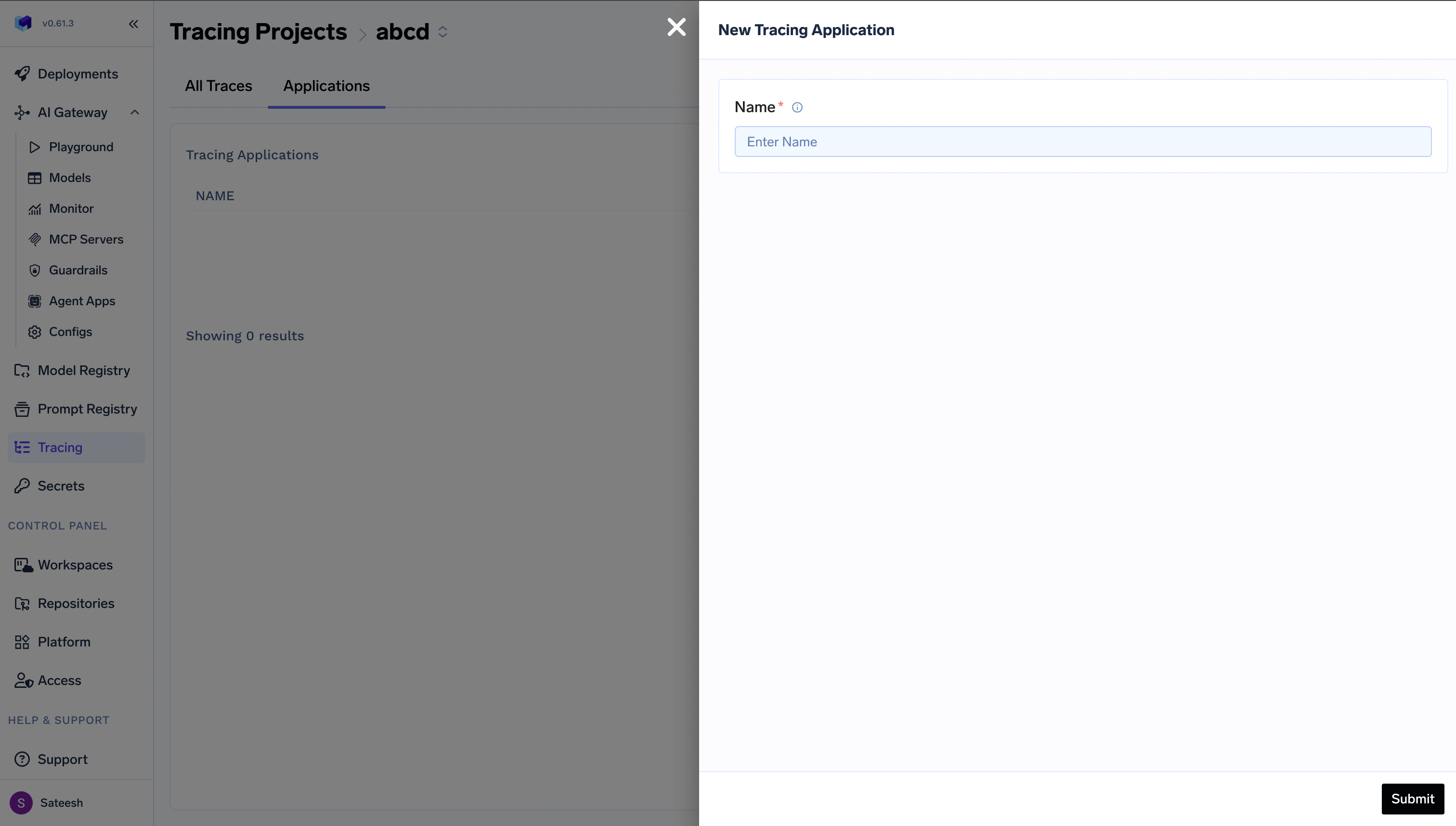
Creating tracing projects
3
Generate API Key
Generate API key following the steps here. Please save the value since we will need this in a later step.You can also use a Virtual Account token with access to the Tracing Project, in case you don’t want to use your personal token.
4
Install Traceloop SDK
Install Traceloop SDK using pip:
5
Add the initialization code to your application
Add this initialization code your codeAfter adding the code snippet to your application, it should look something like this:
Set environment variables for
TFY_API_KEY as the API key you generated in step 2. 6
Run your application and view logged trace
Run your application and you should see traces on the TrueFoundry UI.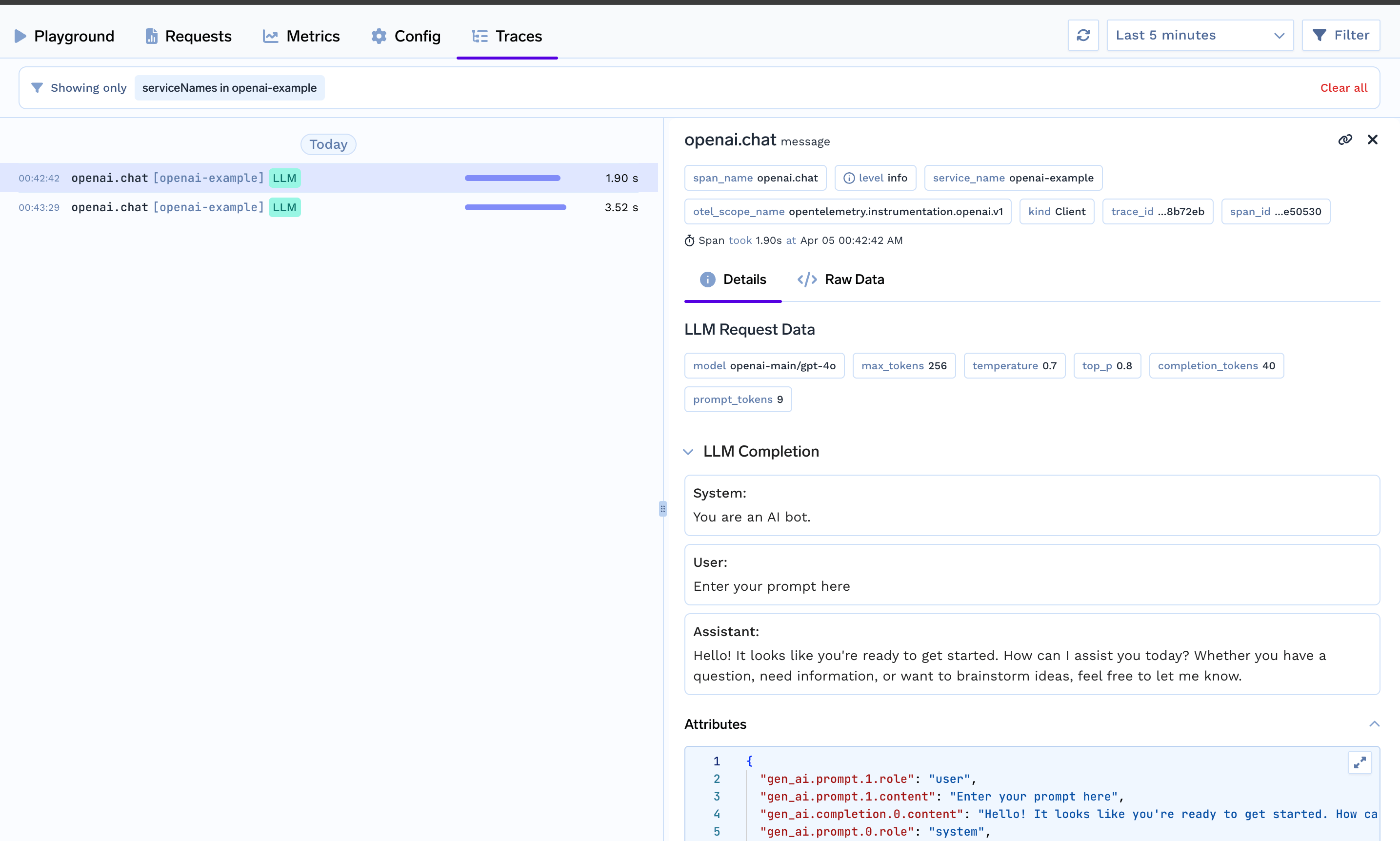
Add Tracing to your code based on framework
Langgraph
CrewAI
Agno
Google ADK
OpenAI
FastAPI
Flask
Advanced Configuration
Tracing Sampling
For production environments with high traffic, you may want to configure tracing sampling to reduce costs and improve performance. Learn more about Tracing Sampling to understand how to implement sampling strategies.Annotate your Workflows, Agents and Tools
For complex workflows or chains, annotating them can help you gain better insights into their operations. With TrueFoundry, you can view the entire trace of your workflow for a comprehensive understanding. Traceloop offers a set of decorators to simplify this process. For instance, if you have a function that renders a prompt and calls an LLM, you can easily add the@workflow decorator to track and annotate the workflow. Let’s say your workflow calls more functions you can annotate them as @task
@agent decorator to trace the agent as a single unit. Additionally, each individual tool within the agent should be annotated with the @tool decorator.