> ## Documentation Index
> Fetch the complete documentation index at: https://www.truefoundry.com/llms.txt
> Use this file to discover all available pages before exploring further.
# Creating A Spark Task
> Learn how to run PySpark jobs as tasks in a TrueFoundry workflow, configure Spark resources, and monitor runs with the Spark UI.
A Spark task runs your Python code inside a PySpark context. You use the same `@task` decorator as other workflow tasks, but pass **`task_config=PySparkTaskConfig(...)`** so the task is executed as a Spark job. The task gets a **SparkSession** from the execution context (e.g. `flytekit.current_context().spark_session`), which you use for all Spark operations.
Install the TrueFoundry workflow SDK with Spark support. This adds the `workflow` and `spark` extras so you can use `PySparkTaskConfig` and run Spark tasks.
```bash theme={"dark"}
pip install -U "truefoundry[workflow,spark]"
```
`truefoundry[workflow,spark]` package is only available on Python ≥ 3.9, ≤ 3.12
### Example
Use `truefoundry[workflow,spark]` in **all** task images in this file (including non-Spark tasks in the example below). When Flyte loads the module for any task, it imports the whole file, so `PySparkTaskConfig` and Spark tasks must be importable; the `[workflow,spark]` extra pulls in pyspark. Non-Spark tasks still need it in their image so the module loads correctly.
```python Python highlight={67} lines theme={"dark"}
import datetime
import random
from operator import add
from truefoundry.deploy.v2.lib.patched_models import (
Resources,
SparkDriverConfig,
SparkExecutorConfig,
SparkExecutorFixedInstances,
TaskPySparkBuild,
)
from truefoundry.workflow import PySparkTaskConfig, task, workflow, PythonTaskConfig, TaskPythonBuild
@task(
task_config=PySparkTaskConfig(
image=TaskPySparkBuild(
pip_packages=[
"truefoundry[workflow,spark]",
"setuptools"
],
# Optional: specify a custom Spark base image instead of the default (public.ecr.aws/bitnami/spark)
# container_image="your-registry.example.com/custom-spark:3.5.2",
),
driver_config=SparkDriverConfig(
resources=Resources(
cpu_request=1.0,
cpu_limit=2.0,
memory_request=2048,
memory_limit=2048,
ephemeral_storage_request=2000,
ephemeral_storage_limit=4000,
)
),
# Executor configuration (required)
executor_config=SparkExecutorConfig(
instances=SparkExecutorFixedInstances(count=10),
resources=Resources(
cpu_request=1.0,
cpu_limit=1.0,
memory_request=1024,
memory_limit=1024,
ephemeral_storage_request=1000,
ephemeral_storage_limit=2000,
),
),
spark_conf={
"spark.sql.adaptive.enabled": "true",
"spark.sql.adaptive.coalescePartitions.enabled": "true",
"spark.ui.enabled": "true",
"spark.ui.proxyRedirectUri": "/",
},
# Replace with your k8s Service Account
service_account="k8s-service-account",
), retries=3
)
def hello_spark(partitions: int) -> float:
# generate a random number between 0 and 1
import flytekit
# Define map function inside task to avoid serialization issues when Flyte loads the task
def _monte_carlo_point(_):
x = random.random() * 2 - 1
y = random.random() * 2 - 1
return 1 if x**2 + y**2 <= 1 else 0
print("Starting Spark with Partitions: {}".format(partitions))
n = 1 * partitions
sess = flytekit.current_context().spark_session
count = (
sess.sparkContext.parallelize(range(1, n + 1), partitions)
.map(_monte_carlo_point)
.reduce(add)
)
pi_val = 4.0 * count / n
return pi_val
@task(
task_config=PythonTaskConfig(
image=TaskPythonBuild(
python_version="3.9",
pip_packages=["truefoundry[workflow,spark]"],
),
resources=Resources(cpu_request=0.5),
),
)
def print_every_time(value_to_print: float, date_triggered: datetime.datetime) -> int:
print("My printed value: {} @ {}".format(value_to_print, date_triggered))
return 1
# Finally, define a workflow that connects your tasks in a sequence.
# Remember, Spark and non-Spark tasks can be chained together as long as their parameter specifications match.
@workflow()
def my_spark(
triggered_date: datetime.datetime = datetime.datetime(2020, 9, 11),
):
"""
Using the workflow is still as any other workflow. As image is a property of the task, the workflow does not care
about how the image is configured.
"""
# task1 → task2 → task3 (sequential via data dependencies)
pi = hello_spark(partitions=10000)
print_every_time(value_to_print=pi, date_triggered=triggered_date)
```
The plugin provides the **SparkSession** before the task body runs. Obtain it in your task with `flytekit.current_context().spark_session`.
### Viewing Spark UI
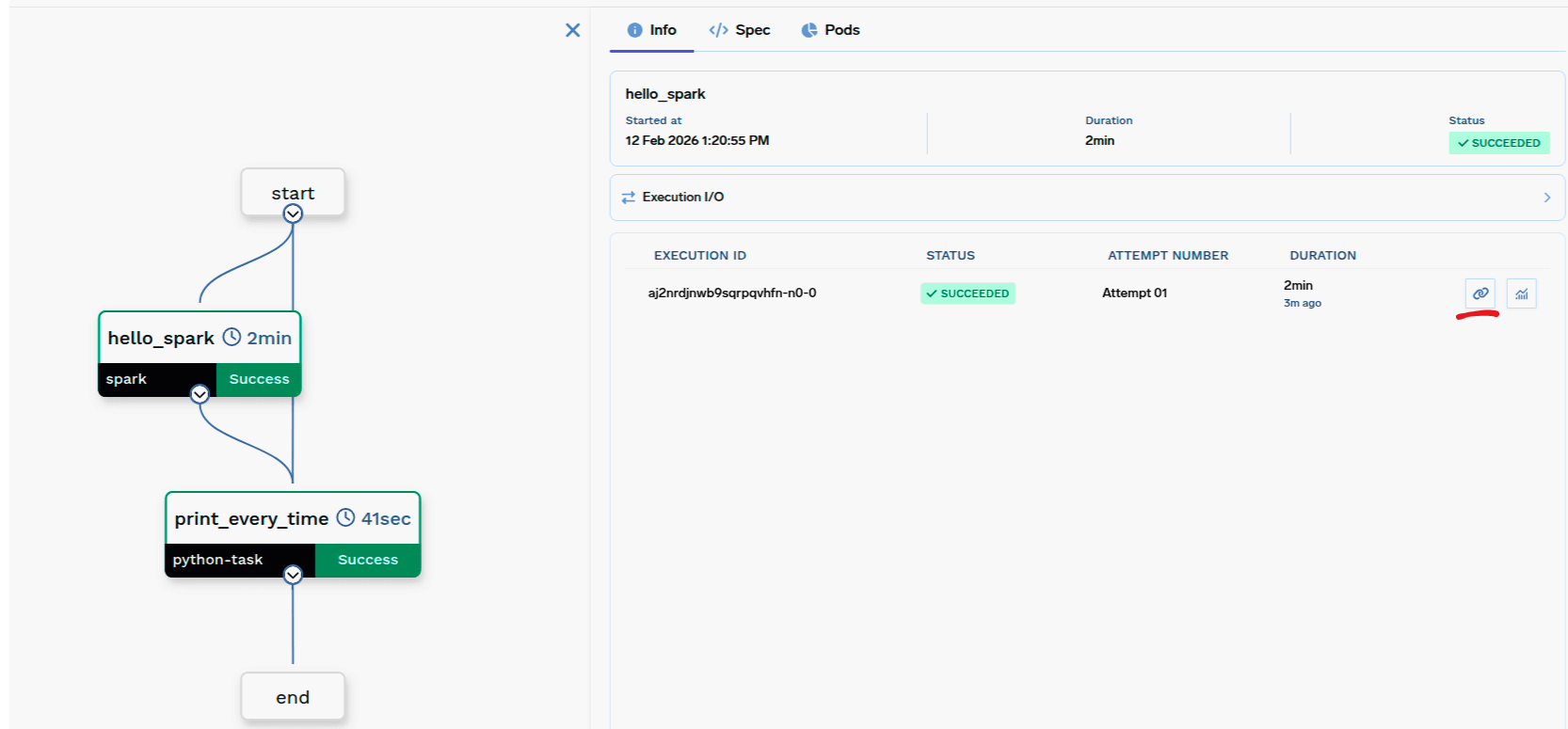
From the workflow run you can open the Spark UI to monitor your Spark job. The workflow UI shows a button to open the Spark UI:
 Clicking it opens the Spark UI:
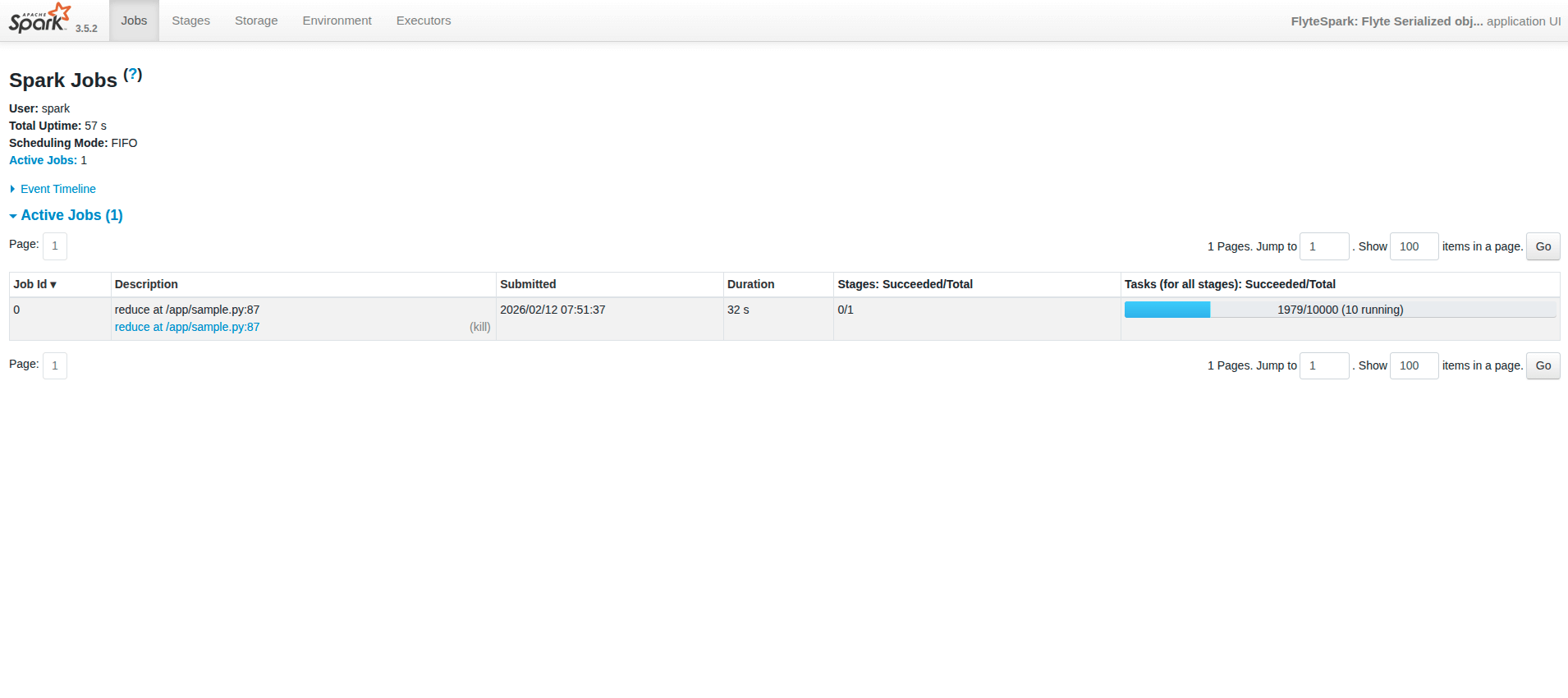 * **Spark UI may take up to \~1 minute to become live** while the Spark UI page is setting up.
* Once a job is done, the **history server** is enabled, so you can view past jobs.
* If the UI shows "not found", try opening it again by clicking the Spark UI button from the workflow UI.
### PySparkTaskConfig
Spark version and optional build options (e.g. `spark_version`, `pip_packages`, `requirements_path`).
Driver resources (e.g. `resources`).
Executor config with **`instances`**: `SparkExecutorFixedInstances` (e.g. `count=2`) or `SparkExecutorDynamicScaling` (e.g. `min=1`, `max=10`), and optional **`resources`** for executors.
Extra Spark config (e.g. `{"spark.sql.shuffle.partitions": "200"}`).
Environment variables (plain or secret refs).
Volume mounts for the task.
Kubernetes service account name to use. The service account should have the required permissions (e.g. AWS S3 read/write).
### TaskPySparkBuild (for `image`)
Spark version (default `"3.5.2"`). Should match the Spark version installed in the image.
Custom container image URI. If provided, this image is used instead of the default Spark base image (`public.ecr.aws/bitnami/spark`). The image must be Debian-based and have Python and Spark pre-installed.
FQN of the container registry. If you can't find your registry here, add it through the [Integrations](/docs/integrations-overview) page.
Path to `requirements.txt` relative to the path to build context.
Pip package requirements (e.g. `["fastapi>=0.90,<1.0", "uvicorn"]`).
Debian packages to install via `apt-get` (e.g. `["git", "ffmpeg", "htop"]`).
### Checklist
* Use **`@task(task_config=PySparkTaskConfig(...))`** with **`image`**, **`driver_config`**, and **`executor_config`**.
* **`image`** is **`TaskPySparkBuild`** (includes `spark_version`).
* **`driver_config`** = **`SparkDriverConfig`**; **`executor_config`** = **`SparkExecutorConfig`** (with **`instances`** = fixed or dynamic).
* Task code gets the **SparkSession** via `flytekit.current_context().spark_session`.
* Register the task in a **`@workflow`** and call it like any other task (e.g. `hello_spark(partitions=4)`).
***
* **Spark UI may take up to \~1 minute to become live** while the Spark UI page is setting up.
* Once a job is done, the **history server** is enabled, so you can view past jobs.
* If the UI shows "not found", try opening it again by clicking the Spark UI button from the workflow UI.
### PySparkTaskConfig
Spark version and optional build options (e.g. `spark_version`, `pip_packages`, `requirements_path`).
Driver resources (e.g. `resources`).
Executor config with **`instances`**: `SparkExecutorFixedInstances` (e.g. `count=2`) or `SparkExecutorDynamicScaling` (e.g. `min=1`, `max=10`), and optional **`resources`** for executors.
Extra Spark config (e.g. `{"spark.sql.shuffle.partitions": "200"}`).
Environment variables (plain or secret refs).
Volume mounts for the task.
Kubernetes service account name to use. The service account should have the required permissions (e.g. AWS S3 read/write).
### TaskPySparkBuild (for `image`)
Spark version (default `"3.5.2"`). Should match the Spark version installed in the image.
Custom container image URI. If provided, this image is used instead of the default Spark base image (`public.ecr.aws/bitnami/spark`). The image must be Debian-based and have Python and Spark pre-installed.
FQN of the container registry. If you can't find your registry here, add it through the [Integrations](/docs/integrations-overview) page.
Path to `requirements.txt` relative to the path to build context.
Pip package requirements (e.g. `["fastapi>=0.90,<1.0", "uvicorn"]`).
Debian packages to install via `apt-get` (e.g. `["git", "ffmpeg", "htop"]`).
### Checklist
* Use **`@task(task_config=PySparkTaskConfig(...))`** with **`image`**, **`driver_config`**, and **`executor_config`**.
* **`image`** is **`TaskPySparkBuild`** (includes `spark_version`).
* **`driver_config`** = **`SparkDriverConfig`**; **`executor_config`** = **`SparkExecutorConfig`** (with **`instances`** = fixed or dynamic).
* Task code gets the **SparkSession** via `flytekit.current_context().spark_session`.
* Register the task in a **`@workflow`** and call it like any other task (e.g. `hello_spark(partitions=4)`).
***