> ## Documentation Index
> Fetch the complete documentation index at: https://www.truefoundry.com/llms.txt
> Use this file to discover all available pages before exploring further.
# Setting up External Auth with SAML OKTA
> Configure SAML v2 with Okta as an identity provider for external authentication with TrueFoundry.
## Configure SAML v2 for OKTA
This documentation will guide you in configuring SAML v2 IdP for OKTA. In this case, TrueFoundry will act as Service Provider (SP) to OKTA (IdP).
## Create an Application in OKTA
1. Log in into your Okta Admin Console navigate to `Applications`.
2. At the top of the screen click on `Create App Integration`.
3. In sign-in Method choose `SAML 2.0`.
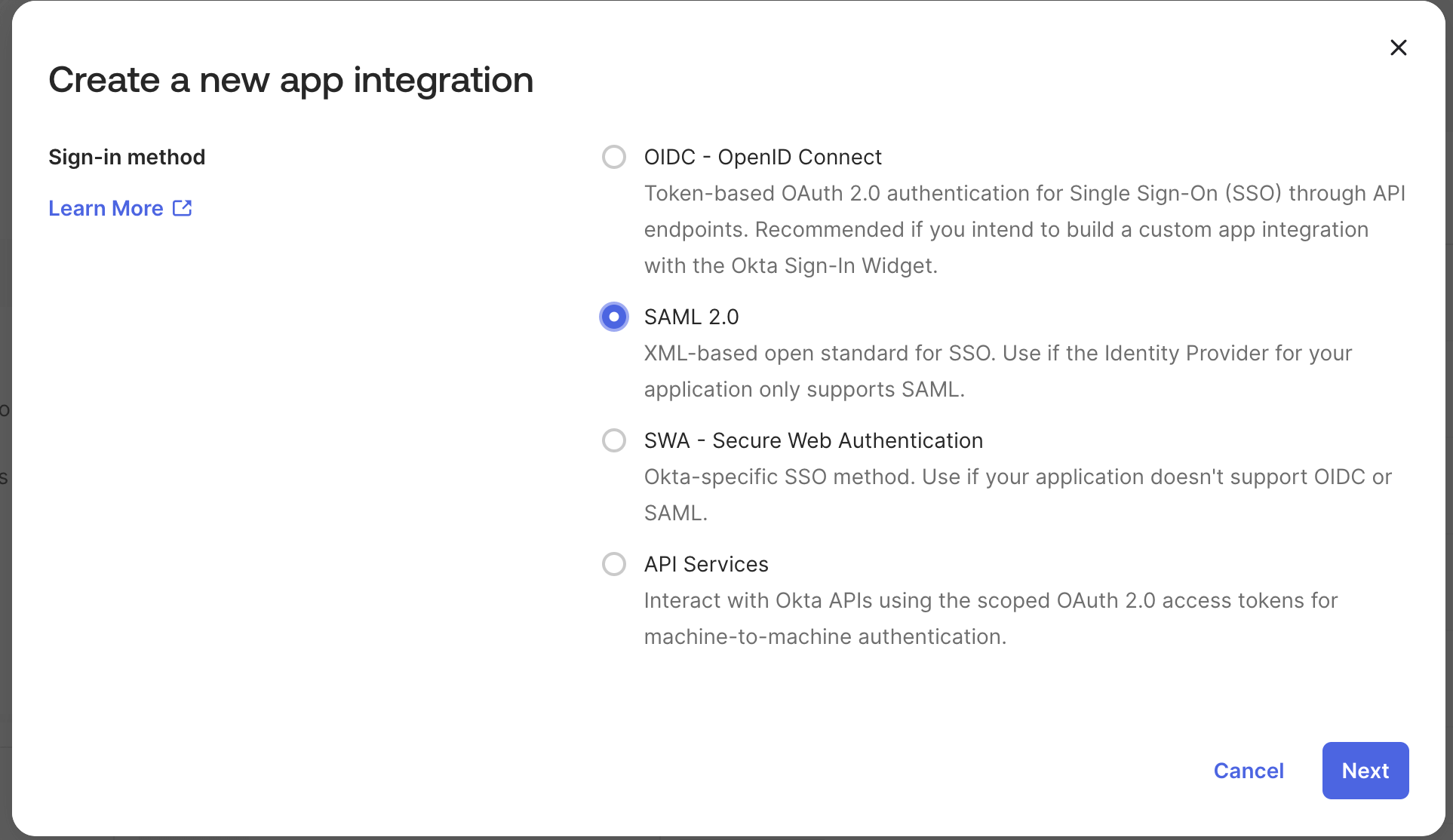 4. Click `Next`
5. Name the application
6. Choose App Logo (Optional).
4. Click `Next`
5. Name the application
6. Choose App Logo (Optional).
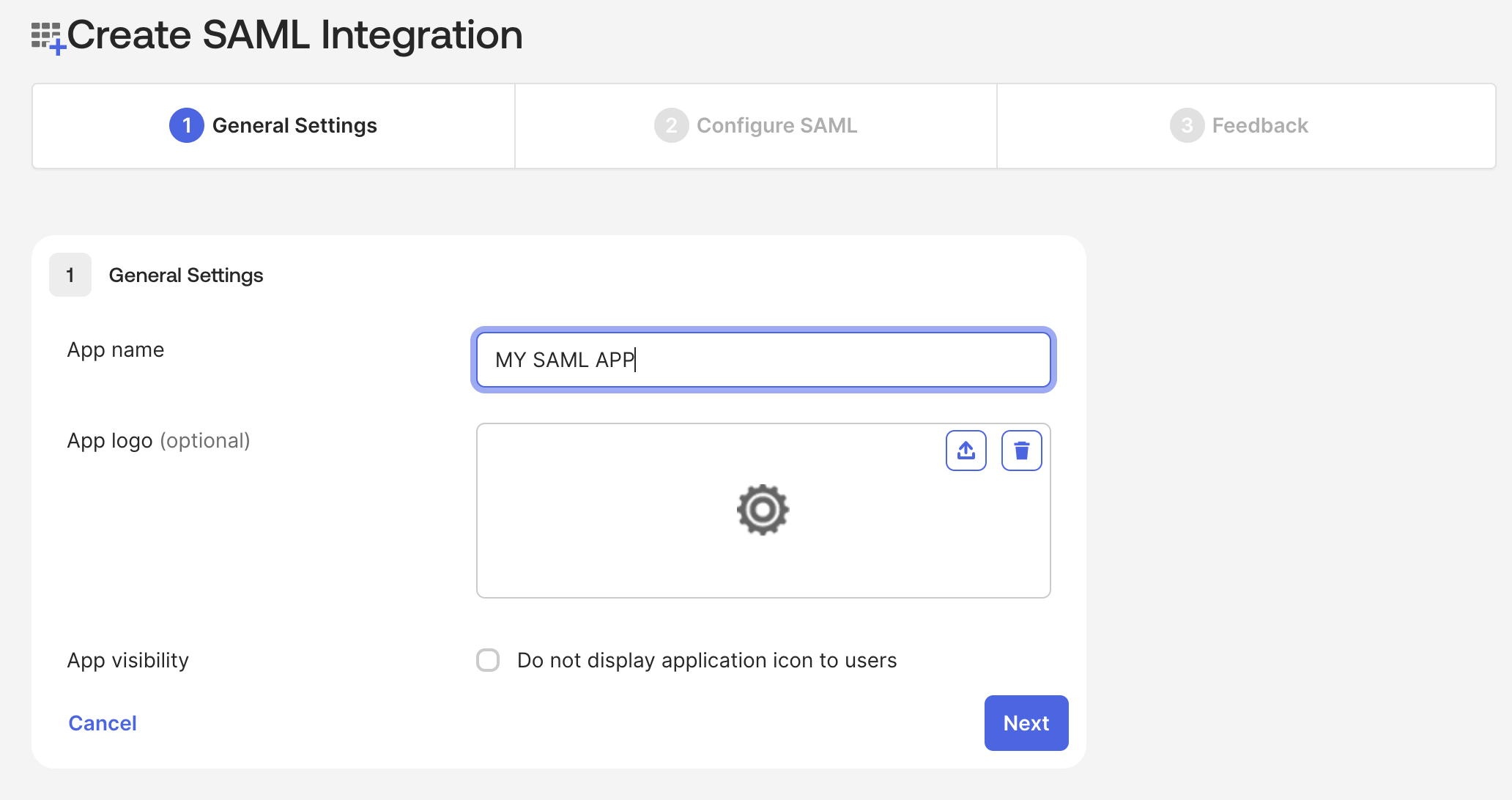 7. Click `Next`
## Configure Your OKTA Application
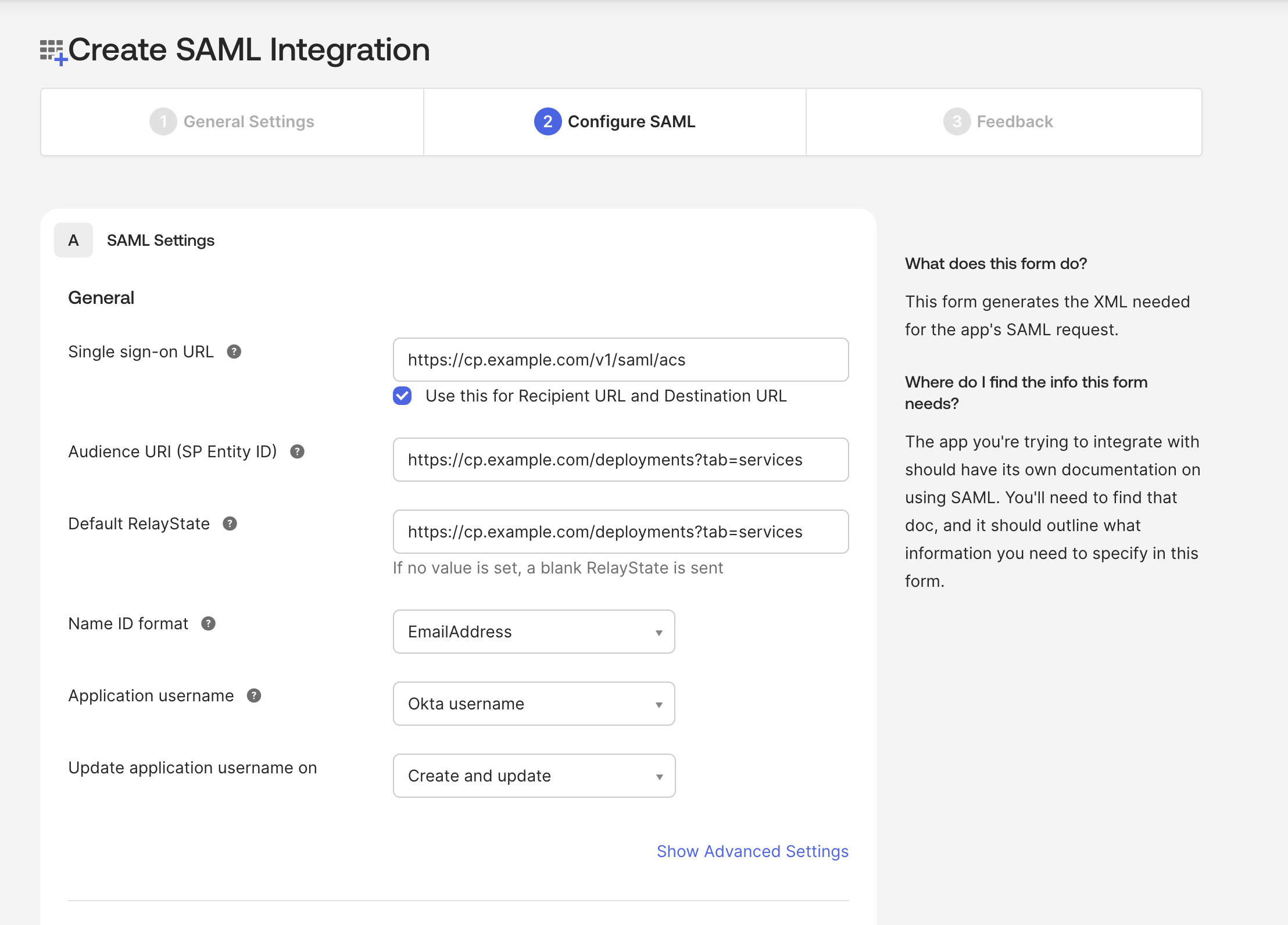
* **Single Sign-on URL**: This is ACS endpoint which can be obtained from truefoundry.
```
/api/svc/v1/saml/acs
```
* **Default RelayState**: This is endpoint where user will be redirected after being authenticated. This is generally control plane URL.
```
/deployments?tab=services
```
7. Click `Next`
## Configure Your OKTA Application
* **Single Sign-on URL**: This is ACS endpoint which can be obtained from truefoundry.
```
/api/svc/v1/saml/acs
```
* **Default RelayState**: This is endpoint where user will be redirected after being authenticated. This is generally control plane URL.
```
/deployments?tab=services
```
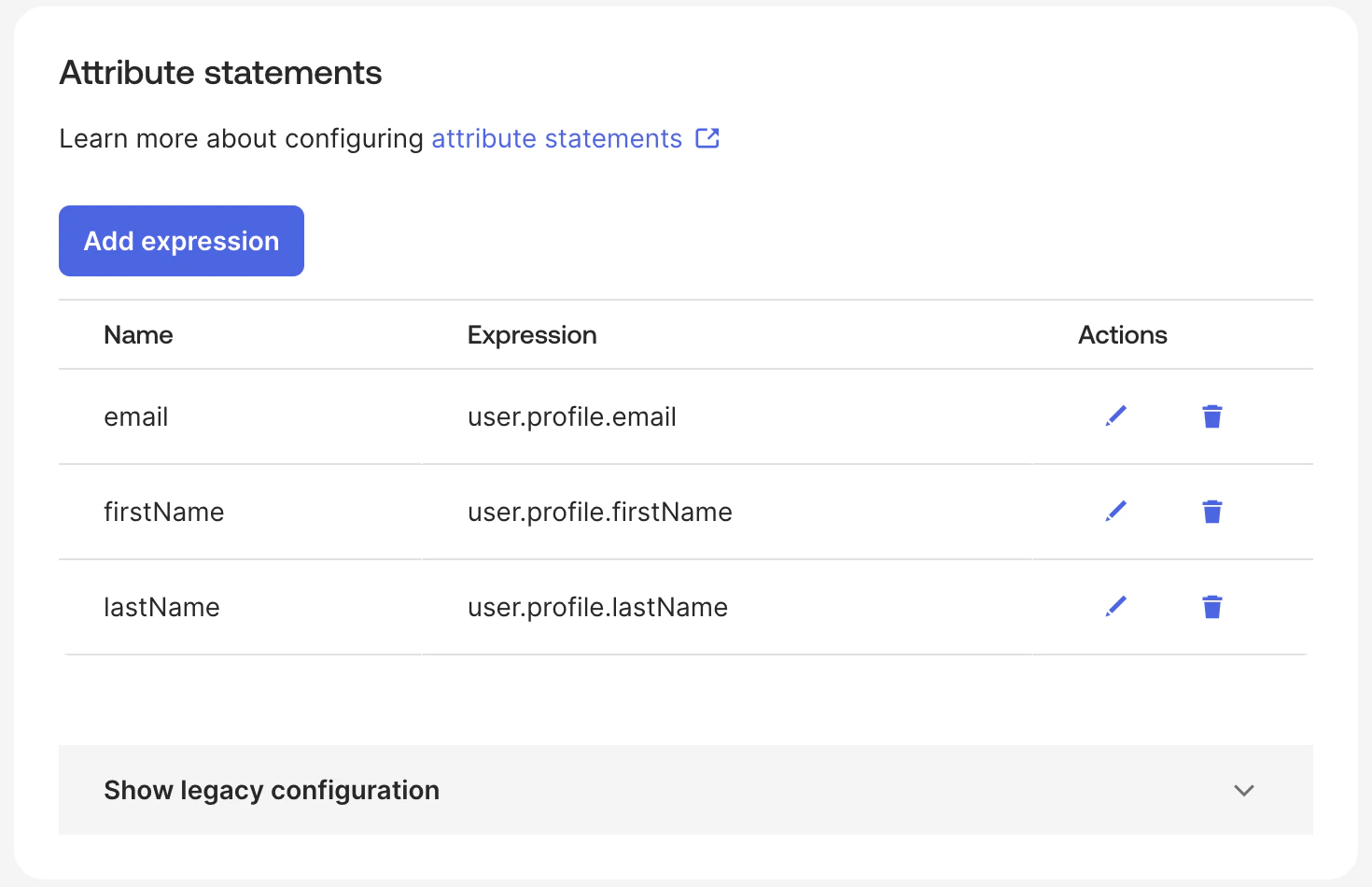
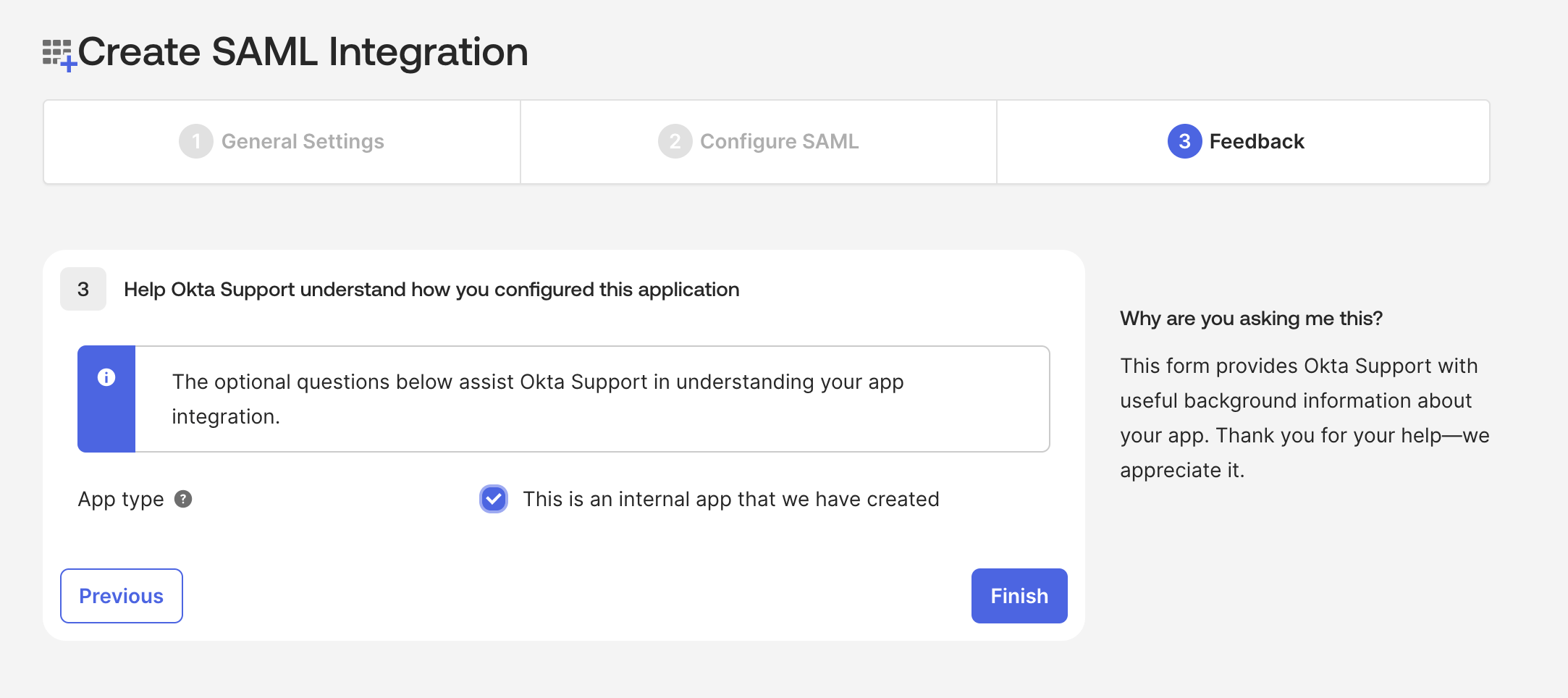 * **Attributes Mapping**: Go to Sign on tab of your application and navigate to Attributes statements Section to add Attributes Mapping as shown below.
 ## Integrate with TrueFoundry
To integrate Okta with TrueFoundry, Add the following configuration to env Variables
In Okta Application navigate to Sign on tab and click on `view SAML setup instructions`
* **OAUTH\_PROVIDER\_TYPE** : `EXTERNAL_SAML`
* **EXTERNAL\_SAML\_IDP\_ENDPOINT**: This value can be obtained from your Okta Application as demonstrated below. You will want to copy the Identity Provider Single Sign-On URL value from Okta into this field.
## Integrate with TrueFoundry
To integrate Okta with TrueFoundry, Add the following configuration to env Variables
In Okta Application navigate to Sign on tab and click on `view SAML setup instructions`
* **OAUTH\_PROVIDER\_TYPE** : `EXTERNAL_SAML`
* **EXTERNAL\_SAML\_IDP\_ENDPOINT**: This value can be obtained from your Okta Application as demonstrated below. You will want to copy the Identity Provider Single Sign-On URL value from Okta into this field.
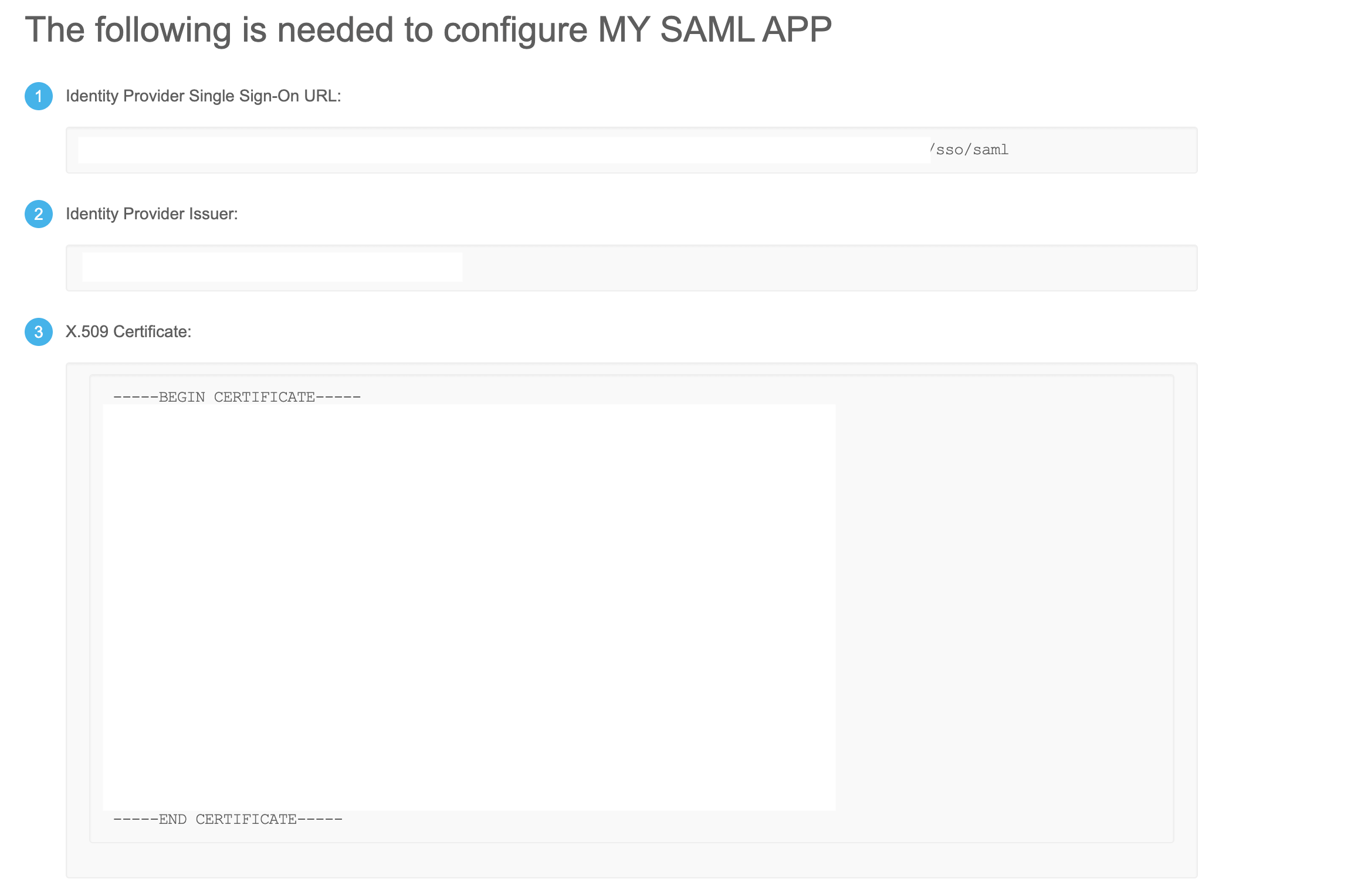 * **EXTERNAL\_SAML\_CERTIFICATE**: From the overview of your SAML setup instruction in Okta, you should find a Certificate. Encode the the Certificate by Base64 Encoder and set it here.
* **EXTERNAL\_SAML\_ACCESS\_TOKEN\_EXPIRY\_SECONDS**: This is duration of access token that will be asigned to user, so keep it as required.
***
* **EXTERNAL\_SAML\_CERTIFICATE**: From the overview of your SAML setup instruction in Okta, you should find a Certificate. Encode the the Certificate by Base64 Encoder and set it here.
* **EXTERNAL\_SAML\_ACCESS\_TOKEN\_EXPIRY\_SECONDS**: This is duration of access token that will be asigned to user, so keep it as required.
***