> ## Documentation Index
> Fetch the complete documentation index at: https://www.truefoundry.com/llms.txt
> Use this file to discover all available pages before exploring further.
# SAML V2 With Azure AD
> Configure SAML v2 authentication with Azure AD to enable enterprise single sign-on for TrueFoundry.
## Configure SAML v2 for Azure AD/Microsoft Entra ID
This documentation will guide you in configuring SAML v2 IdP for Azure AD/Microsoft Entra ID. In this case, TrueFoundry will act as Service Provider (SP) to Azure AD (IdP). Functionally, the result will allow you to display a “Login with Azure AD” button on your TrueFoundry login page and connect via SAML to Azure AD users/applications.
 ## Create an Application in Azure
If you have already configured an Azure AD Enterprise application, skip this section. If you have not, please follow the brief steps outlined below:
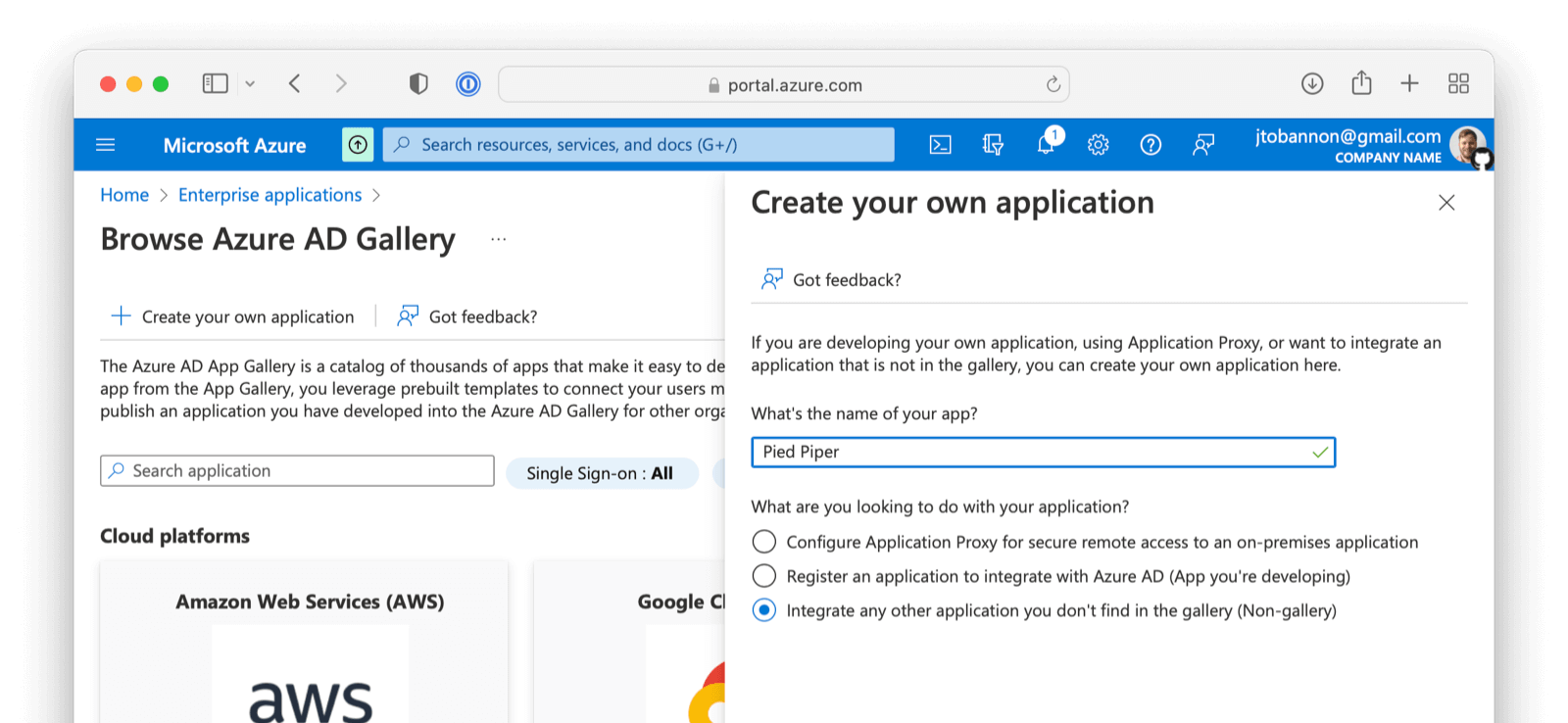
1. From the [Azure account portal](https://portal.azure.com/#home) navigate to `Enterprise Applications`.
2. At the top of the screen click on `New application`.
3. Click on `Create your own application`.
4. Name the application
5. Select the third option - `Integrate any other application you don't find in the gallery (Non-gallery)`.
6. Click `Create`
## Create an Application in Azure
If you have already configured an Azure AD Enterprise application, skip this section. If you have not, please follow the brief steps outlined below:
1. From the [Azure account portal](https://portal.azure.com/#home) navigate to `Enterprise Applications`.
2. At the top of the screen click on `New application`.
3. Click on `Create your own application`.
4. Name the application
5. Select the third option - `Integrate any other application you don't find in the gallery (Non-gallery)`.
6. Click `Create`
 ## Configure Your Azure Application
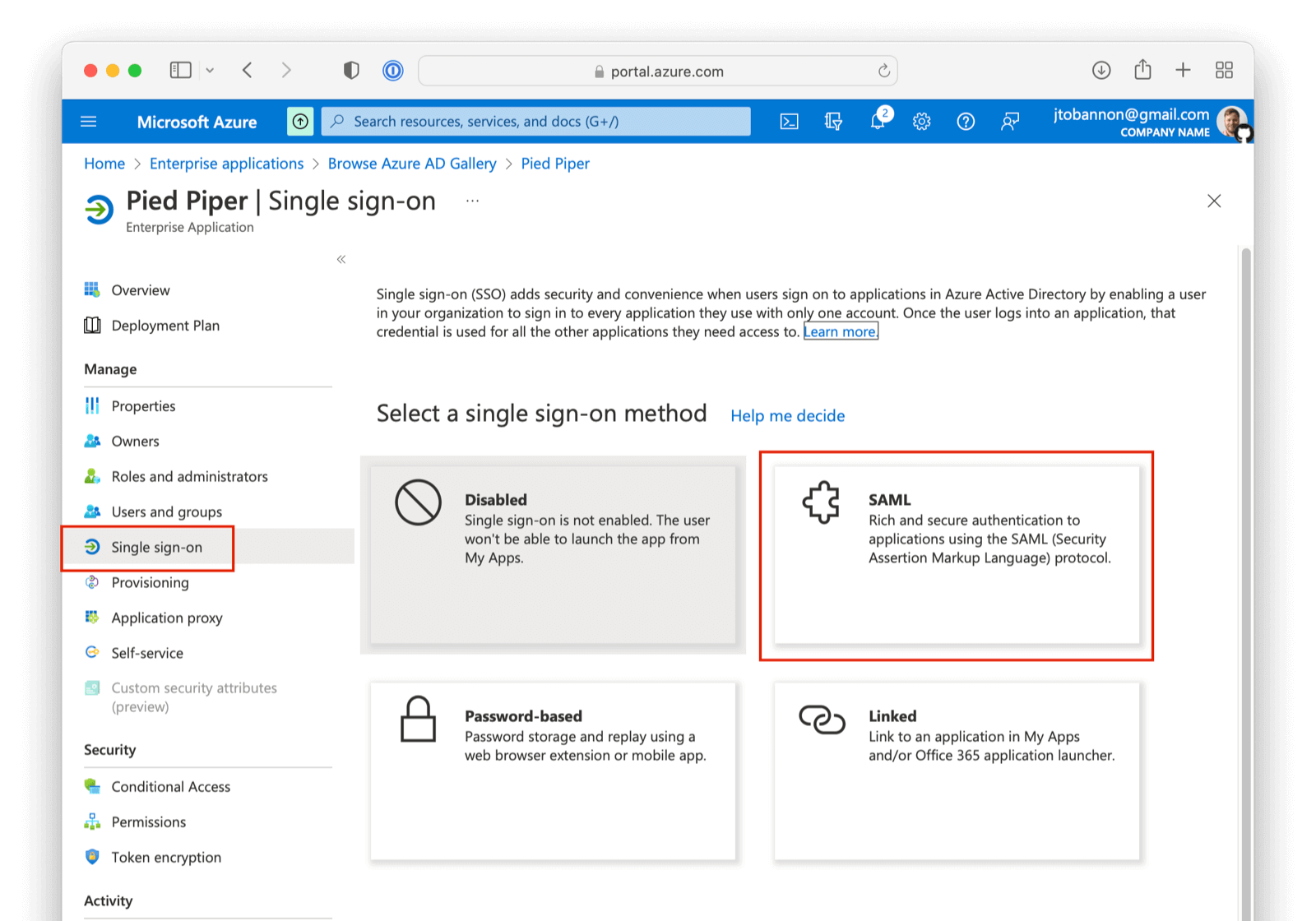
From your application home screen, click on Single sign-on. Select the SAML option.
## Configure Your Azure Application
From your application home screen, click on Single sign-on. Select the SAML option.
 ## Integrate with TrueFoundry
To integrate Azure AD with TrueFoundry, Add the following configuration to [TrueFoundry SSO settings](/docs/sso#integrate-sso-with-truefoundry)
* **Login URL**: This value can be obtained from your Azure AD Application as demonstrated below. You will want to copy the Login URL value from Azure AD into this field.
*
## Integrate with TrueFoundry
To integrate Azure AD with TrueFoundry, Add the following configuration to [TrueFoundry SSO settings](/docs/sso#integrate-sso-with-truefoundry)
* **Login URL**: This value can be obtained from your Azure AD Application as demonstrated below. You will want to copy the Login URL value from Azure AD into this field.
*
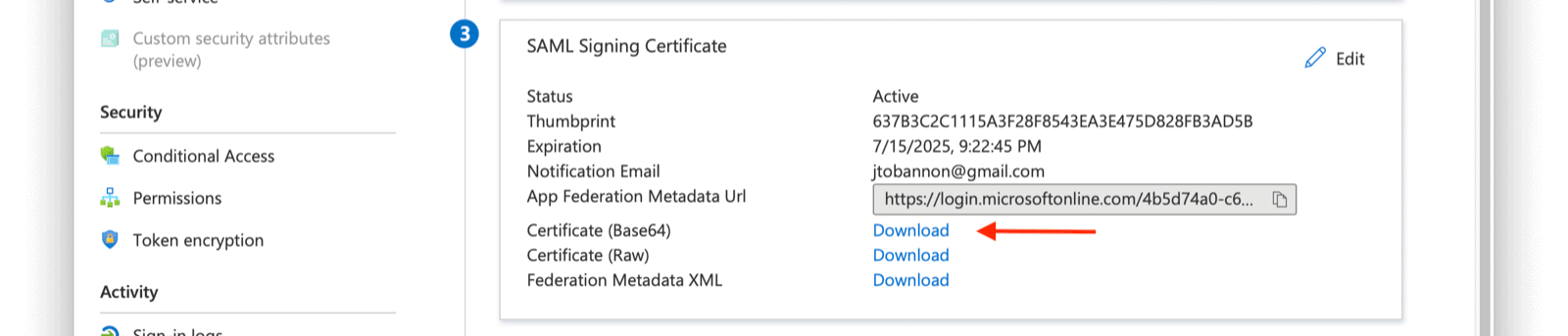
 **Verification key**: From the overview of your SAML application in Azure AD, under step three, you should find a Certificate (Base64) to download.
 ***
***