> ## Documentation Index
> Fetch the complete documentation index at: https://www.truefoundry.com/llms.txt
> Use this file to discover all available pages before exploring further.
# Manage Teams
> Detailed guide to how to add, manage and delete teams in Truefoundry
Teams allow Admins to group multiple users together and ease out the role assignment in resources. Teams can be created manually, provisioned automatically from your Identity Provider (IdP) via SCIM, or managed declaratively through GitOps.
## Provision teams via SCIM
When the tenant is configured for **SCIM provisioning**, every group your IdP pushes through SCIM is automatically created as a TrueFoundry team. Adding or removing a user from the IdP group adds or removes the corresponding team membership in TrueFoundry — no manual maintenance required.
SCIM is configured **once per tenant** under **Settings > Security & Access > Provisioning**. The same setup syncs both users and groups. See [Manage Users — Configure a provisioning mode](/docs/platform/user-management#configure-a-provisioning-mode) (SCIM tab) for the full configuration steps (SCIM URL, token, and IdP setup).
After SCIM is wired up, teams synced from your IdP behave just like manually created teams — you can grant them resource access, assign tenant-level roles, and add identity provider mappings.
**SCIM group name convention** — The group name in your IdP becomes the team name in TrueFoundry, so it must follow these rules: only alphanumeric characters, hyphens (`-`), and underscores (`_`) are allowed, and names can be up to 36 characters in length.
## Create a team manually
Admins can create manual teams and manage the members. Admins can also add `managers` to a team to further manage the team members themself. To create a team in TrueFoundry, follow these steps:
## Identity provider mappings
If you configure an [Identity Provider](/docs/platform/identity-providers) to resolve tokens to TrueFoundry users, you can map IdP claim values directly to teams.
Use this when your IdP token contains a team or group claim and you want users with a matching claim value to be associated with a TrueFoundry team.
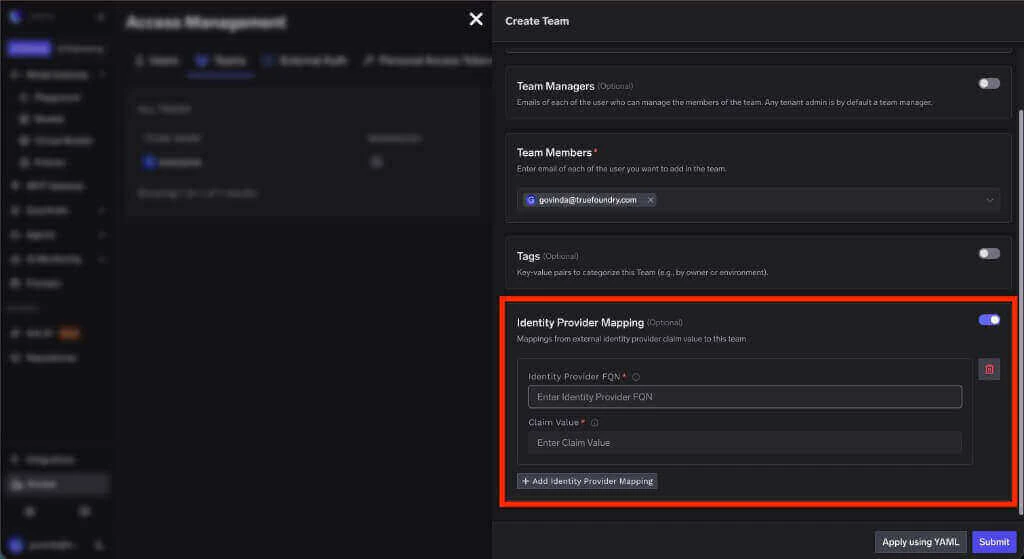 The fully qualified name of the Identity Provider that validates the incoming JWT. Copy this value from the Identity Provider configuration.
The value from the configured team claim that should map to this team. For example, if your Identity Provider uses `groups` as the team claim and the token contains `ml-platform`, enter `ml-platform` here.
## Grant access to a resource
Once a team has been created, you can grant it access to resources. To do so, follow these steps:
## Manage Teams via Gitops
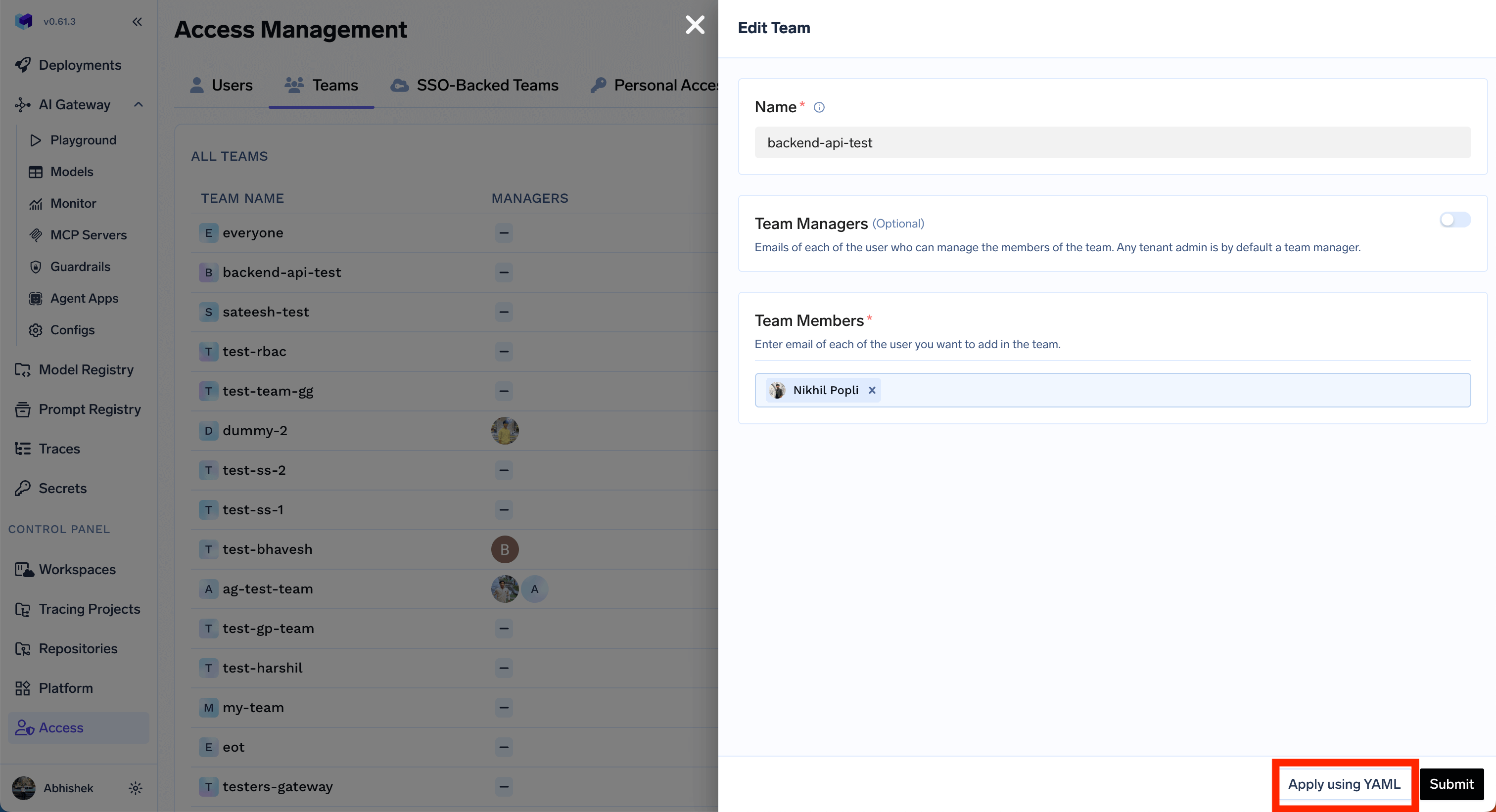
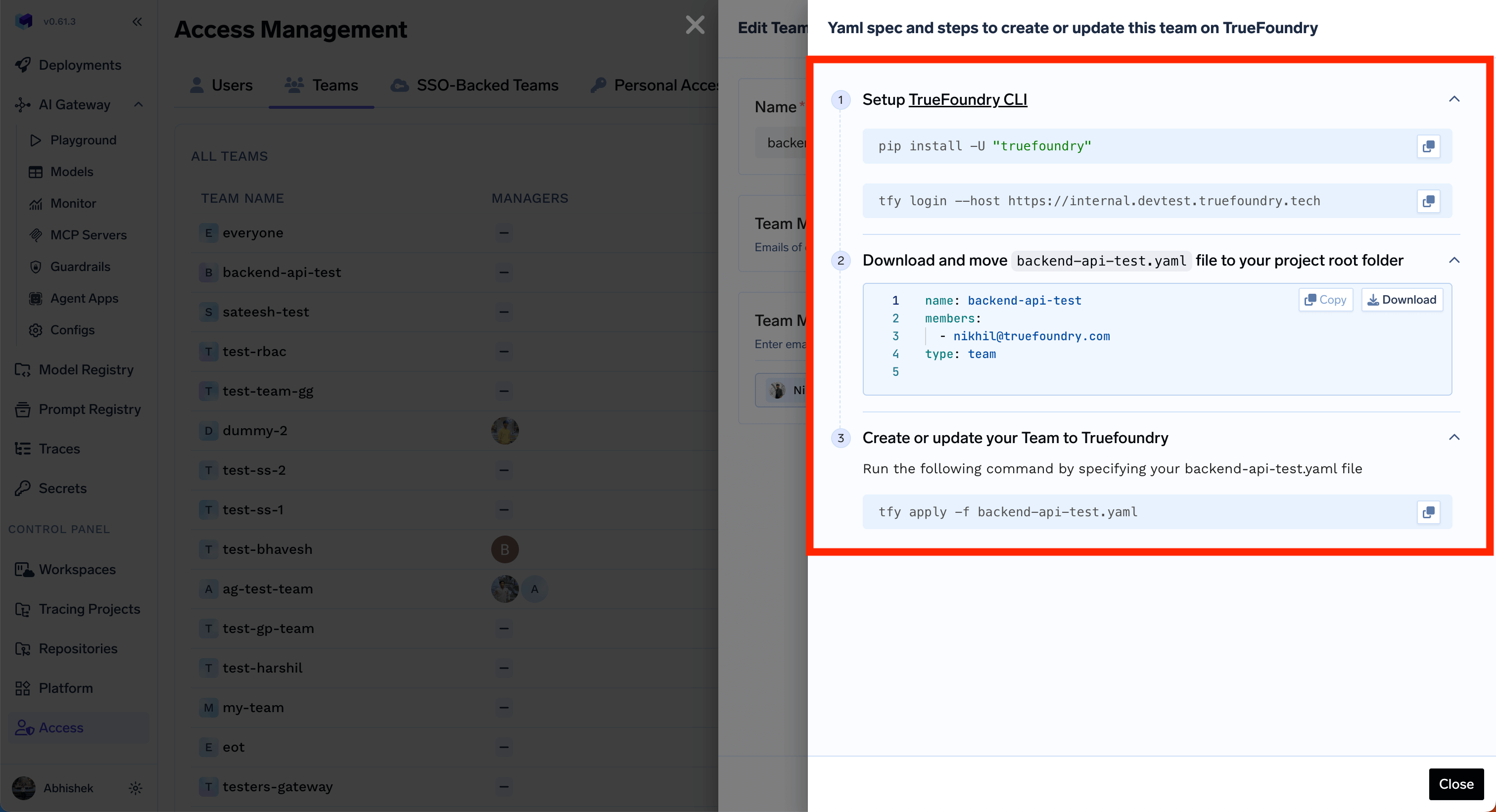
Admins can manage teams programmatically by using the `tfy apply` command on the team YAML file. You can get the instructions by clicking on the `Apply Using YAML` in the Edit form.
The fully qualified name of the Identity Provider that validates the incoming JWT. Copy this value from the Identity Provider configuration.
The value from the configured team claim that should map to this team. For example, if your Identity Provider uses `groups` as the team claim and the token contains `ml-platform`, enter `ml-platform` here.
## Grant access to a resource
Once a team has been created, you can grant it access to resources. To do so, follow these steps:
## Manage Teams via Gitops
Admins can manage teams programmatically by using the `tfy apply` command on the team YAML file. You can get the instructions by clicking on the `Apply Using YAML` in the Edit form.
 ## Manage Teams via API
You can find all the team related APIs in the [API reference](/docs/api-reference/teams/list-teams).
## Manage Teams via API
You can find all the team related APIs in the [API reference](/docs/api-reference/teams/list-teams).