> ## Documentation Index
> Fetch the complete documentation index at: https://www.truefoundry.com/llms.txt
> Use this file to discover all available pages before exploring further.
# SSO & SCIM Overview
> Enable single sign-on (SAML or OIDC) and automatic user provisioning (SCIM) for TrueFoundry with your identity provider.
TrueFoundry lets your team sign in through your existing Identity Provider (IdP) using **OpenID Connect (OIDC)** or **SAML 2.0**, and (for supported IdPs) keep users and teams in sync via **SCIM provisioning**. Any IdP that speaks OIDC or SAML 2.0 will work — Microsoft Entra ID (Azure AD), Okta, Google Workspace, Keycloak, JumpCloud, OneLogin, Auth0, PingOne, AD FS, Rippling, and others.
## Deployment models
There are two ways to wire your IdP up to TrueFoundry. Most customers use Option 1; Option 2 exists for regulated, fully self-contained environments.
**Default.** Available on **SaaS and on-prem**. TrueFoundry's central auth server (`login.truefoundry.com`) brokers the SSO flow with your IdP.
**On-prem only**, available on the **higher-tier Enterprise plan**. Your control plane talks to your IdP directly — nothing leaves your environment.
### Option 1 — TrueFoundry Auth Server + your IdP (default)
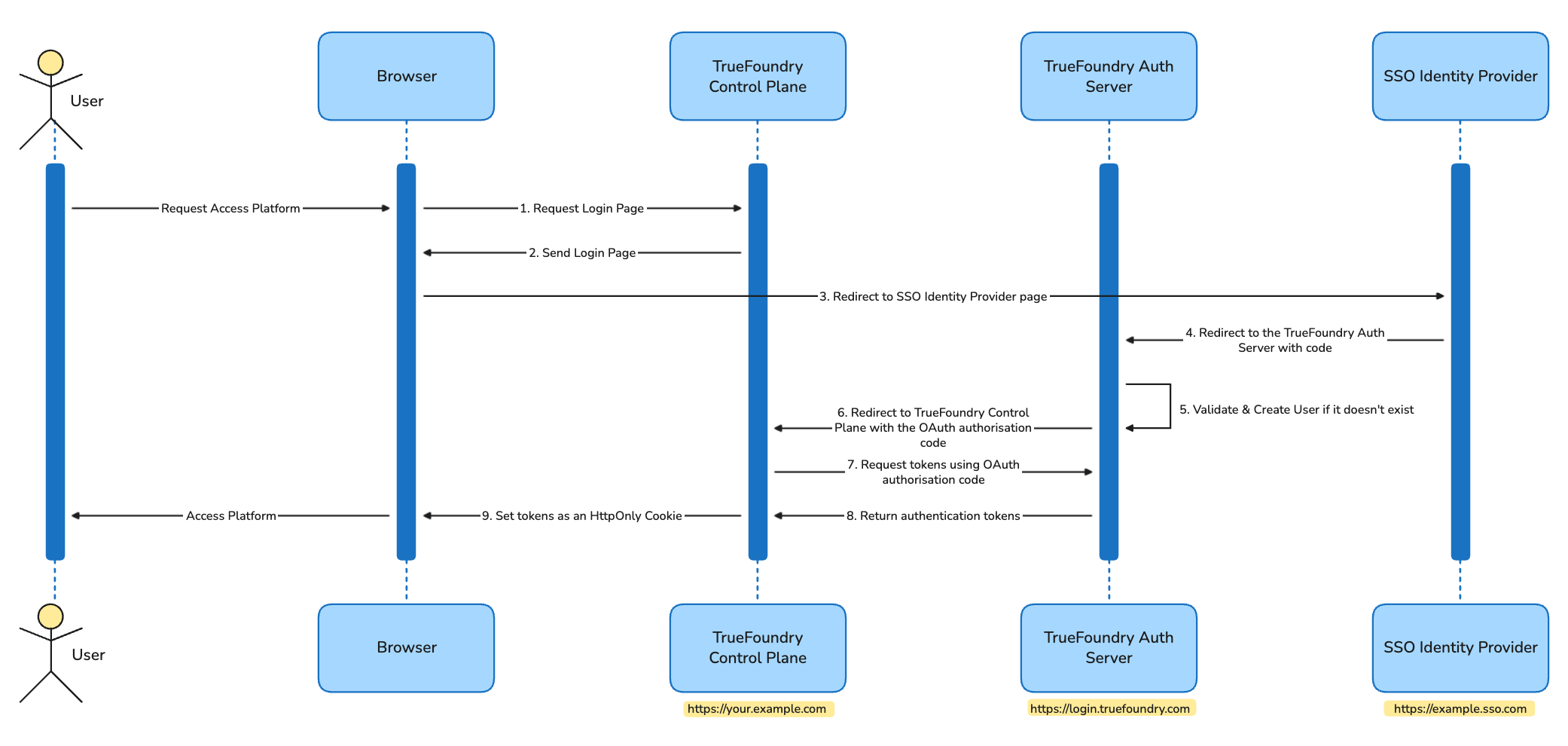
The TrueFoundry Auth Server (`login.truefoundry.com`) sits between your control plane and your IdP. When a user signs in, the control plane hands off to the auth server, which then hands off to your IdP. After the IdP authenticates the user, the auth server validates the response, creates or updates the user record, and returns tokens to the control plane.
 **Why this is the default**
* Works identically on **SaaS** and **on-prem** installations.
* TrueFoundry handles OIDC/SAML quirks, key rotation, and SCIM endpoints centrally.
* Only the user's email and a request count are sent to `login.truefoundry.com` — used for licensing and tenant routing.
* Lets you swap IdPs without redeploying the control plane.
Curious about exactly what happens during a login? Here are all the hops between the browser, control plane, TrueFoundry Auth Server, and your IdP.
Browser initiates the OAuth flow by requesting the login page from the TrueFoundry Control Plane, with the redirect URL being the TrueFoundry Control Plane URL.
```bash Request lines theme={"dark"}
GET /api/svc/v1/oauth2/authorize?tenantName={tenant_name}
&controlPlaneURL=https%3A%2F%2Fyour.example.com
&redirectURL=https%3A%2F%2Fyour.example.com%2Fauth%2Fcallback
HTTP/1.1
Host: your.example.com
```
```bash Response lines theme={"dark"}
HTTP/1.1 200 OK
Content-Type: text/html; charset=utf-8
Content-Length: 100
Connection: keep-alive
Date: Fri, 27 Jun 2025 07:00:00 GMT
{
"authorizationEndpoint":"https://login.truefoundry.com/oauth2/authorize?client_id={application_id}&response_type=code&scope=openid+email+profile+offline_access&redirect_uri=https%3A%2F%2Fyour.example.com%2Fauth%2Fcallback"
}
```
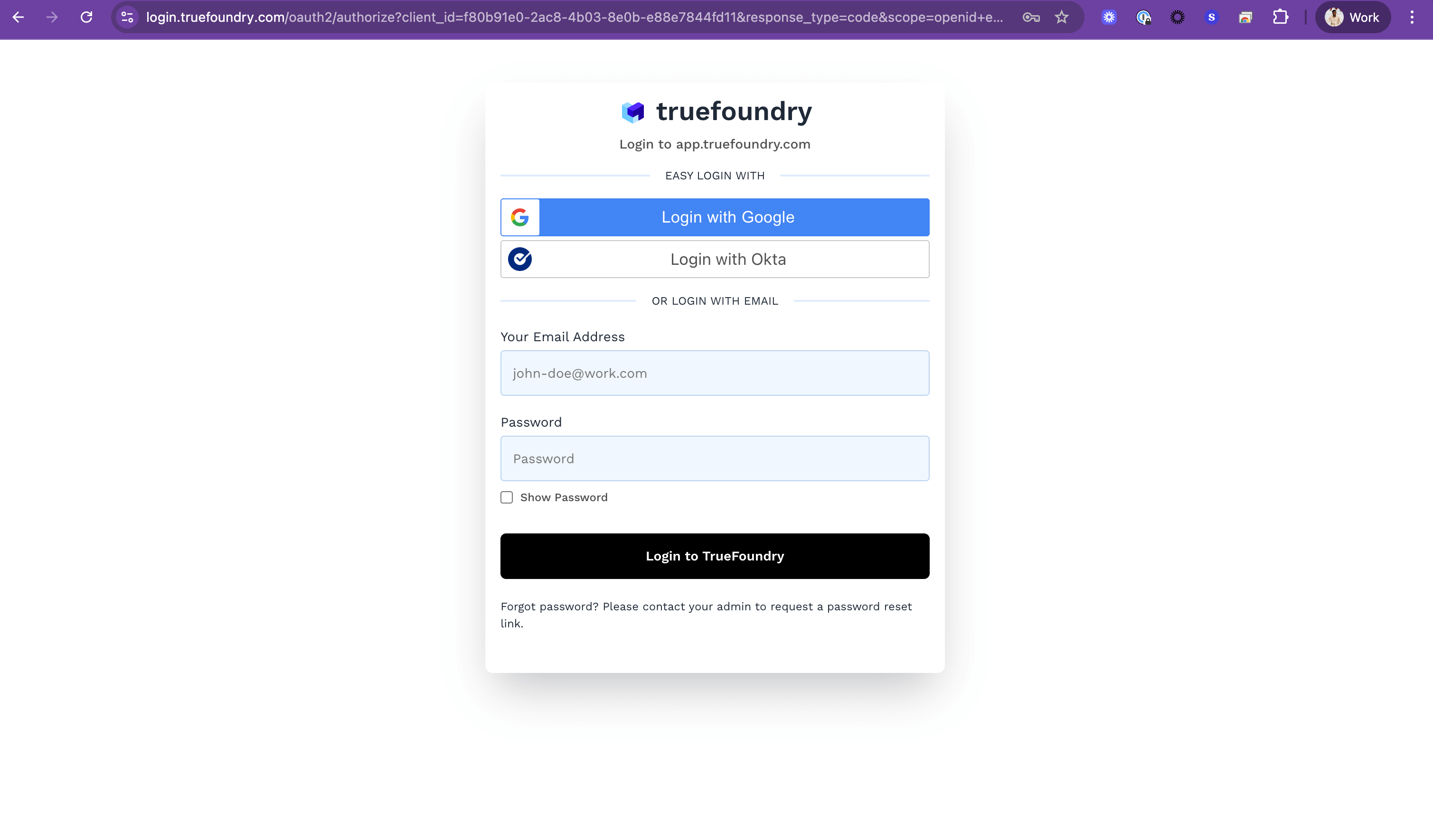
Browser redirects to the Login Page URL powered by the TrueFoundry Auth Server. The login page provides an interactive form for the user to choose the type of authentication, such as password-based or SSO.
**Why this is the default**
* Works identically on **SaaS** and **on-prem** installations.
* TrueFoundry handles OIDC/SAML quirks, key rotation, and SCIM endpoints centrally.
* Only the user's email and a request count are sent to `login.truefoundry.com` — used for licensing and tenant routing.
* Lets you swap IdPs without redeploying the control plane.
Curious about exactly what happens during a login? Here are all the hops between the browser, control plane, TrueFoundry Auth Server, and your IdP.
Browser initiates the OAuth flow by requesting the login page from the TrueFoundry Control Plane, with the redirect URL being the TrueFoundry Control Plane URL.
```bash Request lines theme={"dark"}
GET /api/svc/v1/oauth2/authorize?tenantName={tenant_name}
&controlPlaneURL=https%3A%2F%2Fyour.example.com
&redirectURL=https%3A%2F%2Fyour.example.com%2Fauth%2Fcallback
HTTP/1.1
Host: your.example.com
```
```bash Response lines theme={"dark"}
HTTP/1.1 200 OK
Content-Type: text/html; charset=utf-8
Content-Length: 100
Connection: keep-alive
Date: Fri, 27 Jun 2025 07:00:00 GMT
{
"authorizationEndpoint":"https://login.truefoundry.com/oauth2/authorize?client_id={application_id}&response_type=code&scope=openid+email+profile+offline_access&redirect_uri=https%3A%2F%2Fyour.example.com%2Fauth%2Fcallback"
}
```
Browser redirects to the Login Page URL powered by the TrueFoundry Auth Server. The login page provides an interactive form for the user to choose the type of authentication, such as password-based or SSO.
 On selecting SSO, the browser is redirected to the SSO Identity Provider's login page with the redirect URL set to the TrueFoundry Auth Server.
```bash Request lines theme={"dark"}
POST /oauth2//v1/authorize
HTTP/1.1
Host: example.sso.com
Content-Type: application/x-www-form-urlencoded
Origin: https://login.truefoundry.com
Body: login_hint=
&scope=openid+groups+email
&response_type=code
&code_challenge_method=S256
&redirect_uri=https%3A%2F%2Flogin.truefoundry.com%2Foauth2%2Fcallback
&state={encoded_state}
&client_id={client_id}
&code_challenge={code_challenge}
```
```bash Response lines theme={"dark"}
HTTP/1.1 302 Found
Cache-Control: no-cache, no-store
Pragma: no-cache
Server: nginx
Date: Fri, 27 Jun 2025 07:00:00 GMT
Location: https://login.truefoundry.com/oauth2/callback?code={authorization_code}&state={encoded_state}
```
All requests to the Identity Provider are signed using an RS256 key pair. For SAML, destination assertion is enabled, ensuring secure transfer of user authentication information between the SAML identity provider (IdP) and the TrueFoundry Auth Server (SP).
On selecting SSO, the browser is redirected to the SSO Identity Provider's login page with the redirect URL set to the TrueFoundry Auth Server.
```bash Request lines theme={"dark"}
POST /oauth2//v1/authorize
HTTP/1.1
Host: example.sso.com
Content-Type: application/x-www-form-urlencoded
Origin: https://login.truefoundry.com
Body: login_hint=
&scope=openid+groups+email
&response_type=code
&code_challenge_method=S256
&redirect_uri=https%3A%2F%2Flogin.truefoundry.com%2Foauth2%2Fcallback
&state={encoded_state}
&client_id={client_id}
&code_challenge={code_challenge}
```
```bash Response lines theme={"dark"}
HTTP/1.1 302 Found
Cache-Control: no-cache, no-store
Pragma: no-cache
Server: nginx
Date: Fri, 27 Jun 2025 07:00:00 GMT
Location: https://login.truefoundry.com/oauth2/callback?code={authorization_code}&state={encoded_state}
```
All requests to the Identity Provider are signed using an RS256 key pair. For SAML, destination assertion is enabled, ensuring secure transfer of user authentication information between the SAML identity provider (IdP) and the TrueFoundry Auth Server (SP).
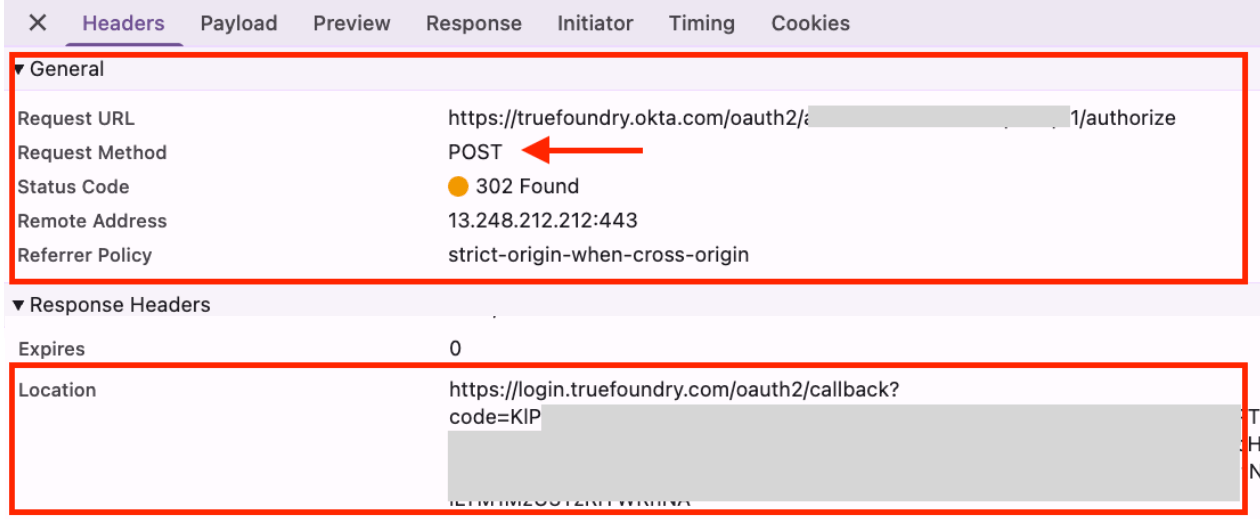 On successful authentication by the SSO Identity Provider, the browser redirects to the configured redirect URL (the TrueFoundry Auth Server) with an authorization code. The auth server then exchanges this code with the IdP to fetch user information.
```bash Request lines theme={"dark"}
GET /oauth2/callback?code={authorization_code}&state={encoded_state}
HTTP/1.1
Host: login.truefoundry.com
```
```bash Response lines theme={"dark"}
HTTP/1.1 302 Found
Cache-Control: no-cache, no-store
Pragma: no-cache
Server: nginx
Date: Fri, 27 Jun 2025 07:00:00 GMT
Location: https://your.example.com/auth/callback?code={authorization_code}&userState=Authenticated
```
To protect data integrity and privacy, all data in transit to and from the TrueFoundry Control Plane or Auth Server is encrypted using TLS 1.2 or higher.
The TrueFoundry Auth Server validates the response from the SSO Identity Provider and maps the user based on the email claim against the database, creating a new entry if one doesn't already exist.
This step is performed by the TrueFoundry Auth Server and is not visible to the user.
Get Token from SSO Identity Provider:
```bash Request lines theme={"dark"}
POST /oauth2/{client_id}/v1/token
HTTP/1.1
Host: example.sso.com
Content-Type: application/x-www-form-urlencoded
Origin: https://login.truefoundry.com
Body: code={authorization_code}
&grant_type=authorization_code
&redirect_uri=https://login.truefoundry.com/oauth2/callback
```
```bash Response lines theme={"dark"}
HTTP/1.1 200 OK
Content-Type: application/json
Date: Fri, 27 Jun 2025 07:00:00 GMT
{
"token_type" : "Bearer",
"expires_in" : 3600,
"access_token" : "{access_token}",
"scope" : "groups openid email",
"id_token" : "{id_token}"
}
```
Get User information from SSO Identity Provider:
```bash Request lines theme={"dark"}
GET /oauth2/{client_id}/v1/userinfo
HTTP/1.1
Host: example.sso.com
Authorization: Bearer {access_token}
```
```bash Response lines theme={"dark"}
HTTP/1.1 200 OK
Content-Type: application/json
Date: Fri, 27 Jun 2025 07:00:00 GMT
{
"sub" : "{sso_user_id}",
"email" : "example@example.com",
"email_verified" : true,
"groups" : ["{group_1}", "{group_2}"]
}
```
Link user via email `example@example.com` to the user in the TrueFoundry Auth Server and redirect to the TrueFoundry Control Plane.
Any user deactivated from the platform is rejected at this step.
On user validation, the TrueFoundry Auth Server redirects the browser to the TrueFoundry Control Plane with an authorization code.
```bash Request lines theme={"dark"}
GET /auth/callback?code={authorization_code}&userState=Authenticated
HTTP/1.1
Host: your.example.com
```
```bash Response lines theme={"dark"}
HTTP/1.1 200 OK
Date: Fri, 27 Jun 2025 07:00:00 GMT
```
The TrueFoundry Control Plane uses the code to request tokens from the TrueFoundry Auth Server.
```bash Request lines theme={"dark"}
POST /api/svc/v1/oauth2/token
HTTP/1.1
Host: your.example.com
Content-Type: application/json
Origin: https://your.example.com
Body: {
"tenantName":"{tenant_name}",
"code":"{authorization_code}",
"grantType":"authorization_code",
"redirectURI":"https://your.example.com/auth/callback"
}
```
```bash Response lines theme={"dark"}
HTTP/1.1 201 Created
Date: Fri, 27 Jun 2025 07:00:00 GMT
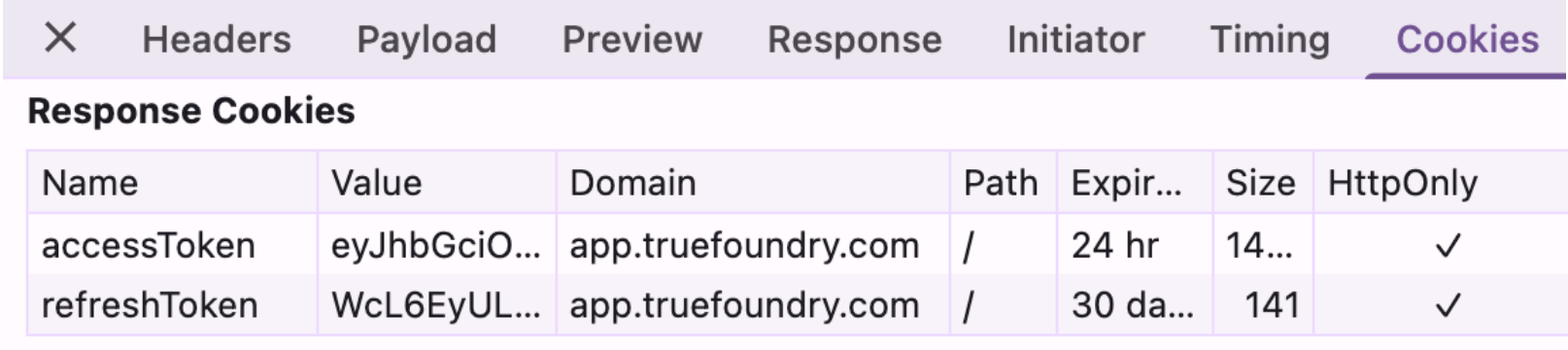
Set-Cookie: accessToken=; HttpOnly; Path=/; Max-Age=86400; Expires=Sat, 28 Jun 2025 07:00:00 GMT
Set-Cookie: refreshToken=; HttpOnly; Path=/; Max-Age=604800; Expires=Thu, 03 Jul 2025 07:00:00 GMT
```
On successful code validation, the TrueFoundry Auth Server responds with authentication tokens (an access token and a refresh token), signed by the auth server.
By default the access token is valid for **1 day** and the refresh token for **7 days**. Contact support to change these expiries.
The TrueFoundry Control Plane sets these authentication tokens as HTTP-only cookies in the browser. All further requests to the control plane carry these cookies and are used for authentication and authorization at the API server layer.
On successful authentication by the SSO Identity Provider, the browser redirects to the configured redirect URL (the TrueFoundry Auth Server) with an authorization code. The auth server then exchanges this code with the IdP to fetch user information.
```bash Request lines theme={"dark"}
GET /oauth2/callback?code={authorization_code}&state={encoded_state}
HTTP/1.1
Host: login.truefoundry.com
```
```bash Response lines theme={"dark"}
HTTP/1.1 302 Found
Cache-Control: no-cache, no-store
Pragma: no-cache
Server: nginx
Date: Fri, 27 Jun 2025 07:00:00 GMT
Location: https://your.example.com/auth/callback?code={authorization_code}&userState=Authenticated
```
To protect data integrity and privacy, all data in transit to and from the TrueFoundry Control Plane or Auth Server is encrypted using TLS 1.2 or higher.
The TrueFoundry Auth Server validates the response from the SSO Identity Provider and maps the user based on the email claim against the database, creating a new entry if one doesn't already exist.
This step is performed by the TrueFoundry Auth Server and is not visible to the user.
Get Token from SSO Identity Provider:
```bash Request lines theme={"dark"}
POST /oauth2/{client_id}/v1/token
HTTP/1.1
Host: example.sso.com
Content-Type: application/x-www-form-urlencoded
Origin: https://login.truefoundry.com
Body: code={authorization_code}
&grant_type=authorization_code
&redirect_uri=https://login.truefoundry.com/oauth2/callback
```
```bash Response lines theme={"dark"}
HTTP/1.1 200 OK
Content-Type: application/json
Date: Fri, 27 Jun 2025 07:00:00 GMT
{
"token_type" : "Bearer",
"expires_in" : 3600,
"access_token" : "{access_token}",
"scope" : "groups openid email",
"id_token" : "{id_token}"
}
```
Get User information from SSO Identity Provider:
```bash Request lines theme={"dark"}
GET /oauth2/{client_id}/v1/userinfo
HTTP/1.1
Host: example.sso.com
Authorization: Bearer {access_token}
```
```bash Response lines theme={"dark"}
HTTP/1.1 200 OK
Content-Type: application/json
Date: Fri, 27 Jun 2025 07:00:00 GMT
{
"sub" : "{sso_user_id}",
"email" : "example@example.com",
"email_verified" : true,
"groups" : ["{group_1}", "{group_2}"]
}
```
Link user via email `example@example.com` to the user in the TrueFoundry Auth Server and redirect to the TrueFoundry Control Plane.
Any user deactivated from the platform is rejected at this step.
On user validation, the TrueFoundry Auth Server redirects the browser to the TrueFoundry Control Plane with an authorization code.
```bash Request lines theme={"dark"}
GET /auth/callback?code={authorization_code}&userState=Authenticated
HTTP/1.1
Host: your.example.com
```
```bash Response lines theme={"dark"}
HTTP/1.1 200 OK
Date: Fri, 27 Jun 2025 07:00:00 GMT
```
The TrueFoundry Control Plane uses the code to request tokens from the TrueFoundry Auth Server.
```bash Request lines theme={"dark"}
POST /api/svc/v1/oauth2/token
HTTP/1.1
Host: your.example.com
Content-Type: application/json
Origin: https://your.example.com
Body: {
"tenantName":"{tenant_name}",
"code":"{authorization_code}",
"grantType":"authorization_code",
"redirectURI":"https://your.example.com/auth/callback"
}
```
```bash Response lines theme={"dark"}
HTTP/1.1 201 Created
Date: Fri, 27 Jun 2025 07:00:00 GMT
Set-Cookie: accessToken=; HttpOnly; Path=/; Max-Age=86400; Expires=Sat, 28 Jun 2025 07:00:00 GMT
Set-Cookie: refreshToken=; HttpOnly; Path=/; Max-Age=604800; Expires=Thu, 03 Jul 2025 07:00:00 GMT
```
On successful code validation, the TrueFoundry Auth Server responds with authentication tokens (an access token and a refresh token), signed by the auth server.
By default the access token is valid for **1 day** and the refresh token for **7 days**. Contact support to change these expiries.
The TrueFoundry Control Plane sets these authentication tokens as HTTP-only cookies in the browser. All further requests to the control plane carry these cookies and are used for authentication and authorization at the API server layer.
 ### Option 2 — Direct IdP integration (no TrueFoundry Auth Server)
**Available on on-prem deployments only, on the higher-tier Enterprise plan.**
For tenants that cannot allow any authentication traffic to leave their environment, the control plane can talk to your OIDC or SAML IdP directly — `login.truefoundry.com` is not in the loop. User emails and request counts never leave your network.
**How it works**
* The control plane is configured at install time with your IdP's OIDC issuer or SAML metadata (via `servicefoundryServer.env` in Helm values).
* When a user logs in, the control plane redirects them straight to your IdP.
* After the IdP authenticates, the user returns directly to the control plane — tokens are signed locally using a private JWKS issued by TrueFoundry.
* TrueFoundry support provides the `INTERNAL_JWT_JWKS` material required to sign tokens within your environment.
For installation instructions, env vars, and SAML/OIDC examples, see [**External SSO (OIDC/SAML)**](/docs/deploy-control-plane-with-external-oauth).
Both options support the same set of IdPs and protocols. The choice is about whether traffic flows through `login.truefoundry.com` or stays entirely within your environment.
## Pick your identity provider
The guides below assume the default **Option 1** flow (TrueFoundry Auth Server). Pick your IdP from the cards below — each guide covers SSO via SAML or OIDC and, where supported, SCIM provisioning.
SAML, OIDC, and SCIM with Microsoft Entra ID (formerly Azure AD). SCIM requires SAML.
SAML, OIDC, and SCIM with Okta Workforce Identity. SCIM requires SAML.
SAML and OIDC single sign-on with Google Workspace.
SAML, OIDC, and SCIM with JumpCloud.
SAML, OIDC, and SCIM with OneLogin.
SAML and OIDC with an Auth0 application.
OIDC with a self-hosted Keycloak realm.
SAML and OIDC with on-premises Active Directory Federation Services.
SAML and OIDC with Ping Identity (PingOne and PingFederate).
SAML and OIDC with Rippling's custom SSO app.
If your IdP isn't listed above, follow the generic guides for [Custom SAML](/docs/platform/sso/custom-saml) or [Custom OIDC](/docs/platform/sso/custom-oidc). Any IdP that speaks SAML 2.0 or OpenID Connect will work.
## Configure SSO in TrueFoundry
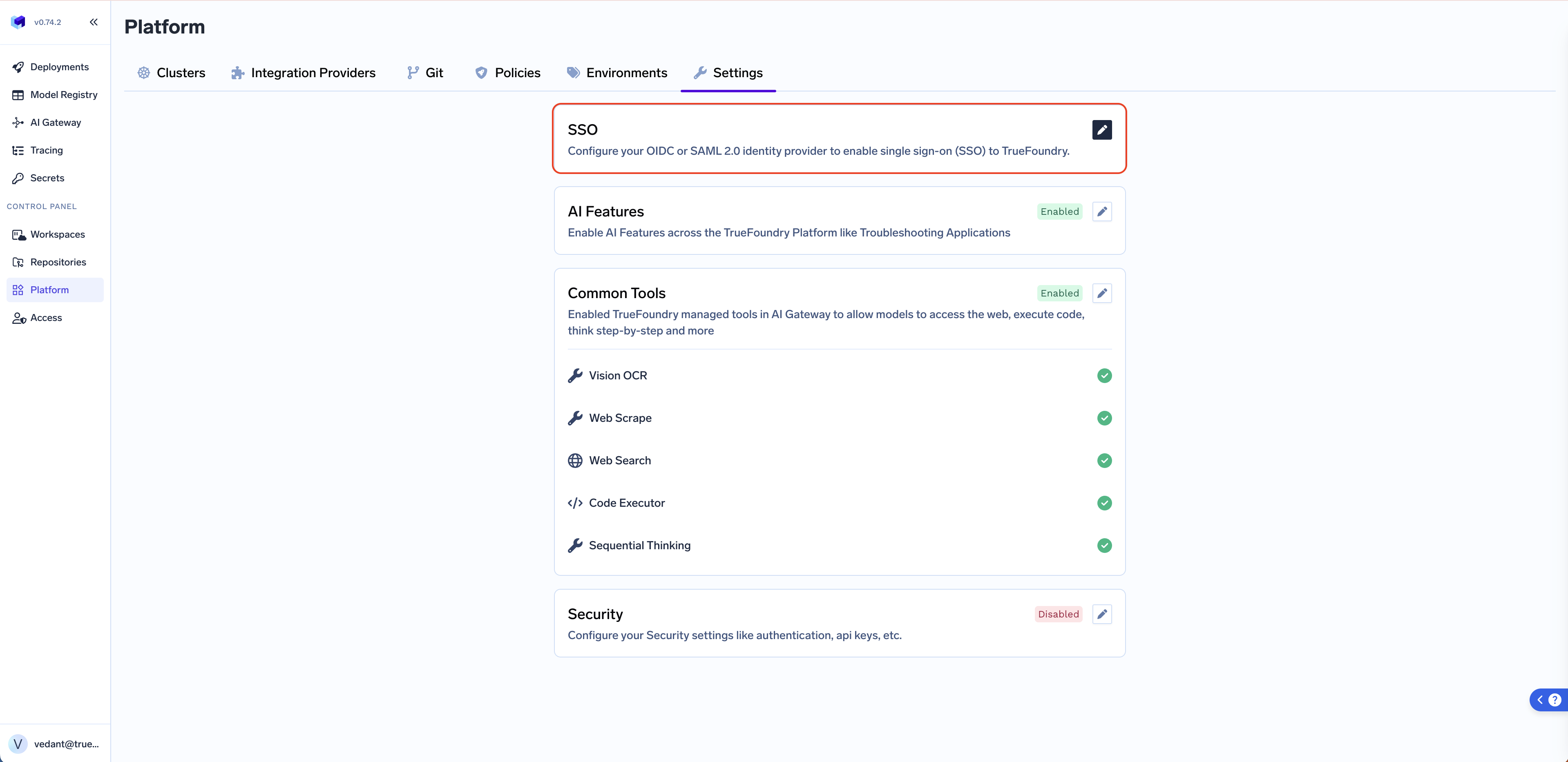
Go to **Platform → Settings → SSO**, toggle **Enabled**, pick your **SSO Provider**, and choose **OIDC** or **SAML v2** under Authentication Configuration.
### Option 2 — Direct IdP integration (no TrueFoundry Auth Server)
**Available on on-prem deployments only, on the higher-tier Enterprise plan.**
For tenants that cannot allow any authentication traffic to leave their environment, the control plane can talk to your OIDC or SAML IdP directly — `login.truefoundry.com` is not in the loop. User emails and request counts never leave your network.
**How it works**
* The control plane is configured at install time with your IdP's OIDC issuer or SAML metadata (via `servicefoundryServer.env` in Helm values).
* When a user logs in, the control plane redirects them straight to your IdP.
* After the IdP authenticates, the user returns directly to the control plane — tokens are signed locally using a private JWKS issued by TrueFoundry.
* TrueFoundry support provides the `INTERNAL_JWT_JWKS` material required to sign tokens within your environment.
For installation instructions, env vars, and SAML/OIDC examples, see [**External SSO (OIDC/SAML)**](/docs/deploy-control-plane-with-external-oauth).
Both options support the same set of IdPs and protocols. The choice is about whether traffic flows through `login.truefoundry.com` or stays entirely within your environment.
## Pick your identity provider
The guides below assume the default **Option 1** flow (TrueFoundry Auth Server). Pick your IdP from the cards below — each guide covers SSO via SAML or OIDC and, where supported, SCIM provisioning.
SAML, OIDC, and SCIM with Microsoft Entra ID (formerly Azure AD). SCIM requires SAML.
SAML, OIDC, and SCIM with Okta Workforce Identity. SCIM requires SAML.
SAML and OIDC single sign-on with Google Workspace.
SAML, OIDC, and SCIM with JumpCloud.
SAML, OIDC, and SCIM with OneLogin.
SAML and OIDC with an Auth0 application.
OIDC with a self-hosted Keycloak realm.
SAML and OIDC with on-premises Active Directory Federation Services.
SAML and OIDC with Ping Identity (PingOne and PingFederate).
SAML and OIDC with Rippling's custom SSO app.
If your IdP isn't listed above, follow the generic guides for [Custom SAML](/docs/platform/sso/custom-saml) or [Custom OIDC](/docs/platform/sso/custom-oidc). Any IdP that speaks SAML 2.0 or OpenID Connect will work.
## Configure SSO in TrueFoundry
Go to **Platform → Settings → SSO**, toggle **Enabled**, pick your **SSO Provider**, and choose **OIDC** or **SAML v2** under Authentication Configuration.
 The exact fields depend on the protocol you pick. The provider-specific guides above walk through every screen, but the high-level field mapping is the same everywhere:
Set the redirect/callback URL to `https://login.truefoundry.com/oauth2/callback`.
* **Client ID** — application/client ID issued by your IdP.
* **Client Secret** — client secret value generated for the application.
* **Issuer URL** — your IdP's OIDC issuer (e.g. `https://.okta.com` or `https://login.microsoftonline.com//v2.0`).
* **Discover endpoints** — leave enabled to auto-fetch metadata from `/.well-known/openid-configuration`. If your IdP doesn't expose a discovery document, disable this and manually fill in **Authorization Endpoint**, **Token Endpoint**, **UserInfo Endpoint**, and **JWKS Endpoint**.
* **Scopes** *(optional)* — space-separated additional scopes. Defaults to `openid email`.
When entering **ACS / Single sign-on URL** or **Audience / SP Entity ID**, use placeholder values for now — you'll replace them after saving in TrueFoundry.
* **Identity Provider Endpoint (IdP SSO URL)** — your IdP's SAML login URL.
* **X.509 Certificate (PEM)** — the IdP signing certificate used to verify SAML responses.
After you save your SAML configuration:
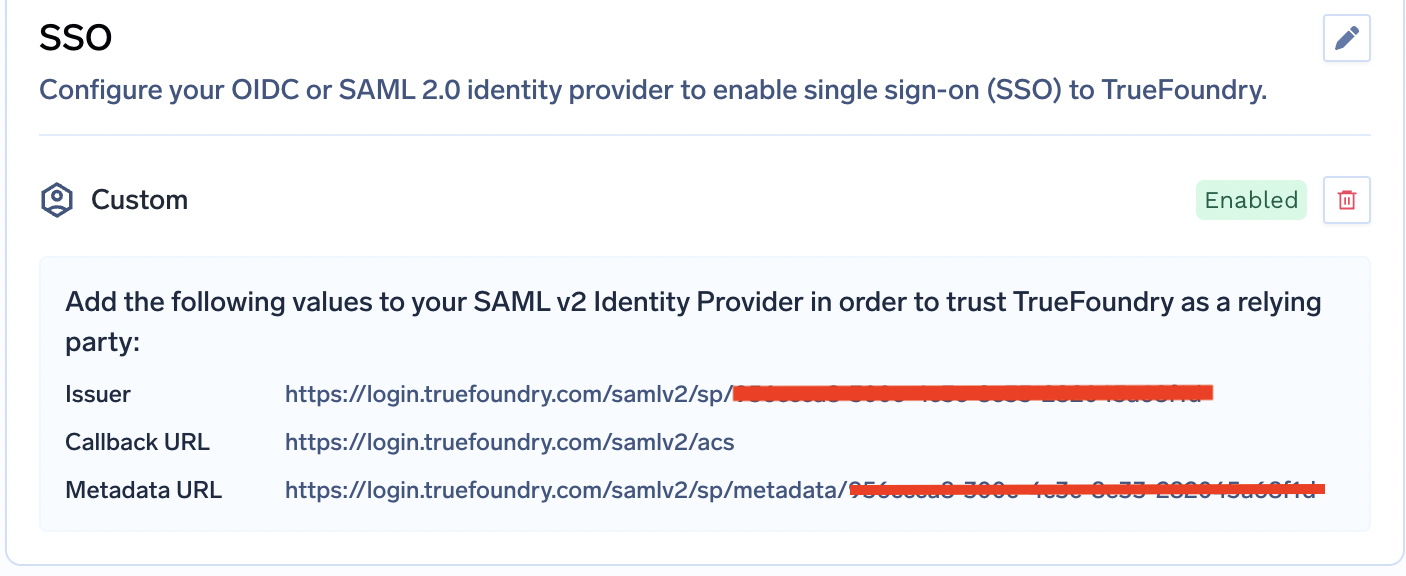
* Replace the placeholder **ACS / Single sign-on URL** with the actual **Callback URL** shown in TrueFoundry.
* Replace the placeholder **Audience / SP Entity ID** with the actual **Issuer** shown in TrueFoundry.
The exact fields depend on the protocol you pick. The provider-specific guides above walk through every screen, but the high-level field mapping is the same everywhere:
Set the redirect/callback URL to `https://login.truefoundry.com/oauth2/callback`.
* **Client ID** — application/client ID issued by your IdP.
* **Client Secret** — client secret value generated for the application.
* **Issuer URL** — your IdP's OIDC issuer (e.g. `https://.okta.com` or `https://login.microsoftonline.com//v2.0`).
* **Discover endpoints** — leave enabled to auto-fetch metadata from `/.well-known/openid-configuration`. If your IdP doesn't expose a discovery document, disable this and manually fill in **Authorization Endpoint**, **Token Endpoint**, **UserInfo Endpoint**, and **JWKS Endpoint**.
* **Scopes** *(optional)* — space-separated additional scopes. Defaults to `openid email`.
When entering **ACS / Single sign-on URL** or **Audience / SP Entity ID**, use placeholder values for now — you'll replace them after saving in TrueFoundry.
* **Identity Provider Endpoint (IdP SSO URL)** — your IdP's SAML login URL.
* **X.509 Certificate (PEM)** — the IdP signing certificate used to verify SAML responses.
After you save your SAML configuration:
* Replace the placeholder **ACS / Single sign-on URL** with the actual **Callback URL** shown in TrueFoundry.
* Replace the placeholder **Audience / SP Entity ID** with the actual **Issuer** shown in TrueFoundry.
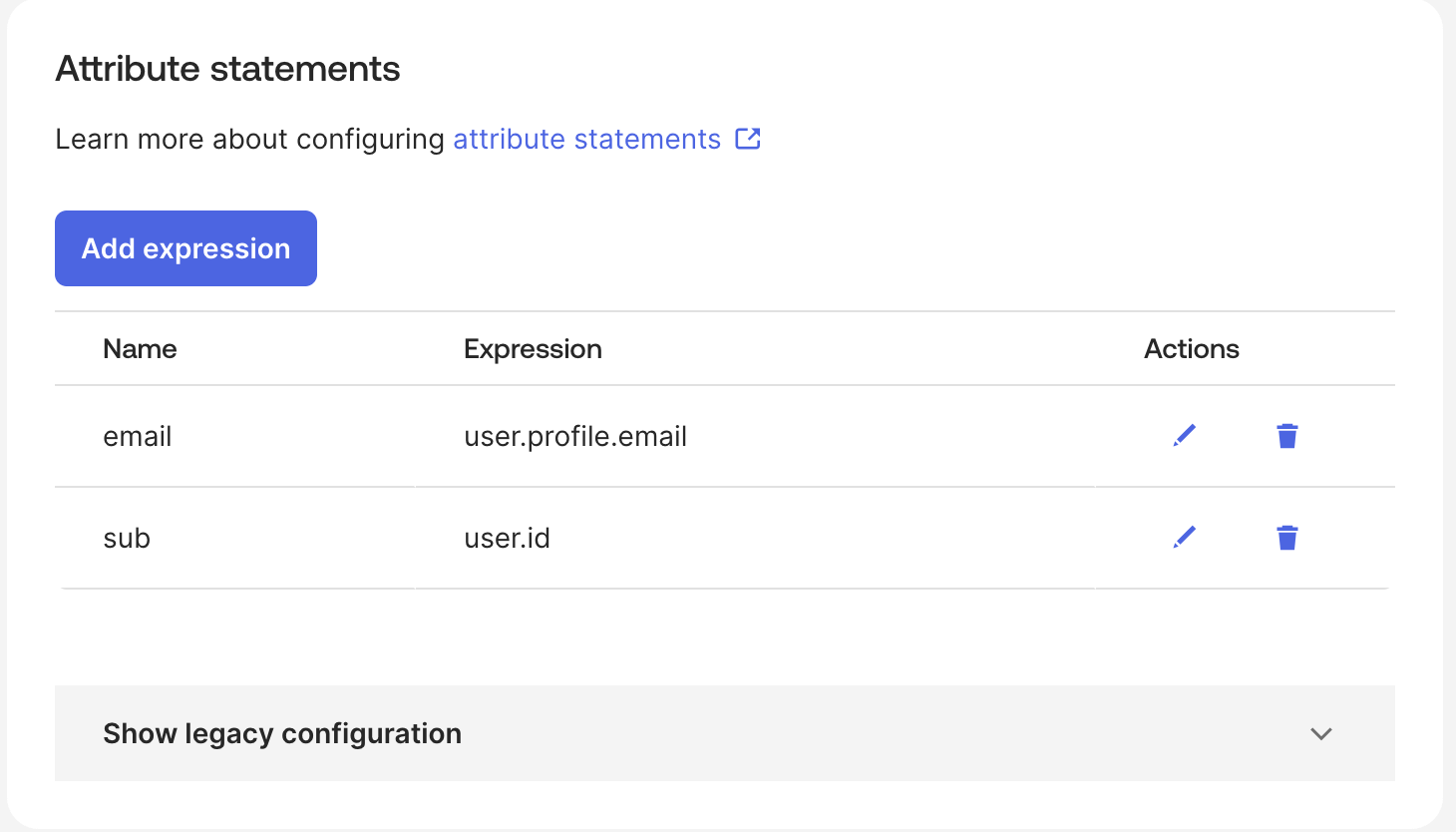
 **Simplify claim configuration with attribute mapping (optional).** SAML IdPs often emit attributes like `http://schemas.xmlsoap.org/ws/2005/05/identity/claims/emailaddress`. Add aliases on the IdP side so TrueFoundry's defaults work without touching advanced settings:
| Attribute name | Map to | Purpose |
| -------------- | -------------------------------------- | -------------------------- |
| `sub` | Your IdP's user ID field | User's unique identifier |
| `email` | Your IdP's email field | User's email address |
| `groups` | Your IdP's groups field (if supported) | Group memberships for RBAC |
**Simplify claim configuration with attribute mapping (optional).** SAML IdPs often emit attributes like `http://schemas.xmlsoap.org/ws/2005/05/identity/claims/emailaddress`. Add aliases on the IdP side so TrueFoundry's defaults work without touching advanced settings:
| Attribute name | Map to | Purpose |
| -------------- | -------------------------------------- | -------------------------- |
| `sub` | Your IdP's user ID field | User's unique identifier |
| `email` | Your IdP's email field | User's email address |
| `groups` | Your IdP's groups field (if supported) | Group memberships for RBAC |
 Every integration involves swapping a small set of values between TrueFoundry and your IdP. Knowing where each value lives in TrueFoundry up front makes the provider-specific guides much easier to follow.
### From TrueFoundry → your IdP
TrueFoundry generates these once you create the SSO configuration under **Platform → Settings → SSO**. They're shown in the SSO configuration panel after you click **Save**.
| TrueFoundry value | What your IdP calls it |
| ----------------- | ----------------------------------------------- |
| **Callback URL** | Redirect URI / Sign-in redirect URI / Reply URL |
The callback URL is always the same:
```
https://login.truefoundry.com/oauth2/callback
```
| TrueFoundry value | What your IdP calls it |
| ----------------- | ------------------------------------------------------------------------- |
| **Callback URL** | ACS URL / Assertion Consumer Service URL / Single sign-on URL / Reply URL |
| **Issuer** | SP Entity ID / Audience URI / Audience Restriction |
Both values are shown in the SSO configuration panel after you save your SAML settings:
### From your IdP → TrueFoundry
You collect these from your IdP's admin console and paste them into the **Configure Settings for SSO** dialog at **Platform → Settings → SSO**.
| TrueFoundry field | From your IdP |
| ----------------------- | ------------------------------------------------------------- |
| **Client ID** | The application/client ID issued by your IdP |
| **Client Secret** | The client secret value generated for the application |
| **Issuer URL** | The OIDC issuer for your tenant |
| **Discover endpoints** | Leave enabled to auto-fetch the OIDC metadata |
| **Scopes** *(optional)* | Space-separated additional scopes. Defaults to `openid email` |
| TrueFoundry field | From your IdP |
| ------------------------------ | ----------------------------------------------------------------- |
| **Identity Provider Endpoint** | The IdP's SAML SSO/login URL |
| **X.509 Certificate** | The IdP's signing certificate (PEM) used to verify SAML responses |
### Advanced customizations (OIDC and SAML)
Click **Show advanced fields** in the SSO dialog to override defaults:
* **Button Text / Button Image URL** — customize the SSO button on the TrueFoundry login screen.
* **Email Claim** — claim/attribute carrying the user's email. Defaults to `email`.
* **Unique ID Claim** — claim/attribute carrying the user's unique ID. Defaults to `sub`.
Wherever possible, configure your IdP to emit attributes named `email`, `sub`, and `groups`. With those names you don't have to touch the advanced fields in TrueFoundry.
## SCIM provisioning at a glance
For IdPs that support SCIM, you can automatically create, update, and deactivate TrueFoundry users from your IdP. SCIM works alongside SSO (OIDC or SAML).
Turn on **SCIM** under **Settings → Security & Access → Provisioning**.
Expand the SSO configuration to view the **SCIM URL**, and click the key icon to generate a **SCIM token**. Keep both handy — you'll paste them into your IdP.
The token is shown only once at creation. Treat it like a password. If you lose it, generate a new one (which invalidates the previous token).
In your IdP's SCIM/provisioning settings, set:
* **Base URL / Tenant URL** to the SCIM URL from TrueFoundry.
* **Authentication** to Bearer token.
* **Bearer Token / Secret Token** to the SCIM token from TrueFoundry.
Then assign users and groups in the IdP and start provisioning. Within a few minutes, users and teams will appear in TrueFoundry.
For team-specific behaviour (group naming, role mapping, etc.), see [Provision teams via SCIM](/docs/platform/team-management#provision-teams-via-scim).
SCIM is one of three provisioning modes TrueFoundry supports. If you'd rather create users on first login or invite them manually, see [Just-in-time (JIT) and Invite-only](/docs/platform/user-management#user-provisioning).
## Troubleshooting
### Deleting an SSO configuration fails with "out of sync with the central auth server"
> This SSO configuration is out of sync with the central auth server and could not be deleted automatically. Retry the delete request with the force flag set to true to remove the local configuration.
To remove the SSO configuration anyway, retry the delete with the `force=true` query parameter:
```bash theme={"dark"}
curl -X DELETE \
'https:///api/svc/v1/settings/?force=true' \
-H 'Authorization: Bearer '
```
* **``** — your TrueFoundry control plane URL.
* **``** — the id of the SSO settings entry (the `id` field returned by the settings list API).
* **``** — a TrueFoundry API key belonging to a user/account with the **Manage Settings** permission on the tenant.
With `force=true`, TrueFoundry ignores the central auth server cleanup failure and deletes the SSO configuration.
## Before you start
* You'll need **admin access** to both TrueFoundry and your IdP.
* Each tenant has its own SSO and provisioning configuration — make sure you're configuring the correct tenant.
* For **Option 1**, TrueFoundry's authentication server is `login.truefoundry.com` for all customers and the OIDC redirect/callback URL is always `https://login.truefoundry.com/oauth2/callback`.
* For **Option 2**, work with TrueFoundry support to obtain the `INTERNAL_JWT_JWKS` material and follow [External SSO (OIDC/SAML)](/docs/deploy-control-plane-with-external-oauth) at install time.
* Once SSO is saved, click the row in the SSO list to view the **Callback URL** and **Issuer** that you'll feed back into your IdP for SAML.
Pick a provider from the cards above to get started.
Every integration involves swapping a small set of values between TrueFoundry and your IdP. Knowing where each value lives in TrueFoundry up front makes the provider-specific guides much easier to follow.
### From TrueFoundry → your IdP
TrueFoundry generates these once you create the SSO configuration under **Platform → Settings → SSO**. They're shown in the SSO configuration panel after you click **Save**.
| TrueFoundry value | What your IdP calls it |
| ----------------- | ----------------------------------------------- |
| **Callback URL** | Redirect URI / Sign-in redirect URI / Reply URL |
The callback URL is always the same:
```
https://login.truefoundry.com/oauth2/callback
```
| TrueFoundry value | What your IdP calls it |
| ----------------- | ------------------------------------------------------------------------- |
| **Callback URL** | ACS URL / Assertion Consumer Service URL / Single sign-on URL / Reply URL |
| **Issuer** | SP Entity ID / Audience URI / Audience Restriction |
Both values are shown in the SSO configuration panel after you save your SAML settings:
### From your IdP → TrueFoundry
You collect these from your IdP's admin console and paste them into the **Configure Settings for SSO** dialog at **Platform → Settings → SSO**.
| TrueFoundry field | From your IdP |
| ----------------------- | ------------------------------------------------------------- |
| **Client ID** | The application/client ID issued by your IdP |
| **Client Secret** | The client secret value generated for the application |
| **Issuer URL** | The OIDC issuer for your tenant |
| **Discover endpoints** | Leave enabled to auto-fetch the OIDC metadata |
| **Scopes** *(optional)* | Space-separated additional scopes. Defaults to `openid email` |
| TrueFoundry field | From your IdP |
| ------------------------------ | ----------------------------------------------------------------- |
| **Identity Provider Endpoint** | The IdP's SAML SSO/login URL |
| **X.509 Certificate** | The IdP's signing certificate (PEM) used to verify SAML responses |
### Advanced customizations (OIDC and SAML)
Click **Show advanced fields** in the SSO dialog to override defaults:
* **Button Text / Button Image URL** — customize the SSO button on the TrueFoundry login screen.
* **Email Claim** — claim/attribute carrying the user's email. Defaults to `email`.
* **Unique ID Claim** — claim/attribute carrying the user's unique ID. Defaults to `sub`.
Wherever possible, configure your IdP to emit attributes named `email`, `sub`, and `groups`. With those names you don't have to touch the advanced fields in TrueFoundry.
## SCIM provisioning at a glance
For IdPs that support SCIM, you can automatically create, update, and deactivate TrueFoundry users from your IdP. SCIM works alongside SSO (OIDC or SAML).
Turn on **SCIM** under **Settings → Security & Access → Provisioning**.
Expand the SSO configuration to view the **SCIM URL**, and click the key icon to generate a **SCIM token**. Keep both handy — you'll paste them into your IdP.
The token is shown only once at creation. Treat it like a password. If you lose it, generate a new one (which invalidates the previous token).
In your IdP's SCIM/provisioning settings, set:
* **Base URL / Tenant URL** to the SCIM URL from TrueFoundry.
* **Authentication** to Bearer token.
* **Bearer Token / Secret Token** to the SCIM token from TrueFoundry.
Then assign users and groups in the IdP and start provisioning. Within a few minutes, users and teams will appear in TrueFoundry.
For team-specific behaviour (group naming, role mapping, etc.), see [Provision teams via SCIM](/docs/platform/team-management#provision-teams-via-scim).
SCIM is one of three provisioning modes TrueFoundry supports. If you'd rather create users on first login or invite them manually, see [Just-in-time (JIT) and Invite-only](/docs/platform/user-management#user-provisioning).
## Troubleshooting
### Deleting an SSO configuration fails with "out of sync with the central auth server"
> This SSO configuration is out of sync with the central auth server and could not be deleted automatically. Retry the delete request with the force flag set to true to remove the local configuration.
To remove the SSO configuration anyway, retry the delete with the `force=true` query parameter:
```bash theme={"dark"}
curl -X DELETE \
'https:///api/svc/v1/settings/?force=true' \
-H 'Authorization: Bearer '
```
* **``** — your TrueFoundry control plane URL.
* **``** — the id of the SSO settings entry (the `id` field returned by the settings list API).
* **``** — a TrueFoundry API key belonging to a user/account with the **Manage Settings** permission on the tenant.
With `force=true`, TrueFoundry ignores the central auth server cleanup failure and deletes the SSO configuration.
## Before you start
* You'll need **admin access** to both TrueFoundry and your IdP.
* Each tenant has its own SSO and provisioning configuration — make sure you're configuring the correct tenant.
* For **Option 1**, TrueFoundry's authentication server is `login.truefoundry.com` for all customers and the OIDC redirect/callback URL is always `https://login.truefoundry.com/oauth2/callback`.
* For **Option 2**, work with TrueFoundry support to obtain the `INTERNAL_JWT_JWKS` material and follow [External SSO (OIDC/SAML)](/docs/deploy-control-plane-with-external-oauth) at install time.
* Once SSO is saved, click the row in the SSO list to view the **Callback URL** and **Issuer** that you'll feed back into your IdP for SAML.
Pick a provider from the cards above to get started.