> ## Documentation Index
> Fetch the complete documentation index at: https://www.truefoundry.com/llms.txt
> Use this file to discover all available pages before exploring further.
# SSO: Okta OIN
> Configure OpenID Connect SSO between TrueFoundry and Okta using the Okta Integration Network.
Connect your Okta organization to TrueFoundry with OpenID Connect by adding TrueFoundry from the [Okta Integration Network (OIN)](https://www.okta.com/integrations/). Copy the OIDC credentials into TrueFoundry SSO settings and assign users — no custom app creation required.
For a manually created OIDC app instead, see [SSO via OIDC](/docs/platform/sso/okta/oidc).
## Supported features
| Feature | Supported |
| ------------------------------------ | ------------------------------------------------------ |
| OIDC SSO — SP-initiated | Yes |
| Just-in-time (JIT) user provisioning | Yes |
| Grant type | Authorization Code |
| Scopes | `openid email` (add `profile` for first and last name) |
## Prerequisites
* A TrueFoundry tenant with **Admin** access to **Settings → Security & Access → SSO**.
* An Okta Workforce Identity Cloud tenant with permission to add applications (Super Admin or App Admin).
* Your TrueFoundry control plane hostname (for example, `your-tenant.truefoundry.cloud`).
* Your Okta tenant domain (for example, `https://your-org.okta.com`).
## Configuration
### 1. Add TrueFoundry from the Okta catalog
In the Okta Admin Console, go to **Applications → Applications → Browse App Catalog**, search for **TrueFoundry**, and click **Add Integration**.
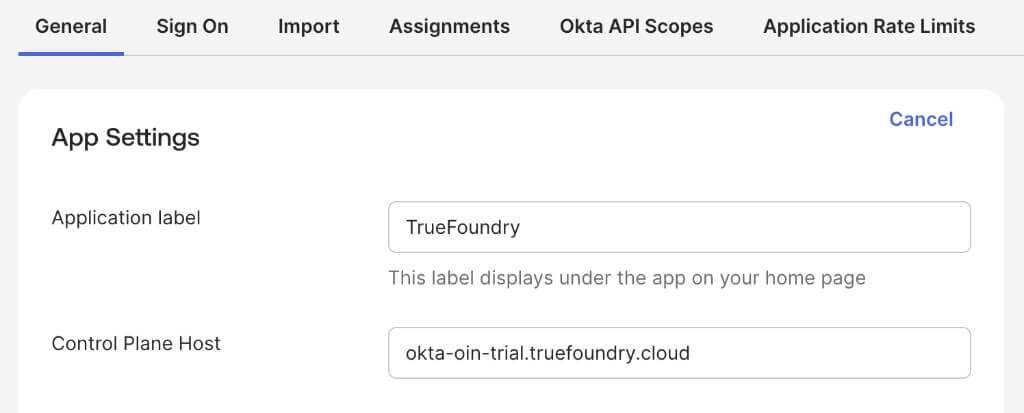
### 2. Set the Control Plane Host
On the **General** tab, under **App Settings**, set:
* **Application label**: a display name such as `TrueFoundry`.
* **Control Plane Host**: the hostname of your TrueFoundry control plane (for example, `your-tenant.truefoundry.cloud`). Do not include `https://`.
 Finish adding the app (complete assignments as prompted, or skip and assign later).
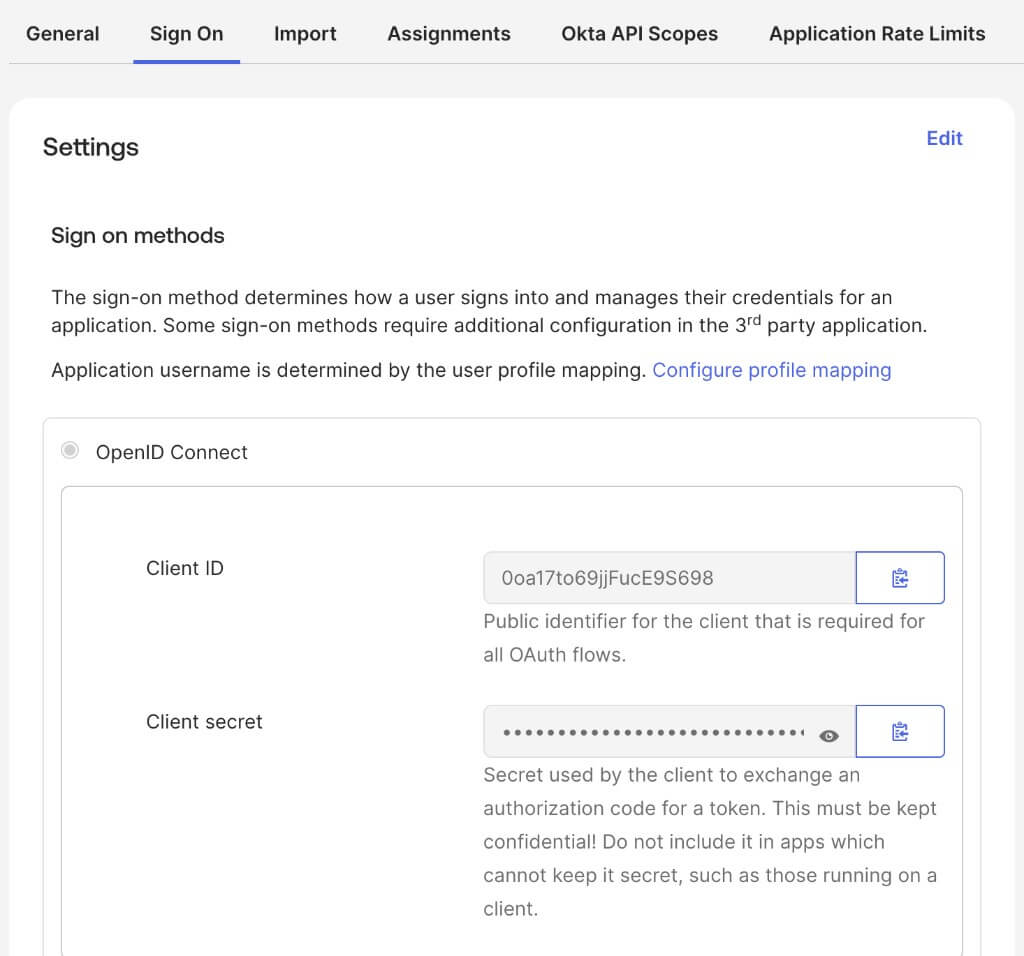
### 3. Get your OIDC credentials
Open the TrueFoundry app you just added. On the **Sign On** tab, under **Sign on methods → OpenID Connect**, copy the **Client ID** and **Client secret**. Your issuer is your Okta domain — for example, `https://your-org.okta.com`.
Finish adding the app (complete assignments as prompted, or skip and assign later).
### 3. Get your OIDC credentials
Open the TrueFoundry app you just added. On the **Sign On** tab, under **Sign on methods → OpenID Connect**, copy the **Client ID** and **Client secret**. Your issuer is your Okta domain — for example, `https://your-org.okta.com`.
 The Sign-in redirect URI ships with the OIN integration as `https://login.truefoundry.com/oauth2/callback`. Confirm it is present under the app's **General → Sign-in redirect URIs** — you do not need to add it manually.
### 4. Complete the connection in TrueFoundry
In TrueFoundry, go to **Settings → Security & Access → SSO**, add an Okta OIDC configuration, and paste:
* **Issuer URL**: your Okta domain (for example, `https://your-org.okta.com`)
* **Client ID**: the Client ID from step 3
* **Client Secret**: the Client secret from step 3
Save the configuration.
### 5. Assign users
On the TrueFoundry app's **Assignments** tab in Okta, assign the users or groups that should have access. Only assigned users can sign in.
### 6. Test
Sign out, return to your TrueFoundry login page, and click **Login with Okta**. You are redirected to Okta; on success you land in the TrueFoundry dashboard.
## Provisioning
TrueFoundry provisions users just-in-time. On a user's first successful SSO sign-in, TrueFoundry creates their account when [JIT provisioning](/docs/platform/user-management#user-provisioning) is enabled. No SCIM or pre-sync is required for SSO alone; access follows your Okta app assignment — an unassigned user can no longer sign in.
For automatic user and group sync with SCIM, see [SCIM with Okta](/docs/platform/sso/okta/scim).
## Sign-in flows
**SP-initiated:** users go to the TrueFoundry login page, click **Login with Okta**, and are redirected to Okta.
## Reference
| Setting | Value |
| -------------------- | ----------------------------------------------- |
| Protocol | OpenID Connect |
| Grant type | Authorization Code |
| Scopes | `openid email` (optional `profile`) |
| Sign-in redirect URI | `https://login.truefoundry.com/oauth2/callback` |
| Control Plane Host | Your TrueFoundry hostname (no `https://`) |
## Troubleshoot
* **SSO fails after adding the OIN app** — Confirm **Control Plane Host** on the **General** tab matches your TrueFoundry hostname exactly (no `https://`, no trailing slash).
* **"Invalid issuer" when saving in TrueFoundry** — Confirm the Issuer URL is exactly your Okta tenant URL (for example, `https://acme.okta.com`) with no trailing slash and no `/oauth2/default` suffix.
* **"You are not assigned to the client application"** — Assign the user (or their group) to the TrueFoundry app under **Assignments** in Okta.
The Sign-in redirect URI ships with the OIN integration as `https://login.truefoundry.com/oauth2/callback`. Confirm it is present under the app's **General → Sign-in redirect URIs** — you do not need to add it manually.
### 4. Complete the connection in TrueFoundry
In TrueFoundry, go to **Settings → Security & Access → SSO**, add an Okta OIDC configuration, and paste:
* **Issuer URL**: your Okta domain (for example, `https://your-org.okta.com`)
* **Client ID**: the Client ID from step 3
* **Client Secret**: the Client secret from step 3
Save the configuration.
### 5. Assign users
On the TrueFoundry app's **Assignments** tab in Okta, assign the users or groups that should have access. Only assigned users can sign in.
### 6. Test
Sign out, return to your TrueFoundry login page, and click **Login with Okta**. You are redirected to Okta; on success you land in the TrueFoundry dashboard.
## Provisioning
TrueFoundry provisions users just-in-time. On a user's first successful SSO sign-in, TrueFoundry creates their account when [JIT provisioning](/docs/platform/user-management#user-provisioning) is enabled. No SCIM or pre-sync is required for SSO alone; access follows your Okta app assignment — an unassigned user can no longer sign in.
For automatic user and group sync with SCIM, see [SCIM with Okta](/docs/platform/sso/okta/scim).
## Sign-in flows
**SP-initiated:** users go to the TrueFoundry login page, click **Login with Okta**, and are redirected to Okta.
## Reference
| Setting | Value |
| -------------------- | ----------------------------------------------- |
| Protocol | OpenID Connect |
| Grant type | Authorization Code |
| Scopes | `openid email` (optional `profile`) |
| Sign-in redirect URI | `https://login.truefoundry.com/oauth2/callback` |
| Control Plane Host | Your TrueFoundry hostname (no `https://`) |
## Troubleshoot
* **SSO fails after adding the OIN app** — Confirm **Control Plane Host** on the **General** tab matches your TrueFoundry hostname exactly (no `https://`, no trailing slash).
* **"Invalid issuer" when saving in TrueFoundry** — Confirm the Issuer URL is exactly your Okta tenant URL (for example, `https://acme.okta.com`) with no trailing slash and no `/oauth2/default` suffix.
* **"You are not assigned to the client application"** — Assign the user (or their group) to the TrueFoundry app under **Assignments** in Okta.