> ## Documentation Index
> Fetch the complete documentation index at: https://www.truefoundry.com/llms.txt
> Use this file to discover all available pages before exploring further.
# Configure security settings for your TrueFoundry tenant
> Configure Personal Access Token policies, security notifications, and UI login IP allowlists to control user and administrator access to a TrueFoundry tenant.
Security settings define tenant-wide controls for Personal Access Tokens (PATs), security notifications, and access to the TrueFoundry UI.
You need the **Tenant Admin** role or a custom role with the **Manage Settings** (`settings:ManageSettings`) permission to update these settings.
## Open security settings
Log in to the TrueFoundry tenant you want to configure.
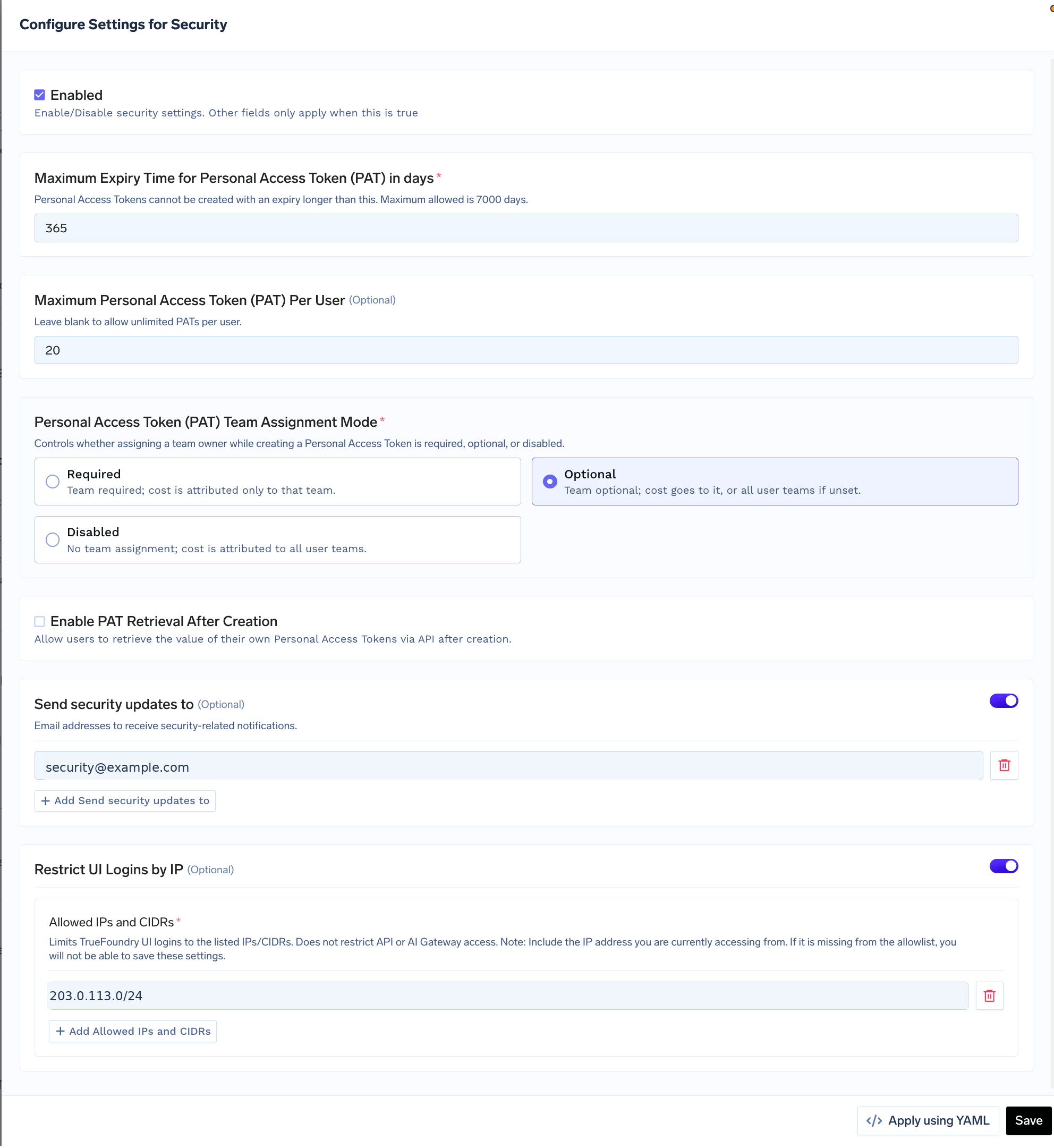
Go to **Settings > Organisation > Security & Access > Security**, then select the edit icon.
 ## Personal Access Token controls
Use these settings to control how users create and retrieve [Personal Access Tokens](/docs/generating-truefoundry-api-keys#personal-access-tokens-pats).
| Setting | Behavior |
| - | - |
| **Enabled** | Activates the security settings on this page. The remaining fields apply only while this setting is enabled. |
| **Maximum Expiry Time for Personal Access Token (PAT) in days** | Sets the longest expiry users can select when creating a PAT. The maximum permitted value is `7000` days. |
| **Maximum Personal Access Token (PAT) Per User** | Limits how many PATs each user can have. Leave this field blank to allow an unlimited number. |
| **Personal Access Token (PAT) Team Assignment Mode** | Controls whether users must, may, or cannot assign a team when creating a PAT. Team assignment affects cost attribution, not the PAT's permissions. |
| **Enable PAT Retrieval After Creation** | Allows users to retrieve the value of their own PATs through the API after creation. |
### Team assignment modes
| Mode | Team selection | Cost attribution |
| - | - | - |
| **Required** | A user must select a team. | Costs are attributed only to the selected team. |
| **Optional** | A user may select a team. | Costs go to the selected team, or to all teams the user belongs to when no team is selected. |
| **Disabled** | A user cannot select a team. | Costs are attributed to all teams the user belongs to. |
Enable PAT retrieval after creation only when a workflow requires it. Anyone who obtains a PAT can act with the permissions of the user who owns it.
## Security notifications
Turn on **Send security updates to** and add one or more email addresses that should receive security-related notifications. Use a monitored group address, such as `security@example.com`, so notifications do not depend on one person.
## Restrict UI logins by IP
Turn on **Restrict UI Logins by IP** to allow browser access only from the listed IP addresses and CIDR ranges.
UI login IP allowlisting is available only on TrueFoundry SaaS.
This restriction applies to the TrueFoundry UI. It does not restrict API or AI Gateway access.
Include the public IP address from which you are configuring the allowlist. TrueFoundry prevents you from saving the settings if your current IP address is not allowed.
Add each permitted IP address or CIDR range under **Allowed IPs and CIDRs**. Use the narrowest ranges that cover your corporate network, VPN, or approved administrator locations.
## Save or apply using YAML
* Select **Save** to apply the settings from the form.
* Select **Apply using YAML** to manage the same configuration declaratively, then follow the instructions shown in the dashboard.
Create, use, rotate, and revoke Personal Access Tokens and Virtual Account tokens.
Review TrueFoundry security controls and the tenant security checklist.
This documentation is built and hosted on [Mintlify](https://mintlify.com), a developer documentation platform.
## Personal Access Token controls
Use these settings to control how users create and retrieve [Personal Access Tokens](/docs/generating-truefoundry-api-keys#personal-access-tokens-pats).
| Setting | Behavior |
| - | - |
| **Enabled** | Activates the security settings on this page. The remaining fields apply only while this setting is enabled. |
| **Maximum Expiry Time for Personal Access Token (PAT) in days** | Sets the longest expiry users can select when creating a PAT. The maximum permitted value is `7000` days. |
| **Maximum Personal Access Token (PAT) Per User** | Limits how many PATs each user can have. Leave this field blank to allow an unlimited number. |
| **Personal Access Token (PAT) Team Assignment Mode** | Controls whether users must, may, or cannot assign a team when creating a PAT. Team assignment affects cost attribution, not the PAT's permissions. |
| **Enable PAT Retrieval After Creation** | Allows users to retrieve the value of their own PATs through the API after creation. |
### Team assignment modes
| Mode | Team selection | Cost attribution |
| - | - | - |
| **Required** | A user must select a team. | Costs are attributed only to the selected team. |
| **Optional** | A user may select a team. | Costs go to the selected team, or to all teams the user belongs to when no team is selected. |
| **Disabled** | A user cannot select a team. | Costs are attributed to all teams the user belongs to. |
Enable PAT retrieval after creation only when a workflow requires it. Anyone who obtains a PAT can act with the permissions of the user who owns it.
## Security notifications
Turn on **Send security updates to** and add one or more email addresses that should receive security-related notifications. Use a monitored group address, such as `security@example.com`, so notifications do not depend on one person.
## Restrict UI logins by IP
Turn on **Restrict UI Logins by IP** to allow browser access only from the listed IP addresses and CIDR ranges.
UI login IP allowlisting is available only on TrueFoundry SaaS.
This restriction applies to the TrueFoundry UI. It does not restrict API or AI Gateway access.
Include the public IP address from which you are configuring the allowlist. TrueFoundry prevents you from saving the settings if your current IP address is not allowed.
Add each permitted IP address or CIDR range under **Allowed IPs and CIDRs**. Use the narrowest ranges that cover your corporate network, VPN, or approved administrator locations.
## Save or apply using YAML
* Select **Save** to apply the settings from the form.
* Select **Apply using YAML** to manage the same configuration declaratively, then follow the instructions shown in the dashboard.
Create, use, rotate, and revoke Personal Access Tokens and Virtual Account tokens.
Review TrueFoundry security controls and the tenant security checklist.
This documentation is built and hosted on [Mintlify](https://mintlify.com), a developer documentation platform.