> ## Documentation Index
> Fetch the complete documentation index at: https://www.truefoundry.com/llms.txt
> Use this file to discover all available pages before exploring further.
# Deploy Gateway Plane
> Installation guide of deploying the AI Gateway plane on your own infrastructure.
This guide covers [Option 2: Gateway Plane only](/docs/platform/deployment-overview#option2-gateway-plane-only). In this mode of deployment, you deploy the AI Gateway plane on your own infrastructure and the control-plane is hosted by TrueFoundry.
## Prerequisites for Installation
1. **Kubernetes Cluster**: K8s cluster 1.27+.
2. Domain to map the ingress of the AI Gateway along with certificate for the domain. (also any ingress controller or istio gateway you are using)
This Domain will be referred as Gateway Endpoint Host in our documentation.
3. **TrueFoundry SaaS Account**: Sign up and create a new tenant on TrueFoundry SaaS by logging in to [TrueFoundry](https://truefoundry.com/register). You will receive an invitation on your email to verify your email and login.
While signing up, you will sign up by entering your company name. This company name will be used as the tenant name. Your control plane URL will be `https://.truefoundry.cloud`. If your company name is `example-company`, then your control plane URL will be `https://example-company.truefoundry.cloud`.
4. **Egress access to TrueFoundry SaaS**:
* Control Plane: `https://` (for example, `https://example-company.truefoundry.cloud`)
5. **Image Pull Secret**: Image pull secret from TrueFoundry team to enable pulling the truefoundry images from the private registry.
## Installation Instructions
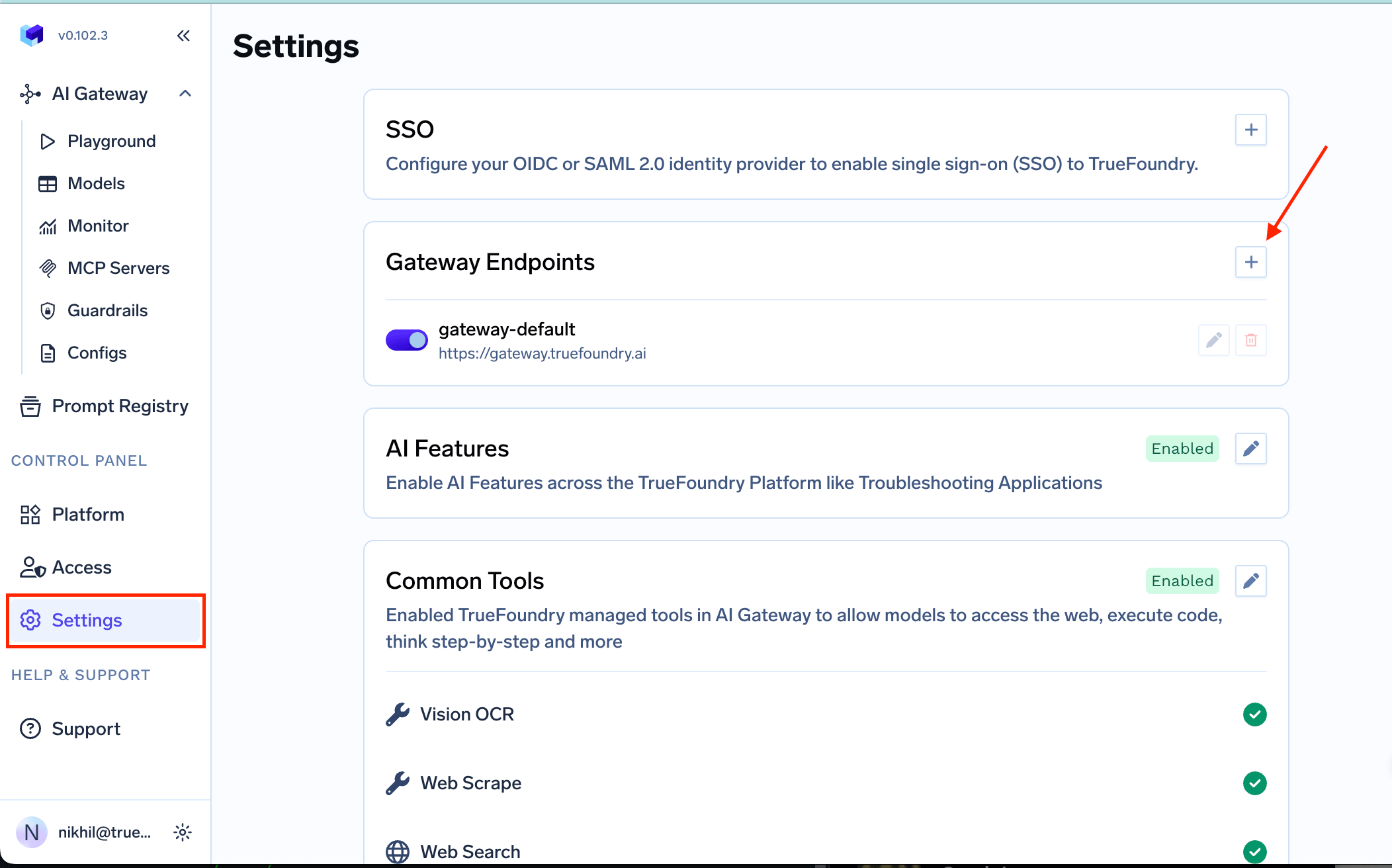
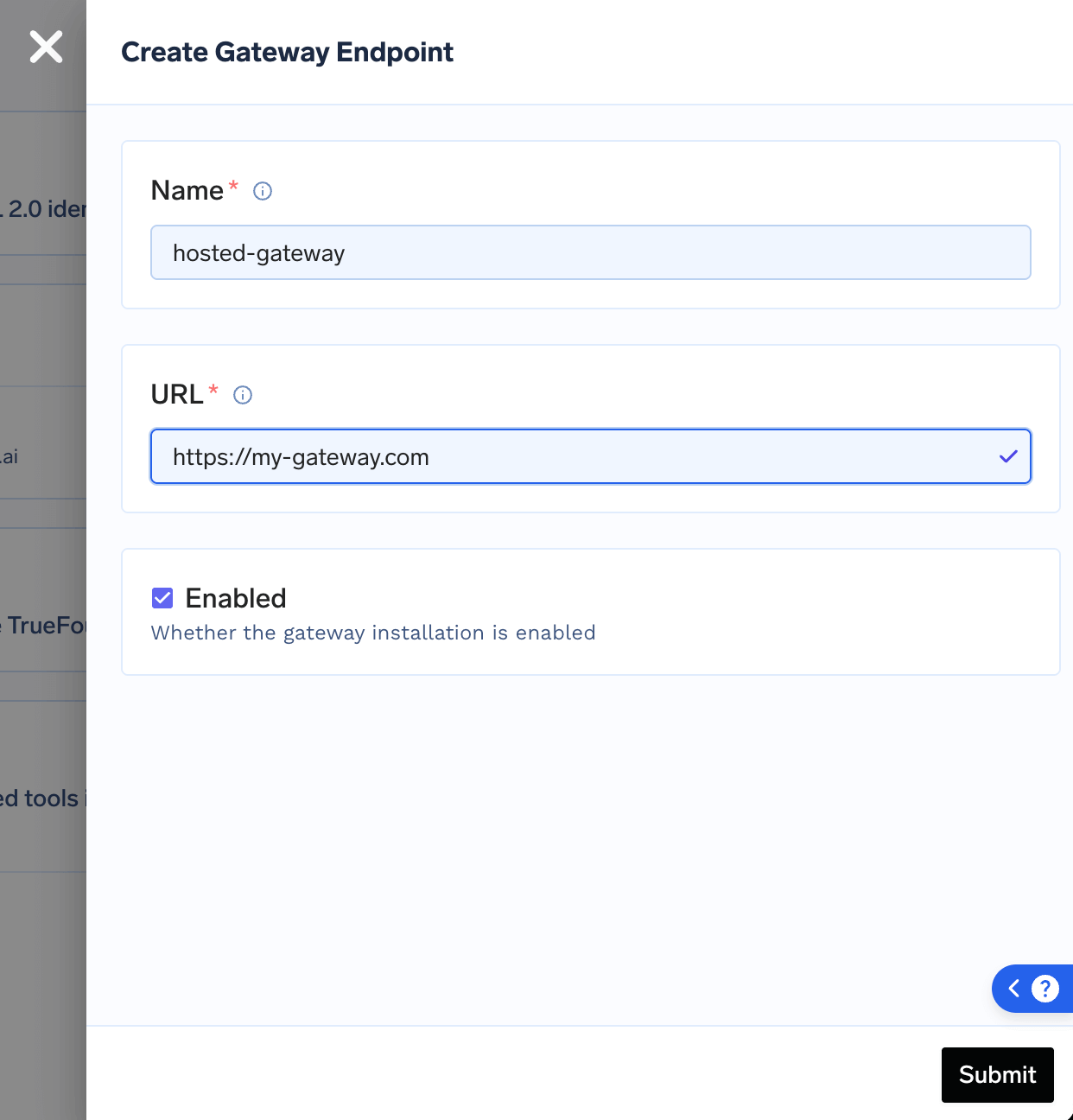
Create an entry for Gateway Endpoints by logging into the TrueFoundry SaaS platform.
1. Navigate to Settings -> Gateway Endpoints
2. Create a new gateway endpoint with a unique name
3. Enter the URL where you will be deploying your gateway
 ```bash wrap theme={"dark"}
curl -X 'PUT' --location 'https:///api/svc/v1/llm-gateway/installations' \
--header 'Content-Type: application/json' \
--header 'Authorization: Bearer ' \
-d '{
"manifest": {
"type": "gateway-installation",
"name": "",
"url": "",
"enabled": true,
"isDefault": false
}
}'
```
| Parameter | Description |
| --------------------------- | ---------------------------------------------------------------------------------------------------------------------------------- |
| `CONTROL_PLANE_URL` | Your control plane URL, e.g. `example-company.truefoundry.cloud` (without `https://`) |
| `PERSONAL_ACCESS_TOKEN` | A Personal Access Token created from **Settings -> Access -> Personal Access Tokens**. The user must have the `tenant-admin` role. |
| `GATEWAY_INSTALLATION_NAME` | The AI Gateway installation name from step 1 |
| `GATEWAY_URL` | The AI Gateway URL that you are planning to use |
The AI Gateway installation name you provide here will be used in the next step to generate the `GatewayToken`.
The `GatewayToken` is used by the AI Gateway service running in your infrastructure to authenticate with the TrueFoundry control-plane. To generate it, you need to call a control-plane API using a Personal Access Token from a user with the **tenant-admin** role. This is a one-time call — once you have the `GatewayToken`, you do not need to call this API again.
```bash wrap theme={"dark"}
curl --location 'https:///api/svc/v1/llm-gateway/installations/token?name=' \
--header 'Authorization: Bearer '
```
| Parameter | Description |
| --------------------------- | ---------------------------------------------------------------------------------------------------------------------------------- |
| `CONTROL_PLANE_URL` | Your control plane URL, e.g. `example-company.truefoundry.cloud` (without `https://`) |
| `PERSONAL_ACCESS_TOKEN` | A Personal Access Token created from **Settings -> Access -> Personal Access Tokens**. The user must have the `tenant-admin` role. |
| `GATEWAY_INSTALLATION_NAME` | The AI Gateway installation name from step 1 |
Copy and save the `GatewayToken` from the response in a secure location. It will not be shown again.
Once you have the `GatewayToken`, proceed to create the Kubernetes secrets needed for the AI Gateway helm chart installation.
We will create two secrets in this step:
1. Store the `GatewayToken`
2. Store the Image Pull Secret
We need to create a [Kubernetes secret](https://github.com/truefoundry/infra-charts/blob/main/charts/truefoundry/README.md#using-k8s-secret-for-required-fields) containing the `GatewayToken` obtained in the previous step.
The helm chart expects this token under the key name `TFY_API_KEY`.
```yaml truefoundry-creds.yaml lines theme={"dark"}
apiVersion: v1
kind: Secret
metadata:
name: truefoundry-creds
type: Opaque
stringData:
TFY_API_KEY: # GatewayToken obtained from step 2
```
Apply the secret to the Kubernetes cluster (Assuming you are installing the AI Gateway plane in the `truefoundry` namespace)
```bash lines theme={"dark"}
kubectl apply -f truefoundry-creds.yaml -n truefoundry
```
We need to create a [Image Pull Secret](https://github.com/truefoundry/infra-charts/blob/main/charts/truefoundry/README.md#using-k8s-secret-for-required-fields) to enable pulling the truefoundry images from the private registry.
```yaml truefoundry-image-pull-secret.yaml lines theme={"dark"}
apiVersion: v1
kind: Secret
metadata:
name: truefoundry-image-pull-secret
type: kubernetes.io/dockerconfigjson
data:
.dockerconfigjson: # Provided by TrueFoundry team
```
Apply the secret to the Kubernetes cluster (Assuming you are installing the AI Gateway plane in the `truefoundry` namespace)
```bash lines theme={"dark"}
kubectl apply -f truefoundry-image-pull-secret.yaml -n truefoundry
```
Create a values file as given below and replace the following values:
* **CONTROL\_PLANE\_URL**: Your control plane URL in the format `company-name.truefoundry.cloud` (without the `https://` prefix). For example, if your company name is `example-company`, then use `example-company.truefoundry.cloud`.
* **TENANT\_NAME**: The tenant name (same as the company name you used to create your account on TrueFoundry SaaS)
* **GATEWAY\_ENDPOINT\_HOST**: The domain where you will expose the AI Gateway endpoint (e.g., `gateway.example.com`)
```yaml truefoundry-values.yaml lines wrap theme={"dark"}
global:
# This is the reference to the secrets we created in the previous step
imagePullSecrets:
- name: "truefoundry-image-pull-secret"
# Choose the resource tier as per your needs
resourceTier: medium # or small or large
controlPlaneURL: # eg. https://example-company.truefoundry.cloud
tenantName:
ingress:
enabled: true
annotations: {}
ingressClassName: nginx
tls: []
hosts:
-
# Optional: Istio configuration (if using Istio instead of standard ingress)
# istio:
# virtualservice:
# hosts:
# -
# enabled: true
# retries:
# enabled: true
# retryOn: gateway-error
# gateways:
# - istio-system/tfy-wildcard
# annotations: {}
```
You can find full list of supported values [here](https://github.com/truefoundry/infra-charts/tree/main/charts/tfy-llm-gateway).
Install the TrueFoundry Helm chart using the values file created in the previous step:
```bash lines wrap theme={"dark"}
helm upgrade --install truefoundry oci://tfy.jfrog.io/tfy-helm/tfy-llm-gateway -n truefoundry --create-namespace -f truefoundry-values.yaml
```
Verify that all pods are running:
```bash lines theme={"dark"}
kubectl get pods -n truefoundry
```
You can verify the deployment by checking the health of the AI Gateway endpoint by running the following command:
```bash lines theme={"dark"}
curl -X GET "https:///health"
```
A successful response indicates that the AI Gateway plane is deployed and running correctly.
## Accessing the AI Gateway
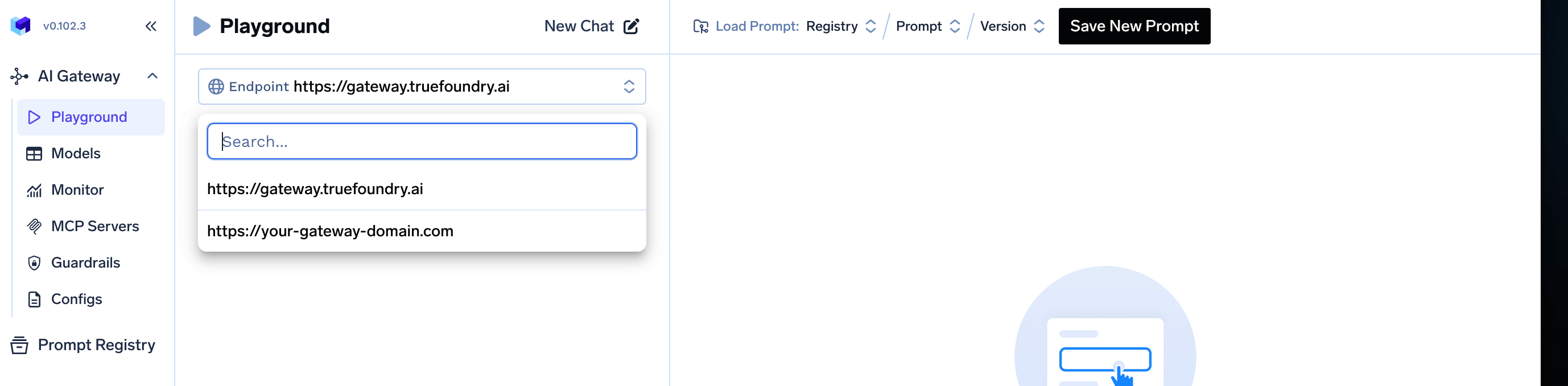
You can now access the AI Gateway endpoint from the TrueFoundry SaaS UI by selecting the AI Gateway endpoint from the dropdown in Playground as shown below:
```bash wrap theme={"dark"}
curl -X 'PUT' --location 'https:///api/svc/v1/llm-gateway/installations' \
--header 'Content-Type: application/json' \
--header 'Authorization: Bearer ' \
-d '{
"manifest": {
"type": "gateway-installation",
"name": "",
"url": "",
"enabled": true,
"isDefault": false
}
}'
```
| Parameter | Description |
| --------------------------- | ---------------------------------------------------------------------------------------------------------------------------------- |
| `CONTROL_PLANE_URL` | Your control plane URL, e.g. `example-company.truefoundry.cloud` (without `https://`) |
| `PERSONAL_ACCESS_TOKEN` | A Personal Access Token created from **Settings -> Access -> Personal Access Tokens**. The user must have the `tenant-admin` role. |
| `GATEWAY_INSTALLATION_NAME` | The AI Gateway installation name from step 1 |
| `GATEWAY_URL` | The AI Gateway URL that you are planning to use |
The AI Gateway installation name you provide here will be used in the next step to generate the `GatewayToken`.
The `GatewayToken` is used by the AI Gateway service running in your infrastructure to authenticate with the TrueFoundry control-plane. To generate it, you need to call a control-plane API using a Personal Access Token from a user with the **tenant-admin** role. This is a one-time call — once you have the `GatewayToken`, you do not need to call this API again.
```bash wrap theme={"dark"}
curl --location 'https:///api/svc/v1/llm-gateway/installations/token?name=' \
--header 'Authorization: Bearer '
```
| Parameter | Description |
| --------------------------- | ---------------------------------------------------------------------------------------------------------------------------------- |
| `CONTROL_PLANE_URL` | Your control plane URL, e.g. `example-company.truefoundry.cloud` (without `https://`) |
| `PERSONAL_ACCESS_TOKEN` | A Personal Access Token created from **Settings -> Access -> Personal Access Tokens**. The user must have the `tenant-admin` role. |
| `GATEWAY_INSTALLATION_NAME` | The AI Gateway installation name from step 1 |
Copy and save the `GatewayToken` from the response in a secure location. It will not be shown again.
Once you have the `GatewayToken`, proceed to create the Kubernetes secrets needed for the AI Gateway helm chart installation.
We will create two secrets in this step:
1. Store the `GatewayToken`
2. Store the Image Pull Secret
We need to create a [Kubernetes secret](https://github.com/truefoundry/infra-charts/blob/main/charts/truefoundry/README.md#using-k8s-secret-for-required-fields) containing the `GatewayToken` obtained in the previous step.
The helm chart expects this token under the key name `TFY_API_KEY`.
```yaml truefoundry-creds.yaml lines theme={"dark"}
apiVersion: v1
kind: Secret
metadata:
name: truefoundry-creds
type: Opaque
stringData:
TFY_API_KEY: # GatewayToken obtained from step 2
```
Apply the secret to the Kubernetes cluster (Assuming you are installing the AI Gateway plane in the `truefoundry` namespace)
```bash lines theme={"dark"}
kubectl apply -f truefoundry-creds.yaml -n truefoundry
```
We need to create a [Image Pull Secret](https://github.com/truefoundry/infra-charts/blob/main/charts/truefoundry/README.md#using-k8s-secret-for-required-fields) to enable pulling the truefoundry images from the private registry.
```yaml truefoundry-image-pull-secret.yaml lines theme={"dark"}
apiVersion: v1
kind: Secret
metadata:
name: truefoundry-image-pull-secret
type: kubernetes.io/dockerconfigjson
data:
.dockerconfigjson: # Provided by TrueFoundry team
```
Apply the secret to the Kubernetes cluster (Assuming you are installing the AI Gateway plane in the `truefoundry` namespace)
```bash lines theme={"dark"}
kubectl apply -f truefoundry-image-pull-secret.yaml -n truefoundry
```
Create a values file as given below and replace the following values:
* **CONTROL\_PLANE\_URL**: Your control plane URL in the format `company-name.truefoundry.cloud` (without the `https://` prefix). For example, if your company name is `example-company`, then use `example-company.truefoundry.cloud`.
* **TENANT\_NAME**: The tenant name (same as the company name you used to create your account on TrueFoundry SaaS)
* **GATEWAY\_ENDPOINT\_HOST**: The domain where you will expose the AI Gateway endpoint (e.g., `gateway.example.com`)
```yaml truefoundry-values.yaml lines wrap theme={"dark"}
global:
# This is the reference to the secrets we created in the previous step
imagePullSecrets:
- name: "truefoundry-image-pull-secret"
# Choose the resource tier as per your needs
resourceTier: medium # or small or large
controlPlaneURL: # eg. https://example-company.truefoundry.cloud
tenantName:
ingress:
enabled: true
annotations: {}
ingressClassName: nginx
tls: []
hosts:
-
# Optional: Istio configuration (if using Istio instead of standard ingress)
# istio:
# virtualservice:
# hosts:
# -
# enabled: true
# retries:
# enabled: true
# retryOn: gateway-error
# gateways:
# - istio-system/tfy-wildcard
# annotations: {}
```
You can find full list of supported values [here](https://github.com/truefoundry/infra-charts/tree/main/charts/tfy-llm-gateway).
Install the TrueFoundry Helm chart using the values file created in the previous step:
```bash lines wrap theme={"dark"}
helm upgrade --install truefoundry oci://tfy.jfrog.io/tfy-helm/tfy-llm-gateway -n truefoundry --create-namespace -f truefoundry-values.yaml
```
Verify that all pods are running:
```bash lines theme={"dark"}
kubectl get pods -n truefoundry
```
You can verify the deployment by checking the health of the AI Gateway endpoint by running the following command:
```bash lines theme={"dark"}
curl -X GET "https:///health"
```
A successful response indicates that the AI Gateway plane is deployed and running correctly.
## Accessing the AI Gateway
You can now access the AI Gateway endpoint from the TrueFoundry SaaS UI by selecting the AI Gateway endpoint from the dropdown in Playground as shown below:
 The AI Gateway endpoint will be available at `https://` and can be used to make LLM inference requests through the TrueFoundry AI Gateway.
## FAQ
The `tfy-llm-gateway` Helm chart supports the [Kubernetes Gateway API](https://gateway-api.sigs.k8s.io/) as an alternative to standard `Ingress` resources. Use `HTTPRoute` when your cluster uses a Gateway API-compatible controller (e.g. Envoy Gateway, Istio, NGINX Gateway Fabric, GKE Gateway).
Add the following to your `truefoundry-values.yaml`, setting `parentRefs` to point to your existing `Gateway`:
```yaml truefoundry-values.yaml theme={"dark"}
httpRoute:
enabled: true
parentRefs:
- name: my-gateway # Name of your Gateway resource
namespace: gateway-system # Namespace where the AI Gateway is deployed
sectionName: https # Listener section on the AI Gateway (e.g. http or https)
hostnames:
- "ai-gateway.example.com"
```
Then apply:
```bash theme={"dark"}
helm upgrade --install tfy-llm-gateway oci://tfy.jfrog.io/tfy-helm/tfy-llm-gateway \
-n truefoundry --create-namespace \
-f truefoundry-values.yaml
```
* Only one routing method should be enabled at a time. Disable `ingress.enabled` and `istio.virtualservice.enabled` when using `httpRoute`.
* The `sectionName` must match a named listener on your `Gateway` resource. Omit it if your Gateway has a single unnamed listener.
* TLS termination is handled by the parent `Gateway` — no TLS configuration is needed on the `HTTPRoute` itself.
The `tfy-llm-gateway` Helm chart supports DEFAULT\_GATEWAY\_METADATA in env to add default metadata to all the AI Gateway requests helping us use these `metadata` as filter in AI Monitoring Request Traces and Metrics.
Add the following to your `truefoundry-values.yaml`, setting `env.DEFAULT_GATEWAY_METADATA` to point to your existing `Gateway`:
```yaml truefoundry-values.yaml theme={"dark"}
env:
DEFAULT_GATEWAY_METADATA: '{"custom_key1":"custom_value1","custom_key2":"custom_value2"}'
```
Then apply:
```bash theme={"dark"}
helm upgrade --install tfy-llm-gateway oci://tfy.jfrog.io/tfy-helm/tfy-llm-gateway \
-n truefoundry --create-namespace \
-f truefoundry-values.yaml
```
The AI Gateway endpoint will be available at `https://` and can be used to make LLM inference requests through the TrueFoundry AI Gateway.
## FAQ
The `tfy-llm-gateway` Helm chart supports the [Kubernetes Gateway API](https://gateway-api.sigs.k8s.io/) as an alternative to standard `Ingress` resources. Use `HTTPRoute` when your cluster uses a Gateway API-compatible controller (e.g. Envoy Gateway, Istio, NGINX Gateway Fabric, GKE Gateway).
Add the following to your `truefoundry-values.yaml`, setting `parentRefs` to point to your existing `Gateway`:
```yaml truefoundry-values.yaml theme={"dark"}
httpRoute:
enabled: true
parentRefs:
- name: my-gateway # Name of your Gateway resource
namespace: gateway-system # Namespace where the AI Gateway is deployed
sectionName: https # Listener section on the AI Gateway (e.g. http or https)
hostnames:
- "ai-gateway.example.com"
```
Then apply:
```bash theme={"dark"}
helm upgrade --install tfy-llm-gateway oci://tfy.jfrog.io/tfy-helm/tfy-llm-gateway \
-n truefoundry --create-namespace \
-f truefoundry-values.yaml
```
* Only one routing method should be enabled at a time. Disable `ingress.enabled` and `istio.virtualservice.enabled` when using `httpRoute`.
* The `sectionName` must match a named listener on your `Gateway` resource. Omit it if your Gateway has a single unnamed listener.
* TLS termination is handled by the parent `Gateway` — no TLS configuration is needed on the `HTTPRoute` itself.
The `tfy-llm-gateway` Helm chart supports DEFAULT\_GATEWAY\_METADATA in env to add default metadata to all the AI Gateway requests helping us use these `metadata` as filter in AI Monitoring Request Traces and Metrics.
Add the following to your `truefoundry-values.yaml`, setting `env.DEFAULT_GATEWAY_METADATA` to point to your existing `Gateway`:
```yaml truefoundry-values.yaml theme={"dark"}
env:
DEFAULT_GATEWAY_METADATA: '{"custom_key1":"custom_value1","custom_key2":"custom_value2"}'
```
Then apply:
```bash theme={"dark"}
helm upgrade --install tfy-llm-gateway oci://tfy.jfrog.io/tfy-helm/tfy-llm-gateway \
-n truefoundry --create-namespace \
-f truefoundry-values.yaml
```