> ## Documentation Index
> Fetch the complete documentation index at: https://www.truefoundry.com/llms.txt
> Use this file to discover all available pages before exploring further.
# OIDC with Keycloak
> Register a Keycloak client and integrate it with TrueFoundry for OpenID Connect based authentication.
## Register a New Keycloak Client
Navigate to **Clients -> Create Client** to create a new Keycloak Client. Set the following values:
* Client Type: OpenID Connect in General Settings tab
* Client ID: truefoundry or any other name you prefer in General Settings tab
 * Set Client Authentication to On in Capability Config tab
* Select Standard flow, Direct access grants and OAuth 2.0 Device Authorization Grant under Authentication flow in Capability Config tab.
* Set Client Authentication to On in Capability Config tab
* Select Standard flow, Direct access grants and OAuth 2.0 Device Authorization Grant under Authentication flow in Capability Config tab.
 * Set Valid Redirect URIs to `https://login.truefoundry.com/oauth2/callback` in Login Settings tab. Root URL can be set as your control plane URL.
 Please note that we do not support RSA-OAEP as encryption algorithm. Please ensure that Keys with RSA-OAEP algorithm are not used. Support algorithms are ES384, HS384, ES256, HS256, HS512, PS384, RS384, PS256, RS256, PS512, RS512, none, ES512.
 ## Integrate with TrueFoundry
To integrate Keycloak with TrueFoundry, Add the following configuration to [TrueFoundry SSO settings](/docs/sso#integrate-sso-with-truefoundry)
* **SSO Provider**: `Custom`
* Select `OIDC` as Authentication configuration
* Set `Client ID` to the client ID of your Keycloak application
* Set `Client Secret` to the client secret of your Keycloak application. Can be found in `Credentials` tab of your Keycloak client.
* Set `Issuer` to the issuer of your Keycloak application. Example: `https:///realms/`
## Integrate with TrueFoundry
To integrate Keycloak with TrueFoundry, Add the following configuration to [TrueFoundry SSO settings](/docs/sso#integrate-sso-with-truefoundry)
* **SSO Provider**: `Custom`
* Select `OIDC` as Authentication configuration
* Set `Client ID` to the client ID of your Keycloak application
* Set `Client Secret` to the client secret of your Keycloak application. Can be found in `Credentials` tab of your Keycloak client.
* Set `Issuer` to the issuer of your Keycloak application. Example: `https:///realms/`
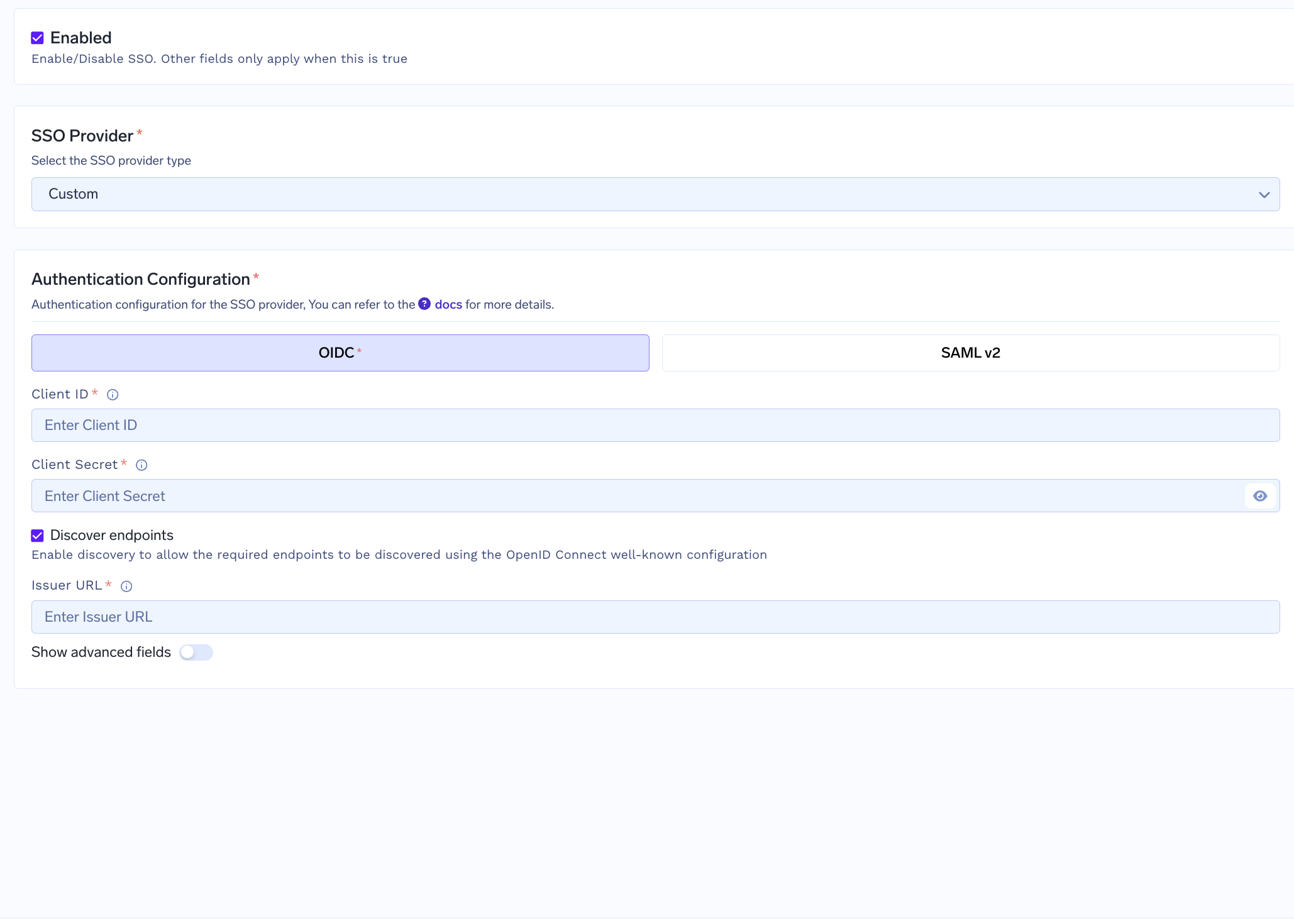 Click on Save button to save the changes.
***
Click on Save button to save the changes.
***