> ## Documentation Index
> Fetch the complete documentation index at: https://www.truefoundry.com/llms.txt
> Use this file to discover all available pages before exploring further.
# OIDC with Azure AD
> Configure OpenID Connect with Azure AD or Microsoft Entra ID for single sign-on access to TrueFoundry.
## Configure OpenID Connect with Azure Active Directory/Microsoft Entra ID
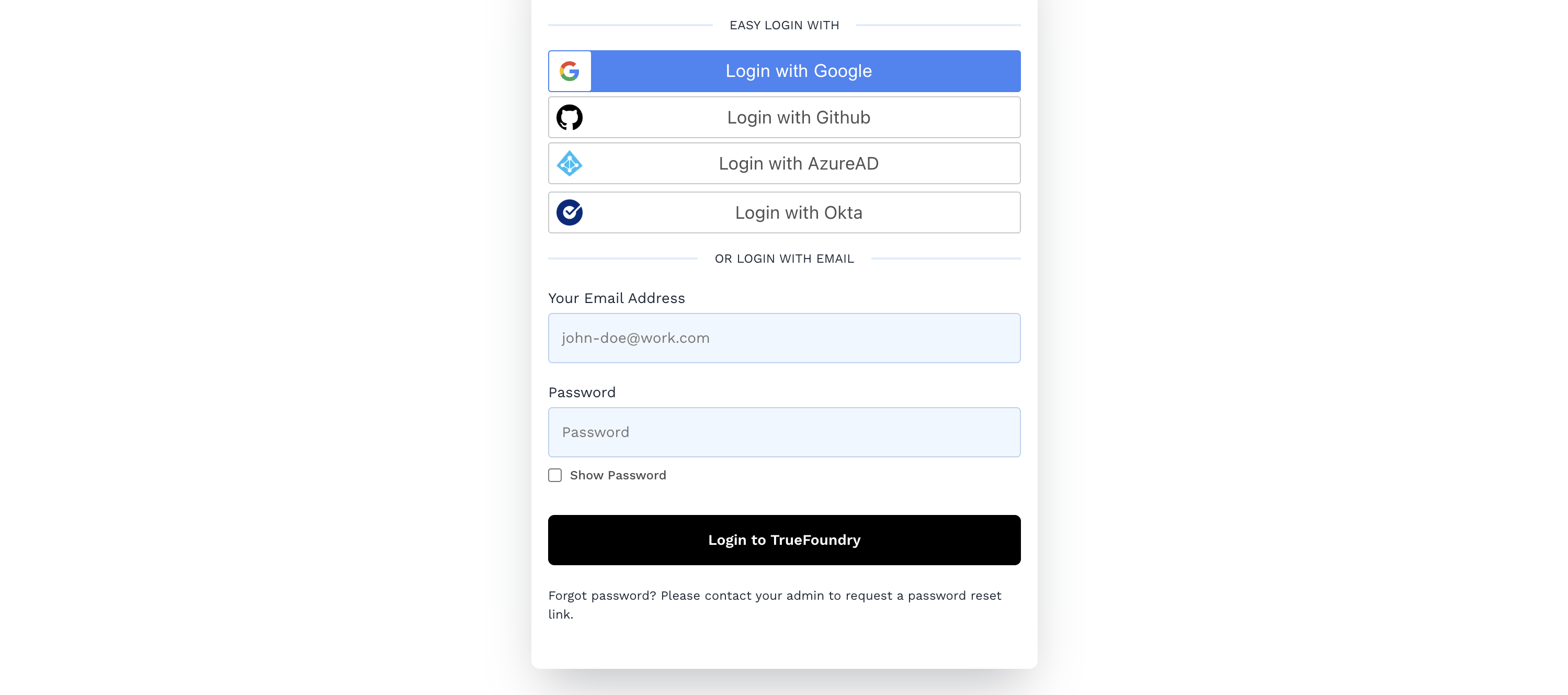
Once you have completed this configuration you may enable an OpenID Connect “Login with Azure AD” button for TrueFoundry dashboard. See [Microsoft Entra ID - Register An App Quickstart Guide](https://learn.microsoft.com/en-us/entra/identity-platform/quickstart-register-app) as an additional reference.
 ## Register a New Azure Active Directory Application
You will first need to login to the [Azure Portal](https://azure.microsoft.com/en-us/features/azure-portal/).
Once logged in, navigate to **Azure Active Directory -> App Registrations -> New Registration** to create a new Azure Active Directory Application.
## Register a New Azure Active Directory Application
You will first need to login to the [Azure Portal](https://azure.microsoft.com/en-us/features/azure-portal/).
Once logged in, navigate to **Azure Active Directory -> App Registrations -> New Registration** to create a new Azure Active Directory Application.
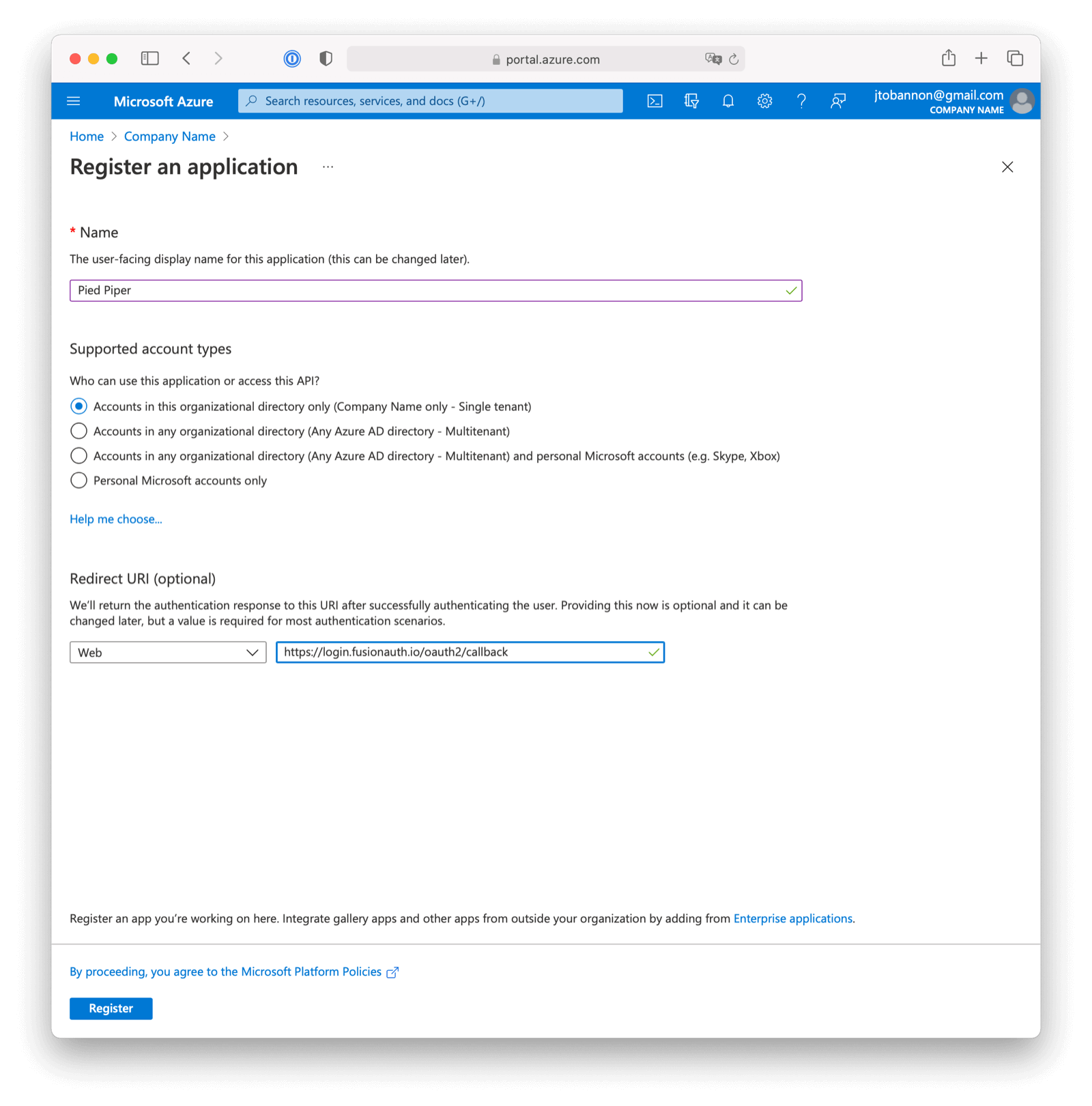 Here we have configured our application `Redirect URI`. Use redirect URL value as`https://login.truefoundry.com/oauth2/callback`.
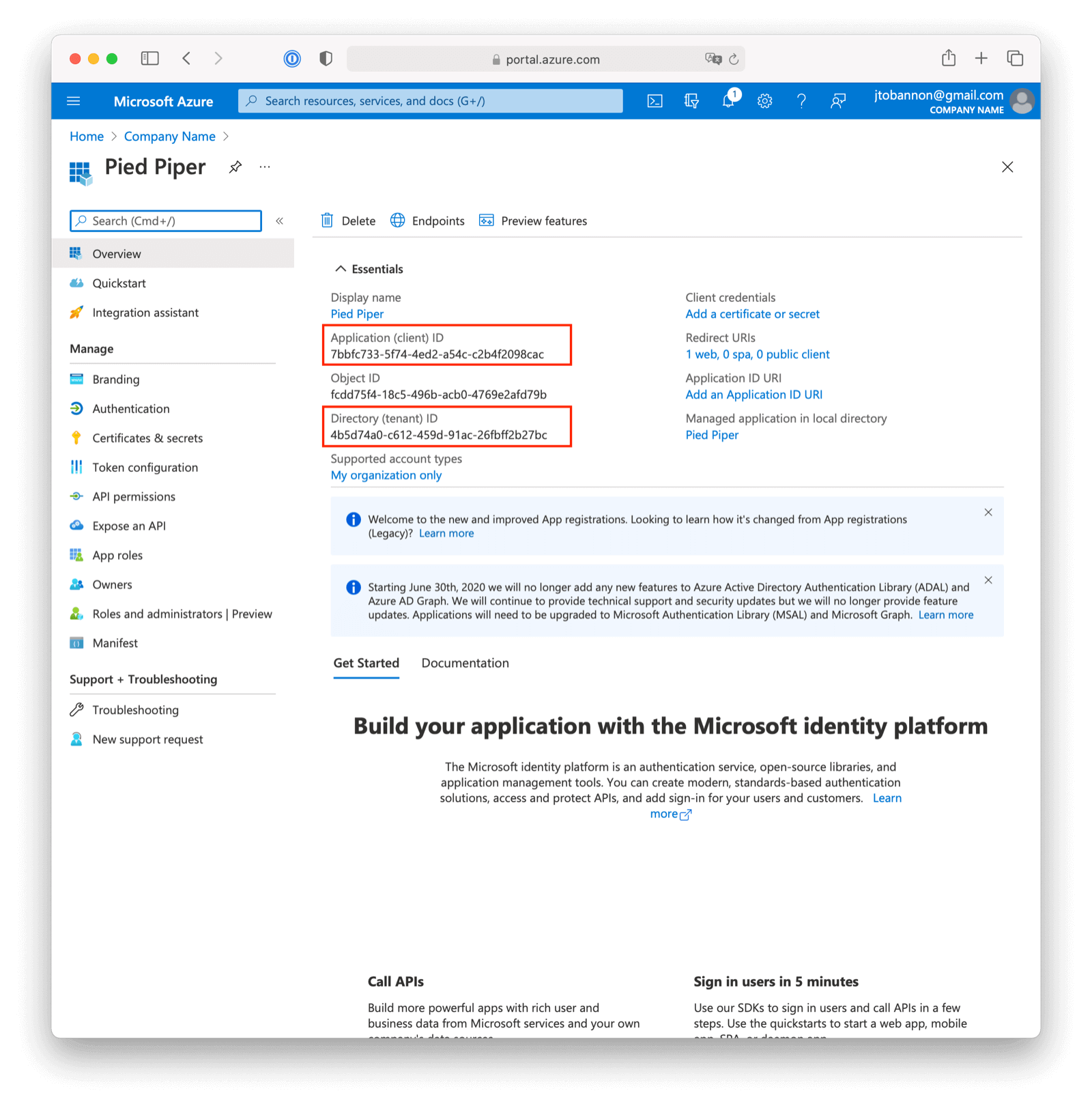 Once the application has been created, note the `Application (client) ID` and the `Directory (tenant) ID`. These will be used respectively as the **Client Id** value and to construct the Issuer value in your TrueFoundry OpenID Connect Identity Provider configuration.
### Device Code Flow
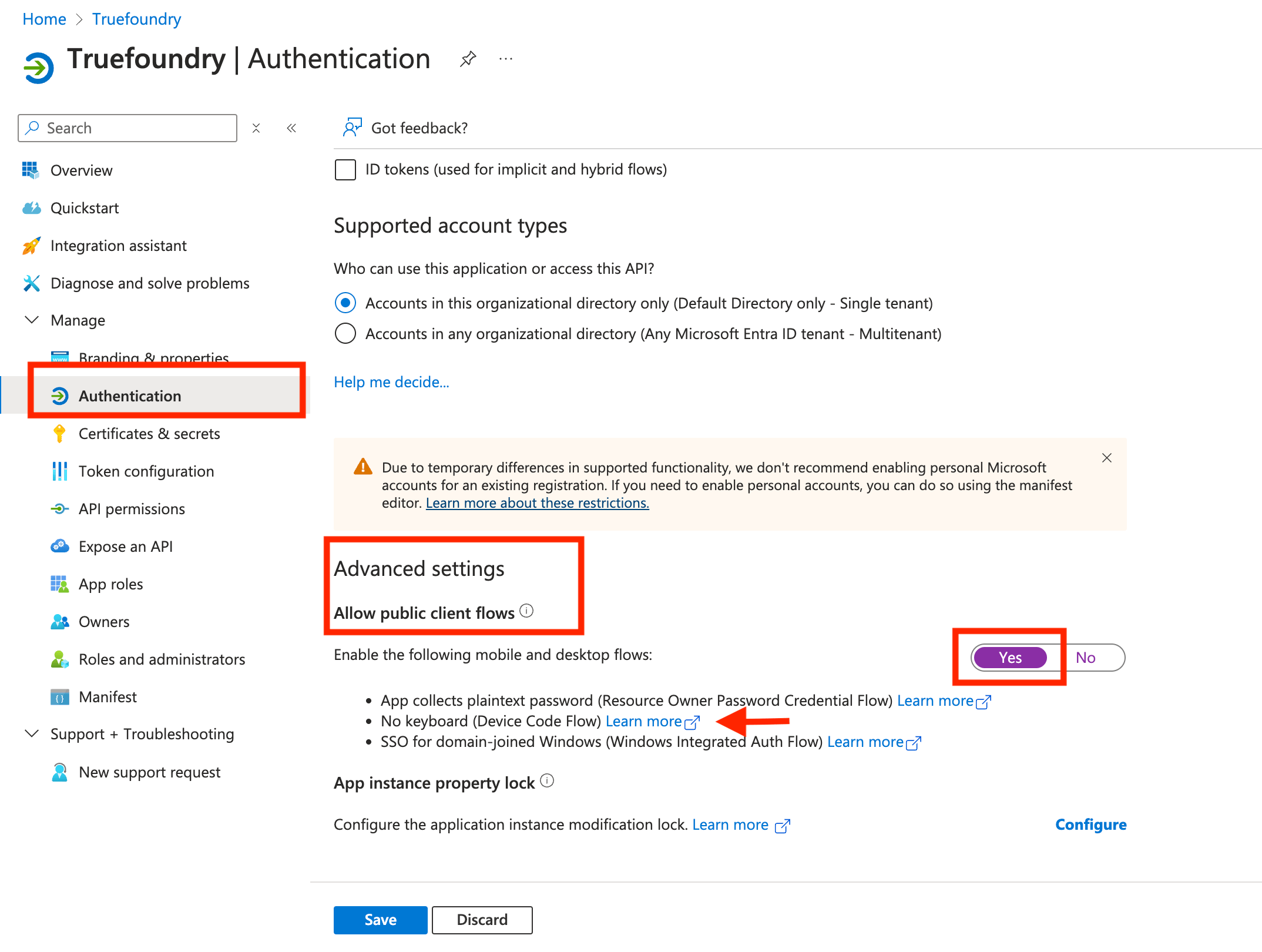
To enable the Device Code login flow, follow the steps below:
* Navigate to `Authentication` tab under `Manage` section in your app registration page
* Scroll down to `Advanced settings` and enable `Allow public client flows`
Once the application has been created, note the `Application (client) ID` and the `Directory (tenant) ID`. These will be used respectively as the **Client Id** value and to construct the Issuer value in your TrueFoundry OpenID Connect Identity Provider configuration.
### Device Code Flow
To enable the Device Code login flow, follow the steps below:
* Navigate to `Authentication` tab under `Manage` section in your app registration page
* Scroll down to `Advanced settings` and enable `Allow public client flows`
 ## Create a New Azure Active Directory Application Secret
Navigate to **Azure Active Directory -> App Registrations ->\[Your Application] -> Certificates & secrets -> New client secret** to create a new Azure Active Directory Application Client Secret.
## Create a New Azure Active Directory Application Secret
Navigate to **Azure Active Directory -> App Registrations ->\[Your Application] -> Certificates & secrets -> New client secret** to create a new Azure Active Directory Application Client Secret.
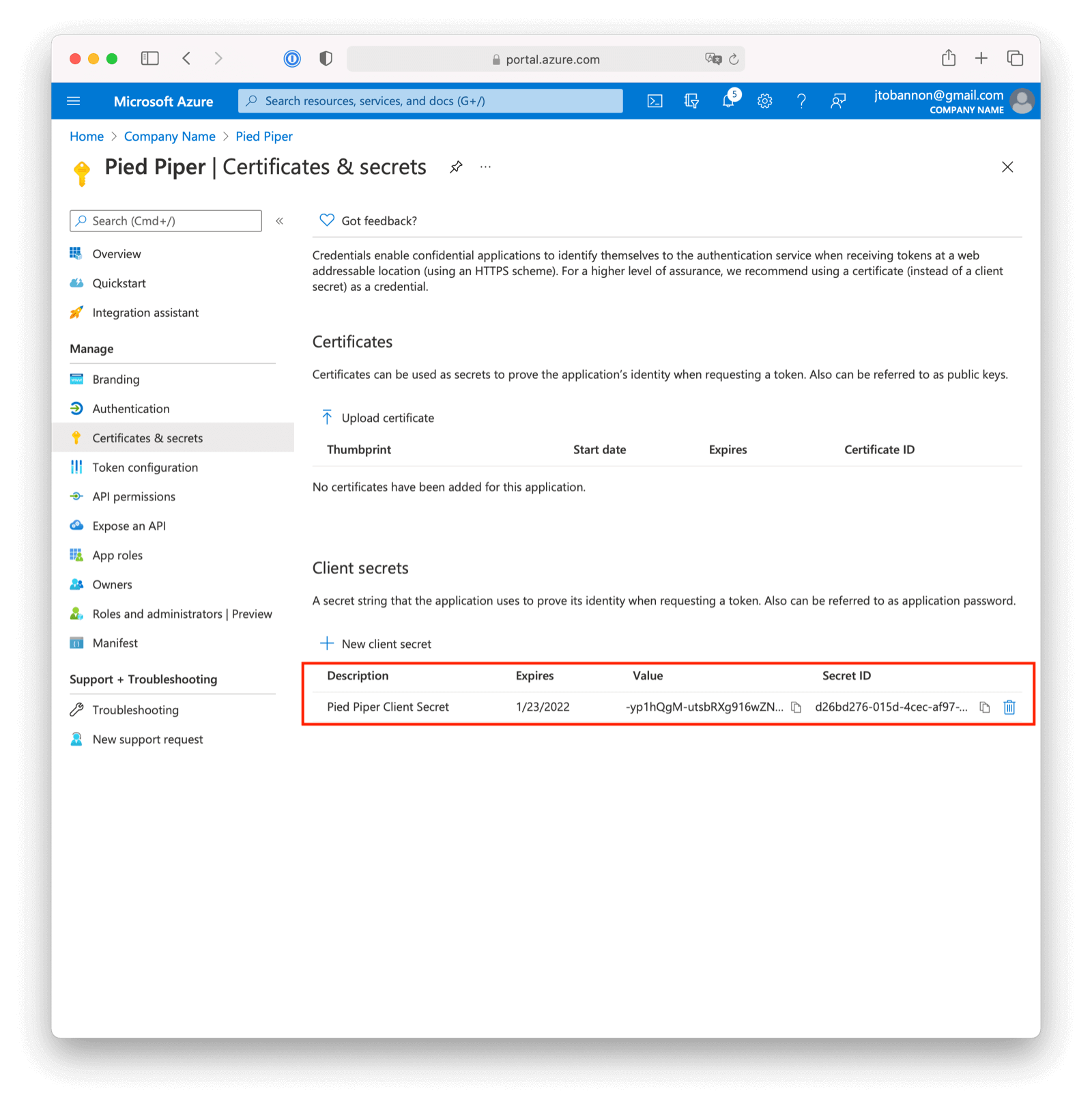 Note the `VALUE` of the created client secret. This will be used as the Client secret value in your TrueFoundry OpenID Connect Identity Provider configuration.
## Integrate with TrueFoundry
To integrate Azure AD with TrueFoundry, Add the following configuration to [TrueFoundry SSO settings](/docs/sso#integrate-sso-with-truefoundry)
* **Issuer URL**: Example: `https://login.microsoftonline.com/{tenantId}/v2.0`
* **Tenant ID**: Tenant or Directory ID of your Azure application.
* **Client ID**: Application ID of your Azure application
* **Client Secret**: Secret value of client secret created in the above step
***
Note the `VALUE` of the created client secret. This will be used as the Client secret value in your TrueFoundry OpenID Connect Identity Provider configuration.
## Integrate with TrueFoundry
To integrate Azure AD with TrueFoundry, Add the following configuration to [TrueFoundry SSO settings](/docs/sso#integrate-sso-with-truefoundry)
* **Issuer URL**: Example: `https://login.microsoftonline.com/{tenantId}/v2.0`
* **Tenant ID**: Tenant or Directory ID of your Azure application.
* **Client ID**: Application ID of your Azure application
* **Client Secret**: Secret value of client secret created in the above step
***