> ## Documentation Index
> Fetch the complete documentation index at: https://www.truefoundry.com/llms.txt
> Use this file to discover all available pages before exploring further.
# MS Teams
> Set up Microsoft Teams as a notification channel for TrueFoundry alerts and notifications.
To receive alerts and notifications in TrueFoundry, you need to set up notification integrations for Microsoft Teams. This guide walks you through adding an MS Teams webhook notification integration, describing each field in the forms, and providing helpful links for setup.
## MS Teams Webhook Notification Integration
To add an MS Teams webhook notification integration:
1. **Go to the Integrations page** in the TrueFoundry UI.
2. **Click on 'Add Integration Provider'.**
3. **Select 'MS Teams' as the provider type.**
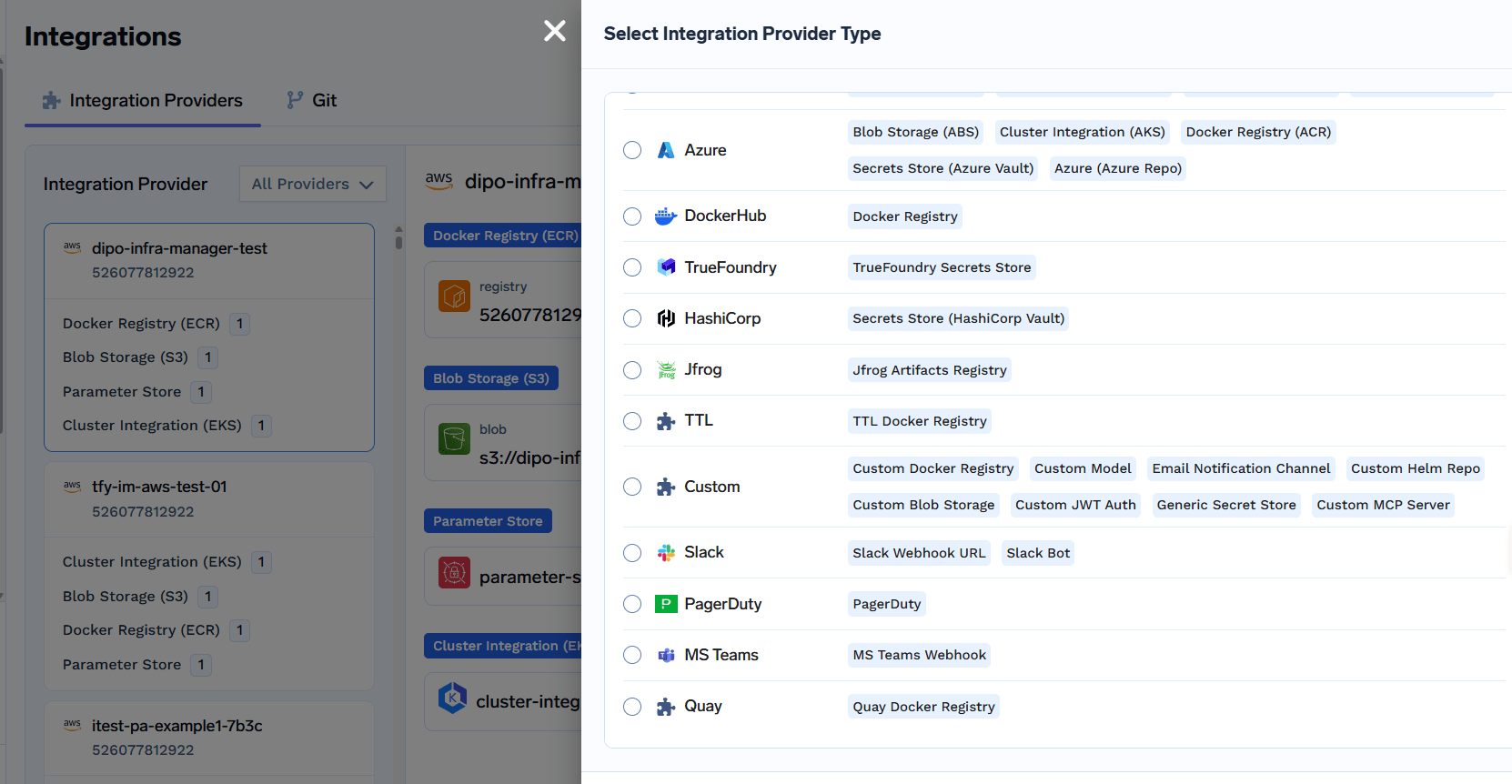 4. **Choose 'MS Teams Webhook'** in the integrations section.
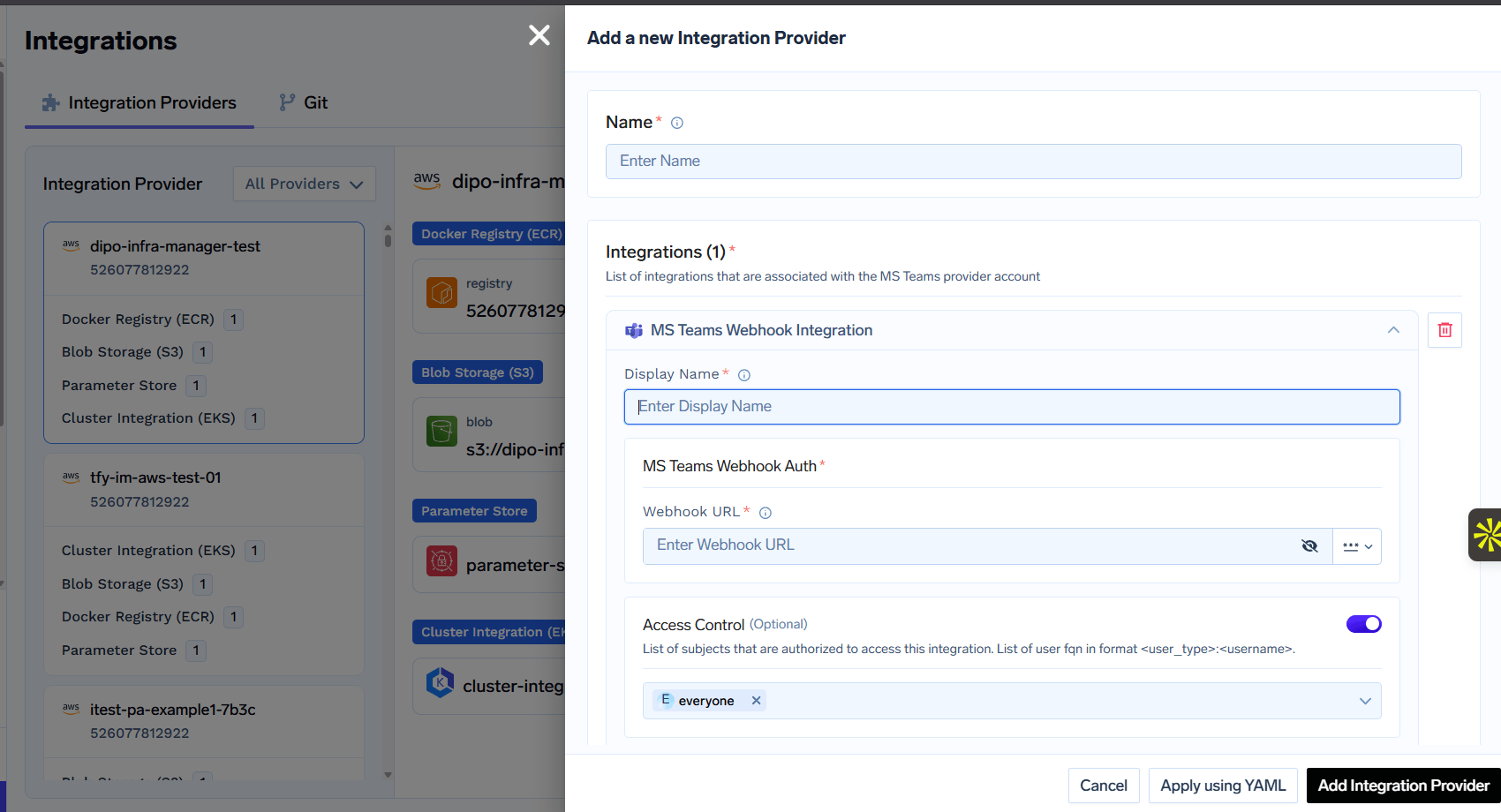
5. **Fill out the form fields as shown below:**
4. **Choose 'MS Teams Webhook'** in the integrations section.
5. **Fill out the form fields as shown below:**
 ### Field Descriptions
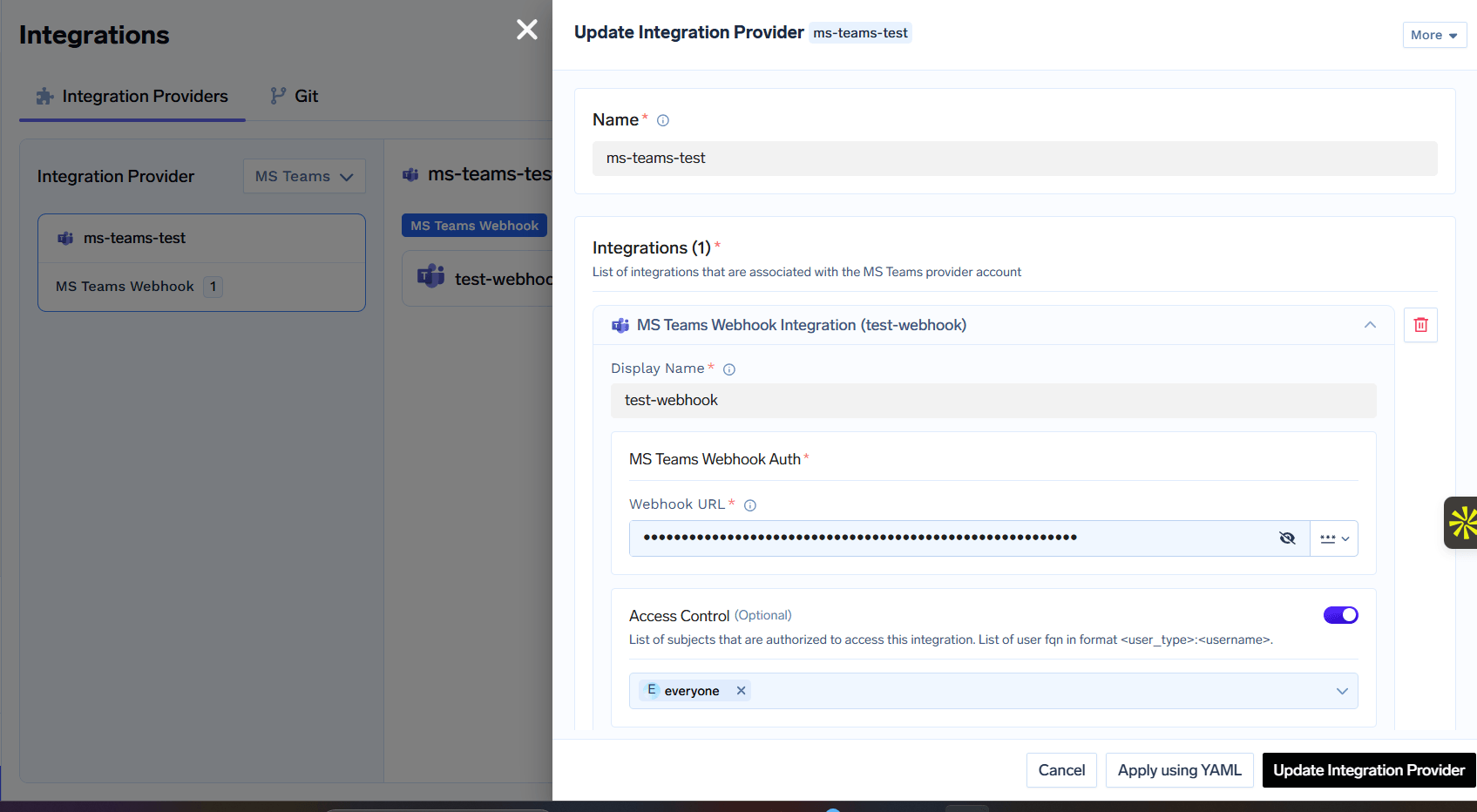
* **Name**: A unique name for this integration provider (e.g., `ms-teams-test`).
* **Display Name**: The display name for this MS Teams webhook integration (e.g., `test-webhook`).
* **Webhook URL**: The Incoming Webhook URL from your Microsoft Teams channel. This is stored securely as a secret reference.
* **Access Control (Optional)**: List of users or groups allowed to use this integration. By default, set to `everyone`.
Here is an example of a configured MS Teams integration:
### Field Descriptions
* **Name**: A unique name for this integration provider (e.g., `ms-teams-test`).
* **Display Name**: The display name for this MS Teams webhook integration (e.g., `test-webhook`).
* **Webhook URL**: The Incoming Webhook URL from your Microsoft Teams channel. This is stored securely as a secret reference.
* **Access Control (Optional)**: List of users or groups allowed to use this integration. By default, set to `everyone`.
Here is an example of a configured MS Teams integration:
 > **How to get the MS Teams Webhook URL:**
>
> 1. Open **Microsoft Teams** and navigate to the channel where you want to receive alerts.
> 2. Click the **⋯** (more options) menu on the channel and select **Manage Channel** or **Connectors**.
> 3. Search for **Incoming Webhook** and click **Configure**.
> 4. Give the webhook a name, optionally upload a custom icon, and click **Create**.
> 5. Copy the generated **Webhook URL** and paste it into the TrueFoundry form above.
>
>
> Microsoft is retiring classic Office 365 Connectors for Microsoft Teams. For new setups, consider using **Power Automate Workflows** with the "When a Teams webhook request is received" trigger instead. The generated workflow URL works the same way as the classic webhook URL.
>
>
> For more details, see the [Microsoft Incoming Webhook documentation](https://learn.microsoft.com/en-us/microsoftteams/platform/webhooks-and-connectors/how-to/add-incoming-webhook).
## Using MS Teams as a Notification Channel
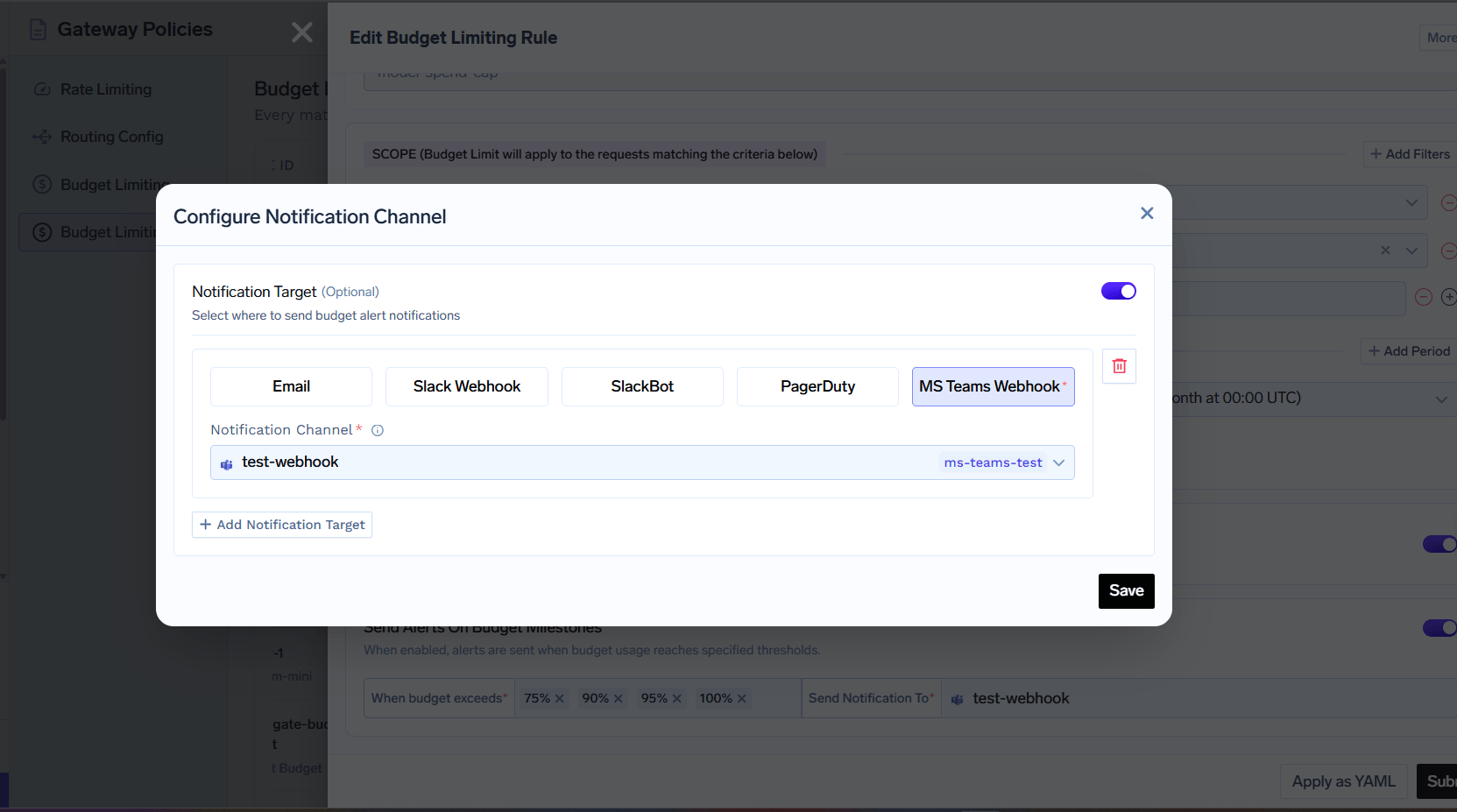
Once the integration is set up, you can select **MS Teams Webhook** as a notification target when configuring alerts or budget rules. Select the configured webhook from the **Notification Channel** dropdown.
> **How to get the MS Teams Webhook URL:**
>
> 1. Open **Microsoft Teams** and navigate to the channel where you want to receive alerts.
> 2. Click the **⋯** (more options) menu on the channel and select **Manage Channel** or **Connectors**.
> 3. Search for **Incoming Webhook** and click **Configure**.
> 4. Give the webhook a name, optionally upload a custom icon, and click **Create**.
> 5. Copy the generated **Webhook URL** and paste it into the TrueFoundry form above.
>
>
> Microsoft is retiring classic Office 365 Connectors for Microsoft Teams. For new setups, consider using **Power Automate Workflows** with the "When a Teams webhook request is received" trigger instead. The generated workflow URL works the same way as the classic webhook URL.
>
>
> For more details, see the [Microsoft Incoming Webhook documentation](https://learn.microsoft.com/en-us/microsoftteams/platform/webhooks-and-connectors/how-to/add-incoming-webhook).
## Using MS Teams as a Notification Channel
Once the integration is set up, you can select **MS Teams Webhook** as a notification target when configuring alerts or budget rules. Select the configured webhook from the **Notification Channel** dropdown.
 ## Access Control
For all integrations, you can restrict access to specific users or groups by editing the **Access Control** field. By default, it is set to `everyone` so all users can use the integration.
## Final Steps
* After filling all required fields, click **Add Integration Provider** to save your integration.
* You can now use these integrations as notification channels when setting up alerts for your applications.
***
With these integrations in place, you can receive real-time alerts via Microsoft Teams for all your TrueFoundry applications!
## Access Control
For all integrations, you can restrict access to specific users or groups by editing the **Access Control** field. By default, it is set to `everyone` so all users can use the integration.
## Final Steps
* After filling all required fields, click **Add Integration Provider** to save your integration.
* You can now use these integrations as notification channels when setting up alerts for your applications.
***
With these integrations in place, you can receive real-time alerts via Microsoft Teams for all your TrueFoundry applications!