> ## Documentation Index
> Fetch the complete documentation index at: https://www.truefoundry.com/llms.txt
> Use this file to discover all available pages before exploring further.
# Model Registry
> Store, version, and manage your ML models in the TrueFoundry model registry with stage transitions and metadata.
TrueFoundry provides a comprehensive model registry to store and manage models. Models are stored in [repositories](/docs/platform/repositories), which are backed by S3, GCS, Azure Blob Storage, MinIO, or another blob storage integration in your cloud account. The key functionalities provided by the model registry are:
### Upload Model From UI
You can either upload a model file from disk or import a model saved in your S3 bucket.
### Log Model In Code
Install the truefoundry library following the instructions [here](/docs/setup-cli.mdx)
You can log models of all frameworks in the registry. Example of code to log SkLearn and Transformers are provided below:
```python Python lines theme={"dark"}
from truefoundry.ml import get_client
client = get_client()
model_version = client.log_model(
ml_repo="name-of-the-ml-repo",
name="name-for-the-model",
model_file_or_folder="path/to/model/file/or/folder/on/disk",
framework=None
)
```
Any file or folder can be saved as model by passing it in `model_file_or_folder` and `framework` can be set to `None`
```python lines theme={"dark"}
from truefoundry.ml import get_client, SklearnFramework, infer_signature
import joblib
import numpy as np
from sklearn.pipeline import make_pipeline
from sklearn.preprocessing import StandardScaler
from sklearn.svm import SVC
X = np.array([[-1, -1], [-2, -1], [1, 1], [2, 1]])
y = np.array([1, 1, 2, 2])
clf = make_pipeline(StandardScaler(), SVC(gamma='auto'))
clf.fit(X, y)
joblib.dump(clf, "sklearn-pipeline.joblib")
client = get_client()
client.create_ml_repo( # This is only required once
name="my-classification-project",
# This controls which bucket is used.
# You can get this from Integrations > Blob Storage.
storage_integration_fqn=''
)
model_version = client.log_model(
ml_repo="my-classification-project",
name="my-sklearn-model",
description="A simple sklearn pipeline",
model_file_or_folder="sklearn-pipeline.joblib",
framework=SklearnFramework(),
metadata={"accuracy": 0.99, "f1": 0.80},
)
print(model_version.fqn)
```
```python Huggingface Transformers lines theme={"dark"}
import os
import shutil
from truefoundry.ml import get_client, TransformersFramework
from huggingface_hub import snapshot_download
MODEL_ID = "HuggingFaceTB/SmolLM2-135M" # Model Id from huggingface hub
PIPELINE_TAG = "text-generation" # Task the model is trained for
LOCAL_PATH = "./transformers-model" # Path for local download
snapshot_download(
MODEL_ID,
revision=None,
cache_dir=None,
local_dir=LOCAL_PATH,
ignore_patterns=["*.h5", "*.ot"],
local_dir_use_symlinks=False,
)
if os.path.exists(os.path.join(LOCAL_PATH, '.cache')):
shutil.rmtree(os.path.join(LOCAL_PATH, '.cache'))
ML_REPO = "my-llm-project" # ML Repo to upload to
MODEL_NAME = "smollm2-135m" # Model Name to upload as
client = get_client()
model_version = client.log_model(
ml_repo=ML_REPO,
name=MODEL_NAME,
model_file_or_folder=LOCAL_PATH,
framework=TransformersFramework(
pipeline_tag=PIPELINE_TAG
),
)
print(model_version.fqn)
```
```python Python lines theme={"dark"}
from truefoundry.ml import get_client
client = get_client()
model_version = client.log_model(
ml_repo="name-of-the-ml-repo",
name="name-for-the-model",
model_file_or_folder="path/to/model/file/or/folder/on/disk",
framework=PyTorchFramework()
)
```
```python Python lines theme={"dark"}
from truefoundry.ml import get_client
client = get_client()
model_version = client.log_model(
ml_repo="name-of-the-ml-repo",
name="name-for-the-model",
model_file_or_folder="path/to/model/file/or/folder/on/disk",
framework=TensorFlowFramework()
)
```
For other frameworks, you can use the following classes in `truefoundry.ml`
`FastAIFramework`, `GluonFramework`, `H2OFramework`, `KerasFramework`, `LightGBMFramework`, `ONNXFramework`, `PaddleFramework`, `SklearnFramework`, `SpaCyFramework`, `StatsModelsFramework`, `TransformersFramework`, `XGBoostFramework`
Any subsequent calls to `log_model` with the same `name` would create a new version of this model - `v2`, `v3` and so on.
### View and manage versions
The logged model can be found in the Models tab. It can also be accessed from inside the MLRepo.
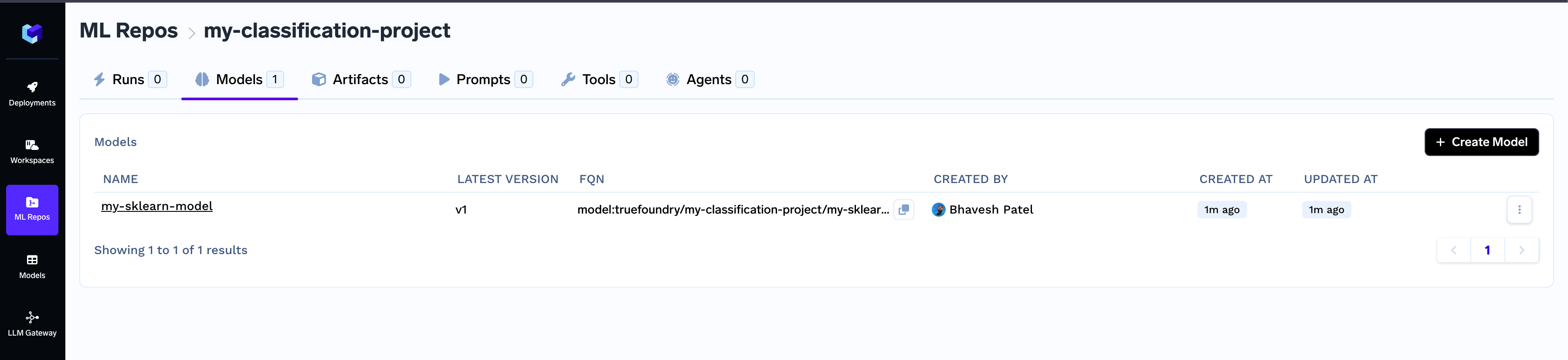 You can view the details of each model version from there on.
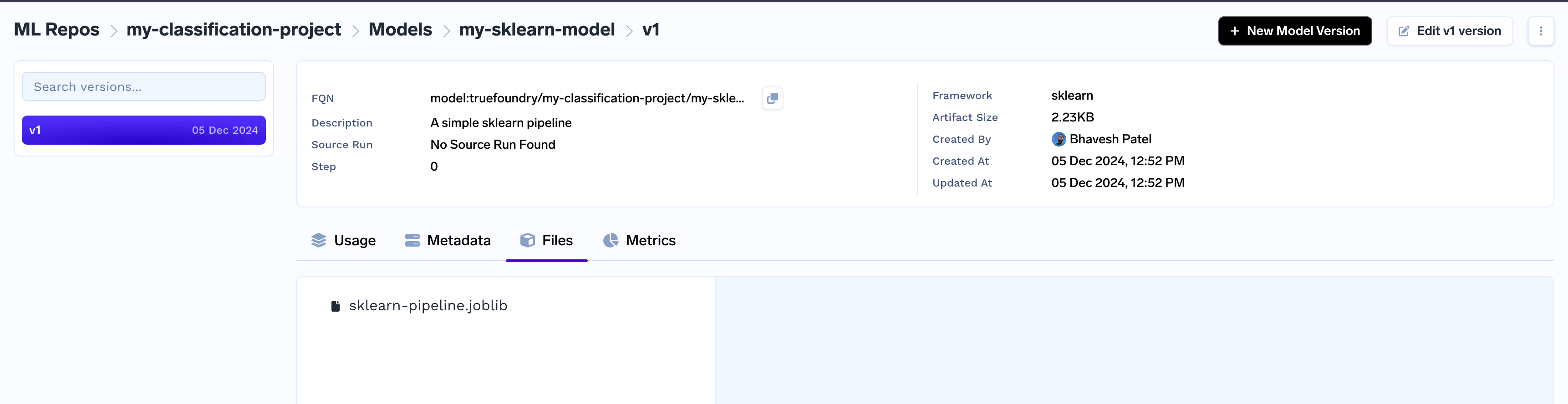 Once a model version is created, the model version files are immutable. Only fields like description, framework, metadata can be updated using CLI or UI.
### Using the Model in your code
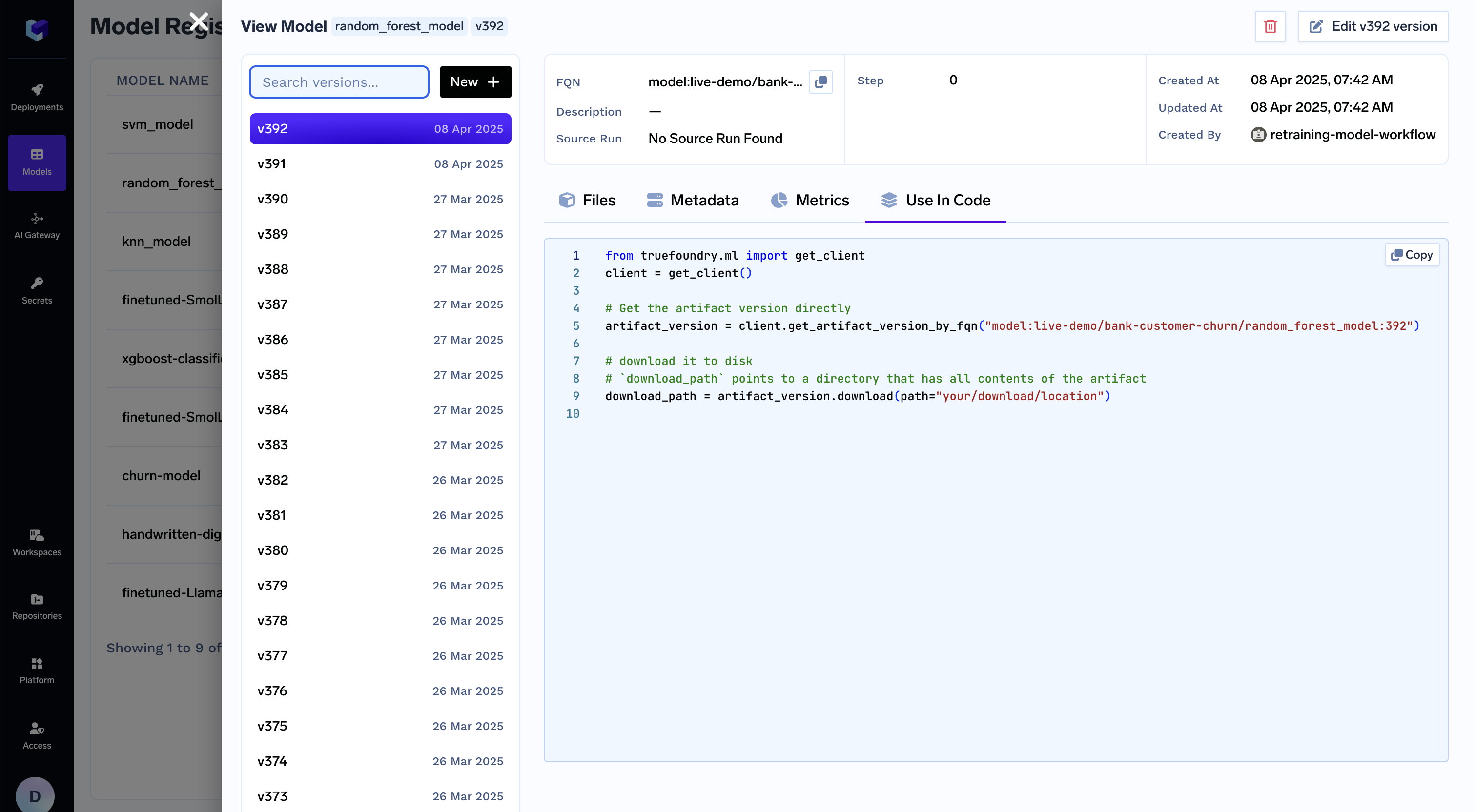
For every model version, you can find the code to download it in your inference service.
Once a model version is created, the model version files are immutable. Only fields like description, framework, metadata can be updated using CLI or UI.
### Using the Model in your code
For every model version, you can find the code to download it in your inference service.