> ## Documentation Index
> Fetch the complete documentation index at: https://www.truefoundry.com/llms.txt
> Use this file to discover all available pages before exploring further.
# Interacting With Your Job
> Interact with running jobs. Logs, status, retries, and controls.
## Job-Specific Dashboard
To access the dedicated dashboard for your job, click its name.
## Running a Job
When deploying a job you can either [schedule it](/docs/deploy-a-cron-job) or set it to a manual trigger. If you deploy a job with manual trigger then it won't run automatically, you will have to trigger it.
You can do this in one of two ways, either through the User Interface using the **`Run Job`** button, or Programmatically using the Python SDK.
### Trigger a Job through the User Interface (UI)
Once you Run your job, Your job will start getting executed and enter the **Running** state. At this point, the platform will create and launch a pod associated with the Job Run to execute the job. Upon successful completion of your job, the Job Run will transition to the **Finished** status. Simultaneously, the pod that was created to execute the job will be automatically released, along with the resources they utilised.
### Trigger a Job Programmatically
To trigger Job programmatically, you will need the **Application FQN** which is the Fully Qualified Name (FQN) of the job you want to run. You can obtain this information from the Job-specific dashboard of the Job you are interested in.
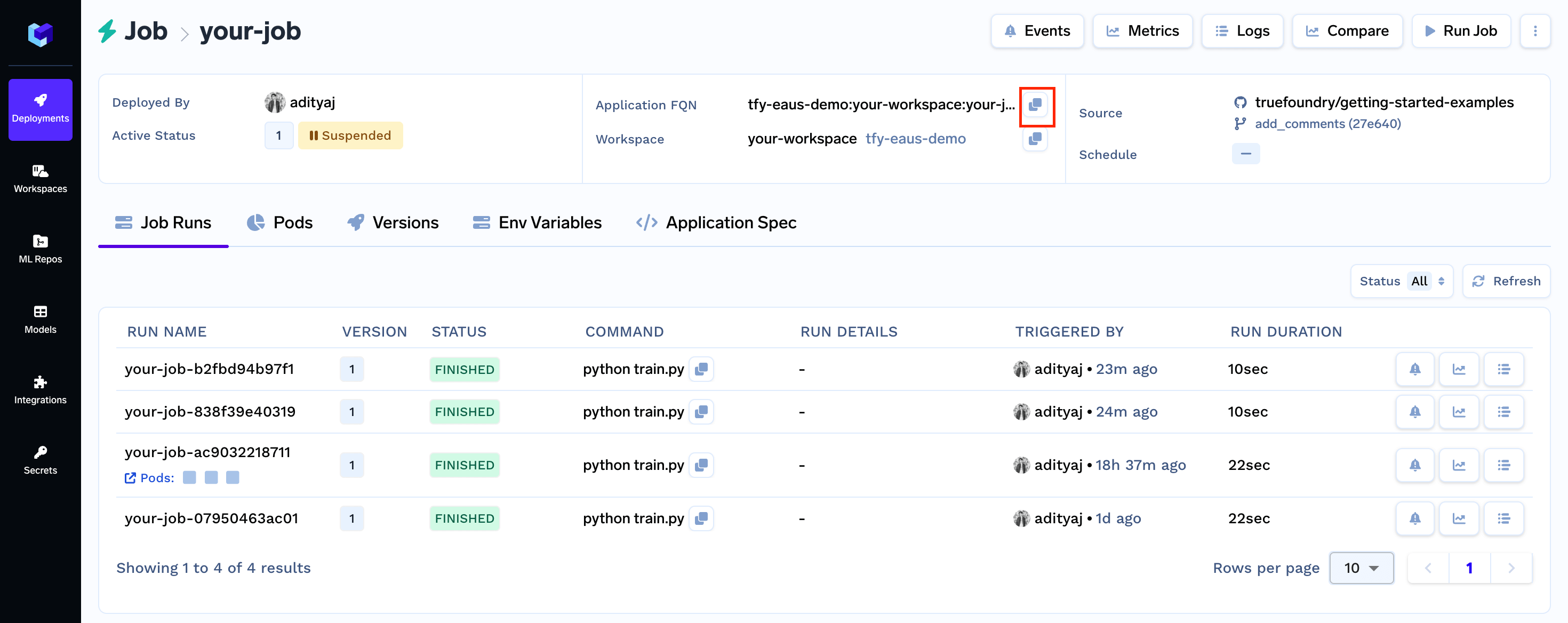 Now you can trigger the Job programmatically using the **Python SDK**
```python Python SDK lines theme={"dark"}
from truefoundry.deploy import trigger_job
# Trigger/Run a Job
trigger_job(
application_fqn="",
command="" # command to execute for job run
# if job is parameterized, you can pass params instead of command
# params={"param1": "value1"}
)
```
### Trigger a Job via API
To trigger the job via API, you need to send the `POST` request at the endpoint `/api/svc/v1/jobs/trigger` where you need to pass the the `applicationId` in the request's body, you can get the application url from the UI, First go to job you want to trigger via API and then you can find the application Id in the URL of that page as shown in Image below.
Now you can trigger the Job programmatically using the **Python SDK**
```python Python SDK lines theme={"dark"}
from truefoundry.deploy import trigger_job
# Trigger/Run a Job
trigger_job(
application_fqn="",
command="" # command to execute for job run
# if job is parameterized, you can pass params instead of command
# params={"param1": "value1"}
)
```
### Trigger a Job via API
To trigger the job via API, you need to send the `POST` request at the endpoint `/api/svc/v1/jobs/trigger` where you need to pass the the `applicationId` in the request's body, you can get the application url from the UI, First go to job you want to trigger via API and then you can find the application Id in the URL of that page as shown in Image below.
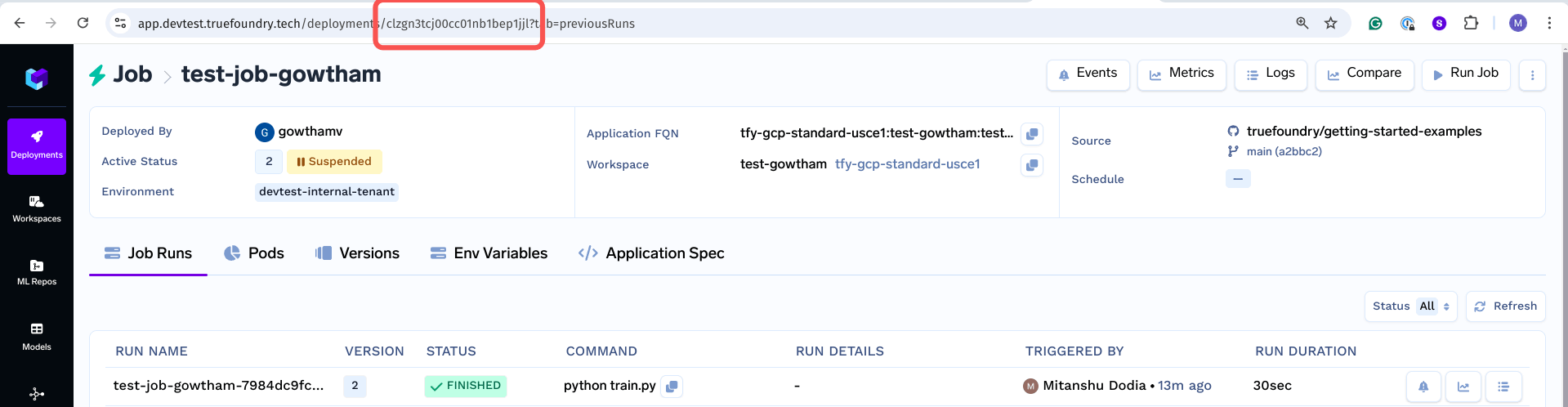 You can also pass the parameters or commands through the input object in the body, as shown below.
```json JSON lines theme={"dark"}
{
"applicationId": "",
"input": {
"command": "",
"params": {}
}
}
```
Then you have to set the `Authorization` header whose value will be `Bearer ` below is the example curl request for the same.
```powershell cURL lines theme={"dark"}
curl -X 'POST' \
'https://example.truefoundry.cloud/api/svc/v1/jobs/trigger' \
-H 'accept: */*' \
-H 'Authorization: Bearer ' \
-H 'Content-Type: application/json' \
-d '{
"applicationId": "string",
"input": {
"command": "string",
}
}'
```
**Note**: You cannot pass command and params both at same time, either of one can be passed at a time.
## Viewing your Job Run
### Viewing List of Job Runs Programmatically
You can also view the list of job runs programatically using the following code snippet:
```python Python lines theme={"dark"}
from truefoundry.deploy import list_job_runs
application_fqn = ""
job_runs = list_job_runs(application_fqn=application_fqn)
print("Number of Job Runs:", len(job_runs))
for run in job_runs:
print(f"Job name: {run.name}, status: {run.status}, command: {run.command}\n")
```
### Viewing a Specific Job Run Programmatically
To get details of a Job Run (given the Job Run Name) you can use the following code snippet:
```python Python lines theme={"dark"}
from truefoundry.deploy import get_job_run
application_fqn = ""
job_run_name = ""
job_run = get_job_run(application_fqn=application_fqn, job_run_name=job_run_name)
print(f"Job name: {job_run.name}, status: {job_run.status}, command: {job_run.command}")
```
## Terminating an ongoing Job Run
You can also terminate a job run from Python SDK using the following code snippet:
```python Python lines theme={"dark"}
from truefoundry.deploy import terminate_job_run
terminated_job_run = terminate_job_run(
application_fqn="",
job_run_name=""
)
print(terminated_job_run)
```
***
You can also pass the parameters or commands through the input object in the body, as shown below.
```json JSON lines theme={"dark"}
{
"applicationId": "",
"input": {
"command": "",
"params": {}
}
}
```
Then you have to set the `Authorization` header whose value will be `Bearer ` below is the example curl request for the same.
```powershell cURL lines theme={"dark"}
curl -X 'POST' \
'https://example.truefoundry.cloud/api/svc/v1/jobs/trigger' \
-H 'accept: */*' \
-H 'Authorization: Bearer ' \
-H 'Content-Type: application/json' \
-d '{
"applicationId": "string",
"input": {
"command": "string",
}
}'
```
**Note**: You cannot pass command and params both at same time, either of one can be passed at a time.
## Viewing your Job Run
### Viewing List of Job Runs Programmatically
You can also view the list of job runs programatically using the following code snippet:
```python Python lines theme={"dark"}
from truefoundry.deploy import list_job_runs
application_fqn = ""
job_runs = list_job_runs(application_fqn=application_fqn)
print("Number of Job Runs:", len(job_runs))
for run in job_runs:
print(f"Job name: {run.name}, status: {run.status}, command: {run.command}\n")
```
### Viewing a Specific Job Run Programmatically
To get details of a Job Run (given the Job Run Name) you can use the following code snippet:
```python Python lines theme={"dark"}
from truefoundry.deploy import get_job_run
application_fqn = ""
job_run_name = ""
job_run = get_job_run(application_fqn=application_fqn, job_run_name=job_run_name)
print(f"Job name: {job_run.name}, status: {job_run.status}, command: {job_run.command}")
```
## Terminating an ongoing Job Run
You can also terminate a job run from Python SDK using the following code snippet:
```python Python lines theme={"dark"}
from truefoundry.deploy import terminate_job_run
terminated_job_run = terminate_job_run(
application_fqn="",
job_run_name=""
)
print(terminated_job_run)
```
***