> ## Documentation Index
> Fetch the complete documentation index at: https://www.truefoundry.com/llms.txt
> Use this file to discover all available pages before exploring further.
# GCP
> This page provides an overview of the architecture, requirements and steps to install the TrueFoundry compute plane cluster in GCP
The architecture of a TrueFoundry compute plane is as follows:
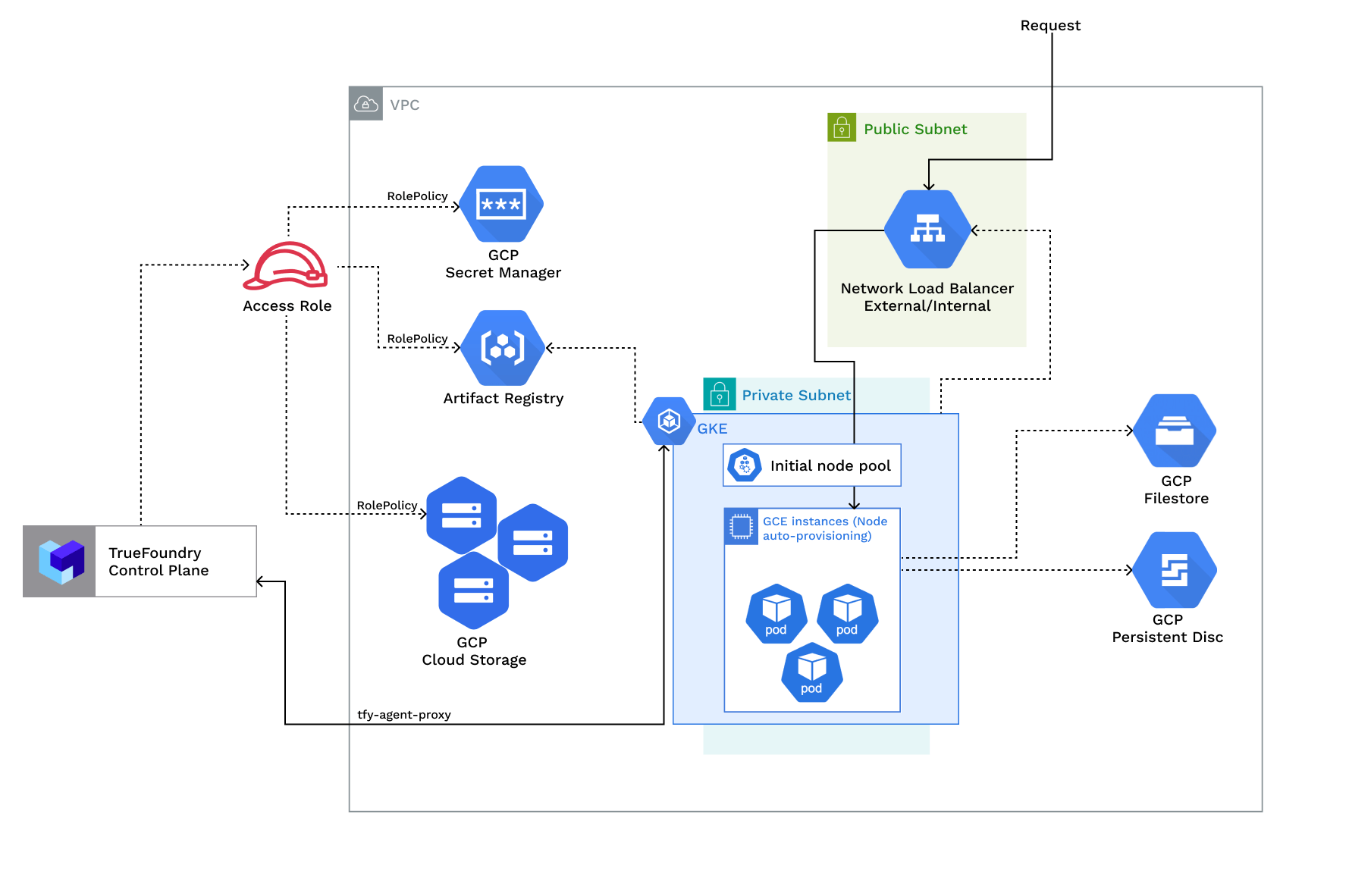 | Policy | Description |
| --------------------------------------------------------------------------------------------------------------------------------------------------------------------------------------------------------------------------------------------------------------------------------------------------------------------------------------------------------------------------------------------------------------------------------------------------------------------------------------------------------------------------------------------------------------------------------------------------------------------------------------------------------------------------------------------------------------------------------------------------------------------------------------------------------------------------------------------------------------------------------------------------------------------------------------------------------------------------------------------------------------------------------- | -------------------------------------------------------------------------------------------------------------------------------------------------------------------------------------------------------------------------------------------------------------------------------------------------------------------------------------------------------------------------------------------------------- |
| RolePolicy with policies for - [Artifact registry](https://github.com/truefoundry/terraform-google-truefoundry-platform-features/blob/c1d198b003e6673e65a64c8e262bf8c07fb1f6ea/iam.tf#L117-L144), [Secrets manager](https://github.com/truefoundry/terraform-google-truefoundry-platform-features/blob/c1d198b003e6673e65a64c8e262bf8c07fb1f6ea/iam.tf#L16-L28), [Blob storage](https://github.com/truefoundry/terraform-google-truefoundry-platform-features/blob/c1d198b003e6673e65a64c8e262bf8c07fb1f6ea/iam.tf#L52-L68), [Cluster viewer](https://github.com/truefoundry/terraform-google-truefoundry-platform-features/blob/c1d198b003e6673e65a64c8e262bf8c07fb1f6ea/iam.tf#L92-L99), [IAM serviceaccount token creator](https://github.com/truefoundry/terraform-google-truefoundry-platform-features/blob/c1d198b003e6673e65a64c8e262bf8c07fb1f6ea/iam.tf#L160), [Logging viewer](https://github.com/truefoundry/terraform-google-truefoundry-platform-features/blob/c1d198b003e6673e65a64c8e262bf8c07fb1f6ea/iam.tf#L168) | Role `-platform-user` with permissions for:
| Policy | Description |
| --------------------------------------------------------------------------------------------------------------------------------------------------------------------------------------------------------------------------------------------------------------------------------------------------------------------------------------------------------------------------------------------------------------------------------------------------------------------------------------------------------------------------------------------------------------------------------------------------------------------------------------------------------------------------------------------------------------------------------------------------------------------------------------------------------------------------------------------------------------------------------------------------------------------------------------------------------------------------------------------------------------------------------- | -------------------------------------------------------------------------------------------------------------------------------------------------------------------------------------------------------------------------------------------------------------------------------------------------------------------------------------------------------------------------------------------------------- |
| RolePolicy with policies for - [Artifact registry](https://github.com/truefoundry/terraform-google-truefoundry-platform-features/blob/c1d198b003e6673e65a64c8e262bf8c07fb1f6ea/iam.tf#L117-L144), [Secrets manager](https://github.com/truefoundry/terraform-google-truefoundry-platform-features/blob/c1d198b003e6673e65a64c8e262bf8c07fb1f6ea/iam.tf#L16-L28), [Blob storage](https://github.com/truefoundry/terraform-google-truefoundry-platform-features/blob/c1d198b003e6673e65a64c8e262bf8c07fb1f6ea/iam.tf#L52-L68), [Cluster viewer](https://github.com/truefoundry/terraform-google-truefoundry-platform-features/blob/c1d198b003e6673e65a64c8e262bf8c07fb1f6ea/iam.tf#L92-L99), [IAM serviceaccount token creator](https://github.com/truefoundry/terraform-google-truefoundry-platform-features/blob/c1d198b003e6673e65a64c8e262bf8c07fb1f6ea/iam.tf#L160), [Logging viewer](https://github.com/truefoundry/terraform-google-truefoundry-platform-features/blob/c1d198b003e6673e65a64c8e262bf8c07fb1f6ea/iam.tf#L168) | Role `-platform-user` with permissions for:
- Creating and managing blob storage buckets
- Managing secrets in secret manager
- Pulling and pushing images to artifact registry
- Enabling cloud integration for GCP (node level details)
- Viewing cluster autoscaler logs
- Creating Service Account keys (Service Account key creation should be allowed) |
## Requirements:
The common requirements to setup compute plane in each of the scenarios is as follows:
* Billing must be enabled for the GCP account.
* Following APIs must be enabled in the project -
* Compute Engine API - This API must be enabled for Virtual Machines
* Kubernetes Engine API - This API must be enabled for Kubernetes clusters
* Storage Engine API - This API must be enabled for GCP Blob storage - Buckets
* Artifact Registry API - This API must be enabled for docker registry and image builds
* Secrets Manager API - This API must be enabled to support Secret management
* Egress access to container registries - `public.ecr.aws`, `quay.io`, `ghcr.io`, `tfy.jfrog.io`, `docker.io/natsio`, `nvcr.io`, `registry.k8s.io` so that we can download the docker images for argocd, nats, gpu operator, argo rollouts, argo workflows, istio, keda, etc.
* We need a domain to map to the service endpoints and certificate to encrypt the traffic. A wildcard domain like \*.services.example.com is preferred. TrueFoundry can do path based routing like `services.example.com/tfy/*`, however, many frontend applications do not support this. For certificate, check [this](#setting-up-tls-in-gcp) document for more details.
* Enough quotas for CPU/GPU instances must be present depending on your usecase. You can check and increase quotas at [GCP compute quotas](https://cloud.google.com/compute/quotas)
* Service account key creation should be allowed for the service account used by the platform.
1. The new VPC subnet should have a CIDR range of /24 or larger. Secondary ranges for pods (min /20) and services (min /24) are required. Secondary range can be from a non-routable range.This is to ensure capacity for \~250 instances and 4096 pods.
2. User/serviceaccount to provision the infrastructure.
1. The existing VPC subnet should have a CIDR range of /24 or larger. Secondary ranges for pods (min /20) and services (min /24) are required. Secondary range can be from a non-routable range. This is to ensure capacity for \~250 instances and 4096 pods. Secondary ranges for pods **should be named** as `pods` and secondary ranges for services **should be named** as `services`.
2. If your want to use a shared VPC (subnet) for the GKE cluster, ensure that you have followed this [GCP document](https://cloud.google.com/kubernetes-engine/docs/how-to/cluster-shared-vpc) and have given all the [right permissions](https://cloud.google.com/kubernetes-engine/docs/how-to/cluster-shared-vpc#summary_of_roles_granted_on_subnets) to the internal project serivceaccount
3. The VPC should have Cloud router and cloud NAT for private subnets. Port 80 and 443 should be open for the load balancer. Allow all traffic between the subnets. Port 443, 6443, 8443, 9443 and 15017 should be allowed from the GKE control plane.
4. User/serviceaccount to provision the infrastructure.
1. GKE Version should be 1.30 or later.
2. [NAP](https://cloud.google.com/kubernetes-engine/docs/how-to/node-auto-provisioning) should be enabled for the cluster. Ensure min and max for GPUS are also set.
```bash bash lines theme={"dark"}
gcloud container clusters update CLUSTER_NAME \
--enable-autoprovisioning \
--autoprovisioning-resource-limits=nvidia-tesla-t4=0:256 \
--location=REGION
```
3. Workload identity should be enabled for the cluster with workload pool `project_id.svc.id.goog`.
```bash bash lines theme={"dark"}
# Enable Workload Identity feature
gcloud container clusters update CLUSTER_NAME \
--workload-pool=PROJECT_ID.svc.id.goog \
--region=REGION
# Enable Workload Identity on the node pool
gcloud container node-pools update NODE_POOL_NAME \
--cluster=CLUSTER_NAME \
--workload-identity-config=workload-pool=PROJECT_ID.svc.id.goog \
--region=REGION
```
## Setting up compute plane
TrueFoundry compute plane infrastructure is provisioned using OpenTofu/Terraform. You can download the OpenTofu/Terraform code for your exact account by filling up your account details and downloading a script that can be executed on your local machine.
To enable the deployment feature which allows you to deploy services through the platform, you need to enable it;
* In the left hand navigation, go to `Settings` then `Platform Feature Visibility` under `Preferences`
* Click on `Edit` button. Then enable the toggle for `Enable Deployment`
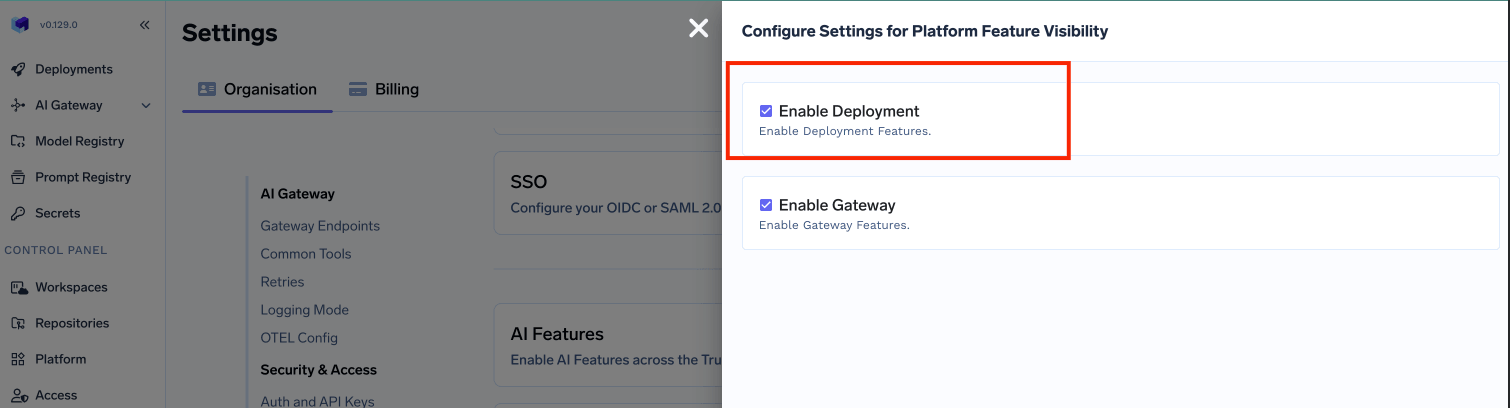 * Click on `Save` button.
This will enable the deployment feature in the platform and allow you to create either a control plane and compute plane.
* Click on `Save` button.
This will enable the deployment feature in the platform and allow you to create either a control plane and compute plane.
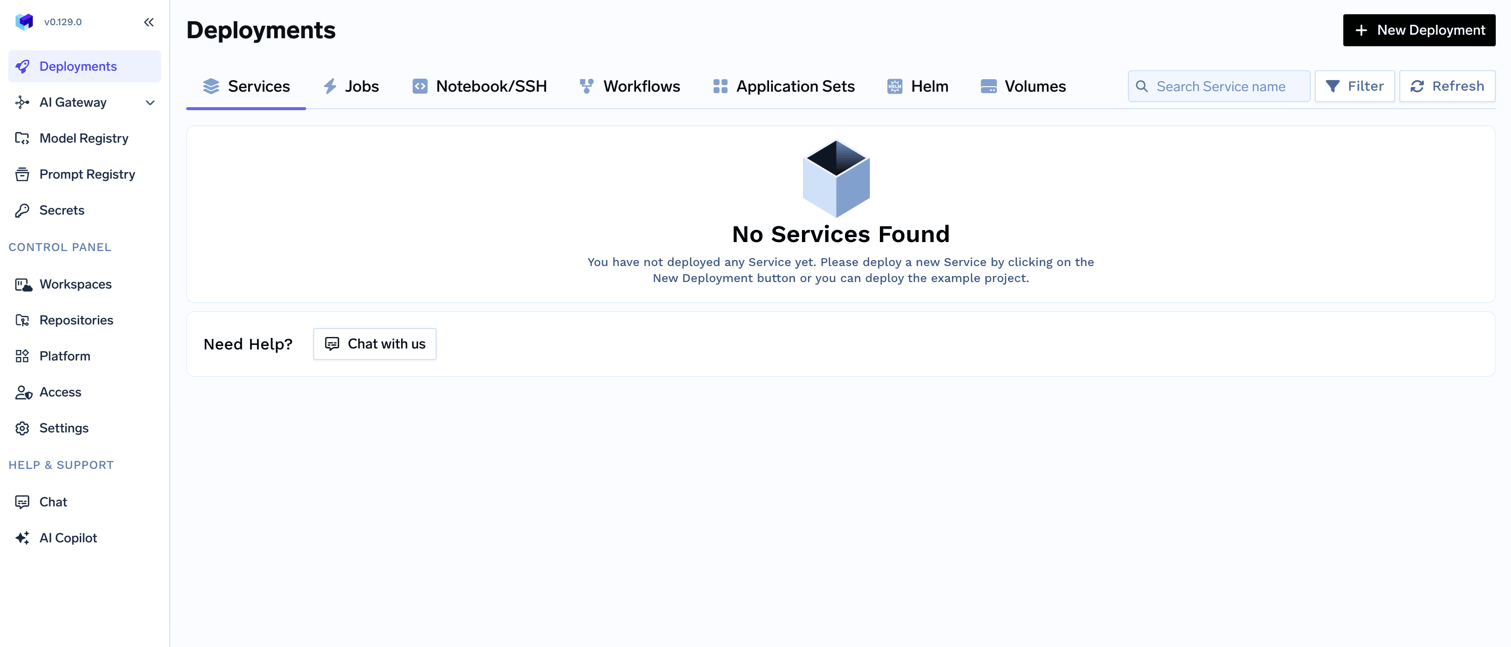 Go to the platform section in the left panel and click on `Clusters`. You can click on `Create New Cluster` or `Attach Existing Cluster` depending on your use case. Read the requirements and if everything is satisfied, click on `Continue`.
 A form will be presented with the details for the new cluster to be created. Fill in with your cluster details. Click `Submit` when done
The key fields to fill up here are:
* `Region` - The region and availability zones where you want to create the cluster.
* `Project ID` - The project ID where you want to create the cluster.
* `Cluster Name` - A name for your cluster.
* `Cluster Version` and `Master node IPv4 block` - The version of the cluster and the IPv4 block for the master nodes.
* `Network Configuration` - Choose between `New network` or `Existing network` depending on your use case.
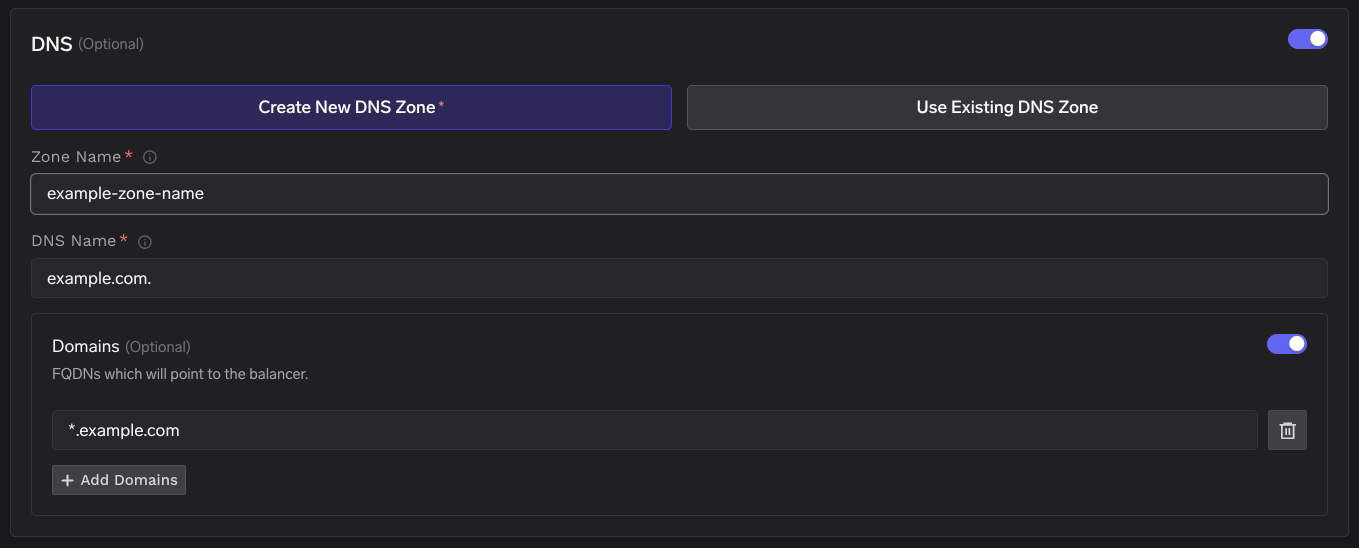
* `DNS Configuration` - Configure the DNS zone and domains that will point to the cluster’s load balancer. This also provisions a TLS certificate for those domains. Select New DNS Zone or Existing DNS Zone if you want TrueFoundry to provision DNS in GCP. If you use an external DNS provider (e.g., Route53, Cloudflare), you can skip this section.
A form will be presented with the details for the new cluster to be created. Fill in with your cluster details. Click `Submit` when done
The key fields to fill up here are:
* `Region` - The region and availability zones where you want to create the cluster.
* `Project ID` - The project ID where you want to create the cluster.
* `Cluster Name` - A name for your cluster.
* `Cluster Version` and `Master node IPv4 block` - The version of the cluster and the IPv4 block for the master nodes.
* `Network Configuration` - Choose between `New network` or `Existing network` depending on your use case.
* `DNS Configuration` - Configure the DNS zone and domains that will point to the cluster’s load balancer. This also provisions a TLS certificate for those domains. Select New DNS Zone or Existing DNS Zone if you want TrueFoundry to provision DNS in GCP. If you use an external DNS provider (e.g., Route53, Cloudflare), you can skip this section.
 * `GCS Bucket for OpenTofu/Terraform State` - OpenTofu/Terraform state will be stored in this bucket. It can be a preexisting bucket or a new bucket name. The new bucket will automatically be created by our script.
* `Platform Features` - This is to decide which features like BlobStorage, ClusterIntegration, Container Registry and Secrets Manager will be enabled for your cluster. To read more on how these integrations are used in the platform, please refer to the [platform features](/docs/infrastructure/deploy-compute-plane) page.
The key fields to fill up here are:
* `Region` - The region and availability zones where you want to create the cluster.
* `Project ID` - The project ID where you want to create the cluster.
* `Cluster Name` - A name for your cluster.
* `Cluster Addons` - TrueFoundry needs to install addons like ArgoCD, ArgoWorkflows, Keda, Istio, etc. Please disable the addons that are already installed on your cluster so that truefoundry installation does not overrride the existing configuration and affect your existing workloads.
* `DNS Configuration` - Configure the DNS zone and domains that will point to the cluster’s load balancer. This also provisions a TLS certificate for those domains. Select New DNS Zone or Existing DNS Zone if you want TrueFoundry to provision DNS in GCP. If you use an external DNS provider (e.g., Route53, Cloudflare), you can skip this section.
* `GCS Bucket for OpenTofu/Terraform State` - OpenTofu/Terraform state will be stored in this bucket. It can be a preexisting bucket or a new bucket name. The new bucket will automatically be created by our script.
* `Platform Features` - This is to decide which features like BlobStorage, ClusterIntegration, ParameterStore, DockerRegistry and SecretsManager will be enabled for your cluster. To read more on how these integrations are used in the platform, please refer to the [platform features](/docs/infrastructure/deploy-compute-plane) page.
You will be presented with a `curl` command to download and execute the script. The script will take care of installing the pre-requisites, downloading OpenTofu/Terraform code and running it on your local machine to create the cluster. This will take around 40-50 minutes to complete.
* `GCS Bucket for OpenTofu/Terraform State` - OpenTofu/Terraform state will be stored in this bucket. It can be a preexisting bucket or a new bucket name. The new bucket will automatically be created by our script.
* `Platform Features` - This is to decide which features like BlobStorage, ClusterIntegration, Container Registry and Secrets Manager will be enabled for your cluster. To read more on how these integrations are used in the platform, please refer to the [platform features](/docs/infrastructure/deploy-compute-plane) page.
The key fields to fill up here are:
* `Region` - The region and availability zones where you want to create the cluster.
* `Project ID` - The project ID where you want to create the cluster.
* `Cluster Name` - A name for your cluster.
* `Cluster Addons` - TrueFoundry needs to install addons like ArgoCD, ArgoWorkflows, Keda, Istio, etc. Please disable the addons that are already installed on your cluster so that truefoundry installation does not overrride the existing configuration and affect your existing workloads.
* `DNS Configuration` - Configure the DNS zone and domains that will point to the cluster’s load balancer. This also provisions a TLS certificate for those domains. Select New DNS Zone or Existing DNS Zone if you want TrueFoundry to provision DNS in GCP. If you use an external DNS provider (e.g., Route53, Cloudflare), you can skip this section.
* `GCS Bucket for OpenTofu/Terraform State` - OpenTofu/Terraform state will be stored in this bucket. It can be a preexisting bucket or a new bucket name. The new bucket will automatically be created by our script.
* `Platform Features` - This is to decide which features like BlobStorage, ClusterIntegration, ParameterStore, DockerRegistry and SecretsManager will be enabled for your cluster. To read more on how these integrations are used in the platform, please refer to the [platform features](/docs/infrastructure/deploy-compute-plane) page.
You will be presented with a `curl` command to download and execute the script. The script will take care of installing the pre-requisites, downloading OpenTofu/Terraform code and running it on your local machine to create the cluster. This will take around 40-50 minutes to complete.
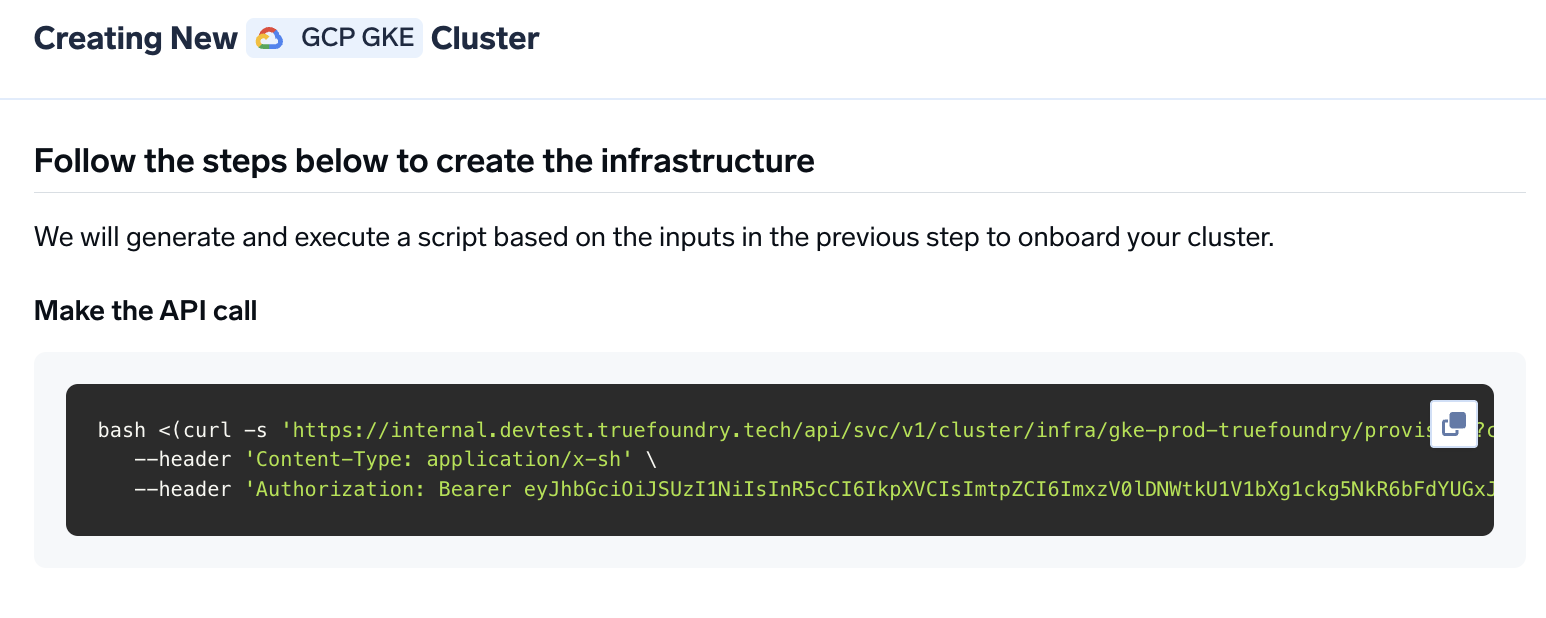 Once the script is executed, the cluster will be shown as connected in the platform.
We can get the load-balancer's IP address by going to the platform section in the bottom left panel under the Clusters section. Under the preferred cluster, you'll see the load balancer IP address under the `Base Domain URL` section.
Once the script is executed, the cluster will be shown as connected in the platform.
We can get the load-balancer's IP address by going to the platform section in the bottom left panel under the Clusters section. Under the preferred cluster, you'll see the load balancer IP address under the `Base Domain URL` section.
 Create a DNS record in google cloud dns or your DNS provider with the following details
| Record Type | Record Name | Record value |
| ----------- | ------------------ | ------------------------- |
| A. | \*.tfy.example.com | LOADBALANCER\_IP\_ADDRESS |
You can start by going [here](/docs/deploy-first-service#deploy-from-github)
## FAQ
If you have your own certificate files (for example, from another certificate provider or self-signed), you can use them directly with TrueFoundry.
1. Create a Kubernetes secret with your certificate and key, or create a self-signed certificate:
```shell Shell lines theme={"dark"}
# Generate a self-signed certificate
openssl req -x509 -nodes -days 365 -newkey rsa:2048 \
-keyout tls.key -out tls.crt \
-subj "/CN=*.example.com" \
-addext "subjectAltName = DNS:example.com,DNS:*.example.com"
```
```shell Shell lines theme={"dark"}
# Create secret from local certificate files
kubectl create secret tls example-com-tls \
--cert=path/to/cert/file \
--key=path/to/key/file \
-n istio-system
```
2. Once the secret is created, head over to the cluster page and navigate to the `tfy-istio-ingress` add-on. Add the secret name in the `tfyGateway.spec.servers[1].tls.credentialName` section and ensure that `tfyGateway.spec.servers[1].port.protocol` is set to `HTTPS`. Here we are using `example-com-tls` as the secret name, which contains the certificate and key.
```yaml YAML lines theme={"dark"}
servers:
-
- hosts:
- "*"
port:
name: https-tfy-wildcard
number: 443
protocol: HTTPS
tls:
mode: SIMPLE
credentialName: example-com-tls
```
Self-signed certificates will cause browser warnings. They should only be used for testing or internal systems. To connect to services with self-signed certificates, you have to pass the CA certificate to verify the SSL certificate.
Create a DNS record in google cloud dns or your DNS provider with the following details
| Record Type | Record Name | Record value |
| ----------- | ------------------ | ------------------------- |
| A. | \*.tfy.example.com | LOADBALANCER\_IP\_ADDRESS |
You can start by going [here](/docs/deploy-first-service#deploy-from-github)
## FAQ
If you have your own certificate files (for example, from another certificate provider or self-signed), you can use them directly with TrueFoundry.
1. Create a Kubernetes secret with your certificate and key, or create a self-signed certificate:
```shell Shell lines theme={"dark"}
# Generate a self-signed certificate
openssl req -x509 -nodes -days 365 -newkey rsa:2048 \
-keyout tls.key -out tls.crt \
-subj "/CN=*.example.com" \
-addext "subjectAltName = DNS:example.com,DNS:*.example.com"
```
```shell Shell lines theme={"dark"}
# Create secret from local certificate files
kubectl create secret tls example-com-tls \
--cert=path/to/cert/file \
--key=path/to/key/file \
-n istio-system
```
2. Once the secret is created, head over to the cluster page and navigate to the `tfy-istio-ingress` add-on. Add the secret name in the `tfyGateway.spec.servers[1].tls.credentialName` section and ensure that `tfyGateway.spec.servers[1].port.protocol` is set to `HTTPS`. Here we are using `example-com-tls` as the secret name, which contains the certificate and key.
```yaml YAML lines theme={"dark"}
servers:
-
- hosts:
- "*"
port:
name: https-tfy-wildcard
number: 443
protocol: HTTPS
tls:
mode: SIMPLE
credentialName: example-com-tls
```
Self-signed certificates will cause browser warnings. They should only be used for testing or internal systems. To connect to services with self-signed certificates, you have to pass the CA certificate to verify the SSL certificate.