> ## Documentation Index
> Fetch the complete documentation index at: https://www.truefoundry.com/llms.txt
> Use this file to discover all available pages before exploring further.
# Environments
> Create and manage custom environments like dev, staging, and production to organize your TrueFoundry workspaces.
As your organization uses the platform more and more, your Deployments dashboard will start filling up, especially if you are a Tenant Admin or a Cluster Admin. To navigate through all the applications, effectively filtering applications through meaningful tags and differentiating them based on relevant criteria becomes crucial.
This is where Environments come into the picture. You can create custom environments (e.g., development, staging, production) and tag workspaces accordingly. This automatically applies the environment tag to all applications within that workspace. This approach offers two key benefits:
* **Environment-based filtering**: You can easily filter applications by their assigned environment, focusing on specific sets like production services.
* **Descriptive environment names**: Environment names provide immediate context about an application's purpose and stage.
## Creating Environments
To create an environment in TrueFoundry, follow these steps:
## How to tag a workspace with an environment
To tag a workspace with an environment, first, the Cluster where the workspace resides needs to have those environments added.
For this, you will have to add all environments relevant to your cluster (one cluster can have multiple environments) in the cluster, using the instructions provided below.
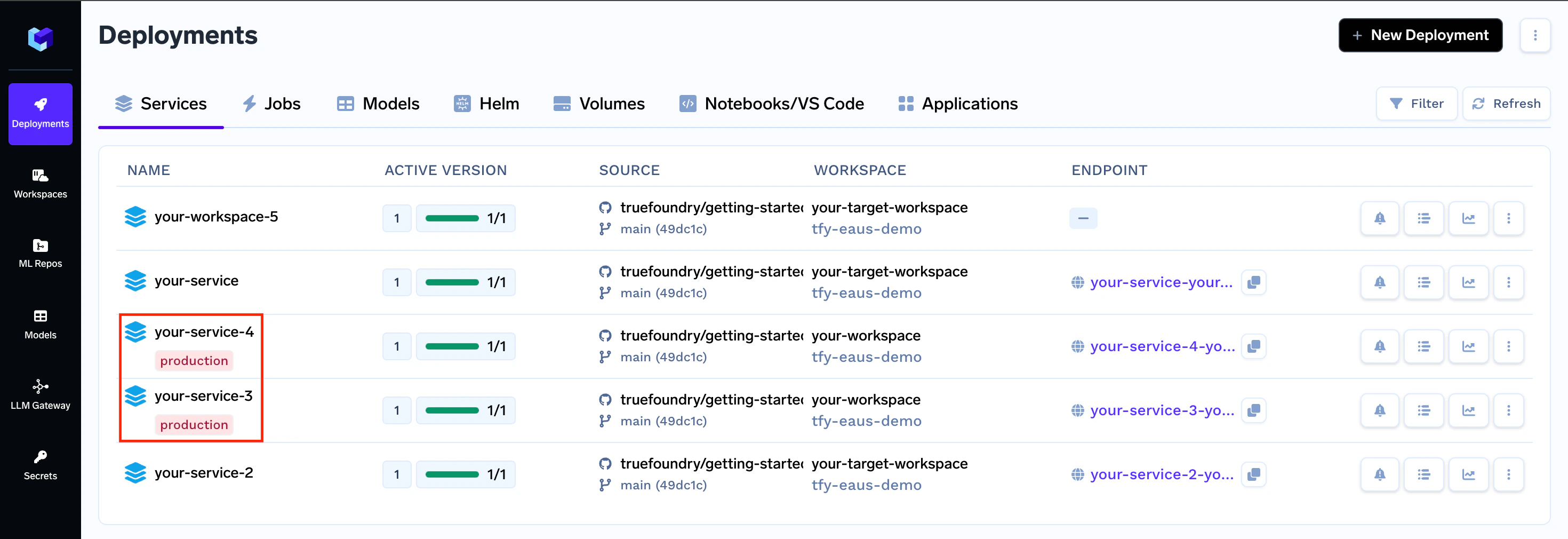
Now all your applications deployed within that specific workspace will have the environment of the workspace show up beside them.
 ## Filtering Applications
You can use environments to filter your workspaces and applications. For example, you could filter your workspaces to only show those that are tagged with the development environment. You could also filter your applications to only show those that are tagged with the production environment.
## Filtering Applications
You can use environments to filter your workspaces and applications. For example, you could filter your workspaces to only show those that are tagged with the development environment. You could also filter your applications to only show those that are tagged with the production environment.