> ## Documentation Index
> Fetch the complete documentation index at: https://www.truefoundry.com/llms.txt
> Use this file to discover all available pages before exploring further.
# Deploy LLMs using Nvidia TensorRT LLM (TRT LLM)
> Deploy large language models using the Nvidia TensorRT-LLM runtime for optimized inference on TrueFoundry.
In this guide, we will deploy a Llama based LLM using Nvidia's [TensorRT-LLM](https://github.com/NVIDIA/TensorRT-LLM) runtime. Specfically for this example we will deploy [meta-llama/Llama-3.1-8B-Instruct](https://huggingface.co/meta-llama/Meta-Llama-3.1-8B-Instruct) with bf16 precision on 2 x L40S GPUs but you can choose whatever GPU configuration available to you
### Quantization Support coming soon!
## 1. Add your Huggingface Token as a Secret
Since we are going to deploy the official Llama 3.1 8B Instruct model, we'd need a Huggingface Token that has access to the model.
Visit the model page and fill the access form. You'd get access to the model in 10-15 mins.
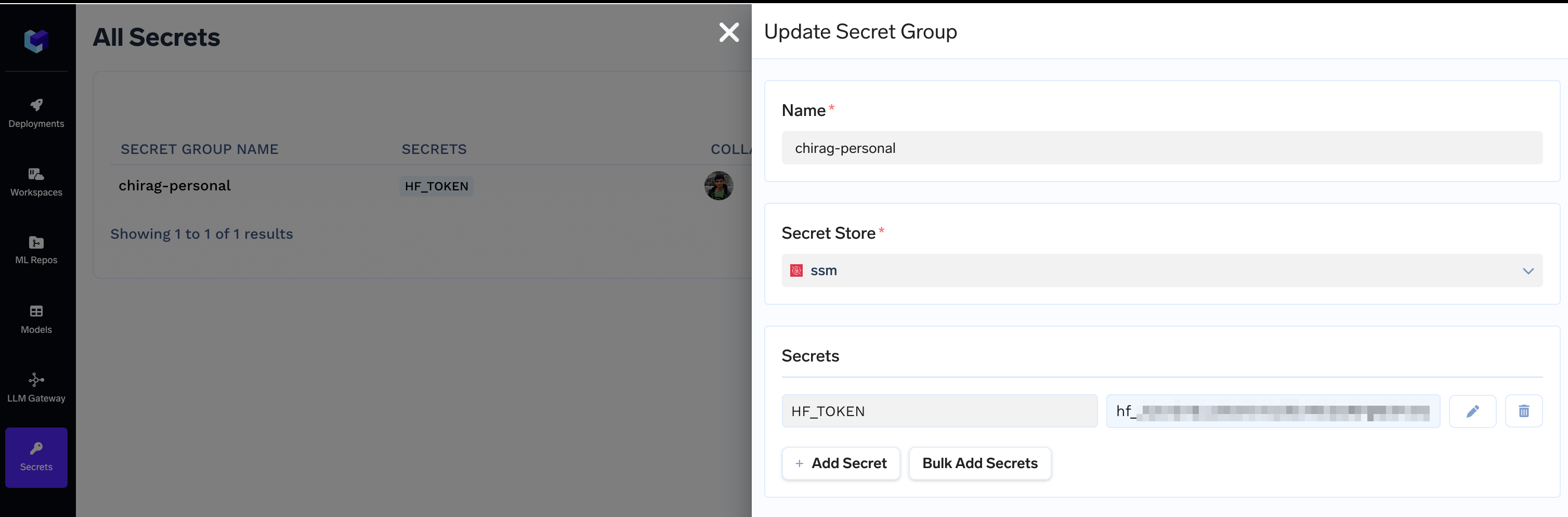
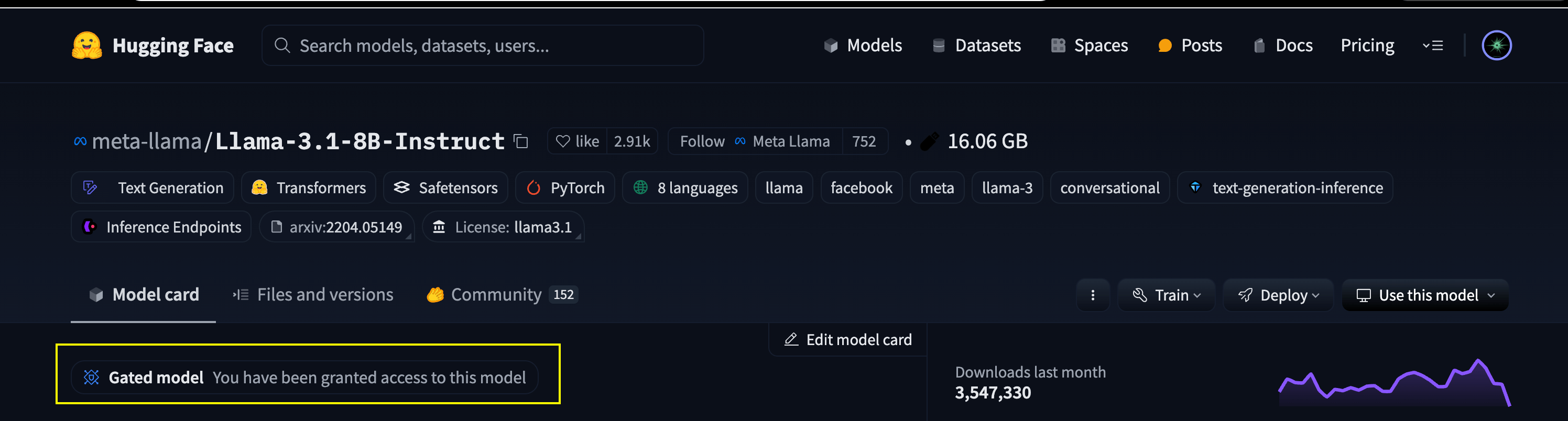 Now, [Create a token following the HuggingFace Docs](https://huggingface.co/docs/hub/security-tokens) and [Add it as a secret](/docs/manage-secrets) which we can use later
 ## 2. Create a ML Repo and a Workspace with access to ML Repo
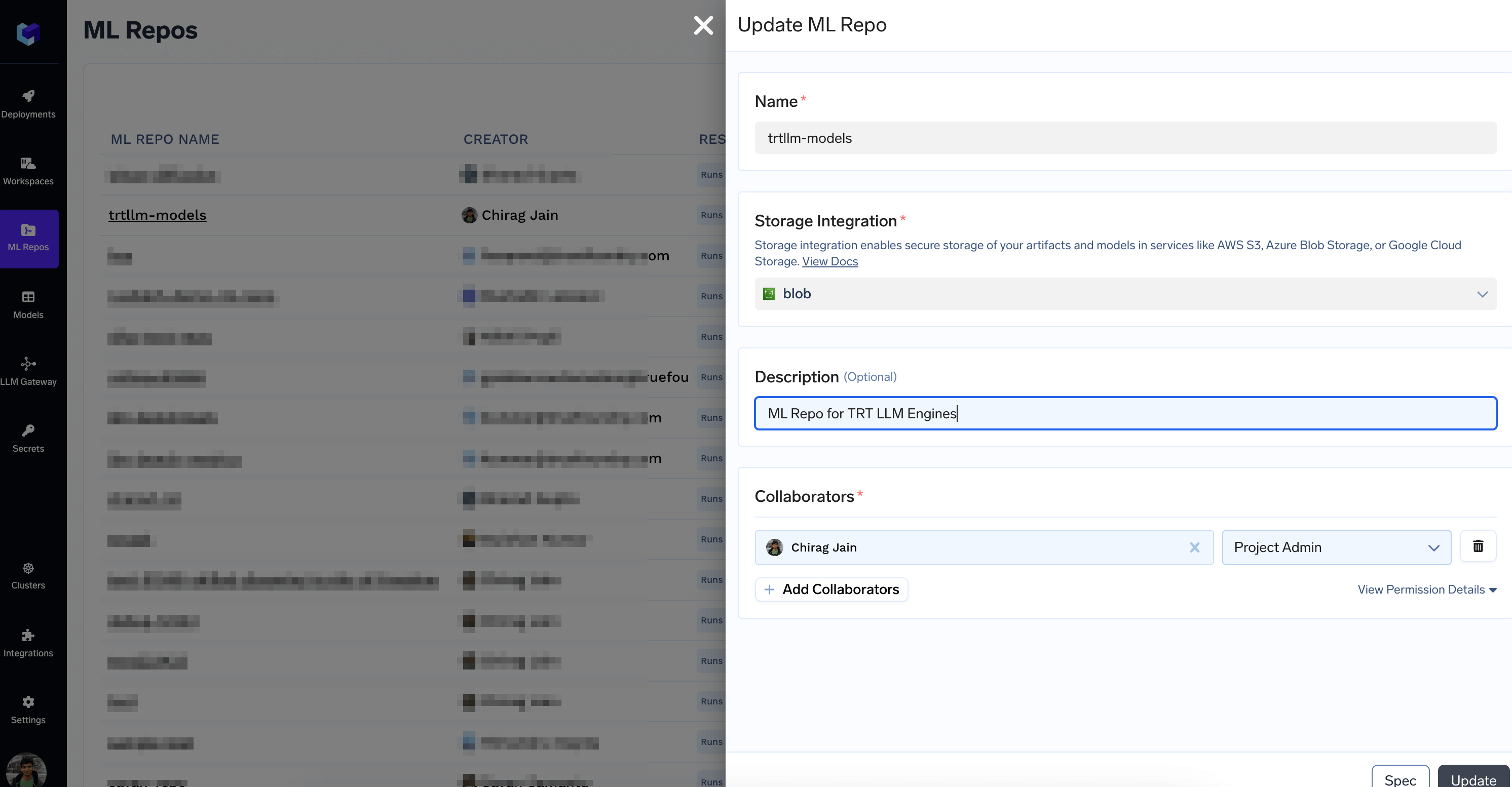
Follow the docs at [Creating a ML Repo](/docs/creating-a-ml-repo) to create a ML Repo backed by your Storage Integration. We will use this to store and version TRT-LLM engines.
## 2. Create a ML Repo and a Workspace with access to ML Repo
Follow the docs at [Creating a ML Repo](/docs/creating-a-ml-repo) to create a ML Repo backed by your Storage Integration. We will use this to store and version TRT-LLM engines.
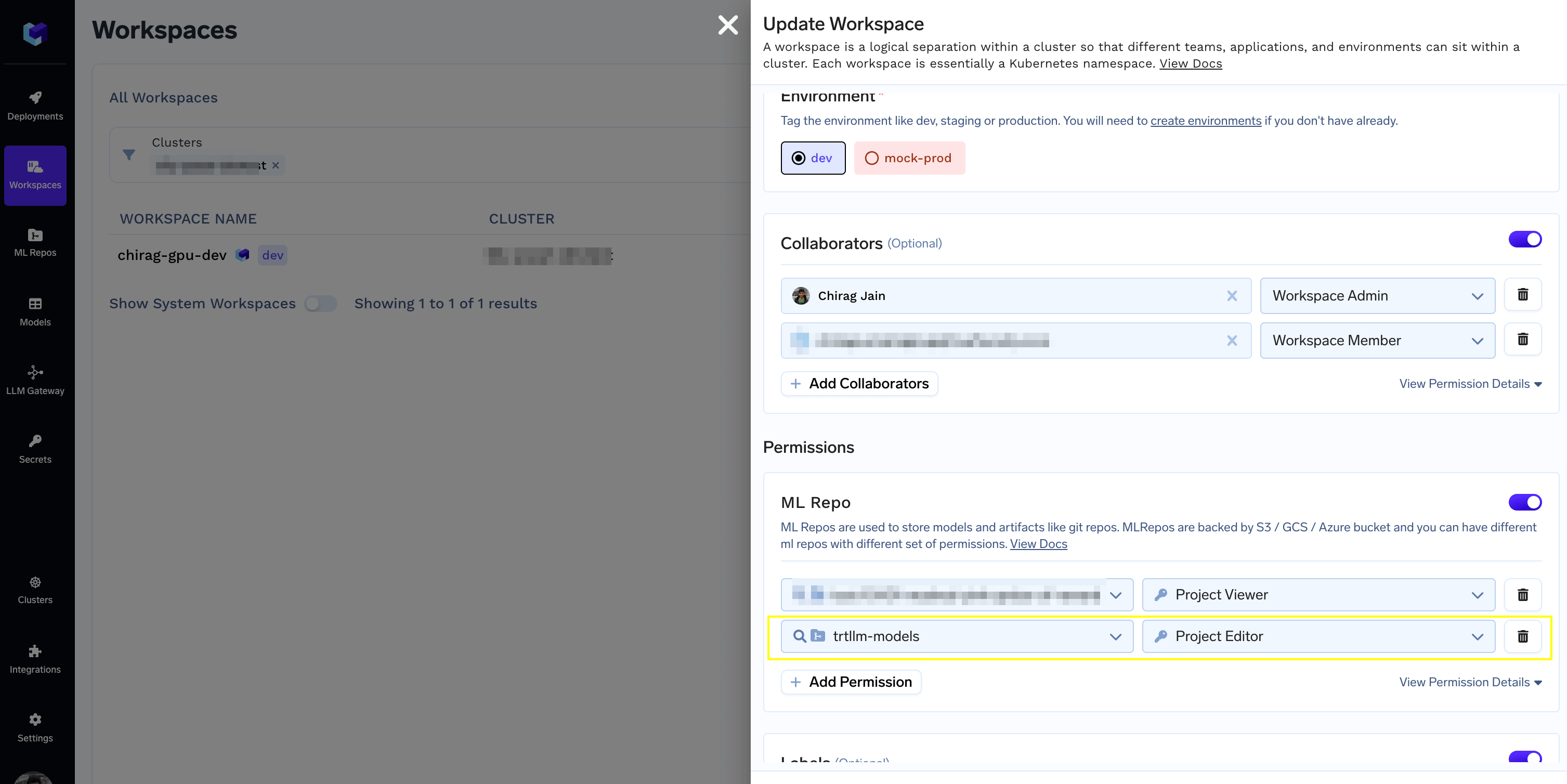
 [Create a Workspace](/docs/key-concepts#key-concepts#creating-a-workspace) or use and existing Workspace and [Grant it Editor access to the ML Repo](/docs/key-concepts#grant-access-of-ml-repo-to-workspace)
 ## 3. Deploy the Engine Builder Job
1. Save the following YAML in a file called `builder.truefoundry.yaml`
```go builder.truefoundry.yaml lines theme={"dark"}
name: trtllm-engine-builder-l40sx2
type: job
image:
type: image
image_uri: truefoundrycloud/trtllm-engine-builder:0.13.0
command: >-
python build.py
--model-id {{model_id}}
--truefoundry-ml-repo {{ml_repo}}
--truefoundry-run-name {{run_name}}
--model-type {{model_type}}
--dtype {{dtype}}
--max-batch-size {{max_batch_size}}
--max-input-len {{max_input_len}}
--max-num-tokens {{max_num_tokens}}
--kv-cache-type {{kv_cache_type}}
--workers {{workers}}
--gpt-attention-plugin {{gpt_attention_plugin}}
--gemm-plugin {{gemm_plugin}}
--nccl-plugin {{nccl_plugin}}
--context-fmha {{context_fmha}}
--remove-input-padding {{remove_input_padding}}
--reduce-fusion {{reduce_fusion}}
--enable-xqa {{enable_xqa}}
--use-paged-context-fmha {{use_paged_context_fmha}}
--multiple-profiles {{multiple_profiles}}
--paged-state {{paged_state}}
--use-fused-mlp {{use_fused_mlp}}
--tokens-per-block {{tokens_per_block}}
--delete-hf-model-post-conversion
trigger:
type: manual
env:
PYTHONUNBUFFERED: '1'
HF_TOKEN: "YOUR-HF-TOKEN-SECRET-FQN"
params:
- name: model_id
default: meta-llama/Meta-Llama-3.1-8B-Instruct
param_type: string
- name: ml_repo
default: trtllm-models
param_type: ml_repo
- name: run_name
param_type: string
- name: model_type
default: llama
param_type: string
- name: dtype
default: bfloat16
param_type: string
- name: max_batch_size
default: "256"
param_type: string
- name: max_input_len
default: "4096"
param_type: string
- name: max_num_tokens
default: "8192"
param_type: string
- name: kv_cache_type
default: paged
param_type: string
- name: workers
default: "2"
param_type: string
- name: gpt_attention_plugin
default: auto
param_type: string
- name: gemm_plugin
default: auto
param_type: string
- name: nccl_plugin
default: auto
param_type: string
- name: context_fmha
default: enable
param_type: string
- name: remove_input_padding
default: enable
param_type: string
- name: reduce_fusion
default: enable
param_type: string
- name: enable_xqa
default: enable
param_type: string
- name: use_paged_context_fmha
default: enable
param_type: string
- name: multiple_profiles
default: enable
param_type: string
- name: paged_state
default: enable
param_type: string
- name: use_fused_mlp
default: disable
param_type: string
- name: tokens_per_block
default: "64"
param_type: string
retries: 0
resources:
node:
type: node_selector
capacity_type: on_demand
devices:
- type: nvidia_gpu
count: 2
name: L40S
cpu_request: 6
cpu_limit: 8
memory_request: 54400
memory_limit: 64000
ephemeral_storage_request: 70000
ephemeral_storage_limit: 100000
```
### `resources` section varies across cloud provider
Based on your cloud provider, the available gpu type and nodepools will be different, you'd need to adjust it before deploying.
2. Replace `YOUR-HF-TOKEN-SECRET-FQN` with the [Secret FQN](/docs/environment-variables-and-secrets-jobs#how-to-inject-environment-variables-and-secrets-in-truefoundry) we created at the beginning. E.g.
```bash Diff lines theme={"dark"}
env:
- HF_TOKEN: YOUR-HF-TOKEN-SECRET-FQN
+ HF_TOKEN: tfy-secret://truefoundry:chirag-personal:HF_TOKEN
```
2. Generating correct `resources` section your configuration.
Start a New Deployment, scroll to `Resources` section and select the GPU type and Count and click on the `Spec` button
## 3. Deploy the Engine Builder Job
1. Save the following YAML in a file called `builder.truefoundry.yaml`
```go builder.truefoundry.yaml lines theme={"dark"}
name: trtllm-engine-builder-l40sx2
type: job
image:
type: image
image_uri: truefoundrycloud/trtllm-engine-builder:0.13.0
command: >-
python build.py
--model-id {{model_id}}
--truefoundry-ml-repo {{ml_repo}}
--truefoundry-run-name {{run_name}}
--model-type {{model_type}}
--dtype {{dtype}}
--max-batch-size {{max_batch_size}}
--max-input-len {{max_input_len}}
--max-num-tokens {{max_num_tokens}}
--kv-cache-type {{kv_cache_type}}
--workers {{workers}}
--gpt-attention-plugin {{gpt_attention_plugin}}
--gemm-plugin {{gemm_plugin}}
--nccl-plugin {{nccl_plugin}}
--context-fmha {{context_fmha}}
--remove-input-padding {{remove_input_padding}}
--reduce-fusion {{reduce_fusion}}
--enable-xqa {{enable_xqa}}
--use-paged-context-fmha {{use_paged_context_fmha}}
--multiple-profiles {{multiple_profiles}}
--paged-state {{paged_state}}
--use-fused-mlp {{use_fused_mlp}}
--tokens-per-block {{tokens_per_block}}
--delete-hf-model-post-conversion
trigger:
type: manual
env:
PYTHONUNBUFFERED: '1'
HF_TOKEN: "YOUR-HF-TOKEN-SECRET-FQN"
params:
- name: model_id
default: meta-llama/Meta-Llama-3.1-8B-Instruct
param_type: string
- name: ml_repo
default: trtllm-models
param_type: ml_repo
- name: run_name
param_type: string
- name: model_type
default: llama
param_type: string
- name: dtype
default: bfloat16
param_type: string
- name: max_batch_size
default: "256"
param_type: string
- name: max_input_len
default: "4096"
param_type: string
- name: max_num_tokens
default: "8192"
param_type: string
- name: kv_cache_type
default: paged
param_type: string
- name: workers
default: "2"
param_type: string
- name: gpt_attention_plugin
default: auto
param_type: string
- name: gemm_plugin
default: auto
param_type: string
- name: nccl_plugin
default: auto
param_type: string
- name: context_fmha
default: enable
param_type: string
- name: remove_input_padding
default: enable
param_type: string
- name: reduce_fusion
default: enable
param_type: string
- name: enable_xqa
default: enable
param_type: string
- name: use_paged_context_fmha
default: enable
param_type: string
- name: multiple_profiles
default: enable
param_type: string
- name: paged_state
default: enable
param_type: string
- name: use_fused_mlp
default: disable
param_type: string
- name: tokens_per_block
default: "64"
param_type: string
retries: 0
resources:
node:
type: node_selector
capacity_type: on_demand
devices:
- type: nvidia_gpu
count: 2
name: L40S
cpu_request: 6
cpu_limit: 8
memory_request: 54400
memory_limit: 64000
ephemeral_storage_request: 70000
ephemeral_storage_limit: 100000
```
### `resources` section varies across cloud provider
Based on your cloud provider, the available gpu type and nodepools will be different, you'd need to adjust it before deploying.
2. Replace `YOUR-HF-TOKEN-SECRET-FQN` with the [Secret FQN](/docs/environment-variables-and-secrets-jobs#how-to-inject-environment-variables-and-secrets-in-truefoundry) we created at the beginning. E.g.
```bash Diff lines theme={"dark"}
env:
- HF_TOKEN: YOUR-HF-TOKEN-SECRET-FQN
+ HF_TOKEN: tfy-secret://truefoundry:chirag-personal:HF_TOKEN
```
2. Generating correct `resources` section your configuration.
Start a New Deployment, scroll to `Resources` section and select the GPU type and Count and click on the `Spec` button
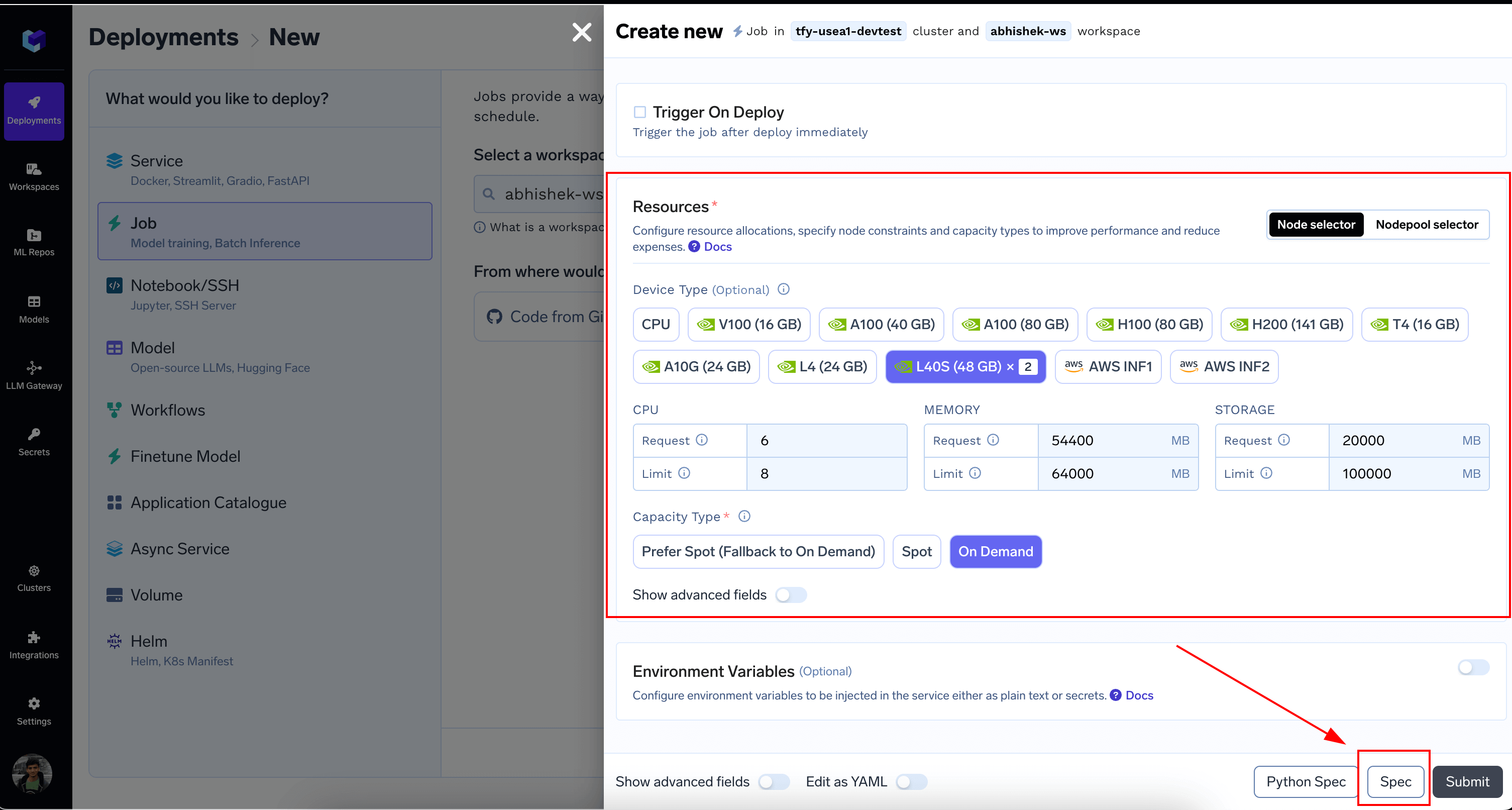
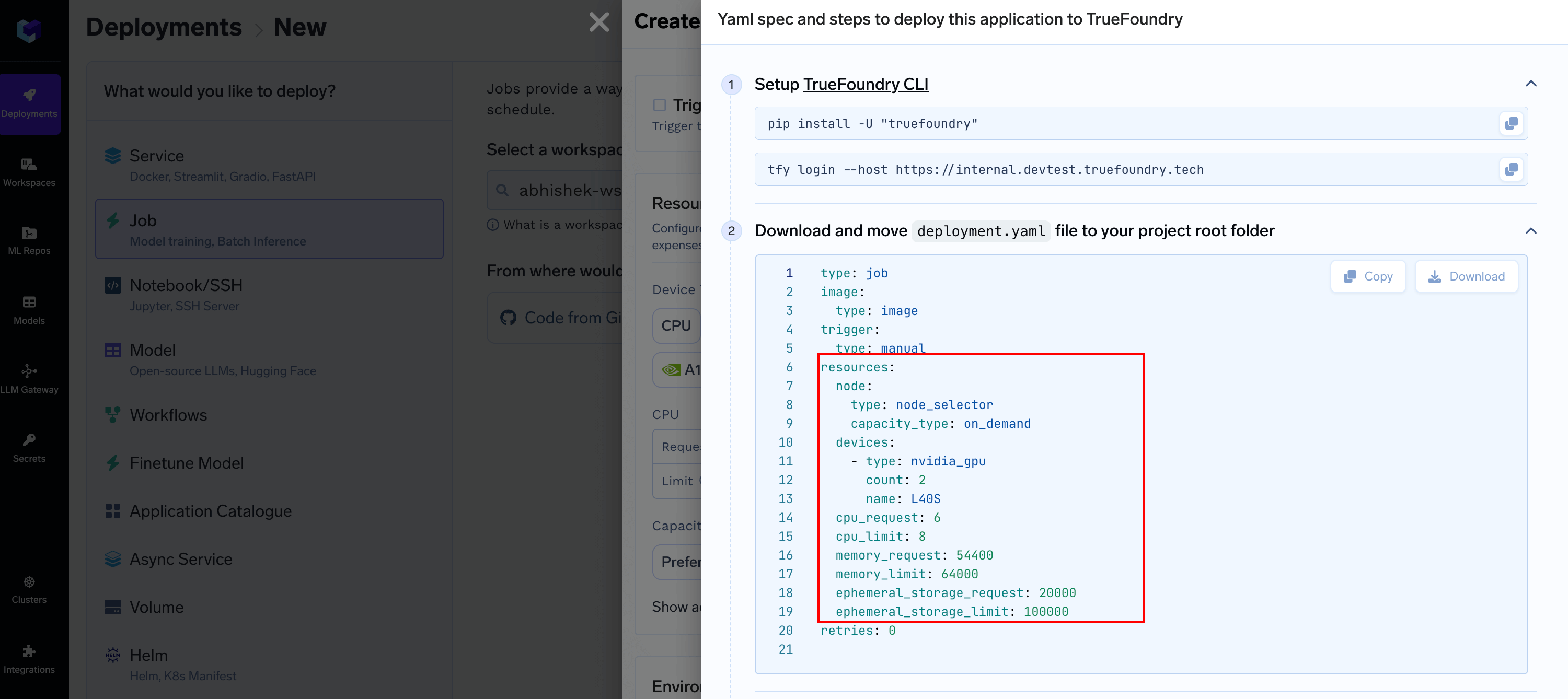 You can copy this `resources` section and replace it in `builder.truefoundry.yaml`
3. After [Setting up CLI](/docs/setup-cli), deploy the job by mentioning the [Workspace FQN](/docs/key-concepts#getting-workspace-fqn)
```shell Shell lines theme={"dark"}
tfy deploy --file builder.truefoundry.yaml --workspace-fqn --no-wait
```
4. Once the Job is deployed, Trigger it
You can copy this `resources` section and replace it in `builder.truefoundry.yaml`
3. After [Setting up CLI](/docs/setup-cli), deploy the job by mentioning the [Workspace FQN](/docs/key-concepts#getting-workspace-fqn)
```shell Shell lines theme={"dark"}
tfy deploy --file builder.truefoundry.yaml --workspace-fqn --no-wait
```
4. Once the Job is deployed, Trigger it
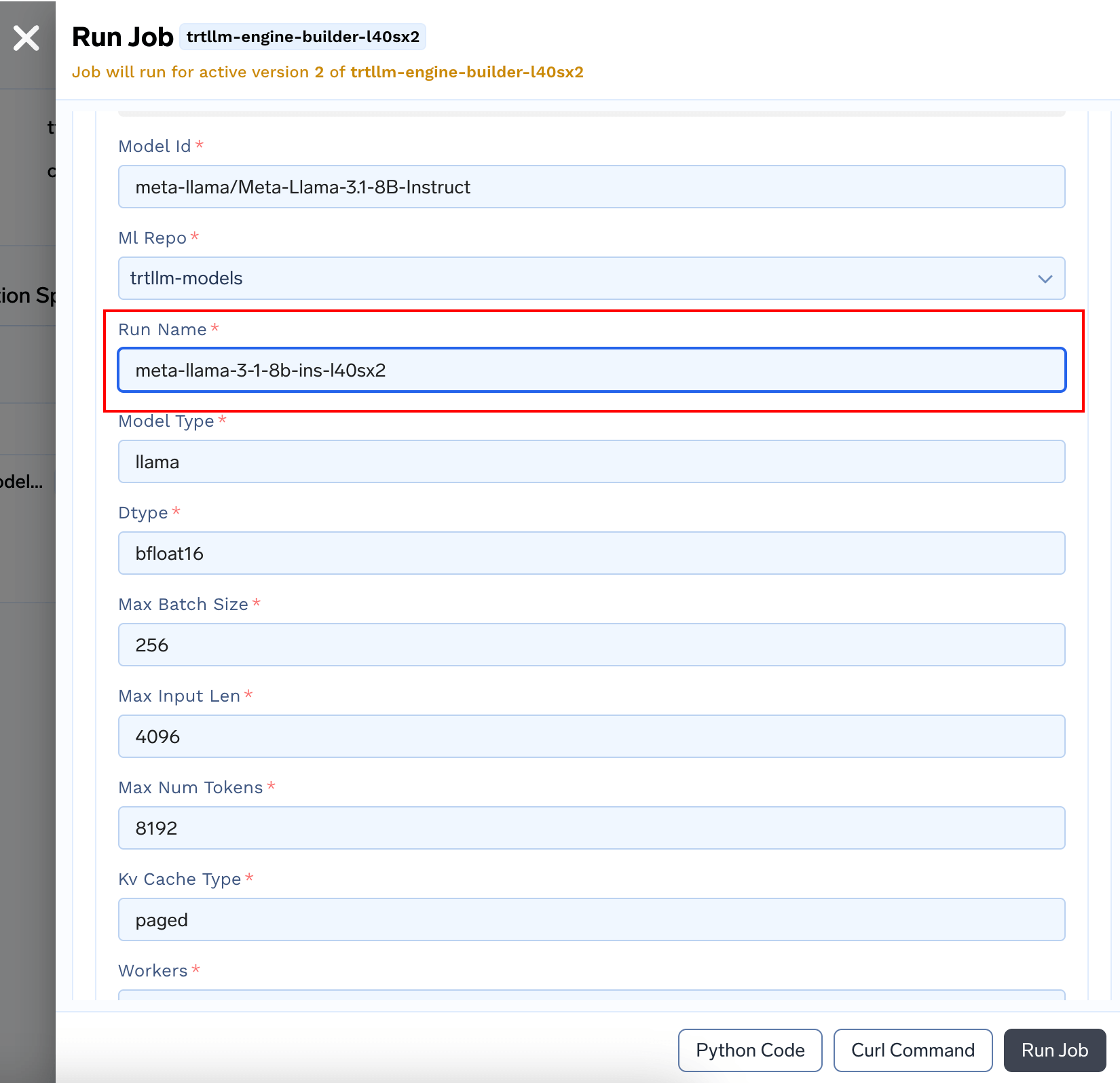
 Enter a Run Name. You can modify other arguments if needed. Please refer to [TRT-LLM Docs](https://nvidia.github.io/TensorRT-LLM/performance/perf-best-practices.html) to know more about these parameters. Click Submit
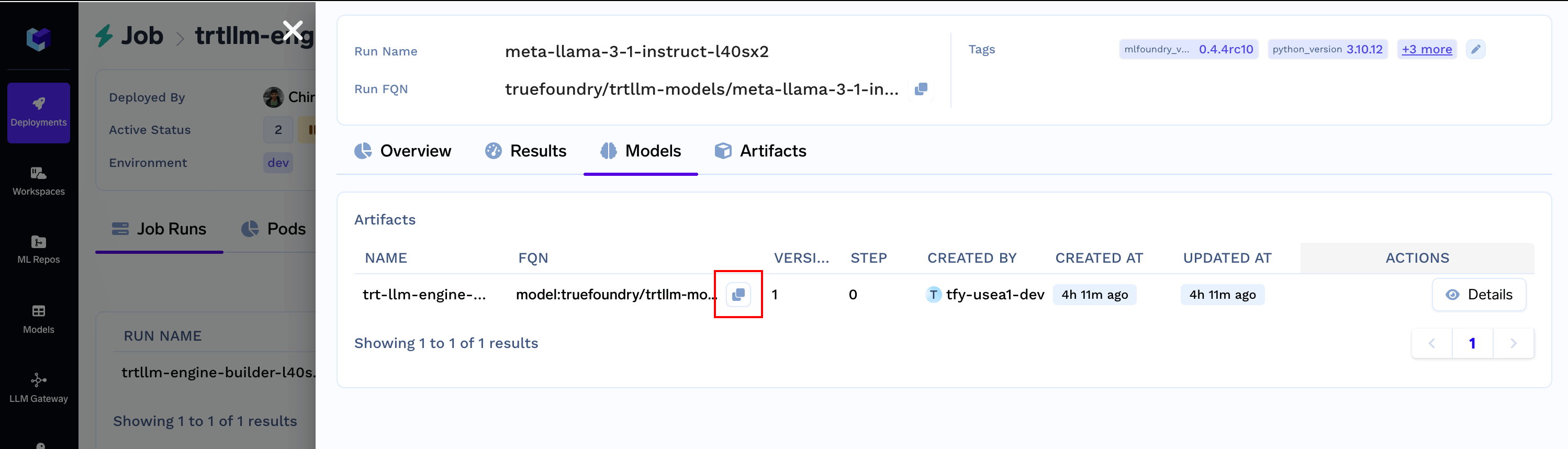
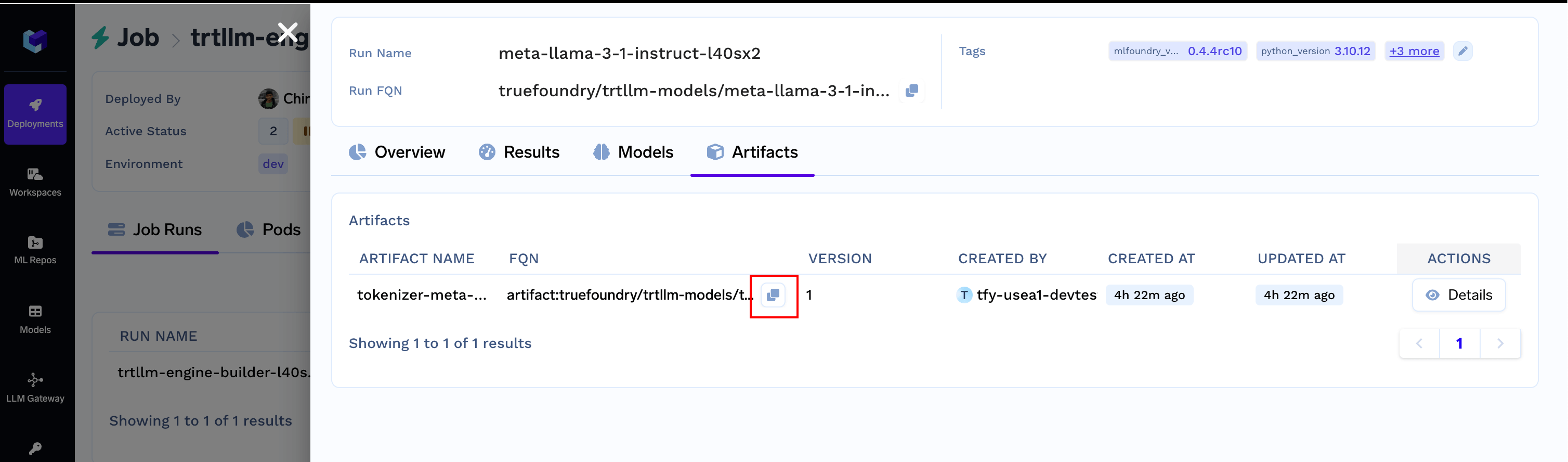
 5. When the run finishes, you'd have the `tokenizer` and `engine` ready to use under the Run Details section
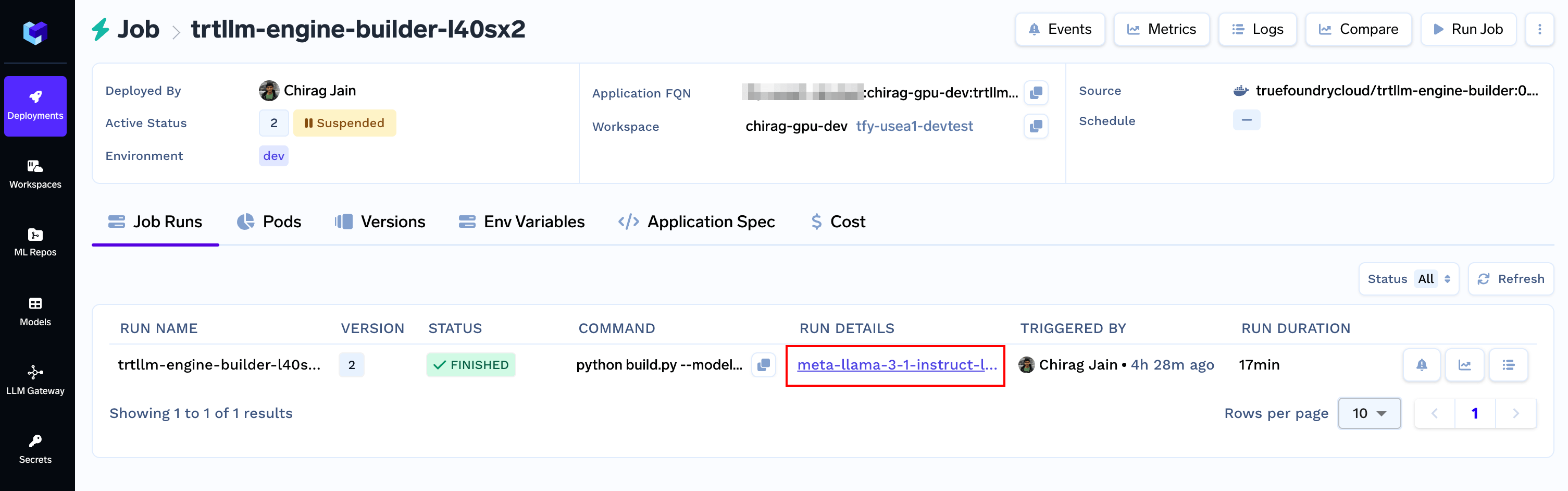 Engine is available under `Models` section. Copy the FQN and keep it handy.
 Tokenizer is available under `Artifacts` section. Copy the FQN and keep it handy.
 ## 4. Deploy with Nvidia Triton Server
Finally, let's deploy the engine using Nvidia Triton Server as a TrueFoundry Service. Here is the spec in full:
### `resources` section varies across cloud provider
Based on your cloud provider, the available gpu type and nodepools will be different, you'd need to adjust it before deploying.
```bash server.truefoundry.yaml lines theme={"dark"}
name: llama-3-1-8b-instruct-trt-llm
type: service
env:
DECOUPLED_MODE: 'True'
BATCHING_STRATEGY: inflight_fused_batching
ENABLE_KV_CACHE_REUSE: 'True'
TRITON_MAX_BATCH_SIZE: '64'
BATCH_SCHEDULER_POLICY: max_utilization
ENABLE_CHUNKED_CONTEXT: 'True'
KV_CACHE_FREE_GPU_MEM_FRACTION: '0.95'
image:
type: image
image_uri: docker.io/truefoundrycloud/tritonserver:24.09-trtllm-python-py3
ports:
- port: 8000
expose: false
protocol: TCP
app_protocol: http
labels:
tfy_openapi_path: openapi.json
replicas: 1
resources:
node:
type: node_selector
capacity_type: on_demand
devices:
- name: L40S
type: nvidia_gpu
count: 2
cpu_limit: 8
cpu_request: 6
memory_limit: 64000
memory_request: 54400
shared_memory_size: 12000
ephemeral_storage_limit: 100000
ephemeral_storage_request: 20000
liveness_probe:
config:
path: /health/ready
port: 8000
type: http
period_seconds: 10
timeout_seconds: 1
failure_threshold: 8
success_threshold: 1
initial_delay_seconds: 15
readiness_probe:
config:
path: /health/ready
port: 8000
type: http
period_seconds: 10
timeout_seconds: 1
failure_threshold: 5
success_threshold: 1
initial_delay_seconds: 15
artifacts_download:
artifacts:
- type: truefoundry-artifact
artifact_version_fqn: artifact:truefoundry/trtllm-models/tokenizer-meta-llama-3-1-instruct-l40sx2:1
download_path_env_variable: TOKENIZER_DIR
- type: truefoundry-artifact
artifact_version_fqn: model:truefoundry/trtllm-models/trt-llm-engine-meta-llama-3-1-instruct-l40sx2:1
download_path_env_variable: ENGINE_DIR
```
1. Adjust the `resources` section like we did for the builder Job
### GPU configuration must be same as the Builder Job
Since TRT-LLM optimizes the model for the target GPU type and counts - it is important that the GPU type and count matches while deploying.
2. In `artifacts_download`, you'd need to change `artifact_version_fqn` to the tokenizer and engine obtained at the end of the Job Run from previous section
3. Deploy the Service by mentioning the [Workspace FQN](/docs/key-concepts#getting-workspace-fqn)
```shell Shell lines theme={"dark"}
tfy deploy --file server.truefoundry.yaml --workspace-fqn --no-wait
```
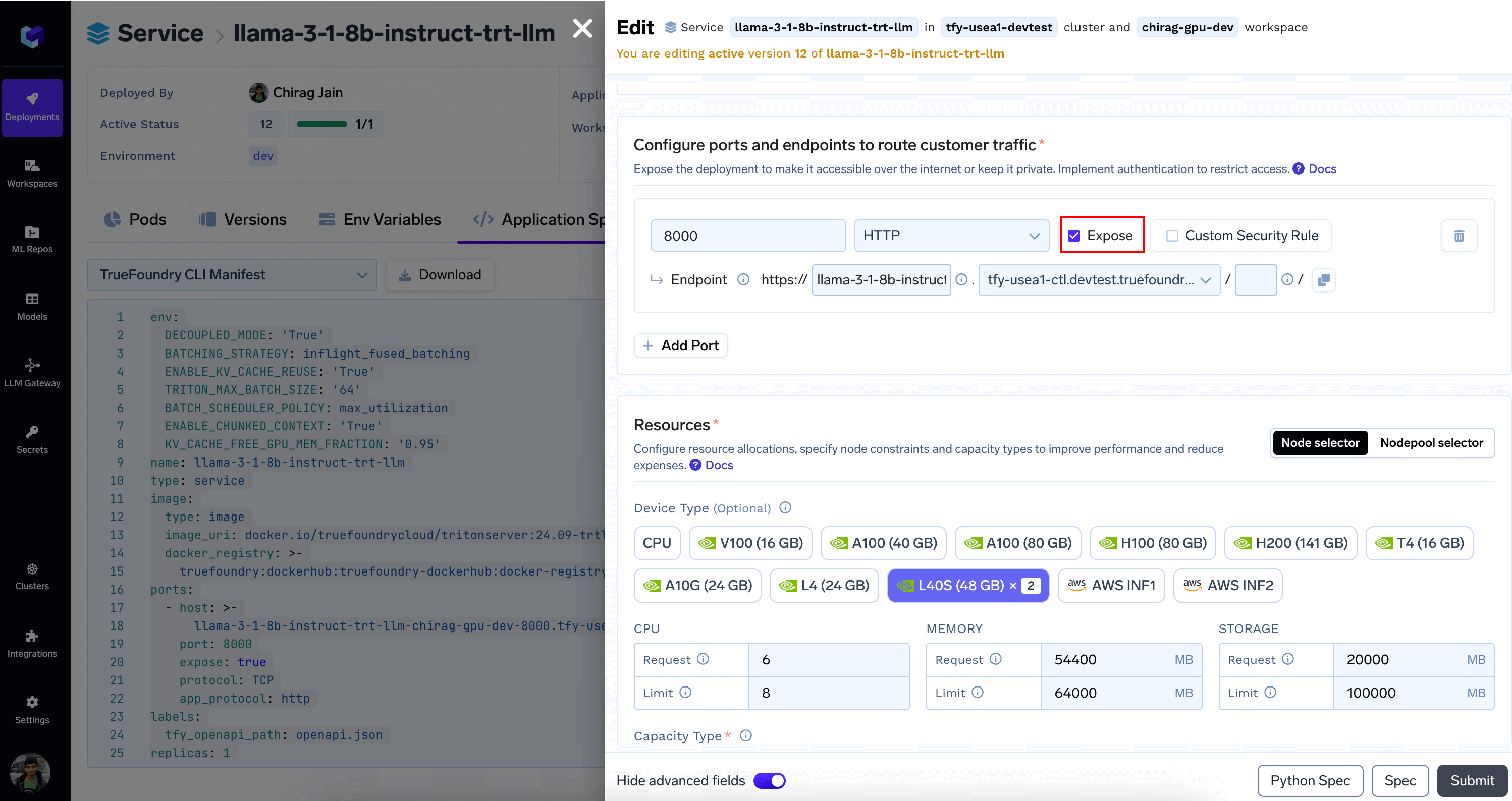
4. Once deployed, we'll make some final adjustments by editing the Service
* From `Ports` section Enable `Expose` and configure Endpoint as needed
## 4. Deploy with Nvidia Triton Server
Finally, let's deploy the engine using Nvidia Triton Server as a TrueFoundry Service. Here is the spec in full:
### `resources` section varies across cloud provider
Based on your cloud provider, the available gpu type and nodepools will be different, you'd need to adjust it before deploying.
```bash server.truefoundry.yaml lines theme={"dark"}
name: llama-3-1-8b-instruct-trt-llm
type: service
env:
DECOUPLED_MODE: 'True'
BATCHING_STRATEGY: inflight_fused_batching
ENABLE_KV_CACHE_REUSE: 'True'
TRITON_MAX_BATCH_SIZE: '64'
BATCH_SCHEDULER_POLICY: max_utilization
ENABLE_CHUNKED_CONTEXT: 'True'
KV_CACHE_FREE_GPU_MEM_FRACTION: '0.95'
image:
type: image
image_uri: docker.io/truefoundrycloud/tritonserver:24.09-trtllm-python-py3
ports:
- port: 8000
expose: false
protocol: TCP
app_protocol: http
labels:
tfy_openapi_path: openapi.json
replicas: 1
resources:
node:
type: node_selector
capacity_type: on_demand
devices:
- name: L40S
type: nvidia_gpu
count: 2
cpu_limit: 8
cpu_request: 6
memory_limit: 64000
memory_request: 54400
shared_memory_size: 12000
ephemeral_storage_limit: 100000
ephemeral_storage_request: 20000
liveness_probe:
config:
path: /health/ready
port: 8000
type: http
period_seconds: 10
timeout_seconds: 1
failure_threshold: 8
success_threshold: 1
initial_delay_seconds: 15
readiness_probe:
config:
path: /health/ready
port: 8000
type: http
period_seconds: 10
timeout_seconds: 1
failure_threshold: 5
success_threshold: 1
initial_delay_seconds: 15
artifacts_download:
artifacts:
- type: truefoundry-artifact
artifact_version_fqn: artifact:truefoundry/trtllm-models/tokenizer-meta-llama-3-1-instruct-l40sx2:1
download_path_env_variable: TOKENIZER_DIR
- type: truefoundry-artifact
artifact_version_fqn: model:truefoundry/trtllm-models/trt-llm-engine-meta-llama-3-1-instruct-l40sx2:1
download_path_env_variable: ENGINE_DIR
```
1. Adjust the `resources` section like we did for the builder Job
### GPU configuration must be same as the Builder Job
Since TRT-LLM optimizes the model for the target GPU type and counts - it is important that the GPU type and count matches while deploying.
2. In `artifacts_download`, you'd need to change `artifact_version_fqn` to the tokenizer and engine obtained at the end of the Job Run from previous section
3. Deploy the Service by mentioning the [Workspace FQN](/docs/key-concepts#getting-workspace-fqn)
```shell Shell lines theme={"dark"}
tfy deploy --file server.truefoundry.yaml --workspace-fqn --no-wait
```
4. Once deployed, we'll make some final adjustments by editing the Service
* From `Ports` section Enable `Expose` and configure Endpoint as needed
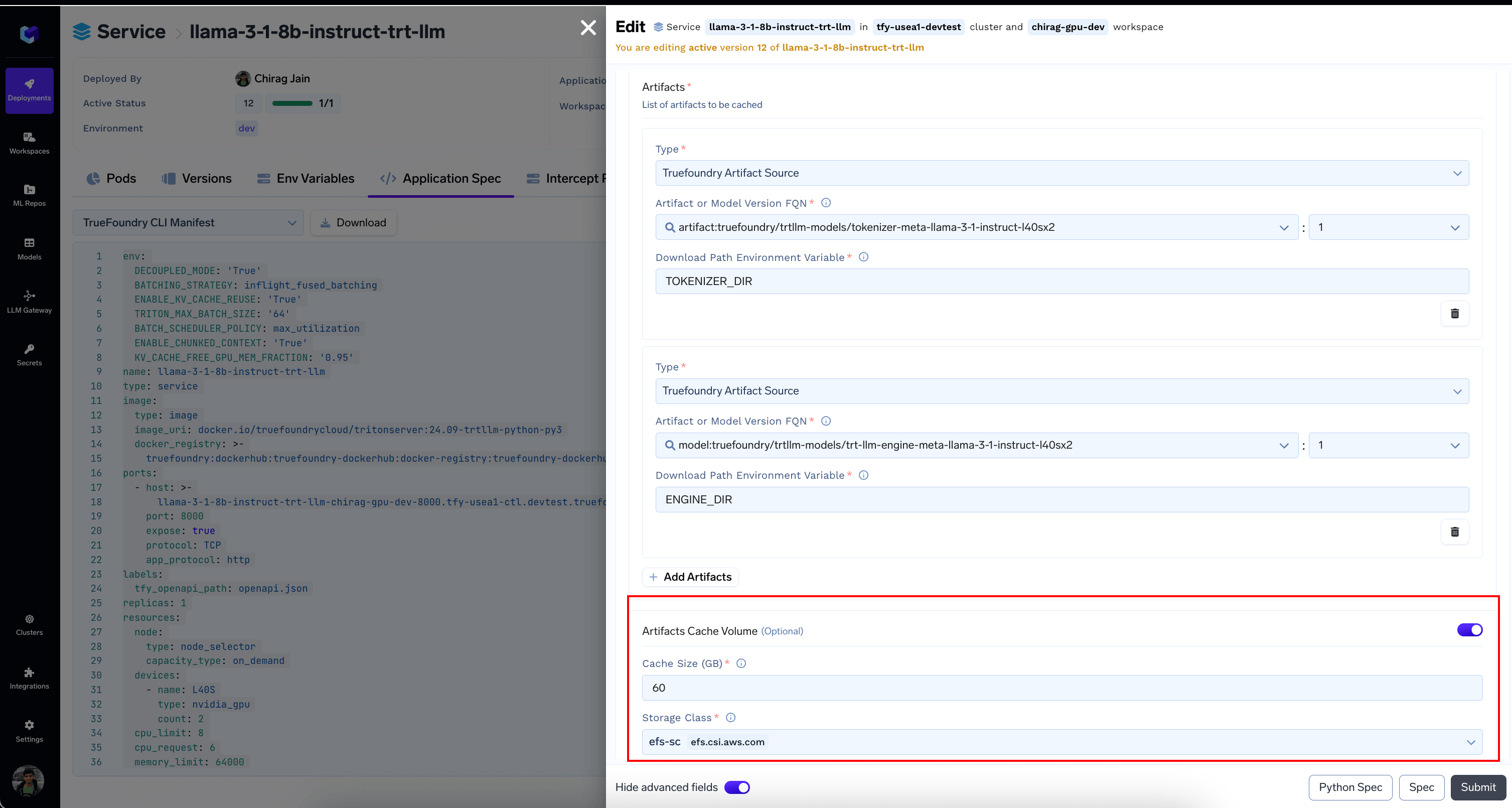
 * (Optional) Configure [Download Models and Artifacts](/docs/download-and-cache-models#download-and-cache-models-through-the-user-interface) to prevent re-downloads
 ## 5. Run Inferences
You can now send a payload like follows to `/v1/chat/completions` Endpoint via the `OpenAPI` tab
```json JSON lines theme={"dark"}
{
"model": "ensemble",
"messages": [{ "role": "user", "content": "Describe the moon in 100 words" }],
"max_tokens": 128
}
```
## 5. Run Inferences
You can now send a payload like follows to `/v1/chat/completions` Endpoint via the `OpenAPI` tab
```json JSON lines theme={"dark"}
{
"model": "ensemble",
"messages": [{ "role": "user", "content": "Describe the moon in 100 words" }],
"max_tokens": 128
}
```
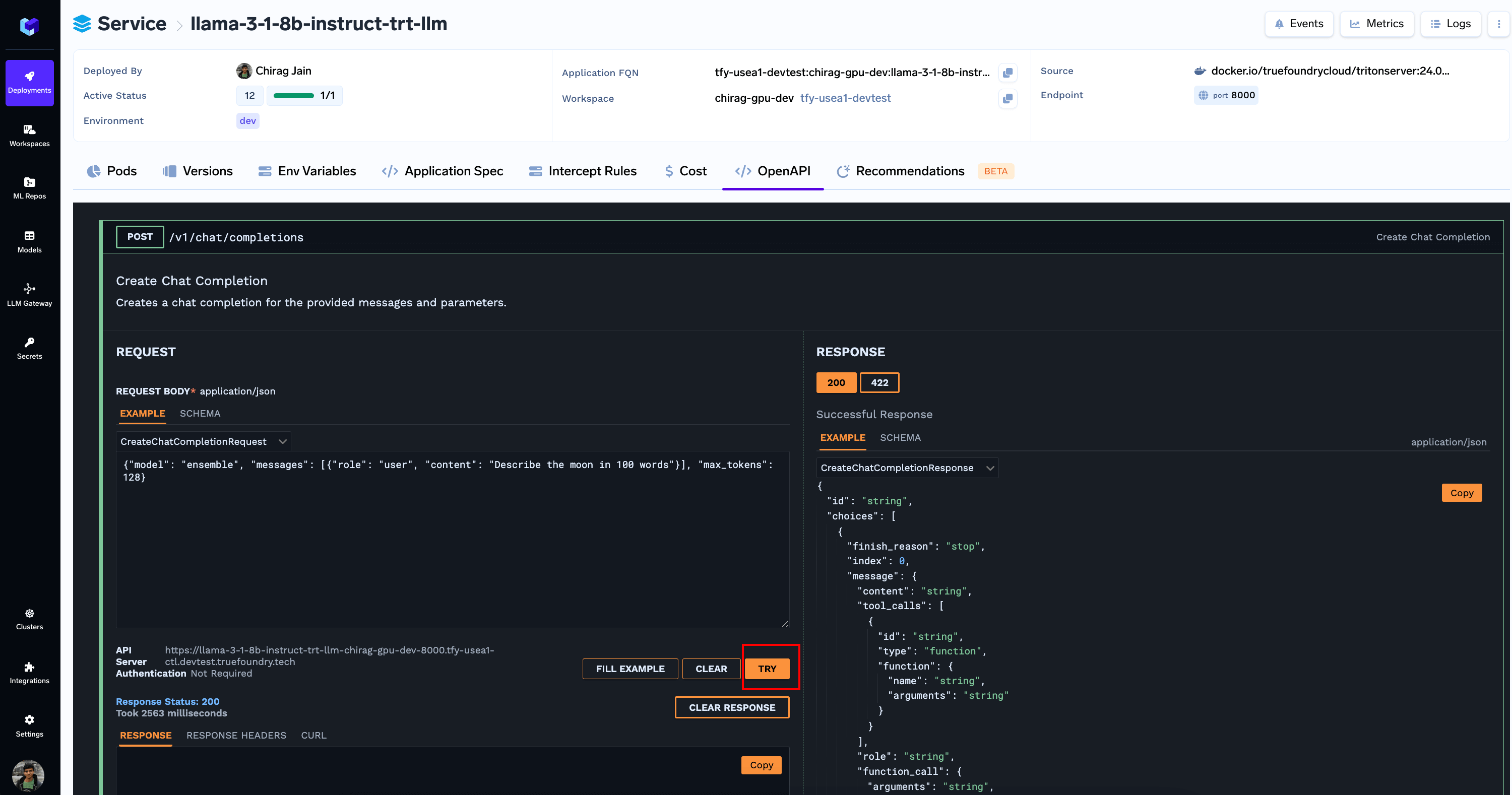 Since the endpoint is OpenAI compatible, you can [Add it to AI Gateway](/docs/ai-gateway/openai) or use it directly with OpenAI SDK