> ## Documentation Index
> Fetch the complete documentation index at: https://www.truefoundry.com/llms.txt
> Use this file to discover all available pages before exploring further.
# Deploy And Run Job Using Python SDK
> Use the Python SDK to deploy jobs on TrueFoundry. Code-driven deployments made easy.
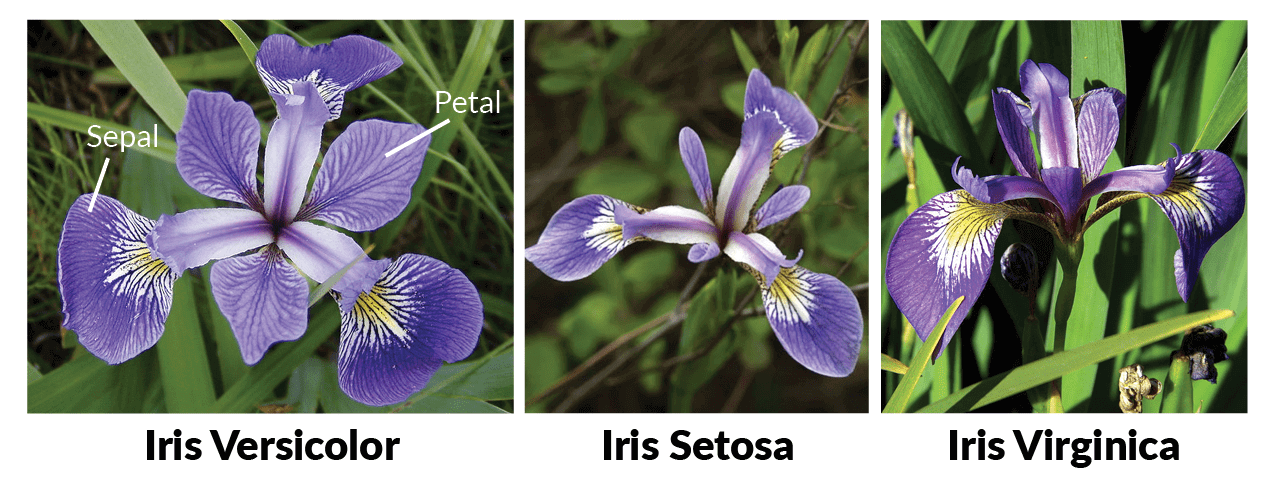
In this guide, we'll deploy a Job to train a machine learning model. The model will learn to predict the species of an iris flower based on its sepal length, sepal width, petal length, and petal width. There are three species: Iris setosa, Iris versicolor, and Iris virginica.
 ## Project Setup
We've already prepared the training script that trains a model on the Iris dataset, and you can find the code in our [GitHub Repository](https://github.com/truefoundry/getting-started-examples/blob/main/train-model/).
Clone the GitHub repository with the following command:
```php Shell theme={"dark"}
git clone https://github.com/truefoundry/getting-started-examples.git
```
Navigate to the project directory:
```bash Shell theme={"dark"}
cd train-model
```
Please review the job code to become familiar with the code you'll deploy.
#### Project Structure
The project files are organised as follows:
```python Text theme={"dark"}
.
├── train.py - Contains the training script code.
└── requirements.txt - Contains the list of all dependencies.
```
All these files are located in the same directory.
## Prerequisites
Before you proceed with the guide, make sure you have the following:
* **Truefoundry CLI**: Set up and configure the TrueFoundry CLI tool on your local machine by following the [Setup for CLI](/docs/setup-cli) guide.
* **Workspace**: To deploy your job, you'll need a workspace. If you don't have one, you can create it using this guide: [Creating a Workspace](/docs/key-concepts#creating-a-workspace) or seek assistance from your cluster administrator.
## Deploying the Job
Create a `deploy.py` file in the same directory as your Job code (`app.py`). This file will contain the necessary configuration for your Job.
Your directory structure will then appear as follows:
**File Structure**
```plain Text theme={"dark"}
.
├── train.py
├── deploy.py
└── requirements.txt
```
### **`deploy.py`**
```python deploy.py theme={"dark"}
import argparse
import logging
from truefoundry.deploy import Build, Job, PythonBuild, Resources
# Set up logging to display informational messages
logging.basicConfig(level=logging.INFO)
# Create a TrueFoundry **Job** object to configure your service
job = Job(
# Specify the name of the job
name="your-job",
# Define how to build your code into a Docker image
image=Build(
# `PythonBuild` helps specify the details of your Python Code.
# These details will be used to templatize a DockerFile to build your Docker Image
build_spec=PythonBuild(
# Define the command to run the training script
command="python train.py",
# Specify the path to requirements file
requirements_path="requirements.txt",
)
),
# Define the resource constraints.
#
# Requests are the minimum amount of resources that a container needs to run.
# Limits are the maximum amount of resources that a container can use.
#
# If a container tries to use more resources than its limits, it will be throttled or killed.
resources=Resources(
# CPU is specified as a number. 1 CPU unit is equivalent to 1 physical CPU core, or 1 virtual core.
cpu_request=0.2,
cpu_limit=0.5,
# Memory is defined as an integer and the unit is Megabytes.
memory_request=200,
memory_limit=500,
# Ephemeral storage is defined as an integer and the unit is Megabytes.
ephemeral_storage_request=1000,
ephemeral_storage_limit=2000,
),
# Define environment variables that your Job will have access to
env={
"ENVIRONMENT": "dev"
}
)
# Deploy the job to the specified workspace, copy workspace FQN using the following guide
# https://docs.truefoundry.com/docs/key-concepts#creating-a-workspace
job.deploy(workspace_fqn="your-workspace-fqn")
```
To understand the code, you can click the following recipe:
First, you need to import the following modules:
* `argparse` from Python's standard library.
* `logging` from Python's standard library.
* Import the necessary classes (`Build`, `PythonBuild`, `Service`, `Resources`, and `Port`) from `servicefoundry`.
Set up logging to display `servicefoundry` logs by configuring the log level to `INFO`.
```python {1-6} theme={"dark"}
import argparse
import logging
from servicefoundry import Build, Job, PythonBuild, Resources
# Set up logging to display informational messages
logging.basicConfig(level=logging.INFO)
```
Now, it's time to define the properties of the `Job`:
* Specify the `name` of the job, which will be its identifier in TrueFoundry's deployments dashboard.
* Define the `image` with instructions on how to build the container image.
* Configure the `resources` for the application.
```python {9-22} theme={"dark"}
import argparse
import logging
from servicefoundry import Build, Job, PythonBuild, Resources
# Set up logging to display informational messages
logging.basicConfig(level=logging.INFO)
# Create a TrueFoundry **Job** object to configure your service
job = Job(
# Specify the name of the job
name="iris-train-job",
# Define how to build your code into a Docker image
image=Build(
# `PythonBuild` helps specify the details of your Python Code.
# These details will be used to templatize a DockerFile to build your Docker Image
build_spec=PythonBuild(
# Define the command to run the training script
command="python train.py",
# Specify the path to requirements file
requirements_path="requirements.txt",
)
),
# Define the resource constraints.
#
# Requests are the minimum amount of resources that a container needs to run.
# Limits are the maximum amount of resources that a container can use.
#
# If a container tries to use more resources than its limits, it will be throttled or killed.
resources=Resources(
# CPU is specified as a number. 1 CPU unit is equivalent to 1 physical CPU core, or 1 virtual core.
cpu_request=0.2,
cpu_limit=0.5,
# Memory is defined as an integer and the unit is Megabytes.
memory_request=200,
memory_limit=500,
# Ephemeral storage is defined as an integer and the unit is Megabytes.
ephemeral_storage_request=1000,
ephemeral_storage_limit=2000,
),
# Define environment variables that your Job will have access to
env={
"ENVIRONMENT": "dev"
}
)
# Deploy the job to the specified workspace, copy workspace FQN using the following guide
# https://docs.truefoundry.com/docs/creating-a-workspace#workspace-fully-qualified-name-fqn
job.deploy(workspace_fqn="your-workspace-fqn")
```
For defining how to build your code into a Docker image, use the `Build` class:
* Specify the `build_source` to determine the source code location. If not provided, the current working directory is used.
* Define the `build_spec` using the `PythonBuild` class to set up a Python environment.
```python {13-22} theme={"dark"}
import argparse
import logging
from servicefoundry import Build, Job, PythonBuild, Resources
# Set up logging to display informational messages
logging.basicConfig(level=logging.INFO)
# Create a TrueFoundry **Job** object to configure your service
job = Job(
# Specify the name of the job
name="iris-train-job",
# Define how to build your code into a Docker image
image=Build(
# `PythonBuild` helps specify the details of your Python Code.
# These details will be used to templatize a DockerFile to build your Docker Image
build_spec=PythonBuild(
# Define the command to run the training script
command="python train.py",
# Specify the path to requirements file
requirements_path="requirements.txt",
)
),
# Define the resource constraints.
#
# Requests are the minimum amount of resources that a container needs to run.
# Limits are the maximum amount of resources that a container can use.
#
# If a container tries to use more resources than its limits, it will be throttled or killed.
resources=Resources(
# CPU is specified as a number. 1 CPU unit is equivalent to 1 physical CPU core, or 1 virtual core.
cpu_request=0.2,
cpu_limit=0.5,
# Memory is defined as an integer and the unit is Megabytes.
memory_request=200,
memory_limit=500,
# Ephemeral storage is defined as an integer and the unit is Megabytes.
ephemeral_storage_request=1000,
ephemeral_storage_limit=2000,
),
# Define environment variables that your Job will have access to
env={
"ENVIRONMENT": "dev"
}
)
# Deploy the job to the specified workspace, copy workspace FQN using the following guide
# https://docs.truefoundry.com/docs/creating-a-workspace#workspace-fully-qualified-name-fqn
job.deploy(workspace_fqn="your-workspace-fqn")
```
In the `PythonBuild` class, provide the following arguments:
* `command`: The command to start your service.
* `requirements_path`: The path to your dependencies file.
```python {16-21} theme={"dark"}
import argparse
import logging
from servicefoundry import Build, Job, PythonBuild, Resources
# Set up logging to display informational messages
logging.basicConfig(level=logging.INFO)
# Create a TrueFoundry **Job** object to configure your service
job = Job(
# Specify the name of the job
name="iris-train-job",
# Define how to build your code into a Docker image
image=Build(
# `PythonBuild` helps specify the details of your Python Code.
# These details will be used to templatize a DockerFile to build your Docker Image
build_spec=PythonBuild(
# Define the command to run the training script
command="python train.py",
# Specify the path to requirements file
requirements_path="requirements.txt",
)
),
# Define the resource constraints.
#
# Requests are the minimum amount of resources that a container needs to run.
# Limits are the maximum amount of resources that a container can use.
#
# If a container tries to use more resources than its limits, it will be throttled or killed.
resources=Resources(
# CPU is specified as a number. 1 CPU unit is equivalent to 1 physical CPU core, or 1 virtual core.
cpu_request=0.2,
cpu_limit=0.5,
# Memory is defined as an integer and the unit is Megabytes.
memory_request=200,
memory_limit=500,
# Ephemeral storage is defined as an integer and the unit is Megabytes.
ephemeral_storage_request=1000,
ephemeral_storage_limit=2000,
),
# Define environment variables that your Job will have access to
env={
"ENVIRONMENT": "dev"
}
)
# Deploy the job to the specified workspace, copy workspace FQN using the following guide
# https://docs.truefoundry.com/docs/creating-a-workspace#workspace-fully-qualified-name-fqn
job.deploy(workspace_fqn="your-workspace-fqn")
```
For all deployments, specify resource constraints such as CPU and memory using the `Resources` class. This ensures proper deployment on the cluster.
* `cpu_request`: Specifies the minimum CPU reserved for the application (0.5 represents 50% of CPU resources).
* `cpu_limit`: Defines the upper limit on CPU usage, beyond which the application is throttled.
* `memory_request`: Specifies the minimum required memory (e.g., 1 means 1 MB).
* `memory_limit`: Sets the maximum memory allowed; exceeding this limit triggers an Out of Memory (OOM) error.
```python {29-41} theme={"dark"}
import argparse
import logging
from servicefoundry import Build, Job, PythonBuild, Resources
# Set up logging to display informational messages
logging.basicConfig(level=logging.INFO)
# Create a TrueFoundry **Job** object to configure your service
job = Job(
# Specify the name of the job
name="iris-train-job",
# Define how to build your code into a Docker image
image=Build(
# `PythonBuild` helps specify the details of your Python Code.
# These details will be used to templatize a DockerFile to build your Docker Image
build_spec=PythonBuild(
# Define the command to run the training script
command="python train.py",
# Specify the path to requirements file
requirements_path="requirements.txt",
)
),
# Define the resource constraints.
#
# Requests are the minimum amount of resources that a container needs to run.
# Limits are the maximum amount of resources that a container can use.
#
# If a container tries to use more resources than its limits, it will be throttled or killed.
resources=Resources(
# CPU is specified as a number. 1 CPU unit is equivalent to 1 physical CPU core, or 1 virtual core.
cpu_request=0.2,
cpu_limit=0.5,
# Memory is defined as an integer and the unit is Megabytes.
memory_request=200,
memory_limit=500,
# Ephemeral storage is defined as an integer and the unit is Megabytes.
ephemeral_storage_request=1000,
ephemeral_storage_limit=2000,
),
# Define environment variables that your Job will have access to
env={
"ENVIRONMENT": "dev"
}
)
# Deploy the job to the specified workspace, copy workspace FQN using the following guide
# https://docs.truefoundry.com/docs/creating-a-workspace#workspace-fully-qualified-name-fqn
job.deploy(workspace_fqn="your-workspace-fqn")
```
You can also provide environment variables using a dictionary of the format `{"env_var_name": "env_var_value"`. This is helpful for configurations like environment type (dev/prod) or model registry links.
```python {43-45} theme={"dark"}
import argparse
import logging
from servicefoundry import Build, Job, PythonBuild, Resources
# Set up logging to display informational messages
logging.basicConfig(level=logging.INFO)
# Create a TrueFoundry **Job** object to configure your service
job = Job(
# Specify the name of the job
name="iris-train-job",
# Define how to build your code into a Docker image
image=Build(
# `PythonBuild` helps specify the details of your Python Code.
# These details will be used to templatize a DockerFile to build your Docker Image
build_spec=PythonBuild(
# Define the command to run the training script
command="python train.py",
# Specify the path to requirements file
requirements_path="requirements.txt",
)
),
# Define the resource constraints.
#
# Requests are the minimum amount of resources that a container needs to run.
# Limits are the maximum amount of resources that a container can use.
#
# If a container tries to use more resources than its limits, it will be throttled or killed.
resources=Resources(
# CPU is specified as a number. 1 CPU unit is equivalent to 1 physical CPU core, or 1 virtual core.
cpu_request=0.2,
cpu_limit=0.5,
# Memory is defined as an integer and the unit is Megabytes.
memory_request=200,
memory_limit=500,
# Ephemeral storage is defined as an integer and the unit is Megabytes.
ephemeral_storage_request=1000,
ephemeral_storage_limit=2000,
),
# Define environment variables that your Job will have access to
env={
"ENVIRONMENT": "dev"
}
)
# Deploy the job to the specified workspace, copy workspace FQN using the following guide
# https://docs.truefoundry.com/docs/creating-a-workspace#workspace-fully-qualified-name-fqn
job.deploy(workspace_fqn="your-workspace-fqn")
```
Use `job.deploy()` to initiate the deployment. Provide the `workspace_fqn` (fully qualified workspace name) to specify where the service should be deployed.
```python {51} theme={"dark"}
import argparse
import logging
from servicefoundry import Build, Job, PythonBuild, Resources
# Set up logging to display informational messages
logging.basicConfig(level=logging.INFO)
# Create a TrueFoundry **Job** object to configure your service
job = Job(
# Specify the name of the job
name="iris-train-job",
# Define how to build your code into a Docker image
image=Build(
# `PythonBuild` helps specify the details of your Python Code.
# These details will be used to templatize a DockerFile to build your Docker Image
build_spec=PythonBuild(
# Define the command to run the training script
command="python train.py",
# Specify the path to requirements file
requirements_path="requirements.txt",
)
),
# Define the resource constraints.
#
# Requests are the minimum amount of resources that a container needs to run.
# Limits are the maximum amount of resources that a container can use.
#
# If a container tries to use more resources than its limits, it will be throttled or killed.
resources=Resources(
# CPU is specified as a number. 1 CPU unit is equivalent to 1 physical CPU core, or 1 virtual core.
cpu_request=0.2,
cpu_limit=0.5,
# Memory is defined as an integer and the unit is Megabytes.
memory_request=200,
memory_limit=500,
# Ephemeral storage is defined as an integer and the unit is Megabytes.
ephemeral_storage_request=1000,
ephemeral_storage_limit=2000,
),
# Define environment variables that your Job will have access to
env={
"ENVIRONMENT": "dev"
}
)
# Deploy the job to the specified workspace, copy workspace FQN using the following guide
# https://docs.truefoundry.com/docs/creating-a-workspace#workspace-fully-qualified-name-fqn
job.deploy(workspace_fqn="your-workspace-fqn")
```
To deploy using Python SDK use the following command from the same directory containing the `train.py` and `requirements.txt` files.
```plain Shell theme={"dark"}
python deploy.py
```
Run the above command from the same directory containing the `train.py` and `requirements.txt` files.
### Exclude files when building and deploying your source code:
To exclude specific files from being built and deployed, create a .tfyignore file in the directory containing your deployment script (`deploy.py`). The `.tfyignore` file follows the same rules as the `.gitignore` file.
If your repository already has a `.gitignore` file, you don't need to create a `.tfyignore` file. Service Foundry will automatically detect the files to ignore.
Place the `.tfyignore` file in the project's root directory, alongside deploy.py.
After running the command mentioned above, wait for the deployment process to complete. Monitor the status until it shows **`DEPLOY_SUCCESS:`**, indicating a successful deployment.
## Project Setup
We've already prepared the training script that trains a model on the Iris dataset, and you can find the code in our [GitHub Repository](https://github.com/truefoundry/getting-started-examples/blob/main/train-model/).
Clone the GitHub repository with the following command:
```php Shell theme={"dark"}
git clone https://github.com/truefoundry/getting-started-examples.git
```
Navigate to the project directory:
```bash Shell theme={"dark"}
cd train-model
```
Please review the job code to become familiar with the code you'll deploy.
#### Project Structure
The project files are organised as follows:
```python Text theme={"dark"}
.
├── train.py - Contains the training script code.
└── requirements.txt - Contains the list of all dependencies.
```
All these files are located in the same directory.
## Prerequisites
Before you proceed with the guide, make sure you have the following:
* **Truefoundry CLI**: Set up and configure the TrueFoundry CLI tool on your local machine by following the [Setup for CLI](/docs/setup-cli) guide.
* **Workspace**: To deploy your job, you'll need a workspace. If you don't have one, you can create it using this guide: [Creating a Workspace](/docs/key-concepts#creating-a-workspace) or seek assistance from your cluster administrator.
## Deploying the Job
Create a `deploy.py` file in the same directory as your Job code (`app.py`). This file will contain the necessary configuration for your Job.
Your directory structure will then appear as follows:
**File Structure**
```plain Text theme={"dark"}
.
├── train.py
├── deploy.py
└── requirements.txt
```
### **`deploy.py`**
```python deploy.py theme={"dark"}
import argparse
import logging
from truefoundry.deploy import Build, Job, PythonBuild, Resources
# Set up logging to display informational messages
logging.basicConfig(level=logging.INFO)
# Create a TrueFoundry **Job** object to configure your service
job = Job(
# Specify the name of the job
name="your-job",
# Define how to build your code into a Docker image
image=Build(
# `PythonBuild` helps specify the details of your Python Code.
# These details will be used to templatize a DockerFile to build your Docker Image
build_spec=PythonBuild(
# Define the command to run the training script
command="python train.py",
# Specify the path to requirements file
requirements_path="requirements.txt",
)
),
# Define the resource constraints.
#
# Requests are the minimum amount of resources that a container needs to run.
# Limits are the maximum amount of resources that a container can use.
#
# If a container tries to use more resources than its limits, it will be throttled or killed.
resources=Resources(
# CPU is specified as a number. 1 CPU unit is equivalent to 1 physical CPU core, or 1 virtual core.
cpu_request=0.2,
cpu_limit=0.5,
# Memory is defined as an integer and the unit is Megabytes.
memory_request=200,
memory_limit=500,
# Ephemeral storage is defined as an integer and the unit is Megabytes.
ephemeral_storage_request=1000,
ephemeral_storage_limit=2000,
),
# Define environment variables that your Job will have access to
env={
"ENVIRONMENT": "dev"
}
)
# Deploy the job to the specified workspace, copy workspace FQN using the following guide
# https://docs.truefoundry.com/docs/key-concepts#creating-a-workspace
job.deploy(workspace_fqn="your-workspace-fqn")
```
To understand the code, you can click the following recipe:
First, you need to import the following modules:
* `argparse` from Python's standard library.
* `logging` from Python's standard library.
* Import the necessary classes (`Build`, `PythonBuild`, `Service`, `Resources`, and `Port`) from `servicefoundry`.
Set up logging to display `servicefoundry` logs by configuring the log level to `INFO`.
```python {1-6} theme={"dark"}
import argparse
import logging
from servicefoundry import Build, Job, PythonBuild, Resources
# Set up logging to display informational messages
logging.basicConfig(level=logging.INFO)
```
Now, it's time to define the properties of the `Job`:
* Specify the `name` of the job, which will be its identifier in TrueFoundry's deployments dashboard.
* Define the `image` with instructions on how to build the container image.
* Configure the `resources` for the application.
```python {9-22} theme={"dark"}
import argparse
import logging
from servicefoundry import Build, Job, PythonBuild, Resources
# Set up logging to display informational messages
logging.basicConfig(level=logging.INFO)
# Create a TrueFoundry **Job** object to configure your service
job = Job(
# Specify the name of the job
name="iris-train-job",
# Define how to build your code into a Docker image
image=Build(
# `PythonBuild` helps specify the details of your Python Code.
# These details will be used to templatize a DockerFile to build your Docker Image
build_spec=PythonBuild(
# Define the command to run the training script
command="python train.py",
# Specify the path to requirements file
requirements_path="requirements.txt",
)
),
# Define the resource constraints.
#
# Requests are the minimum amount of resources that a container needs to run.
# Limits are the maximum amount of resources that a container can use.
#
# If a container tries to use more resources than its limits, it will be throttled or killed.
resources=Resources(
# CPU is specified as a number. 1 CPU unit is equivalent to 1 physical CPU core, or 1 virtual core.
cpu_request=0.2,
cpu_limit=0.5,
# Memory is defined as an integer and the unit is Megabytes.
memory_request=200,
memory_limit=500,
# Ephemeral storage is defined as an integer and the unit is Megabytes.
ephemeral_storage_request=1000,
ephemeral_storage_limit=2000,
),
# Define environment variables that your Job will have access to
env={
"ENVIRONMENT": "dev"
}
)
# Deploy the job to the specified workspace, copy workspace FQN using the following guide
# https://docs.truefoundry.com/docs/creating-a-workspace#workspace-fully-qualified-name-fqn
job.deploy(workspace_fqn="your-workspace-fqn")
```
For defining how to build your code into a Docker image, use the `Build` class:
* Specify the `build_source` to determine the source code location. If not provided, the current working directory is used.
* Define the `build_spec` using the `PythonBuild` class to set up a Python environment.
```python {13-22} theme={"dark"}
import argparse
import logging
from servicefoundry import Build, Job, PythonBuild, Resources
# Set up logging to display informational messages
logging.basicConfig(level=logging.INFO)
# Create a TrueFoundry **Job** object to configure your service
job = Job(
# Specify the name of the job
name="iris-train-job",
# Define how to build your code into a Docker image
image=Build(
# `PythonBuild` helps specify the details of your Python Code.
# These details will be used to templatize a DockerFile to build your Docker Image
build_spec=PythonBuild(
# Define the command to run the training script
command="python train.py",
# Specify the path to requirements file
requirements_path="requirements.txt",
)
),
# Define the resource constraints.
#
# Requests are the minimum amount of resources that a container needs to run.
# Limits are the maximum amount of resources that a container can use.
#
# If a container tries to use more resources than its limits, it will be throttled or killed.
resources=Resources(
# CPU is specified as a number. 1 CPU unit is equivalent to 1 physical CPU core, or 1 virtual core.
cpu_request=0.2,
cpu_limit=0.5,
# Memory is defined as an integer and the unit is Megabytes.
memory_request=200,
memory_limit=500,
# Ephemeral storage is defined as an integer and the unit is Megabytes.
ephemeral_storage_request=1000,
ephemeral_storage_limit=2000,
),
# Define environment variables that your Job will have access to
env={
"ENVIRONMENT": "dev"
}
)
# Deploy the job to the specified workspace, copy workspace FQN using the following guide
# https://docs.truefoundry.com/docs/creating-a-workspace#workspace-fully-qualified-name-fqn
job.deploy(workspace_fqn="your-workspace-fqn")
```
In the `PythonBuild` class, provide the following arguments:
* `command`: The command to start your service.
* `requirements_path`: The path to your dependencies file.
```python {16-21} theme={"dark"}
import argparse
import logging
from servicefoundry import Build, Job, PythonBuild, Resources
# Set up logging to display informational messages
logging.basicConfig(level=logging.INFO)
# Create a TrueFoundry **Job** object to configure your service
job = Job(
# Specify the name of the job
name="iris-train-job",
# Define how to build your code into a Docker image
image=Build(
# `PythonBuild` helps specify the details of your Python Code.
# These details will be used to templatize a DockerFile to build your Docker Image
build_spec=PythonBuild(
# Define the command to run the training script
command="python train.py",
# Specify the path to requirements file
requirements_path="requirements.txt",
)
),
# Define the resource constraints.
#
# Requests are the minimum amount of resources that a container needs to run.
# Limits are the maximum amount of resources that a container can use.
#
# If a container tries to use more resources than its limits, it will be throttled or killed.
resources=Resources(
# CPU is specified as a number. 1 CPU unit is equivalent to 1 physical CPU core, or 1 virtual core.
cpu_request=0.2,
cpu_limit=0.5,
# Memory is defined as an integer and the unit is Megabytes.
memory_request=200,
memory_limit=500,
# Ephemeral storage is defined as an integer and the unit is Megabytes.
ephemeral_storage_request=1000,
ephemeral_storage_limit=2000,
),
# Define environment variables that your Job will have access to
env={
"ENVIRONMENT": "dev"
}
)
# Deploy the job to the specified workspace, copy workspace FQN using the following guide
# https://docs.truefoundry.com/docs/creating-a-workspace#workspace-fully-qualified-name-fqn
job.deploy(workspace_fqn="your-workspace-fqn")
```
For all deployments, specify resource constraints such as CPU and memory using the `Resources` class. This ensures proper deployment on the cluster.
* `cpu_request`: Specifies the minimum CPU reserved for the application (0.5 represents 50% of CPU resources).
* `cpu_limit`: Defines the upper limit on CPU usage, beyond which the application is throttled.
* `memory_request`: Specifies the minimum required memory (e.g., 1 means 1 MB).
* `memory_limit`: Sets the maximum memory allowed; exceeding this limit triggers an Out of Memory (OOM) error.
```python {29-41} theme={"dark"}
import argparse
import logging
from servicefoundry import Build, Job, PythonBuild, Resources
# Set up logging to display informational messages
logging.basicConfig(level=logging.INFO)
# Create a TrueFoundry **Job** object to configure your service
job = Job(
# Specify the name of the job
name="iris-train-job",
# Define how to build your code into a Docker image
image=Build(
# `PythonBuild` helps specify the details of your Python Code.
# These details will be used to templatize a DockerFile to build your Docker Image
build_spec=PythonBuild(
# Define the command to run the training script
command="python train.py",
# Specify the path to requirements file
requirements_path="requirements.txt",
)
),
# Define the resource constraints.
#
# Requests are the minimum amount of resources that a container needs to run.
# Limits are the maximum amount of resources that a container can use.
#
# If a container tries to use more resources than its limits, it will be throttled or killed.
resources=Resources(
# CPU is specified as a number. 1 CPU unit is equivalent to 1 physical CPU core, or 1 virtual core.
cpu_request=0.2,
cpu_limit=0.5,
# Memory is defined as an integer and the unit is Megabytes.
memory_request=200,
memory_limit=500,
# Ephemeral storage is defined as an integer and the unit is Megabytes.
ephemeral_storage_request=1000,
ephemeral_storage_limit=2000,
),
# Define environment variables that your Job will have access to
env={
"ENVIRONMENT": "dev"
}
)
# Deploy the job to the specified workspace, copy workspace FQN using the following guide
# https://docs.truefoundry.com/docs/creating-a-workspace#workspace-fully-qualified-name-fqn
job.deploy(workspace_fqn="your-workspace-fqn")
```
You can also provide environment variables using a dictionary of the format `{"env_var_name": "env_var_value"`. This is helpful for configurations like environment type (dev/prod) or model registry links.
```python {43-45} theme={"dark"}
import argparse
import logging
from servicefoundry import Build, Job, PythonBuild, Resources
# Set up logging to display informational messages
logging.basicConfig(level=logging.INFO)
# Create a TrueFoundry **Job** object to configure your service
job = Job(
# Specify the name of the job
name="iris-train-job",
# Define how to build your code into a Docker image
image=Build(
# `PythonBuild` helps specify the details of your Python Code.
# These details will be used to templatize a DockerFile to build your Docker Image
build_spec=PythonBuild(
# Define the command to run the training script
command="python train.py",
# Specify the path to requirements file
requirements_path="requirements.txt",
)
),
# Define the resource constraints.
#
# Requests are the minimum amount of resources that a container needs to run.
# Limits are the maximum amount of resources that a container can use.
#
# If a container tries to use more resources than its limits, it will be throttled or killed.
resources=Resources(
# CPU is specified as a number. 1 CPU unit is equivalent to 1 physical CPU core, or 1 virtual core.
cpu_request=0.2,
cpu_limit=0.5,
# Memory is defined as an integer and the unit is Megabytes.
memory_request=200,
memory_limit=500,
# Ephemeral storage is defined as an integer and the unit is Megabytes.
ephemeral_storage_request=1000,
ephemeral_storage_limit=2000,
),
# Define environment variables that your Job will have access to
env={
"ENVIRONMENT": "dev"
}
)
# Deploy the job to the specified workspace, copy workspace FQN using the following guide
# https://docs.truefoundry.com/docs/creating-a-workspace#workspace-fully-qualified-name-fqn
job.deploy(workspace_fqn="your-workspace-fqn")
```
Use `job.deploy()` to initiate the deployment. Provide the `workspace_fqn` (fully qualified workspace name) to specify where the service should be deployed.
```python {51} theme={"dark"}
import argparse
import logging
from servicefoundry import Build, Job, PythonBuild, Resources
# Set up logging to display informational messages
logging.basicConfig(level=logging.INFO)
# Create a TrueFoundry **Job** object to configure your service
job = Job(
# Specify the name of the job
name="iris-train-job",
# Define how to build your code into a Docker image
image=Build(
# `PythonBuild` helps specify the details of your Python Code.
# These details will be used to templatize a DockerFile to build your Docker Image
build_spec=PythonBuild(
# Define the command to run the training script
command="python train.py",
# Specify the path to requirements file
requirements_path="requirements.txt",
)
),
# Define the resource constraints.
#
# Requests are the minimum amount of resources that a container needs to run.
# Limits are the maximum amount of resources that a container can use.
#
# If a container tries to use more resources than its limits, it will be throttled or killed.
resources=Resources(
# CPU is specified as a number. 1 CPU unit is equivalent to 1 physical CPU core, or 1 virtual core.
cpu_request=0.2,
cpu_limit=0.5,
# Memory is defined as an integer and the unit is Megabytes.
memory_request=200,
memory_limit=500,
# Ephemeral storage is defined as an integer and the unit is Megabytes.
ephemeral_storage_request=1000,
ephemeral_storage_limit=2000,
),
# Define environment variables that your Job will have access to
env={
"ENVIRONMENT": "dev"
}
)
# Deploy the job to the specified workspace, copy workspace FQN using the following guide
# https://docs.truefoundry.com/docs/creating-a-workspace#workspace-fully-qualified-name-fqn
job.deploy(workspace_fqn="your-workspace-fqn")
```
To deploy using Python SDK use the following command from the same directory containing the `train.py` and `requirements.txt` files.
```plain Shell theme={"dark"}
python deploy.py
```
Run the above command from the same directory containing the `train.py` and `requirements.txt` files.
### Exclude files when building and deploying your source code:
To exclude specific files from being built and deployed, create a .tfyignore file in the directory containing your deployment script (`deploy.py`). The `.tfyignore` file follows the same rules as the `.gitignore` file.
If your repository already has a `.gitignore` file, you don't need to create a `.tfyignore` file. Service Foundry will automatically detect the files to ignore.
Place the `.tfyignore` file in the project's root directory, alongside deploy.py.
After running the command mentioned above, wait for the deployment process to complete. Monitor the status until it shows **`DEPLOY_SUCCESS:`**, indicating a successful deployment.
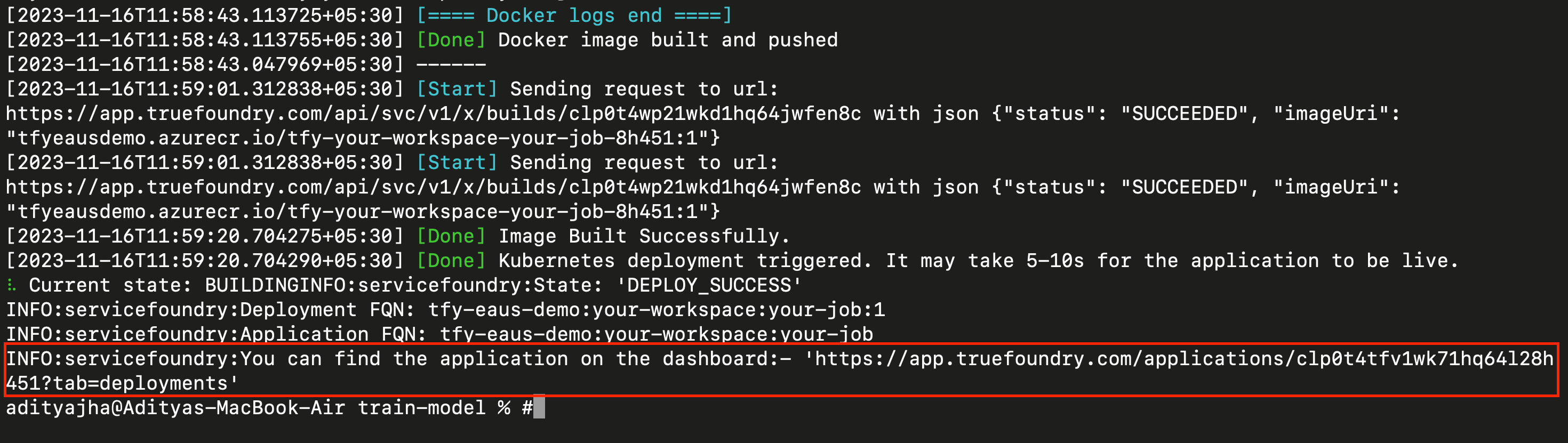 Once deployed, you'll receive a dashboard access link in the output, typically mentioned as **`You can find the application on the dashboard:`**. Click that link to access the deployment dashboard.
## View your deployed job
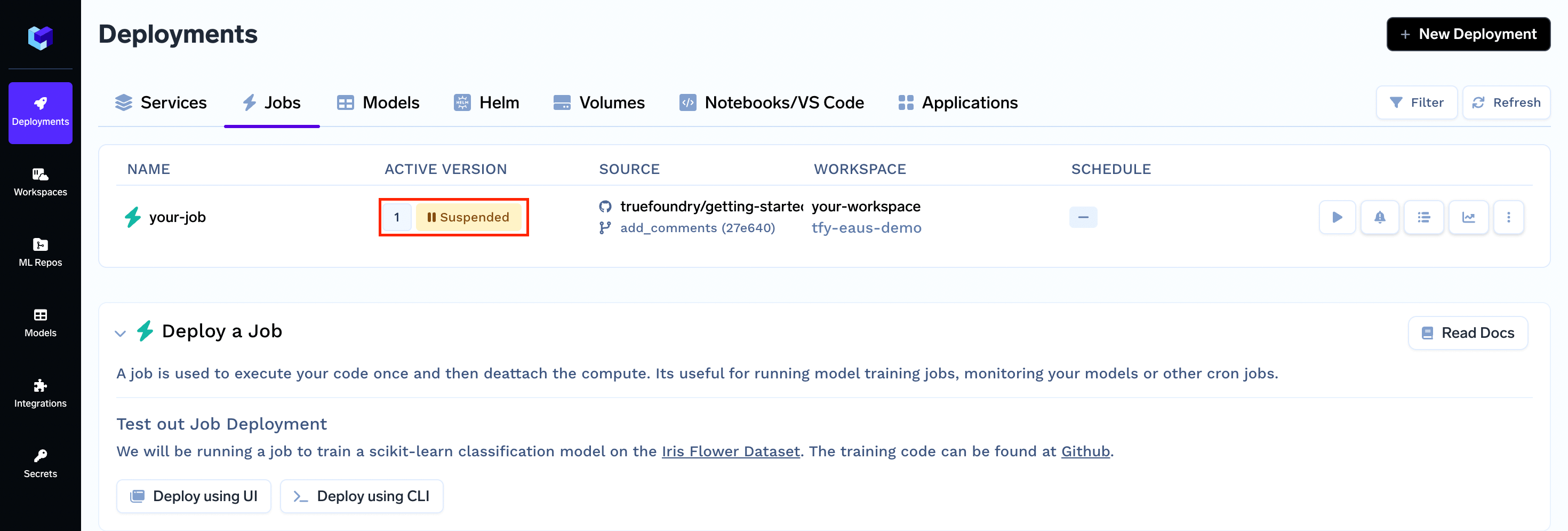
On successful deployment your Job will be displayed as Suspended (yellow) indicating that your Job has been deployed but it will not run automatically.
Once deployed, you'll receive a dashboard access link in the output, typically mentioned as **`You can find the application on the dashboard:`**. Click that link to access the deployment dashboard.
## View your deployed job
On successful deployment your Job will be displayed as Suspended (yellow) indicating that your Job has been deployed but it will not run automatically.
 ## Run your job
To run your Job you will have to trigger it manually.
Congratulations! You have successfully deployed and run your training Job.
To learn how to interact with your job check out this guide: [Interacting with your Job](/docs/interacting-with-your-job)
***
## Run your job
To run your Job you will have to trigger it manually.
Congratulations! You have successfully deployed and run your training Job.
To learn how to interact with your job check out this guide: [Interacting with your Job](/docs/interacting-with-your-job)
***