> ## Documentation Index
> Fetch the complete documentation index at: https://www.truefoundry.com/llms.txt
> Use this file to discover all available pages before exploring further.
# Create Runs and Log Data
> Step-by-step guide for create run, explaining configuration, best practices, and real-world usage on TrueFoundry.
A run is used to represent a single invocation of a job, a script or a ML experiment. You can create a run at the beginning of your script or notebook, log parameters, metrics, artifacts, models, tags and finally end the run. This provides an easy to keep track of all data related to job runs or ML experiments.
A quick code snippet to create a run and end it:
```python lines theme={"dark"}
from truefoundry.ml import get_client
client = get_client()
run = client.create_run(ml_repo="iris-demo", run_name="svm-model")
# Your code here.
run.end()
```
You can organize multiple runs under a single ml\_repo. For example, the run `svm-model` will be created under the ml\_repo `iris-demo`.
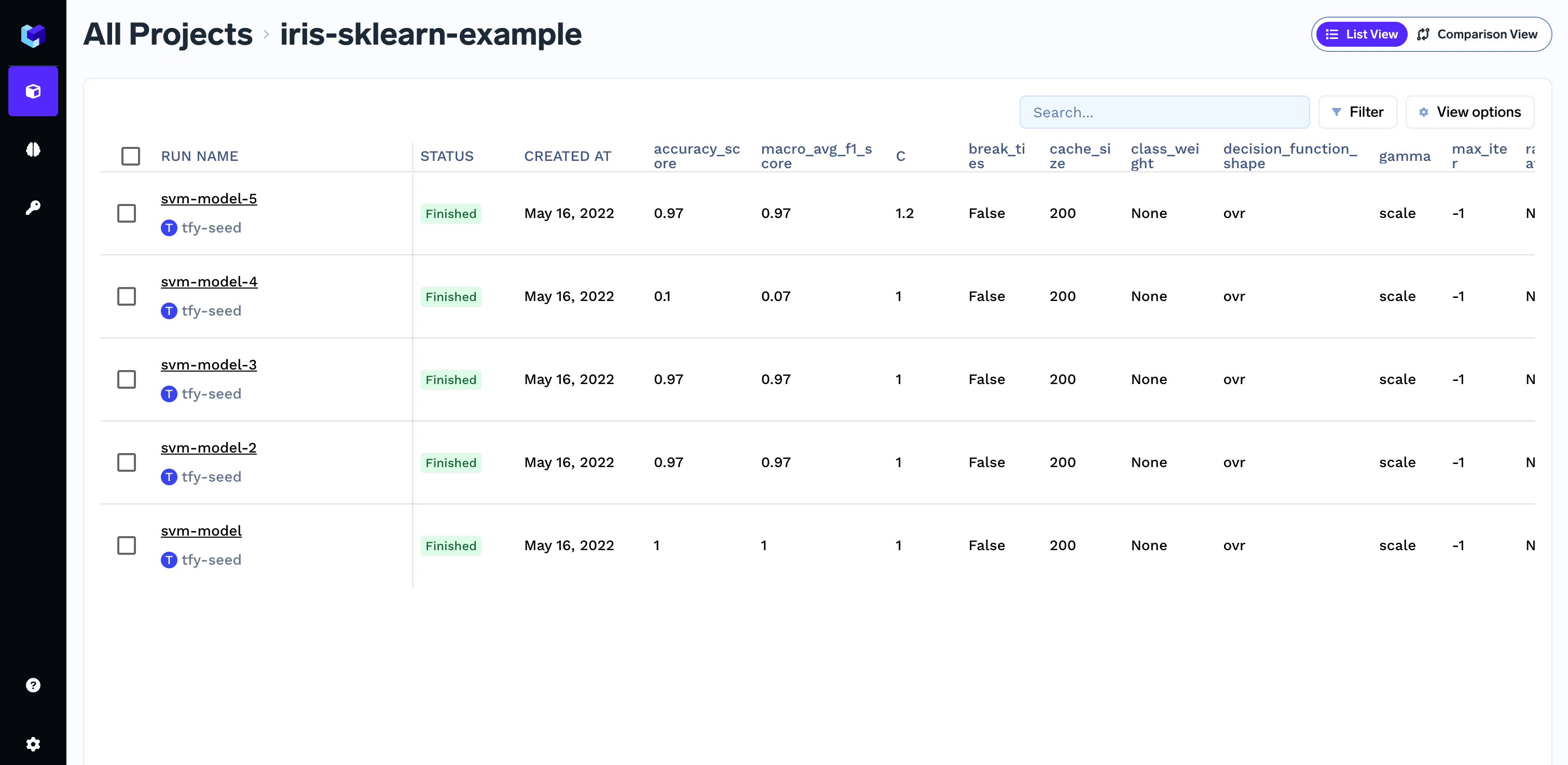
You can view these runs in the TrueFoundry dashboard.
 ```python Python lines theme={"dark"}
from truefoundry.ml import get_client
client = get_client()
run = client.create_run(ml_repo="iris-demo", run_name="svm-model")
# Your code here.
run.end()
```
```python highlight={5} lines theme={"dark"}
from truefoundry.ml import get_client
client = get_client()
run = client.create_run(ml_repo="iris-demo", run_name="svm-model")
run.set_tags({"env": "development", "task": "classification"})
# Your code here.
run.end()
```
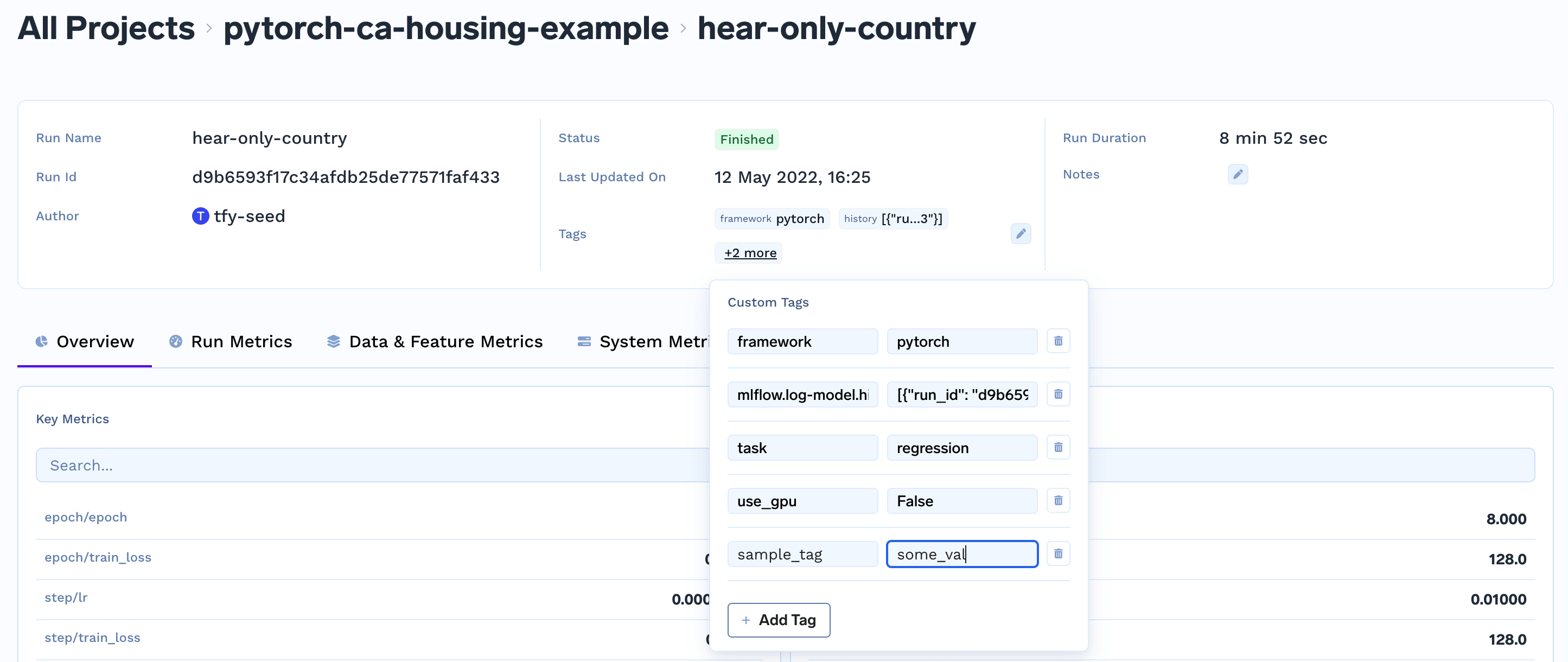
You can view the tags from the dashboard and also create new tags.
```python Python lines theme={"dark"}
from truefoundry.ml import get_client
client = get_client()
run = client.create_run(ml_repo="iris-demo", run_name="svm-model")
# Your code here.
run.end()
```
```python highlight={5} lines theme={"dark"}
from truefoundry.ml import get_client
client = get_client()
run = client.create_run(ml_repo="iris-demo", run_name="svm-model")
run.set_tags({"env": "development", "task": "classification"})
# Your code here.
run.end()
```
You can view the tags from the dashboard and also create new tags.
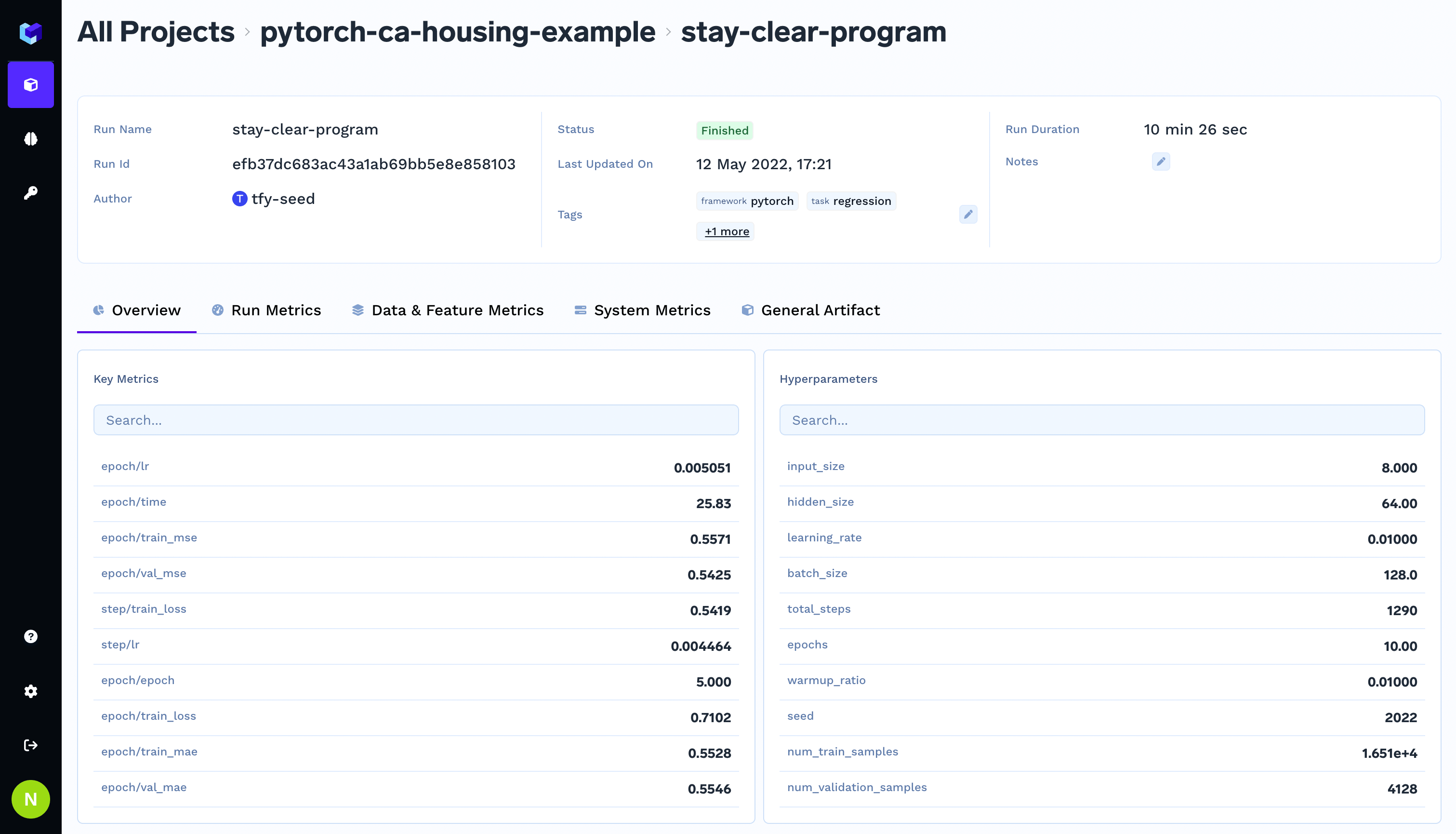
 Parameters are used to store the configuration of a run. This can be either the inputs to your script or the hyperparameters of your model during training like `learning_rate`, `cache_size`.
The parameter values are stringified before storing.
You can log parameters using the `log_params` as shown below:
```python highlight={6} lines theme={"dark"}
from truefoundry.ml import get_client
client = get_client()
run = client.create_run(ml_repo="iris-demo", run_name="svm-model")
run.log_params({"cache_size": 200.0, "kernel": "linear"})
run.end()
```
Parameters are immutable and you cannot change the value of param once logged. If you need to change the value of param, it basically means that you are changing your input configuration and it's best to create a new run for that.
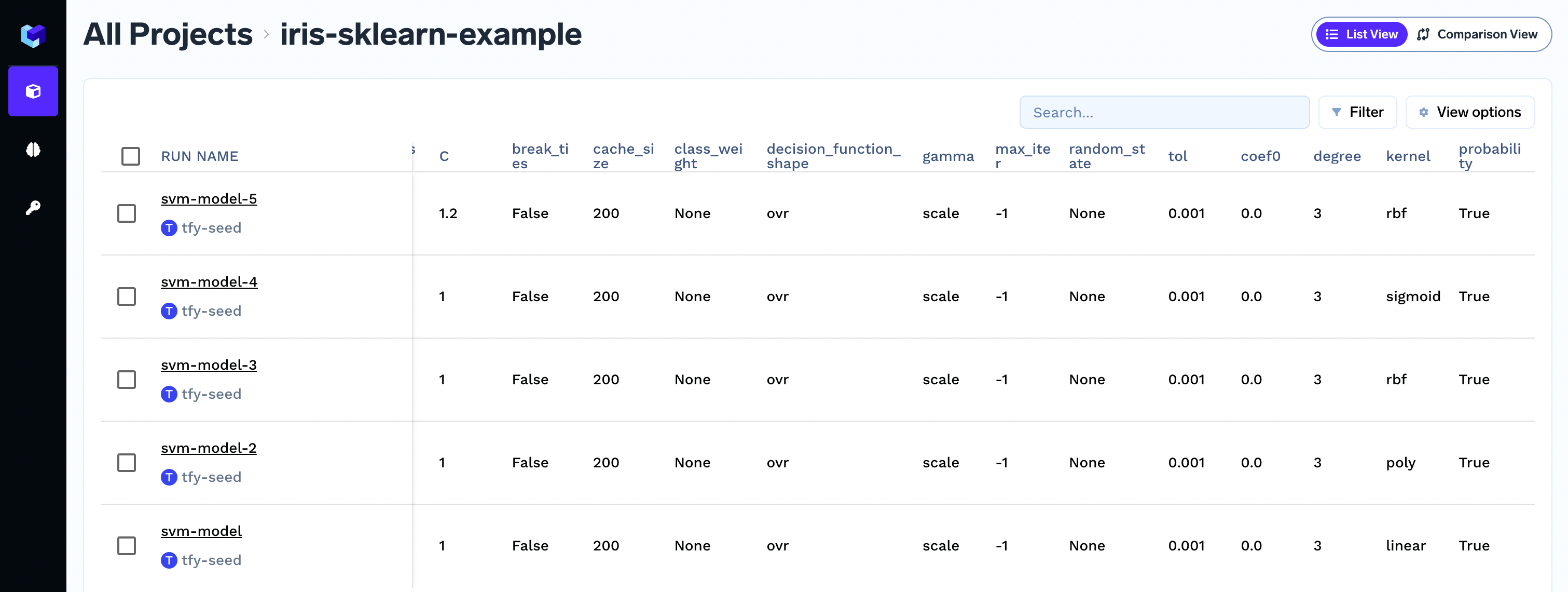
#### Viewing logged parameter in dashboard
Parameters are used to store the configuration of a run. This can be either the inputs to your script or the hyperparameters of your model during training like `learning_rate`, `cache_size`.
The parameter values are stringified before storing.
You can log parameters using the `log_params` as shown below:
```python highlight={6} lines theme={"dark"}
from truefoundry.ml import get_client
client = get_client()
run = client.create_run(ml_repo="iris-demo", run_name="svm-model")
run.log_params({"cache_size": 200.0, "kernel": "linear"})
run.end()
```
Parameters are immutable and you cannot change the value of param once logged. If you need to change the value of param, it basically means that you are changing your input configuration and it's best to create a new run for that.
#### Viewing logged parameter in dashboard
 #### Filtering runs bases on parameter value
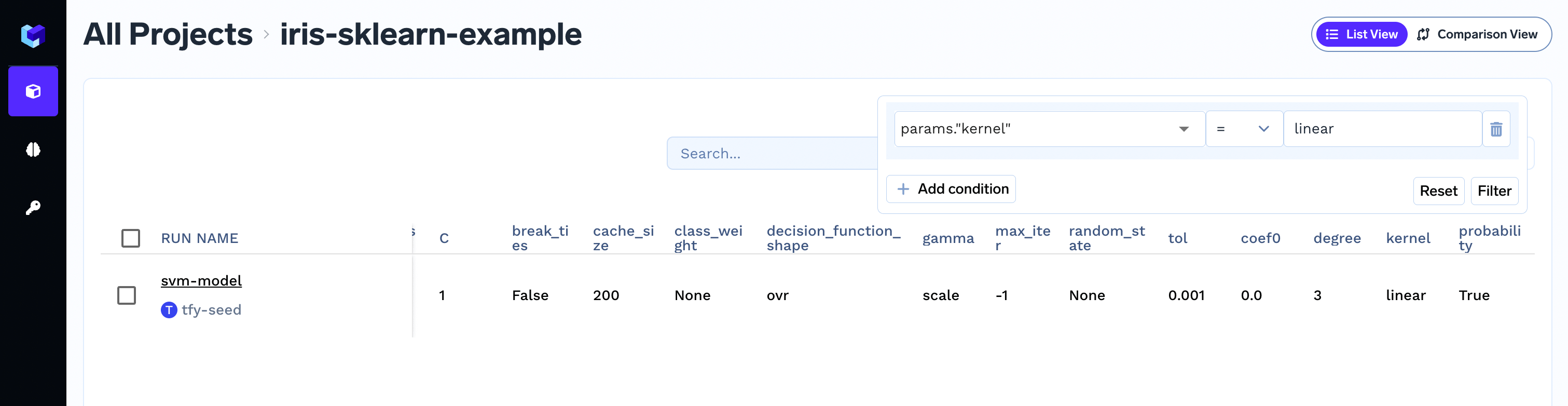
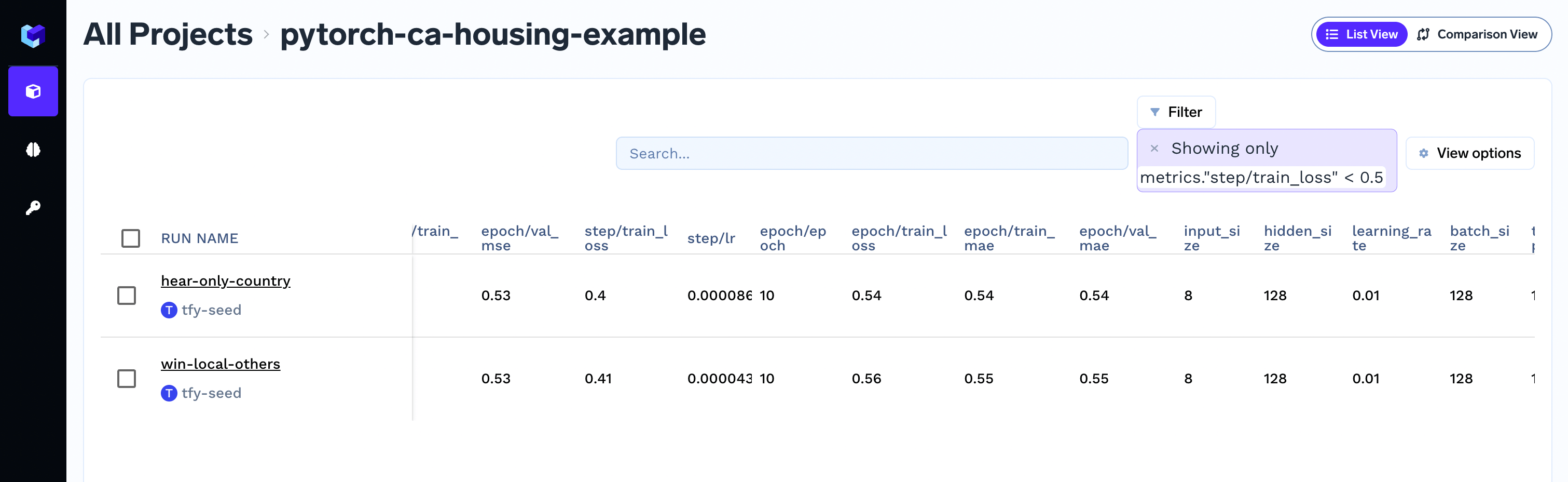
To filters runs, click on top right corner of the screen to apply the required filter.
#### Filtering runs bases on parameter value
To filters runs, click on top right corner of the screen to apply the required filter.
 #### Capturing command-line arguments
We can capture command-line arguments directly from the `argparse.Namespace` object.
```python Python lines theme={"dark"}
import argparse
from truefoundry.ml import get_client
parser = argparse.ArgumentParser()
parser.add_argument("--batch_size", type=int, required=True)
args = parser.parse_args()
client = get_client()
run = client.create_run(ml_repo="iris-demo")
run.log_params(args)
run.end()
```
Metrics are values that help you to evaluate and compare different runs - for e.g. `accuracy`, `f1 score`. You can log any output of your script as a metric.
You can capture metrics using the [`log_metrics`](/docs/truefoundry-ml-reference/runs#function-log-metrics) method.
```python highlight={6} lines theme={"dark"}
from truefoundry.ml import get_client
client = get_client()
run = client.create_run(ml_repo="iris-demo", run_name="svm-model")
run.log_params({"cache_size": 200.0, "kernel": "linear"})
run.log_metrics(metric_dict={"accuracy": 0.7, "loss": 0.6})
run.end()
```
These metrics can be seen in TrueFoundry dashboard. Filters can be used on metrics values to filter out runs as shown in the figure.
#### Capturing command-line arguments
We can capture command-line arguments directly from the `argparse.Namespace` object.
```python Python lines theme={"dark"}
import argparse
from truefoundry.ml import get_client
parser = argparse.ArgumentParser()
parser.add_argument("--batch_size", type=int, required=True)
args = parser.parse_args()
client = get_client()
run = client.create_run(ml_repo="iris-demo")
run.log_params(args)
run.end()
```
Metrics are values that help you to evaluate and compare different runs - for e.g. `accuracy`, `f1 score`. You can log any output of your script as a metric.
You can capture metrics using the [`log_metrics`](/docs/truefoundry-ml-reference/runs#function-log-metrics) method.
```python highlight={6} lines theme={"dark"}
from truefoundry.ml import get_client
client = get_client()
run = client.create_run(ml_repo="iris-demo", run_name="svm-model")
run.log_params({"cache_size": 200.0, "kernel": "linear"})
run.log_metrics(metric_dict={"accuracy": 0.7, "loss": 0.6})
run.end()
```
These metrics can be seen in TrueFoundry dashboard. Filters can be used on metrics values to filter out runs as shown in the figure.
 ### Step-wise metric logging
You can capture step-wise metrics too using the `step` argument.
```python lines theme={"dark"}
for global_step in range(1000):
run.log_metrics(metric_dict={"accuracy": 0.7, "loss": 0.6}, step=global_step)
```
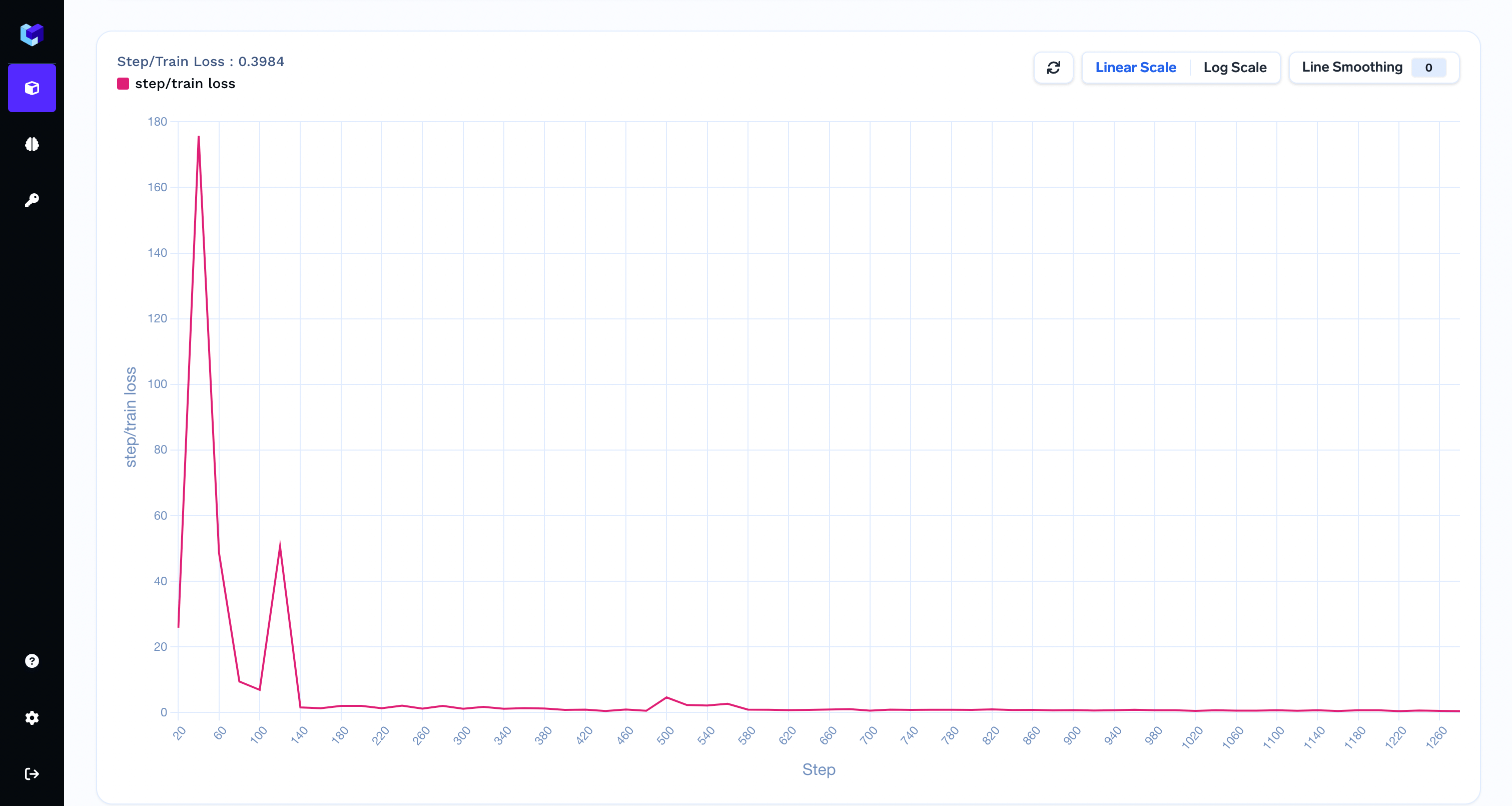
The stepwise-metrics can be visualized as graphs in the dashboard.
### Step-wise metric logging
You can capture step-wise metrics too using the `step` argument.
```python lines theme={"dark"}
for global_step in range(1000):
run.log_metrics(metric_dict={"accuracy": 0.7, "loss": 0.6}, step=global_step)
```
The stepwise-metrics can be visualized as graphs in the dashboard.
 #### Should I use epoch or global step as a value for the `step` argument?
If available you should use the global step as a value for the `step` argument. To capture epoch-level metric aggregates, you can use the following pattern.
```python Python lines theme={"dark"}
run.log_metrics(
(metric_dict = { "epoch/train_accuracy": 0.7, epoch: epoch }),
(step = global_step)
);
```
```python highlight={18-31} lines theme={"dark"}
import os
from truefoundry.ml import get_client
from truefoundry.ml import ArtifactPath
client = get_client()
run = client.create_run(ml_repo="iris-demo", run_name="svm-model")
run.log_params({"cache_size": 200.0, "kernel": "linear"})
run.log_metrics(metric_dict={"accuracy": 0.7, "loss": 0.6})
# Just creating sample files to log as artifacts
# os.makedirs("my-folder", exist_ok=True)
# with open("my-folder/file-inside-folder.txt", "w") as f:
# f.write("Hello!")
# with open("just-a-file.txt", "w") as f:
# f.write("Hello from file!")
artifact_version = run.log_artifact(
name="my-artifact",
artifact_paths=[
# Add files and folders here, `ArtifactPath` takes source and destination
# source can be single file path or folder path
# destination can be file path or folder path
# Note: When source is a folder path, destination is always interpreted as folder path
ArtifactPath(src="just-a-file.txt"),
ArtifactPath(src="my-folder/", dest="cool-dir"),
ArtifactPath(src="just-a-file.txt", dest="cool-dir/copied-file.txt")
],
description="This is a sample artifact",
metadata={"created_by": "my-username"}
)
print(artifact_version.fqn)
run.end()
```
```python highlight={8-12} lines theme={"dark"}
from truefoundry.ml import get_client
client = get_client()
run = client.create_run(ml_repo="iris-demo", run_name="svm-model")
run.log_params({"cache_size": 200.0, "kernel": "linear"})
run.log_metrics(metric_dict={"accuracy": 0.7, "loss": 0.6})
model_version = run.log_model(
name="name-for-the-model",
model_file_or_folder="path/to/model/file/or/folder/on/disk",
framework= # Check
)
run.end()
```
## Accessing Runs in TrueFoundry
To interact with runs in TrueFoundry, you can use the provided methods in the TrueFoundryClient class. Here are the different possibilities to access runs:
To retrieve an existing run by its ID, use the[`get_run_by_id`](/docs/mlfoundry#function-get-run-by-id) method:
```python lines theme={"dark"}
client = TrueFoundryClient();
run = client.get_run_by_id("run_id_here");
```
If you have the fully qualified name (FQN) of a run, which follows the pattern tenant\_name/ml\_repo/run\_name, you can use the `get_run_by_fqn` method:
```python Python lines theme={"dark"}
client = TrueFoundryClient();
run = client.get_run_by_fqn("tenant_name/ml_repo/run_name");
```
To retrieve all the runs' names and IDs for a project, use the [`get_all_runs`](/docs/mlfoundry#function-get-all-runs) method:
```python Python lines theme={"dark"}
client = TrueFoundryClient();
runs_df = client.get_all_runs((ml_repo = "project_name_here"));
```
You can search for runs that match specific criteria using the [`search_runs`](/docs/mlfoundry#function-search-runs) method:
```python Python lines theme={"dark"}
client = TrueFoundryClient()
runs = client.search_runs(
ml_repo="project_name_here",
filter_string="metrics.accuracy > 0.75",
order_by=["metric.accuracy DESC"],
)
for run in runs:
print(run)
```
You can use the `get_tags` method. It returns a dictionary.
```python lines theme={"dark"}
from truefoundry.ml import get_client
client = get_client()
run = client.get_run("run-id-of-the-run")
print(run.get_tags())
```
You can use the [`get_params`](/docs/truefoundry-ml-reference/runs#function-get-params) method. It returns a dictionary
```python lines theme={"dark"}
from truefoundry.ml import get_client
client = get_client()
run = client.get_run("run-id-of-the-run")
print(run.get_params())
```
You can use the `get_metrics`method. It returns a dictionary.
```python lines theme={"dark"}
from truefoundry.ml import get_client
client = get_client()
run = client.get_run("run-id-of-the-run")
metrics = run.get_metrics()
for metric_name, metric_history in metrics.items():
print(f"logged metrics for metric {metric_name}:")
for metric in metric_history:
print(f"value: {metric.value}")
print(f"step: {metric.step}")
print(f"timestamp_ms: {metric.timestamp}")
print("--")
run.end()
```
## FAQs
You will need to have minimum of `Project Editor` role to create a run under a ml\_repo. `Project Viewer` role does not have permission to create a run.
Yes, we can use runs as a context manager. A run will be automatically ended after the execution exits the `with` block.
```python Python lines theme={"dark"}
client.create_ml_repo("iris-demo")
run = client.create_run(ml_repo="iris-demo", run_name="svm-model")
with run:
# Your code here.
...
# No need to call run.end()
```
Yes. run names under a ml\_repo are unique. If a run name already exists, we add a suffix to make it unique.\
If you do not pass a run name while creating a run, we generate a random name.
```python Python lines theme={"dark"}
from truefoundry.ml import get_client
client = get_client()
run = client.create_run(ml_repo="iris-demo")
print(run.run_name)
run.end()
```
Runs are identified by by their `id`.
```python Python lines theme={"dark"}
from truefoundry.ml import get_client
client = get_client()
run = client.create_run(ml_repo="iris-demo")
print(run.run_id)
run.end()
```
#### Should I use epoch or global step as a value for the `step` argument?
If available you should use the global step as a value for the `step` argument. To capture epoch-level metric aggregates, you can use the following pattern.
```python Python lines theme={"dark"}
run.log_metrics(
(metric_dict = { "epoch/train_accuracy": 0.7, epoch: epoch }),
(step = global_step)
);
```
```python highlight={18-31} lines theme={"dark"}
import os
from truefoundry.ml import get_client
from truefoundry.ml import ArtifactPath
client = get_client()
run = client.create_run(ml_repo="iris-demo", run_name="svm-model")
run.log_params({"cache_size": 200.0, "kernel": "linear"})
run.log_metrics(metric_dict={"accuracy": 0.7, "loss": 0.6})
# Just creating sample files to log as artifacts
# os.makedirs("my-folder", exist_ok=True)
# with open("my-folder/file-inside-folder.txt", "w") as f:
# f.write("Hello!")
# with open("just-a-file.txt", "w") as f:
# f.write("Hello from file!")
artifact_version = run.log_artifact(
name="my-artifact",
artifact_paths=[
# Add files and folders here, `ArtifactPath` takes source and destination
# source can be single file path or folder path
# destination can be file path or folder path
# Note: When source is a folder path, destination is always interpreted as folder path
ArtifactPath(src="just-a-file.txt"),
ArtifactPath(src="my-folder/", dest="cool-dir"),
ArtifactPath(src="just-a-file.txt", dest="cool-dir/copied-file.txt")
],
description="This is a sample artifact",
metadata={"created_by": "my-username"}
)
print(artifact_version.fqn)
run.end()
```
```python highlight={8-12} lines theme={"dark"}
from truefoundry.ml import get_client
client = get_client()
run = client.create_run(ml_repo="iris-demo", run_name="svm-model")
run.log_params({"cache_size": 200.0, "kernel": "linear"})
run.log_metrics(metric_dict={"accuracy": 0.7, "loss": 0.6})
model_version = run.log_model(
name="name-for-the-model",
model_file_or_folder="path/to/model/file/or/folder/on/disk",
framework= # Check
)
run.end()
```
## Accessing Runs in TrueFoundry
To interact with runs in TrueFoundry, you can use the provided methods in the TrueFoundryClient class. Here are the different possibilities to access runs:
To retrieve an existing run by its ID, use the[`get_run_by_id`](/docs/mlfoundry#function-get-run-by-id) method:
```python lines theme={"dark"}
client = TrueFoundryClient();
run = client.get_run_by_id("run_id_here");
```
If you have the fully qualified name (FQN) of a run, which follows the pattern tenant\_name/ml\_repo/run\_name, you can use the `get_run_by_fqn` method:
```python Python lines theme={"dark"}
client = TrueFoundryClient();
run = client.get_run_by_fqn("tenant_name/ml_repo/run_name");
```
To retrieve all the runs' names and IDs for a project, use the [`get_all_runs`](/docs/mlfoundry#function-get-all-runs) method:
```python Python lines theme={"dark"}
client = TrueFoundryClient();
runs_df = client.get_all_runs((ml_repo = "project_name_here"));
```
You can search for runs that match specific criteria using the [`search_runs`](/docs/mlfoundry#function-search-runs) method:
```python Python lines theme={"dark"}
client = TrueFoundryClient()
runs = client.search_runs(
ml_repo="project_name_here",
filter_string="metrics.accuracy > 0.75",
order_by=["metric.accuracy DESC"],
)
for run in runs:
print(run)
```
You can use the `get_tags` method. It returns a dictionary.
```python lines theme={"dark"}
from truefoundry.ml import get_client
client = get_client()
run = client.get_run("run-id-of-the-run")
print(run.get_tags())
```
You can use the [`get_params`](/docs/truefoundry-ml-reference/runs#function-get-params) method. It returns a dictionary
```python lines theme={"dark"}
from truefoundry.ml import get_client
client = get_client()
run = client.get_run("run-id-of-the-run")
print(run.get_params())
```
You can use the `get_metrics`method. It returns a dictionary.
```python lines theme={"dark"}
from truefoundry.ml import get_client
client = get_client()
run = client.get_run("run-id-of-the-run")
metrics = run.get_metrics()
for metric_name, metric_history in metrics.items():
print(f"logged metrics for metric {metric_name}:")
for metric in metric_history:
print(f"value: {metric.value}")
print(f"step: {metric.step}")
print(f"timestamp_ms: {metric.timestamp}")
print("--")
run.end()
```
## FAQs
You will need to have minimum of `Project Editor` role to create a run under a ml\_repo. `Project Viewer` role does not have permission to create a run.
Yes, we can use runs as a context manager. A run will be automatically ended after the execution exits the `with` block.
```python Python lines theme={"dark"}
client.create_ml_repo("iris-demo")
run = client.create_run(ml_repo="iris-demo", run_name="svm-model")
with run:
# Your code here.
...
# No need to call run.end()
```
Yes. run names under a ml\_repo are unique. If a run name already exists, we add a suffix to make it unique.\
If you do not pass a run name while creating a run, we generate a random name.
```python Python lines theme={"dark"}
from truefoundry.ml import get_client
client = get_client()
run = client.create_run(ml_repo="iris-demo")
print(run.run_name)
run.end()
```
Runs are identified by by their `id`.
```python Python lines theme={"dark"}
from truefoundry.ml import get_client
client = get_client()
run = client.create_run(ml_repo="iris-demo")
print(run.run_id)
run.end()
```