> ## Documentation Index
> Fetch the complete documentation index at: https://www.truefoundry.com/llms.txt
> Use this file to discover all available pages before exploring further.
# Setup Your Account
> Step-by-step guide for create and setup your account, explaining configuration, best practices, and real-world usage on TrueFoundry.
## Register on TrueFoundry
#### Step 1. Fill out the registration form
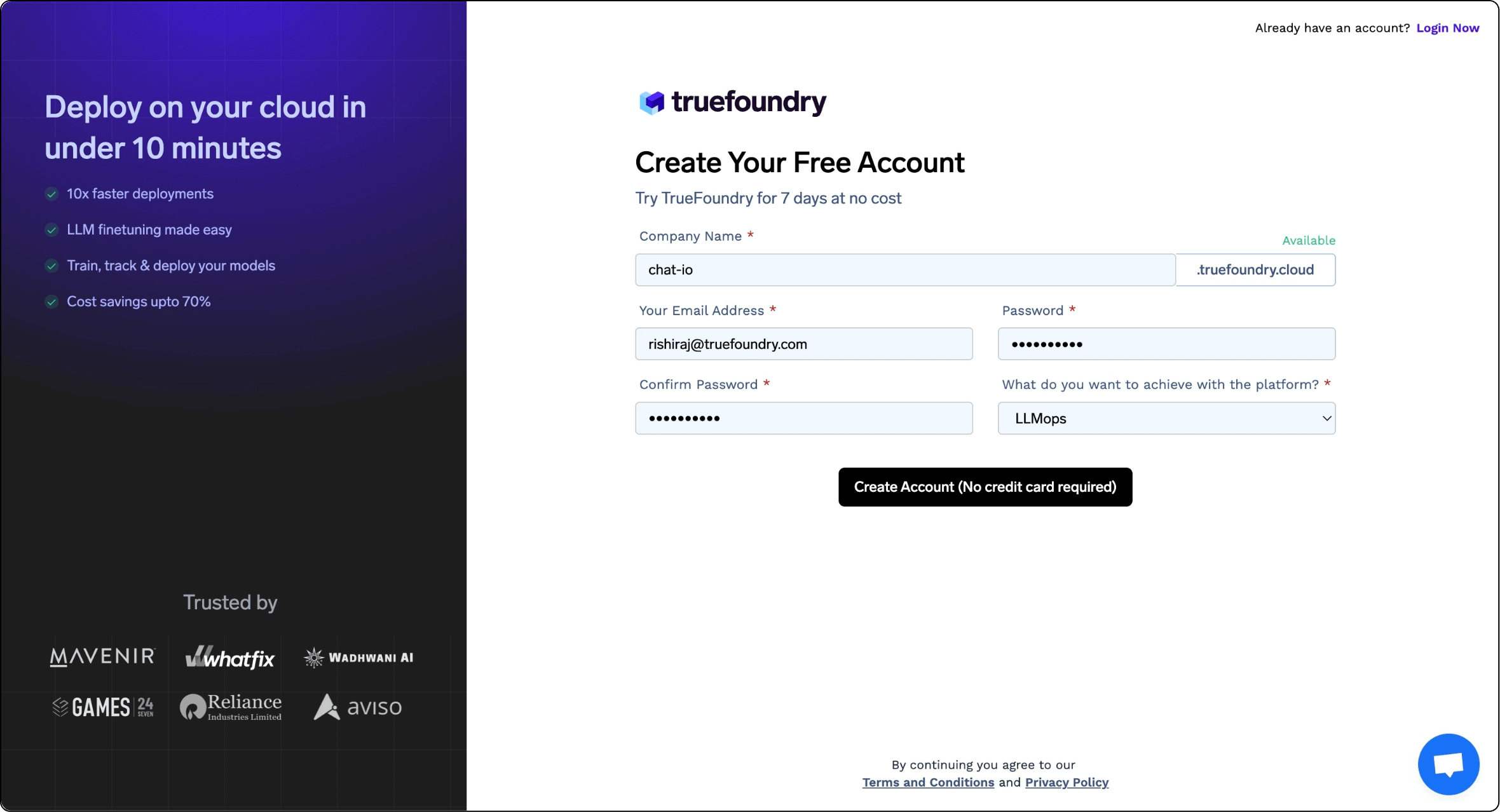
1. To register for a TrueFoundry account please navigate to the ["Create your account"](https://www.truefoundry.com/register) page.
2. In the “Create your account” form, specify your company name, work email, username, and password, and click the “Create Account” button.
**Please note:** The value you enter in the company name field will be used to create a unique URL that you will use to access your TrueFoundry account. For example, if you enter “chat-io” then your access URL will be “chat-io.truefoundry.cloud”
 #### Step 2: Activate your account & login
1. Once you fill out the form and submit it. You will receive an email to activate your account. Please open that email and click on the link. This is a mandatory step, only after activation you will be able to log in.
2. After successful activation of your account, you will be redirected to the login page. Please enter your credentials and log in to the app.
#### Step 2: Activate your account & login
1. Once you fill out the form and submit it. You will receive an email to activate your account. Please open that email and click on the link. This is a mandatory step, only after activation you will be able to log in.
2. After successful activation of your account, you will be redirected to the login page. Please enter your credentials and log in to the app.