> ## Documentation Index
> Fetch the complete documentation index at: https://www.truefoundry.com/llms.txt
> Use this file to discover all available pages before exploring further.
# Gemini CLI Model Registration Requirement — v0.118
> From v0.118.1, all Gemini CLI models must be registered in the TrueFoundry AI Gateway for cost calculation and attribution.
**Applicable to:** Users accessing Gemini CLI via TrueFoundry AI Gateway. If you are not using Gemini CLI through the AI Gateway, no action is needed.
## What Is Changing
All models used by the Gemini CLI must now be added to the Gemini account registered on TrueFoundry that is used to access Gemini CLI via the TFY AI Gateway. After v0.118.1, requests will fail if the models from Gemini are not registered in TrueFoundry.
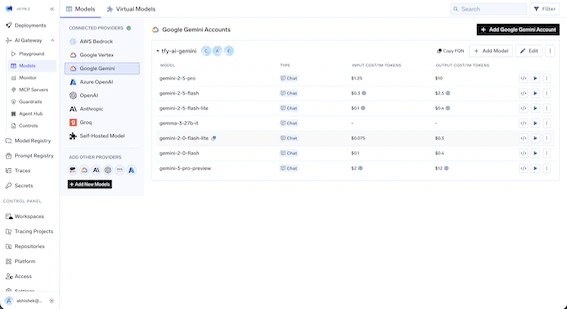 Earlier, this was optional and we would pass the model that came in the request from Gemini CLI even if that was not registered in TrueFoundry.
## Why This Change
This change enables cost calculation and attribution for Gemini CLI usage. After this, you'll be able to see the cost for each request and view it in metrics as well.
## What You Need to Do
1. Go to the Gemini account configuration in TrueFoundry.
2. Register all models that you use via Gemini CLI.
3. Ensure the model display name exactly matches the model ID.
The model display name must exactly match the model ID, because Gemini CLI uses the actual model ID and TrueFoundry treats that as the model name.
**Example:**
* **Model ID:** `gemini-2.5-pro`
* **Model name:** `gemini-2.5-pro` (must be exactly the same)
***
If you are facing any issues after the upgrade with Gemini CLI, reach out and we'll be happy to assist.
Earlier, this was optional and we would pass the model that came in the request from Gemini CLI even if that was not registered in TrueFoundry.
## Why This Change
This change enables cost calculation and attribution for Gemini CLI usage. After this, you'll be able to see the cost for each request and view it in metrics as well.
## What You Need to Do
1. Go to the Gemini account configuration in TrueFoundry.
2. Register all models that you use via Gemini CLI.
3. Ensure the model display name exactly matches the model ID.
The model display name must exactly match the model ID, because Gemini CLI uses the actual model ID and TrueFoundry treats that as the model name.
**Example:**
* **Model ID:** `gemini-2.5-pro`
* **Model name:** `gemini-2.5-pro` (must be exactly the same)
***
If you are facing any issues after the upgrade with Gemini CLI, reach out and we'll be happy to assist.