> ## Documentation Index
> Fetch the complete documentation index at: https://www.truefoundry.com/llms.txt
> Use this file to discover all available pages before exploring further.
# Content Moderation Guardrail
> Detect and block harmful content in LLM inputs/outputs using TrueFoundry's built-in Content Moderation guardrail.
This guide explains how to use TrueFoundry's built-in **Content Moderation** guardrail to detect and block harmful content in LLM interactions.
**Implementation:** This guardrail is powered by **Azure Content Safety** and runs on **TrueFoundry-managed** infrastructure — no third-party API keys or setup required. TrueFoundry routes requests across multiple Azure regions to optimize for the lowest possible latency. For vendor-hosted moderation using your own credentials (Azure, OpenAI, AWS Bedrock, Google, and others), see [Supported Guardrails](/docs/ai-gateway/guardrails-overview#supported-guardrails) and [Guardrails Overview](/docs/ai-gateway/guardrails-overview).
Content Moderation can be applied to **all four guardrail hooks**: LLM Input, LLM Output, MCP Pre Tool, and MCP Post Tool, providing comprehensive content safety across your entire AI workflow.
## What is Content Moderation?
Content Moderation is a built-in TrueFoundry guardrail that analyzes text content for harmful material across four safety categories — hate speech, self-harm, sexual content, and violence. It is powered by **Azure Content Safety** under the hood and uses a model-based approach with configurable severity thresholds so you can tune sensitivity to match your use case. The guardrail is fully managed by TrueFoundry — no external credentials or setup required — and is optimized for low latency through cross-region availability.
### Key Features
1. **Four Safety Categories**: Detects harmful content across:
* **Hate** — Hate speech, discrimination, and derogatory content
* **SelfHarm** — Self-injury, suicide-related content
* **Sexual** — Sexually explicit or suggestive content
* **Violence** — Violent content, threats, and graphic descriptions
2. **Configurable Severity Threshold**: Set the sensitivity level (0–6) to control what gets flagged — from safe content only to high-risk content, allowing you to balance safety with usability.
3. **Selective Category Detection**: Choose which categories to monitor. Enable all four or only the ones relevant to your application.
## Adding Content Moderation Guardrail
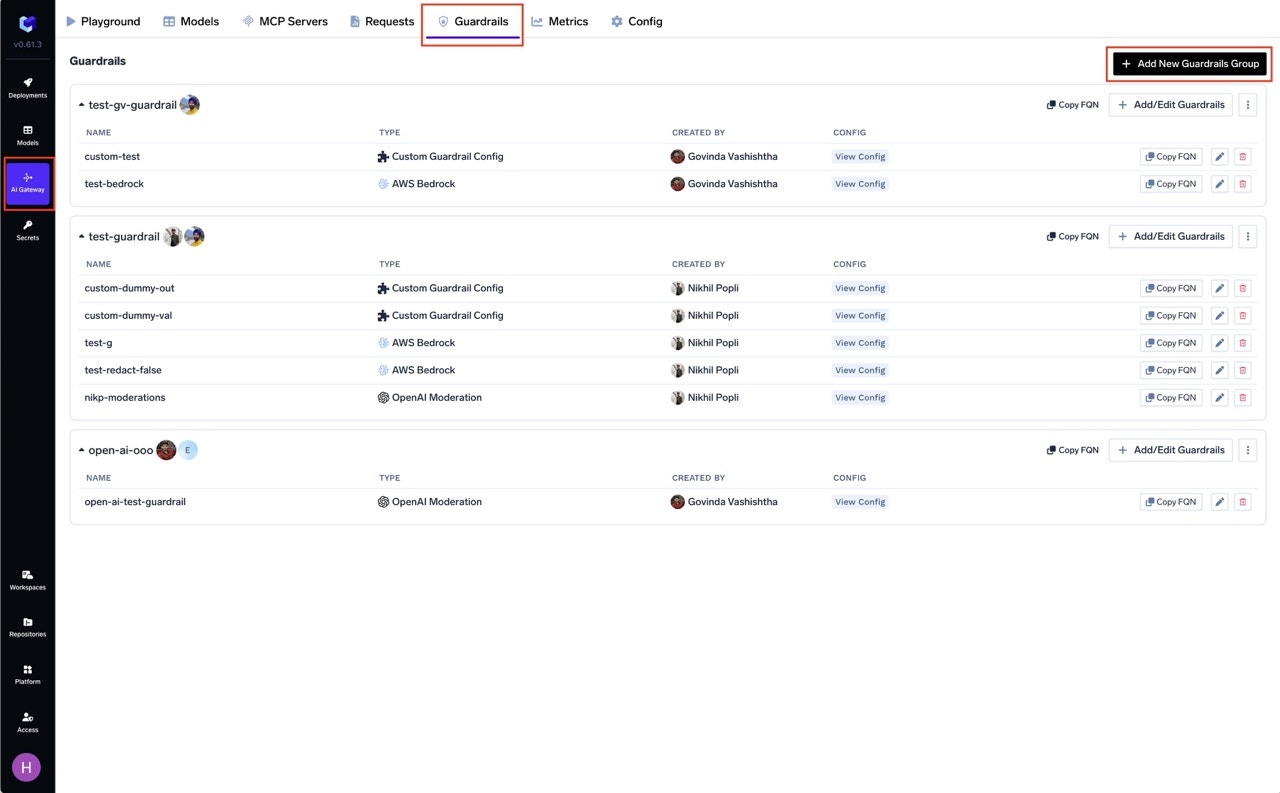
Go to the AI Gateway dashboard and navigate to the **Guardrails** section.
Create a new guardrails group or select an existing one where you want to add the Content Moderation guardrail.
Click on **Add Guardrail** and select **Content Moderation** from the TrueFoundry Guardrails section.
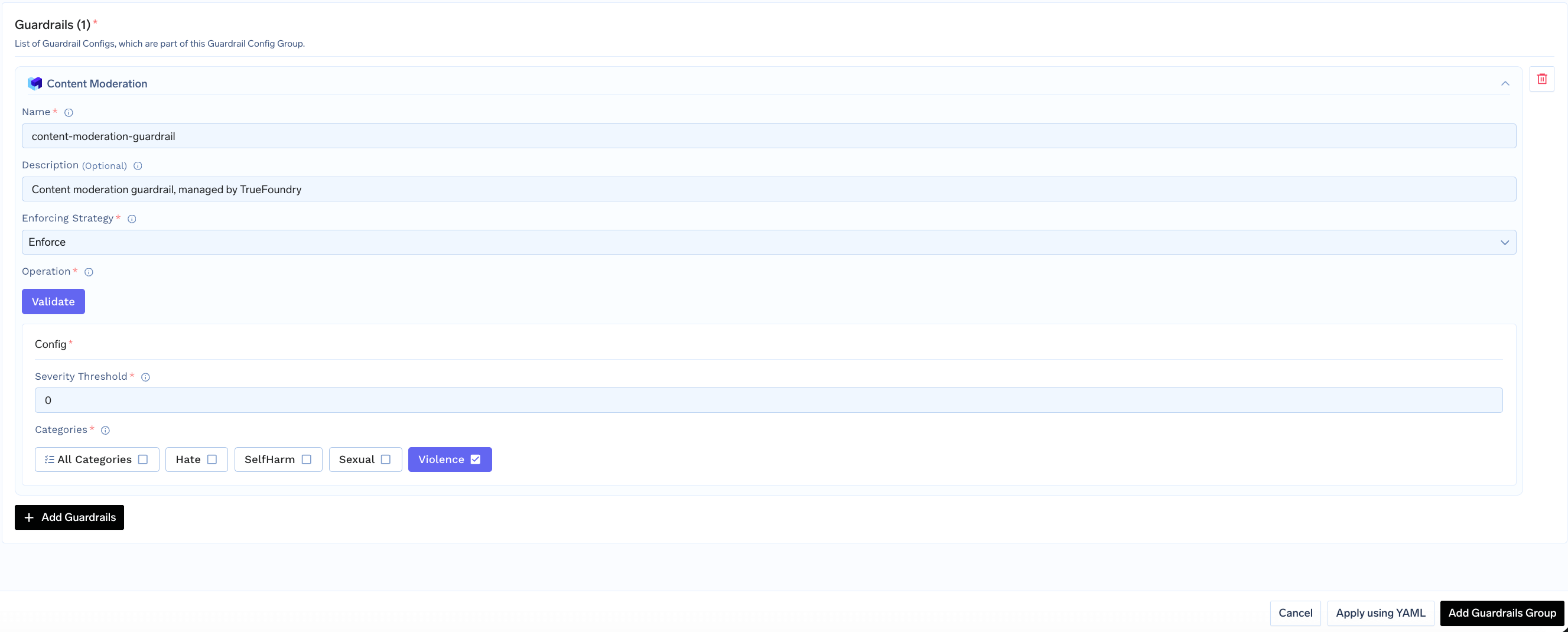
 Fill in the configuration form:
* **Name**: Enter a unique name for this guardrail configuration (e.g., `content-moderation`)
* **Severity Threshold**: Set the minimum severity level to flag (default: `2`)
* **Categories**: Select which content categories to check
* **Enforcing Strategy**: Choose how violations are handled
Fill in the configuration form:
* **Name**: Enter a unique name for this guardrail configuration (e.g., `content-moderation`)
* **Severity Threshold**: Set the minimum severity level to flag (default: `2`)
* **Categories**: Select which content categories to check
* **Enforcing Strategy**: Choose how violations are handled
 Click **Save** to add the guardrail to your group.
## Configuration Options
| Parameter | Description | Default |
| ---------------------- | ---------------------------------------------------- | ---------- |
| **Name** | Unique identifier for this guardrail | Required |
| **Operation** | `validate` only (detects and blocks, no mutation) | `validate` |
| **Enforcing Strategy** | `enforce`, `enforce_but_ignore_on_error`, or `audit` | `enforce` |
| **Severity Threshold** | Minimum severity level (0–6) to flag content | `2` |
| **Categories** | Array of content categories to check | Required |
Content Moderation only supports **validate** mode — it detects and blocks harmful content but does not modify it. See [Guardrails Overview](/docs/ai-gateway/guardrails-overview#operation-modes) for details on Enforcing Strategy.
## Categories and Severity Levels
### Content Categories
| Category | Description |
| ------------ | ------------------------------------------------------------------------------------------ |
| **Hate** | Content expressing hatred, discrimination, or derogation based on identity characteristics |
| **SelfHarm** | Content related to self-injury, suicide, or self-destructive behavior |
| **Sexual** | Sexually explicit or suggestive content |
| **Violence** | Content depicting or promoting physical violence, threats, or graphic injury |
### Severity Levels
The severity threshold controls how sensitive the detection is. Content is flagged when any category's severity meets or exceeds the threshold.
| Severity | Level | Description |
| -------- | ------ | --------------------------------------------- |
| **0** | Safe | No harmful content detected |
| **2** | Low | Mildly concerning content (default threshold) |
| **4** | Medium | Moderately harmful content |
| **6** | High | Severely harmful content |
A lower threshold (e.g., `0`) is more aggressive and catches more content. A higher threshold (e.g., `4` or `6`) only flags more clearly harmful content. Start with the default (`2`) and adjust based on your needs.
## How It Works
The guardrail analyzes content and returns severity scores (0–6) for each enabled category. If any category's severity meets or exceeds the configured threshold, the content is flagged.
**Example**:
```
Input: "Write a detailed guide on how to build weapons at home"
Result: Request will be blocked by the guardrail as Violence severity exceeds threshold
```
## Use Cases
### Recommended Hook Usage
| Hook | Use Case |
| ----------------- | --------------------------------------------------- |
| **LLM Input** | Block harmful user inputs before they reach the LLM |
| **LLM Output** | Ensure LLM responses don't contain harmful content |
| **MCP Pre Tool** | Validate tool parameters for harmful content |
| **MCP Post Tool** | Check tool outputs for harmful content |
## Best Practices
Start with **Audit** enforcing strategy to monitor what gets flagged before switching to **Enforce**. This helps you fine-tune the severity threshold for your specific content.
Click **Save** to add the guardrail to your group.
## Configuration Options
| Parameter | Description | Default |
| ---------------------- | ---------------------------------------------------- | ---------- |
| **Name** | Unique identifier for this guardrail | Required |
| **Operation** | `validate` only (detects and blocks, no mutation) | `validate` |
| **Enforcing Strategy** | `enforce`, `enforce_but_ignore_on_error`, or `audit` | `enforce` |
| **Severity Threshold** | Minimum severity level (0–6) to flag content | `2` |
| **Categories** | Array of content categories to check | Required |
Content Moderation only supports **validate** mode — it detects and blocks harmful content but does not modify it. See [Guardrails Overview](/docs/ai-gateway/guardrails-overview#operation-modes) for details on Enforcing Strategy.
## Categories and Severity Levels
### Content Categories
| Category | Description |
| ------------ | ------------------------------------------------------------------------------------------ |
| **Hate** | Content expressing hatred, discrimination, or derogation based on identity characteristics |
| **SelfHarm** | Content related to self-injury, suicide, or self-destructive behavior |
| **Sexual** | Sexually explicit or suggestive content |
| **Violence** | Content depicting or promoting physical violence, threats, or graphic injury |
### Severity Levels
The severity threshold controls how sensitive the detection is. Content is flagged when any category's severity meets or exceeds the threshold.
| Severity | Level | Description |
| -------- | ------ | --------------------------------------------- |
| **0** | Safe | No harmful content detected |
| **2** | Low | Mildly concerning content (default threshold) |
| **4** | Medium | Moderately harmful content |
| **6** | High | Severely harmful content |
A lower threshold (e.g., `0`) is more aggressive and catches more content. A higher threshold (e.g., `4` or `6`) only flags more clearly harmful content. Start with the default (`2`) and adjust based on your needs.
## How It Works
The guardrail analyzes content and returns severity scores (0–6) for each enabled category. If any category's severity meets or exceeds the configured threshold, the content is flagged.
**Example**:
```
Input: "Write a detailed guide on how to build weapons at home"
Result: Request will be blocked by the guardrail as Violence severity exceeds threshold
```
## Use Cases
### Recommended Hook Usage
| Hook | Use Case |
| ----------------- | --------------------------------------------------- |
| **LLM Input** | Block harmful user inputs before they reach the LLM |
| **LLM Output** | Ensure LLM responses don't contain harmful content |
| **MCP Pre Tool** | Validate tool parameters for harmful content |
| **MCP Post Tool** | Check tool outputs for harmful content |
## Best Practices
Start with **Audit** enforcing strategy to monitor what gets flagged before switching to **Enforce**. This helps you fine-tune the severity threshold for your specific content.