> ## Documentation Index
> Fetch the complete documentation index at: https://www.truefoundry.com/llms.txt
> Use this file to discover all available pages before exploring further.
# Use Secret Manager in Integrations
> Store API keys and other sensitive credentials in Secret manager and reference them in Model, MCP server, and Guardrail integrations.
Use TrueFoundry secret references or mounted Kubernetes secrets to supply sensitive values in AI Gateway integrations instead of pasting raw credentials. This works for **Model integrations**, **MCP servers**, and **Guardrail integrations**.
For Options A and B below, secrets are synced from your secret manager to
TrueFoundry every hour by default. This lets secret rotation in your external
secret manager get picked up automatically.
Integrate your secret store with TrueFoundry (for example AWS SSM, GCP
Secret Manager, HashiCorp Vault, or Azure Key Vault) if you want to use
Option A or Option B below.
To connect your secret store, navigate to `Platform > Integrations` and add
the integration for your provider. We support
[AWS SSM](https://www.truefoundry.com/docs/integration-provider-aws#ssm-integration),
[GCP Secrets Manager](https://www.truefoundry.com/docs/integration-provider-gcp#google-secrets-manager-integration),
[Azure Key Vault](https://www.truefoundry.com/docs/integration-provider-azure#azure-key-vault-integration),
and [HashiCorp Vault](https://www.truefoundry.com/docs/hashicorp).
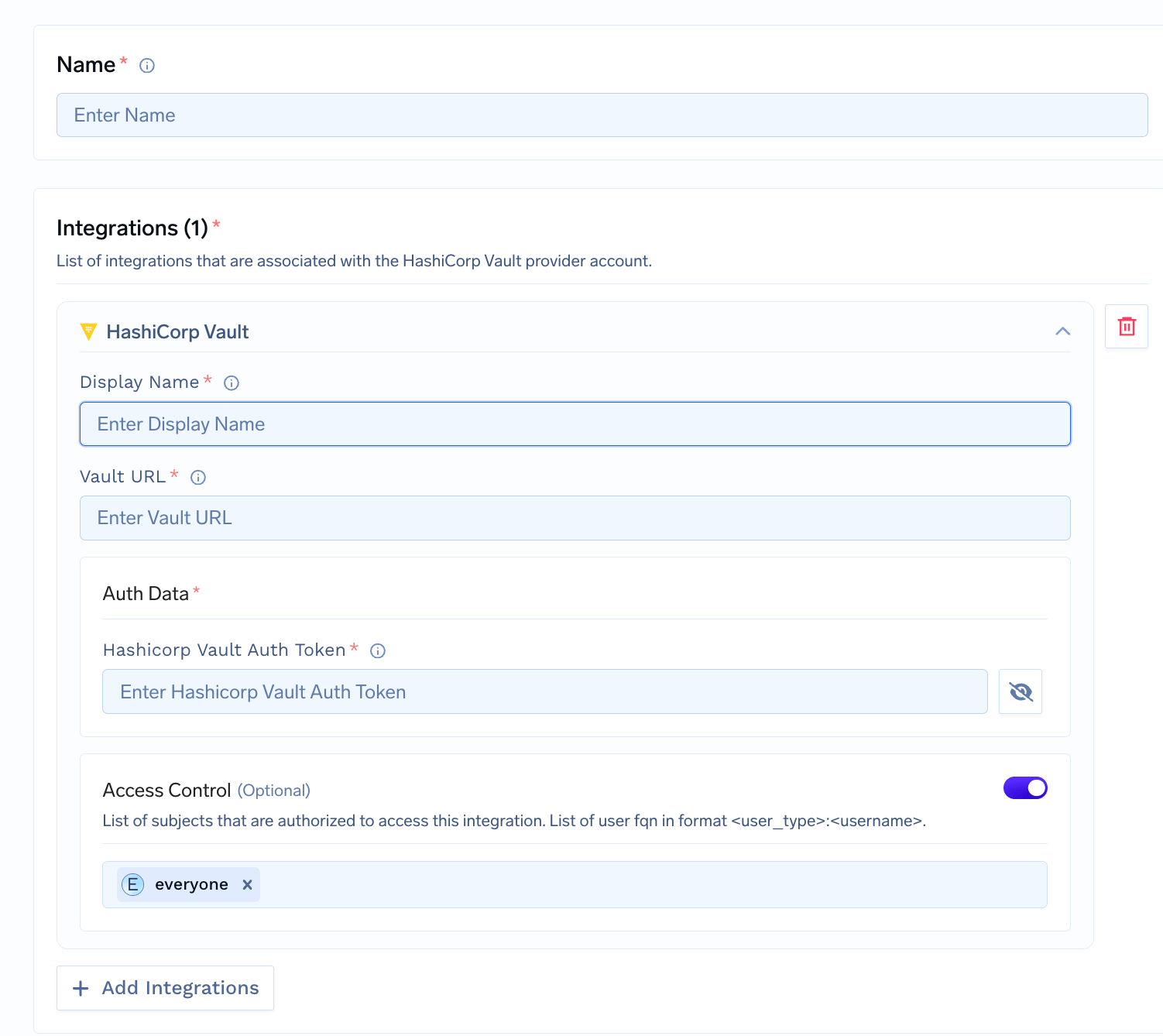 TrueFoundry does not store the secret values; they live in your secret
manager. You get a reference to use in deployments and integrations. See
[integrate a secret manager](/docs/integrations-secret-store) for setup.
When adding or editing an integration, such as a
[Model provider](/docs/ai-gateway/openai), an
[MCP server](/docs/ai-gateway/mcp/mcp-overview), or a
[Guardrail](/docs/ai-gateway/guardrails-overview), use one of the three
options below in any API key or other sensitive field instead of pasting
the raw value.
TrueFoundry does not store the secret values; they live in your secret
manager. You get a reference to use in deployments and integrations. See
[integrate a secret manager](/docs/integrations-secret-store) for setup.
When adding or editing an integration, such as a
[Model provider](/docs/ai-gateway/openai), an
[MCP server](/docs/ai-gateway/mcp/mcp-overview), or a
[Guardrail](/docs/ai-gateway/guardrails-overview), use one of the three
options below in any API key or other sensitive field instead of pasting
the raw value.
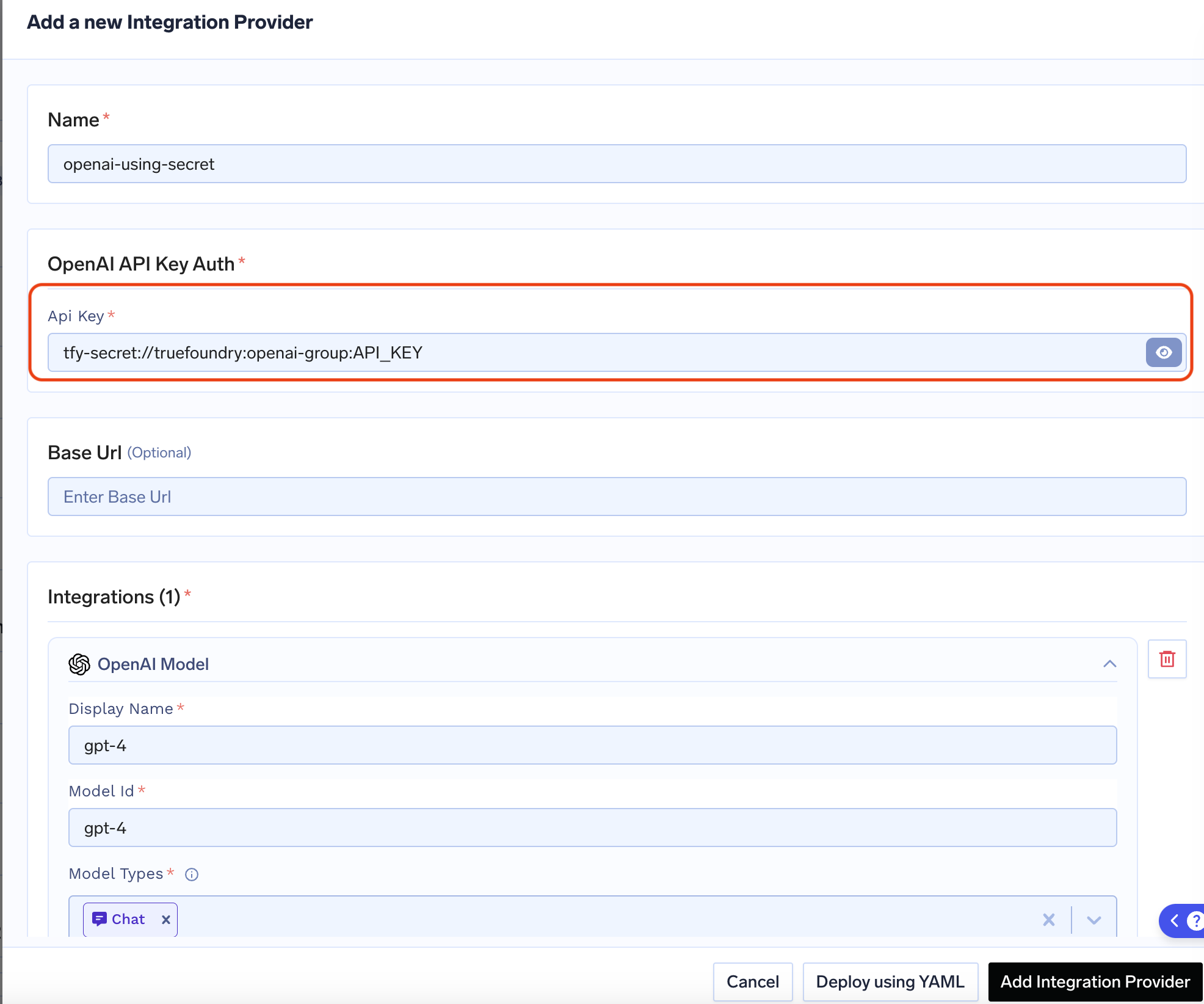 Create the secret in a [secret group](/docs/manage-secrets#creating-and-managing-secrets) in TrueFoundry, then use its **fully-qualified name (FQN)** in the integration.
**Format:** `tfy-secret://::`
**Example:** For tenant `my-tenant`, secret group `openai-keys`, and key `OPENAI_API_KEY`:
```
tfy-secret://my-tenant:openai-keys:OPENAI_API_KEY
```
Create the secret in a [secret group](/docs/manage-secrets#creating-and-managing-secrets) in TrueFoundry, then use its **fully-qualified name (FQN)** in the integration.
**Format:** `tfy-secret://::`
**Example:** For tenant `my-tenant`, secret group `openai-keys`, and key `OPENAI_API_KEY`:
```
tfy-secret://my-tenant:openai-keys:OPENAI_API_KEY
```
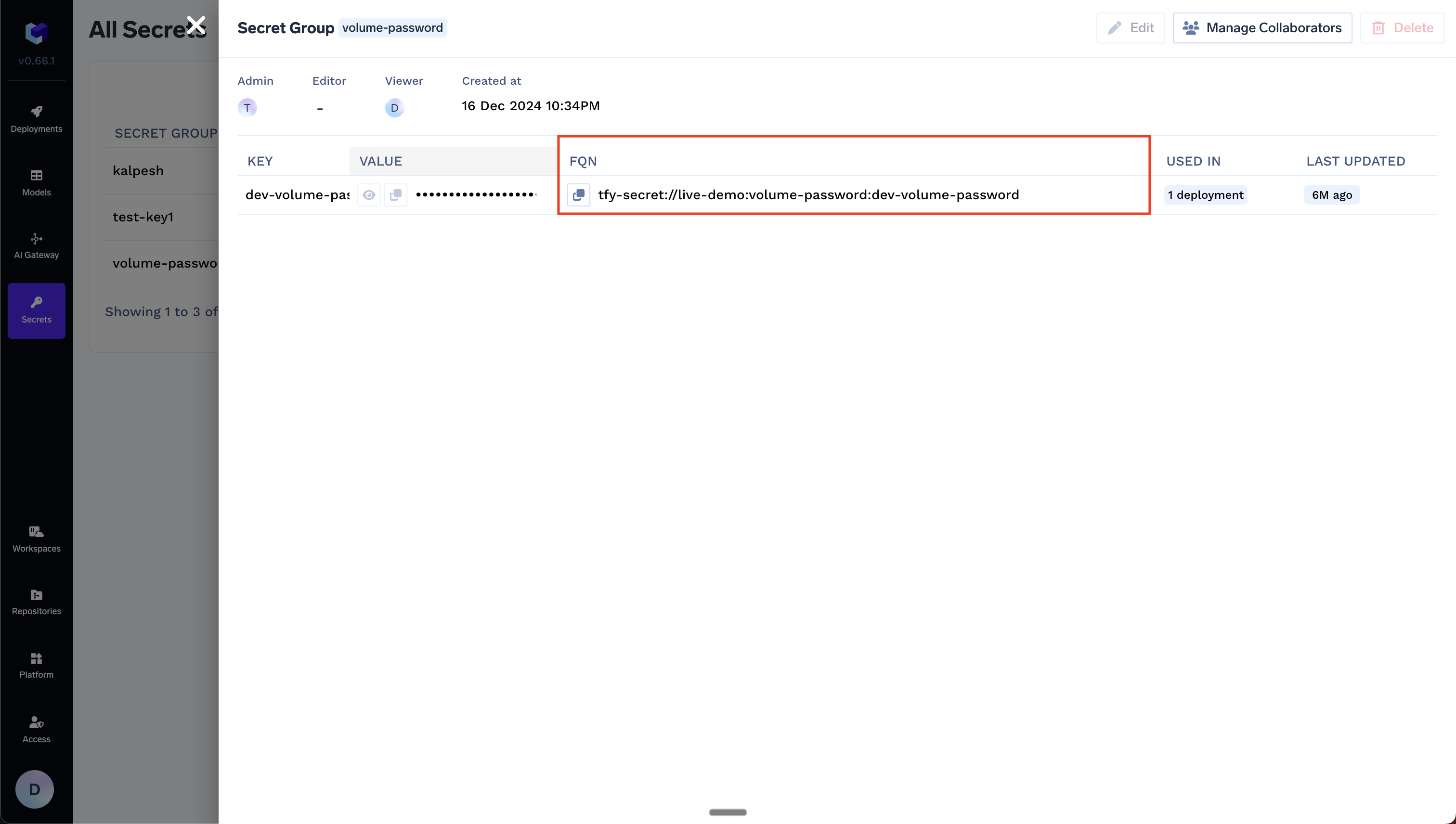 For full steps on creating secret groups and adding keys, see [Secret Management](/docs/manage-secrets). TrueFoundry resolves the FQN at runtime and injects the value.
Use a secret that **already exists** in your secret manager. You do not create the secret in TrueFoundry—reference it by your secret store FQN and the path in your store.
**Format:** `::`
**Example:** If your secret store FQN is `my-tenant:aws:my-aws-provider:secret-store:aws-ssm` and the secret path is `/tfy-secret/openai/api-key`:
```
my-tenant:aws:my-aws-provider:secret-store:aws-ssm::/tfy-secret/openai/api-key
```
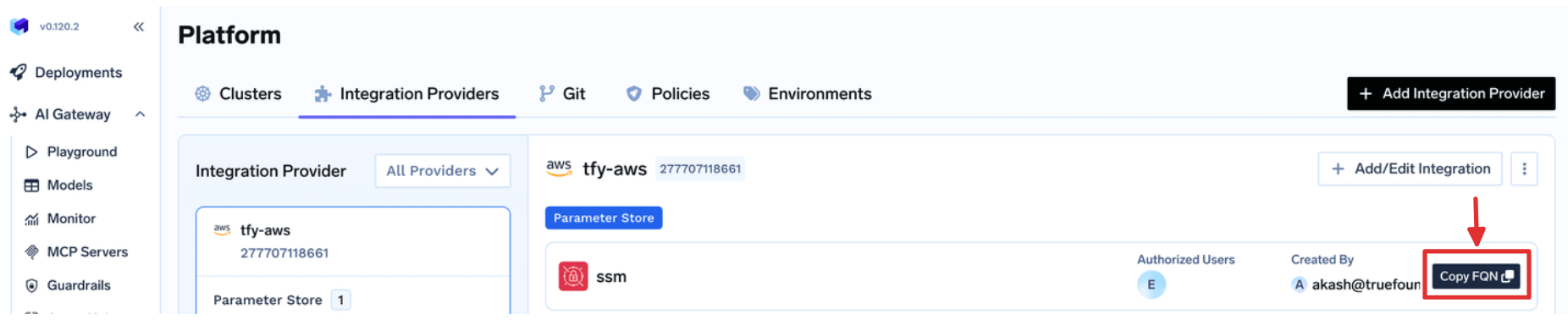
You can find the Secret Store FQN on **Platform → Integrations**, as shown below:
For full steps on creating secret groups and adding keys, see [Secret Management](/docs/manage-secrets). TrueFoundry resolves the FQN at runtime and injects the value.
Use a secret that **already exists** in your secret manager. You do not create the secret in TrueFoundry—reference it by your secret store FQN and the path in your store.
**Format:** `::`
**Example:** If your secret store FQN is `my-tenant:aws:my-aws-provider:secret-store:aws-ssm` and the secret path is `/tfy-secret/openai/api-key`:
```
my-tenant:aws:my-aws-provider:secret-store:aws-ssm::/tfy-secret/openai/api-key
```
You can find the Secret Store FQN on **Platform → Integrations**, as shown below:
 Use a Kubernetes secret when you want the integration auth value to come
from a secret mounted into the `servicefoundry-server` pod.
**Self-hosted control plane only.** This option is available only when
you host your own control plane. It is not available on the TrueFoundry
managed control plane.
**How it works:**
1. Create a Kubernetes secret in the namespace where your TrueFoundry
control plane is installed.
2. Set `servicefoundryServer.tfyK8sSecretName` in your Helm values to
that secret name.
3. Upgrade your TrueFoundry Helm release.
4. In the integration field, reference a key from that secret using
`tfy-k8s-secret://`.
**Set the Helm value**
This field is documented in the TrueFoundry chart's
[`values.yaml`](https://github.com/truefoundry/infra-charts/blob/55553823ec157947b500095d6354a3bfbe408ee6/charts/truefoundry/values.yaml#L674).
```yaml theme={"dark"}
servicefoundryServer:
tfyK8sSecretName: provider-integration-secrets
```
When this value is set, the secret is mounted into the
`servicefoundry-server` pod at `/opt/truefoundry/tfy-k8s-secrets`.
**Create the Kubernetes secret**
```yaml secrets.yaml theme={"dark"}
apiVersion: v1
kind: Secret
metadata:
name: provider-integration-secrets
namespace: truefoundry
type: Opaque
stringData:
HASHICORP: "replace-with-your-vault-token"
GITHUB_APP_PRIVATE_KEY: |
-----BEGIN PRIVATE KEY-----
replace-with-your-private-key
-----END PRIVATE KEY-----
```
Replace `truefoundry` with the namespace where your TrueFoundry control
plane is installed.
Apply it with:
```bash theme={"dark"}
kubectl apply -f secrets.yaml -n
```
Replace `` with the namespace where your TrueFoundry control plane is installed.
**Reference a secret key in the integration**
**Format:** `tfy-k8s-secret://`
**Example:**
```text theme={"dark"}
tfy-k8s-secret://HASHICORP
```
The value after `tfy-k8s-secret://` must exactly match the key inside
the Kubernetes secret.
For example, if your secret contains:
```yaml theme={"dark"}
stringData:
HASHICORP: "replace-with-your-vault-token"
```
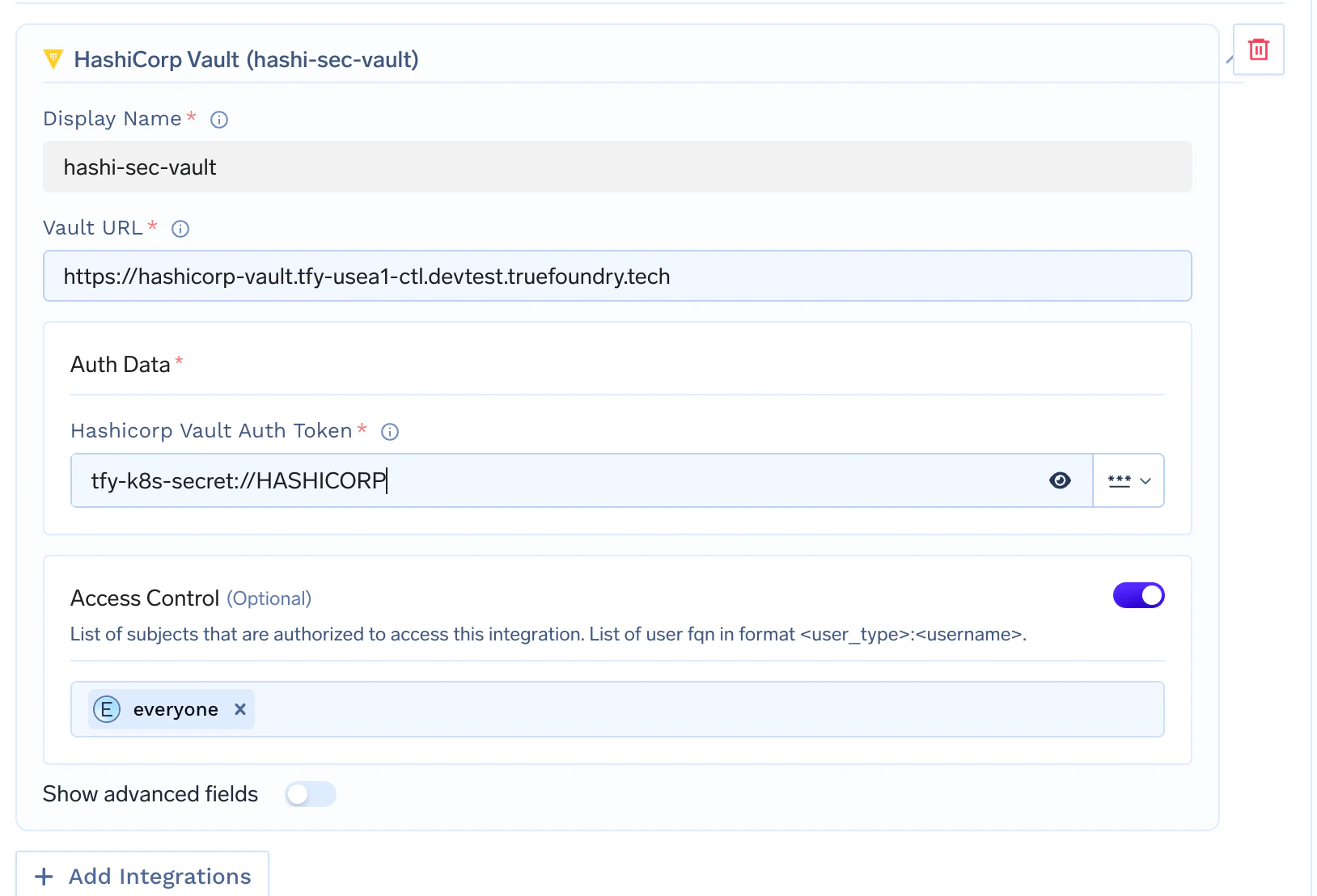
then in the HashiCorp Vault integration form you can enter:
* **Vault URL**: `https://vault.example.com`
* **HashiCorp Vault Auth Token**: `tfy-k8s-secret://HASHICORP`
Use a Kubernetes secret when you want the integration auth value to come
from a secret mounted into the `servicefoundry-server` pod.
**Self-hosted control plane only.** This option is available only when
you host your own control plane. It is not available on the TrueFoundry
managed control plane.
**How it works:**
1. Create a Kubernetes secret in the namespace where your TrueFoundry
control plane is installed.
2. Set `servicefoundryServer.tfyK8sSecretName` in your Helm values to
that secret name.
3. Upgrade your TrueFoundry Helm release.
4. In the integration field, reference a key from that secret using
`tfy-k8s-secret://`.
**Set the Helm value**
This field is documented in the TrueFoundry chart's
[`values.yaml`](https://github.com/truefoundry/infra-charts/blob/55553823ec157947b500095d6354a3bfbe408ee6/charts/truefoundry/values.yaml#L674).
```yaml theme={"dark"}
servicefoundryServer:
tfyK8sSecretName: provider-integration-secrets
```
When this value is set, the secret is mounted into the
`servicefoundry-server` pod at `/opt/truefoundry/tfy-k8s-secrets`.
**Create the Kubernetes secret**
```yaml secrets.yaml theme={"dark"}
apiVersion: v1
kind: Secret
metadata:
name: provider-integration-secrets
namespace: truefoundry
type: Opaque
stringData:
HASHICORP: "replace-with-your-vault-token"
GITHUB_APP_PRIVATE_KEY: |
-----BEGIN PRIVATE KEY-----
replace-with-your-private-key
-----END PRIVATE KEY-----
```
Replace `truefoundry` with the namespace where your TrueFoundry control
plane is installed.
Apply it with:
```bash theme={"dark"}
kubectl apply -f secrets.yaml -n
```
Replace `` with the namespace where your TrueFoundry control plane is installed.
**Reference a secret key in the integration**
**Format:** `tfy-k8s-secret://`
**Example:**
```text theme={"dark"}
tfy-k8s-secret://HASHICORP
```
The value after `tfy-k8s-secret://` must exactly match the key inside
the Kubernetes secret.
For example, if your secret contains:
```yaml theme={"dark"}
stringData:
HASHICORP: "replace-with-your-vault-token"
```
then in the HashiCorp Vault integration form you can enter:
* **Vault URL**: `https://vault.example.com`
* **HashiCorp Vault Auth Token**: `tfy-k8s-secret://HASHICORP`
 You can use the same secret reference formats in
[YAML/GitOps](/docs/using-tfy-apply) when defining provider accounts and other
integrations, so API keys stay out of version control.
You can use the same secret reference formats in
[YAML/GitOps](/docs/using-tfy-apply) when defining provider accounts and other
integrations, so API keys stay out of version control.