> ## Documentation Index
> Fetch the complete documentation index at: https://www.truefoundry.com/llms.txt
> Use this file to discover all available pages before exploring further.
# Request Logging
> Control which requests are logged, view request logs in the AI Gateway, and manage data access rules.
TrueFoundry AI Gateway allows you to control which requests are logged.
## Controlling Request Logging
### Using HTTP Headers
Include the `X-TFY-LOGGING-CONFIG` header on a request with a stringified JSON value. Set `enabled` to `true` to log the request or `false` to skip logging:
```python OpenAI SDK highlight={6-8} wrap lines theme={"dark"}
from openai import OpenAI
client = OpenAI(
api_key="your_truefoundry_api_key",
base_url="https://gateway.truefoundry.ai",
default_headers={
"X-TFY-LOGGING-CONFIG": '{"enabled": true}'
}
)
response = client.chat.completions.create(
model="openai-main/gpt-4",
messages=[{"role": "user", "content": "Hello"}],
)
```
```typescript Node.js highlight={6-8} wrap lines theme={"dark"}
import OpenAI from 'openai';
const client = new OpenAI({
apiKey: 'your_truefoundry_api_key',
baseURL: 'https://gateway.truefoundry.ai',
defaultHeaders: {
"X-TFY-LOGGING-CONFIG": '{"enabled": true}',
},
});
const response = await client.chat.completions.create({
model: 'openai-main/gpt-4',
messages: [{ role: 'user', content: 'Hello' }],
});
```
```bash cURL highlight={3} wrap lines theme={"dark"}
curl https://gateway.truefoundry.ai/openai/chat/completions \
-H "Authorization: Bearer your_truefoundry_api_key" \
-H "X-TFY-LOGGING-CONFIG: {\"enabled\": true}" \
-H "Content-Type: application/json" \
-d '{
"model": "openai-main/gpt-4",
"messages": [{"role": "user", "content": "Hello"}]
}'
```
Note that the value of `X-TFY-LOGGING-CONFIG` is a **stringified JSON**, not a raw JSON object. Most SDKs serialize headers as strings, so wrap the JSON in quotes as shown above.
### Using Global Settings
You can also control logging behavior globally using AI Gateway global settings:
In the AI Gateway UI, click `Settings` in the left sidebar to open global settings.
| Mode | Description |
| ------------------- | ------------------------------------------------------------------------------------------------------------------------------------------------------------------------------------- |
| `HEADER_CONTROLLED` | Logging depends on the `enabled` value in the `X-TFY-LOGGING-CONFIG` header. If the header is absent or set to `true`, logging will occur. If set to `false`, no logging will happen. |
| `ALWAYS` | All requests are logged regardless of the `enabled` value. |
| `NEVER` | No requests are logged regardless of the `enabled` value. |
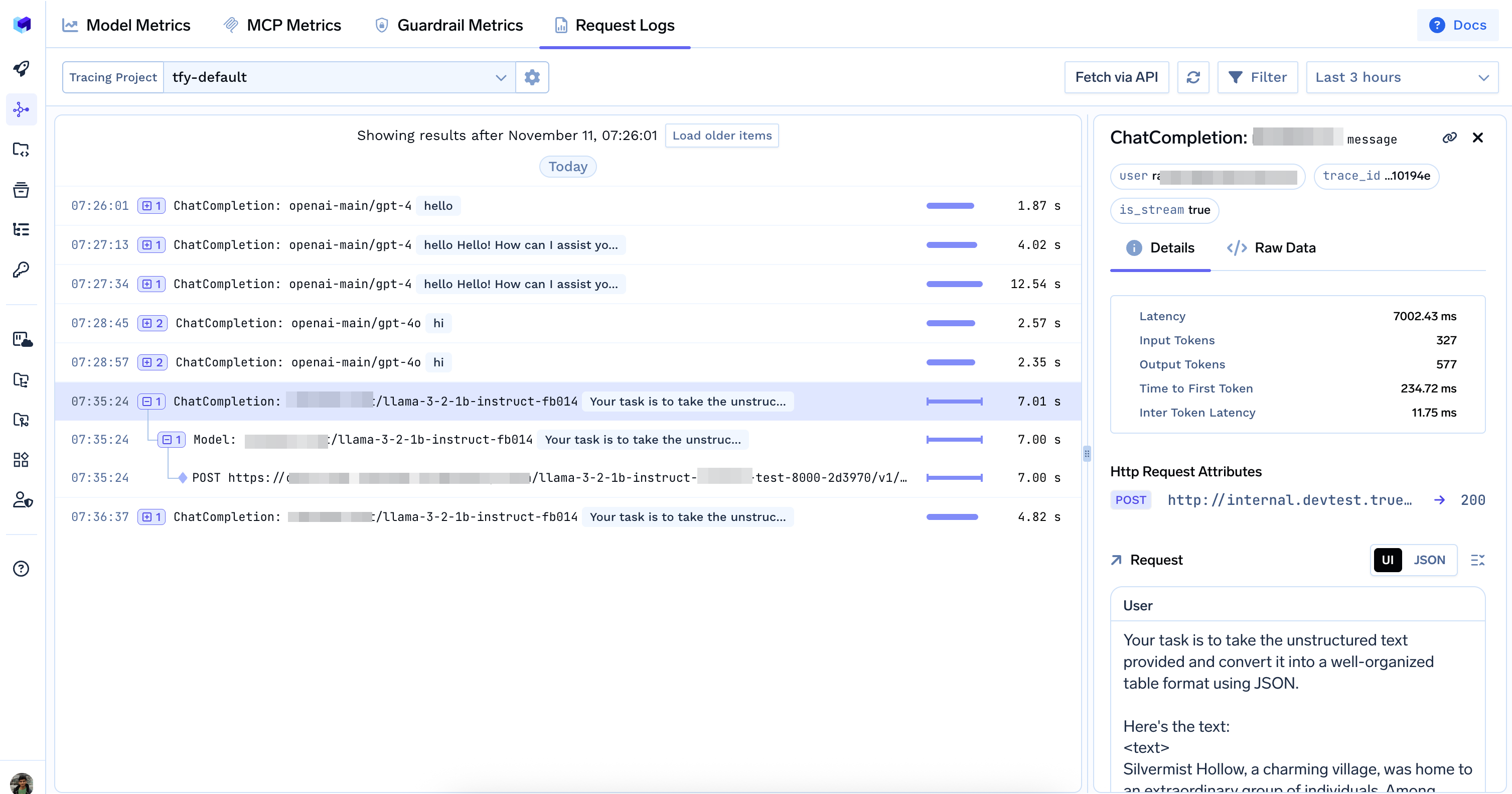
## Viewing Request Logs
You can view all logged requests in the TrueFoundry UI. Go to `AI Gateway` > `Monitor` > `Requests`
 ## Data Access Rules for Request Logs and Metrics
Please refer to [Data Access Rules for Traces and Metrics](/docs/ai-gateway/data-access) for more information.
## Data Access Rules for Request Logs and Metrics
Please refer to [Data Access Rules for Traces and Metrics](/docs/ai-gateway/data-access) for more information.