> ## Documentation Index
> Fetch the complete documentation index at: https://www.truefoundry.com/llms.txt
> Use this file to discover all available pages before exploring further.
# Qwen Code CLI
> Use Qwen Code CLI with TrueFoundry AI Gateway to interact with AI models from your terminal
This guide provides instructions for integrating [Qwen Code CLI](https://github.com/QwenLM/qwen-code) with the TrueFoundry AI Gateway.
## What is Qwen Code?
Qwen Code is an open-source, AI-powered terminal coding assistant optimized for the [Qwen3-Coder](https://github.com/QwenLM/Qwen3-Coder) model. It helps you understand large codebases, automate tedious work, and ship faster — all from the command line.
### Key Features
1. **Terminal-Native AI Agent**: Chat with AI models, edit files, and run commands directly from your terminal without switching contexts
2. **Repository-Scale Understanding**: Analyzes codebases beyond traditional AI context limits with intelligent context management
3. **Multi-Protocol Support**: Works with OpenAI, Anthropic, and Google GenAI compatible APIs — making it easy to route through TrueFoundry
4. **Agentic Workflow**: Built-in Skills and SubAgents for a full agentic coding experience
## Prerequisites
Before integrating Qwen Code with TrueFoundry, ensure you have:
1. **TrueFoundry Account**: Create a [TrueFoundry account](https://www.truefoundry.com/register) with at least one model provider configured and generate a Personal Access Token by following the instructions in [Generating Tokens](/docs/ai-gateway/authentication). For a quick setup guide, see our [Gateway Quick Start](https://docs.truefoundry.com/gateway/quick-start)
2. **Qwen Code Installation**: Install Qwen Code CLI using one of the methods below:
The recommended one-line installer for Linux and macOS:
```bash lines theme={"dark"}
curl -fsSL https://qwen-code-assets.oss-cn-hangzhou.aliyuncs.com/installation/install-qwen.sh | bash
```
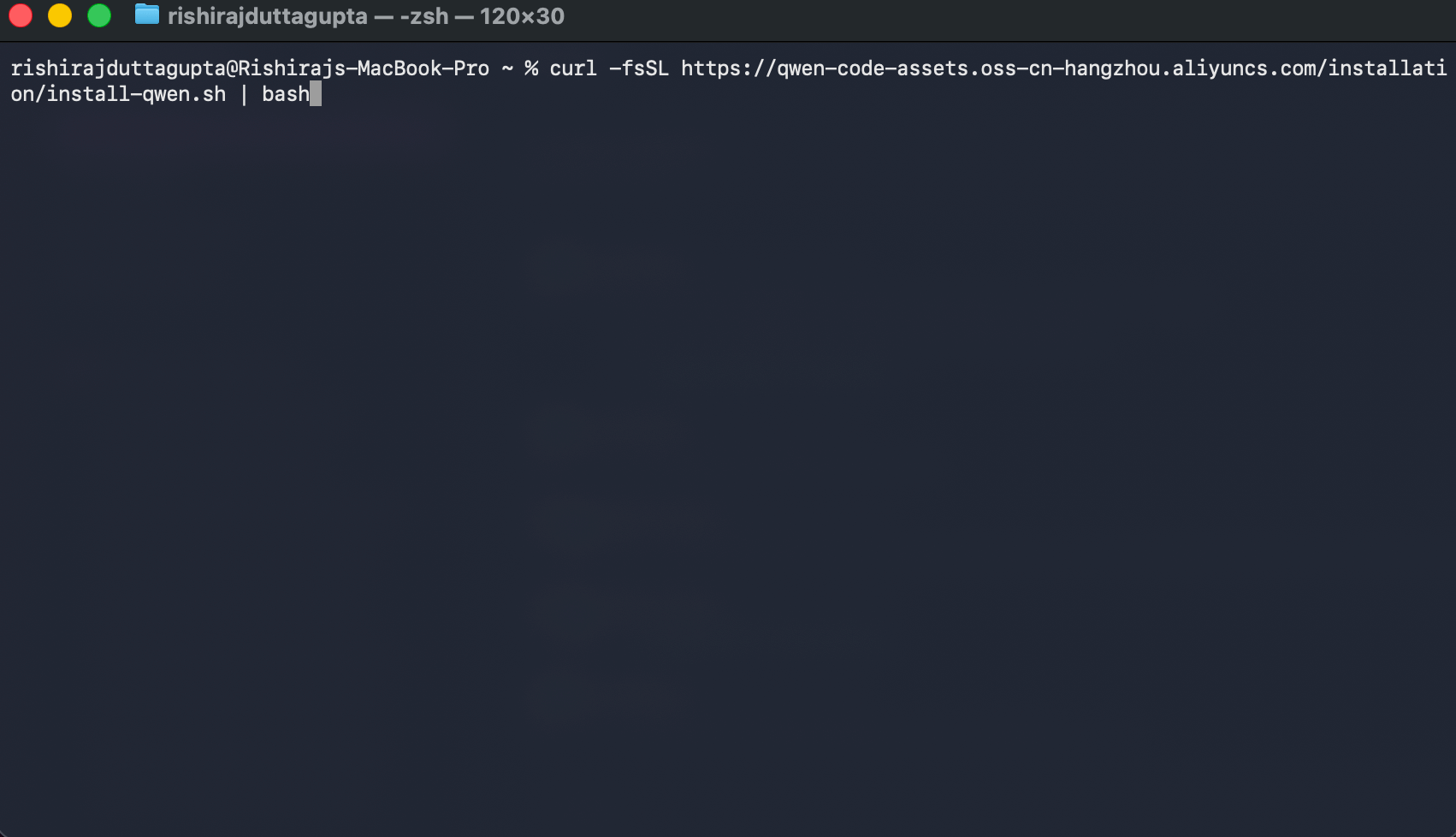 Restart your terminal after installation to ensure environment variables take effect.
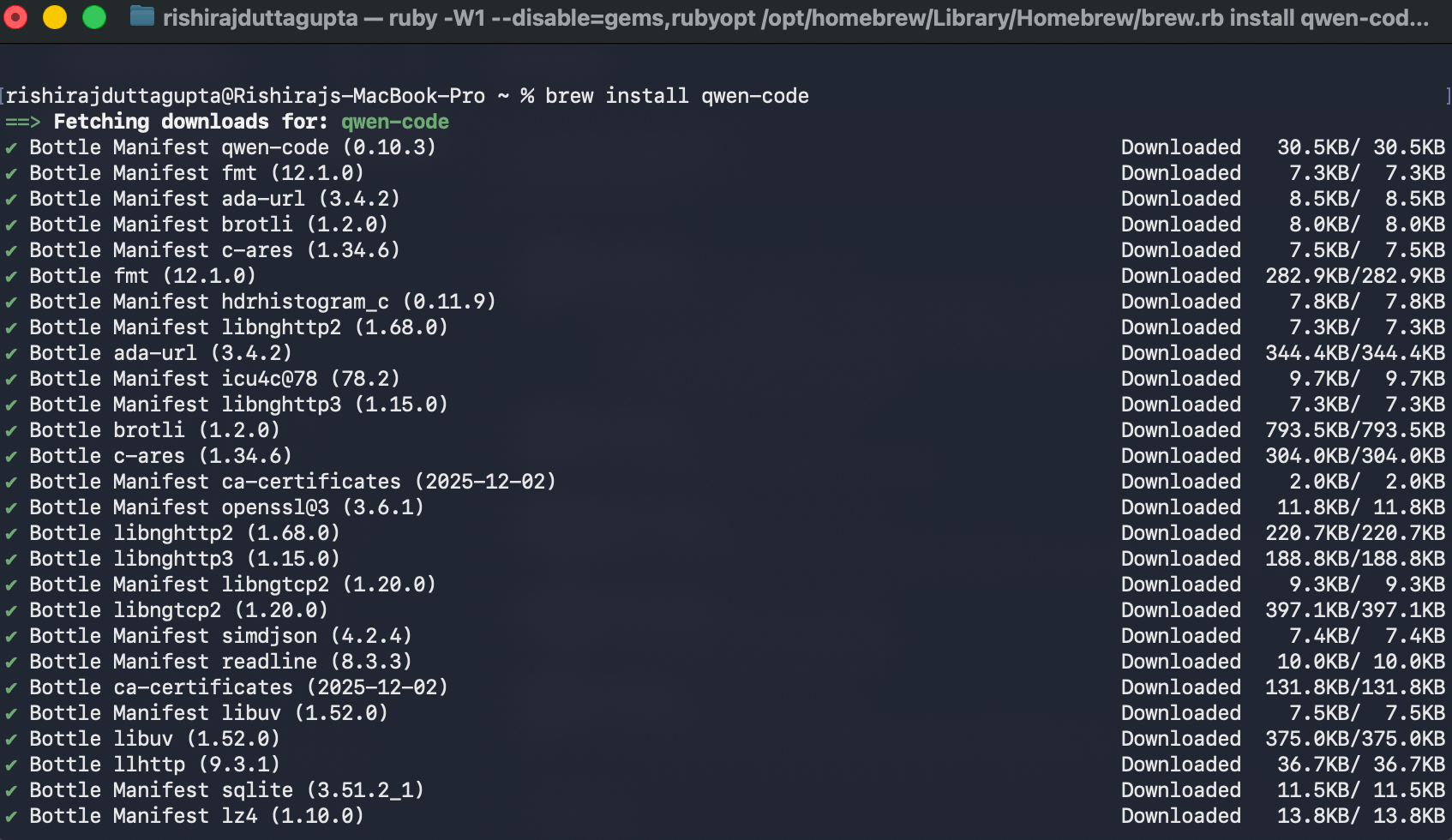
On macOS or Linux with Homebrew:
```bash lines theme={"dark"}
brew install qwen-code
```
Restart your terminal after installation to ensure environment variables take effect.
On macOS or Linux with Homebrew:
```bash lines theme={"dark"}
brew install qwen-code
```
 If you already have Node.js 20+ installed:
```bash lines theme={"dark"}
npm install -g @qwen-code/qwen-code@latest
```
See the [npm package page](https://www.npmjs.com/package/@qwen-code/qwen-code) for additional options and version history.
Run as Administrator in CMD:
```batch lines theme={"dark"}
curl -fsSL -o %TEMP%\install-qwen.bat https://qwen-code-assets.oss-cn-hangzhou.aliyuncs.com/installation/install-qwen.bat && %TEMP%\install-qwen.bat
```
## Setup Process
### 1. Get Configuration Details
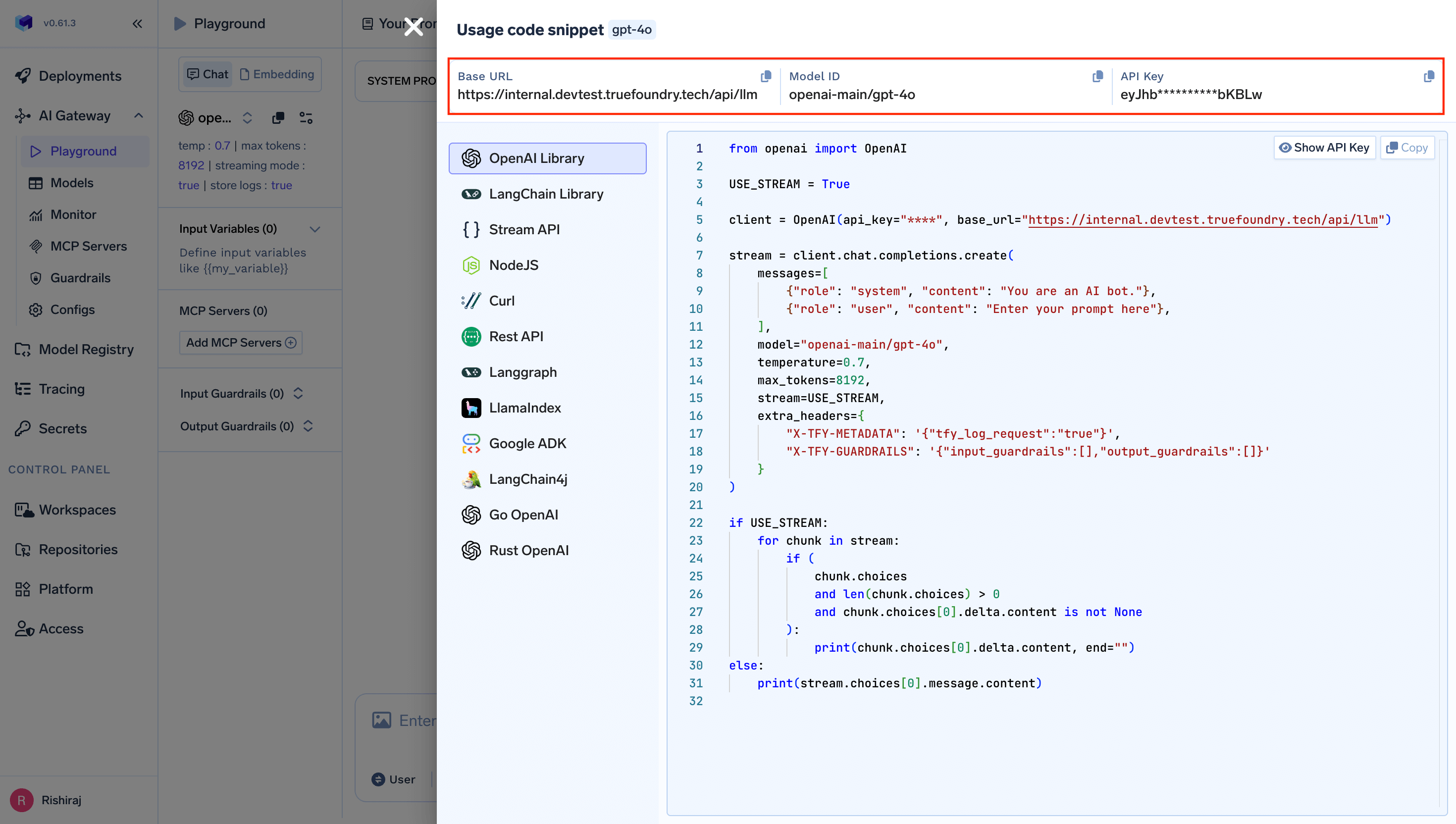
Get the `base URL` and `model name` from your TrueFoundry AI Gateway playground using the unified code snippet:
If you already have Node.js 20+ installed:
```bash lines theme={"dark"}
npm install -g @qwen-code/qwen-code@latest
```
See the [npm package page](https://www.npmjs.com/package/@qwen-code/qwen-code) for additional options and version history.
Run as Administrator in CMD:
```batch lines theme={"dark"}
curl -fsSL -o %TEMP%\install-qwen.bat https://qwen-code-assets.oss-cn-hangzhou.aliyuncs.com/installation/install-qwen.bat && %TEMP%\install-qwen.bat
```
## Setup Process
### 1. Get Configuration Details
Get the `base URL` and `model name` from your TrueFoundry AI Gateway playground using the unified code snippet:
 ### 2. Configure Qwen Code
Qwen Code uses a `settings.json` file for configuration. Edit (or create) the file at `~/.qwen/settings.json` to route requests through TrueFoundry:
```json lines theme={"dark"}
{
"modelProviders": {
"openai": [
{
"id": "openai-main/gpt-4o",
"name": "GPT-4o via TrueFoundry",
"baseUrl": "{GATEWAY_BASE_URL}",
"description": "GPT-4o routed through TrueFoundry AI Gateway",
"envKey": "TFY_API_KEY"
}
]
},
"env": {
"TFY_API_KEY": "your-truefoundry-api-key"
},
"security": {
"auth": {
"selectedType": "openai"
}
},
"model": {
"name": "openai-main/gpt-4o"
}
}
```
**Replace the placeholders:**
* `{GATEWAY_BASE_URL}` → Your TrueFoundry Gateway Base URL
* `your-truefoundry-api-key` → Your TrueFoundry Personal Access Token
* `openai-main/gpt-4o` → Your desired model in `provider-name/model-name` format
The `id` and `model.name` fields should use the fully qualified model name from TrueFoundry (e.g., `openai-main/gpt-4o`, `anthropic/claude-4-sonnet`). You can find the exact model name in the TrueFoundry AI Gateway playground.
### 3. Configure Multiple Models (Optional)
You can configure multiple models from different providers to switch between them during a session:
```json lines theme={"dark"}
{
"modelProviders": {
"openai": [
{
"id": "openai-main/gpt-4o",
"name": "GPT-4o via TrueFoundry",
"baseUrl": "{GATEWAY_BASE_URL}",
"description": "GPT-4o routed through TrueFoundry AI Gateway",
"envKey": "TFY_API_KEY"
},
{
"id": "openai-main/gpt-5",
"name": "GPT-5 via TrueFoundry",
"baseUrl": "{GATEWAY_BASE_URL}",
"description": "GPT-5 routed through TrueFoundry AI Gateway",
"envKey": "TFY_API_KEY"
}
]
},
"env": {
"TFY_API_KEY": "your-truefoundry-api-key"
},
"security": {
"auth": {
"selectedType": "openai"
}
},
"model": {
"name": "openai-main/gpt-4o"
}
}
```
Use the `/model` command inside Qwen Code to switch between all configured models during a session.
## Usage Examples
### Interactive Mode
Launch the interactive terminal UI in your project directory:
```bash lines theme={"dark"}
cd your-project/
qwen
```
Once inside the session, you can ask questions about your codebase, generate code, and run commands using natural language.
### Headless Mode
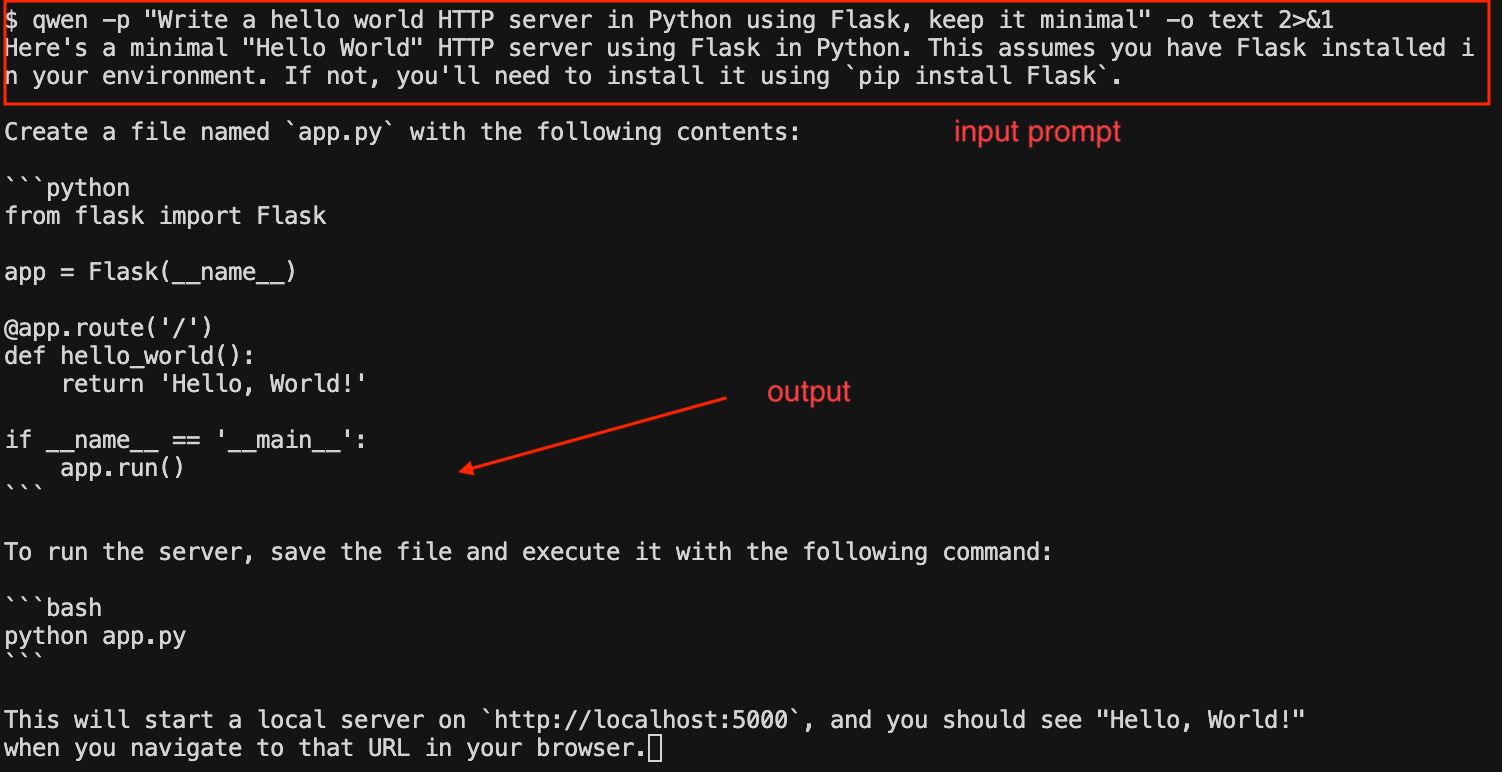
Use the `-p` flag to run Qwen Code without the interactive UI — ideal for scripts, automation, and CI/CD:
```bash lines theme={"dark"}
# Generate code with a prompt
qwen -p "Write a hello world HTTP server in Python using Flask, keep it minimal"
# Output as plain text (useful for piping)
qwen -p "Write a hello world HTTP server in Python using Flask, keep it minimal" -o text
```
### 2. Configure Qwen Code
Qwen Code uses a `settings.json` file for configuration. Edit (or create) the file at `~/.qwen/settings.json` to route requests through TrueFoundry:
```json lines theme={"dark"}
{
"modelProviders": {
"openai": [
{
"id": "openai-main/gpt-4o",
"name": "GPT-4o via TrueFoundry",
"baseUrl": "{GATEWAY_BASE_URL}",
"description": "GPT-4o routed through TrueFoundry AI Gateway",
"envKey": "TFY_API_KEY"
}
]
},
"env": {
"TFY_API_KEY": "your-truefoundry-api-key"
},
"security": {
"auth": {
"selectedType": "openai"
}
},
"model": {
"name": "openai-main/gpt-4o"
}
}
```
**Replace the placeholders:**
* `{GATEWAY_BASE_URL}` → Your TrueFoundry Gateway Base URL
* `your-truefoundry-api-key` → Your TrueFoundry Personal Access Token
* `openai-main/gpt-4o` → Your desired model in `provider-name/model-name` format
The `id` and `model.name` fields should use the fully qualified model name from TrueFoundry (e.g., `openai-main/gpt-4o`, `anthropic/claude-4-sonnet`). You can find the exact model name in the TrueFoundry AI Gateway playground.
### 3. Configure Multiple Models (Optional)
You can configure multiple models from different providers to switch between them during a session:
```json lines theme={"dark"}
{
"modelProviders": {
"openai": [
{
"id": "openai-main/gpt-4o",
"name": "GPT-4o via TrueFoundry",
"baseUrl": "{GATEWAY_BASE_URL}",
"description": "GPT-4o routed through TrueFoundry AI Gateway",
"envKey": "TFY_API_KEY"
},
{
"id": "openai-main/gpt-5",
"name": "GPT-5 via TrueFoundry",
"baseUrl": "{GATEWAY_BASE_URL}",
"description": "GPT-5 routed through TrueFoundry AI Gateway",
"envKey": "TFY_API_KEY"
}
]
},
"env": {
"TFY_API_KEY": "your-truefoundry-api-key"
},
"security": {
"auth": {
"selectedType": "openai"
}
},
"model": {
"name": "openai-main/gpt-4o"
}
}
```
Use the `/model` command inside Qwen Code to switch between all configured models during a session.
## Usage Examples
### Interactive Mode
Launch the interactive terminal UI in your project directory:
```bash lines theme={"dark"}
cd your-project/
qwen
```
Once inside the session, you can ask questions about your codebase, generate code, and run commands using natural language.
### Headless Mode
Use the `-p` flag to run Qwen Code without the interactive UI — ideal for scripts, automation, and CI/CD:
```bash lines theme={"dark"}
# Generate code with a prompt
qwen -p "Write a hello world HTTP server in Python using Flask, keep it minimal"
# Output as plain text (useful for piping)
qwen -p "Write a hello world HTTP server in Python using Flask, keep it minimal" -o text
```
 ### Common Prompts
```plain theme={"dark"}
# Understand your project
> What does this project do?
# Code generation
> Write unit tests for the auth module
# Refactoring
> Refactor this function to use async/await
# Debugging
> Why is this test failing?
```
## Observability
All requests routed through TrueFoundry AI Gateway are automatically logged and available for monitoring. You can view request traces, latencies, token usage, and full request/response details in the TrueFoundry dashboard.
### Common Prompts
```plain theme={"dark"}
# Understand your project
> What does this project do?
# Code generation
> Write unit tests for the auth module
# Refactoring
> Refactor this function to use async/await
# Debugging
> Why is this test failing?
```
## Observability
All requests routed through TrueFoundry AI Gateway are automatically logged and available for monitoring. You can view request traces, latencies, token usage, and full request/response details in the TrueFoundry dashboard.
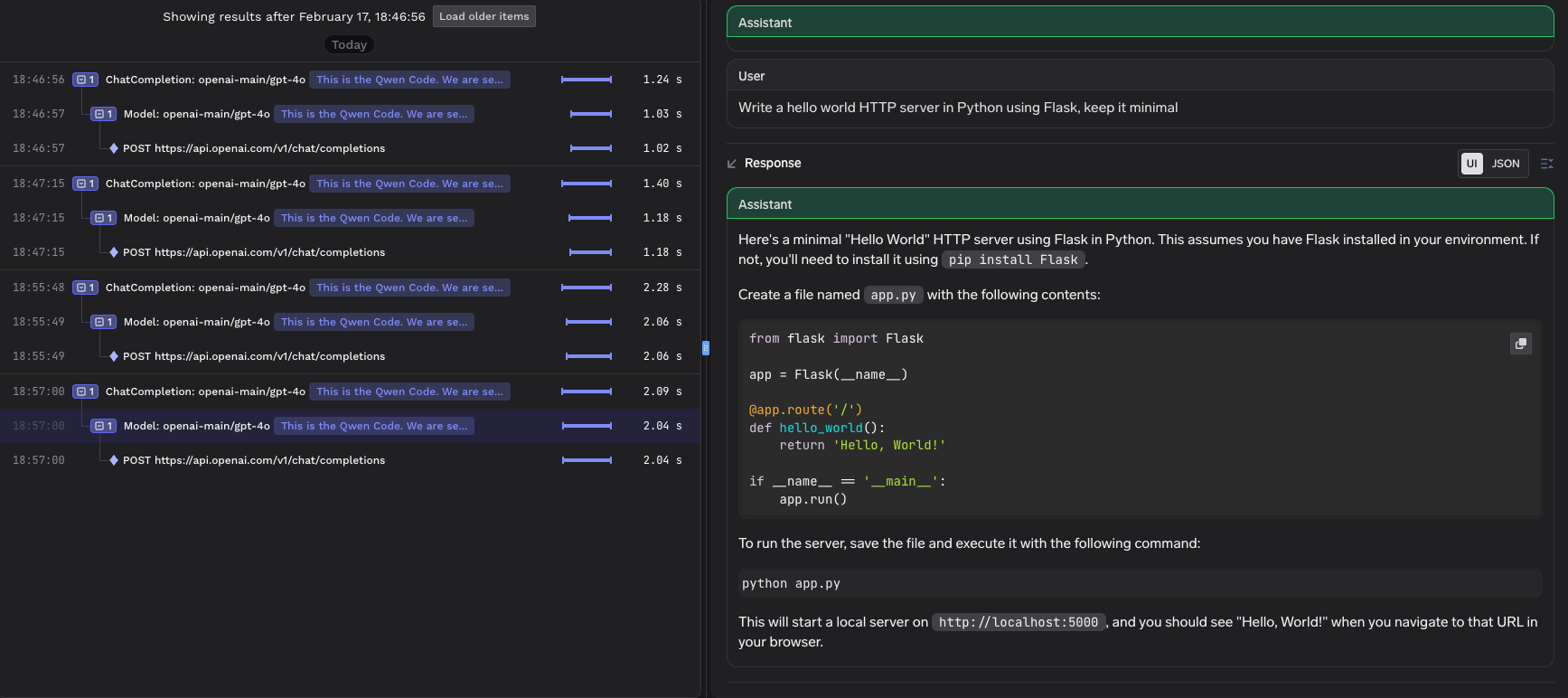 This gives you full visibility into:
* **Request traces**: See every request made by Qwen Code, including the model used and response times
* **Token usage**: Track input and output token consumption across sessions
* **Cost monitoring**: Monitor spend across different models and providers
* **Governance**: Enforce policies, rate limits, and access controls on all AI requests
This gives you full visibility into:
* **Request traces**: See every request made by Qwen Code, including the model used and response times
* **Token usage**: Track input and output token consumption across sessions
* **Cost monitoring**: Monitor spend across different models and providers
* **Governance**: Enforce policies, rate limits, and access controls on all AI requests