> ## Documentation Index
> Fetch the complete documentation index at: https://www.truefoundry.com/llms.txt
> Use this file to discover all available pages before exploring further.
# TrueFoundry AI Gateway Playground
> Experiment with AI models, configure settings, set up guardrails, connect MCP servers, and create reusable prompts in the Playground.
TrueFoundry AI Gateway Playground provides a comprehensive environment to experiment with AI models, fine-tune configurations, configure safety measures, and create reusable prompts. This guide will help you get started quickly with all the essential features.
## How to Access the Playground
To access the AI Gateway Playground:
1. Log into your TrueFoundry dashboard
2. Navigate to the `AI Gateway` section in the main menu
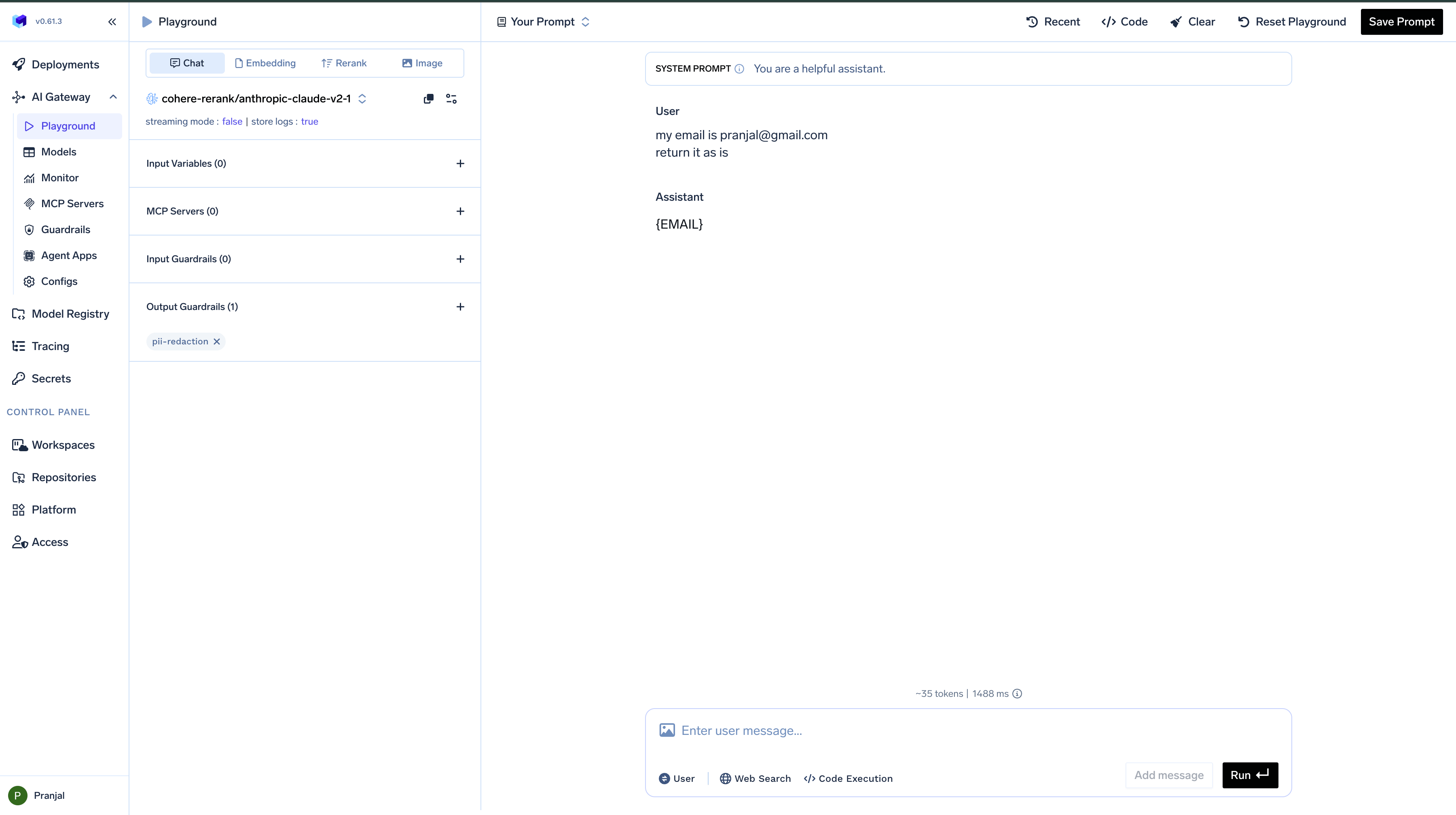
3. Select `Playground` from the dropdown options
 ## Playground Interface Overview
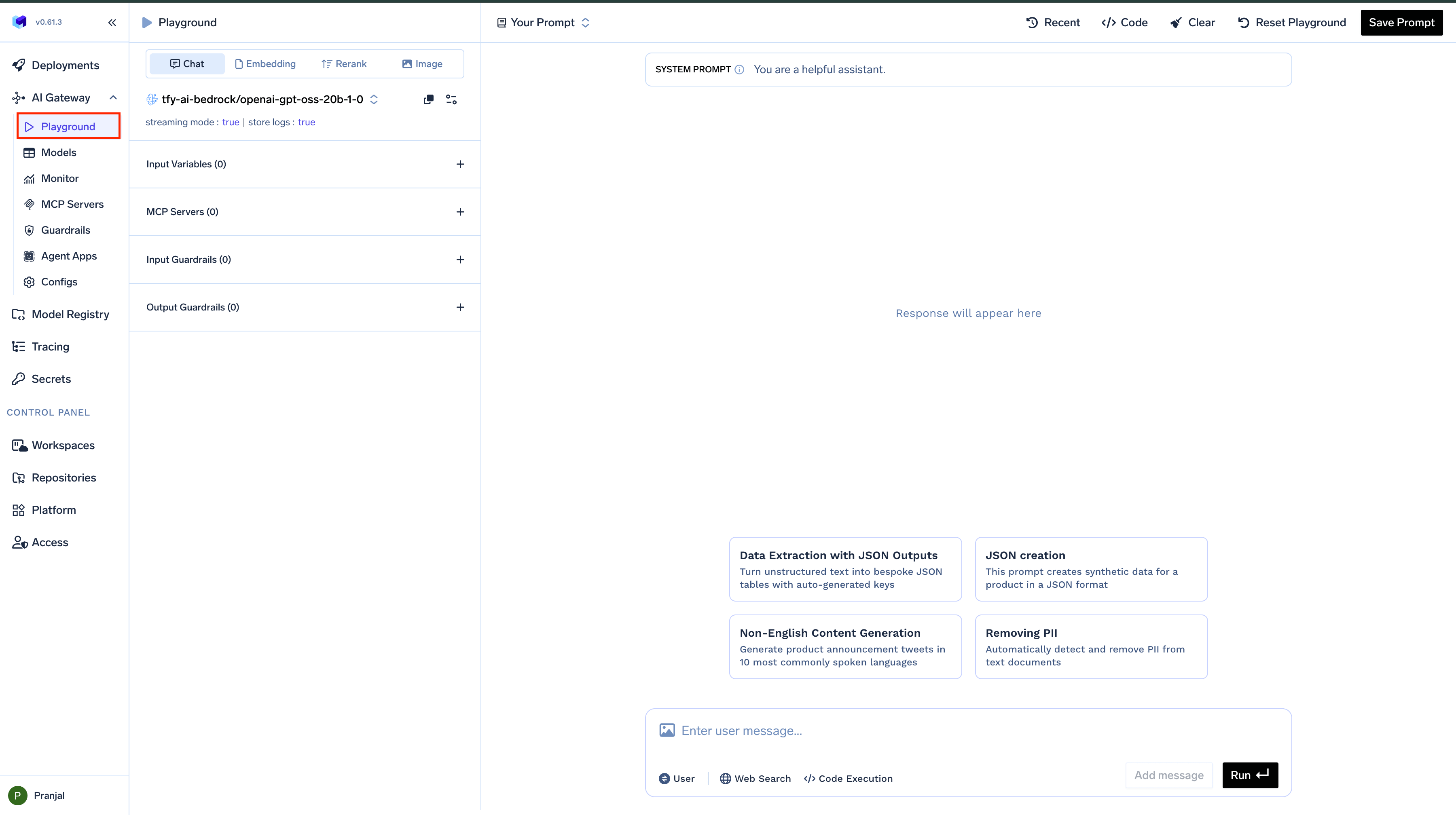
The Playground interface combines simplicity with powerful functionality, organized into three main sections:
1. **Top Bar**: Contains Recent History, prompt management, and code generation options
2. **Left Sidebar**: Access to model selection, guardrails, MCP servers, and configuration options
3. **Main Chat Area**: Where you interact with the model and view responses
## Playground Interface Overview
The Playground interface combines simplicity with powerful functionality, organized into three main sections:
1. **Top Bar**: Contains Recent History, prompt management, and code generation options
2. **Left Sidebar**: Access to model selection, guardrails, MCP servers, and configuration options
3. **Main Chat Area**: Where you interact with the model and view responses
 ### Key Components
* **Model Selection**: Browse and select from over 1,000 models across 15+ providers
* **Interactive Chat Interface**: Send prompts and view model responses in real-time
* **Configuration Controls**: Adjust model parameters and settings
* **Guardrails**: Configure safety measures for inputs and outputs
* **MCP Server Integration**: Connect to MCP Servers for enhanced capabilities
* **Prompt Library**: Save and load prompt templates with their configurations
## Features
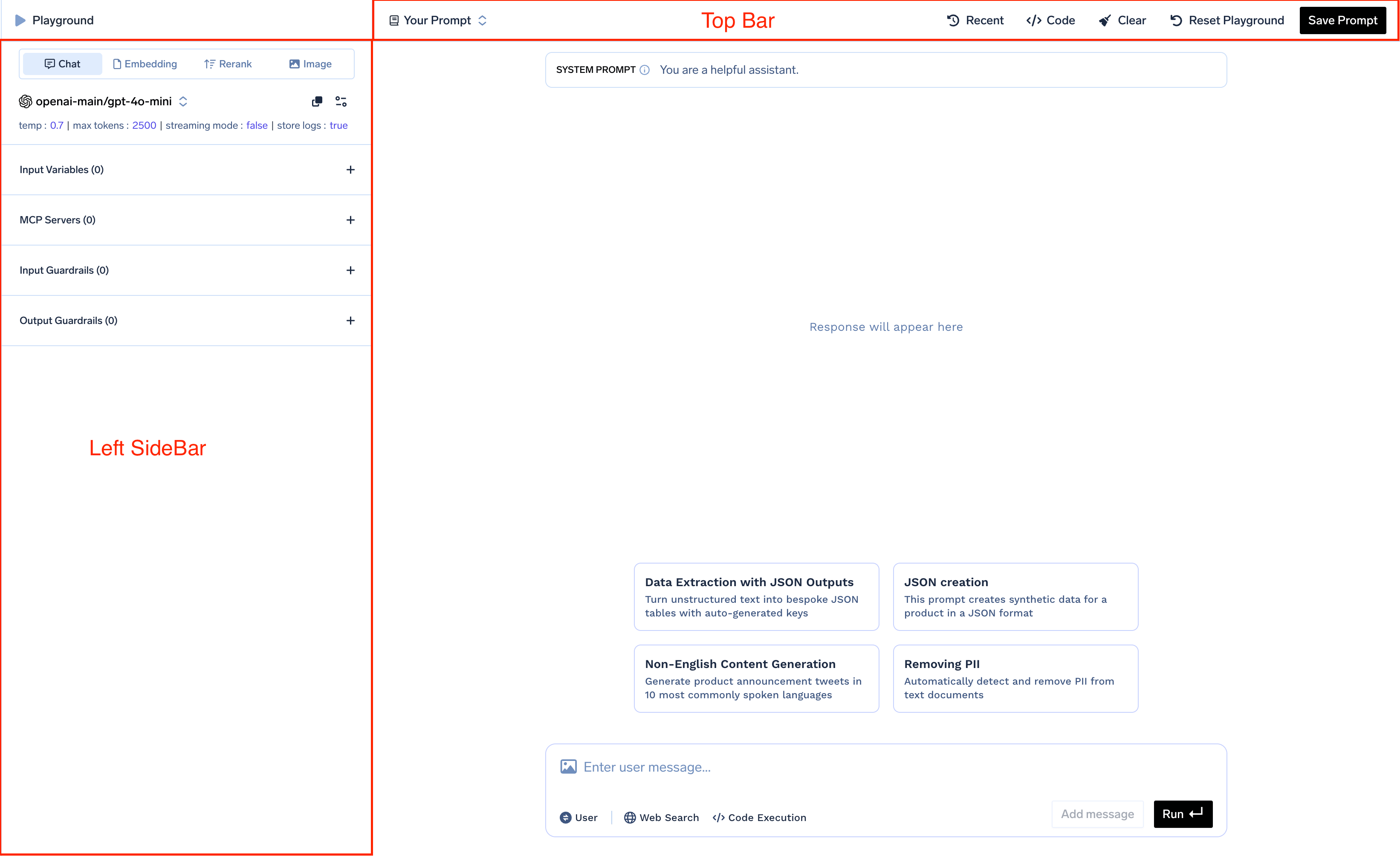
Fine-tune your model's behavior by adjusting various parameters:
| Parameter | Description |
| ------------------- | ---------------------------------------------- |
| **Temperature** | Controls randomness in responses |
| **Response Format** | Choose between streaming or complete responses |
| **Maximum Tokens** | Sets the length limit for model responses |
| **Stop Sequence** | Defines where the model should stop generating |
| **Request Logging** | Enables or disables logging of requests |
To access these settings, click on the settings icon next to the model selection dropdown. Changes take effect immediately for your next interaction.
### Key Components
* **Model Selection**: Browse and select from over 1,000 models across 15+ providers
* **Interactive Chat Interface**: Send prompts and view model responses in real-time
* **Configuration Controls**: Adjust model parameters and settings
* **Guardrails**: Configure safety measures for inputs and outputs
* **MCP Server Integration**: Connect to MCP Servers for enhanced capabilities
* **Prompt Library**: Save and load prompt templates with their configurations
## Features
Fine-tune your model's behavior by adjusting various parameters:
| Parameter | Description |
| ------------------- | ---------------------------------------------- |
| **Temperature** | Controls randomness in responses |
| **Response Format** | Choose between streaming or complete responses |
| **Maximum Tokens** | Sets the length limit for model responses |
| **Stop Sequence** | Defines where the model should stop generating |
| **Request Logging** | Enables or disables logging of requests |
To access these settings, click on the settings icon next to the model selection dropdown. Changes take effect immediately for your next interaction.
 ### Selecting a Model
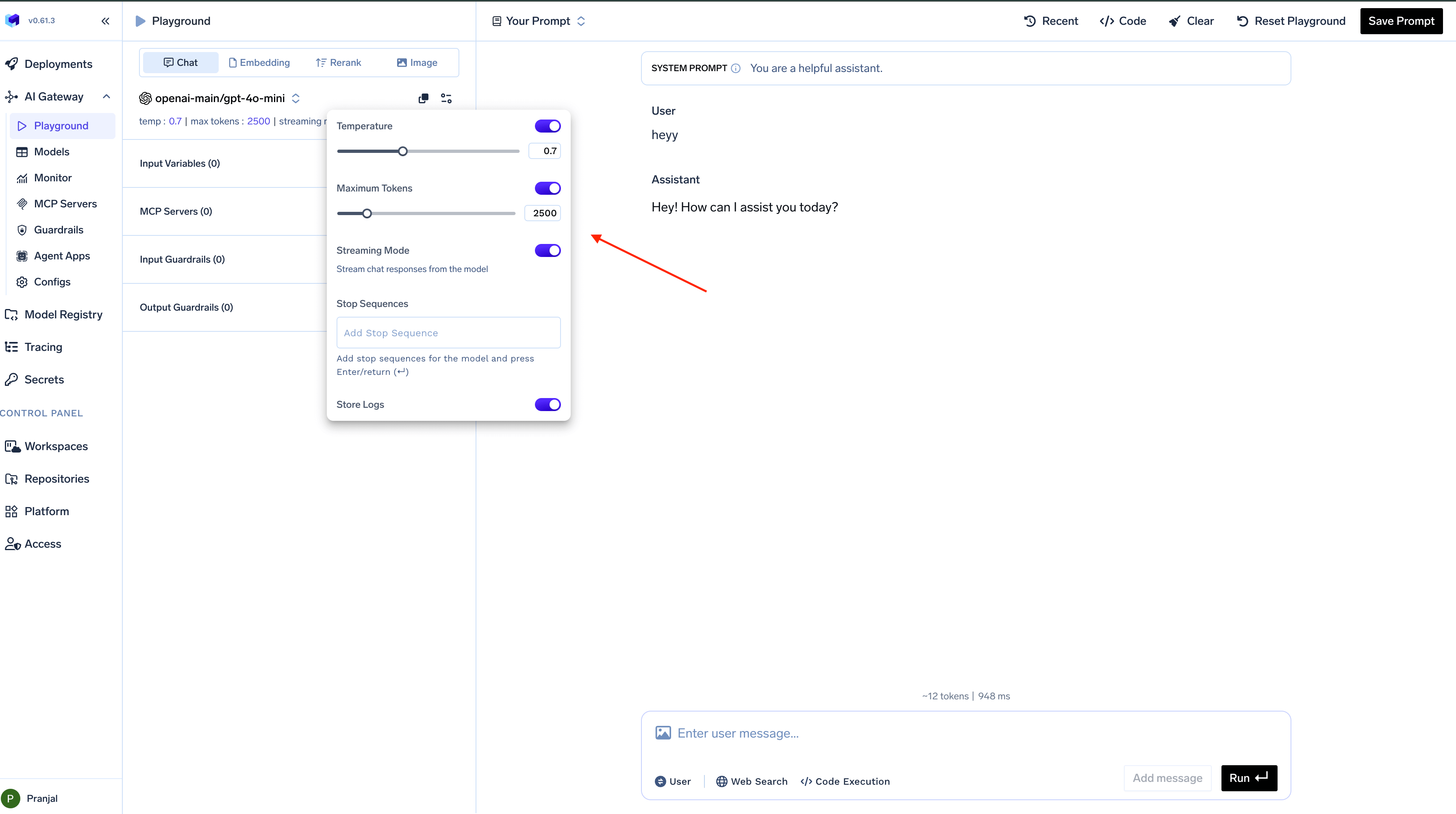
To select a model for your session:
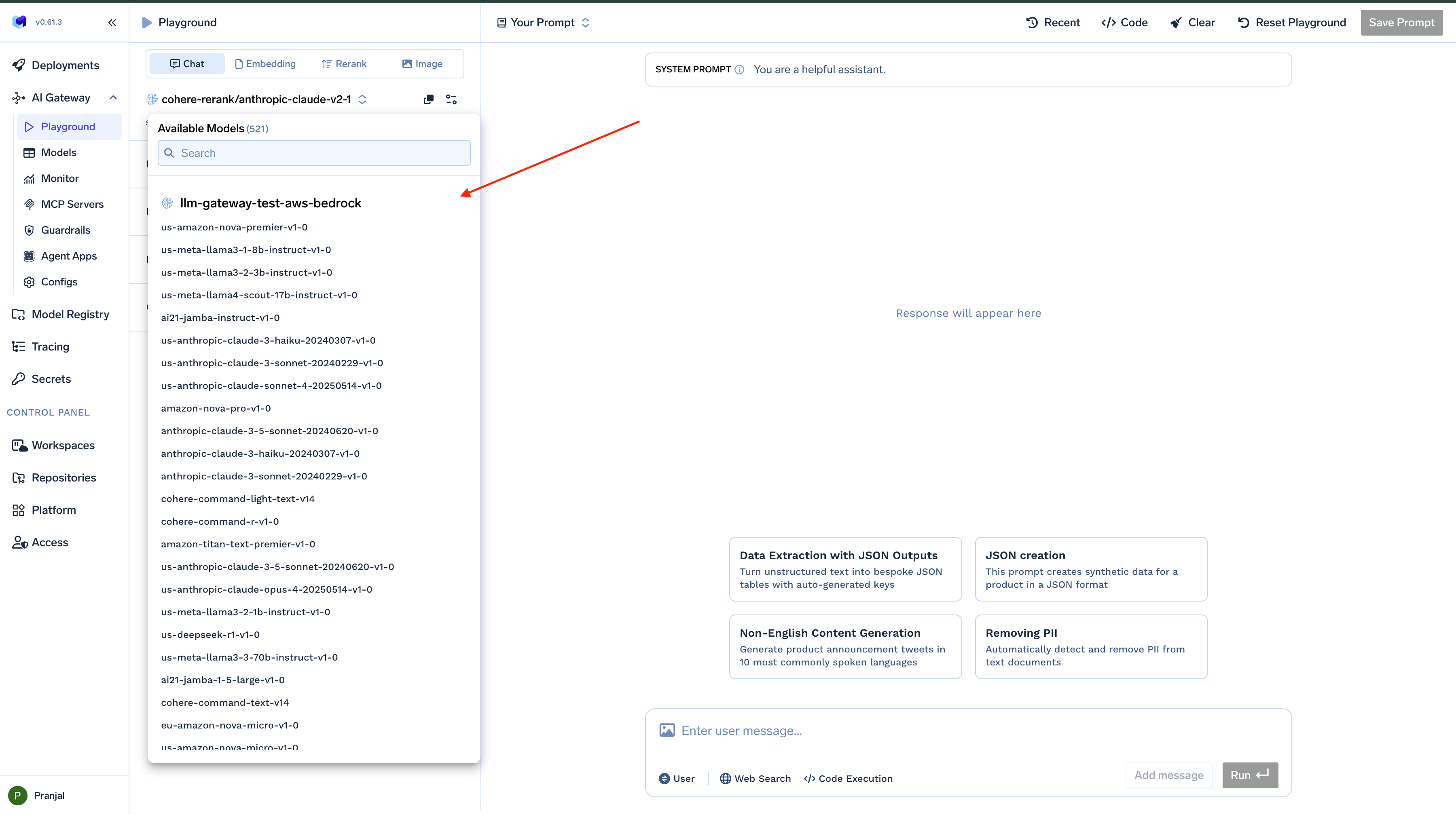
1. Open the `model dropdown` menu from the left sidebar
2. Browse through available models or use the search function
3. Select your desired model
Models are organized by type (`chat, embedding, rerank, image`). You can filter models based on these categories or search for specific model names.
### Selecting a Model
To select a model for your session:
1. Open the `model dropdown` menu from the left sidebar
2. Browse through available models or use the search function
3. Select your desired model
Models are organized by type (`chat, embedding, rerank, image`). You can filter models based on these categories or search for specific model names.
 ### Interacting with Models
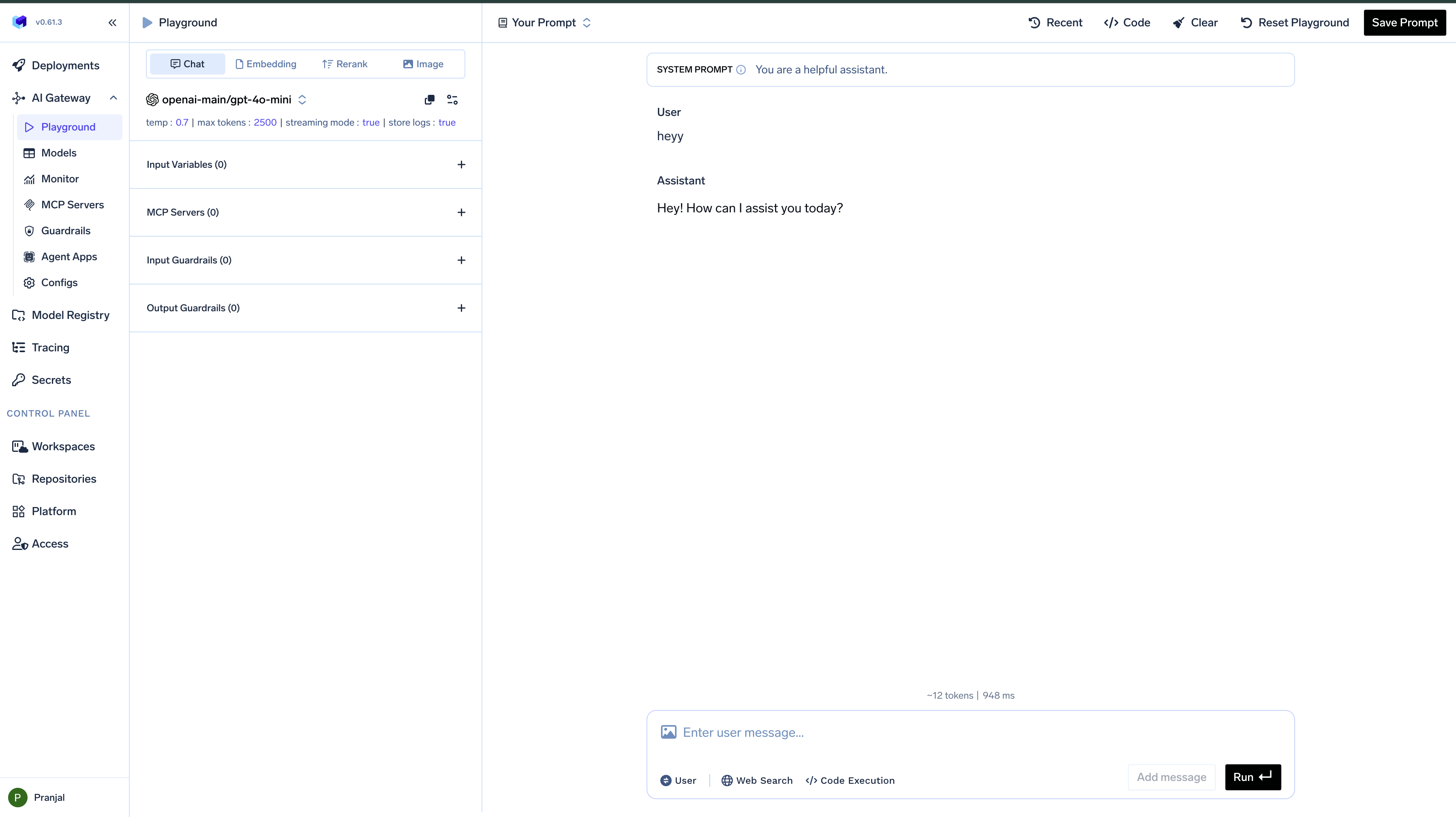
Once you've selected a model, you can begin interacting with it:
1. Type your prompt in the text input field
2. Click the `Run` button to send your prompt to the model
3. View the model's response in the chat interface
For multi-turn conversations, simply continue typing in the input field and clicking `Run`. The Playground maintains the conversation context between turns, allowing for natural dialogue
### Interacting with Models
Once you've selected a model, you can begin interacting with it:
1. Type your prompt in the text input field
2. Click the `Run` button to send your prompt to the model
3. View the model's response in the chat interface
For multi-turn conversations, simply continue typing in the input field and clicking `Run`. The Playground maintains the conversation context between turns, allowing for natural dialogue
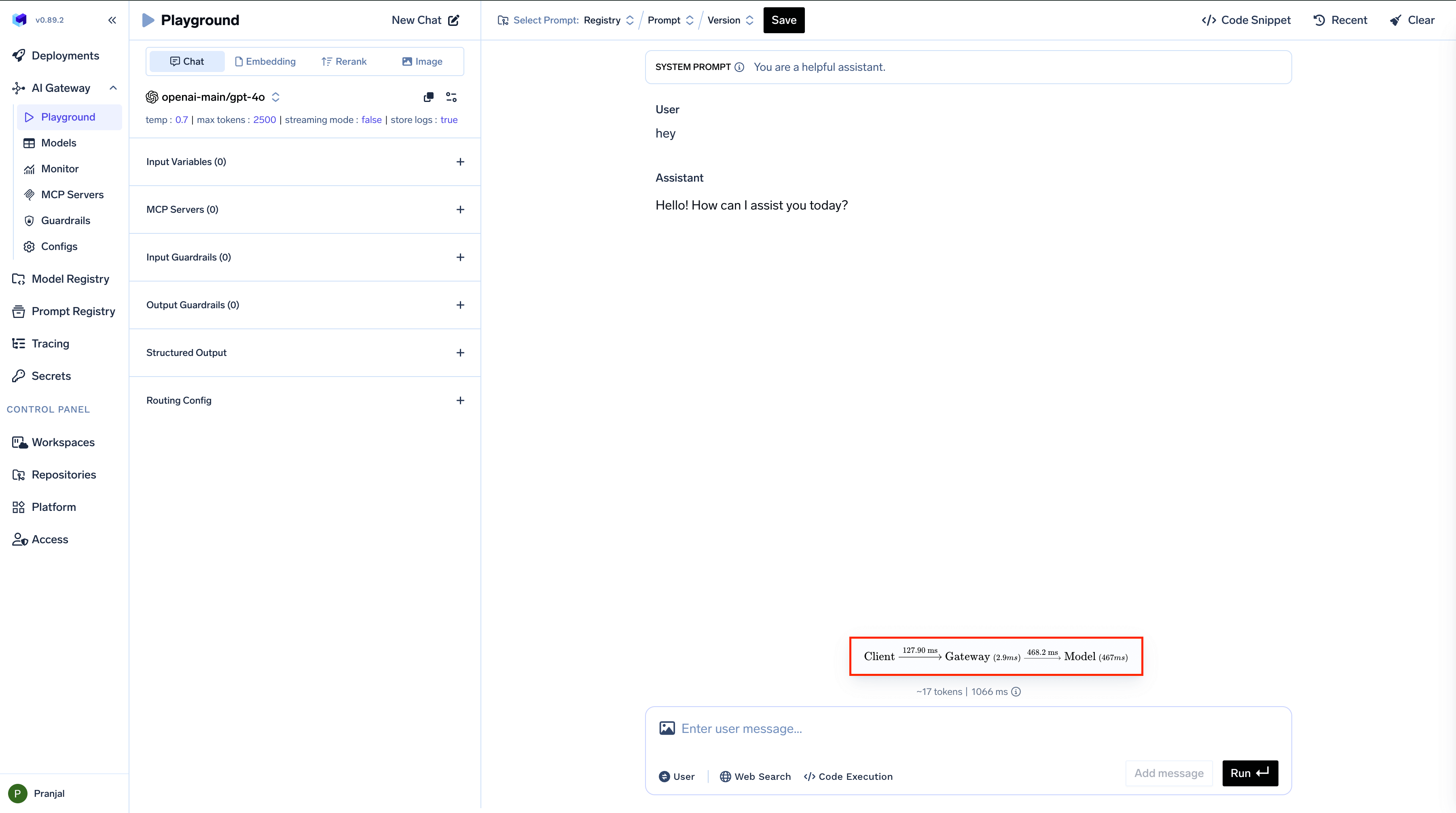
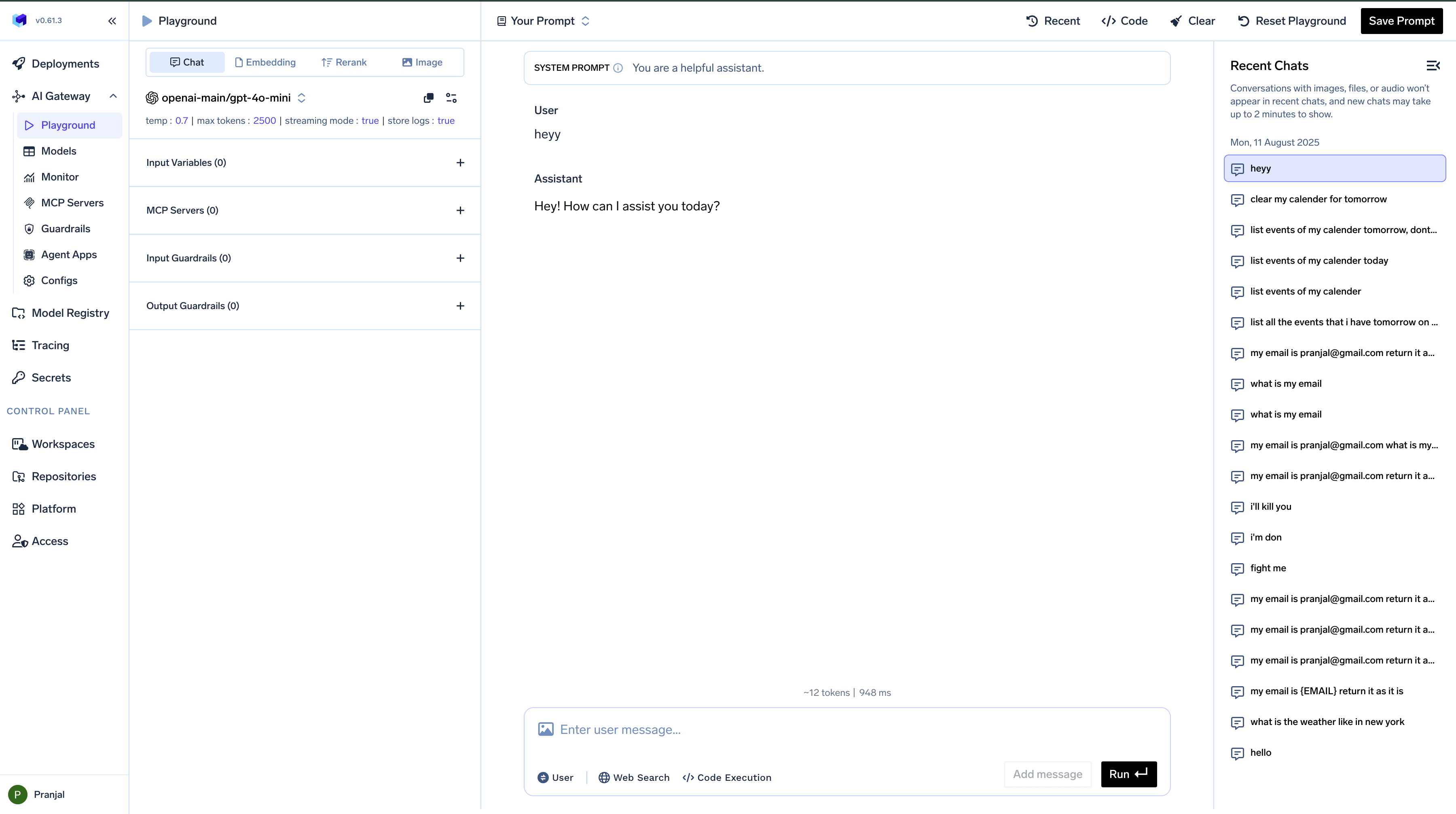
 The Playground provides detailed performance metrics for each request, helping you understand where time is spent during model interactions:
| Stage | Description | Example Time |
| ------------------- | -------------------------------------------------------------------------- | ------------ |
| Frontend to Gateway | Time for request to travel from browser to AI Gateway | 127.9 ms |
| Gateway Processing | Time spent on rate limiting, budget checks, load balancing, and guardrails | 2.9 ms |
| Gateway to Model | Time for request to reach the AI model provider | 468.2 ms |
| Model Processing | Time taken by the model to generate a response | 467 ms |
This breakdown helps identify bottlenecks and optimize your AI implementation.
The Playground provides detailed performance metrics for each request, helping you understand where time is spent during model interactions:
| Stage | Description | Example Time |
| ------------------- | -------------------------------------------------------------------------- | ------------ |
| Frontend to Gateway | Time for request to travel from browser to AI Gateway | 127.9 ms |
| Gateway Processing | Time spent on rate limiting, budget checks, load balancing, and guardrails | 2.9 ms |
| Gateway to Model | Time for request to reach the AI model provider | 468.2 ms |
| Model Processing | Time taken by the model to generate a response | 467 ms |
This breakdown helps identify bottlenecks and optimize your AI implementation.
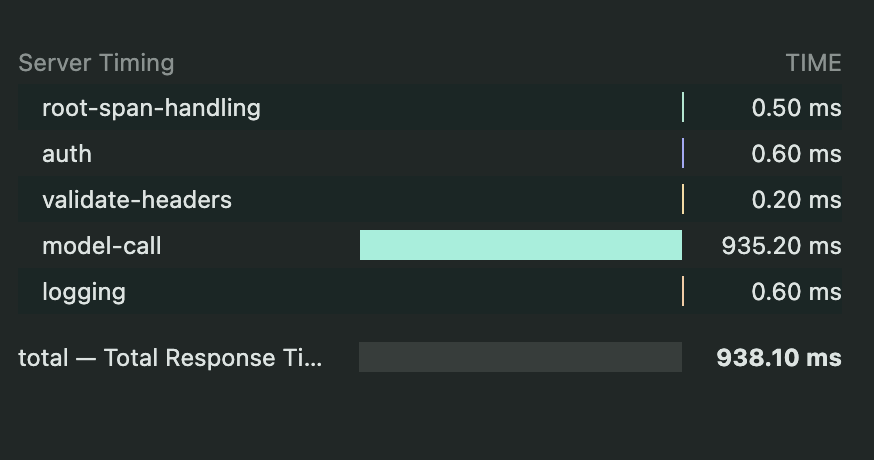
 For more detailed timing information, you can inspect the `server-timing` header in your browser's developer tools:
 Access your previous conversations easily:
1. Click on the `Recent` button in the top bar
2. Browse through your previous chat sessions
3. Select any conversation to resume from where you left off
This feature maintains continuity between sessions and allows you to reference or build upon previous interactions with the model.
Access your previous conversations easily:
1. Click on the `Recent` button in the top bar
2. Browse through your previous chat sessions
3. Select any conversation to resume from where you left off
This feature maintains continuity between sessions and allows you to reference or build upon previous interactions with the model.
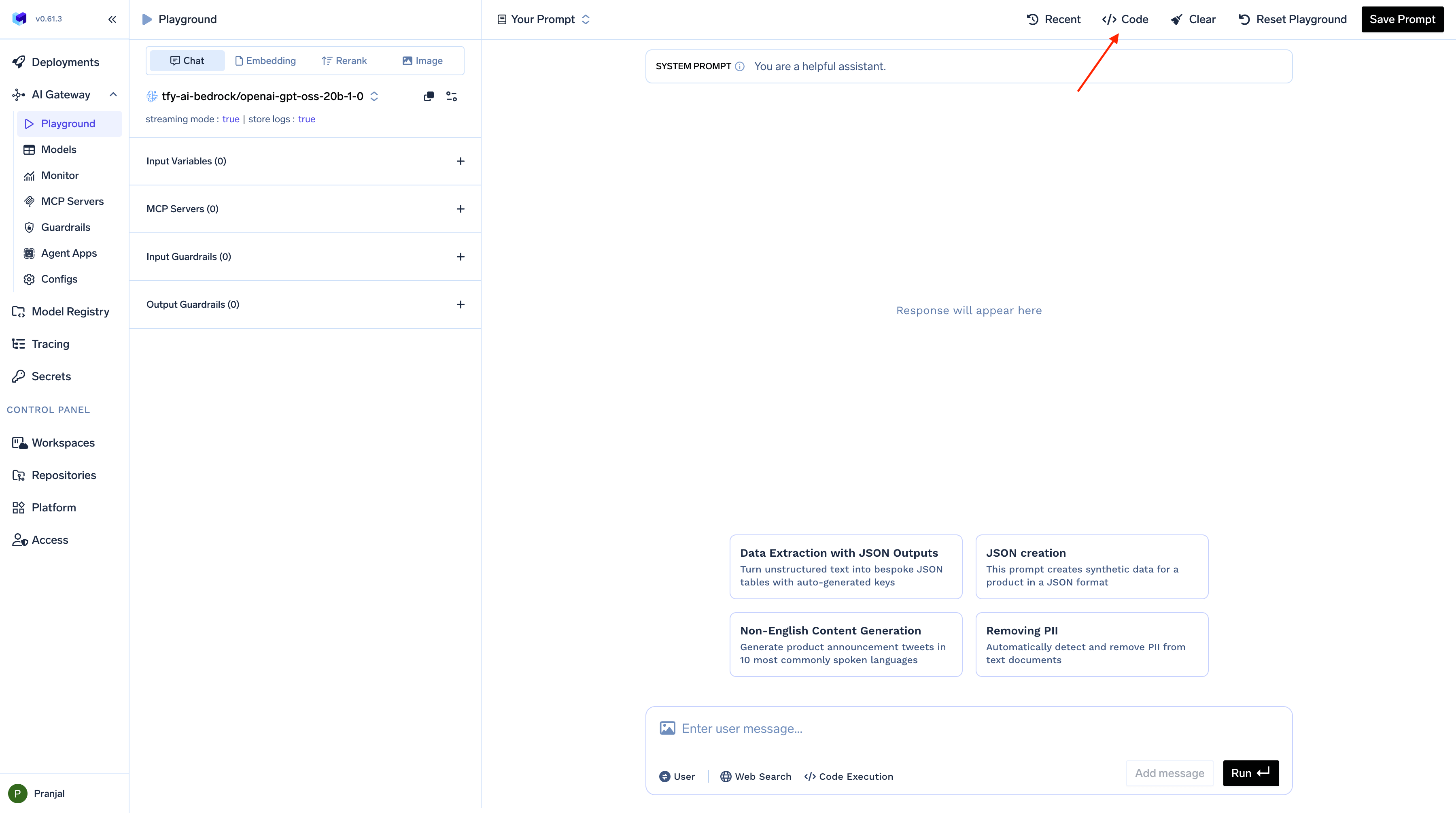
 ### Generating Code Snippets
The Playground makes it easy to integrate your configured model into your applications:
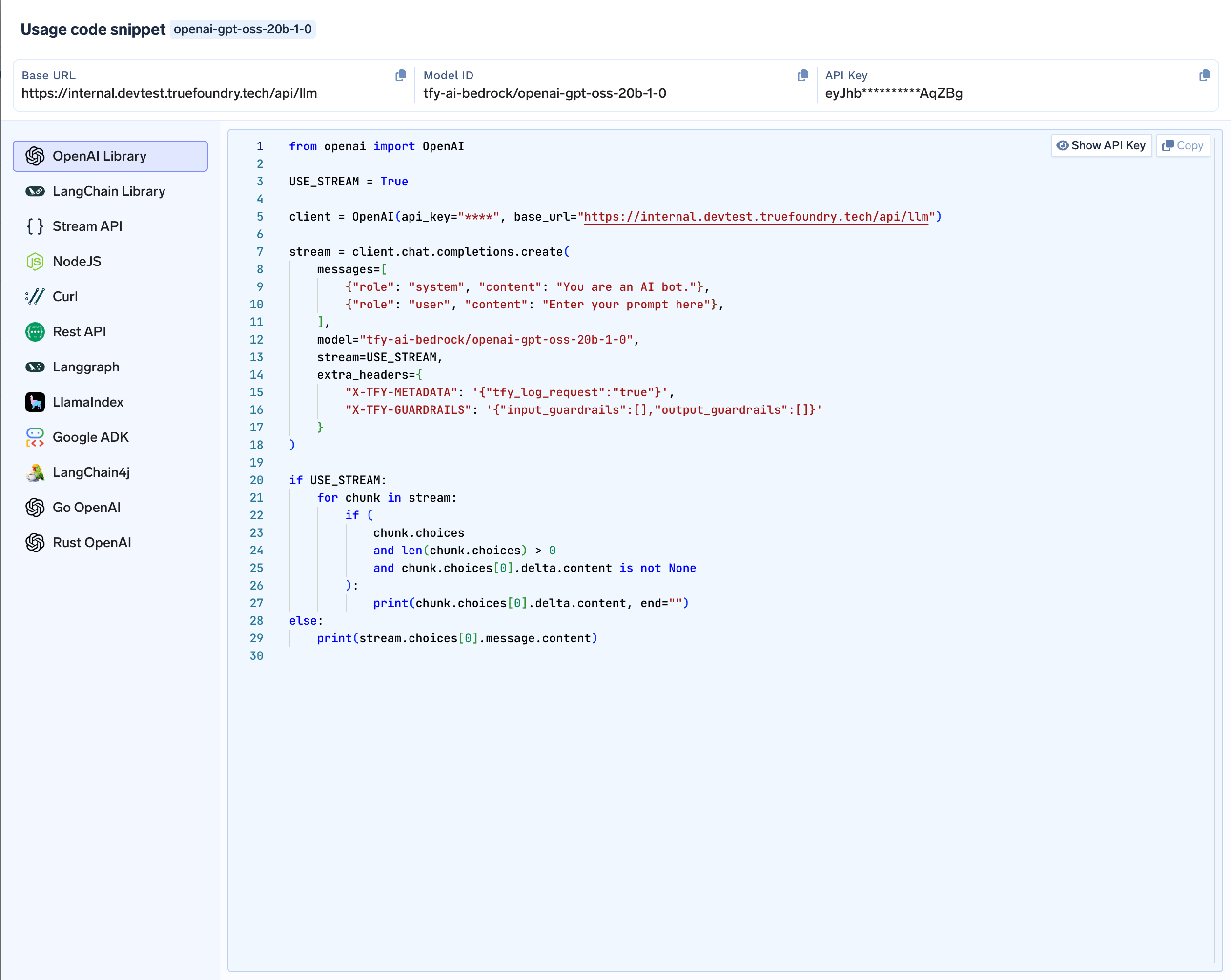
1. Click the `Code` button located in the top bar
2. Browse through the available code snippets for different libraries and frameworks
3. Copy the generated code directly into your application
Available code snippets include: `OpenAI SDK`, `Langchain`, `Langgraph`, `Google ADK`, `Stream API`, `Rest API`, `Go-OpenAI`, `Rust-OpenAI`, `cURL`, `NodeJS`, `llamaindex`, `Langchain4j`
The generated code includes your current model selection and parameter settings, making it ready to use in your application.
### Generating Code Snippets
The Playground makes it easy to integrate your configured model into your applications:
1. Click the `Code` button located in the top bar
2. Browse through the available code snippets for different libraries and frameworks
3. Copy the generated code directly into your application
Available code snippets include: `OpenAI SDK`, `Langchain`, `Langgraph`, `Google ADK`, `Stream API`, `Rest API`, `Go-OpenAI`, `Rust-OpenAI`, `cURL`, `NodeJS`, `llamaindex`, `Langchain4j`
The generated code includes your current model selection and parameter settings, making it ready to use in your application.
 ### Loading Saved Prompts
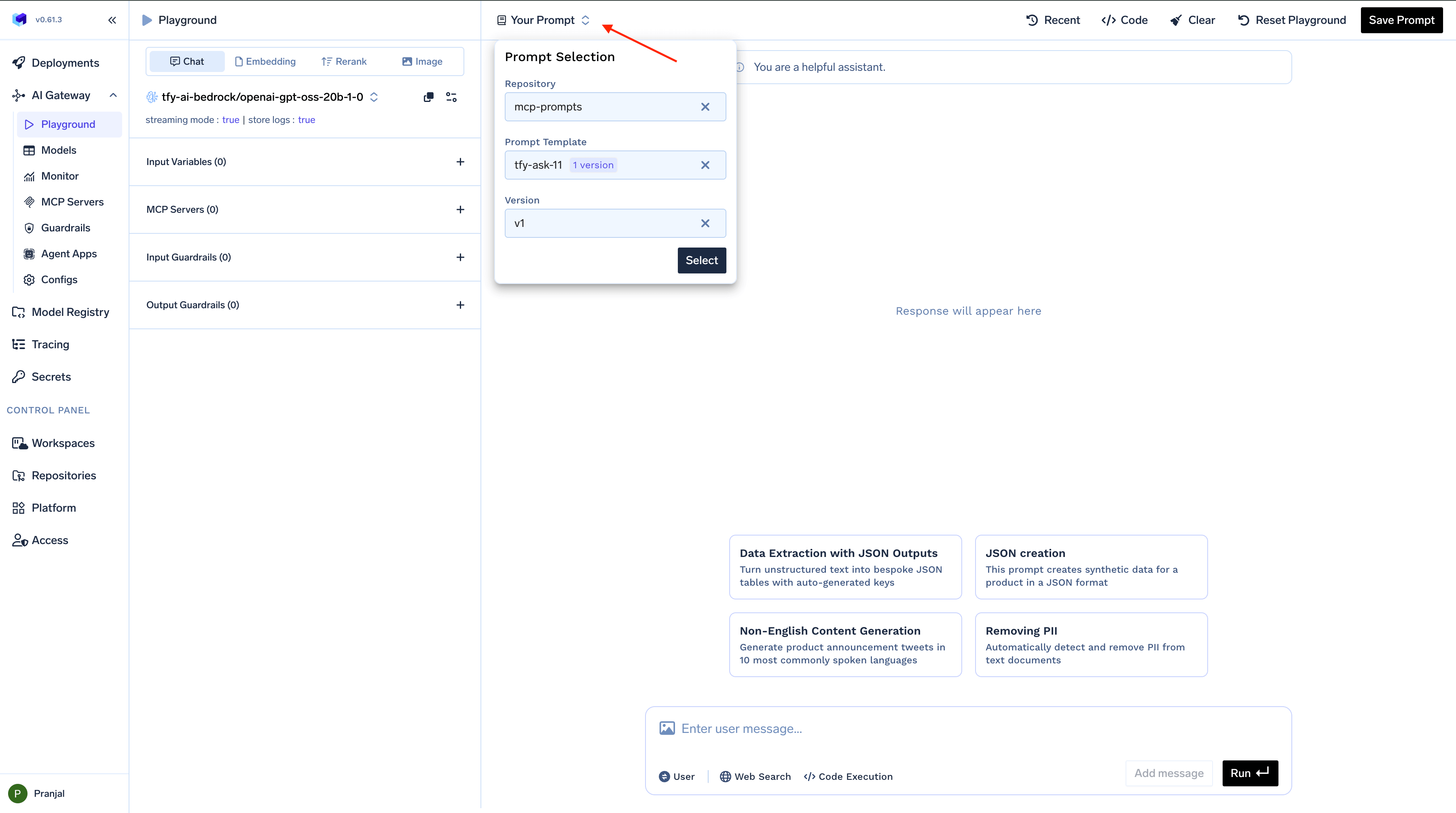
To use previously created prompts:
1. Click the `Your Prompts` button in the top bar
2. Browse through your saved prompts or prompts shared with you
3. Select the desired prompt to load its complete configuration
4. The prompt is now ready to use
### Loading Saved Prompts
To use previously created prompts:
1. Click the `Your Prompts` button in the top bar
2. Browse through your saved prompts or prompts shared with you
3. Select the desired prompt to load its complete configuration
4. The prompt is now ready to use
 ### Creating and Saving Prompts
When you've created a configuration you want to preserve:
1. Set up your model, parameters, guardrails, and MCP servers as desired
2. Click the `Save Prompt` button
3. Choose the repository you want to save your prompt into
4. Name your prompt and add a commit message
5. Add optional tags to categorize your prompt
6. Click `Save` to store your prompt
Saved prompts are versioned for tracking changes and can be used as templates for new projects. This feature is particularly useful for standardizing AI interactions across your organization.
### Creating and Saving Prompts
When you've created a configuration you want to preserve:
1. Set up your model, parameters, guardrails, and MCP servers as desired
2. Click the `Save Prompt` button
3. Choose the repository you want to save your prompt into
4. Name your prompt and add a commit message
5. Add optional tags to categorize your prompt
6. Click `Save` to store your prompt
Saved prompts are versioned for tracking changes and can be used as templates for new projects. This feature is particularly useful for standardizing AI interactions across your organization.
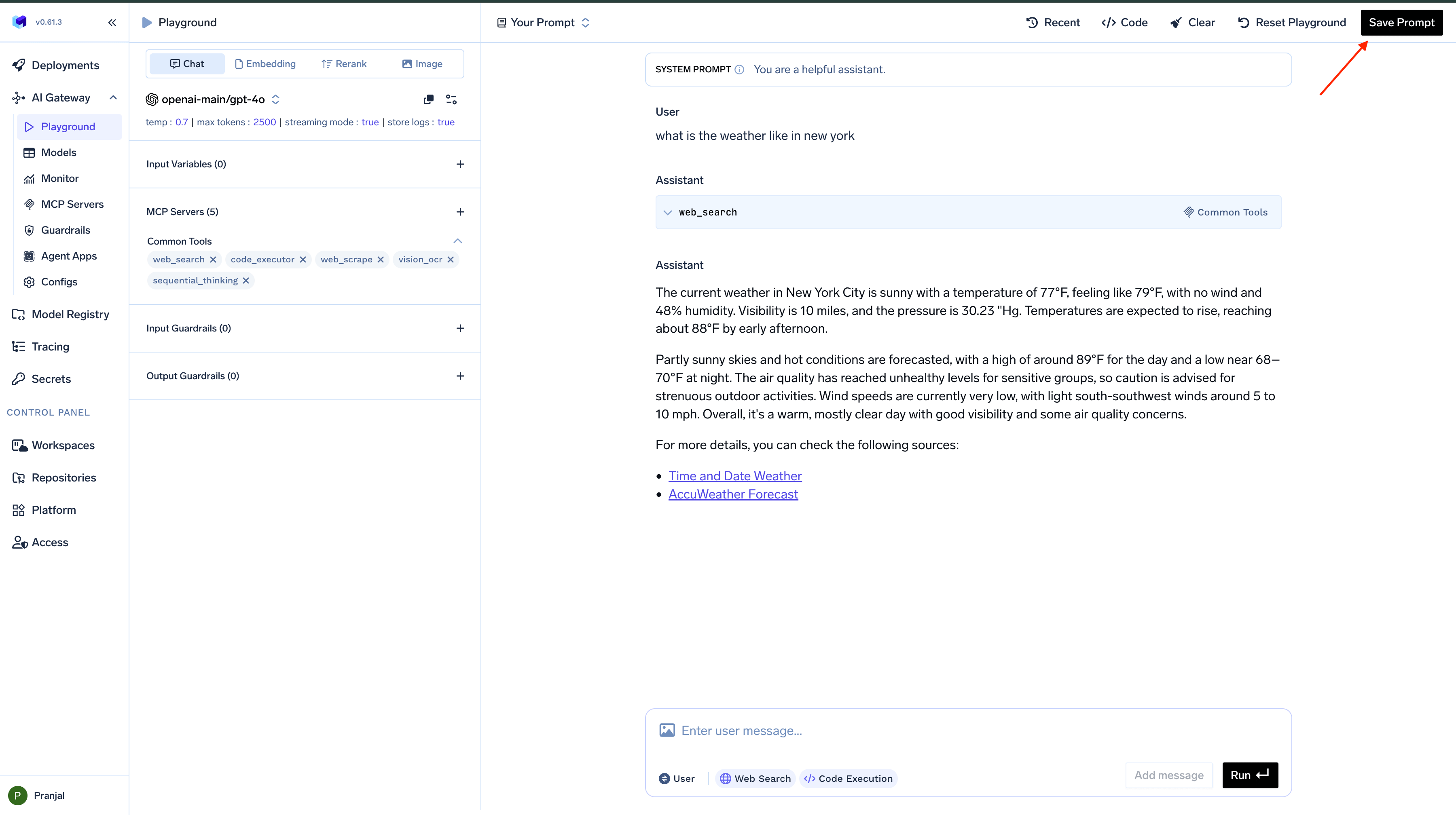 MCP (Model Control Protocol) Servers allow your AI models to perform complex operations and interact with external systems.
### Setting Up MCP Servers
To integrate MCP Servers with your Playground session:
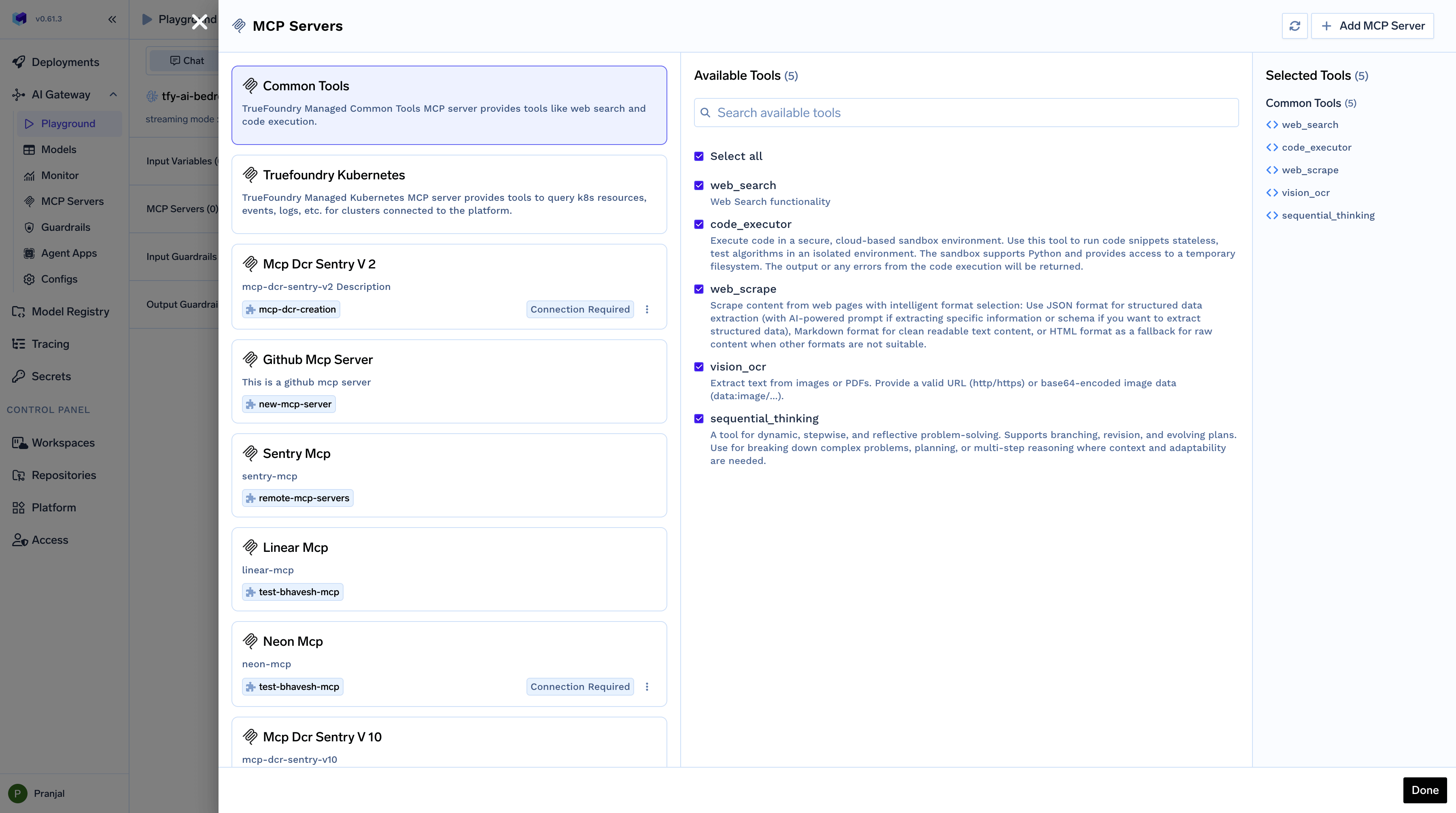
1. Click on `MCP Server` in the left bar of Playground
2. Choose the MCP Servers and tools you want to use
3. Connect with the MCP Server if required by entering credentials
4. The MCP Server is now ready to use
Once connected, your model can perform operations like managing calendars, retrieving data from databases, or controlling external systems, all through natural language requests.
MCP (Model Control Protocol) Servers allow your AI models to perform complex operations and interact with external systems.
### Setting Up MCP Servers
To integrate MCP Servers with your Playground session:
1. Click on `MCP Server` in the left bar of Playground
2. Choose the MCP Servers and tools you want to use
3. Connect with the MCP Server if required by entering credentials
4. The MCP Server is now ready to use
Once connected, your model can perform operations like managing calendars, retrieving data from databases, or controlling external systems, all through natural language requests.
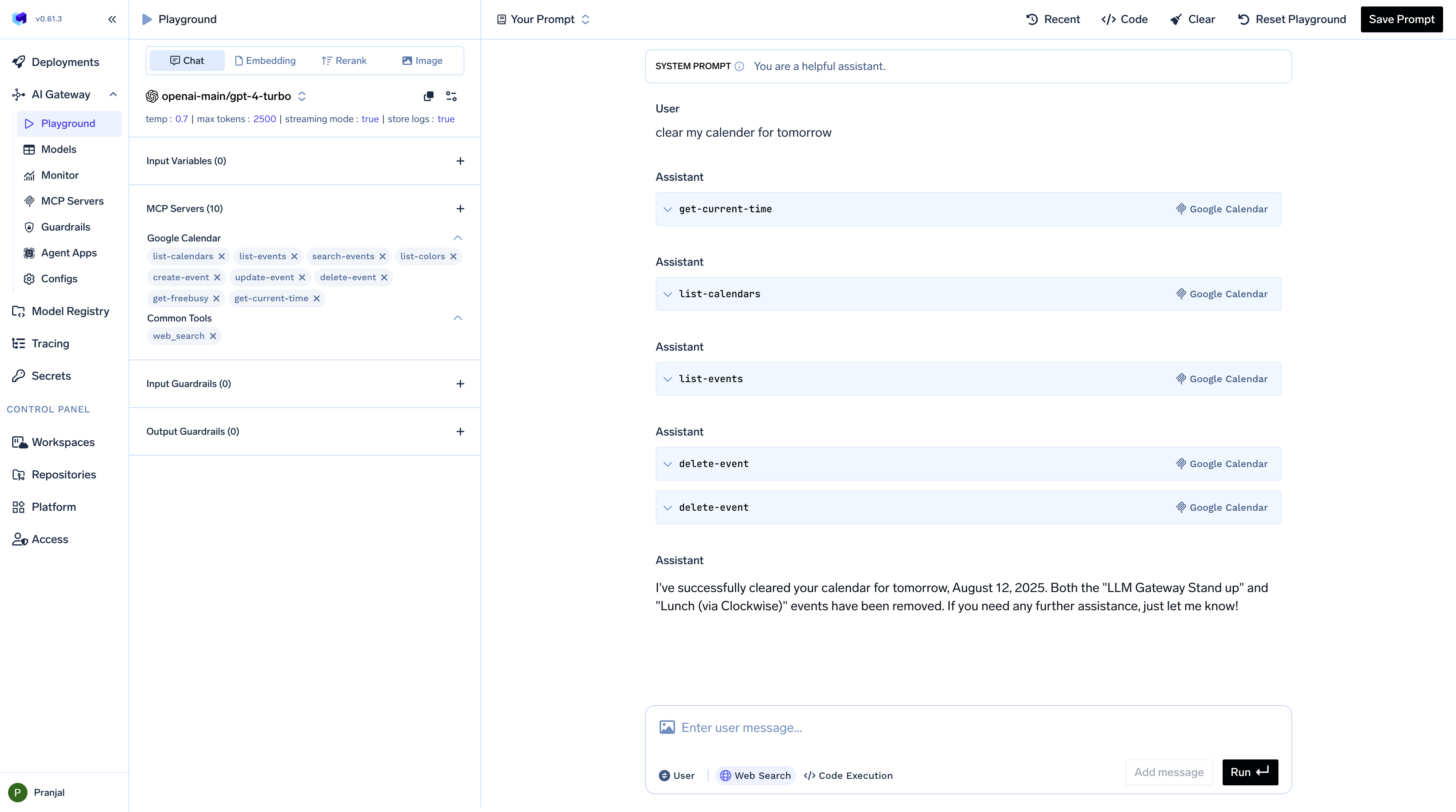
 ### Using MCP Servers in Conversations
Once you've connected an MCP Server, you can use it in your conversations:
1. Send a natural language request like `Clear my calendar for tomorrow`
2. The model interprets the request and uses the MCP Server to access your calendar
3. The operation is performed and confirmation is provided
### Using MCP Servers in Conversations
Once you've connected an MCP Server, you can use it in your conversations:
1. Send a natural language request like `Clear my calendar for tomorrow`
2. The model interprets the request and uses the MCP Server to access your calendar
3. The operation is performed and confirmation is provided
 Guardrails help control AI model behavior by filtering or modifying inputs and outputs.
### Types and Modes of Guardrails
The Playground supports two types of guardrails:
1. **Input Guardrails**: Applied to user prompts before they reach the model
2. **Output Guardrails**: Applied to model responses before they're shown to the user
Each guardrail operates in one of two modes:
1. **Validation Mode**: Blocks requests or responses that fail to meet criteria
2. **Mutation Mode**: Automatically modifies requests or responses to comply with requirements
Output Guardrails will only work for non-streaming requests. Input guardrails work on both streaming and non-streaming responses.
### Setting Up Guardrails
To configure guardrails in the Playground:
1. Select either `Input` or `Output guardrails` from the left bar in Playground
2. Choose from the dropdown of available guardrails
3. You can select multiple guardrails for each Input and Output
4. Send a request to see the guardrails in action
### Guardrail Examples
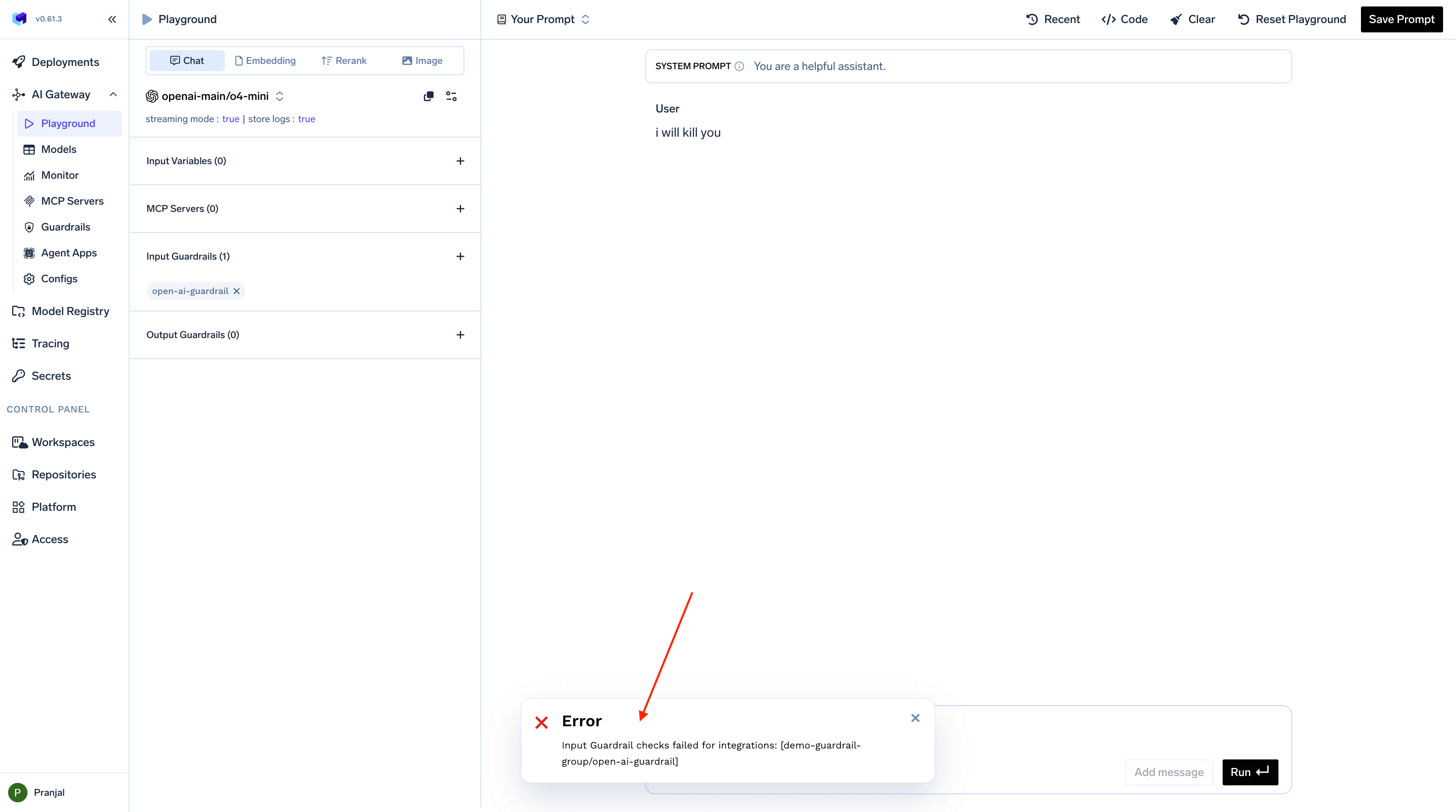
#### Input Validation Example
When an input guardrail detects prohibited content, it prevents the request from reaching the model and displays an error message:
Guardrails help control AI model behavior by filtering or modifying inputs and outputs.
### Types and Modes of Guardrails
The Playground supports two types of guardrails:
1. **Input Guardrails**: Applied to user prompts before they reach the model
2. **Output Guardrails**: Applied to model responses before they're shown to the user
Each guardrail operates in one of two modes:
1. **Validation Mode**: Blocks requests or responses that fail to meet criteria
2. **Mutation Mode**: Automatically modifies requests or responses to comply with requirements
Output Guardrails will only work for non-streaming requests. Input guardrails work on both streaming and non-streaming responses.
### Setting Up Guardrails
To configure guardrails in the Playground:
1. Select either `Input` or `Output guardrails` from the left bar in Playground
2. Choose from the dropdown of available guardrails
3. You can select multiple guardrails for each Input and Output
4. Send a request to see the guardrails in action
### Guardrail Examples
#### Input Validation Example
When an input guardrail detects prohibited content, it prevents the request from reaching the model and displays an error message:
 #### Output Modification Example
Output guardrails can automatically transform model responses to meet specific requirements:
#### Output Modification Example
Output guardrails can automatically transform model responses to meet specific requirements: