> ## Documentation Index
> Fetch the complete documentation index at: https://www.truefoundry.com/llms.txt
> Use this file to discover all available pages before exploring further.
# OpenRouter
> Add and configure OpenRouter models in TrueFoundry's AI Gateway.
### Adding Models
This section explains the steps to add OpenRouter models and configure the required access controls.
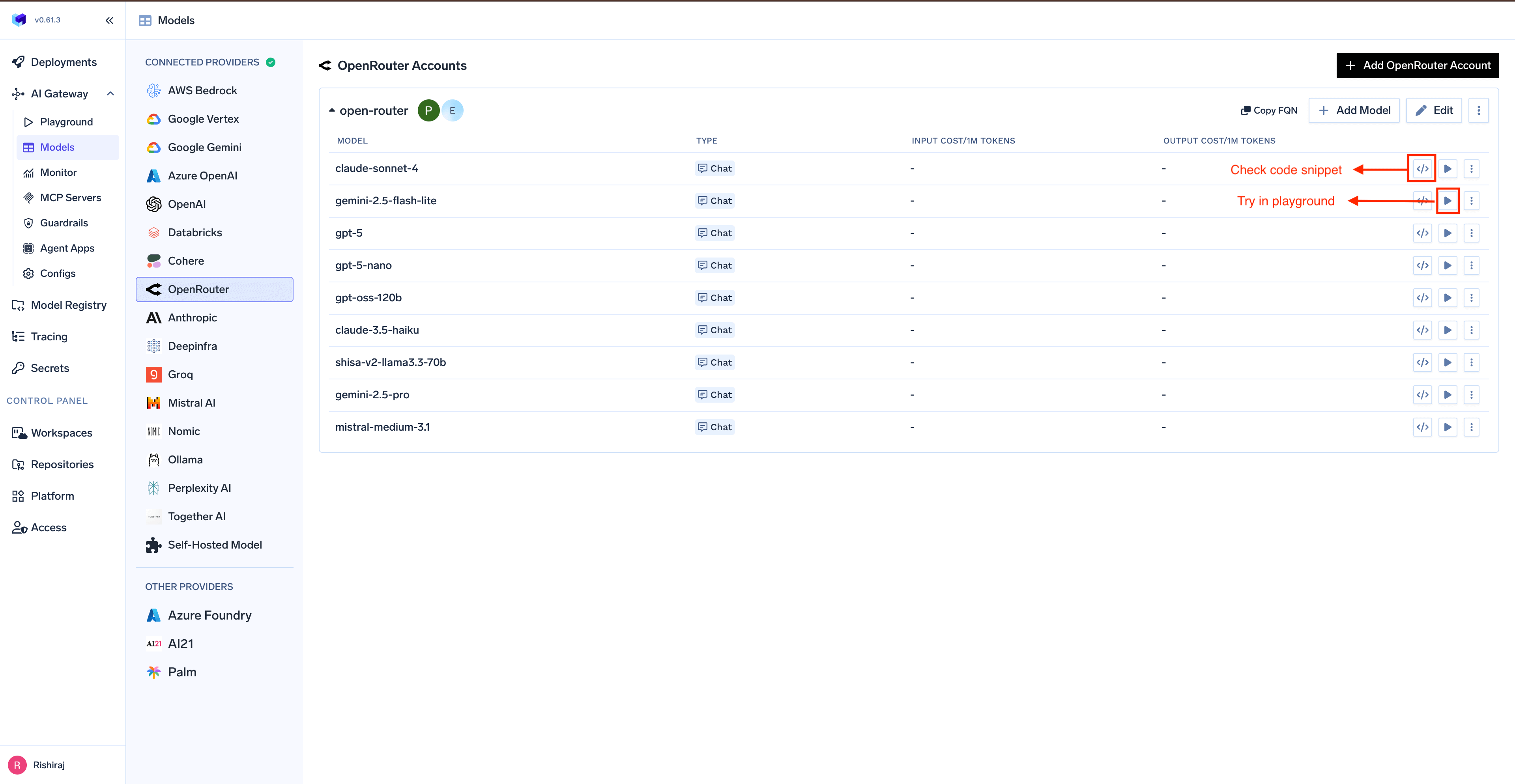
From the TrueFoundry dashboard, navigate to `AI Gateway` > `Models` and select `OpenRouter`.
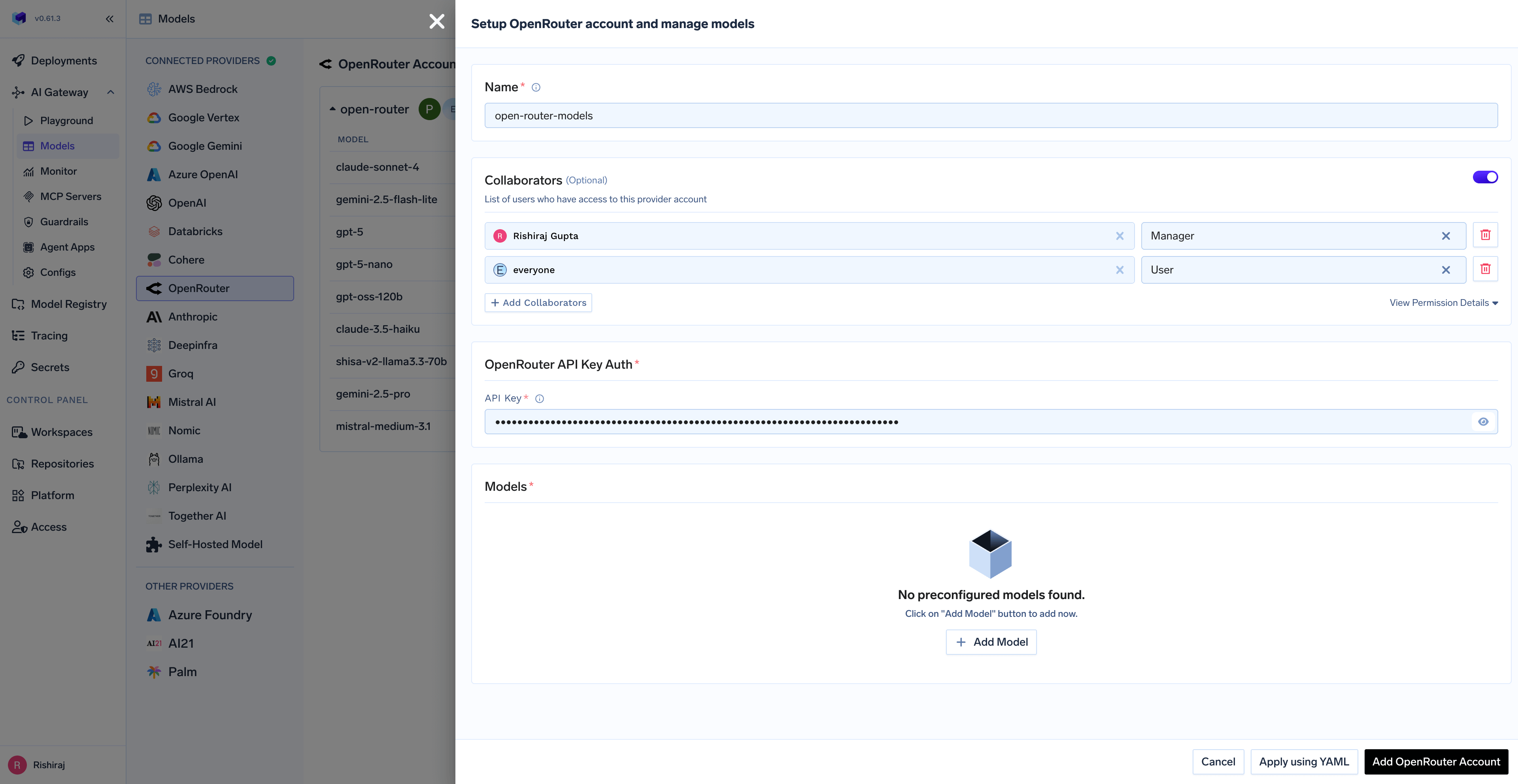
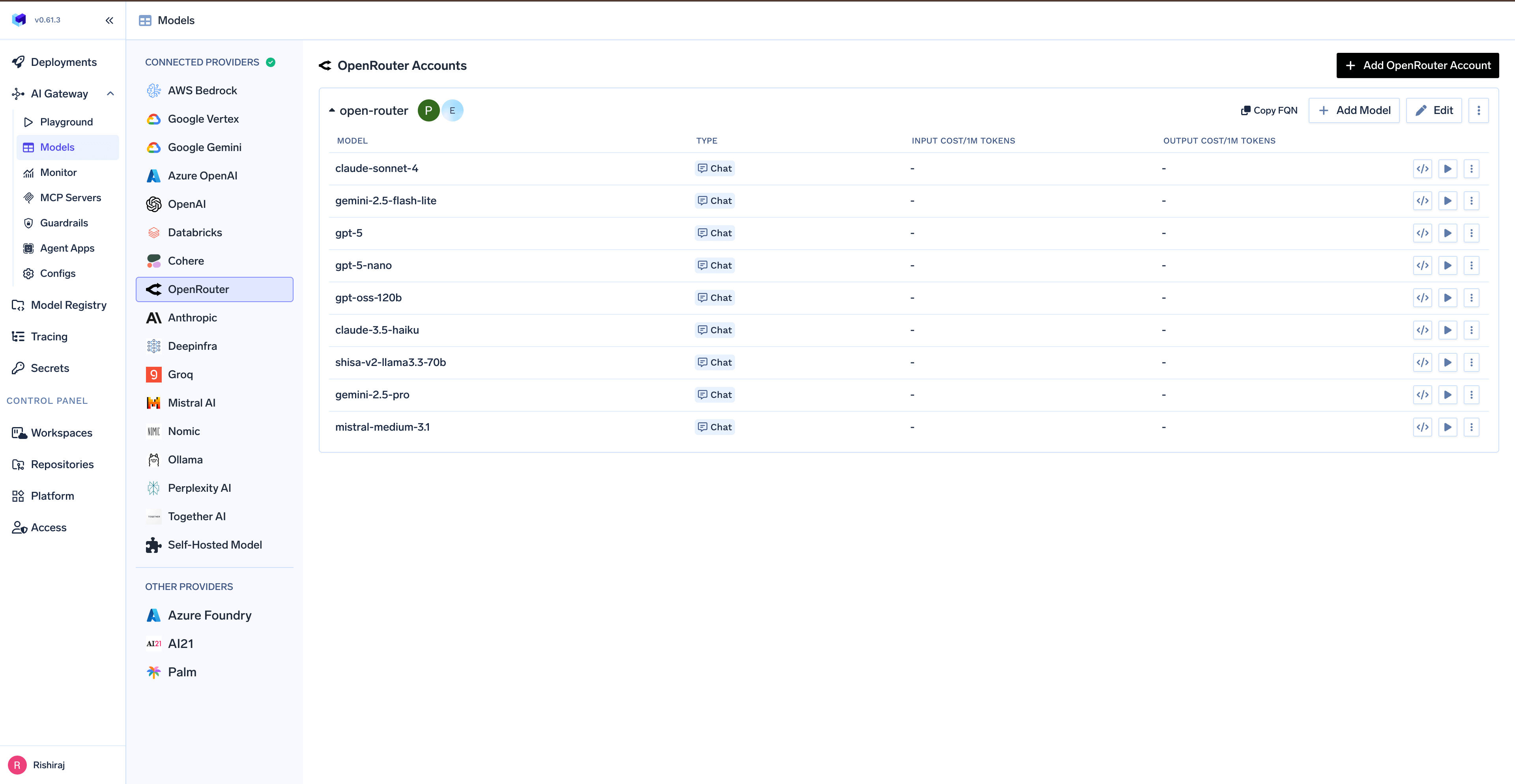 Click `Add OpenRouter Account`. Give a unique name to your OpenRouter account and complete the form with your OpenRouter authentication details (API Key). Add collaborators to your account, this will give access to the account to other users/teams. Learn more about access control [here](/docs/ai-gateway/gateway-access-control).
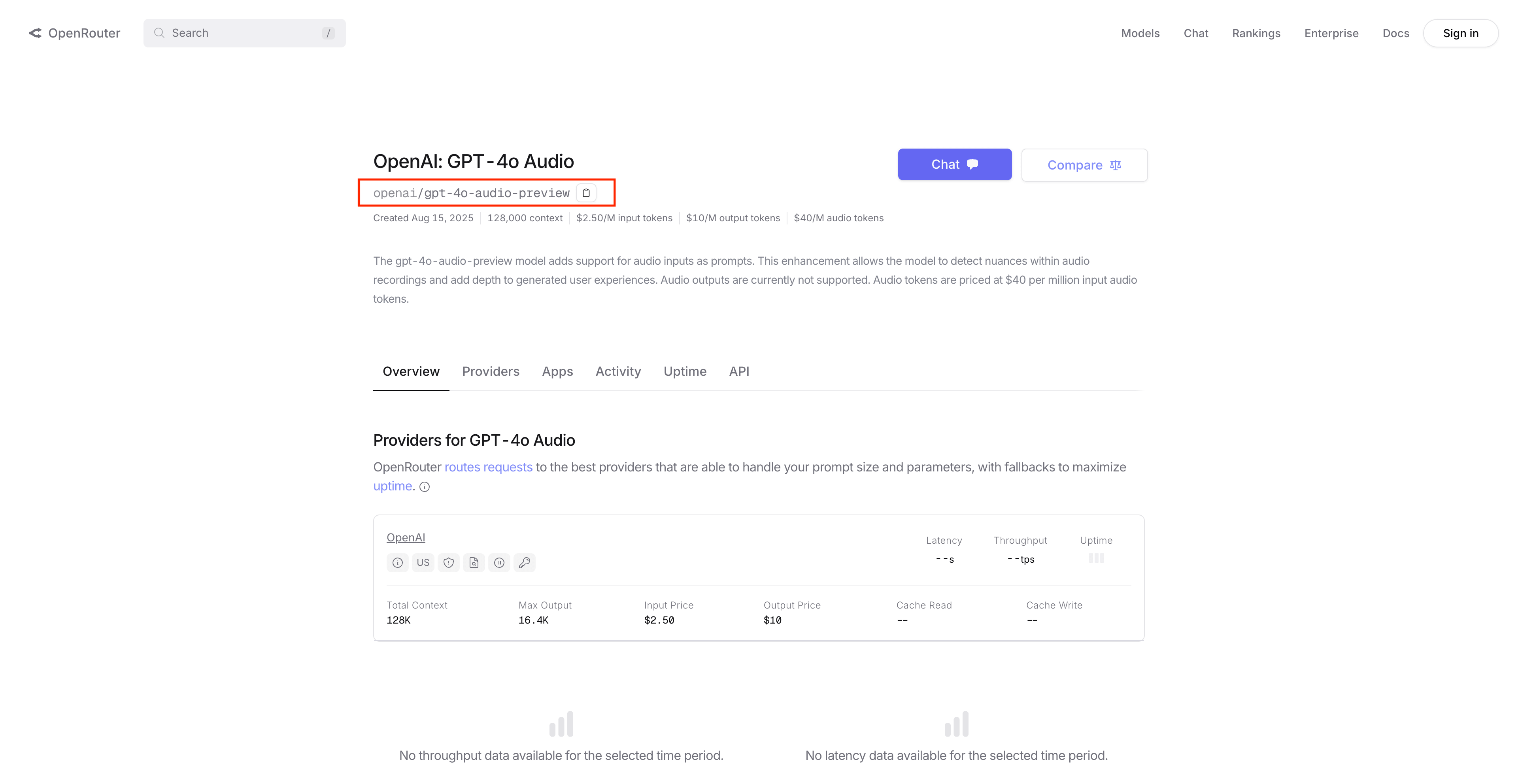
 To add a model, you need to get the model ID from OpenRouter:
1. Go to [OpenRouter's models page](https://openrouter.ai/models)
2. Find the model you want to use
3. Copy the model ID (e.g., `anthropic/claude-3-haiku`, `openai/gpt-4o-mini`)
4. Paste the model ID in the "Add Model" form in TrueFoundry AI Gateway
To add a model, you need to get the model ID from OpenRouter:
1. Go to [OpenRouter's models page](https://openrouter.ai/models)
2. Find the model you want to use
3. Copy the model ID (e.g., `anthropic/claude-3-haiku`, `openai/gpt-4o-mini`)
4. Paste the model ID in the "Add Model" form in TrueFoundry AI Gateway
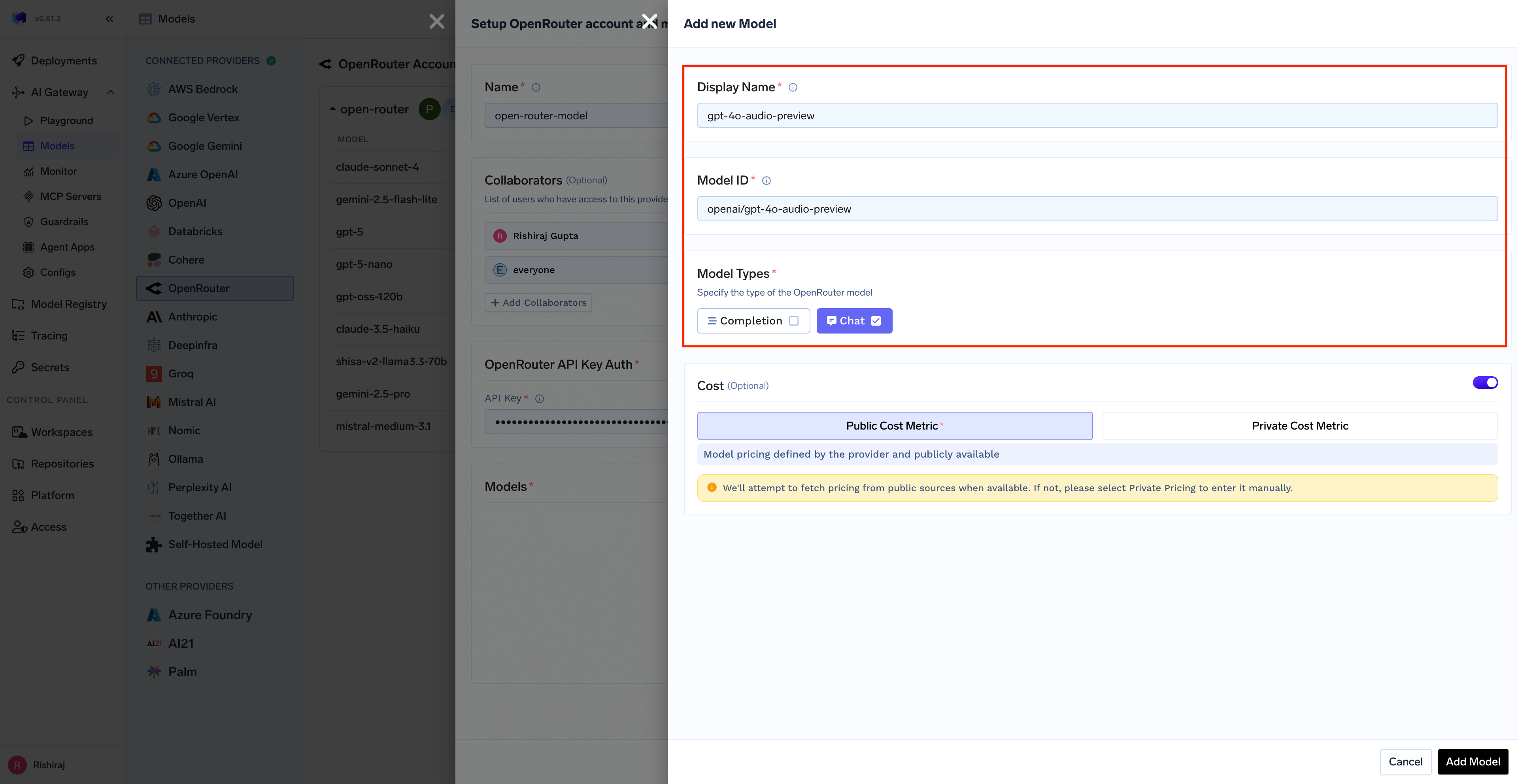 You can add any model available on OpenRouter by copying its model ID from the OpenRouter website. TrueFoundry AI Gateway supports all text and multimodal models available through OpenRouter.
The complete list of models supported by OpenRouter can be found [here](https://openrouter.ai/models). Make sure to use the exact model ID as shown on OpenRouter.
### Inference
After adding the models, you can perform inference using an OpenAI-compatible API via the Playground or by integrating with your own application.
You can add any model available on OpenRouter by copying its model ID from the OpenRouter website. TrueFoundry AI Gateway supports all text and multimodal models available through OpenRouter.
The complete list of models supported by OpenRouter can be found [here](https://openrouter.ai/models). Make sure to use the exact model ID as shown on OpenRouter.
### Inference
After adding the models, you can perform inference using an OpenAI-compatible API via the Playground or by integrating with your own application.
 ### Supported APIs
Once your OpenRouter model account is configured, the following API surfaces are available through the AI Gateway. The table below summarizes each endpoint alongside platform feature support (tracing, cost tracking).
Legend:
* **✅** Supported by provider and TrueFoundry
* Supported by Provider, but not by TrueFoundry
* Provider does not support this feature
| API | Endpoint | Tracing | Cost Tracking |
| ------------------------------------- | ------------------- | ------- | ------------- |
| [Chat Completions](#chat-completions) | `/chat/completions` | **✅** | **✅** |
| [Responses API](#responses-api) | `/responses` | **✅** | **✅** |
OpenRouter models are added by pasting a model ID rather than picking from a catalog, so TrueFoundry does not ship public pricing for them. Set the per-token **Cost** on the model when you add it to get cost tracking and budget enforcement.
The standard OpenAI-compatible chat surface. Use it with any model ID from [OpenRouter's catalog](https://openrouter.ai/models). Full docs: [Chat Completions API](/docs/ai-gateway/chat-completions-overview).
```python Python lines theme={"dark"}
from openai import OpenAI
client = OpenAI(
api_key="your-truefoundry-api-key",
base_url="{GATEWAY_BASE_URL}",
)
response = client.chat.completions.create(
model="openrouter-main/claude-3-haiku",
messages=[{"role": "user", "content": "What is TrueFoundry in one line?"}],
)
print(response.choices[0].message.content)
```
The AI Gateway forwards `/responses` requests straight to OpenRouter's OpenAI-compatible Responses endpoint — the request is not translated into a chat completion, so reasoning, tool calling, and web search behave the same as they do when you call OpenRouter directly. Full docs: [Responses API](/docs/ai-gateway/responses-api).
The Responses API requires the `x-tfy-provider-name` header. Set it on `default_headers` when you construct the client — the AI Gateway uses it to route the request to the right OpenRouter model account.
```python Python lines theme={"dark"}
from openai import OpenAI
client = OpenAI(
api_key="your-truefoundry-api-key",
base_url="{GATEWAY_BASE_URL}",
default_headers={"x-tfy-provider-name": "openrouter-main"},
)
response = client.responses.create(
model="openrouter-main/o4-mini",
input=[{"role": "user", "content": "Give me a two-word tagline."}],
)
print(response.output_text)
```
Set `stream=True` and iterate over the emitted events.
```python Python lines theme={"dark"}
stream = client.responses.create(
model="openrouter-main/o4-mini",
input=[{"role": "user", "content": "Tell me a short story."}],
stream=True,
)
for event in stream:
if event.type == "response.output_text.delta":
print(event.delta, end="", flush=True)
```
**OpenRouter's Responses API is stateless.** OpenRouter rejects requests that set `store: true` or a non-null `previous_response_id` with a `400`, and it does not expose retrieve or delete for a response id — so `client.responses.retrieve()` and `client.responses.delete()` are not available for OpenRouter models. Carry the conversation yourself by appending each turn's output to `input` on the next request.
This also means an OpenRouter target cannot back a [stateful Responses conversation on a virtual model](/docs/ai-gateway/virtual-model#stateful-responses-conversations). Send `store=False` on the first turn so the AI Gateway routes those requests statelessly.
### Supported APIs
Once your OpenRouter model account is configured, the following API surfaces are available through the AI Gateway. The table below summarizes each endpoint alongside platform feature support (tracing, cost tracking).
Legend:
* **✅** Supported by provider and TrueFoundry
* Supported by Provider, but not by TrueFoundry
* Provider does not support this feature
| API | Endpoint | Tracing | Cost Tracking |
| ------------------------------------- | ------------------- | ------- | ------------- |
| [Chat Completions](#chat-completions) | `/chat/completions` | **✅** | **✅** |
| [Responses API](#responses-api) | `/responses` | **✅** | **✅** |
OpenRouter models are added by pasting a model ID rather than picking from a catalog, so TrueFoundry does not ship public pricing for them. Set the per-token **Cost** on the model when you add it to get cost tracking and budget enforcement.
The standard OpenAI-compatible chat surface. Use it with any model ID from [OpenRouter's catalog](https://openrouter.ai/models). Full docs: [Chat Completions API](/docs/ai-gateway/chat-completions-overview).
```python Python lines theme={"dark"}
from openai import OpenAI
client = OpenAI(
api_key="your-truefoundry-api-key",
base_url="{GATEWAY_BASE_URL}",
)
response = client.chat.completions.create(
model="openrouter-main/claude-3-haiku",
messages=[{"role": "user", "content": "What is TrueFoundry in one line?"}],
)
print(response.choices[0].message.content)
```
The AI Gateway forwards `/responses` requests straight to OpenRouter's OpenAI-compatible Responses endpoint — the request is not translated into a chat completion, so reasoning, tool calling, and web search behave the same as they do when you call OpenRouter directly. Full docs: [Responses API](/docs/ai-gateway/responses-api).
The Responses API requires the `x-tfy-provider-name` header. Set it on `default_headers` when you construct the client — the AI Gateway uses it to route the request to the right OpenRouter model account.
```python Python lines theme={"dark"}
from openai import OpenAI
client = OpenAI(
api_key="your-truefoundry-api-key",
base_url="{GATEWAY_BASE_URL}",
default_headers={"x-tfy-provider-name": "openrouter-main"},
)
response = client.responses.create(
model="openrouter-main/o4-mini",
input=[{"role": "user", "content": "Give me a two-word tagline."}],
)
print(response.output_text)
```
Set `stream=True` and iterate over the emitted events.
```python Python lines theme={"dark"}
stream = client.responses.create(
model="openrouter-main/o4-mini",
input=[{"role": "user", "content": "Tell me a short story."}],
stream=True,
)
for event in stream:
if event.type == "response.output_text.delta":
print(event.delta, end="", flush=True)
```
**OpenRouter's Responses API is stateless.** OpenRouter rejects requests that set `store: true` or a non-null `previous_response_id` with a `400`, and it does not expose retrieve or delete for a response id — so `client.responses.retrieve()` and `client.responses.delete()` are not available for OpenRouter models. Carry the conversation yourself by appending each turn's output to `input` on the next request.
This also means an OpenRouter target cannot back a [stateful Responses conversation on a virtual model](/docs/ai-gateway/virtual-model#stateful-responses-conversations). Send `store=False` on the first turn so the AI Gateway routes those requests statelessly.