> ## Documentation Index
> Fetch the complete documentation index at: https://www.truefoundry.com/llms.txt
> Use this file to discover all available pages before exploring further.
# MCP Tool Management
> Enable or disable MCP tools, bulk-edit tool access, and override descriptions and annotations on Remote and TrueFoundry-managed MCP servers.
Use the **Tools** tab on a Remote or [TrueFoundry-managed](/docs/ai-gateway/mcp/tfy-managed-mcp-server) MCP server to control which tools agents can call, override how they appear to the LLM, and choose whether newly discovered upstream tools are exposed automatically.
 ## When to use
Use tool management when you need to:
* **Reduce tool surface area** - hide tools an agent should never call (for example, destructive write operations).
* **Expose only what you need** - turn on a small set of tools for a specific workflow.
* **Improve LLM tool selection** - override upstream descriptions or mark tools as read-only or destructive.
* **Gate new upstream tools** - decide whether tools added by the MCP server vendor are auto-enabled or require explicit approval.
## Open the Tools tab
1. Open an MCP server from **MCP Gateway**.
2. Go to the **Tools** tab.
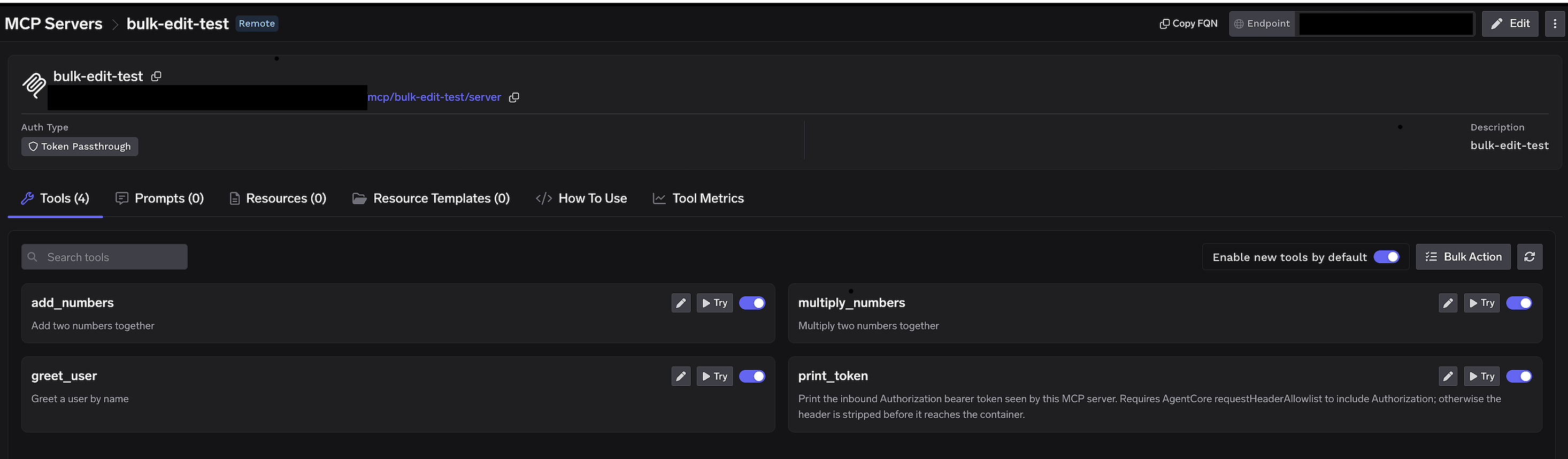
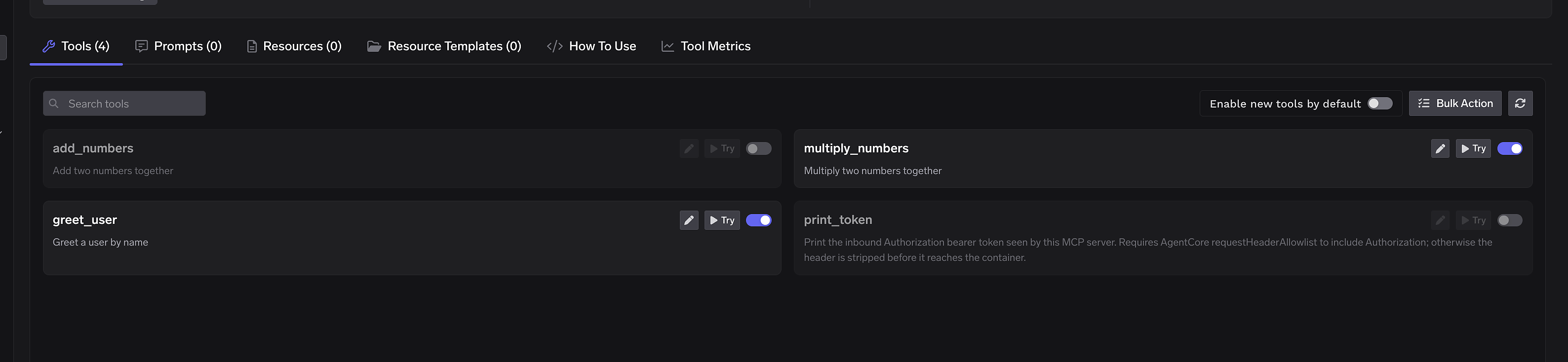
Each tool row shows an enable/disable control, **Try** (test the tool in the playground), and **Edit** (customize metadata). **Try** is disabled when the tool is turned off.
## Default tool mode
Use **Enable new tools by default** at the top of the Tools tab to control what happens when the upstream MCP server adds new tools.
When the toggle is **on**, every tool is available to agents unless you turn it off. New tools from the upstream server are enabled automatically, so you do not need to revisit the Tools tab each time the vendor ships a new capability.
When the toggle is **off**, only tools you explicitly enable are available. New upstream tools stay hidden until you turn them on - useful when you want a fixed, curated set of tools and do not want unexpected additions exposed to agents.
## Enable or disable a single tool
Toggle a tool on or off on its row. Changes save immediately and show a **Tool settings updated** toast.
Disabled tools are omitted from `tools/list` responses to MCP clients and cannot be invoked.
## When to use
Use tool management when you need to:
* **Reduce tool surface area** - hide tools an agent should never call (for example, destructive write operations).
* **Expose only what you need** - turn on a small set of tools for a specific workflow.
* **Improve LLM tool selection** - override upstream descriptions or mark tools as read-only or destructive.
* **Gate new upstream tools** - decide whether tools added by the MCP server vendor are auto-enabled or require explicit approval.
## Open the Tools tab
1. Open an MCP server from **MCP Gateway**.
2. Go to the **Tools** tab.
Each tool row shows an enable/disable control, **Try** (test the tool in the playground), and **Edit** (customize metadata). **Try** is disabled when the tool is turned off.
## Default tool mode
Use **Enable new tools by default** at the top of the Tools tab to control what happens when the upstream MCP server adds new tools.
When the toggle is **on**, every tool is available to agents unless you turn it off. New tools from the upstream server are enabled automatically, so you do not need to revisit the Tools tab each time the vendor ships a new capability.
When the toggle is **off**, only tools you explicitly enable are available. New upstream tools stay hidden until you turn them on - useful when you want a fixed, curated set of tools and do not want unexpected additions exposed to agents.
## Enable or disable a single tool
Toggle a tool on or off on its row. Changes save immediately and show a **Tool settings updated** toast.
Disabled tools are omitted from `tools/list` responses to MCP clients and cannot be invoked.
 ## Bulk enable or disable tools
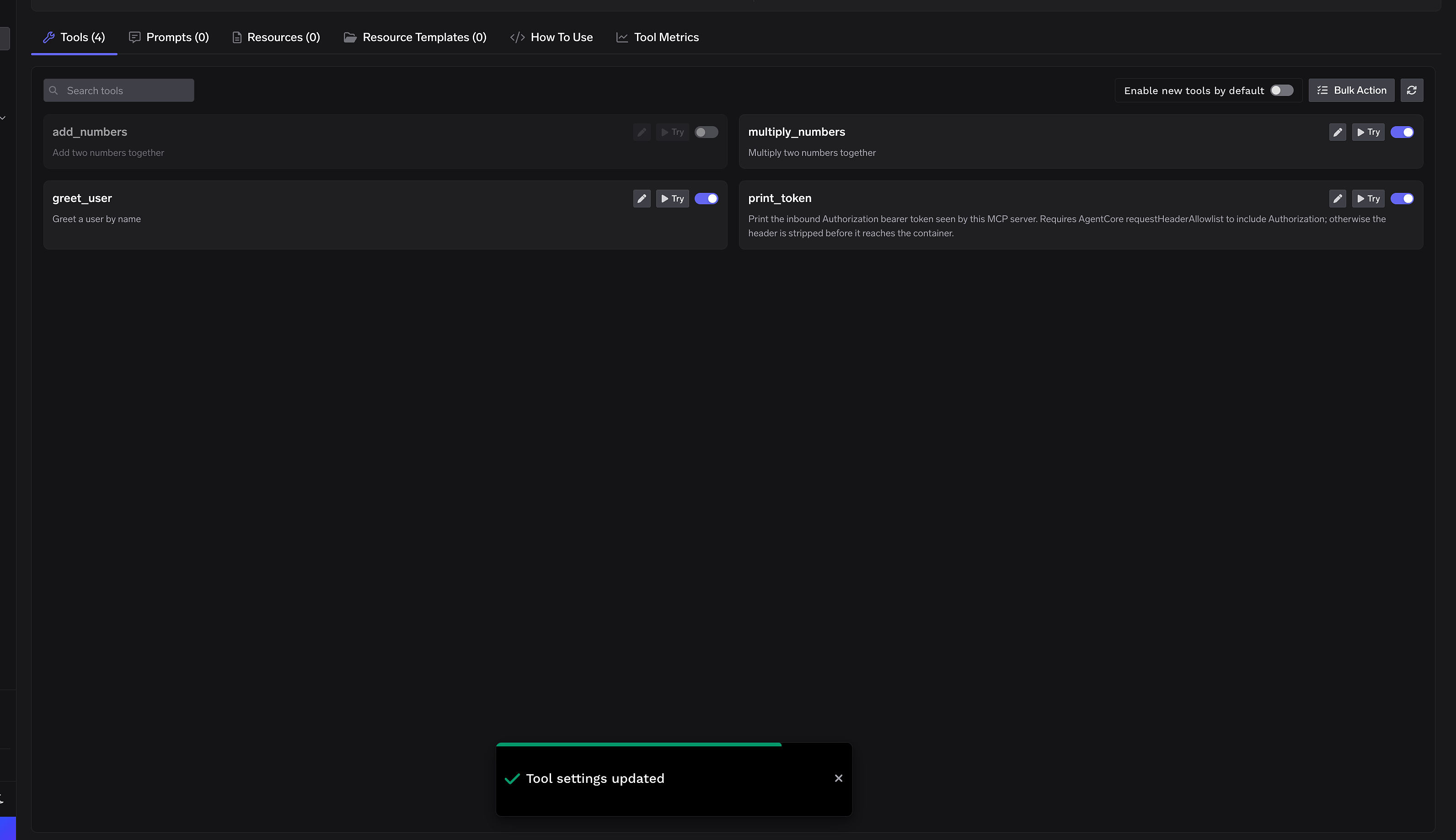
Click **Bulk Action** to edit many tools at once.
In bulk mode, each tool shows a checkbox instead of a toggle. Use **Select all** to check or uncheck every tool. After completing the selection, click **Save**.
## Bulk enable or disable tools
Click **Bulk Action** to edit many tools at once.
In bulk mode, each tool shows a checkbox instead of a toggle. Use **Select all** to check or uncheck every tool. After completing the selection, click **Save**.
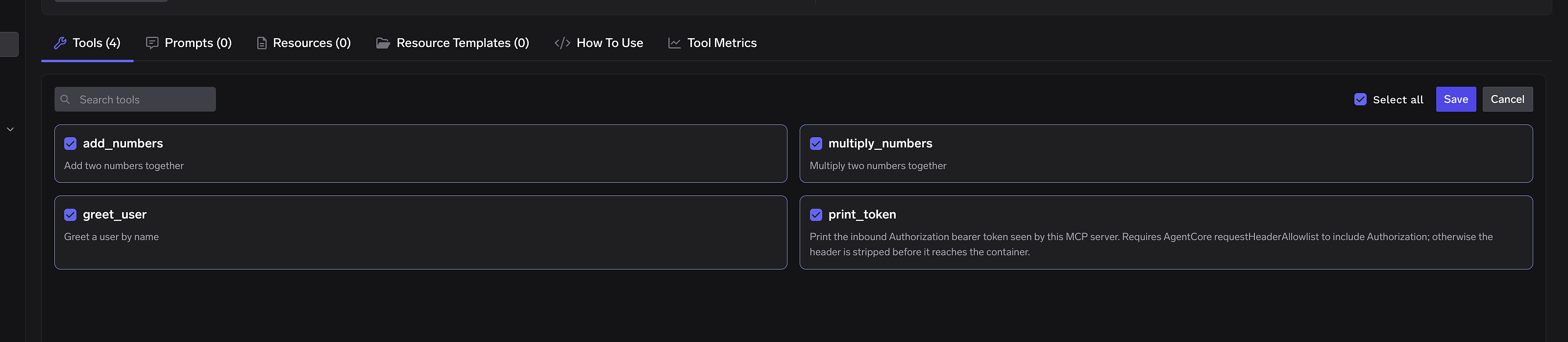
 After **Save**, bulk mode closes, toggles reflect the persisted state, and you see the **Tool settings updated** toast.
 ## Edit tool description and annotations
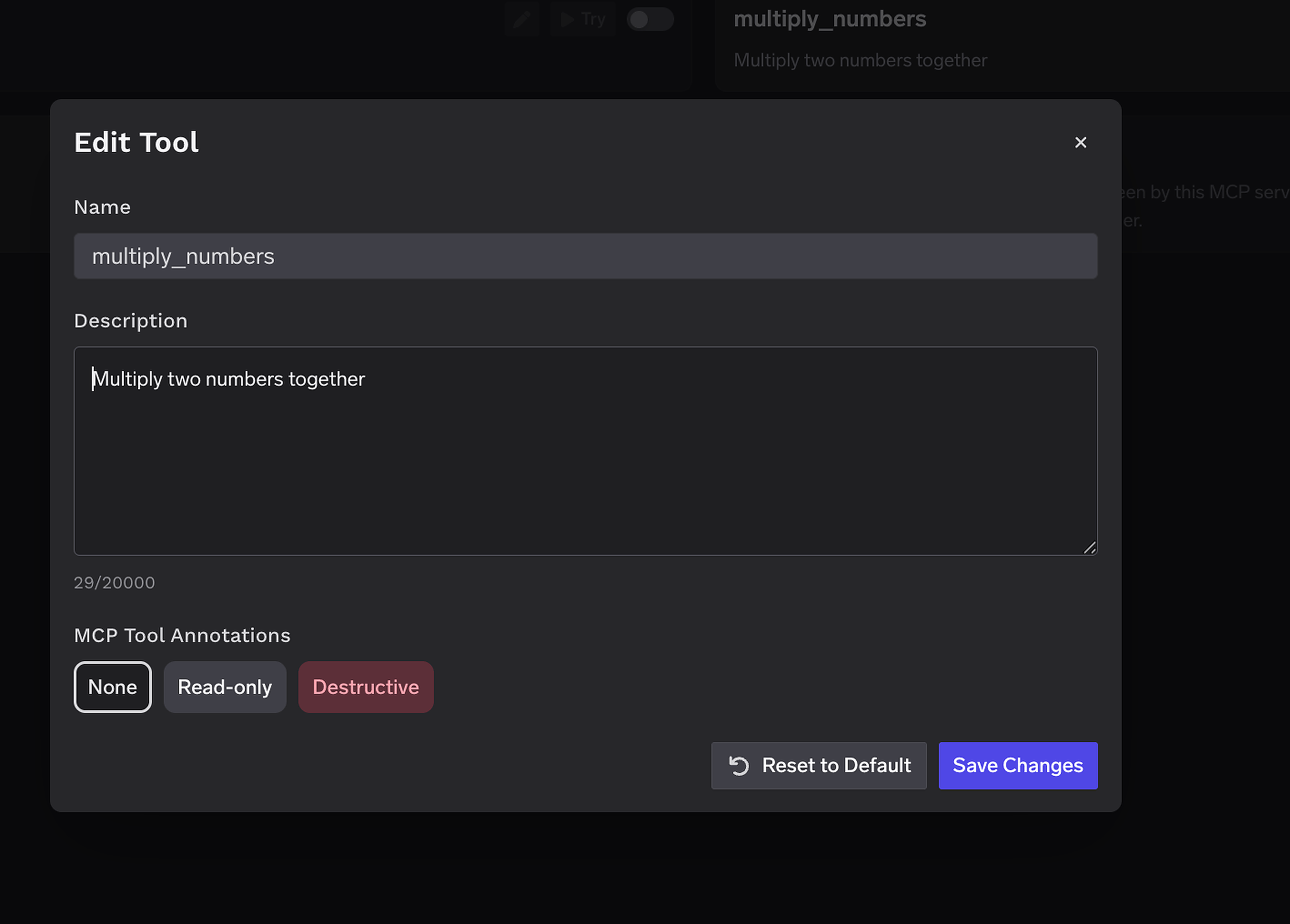
Click the pencil icon on a tool to open **Edit Tool**.
| Field | Description |
| ------------------------ | ------------------------------------------------------------------------------------------------------------------------------------- |
| **Name** | Read-only upstream tool name. |
| **Description** | Override the description shown to the LLM (up to 20,000 characters). |
| **MCP Tool Annotations** | **None**, **Read-only**, or **Destructive** - sets `readOnlyHint` or `destructiveHint` for clients that respect MCP tool annotations. |
Use **Reset to Default** to remove overrides for that tool. **Save Changes** to persist the update.
## Edit tool description and annotations
Click the pencil icon on a tool to open **Edit Tool**.
| Field | Description |
| ------------------------ | ------------------------------------------------------------------------------------------------------------------------------------- |
| **Name** | Read-only upstream tool name. |
| **Description** | Override the description shown to the LLM (up to 20,000 characters). |
| **MCP Tool Annotations** | **None**, **Read-only**, or **Destructive** - sets `readOnlyHint` or `destructiveHint` for clients that respect MCP tool annotations. |
Use **Reset to Default** to remove overrides for that tool. **Save Changes** to persist the update.