> ## Documentation Index
> Fetch the complete documentation index at: https://www.truefoundry.com/llms.txt
> Use this file to discover all available pages before exploring further.
# Azure Entra On-Behalf-Of (OBO) for MCP
> Configure TrueFoundry MCP Gateway to exchange Microsoft Entra user tokens for downstream On-Behalf-Of tokens (jwt-bearer) when calling Entra-protected MCP servers.
This guide shows how to wire **Microsoft Entra ID On-Behalf-Of (OBO)** through the TrueFoundry MCP Gateway. Callers authenticate to TrueFoundry with an **inbound token** - a user access token audienced to the Entra app that represents TrueFoundry. On every MCP tool call, the gateway exchanges that token for a new Entra token audienced to your **downstream** MCP, so the MCP server sees the user - not a shared service principal.
Use this when:
* The MCP server validates **Entra JWTs**.
* You need **delegated user identity** on the outbound call (`oid` / `preferred_username` preserved).
* You do **not** want interactive Authorization Code consent in the Gateway for every user (contrast with [Azure Entra OAuth MCP Server](/docs/ai-gateway/mcp/mcp-server-oauth-azure)).
## Architecture
```mermaid theme={"dark"}
sequenceDiagram
participant User as User / Client
participant Entra as Microsoft Entra ID
participant GW as TrueFoundry MCP Gateway
participant MCP as Downstream MCP
User->>Entra: Sign in (device code / app)
Entra-->>User: TrueFoundry inbound token
aud = truefoundry_client_id
User->>GW: MCP request + Bearer TrueFoundry inbound token
GW->>GW: Validate JWT (IdP + JWKS)
Resolve virtual account (azp → VA, oid → slug)
GW->>Entra: OBO jwt-bearer
assertion = TrueFoundry inbound token
client_id/secret = TrueFoundry inbound app
scope = api://mcp_client_id/access_as_user
Entra-->>GW: Outbound access token
aud = mcp_client_id
GW->>MCP: tools/call + Bearer outbound token
MCP->>MCP: Validate aud / iss / user claims
MCP-->>GW: Tool result
GW-->>User: Result
```
| Token | `aud` | Who mints it | Used for |
| ------------ | --------------------------------- | ----------------------------------- | ------------------------------ |
| **Inbound** | TrueFoundry inbound app client ID | Entra (user sign-in) | Authenticate to TrueFoundry |
| **Outbound** | Downstream MCP app client ID | Entra (OBO exchange by the Gateway) | Authenticate to the MCP server |
## Values you need
| Placeholder | Meaning |
| ------------------------------- | ------------------------------------------------------------------------- |
| `<>` | Microsoft Entra directory (tenant) ID |
| `<>` | Entra app registration for the TrueFoundry token (inbound token audience) |
| `<>` | Client secret for the TrueFoundry app |
| `<>` | Downstream MCP app registration (outbound token audience) |
## Guide to setting up Azure Entra OBO with TrueFoundry
This app is the **protected MCP resource** that TrueFoundry OBO exchanges into. Your MCP server validates tokens whose `aud` is this app's client ID. It is **not** the OBO client and **not** a public login app.
**Create the app registration**
1. **Entra admin center** → **App registrations** → **New registration**.
2. Configure:
* **Name**: e.g. `mcp-azure`
* **Supported account types**: Choose based on your needs
* **Redirect URI**: leave empty (not required for an OBO resource)
3. Click **Register**.
4. Copy **Application (client) ID** (`<>`) and **Directory (tenant) ID** (`<>`).
**Expose the API**
1. Open the downstream app → **Expose an API**.
2. **Application ID URI** → **Add** → `api://<>` → **Save**.
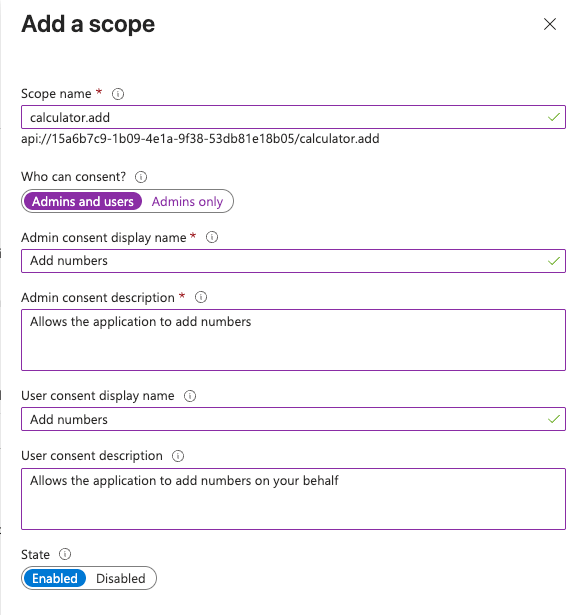
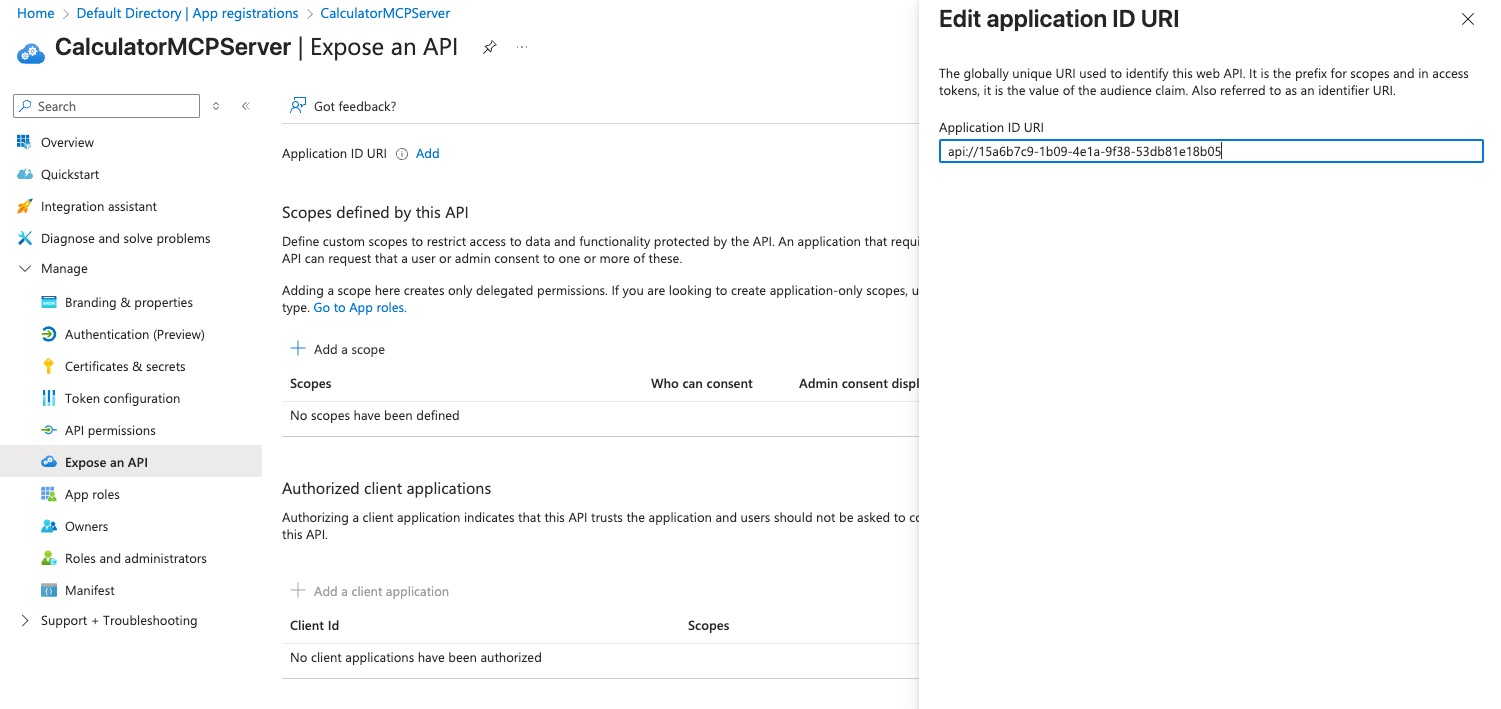 3. Click **Add a scope**:
* **Scope name**: `access_as_user`
* **Who can consent**: Admins and users
* **Admin / user consent display name and description**: e.g. `Access azure-mcp`
* **State**: Enabled
4. Click **Add scope**.
3. Click **Add a scope**:
* **Scope name**: `access_as_user`
* **Who can consent**: Admins and users
* **Admin / user consent display name and description**: e.g. `Access azure-mcp`
* **State**: Enabled
4. Click **Add scope**.
 The TrueFoundry inbound app is **both** the app users authenticate to (incoming token audience) **and** the confidential client that performs OBO to downstream.
**Create the TrueFoundry inbound app**
1. **Entra admin center** → **App registrations** → **New registration**.
2. Configure:
* **Name**: e.g. `azure-truefoundry`
* **Supported account types**: Choose based on your needs
* **Redirect URI** (optional): platform **Web**, `https://jwt.ms` (useful for admin consent)
3. Click **Register**.
4. Copy **Application (client) ID** (`<>`).
**Expose the API**
1. Open the created app → **Expose an API**.
2. **Application ID URI** → `api://<>` → **Save**.
3. **Add a scope**:
* **Scope Name**: `access_as_user`
* **Who can consent**: Admins and users
* **Admin / user consent display name and description**: e.g. `Access azure-truefoundry`
* **State**: Enabled
4. Click **Add scope**.
**Allow users to sign in to TrueFoundry inbound directly**
TrueFoundry inbound must accept interactive / device-code login for its own scope.
1. TrueFoundry inbound app → **Authentication**.
2. **Add a platform** → **Mobile and desktop applications**.
3. Enable `https://login.microsoftonline.com/common/oauth2/nativeclient` -> Click on **Configure**
4. Navigate to **Settings** → Enable **Allow public client flows**
5. Click **Save**.
**Grant TrueFoundry inbound permission to call downstream**
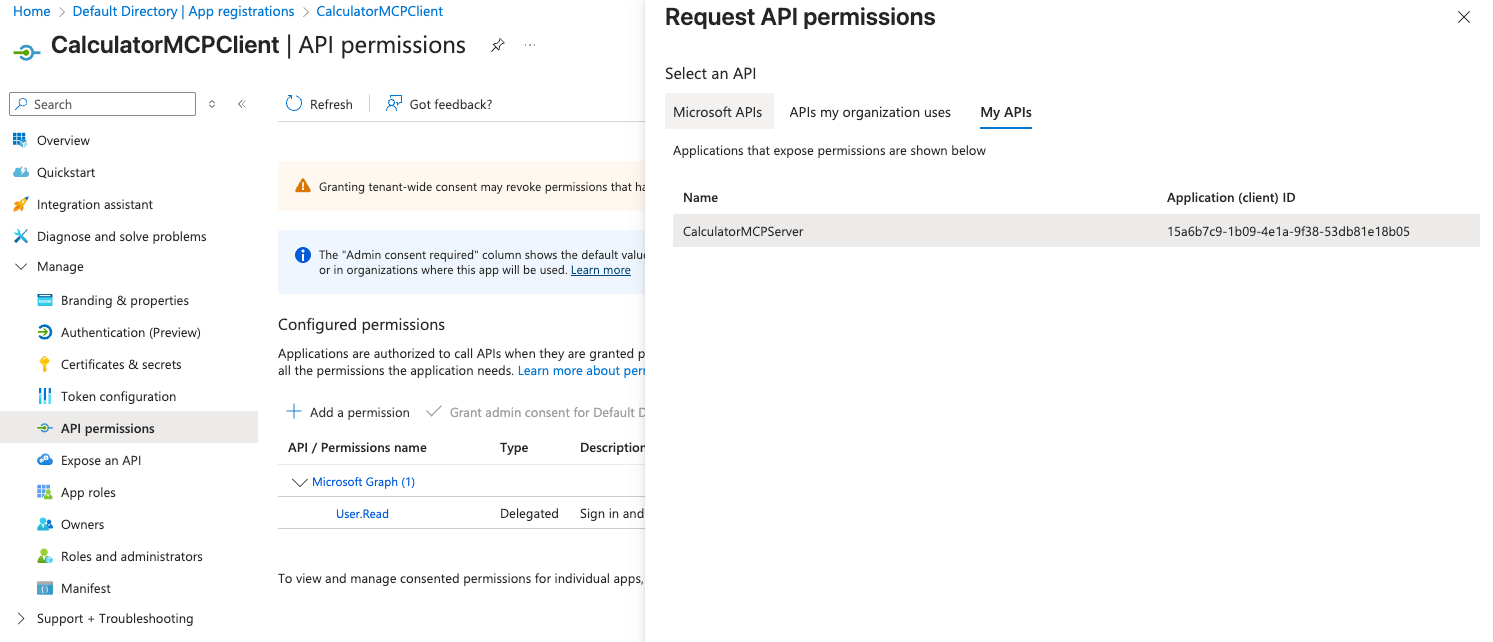
1. TrueFoundry inbound app → **API permissions** → **Add a permission**.
2. **My APIs** → select the downstream app (`mcp-azure`).
3. **Delegated permissions** → `access_as_user` → **Add permissions**.
4. (Recommended) Also, add **this app’s own** delegated `access_as_user` (**Add a permissions** → **My APIs** → TrueFoundry inbound), so device-code / silent login against TrueFoundry inbound is consented.
5. **Grant admin consent for** your tenant.
The TrueFoundry inbound app is **both** the app users authenticate to (incoming token audience) **and** the confidential client that performs OBO to downstream.
**Create the TrueFoundry inbound app**
1. **Entra admin center** → **App registrations** → **New registration**.
2. Configure:
* **Name**: e.g. `azure-truefoundry`
* **Supported account types**: Choose based on your needs
* **Redirect URI** (optional): platform **Web**, `https://jwt.ms` (useful for admin consent)
3. Click **Register**.
4. Copy **Application (client) ID** (`<>`).
**Expose the API**
1. Open the created app → **Expose an API**.
2. **Application ID URI** → `api://<>` → **Save**.
3. **Add a scope**:
* **Scope Name**: `access_as_user`
* **Who can consent**: Admins and users
* **Admin / user consent display name and description**: e.g. `Access azure-truefoundry`
* **State**: Enabled
4. Click **Add scope**.
**Allow users to sign in to TrueFoundry inbound directly**
TrueFoundry inbound must accept interactive / device-code login for its own scope.
1. TrueFoundry inbound app → **Authentication**.
2. **Add a platform** → **Mobile and desktop applications**.
3. Enable `https://login.microsoftonline.com/common/oauth2/nativeclient` -> Click on **Configure**
4. Navigate to **Settings** → Enable **Allow public client flows**
5. Click **Save**.
**Grant TrueFoundry inbound permission to call downstream**
1. TrueFoundry inbound app → **API permissions** → **Add a permission**.
2. **My APIs** → select the downstream app (`mcp-azure`).
3. **Delegated permissions** → `access_as_user` → **Add permissions**.
4. (Recommended) Also, add **this app’s own** delegated `access_as_user` (**Add a permissions** → **My APIs** → TrueFoundry inbound), so device-code / silent login against TrueFoundry inbound is consented.
5. **Grant admin consent for** your tenant.
 **Client credentials for the OBO call**
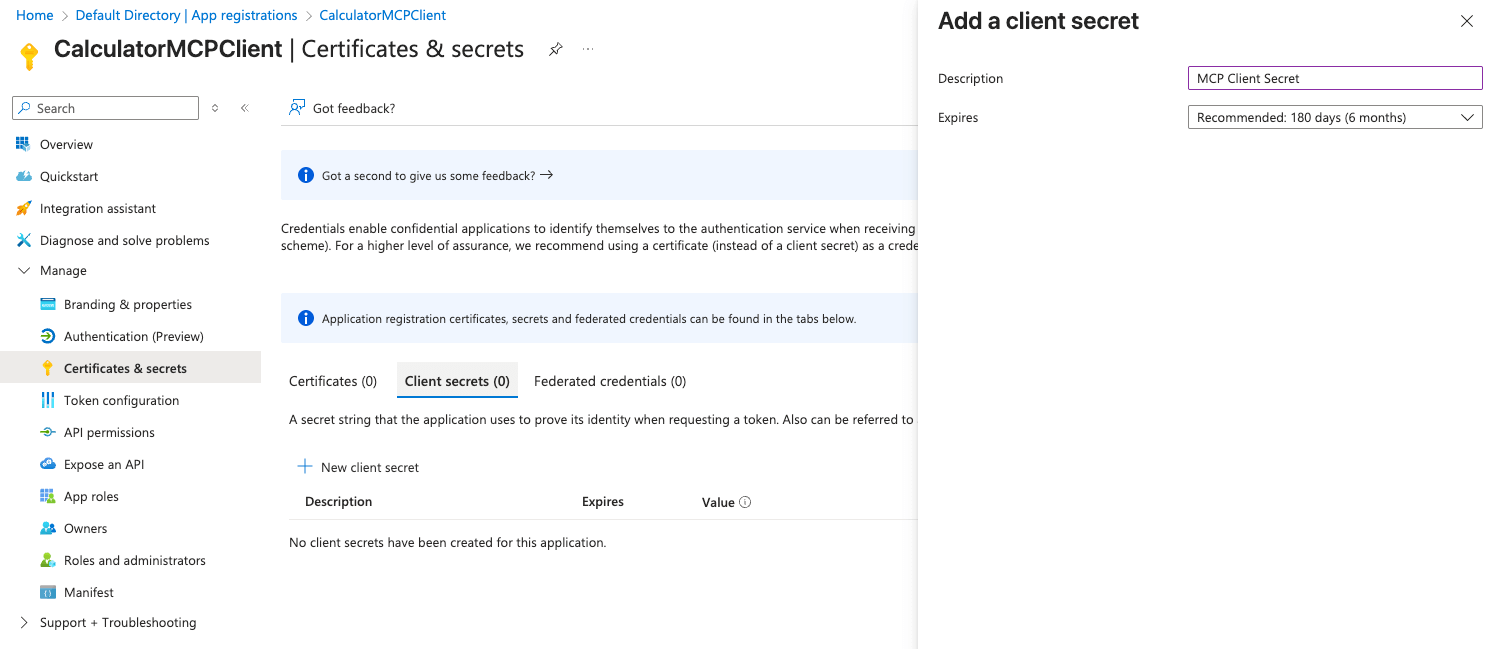
**Option1: Client secret**
1. **Certificates & secrets** → **Client secrets** → **New client secret** → **Add**.
2. Copy the **Value** immediately (`<>`).
**Client credentials for the OBO call**
**Option1: Client secret**
1. **Certificates & secrets** → **Client secrets** → **New client secret** → **Add**.
2. Copy the **Value** immediately (`<>`).
 **Option2: Certificate**
1. Generate a key pair; upload the public certificate under **Certificates** → **Add**.
2. Copy the **Thumbprint**; keep the private key for TrueFoundry / your service.
Your MCP server must validate Entra JWTs for the **outbound** audience:
* **Issuer**: `https://login.microsoftonline.com/<>/v2.0`
* **JWKS URI**: `https://login.microsoftonline.com/<>/discovery/v2.0/keys`
* **Audience**: `<>` (the outbound token audience - not the TrueFoundry inbound client ID)
* **Discovery URL** (if your runtime uses OpenID discovery): `https://login.microsoftonline.com/<>/v2.0/.well-known/openid-configuration`
Use the same JWT verification pattern as [JWT verification in the Azure OAuth guide](/docs/ai-gateway/mcp/mcp-server-oauth-azure).
TrueFoundry must validate the **TrueFoundry inbound token** and map it to a virtual account.
1. Go to **Settings → Security & Access → Identity Providers** (or **Settings** with section `identity-providers`).
2. Add a provider (UI or **Apply using YAML**).
```yaml theme={"dark"}
type: identity-provider
name: azure-truefoundry-idp
config:
type: jwt
audiences:
- <>
issuer: https://login.microsoftonline.com/<>/v2.0
jwks_uri: >-
https://login.microsoftonline.com/<>/discovery/v2.0/keys
provider: azure-entra-id
resolve_token_to:
virtual_account:
name_claim: azp
slug_claim: oid
```
| Field | Role |
| ----------------- | ------------------------------------------------------------------------ |
| `audiences` | Must match TrueFoundry inbound token `aud` (`<>`) |
| `name_claim: azp` | Maps the authorized party (TrueFoundry inbound app) to a virtual account |
| `slug_claim: oid` | Distinguishes individual Entra users under that virtual account |
See [Identity Providers](/docs/platform/identity-providers) for field reference.
1. Go to **Access → Virtual Accounts**.
2. Create a virtual account and grant MCP access. Example YAML:
```yaml theme={"dark"}
type: virtual-account
name: azure-truefoundry-user
identity_provider_mapping:
- identity_provider: azure-truefoundry-idp
value: <>
permissions:
- resource_fqn: '*'
resource_type: mcp-server
```
The mapping `value` must equal the JWT claim configured as **name claim** (`azp`). When `azp` is the TrueFoundry inbound client ID, map that client ID here.
Tighten `resource_fqn` to a specific MCP server FQN in production instead of `*`.
See [Manage Virtual Accounts](/docs/platform/virtual-account-management#identity-provider-mappings).
1. Go to **AI Gateway → MCP Servers** → add / edit a **Remote** MCP server.
2. Set the URL to your MCP endpoint.
3. Configure **Auth Data → OAuth2** with provider **Microsoft Entra** and grant type **JWT Bearer / On-Behalf-Of** (`jwt_bearer`).
```yaml theme={"dark"}
type: mcp-server/remote
name: mcp-server-test
description: Azure Entra OBO to MCP
url: https://<>
auth_data:
type: oauth2
client_id: <>
client_secret: <>
grant_type: jwt_bearer
provider: microsoft-entra
scopes:
- api://<>/access_as_user
token_url: >-
https://login.microsoftonline.com/<>/oauth2/v2.0/token
collaborators:
- role_id: mcp-server-manager
subject: user:
```
Store `client_secret` as a [TrueFoundry Secret](/docs/manage-secrets) FQN when possible instead of a raw value.
The Gateway then sends the caller's TrueFoundry inbound Bearer token as the OBO **assertion**, exchanges it at `token_url`, and forwards the **outbound** access token to the MCP URL.
Generate a user access token whose **audience is the TrueFoundry inbound** app (not the MCP API app).
Call the MCP Gateway with that token:
```bash theme={"dark"}
curl -sS "https:///api/llm/mcp-server/mcp-server-test/mcp" \
-H "Authorization: Bearer " \
-H "Content-Type: application/json" \
-H "Accept: application/json, text/event-stream" \
-d '{"jsonrpc":"2.0","id":1,"method":"tools/list","params":{}}'
```
Adjust the MCP path to match your tenant's MCP Gateway URL format.
## Inbound vs outbound token claims
Typical claim differences after a successful Gateway OBO exchange:
| Claim | TrueFoundry inbound token | Outbound (to MCP) |
| ------------------------------------- | ---------------------------------------------------------- | ------------------------------------------------------------------- |
| `aud` | `<>` | `<>` |
| `azp` | `<>` (or) `<>` | `<>` (TrueFoundry inbound app performed OBO) |
| `oid` / `preferred_username` / `name` | User | Same user (delegated) |
| `scp` | `access_as_user` (as issued for TrueFoundry inbound) | `access_as_user` (for downstream MCP API) |
If the MCP server rejects the call, confirm its configured audience is the **outbound** `aud` (`<>`), not the TrueFoundry inbound client ID.
## FAQ
[Azure Entra OAuth MCP Server](/docs/ai-gateway/mcp/mcp-server-oauth-azure) uses the Authorization Code flow (and optionally client credentials). Users consent in a browser, and the Gateway stores and refreshes OAuth tokens for that MCP server.
This OBO guide assumes the **caller already presents** a TrueFoundry inbound Entra **user** access token. The Gateway does not run a consent redirect for that user on the MCP server. On tool call it **exchanges** the inbound token (OBO / `jwt_bearer`) for a downstream access token and forwards that to the MCP URL.
In Entra access tokens, `azp` is the **authorized party** - the client application that obtained the token. TrueFoundry’s Identity Provider `name_claim: azp` maps that value to a [virtual account](/docs/platform/virtual-account-management#identity-provider-mappings). The virtual account’s mapping `value` must equal the `azp` you see on inbound tokens (often `<>` when users sign in through the TrueFoundry inbound app; it can be another client ID if a different app acquires tokens for the TrueFoundry inbound API).
`slug_claim: oid` uses the Entra user object ID so traces, metrics, and per-user controls can still distinguish people who share the same virtual account. See [Resolve to a virtual account](/docs/platform/identity-providers#resolve-to-a-virtual-account) (`Name Claim` + optional `User Slug Claim`).
No. Microsoft Entra OBO only accepts a **user** assertion ([On-Behalf-Of flow](https://learn.microsoft.com/en-us/entra/identity-platform/v2-oauth2-on-behalf-of-flow)). An app-only / client-credentials token cannot be the inbound subject for the exchange.
Sign the user in (device code, native client, SPA, etc.) so the token’s `aud` matches the TrueFoundry Identity Provider audience (`<>` in this guide).
Check the following:
1. **Admin consent** - TrueFoundry inbound has delegated `access_as_user` on the downstream app, and consent is granted for the tenant.
2. **Inbound `aud`** - the Bearer token sent to TrueFoundry matches an Identity Provider audience (`<>`).
3. **MCP scopes** - `auth_data.scopes` is the downstream scope (e.g. `api://<>/access_as_user`), not only the TrueFoundry inbound scope.
4. **Client credentials** - `client_id` / `client_secret` (or certificate) on the MCP server are for the TrueFoundry inbound app and are valid.
5. **User assertion** - the inbound token is a user token, not client credentials.
Decode the inbound and (if you can capture it) outbound JWT and confirm `aud` / `azp` / `scp` against the [claim table](#inbound-vs-outbound-token-claims) above.
**Option2: Certificate**
1. Generate a key pair; upload the public certificate under **Certificates** → **Add**.
2. Copy the **Thumbprint**; keep the private key for TrueFoundry / your service.
Your MCP server must validate Entra JWTs for the **outbound** audience:
* **Issuer**: `https://login.microsoftonline.com/<>/v2.0`
* **JWKS URI**: `https://login.microsoftonline.com/<>/discovery/v2.0/keys`
* **Audience**: `<>` (the outbound token audience - not the TrueFoundry inbound client ID)
* **Discovery URL** (if your runtime uses OpenID discovery): `https://login.microsoftonline.com/<>/v2.0/.well-known/openid-configuration`
Use the same JWT verification pattern as [JWT verification in the Azure OAuth guide](/docs/ai-gateway/mcp/mcp-server-oauth-azure).
TrueFoundry must validate the **TrueFoundry inbound token** and map it to a virtual account.
1. Go to **Settings → Security & Access → Identity Providers** (or **Settings** with section `identity-providers`).
2. Add a provider (UI or **Apply using YAML**).
```yaml theme={"dark"}
type: identity-provider
name: azure-truefoundry-idp
config:
type: jwt
audiences:
- <>
issuer: https://login.microsoftonline.com/<>/v2.0
jwks_uri: >-
https://login.microsoftonline.com/<>/discovery/v2.0/keys
provider: azure-entra-id
resolve_token_to:
virtual_account:
name_claim: azp
slug_claim: oid
```
| Field | Role |
| ----------------- | ------------------------------------------------------------------------ |
| `audiences` | Must match TrueFoundry inbound token `aud` (`<>`) |
| `name_claim: azp` | Maps the authorized party (TrueFoundry inbound app) to a virtual account |
| `slug_claim: oid` | Distinguishes individual Entra users under that virtual account |
See [Identity Providers](/docs/platform/identity-providers) for field reference.
1. Go to **Access → Virtual Accounts**.
2. Create a virtual account and grant MCP access. Example YAML:
```yaml theme={"dark"}
type: virtual-account
name: azure-truefoundry-user
identity_provider_mapping:
- identity_provider: azure-truefoundry-idp
value: <>
permissions:
- resource_fqn: '*'
resource_type: mcp-server
```
The mapping `value` must equal the JWT claim configured as **name claim** (`azp`). When `azp` is the TrueFoundry inbound client ID, map that client ID here.
Tighten `resource_fqn` to a specific MCP server FQN in production instead of `*`.
See [Manage Virtual Accounts](/docs/platform/virtual-account-management#identity-provider-mappings).
1. Go to **AI Gateway → MCP Servers** → add / edit a **Remote** MCP server.
2. Set the URL to your MCP endpoint.
3. Configure **Auth Data → OAuth2** with provider **Microsoft Entra** and grant type **JWT Bearer / On-Behalf-Of** (`jwt_bearer`).
```yaml theme={"dark"}
type: mcp-server/remote
name: mcp-server-test
description: Azure Entra OBO to MCP
url: https://<>
auth_data:
type: oauth2
client_id: <>
client_secret: <>
grant_type: jwt_bearer
provider: microsoft-entra
scopes:
- api://<>/access_as_user
token_url: >-
https://login.microsoftonline.com/<>/oauth2/v2.0/token
collaborators:
- role_id: mcp-server-manager
subject: user:
```
Store `client_secret` as a [TrueFoundry Secret](/docs/manage-secrets) FQN when possible instead of a raw value.
The Gateway then sends the caller's TrueFoundry inbound Bearer token as the OBO **assertion**, exchanges it at `token_url`, and forwards the **outbound** access token to the MCP URL.
Generate a user access token whose **audience is the TrueFoundry inbound** app (not the MCP API app).
Call the MCP Gateway with that token:
```bash theme={"dark"}
curl -sS "https:///api/llm/mcp-server/mcp-server-test/mcp" \
-H "Authorization: Bearer " \
-H "Content-Type: application/json" \
-H "Accept: application/json, text/event-stream" \
-d '{"jsonrpc":"2.0","id":1,"method":"tools/list","params":{}}'
```
Adjust the MCP path to match your tenant's MCP Gateway URL format.
## Inbound vs outbound token claims
Typical claim differences after a successful Gateway OBO exchange:
| Claim | TrueFoundry inbound token | Outbound (to MCP) |
| ------------------------------------- | ---------------------------------------------------------- | ------------------------------------------------------------------- |
| `aud` | `<>` | `<>` |
| `azp` | `<>` (or) `<>` | `<>` (TrueFoundry inbound app performed OBO) |
| `oid` / `preferred_username` / `name` | User | Same user (delegated) |
| `scp` | `access_as_user` (as issued for TrueFoundry inbound) | `access_as_user` (for downstream MCP API) |
If the MCP server rejects the call, confirm its configured audience is the **outbound** `aud` (`<>`), not the TrueFoundry inbound client ID.
## FAQ
[Azure Entra OAuth MCP Server](/docs/ai-gateway/mcp/mcp-server-oauth-azure) uses the Authorization Code flow (and optionally client credentials). Users consent in a browser, and the Gateway stores and refreshes OAuth tokens for that MCP server.
This OBO guide assumes the **caller already presents** a TrueFoundry inbound Entra **user** access token. The Gateway does not run a consent redirect for that user on the MCP server. On tool call it **exchanges** the inbound token (OBO / `jwt_bearer`) for a downstream access token and forwards that to the MCP URL.
In Entra access tokens, `azp` is the **authorized party** - the client application that obtained the token. TrueFoundry’s Identity Provider `name_claim: azp` maps that value to a [virtual account](/docs/platform/virtual-account-management#identity-provider-mappings). The virtual account’s mapping `value` must equal the `azp` you see on inbound tokens (often `<>` when users sign in through the TrueFoundry inbound app; it can be another client ID if a different app acquires tokens for the TrueFoundry inbound API).
`slug_claim: oid` uses the Entra user object ID so traces, metrics, and per-user controls can still distinguish people who share the same virtual account. See [Resolve to a virtual account](/docs/platform/identity-providers#resolve-to-a-virtual-account) (`Name Claim` + optional `User Slug Claim`).
No. Microsoft Entra OBO only accepts a **user** assertion ([On-Behalf-Of flow](https://learn.microsoft.com/en-us/entra/identity-platform/v2-oauth2-on-behalf-of-flow)). An app-only / client-credentials token cannot be the inbound subject for the exchange.
Sign the user in (device code, native client, SPA, etc.) so the token’s `aud` matches the TrueFoundry Identity Provider audience (`<>` in this guide).
Check the following:
1. **Admin consent** - TrueFoundry inbound has delegated `access_as_user` on the downstream app, and consent is granted for the tenant.
2. **Inbound `aud`** - the Bearer token sent to TrueFoundry matches an Identity Provider audience (`<>`).
3. **MCP scopes** - `auth_data.scopes` is the downstream scope (e.g. `api://<>/access_as_user`), not only the TrueFoundry inbound scope.
4. **Client credentials** - `client_id` / `client_secret` (or certificate) on the MCP server are for the TrueFoundry inbound app and are valid.
5. **User assertion** - the inbound token is a user token, not client credentials.
Decode the inbound and (if you can capture it) outbound JWT and confirm `aud` / `azp` / `scp` against the [claim table](#inbound-vs-outbound-token-claims) above.