> ## Documentation Index
> Fetch the complete documentation index at: https://www.truefoundry.com/llms.txt
> Use this file to discover all available pages before exploring further.
# Register an AWS Bedrock AgentCore MCP Server
> Connect an Amazon Bedrock AgentCore runtime as a remote MCP server using AWS SigV4 authentication.
Amazon Bedrock AgentCore runtimes expose an MCP endpoint that requires **AWS Signature Version 4 (SigV4)** on every request. TrueFoundry stores shared AWS credentials on the MCP server and signs upstream calls in the MCP Gateway — users do **not** complete a Connect / OAuth consent flow.
This guide covers registering an existing AgentCore runtime that uses **IAM inbound auth** (access key credentials). Assumed-role support is not covered here yet.
## Guide to registering an AgentCore MCP server
1. Sign in to the AWS Console in the region where your runtime lives (for example **US East (N. Virginia) / `us-east-1`**).
2. Open **Amazon Bedrock → AgentCore → Build → Runtime**.
3. In **Runtime resources**, click the runtime you want to connect (for example an IAM-backed MCP runtime such as `tfy_mcp_iam` or `tfy_test_mcp_server`). Status should be **Ready**.
 Use **Build → Runtime**, not **Discover → Registry**. The MCP invoke URL is built from the **Runtime ARN** (`…:runtime/…`), not a registry ARN.
1. On the runtime detail page, copy the **Runtime ARN**.
Use **Build → Runtime**, not **Discover → Registry**. The MCP invoke URL is built from the **Runtime ARN** (`…:runtime/…`), not a registry ARN.
1. On the runtime detail page, copy the **Runtime ARN**.
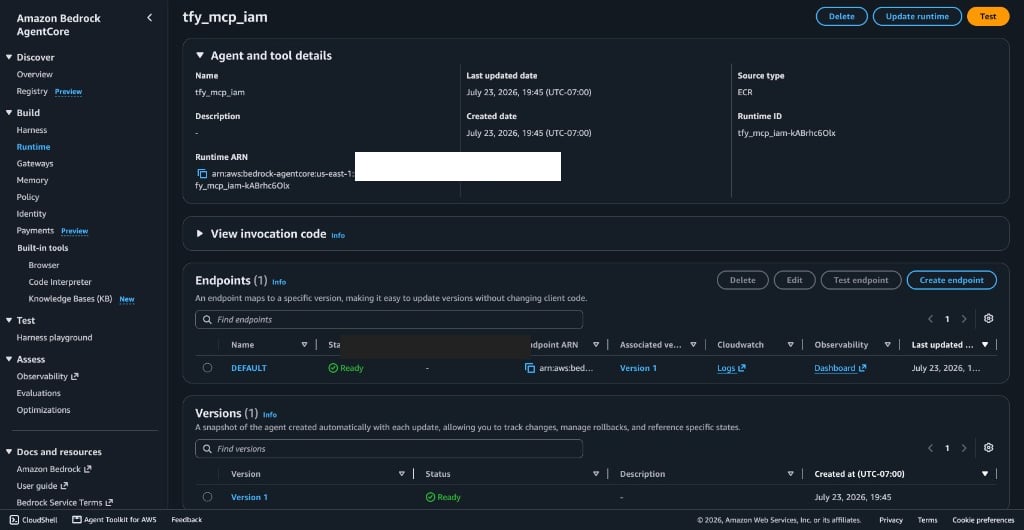 Example ARN:
```text theme={"dark"}
arn:aws:bedrock-agentcore:us-east-1:123456789012:runtime/my-runtime-abc123
```
2. Build the MCP URL with this template:
```text theme={"dark"}
https://bedrock-agentcore.{region}.amazonaws.com/runtimes/{urlencoded-runtime-ARN}/invocations?qualifier=DEFAULT
```
The ARN must be **percent-encoded** in the path (`:` → `%3A`, `/` → `%2F`). TrueFoundry’s gateway signs the URL as stored — it does not encode the ARN for you.
Encode it in a shell:
```bash theme={"dark"}
python3 -c 'from urllib.parse import quote; print(quote("arn:aws:bedrock-agentcore:us-east-1:123456789012:runtime/my-runtime-abc123", safe=""))'
```
Example result:
```text theme={"dark"}
https://bedrock-agentcore.us-east-1.amazonaws.com/runtimes/arn%3Aaws%3Abedrock-agentcore%3Aus-east-1%3A123456789012%3Aruntime%2Fmy-runtime-abc123/invocations?qualifier=DEFAULT
```
The region in the URL, the region in the ARN, and the **AWS Region** you select later in TrueFoundry must all match.
You need a **long-lived IAM access key** (access key ID + secret). Temporary Okta/SSO session credentials are not enough — the MCP Gateway SigV4 path currently signs with access key + secret only (no session token).
1. In AWS Console, open **IAM → Users**.
2. Click **Create user** and give it a name (for example `tfy-mcp-agentcore`).
3. On **Set permissions**, choose **Attach policies directly**.
4. Attach a policy that allows invoke on your runtime ARN. Example:
```json theme={"dark"}
{
"Version": "2012-10-17",
"Statement": [
{
"Effect": "Allow",
"Action": "bedrock-agentcore:InvokeAgentRuntime",
"Resource": "arn:aws:bedrock-agentcore:us-east-1:123456789012:runtime/my-runtime-abc123"
}
]
}
```
For a quick local test you can temporarily attach `AdministratorAccess`, then remove it after you create keys.
Example ARN:
```text theme={"dark"}
arn:aws:bedrock-agentcore:us-east-1:123456789012:runtime/my-runtime-abc123
```
2. Build the MCP URL with this template:
```text theme={"dark"}
https://bedrock-agentcore.{region}.amazonaws.com/runtimes/{urlencoded-runtime-ARN}/invocations?qualifier=DEFAULT
```
The ARN must be **percent-encoded** in the path (`:` → `%3A`, `/` → `%2F`). TrueFoundry’s gateway signs the URL as stored — it does not encode the ARN for you.
Encode it in a shell:
```bash theme={"dark"}
python3 -c 'from urllib.parse import quote; print(quote("arn:aws:bedrock-agentcore:us-east-1:123456789012:runtime/my-runtime-abc123", safe=""))'
```
Example result:
```text theme={"dark"}
https://bedrock-agentcore.us-east-1.amazonaws.com/runtimes/arn%3Aaws%3Abedrock-agentcore%3Aus-east-1%3A123456789012%3Aruntime%2Fmy-runtime-abc123/invocations?qualifier=DEFAULT
```
The region in the URL, the region in the ARN, and the **AWS Region** you select later in TrueFoundry must all match.
You need a **long-lived IAM access key** (access key ID + secret). Temporary Okta/SSO session credentials are not enough — the MCP Gateway SigV4 path currently signs with access key + secret only (no session token).
1. In AWS Console, open **IAM → Users**.
2. Click **Create user** and give it a name (for example `tfy-mcp-agentcore`).
3. On **Set permissions**, choose **Attach policies directly**.
4. Attach a policy that allows invoke on your runtime ARN. Example:
```json theme={"dark"}
{
"Version": "2012-10-17",
"Statement": [
{
"Effect": "Allow",
"Action": "bedrock-agentcore:InvokeAgentRuntime",
"Resource": "arn:aws:bedrock-agentcore:us-east-1:123456789012:runtime/my-runtime-abc123"
}
]
}
```
For a quick local test you can temporarily attach `AdministratorAccess`, then remove it after you create keys.
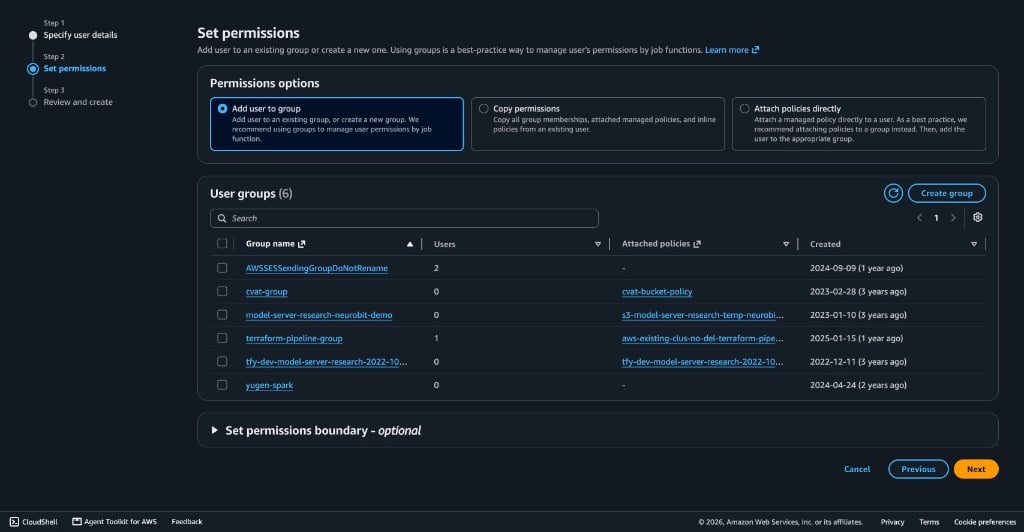 5. Finish **Create user**.
1. Open the new user → **Security credentials**.
2. Under **Access keys**, click **Create access key**.
3. Choose **Application running outside AWS** → **Next** → **Create access key**.
4. Copy **Access key** and **Secret access key** now. The secret is shown only once.
Do not paste raw keys into git, screenshots, or public docs. Prefer storing them in TrueFoundry Secrets (next step) and referencing them by FQN.
1. In TrueFoundry, open **Secrets** and create (or reuse) a secret group — for example `agentcore-aws`.
2. Add two secrets:
* Key: `AWS_ACCESS_KEY_ID` → value: your IAM access key ID
* Key: `AWS_SECRET_ACCESS_KEY` → value: your IAM secret access key
See [Manage secrets](/docs/manage-secrets) for the full UI flow.
3. Note each secret’s FQN. It looks like:
```text theme={"dark"}
tfy-secret://::
```
Example:
```text theme={"dark"}
tfy-secret://truefoundry:agentcore-aws:AWS_ACCESS_KEY_ID
tfy-secret://truefoundry:agentcore-aws:AWS_SECRET_ACCESS_KEY
```
You will paste these FQNs into the MCP server form (or YAML) instead of the raw key values. TrueFoundry resolves them at runtime when the gateway signs requests.
1. Go to **MCP Gateway** → **Add Server** → **Connect any Remote MCP Server**.
2. Set **URL** to the encoded AgentCore MCP URL from earlier.
3. Add **Collaborators** as needed.
4. Under **Auth Data**, select **AWS SigV4**.
5. Fill in:
| Field | Value |
| ------------------------- | --------------------------------------------------------------------------- |
| **AWS Region** | Same region as the runtime (for example `us-east-1`) |
| **AWS Access Key ID** | `tfy-secret://…:AWS_ACCESS_KEY_ID` (or the raw key for a quick test) |
| **AWS Secret Access Key** | `tfy-secret://…:AWS_SECRET_ACCESS_KEY` (or the raw secret for a quick test) |
5. Finish **Create user**.
1. Open the new user → **Security credentials**.
2. Under **Access keys**, click **Create access key**.
3. Choose **Application running outside AWS** → **Next** → **Create access key**.
4. Copy **Access key** and **Secret access key** now. The secret is shown only once.
Do not paste raw keys into git, screenshots, or public docs. Prefer storing them in TrueFoundry Secrets (next step) and referencing them by FQN.
1. In TrueFoundry, open **Secrets** and create (or reuse) a secret group — for example `agentcore-aws`.
2. Add two secrets:
* Key: `AWS_ACCESS_KEY_ID` → value: your IAM access key ID
* Key: `AWS_SECRET_ACCESS_KEY` → value: your IAM secret access key
See [Manage secrets](/docs/manage-secrets) for the full UI flow.
3. Note each secret’s FQN. It looks like:
```text theme={"dark"}
tfy-secret://::
```
Example:
```text theme={"dark"}
tfy-secret://truefoundry:agentcore-aws:AWS_ACCESS_KEY_ID
tfy-secret://truefoundry:agentcore-aws:AWS_SECRET_ACCESS_KEY
```
You will paste these FQNs into the MCP server form (or YAML) instead of the raw key values. TrueFoundry resolves them at runtime when the gateway signs requests.
1. Go to **MCP Gateway** → **Add Server** → **Connect any Remote MCP Server**.
2. Set **URL** to the encoded AgentCore MCP URL from earlier.
3. Add **Collaborators** as needed.
4. Under **Auth Data**, select **AWS SigV4**.
5. Fill in:
| Field | Value |
| ------------------------- | --------------------------------------------------------------------------- |
| **AWS Region** | Same region as the runtime (for example `us-east-1`) |
| **AWS Access Key ID** | `tfy-secret://…:AWS_ACCESS_KEY_ID` (or the raw key for a quick test) |
| **AWS Secret Access Key** | `tfy-secret://…:AWS_SECRET_ACCESS_KEY` (or the raw secret for a quick test) |
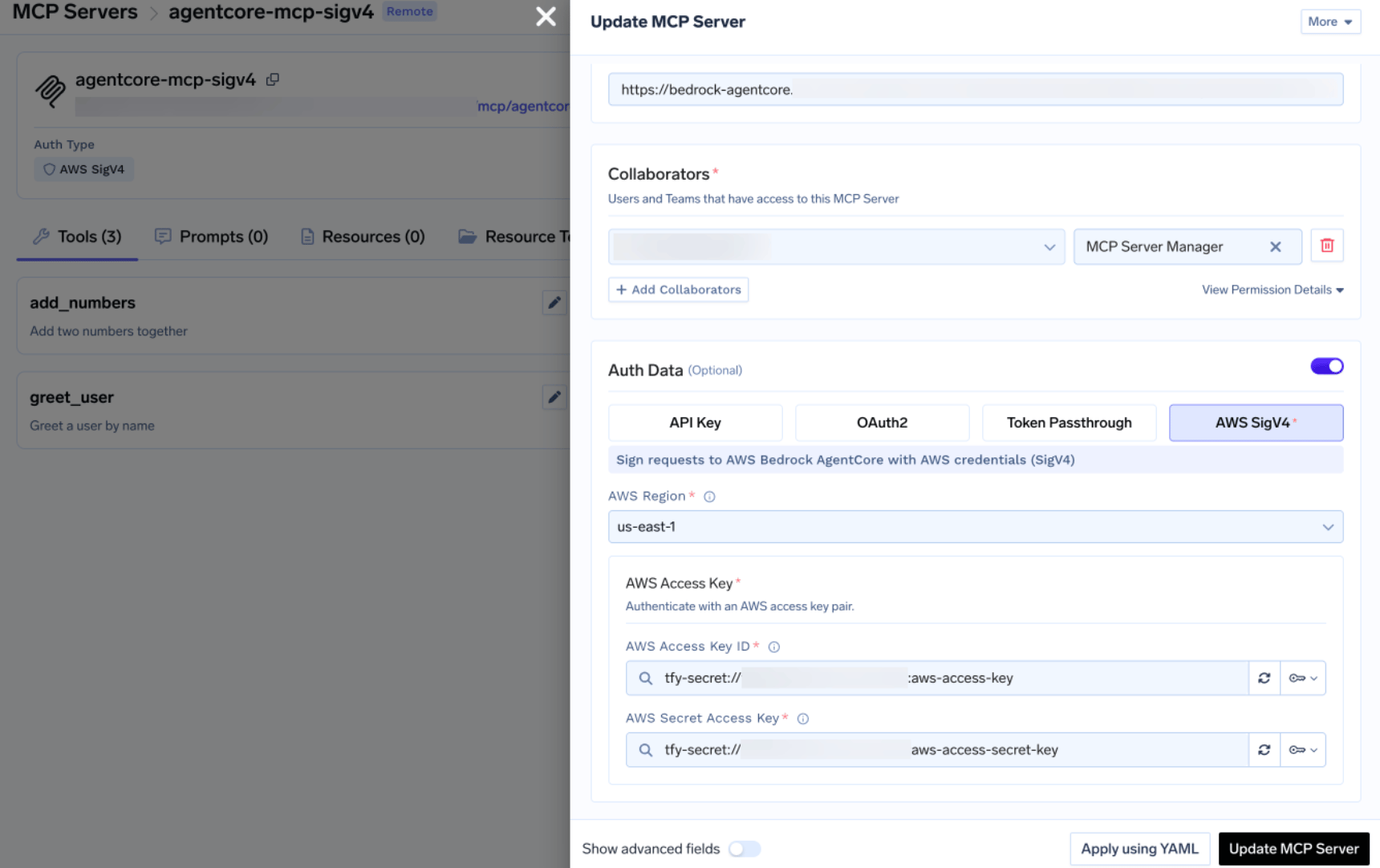 6. Click **Add MCP Server** (or **Update**).
```yaml theme={"dark"}
type: mcp-server/remote
name: my-agentcore-mcp
url: https://bedrock-agentcore.us-east-1.amazonaws.com/runtimes/arn%3Aaws%3A.../invocations?qualifier=DEFAULT
auth_data:
type: aws-sigv4
region: us-east-1
auth:
type: aws-access-key
access_key_id: tfy-secret://truefoundry:agentcore-aws:AWS_ACCESS_KEY_ID
secret_access_key: tfy-secret://truefoundry:agentcore-aws:AWS_SECRET_ACCESS_KEY
```
6. Click **Add MCP Server** (or **Update**).
```yaml theme={"dark"}
type: mcp-server/remote
name: my-agentcore-mcp
url: https://bedrock-agentcore.us-east-1.amazonaws.com/runtimes/arn%3Aaws%3A.../invocations?qualifier=DEFAULT
auth_data:
type: aws-sigv4
region: us-east-1
auth:
type: aws-access-key
access_key_id: tfy-secret://truefoundry:agentcore-aws:AWS_ACCESS_KEY_ID
secret_access_key: tfy-secret://truefoundry:agentcore-aws:AWS_SECRET_ACCESS_KEY
```