> ## Documentation Index
> Fetch the complete documentation index at: https://www.truefoundry.com/llms.txt
> Use this file to discover all available pages before exploring further.
# Set up Collibra MCP Server
> Connect your Collibra instance's hosted MCP server to the TrueFoundry MCP Gateway with OAuth2 so agents can search and govern your data catalog, glossary, and lineage.
[Collibra](https://www.collibra.com/) is a data intelligence platform for data governance, cataloging, and lineage. Every Collibra instance ships with its own hosted MCP server, so there is nothing to deploy. You create a user application (OAuth2 client) in Collibra, register TrueFoundry's callback URL on it, and add the server to TrueFoundry from the **Official Remote MCP Servers** catalogue with that application's Client ID and Client Secret.
Collibra is **per-tenant**: the MCP server URL and every OAuth2 endpoint are specific to your Collibra instance. Collibra also does **not** support Dynamic Client Registration (DCR), so you must bring your own OAuth client. There is no registration URL and no scopes to configure.
## Using Collibra through the MCP Gateway
The [TrueFoundry MCP Gateway](/docs/ai-gateway/mcp/mcp-overview) centralizes access to Collibra - agents connect through one endpoint instead of maintaining separate server configurations per client.
When you use Collibra MCP server through the AI Gateway, TrueFoundry provides:
* **Authentication** - Clients [authenticate inbound](/docs/ai-gateway/mcp/mcp-gateway-auth-security#inbound-authentication) to the AI Gateway with a Personal Access Token, Virtual Account, or IDE OAuth flow. For outbound access, the AI Gateway runs the [OAuth2 Authorization Code flow](/docs/ai-gateway/mcp/mcp-gateway-auth-security#outbound-authentication) with PKCE (`S256`) so each user authorizes their own Collibra account and operates under their own Collibra permissions; tokens are stored, refreshed and injected per user on tool calls.
* **Access control** - [Collaborators and role-based policies](/docs/ai-gateway/mcp/mcp-gateway-auth-security#access-control) define who can use the server and which tools they can invoke. Enable or disable individual Collibra tools from the server detail page, or use a [Virtual MCP Server](/docs/ai-gateway/mcp/virtual-mcp-server) to expose only read tools when agents should only read catalog context.
* **Observability** - Tool calls are traced with caller identity, tool name, inputs, and latency. Monitor server- and tool-level usage in [MCP Metrics](/docs/ai-gateway/analytics-mcp-metrics) and export traces to your observability stack via OpenTelemetry.
* **Guardrails** - Apply [pre-tool and post-tool guardrails](/docs/ai-gateway/guardrails-overview) on MCP tool calls.
## Prerequisites
* A TrueFoundry account with permission to add MCP servers, and your TrueFoundry control-plane base URL (used to build the OAuth callback).
* A Collibra instance, and permission to create a user application (OAuth2 client) in it.
* Your Collibra **instance URL**, for example `https://.collibra.com`.
## Collibra Endpoints
All endpoints use your Collibra instance URL as the base:
| Purpose | URL |
| - | - |
| MCP server URL | `https:///rest/mcp` |
| Authorization URL | `https:///oauth/v2/authorize` |
| Token URL | `https:///oauth/v2/token` |
Replace `` with your Collibra host, for example `your-company.collibra.com`. Use the same host in all three URLs.
## Create a User Application in Collibra
In your Collibra instance, create a **user application** (an OAuth2 client) for TrueFoundry.
Add TrueFoundry's OAuth callback URL to the user application's allowed redirect URIs:
```txt theme={"dark"}
https:///api/svc/v1/llm-gateway/mcp-servers/oauth2/callback
```
Replace `` with your TrueFoundry control-plane host.
The redirect URI must match **exactly**, including the `https://` scheme and trailing slashes. Any mismatch makes the OAuth handshake fail with a redirect-mismatch error.
Copy the generated **Client ID** and **Client Secret**. You'll enter them in TrueFoundry in the next section.
## Adding Collibra MCP server to TrueFoundry
Navigate to **MCP Servers** in the TrueFoundry sidebar and click **Add new MCP Server**. On the next screen, select **Connect Official Remote MCP Servers** - this opens the catalog of pre-vetted servers with auth already templated.
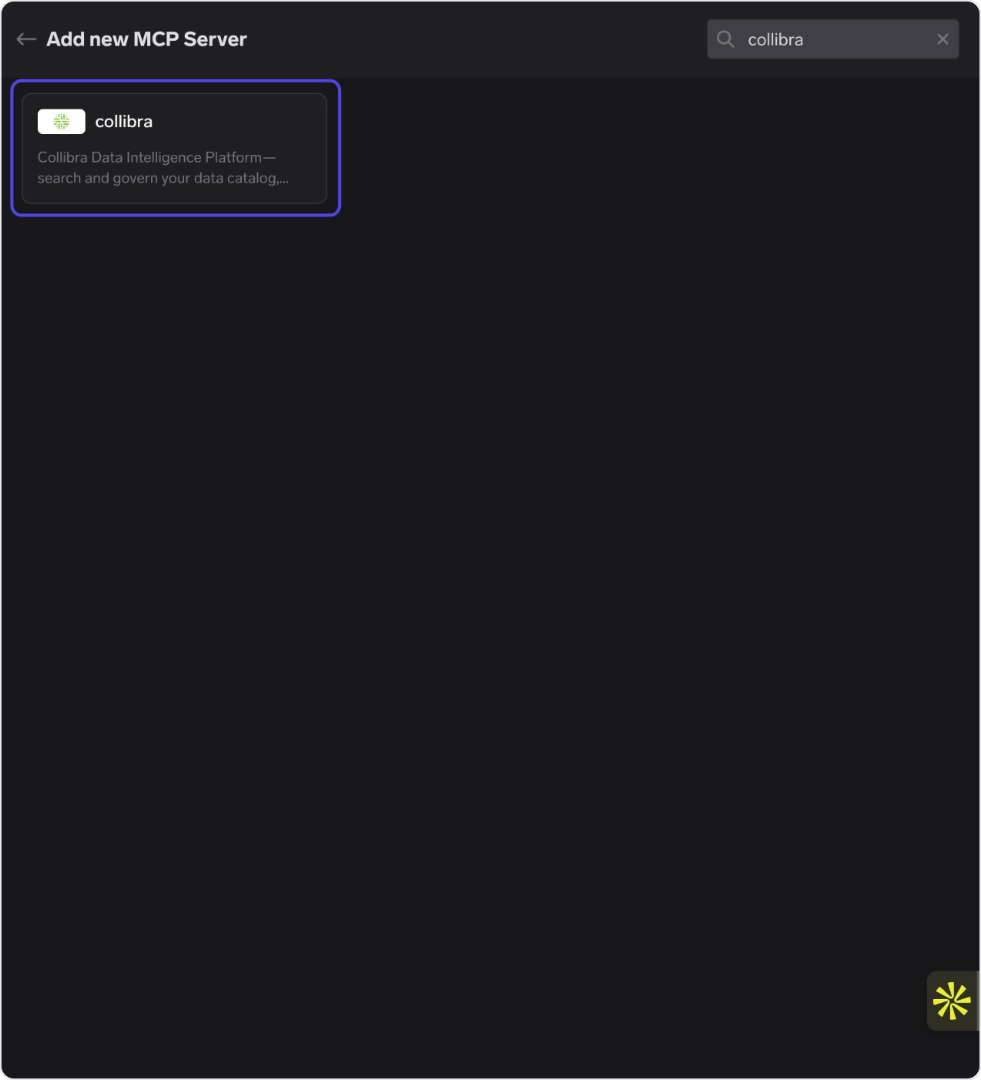
Collibra is available in the official remote MCP server catalogue. In the catalogue search, type "collibra" and click the **collibra** card.
 TrueFoundry pre-fills the Name, Description, and URL fields. Replace `{{YOUR_INSTANCE}}` in the URL with your Collibra host so it reads `https:///rest/mcp`. Add yourself or your team under **Collaborators** with the `MCP Server Manager` role.
Select **OAuth2** with grant type **Authorization Code** and fill in the fields:
* **Authorization URL**: `https:///oauth/v2/authorize`
* **Token URL**: `https:///oauth/v2/token`
* **Client ID** / **Client Secret**: the values from your Collibra user application
* **Code Challenge Methods Supported**: `S256` (PKCE is required)
* **JWT Source**: Access Token
Leave **Registration URL** and **Scopes** empty. Collibra does not support DCR and requires no scopes.
Store the Client Secret in the [TrueFoundry secrets store](/docs/manage-secrets) and reference its FQN instead of inlining it.
Save the MCP Server, then open the server's **Tools** tab and click **Connect Now**. You'll be redirected to Collibra to sign in and authorize access.
After authorizing, the **Tools** tab lists Collibra's available tools. Click **Try** on any tool to invoke it through the TrueFoundry MCP Gateway and inspect the JSON output before using it in an agent.
## Connecting to an MCP Client
Open the **How To Use** tab on the Collibra server detail page for your tenant-specific Gateway URL and ready-to-paste client snippets - don't build the endpoint manually.
The tab includes snippets for Claude Code, VS Code, Claude Web, Claude Desktop, Cursor, Windsurf, Codex, and the Python and TypeScript MCP SDKs. Use **Show API Key** if your client requires a Gateway token in a header.
## Using the Tool Playground
Before deploying an agent, you can test any Collibra MCP server tool directly in TrueFoundry:
On the Collibra MCP server detail page, click **Try** next to any tool.
Enter the tool's input parameters, for example a search term for your data catalog.
Click **Execute Tool** and inspect the JSON output in the right panel.
## Tool Metrics
The **Tool Metrics** tab on the Collibra server detail page tracks how agents use each tool:
* **Invocation count** - which tools are called most often
* **Latency** - how long each tool takes to respond
* **Error rates** - which tools are failing in production
See [MCP Metrics](/docs/ai-gateway/analytics-mcp-metrics) for server- and tool-level dashboards across your Gateway.
## Disabling Individual Tools
On the **Tools** tab, toggle off any Collibra tools your agents don't need:
* **Disabled tools** are hidden from MCP clients and cannot be invoked.
* **Enabled tools** remain available to agents as usual.
TrueFoundry pre-fills the Name, Description, and URL fields. Replace `{{YOUR_INSTANCE}}` in the URL with your Collibra host so it reads `https:///rest/mcp`. Add yourself or your team under **Collaborators** with the `MCP Server Manager` role.
Select **OAuth2** with grant type **Authorization Code** and fill in the fields:
* **Authorization URL**: `https:///oauth/v2/authorize`
* **Token URL**: `https:///oauth/v2/token`
* **Client ID** / **Client Secret**: the values from your Collibra user application
* **Code Challenge Methods Supported**: `S256` (PKCE is required)
* **JWT Source**: Access Token
Leave **Registration URL** and **Scopes** empty. Collibra does not support DCR and requires no scopes.
Store the Client Secret in the [TrueFoundry secrets store](/docs/manage-secrets) and reference its FQN instead of inlining it.
Save the MCP Server, then open the server's **Tools** tab and click **Connect Now**. You'll be redirected to Collibra to sign in and authorize access.
After authorizing, the **Tools** tab lists Collibra's available tools. Click **Try** on any tool to invoke it through the TrueFoundry MCP Gateway and inspect the JSON output before using it in an agent.
## Connecting to an MCP Client
Open the **How To Use** tab on the Collibra server detail page for your tenant-specific Gateway URL and ready-to-paste client snippets - don't build the endpoint manually.
The tab includes snippets for Claude Code, VS Code, Claude Web, Claude Desktop, Cursor, Windsurf, Codex, and the Python and TypeScript MCP SDKs. Use **Show API Key** if your client requires a Gateway token in a header.
## Using the Tool Playground
Before deploying an agent, you can test any Collibra MCP server tool directly in TrueFoundry:
On the Collibra MCP server detail page, click **Try** next to any tool.
Enter the tool's input parameters, for example a search term for your data catalog.
Click **Execute Tool** and inspect the JSON output in the right panel.
## Tool Metrics
The **Tool Metrics** tab on the Collibra server detail page tracks how agents use each tool:
* **Invocation count** - which tools are called most often
* **Latency** - how long each tool takes to respond
* **Error rates** - which tools are failing in production
See [MCP Metrics](/docs/ai-gateway/analytics-mcp-metrics) for server- and tool-level dashboards across your Gateway.
## Disabling Individual Tools
On the **Tools** tab, toggle off any Collibra tools your agents don't need:
* **Disabled tools** are hidden from MCP clients and cannot be invoked.
* **Enabled tools** remain available to agents as usual.