> ## Documentation Index
> Fetch the complete documentation index at: https://www.truefoundry.com/llms.txt
> Use this file to discover all available pages before exploring further.
# MCP Gateway
> Learn how to use the MCP Gateway SDK to securely connect to integrated MCP Servers through TrueFoundry AI Gateway.
## Overview
TrueFoundry AI Gateway enables you to expose integrated MCP Servers to developers in a secure manner.
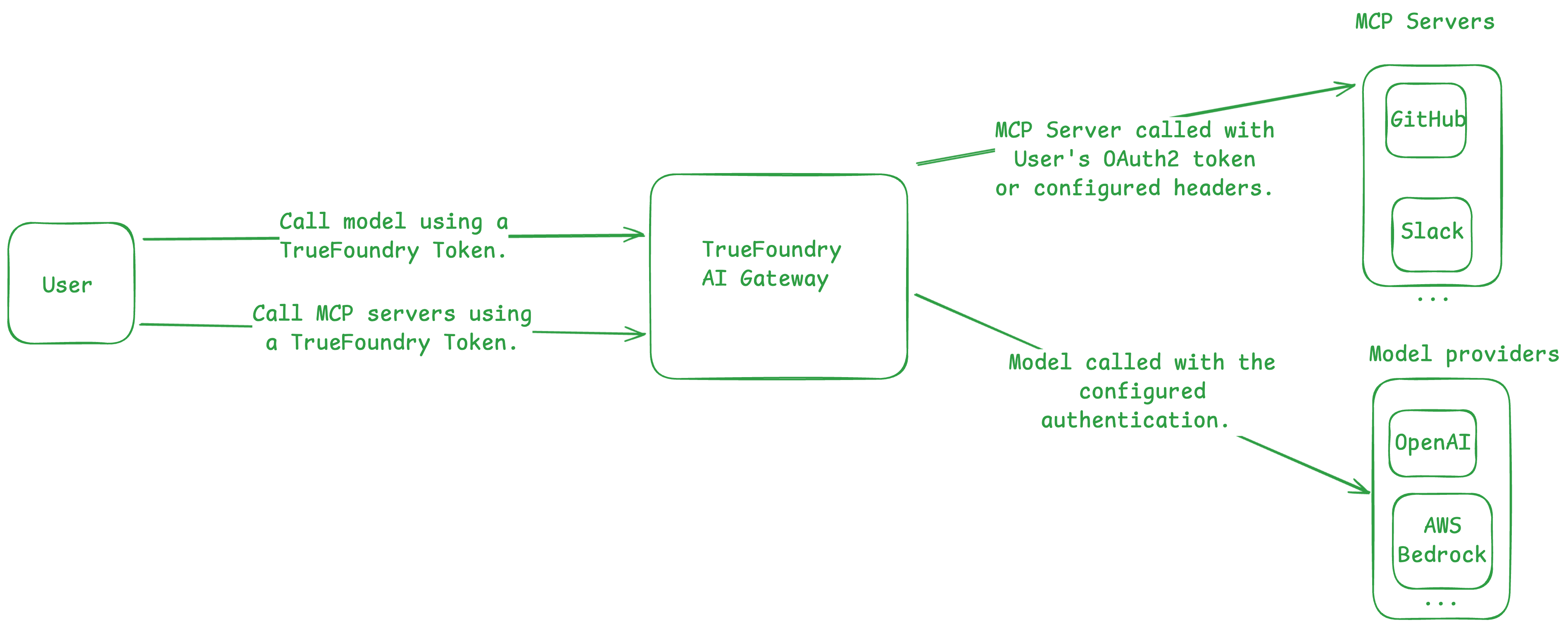 This allows you to:
* Manage who can use the registered MCP Servers.
* Avoid exposing MCP Server credentials directly to the developers.
* Monitor usage metrics (latency, execution per second) of the tools across all registered MCP Servers. (Coming soon.)
* Rate-limit tool calls. (Coming soon.)
* This is useful for expensive tools like search, code-execution, etc.
***
## Quickstart
This allows you to:
* Manage who can use the registered MCP Servers.
* Avoid exposing MCP Server credentials directly to the developers.
* Monitor usage metrics (latency, execution per second) of the tools across all registered MCP Servers. (Coming soon.)
* Rate-limit tool calls. (Coming soon.)
* This is useful for expensive tools like search, code-execution, etc.
***
## Quickstart
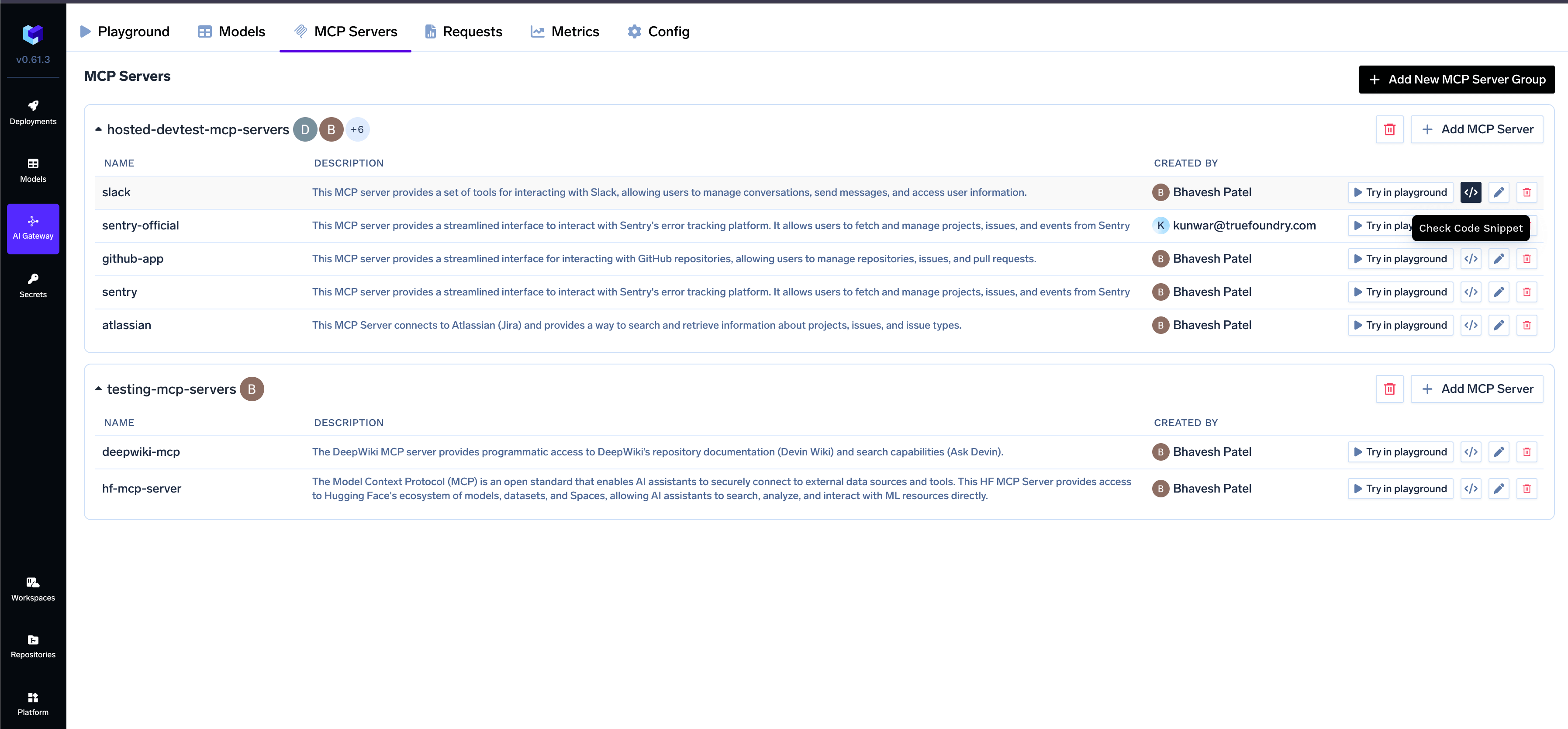
 See [API Keys](/docs/generating-truefoundry-api-keys) for more details on creating PATs and VATs.
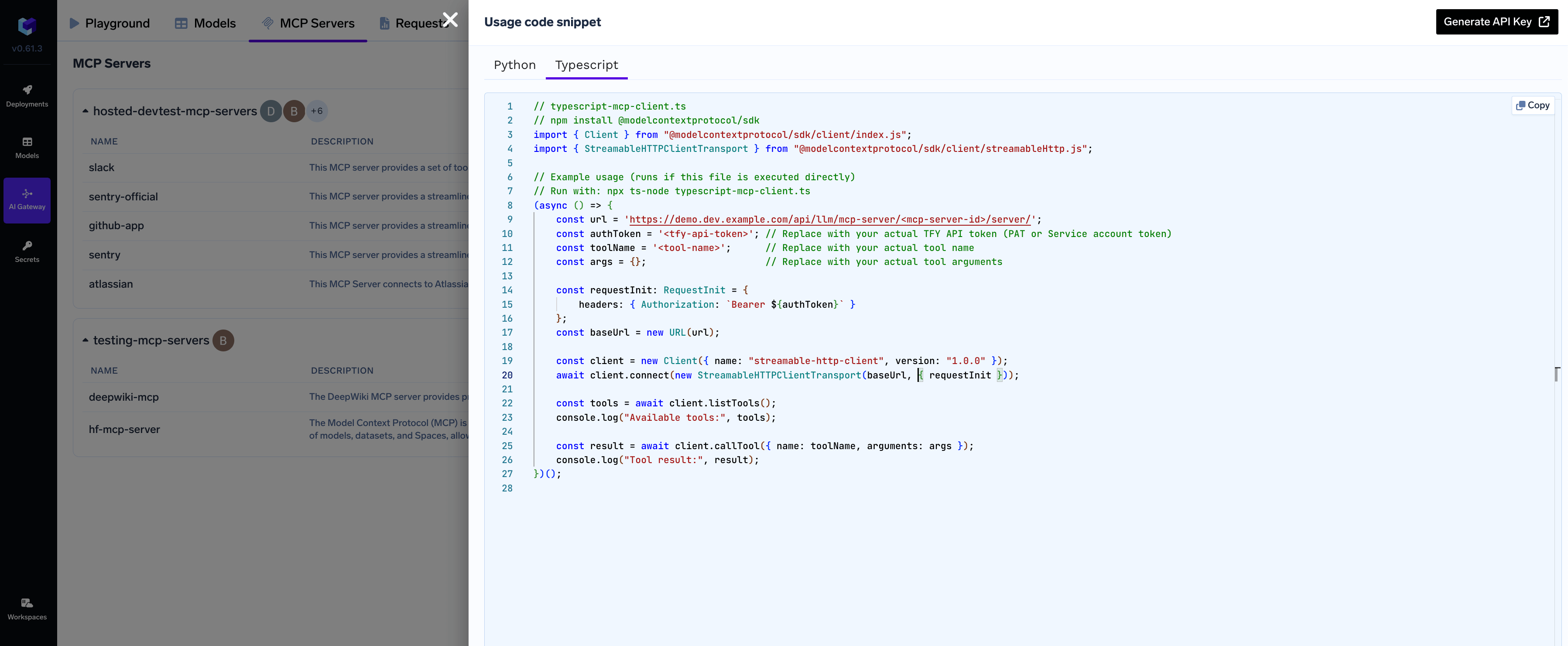
At this point, we can use the code snippet we copied at Step 1.
Below is an example showing how to connect, list tools, and call tools on an MCP Server. Update the placeholders with your actual credentials and tool names.
Install the library:
```bash lines theme={"dark"}
npm install @modelcontextprotocol/sdk
```
Code:
```typescript lines theme={"dark"}
import { Client } from "@modelcontextprotocol/sdk/client/index.js";
import { StreamableHTTPClientTransport } from "@modelcontextprotocol/sdk/client/streamableHttp.js";
// Example usage (runs if this file is executed directly)
// Run with: npx ts-node typescript-mcp-client.ts
(async () => {
const url = '{GATEWAY_BASE_URL}/mcp//server';
const authToken = ''; // Replace with your actual TFY API token (PAT or Service account token)
const toolName = ''; // Replace with your actual tool name
const args = {}; // Replace with your actual tool arguments
const requestInit: RequestInit = {
headers: { Authorization: `Bearer ${authToken}` }
};
const baseUrl = new URL(url);
const client = new Client({ name: "streamable-http-client", version: "1.0.0" });
await client.connect(new StreamableHTTPClientTransport(baseUrl, { requestInit }));
const tools = await client.listTools();
console.log("Available tools:", tools);
const result = await client.callTool({ name: toolName, arguments: args });
console.log("Tool result:", result);
})();
```
Install the library:
```bash lines theme={"dark"}
pip install fastmcp
```
Code:
```python lines theme={"dark"}
from fastmcp import Client
token = "" # Replace with your actual TFY API token (PAT or VA Token)
async def main():
url = "{GATEWAY_BASE_URL}/mcp//server"
async with Client(url, auth=token) as client:
tools = await client.list_tools()
for tool in tools:
print(f"Tool: {tool.name}")
print(f"Description: {tool.description}")
print(f"Parameters: {tool.inputSchema}")
print("--------------------------------")
tool_name = "echo" # Replace with your actual tool name
tool_args = {"message": "hello"} # Replace with your actual tool arguments
results = await client.call_tool(tool_name, tool_args)
print(f"Result: {results}")
print("--------------------------------")
if __name__ == "__main__":
import asyncio
asyncio.run(main())
```
## Configuration
| Parameter | Description |
| ----------- | -------------------------------------------------------------------------- |
| `url` | The MCP server URL (e.g., `{GATEWAY_BASE_URL}/mcp//server`) |
| `authToken` | Your TrueFoundry API token (PAT or user token) |
| `toolName` | The name of the tool you want to invoke |
| `args` | The arguments to pass to the tool |
Replace the placeholders in the example:
* `{GATEWAY_BASE_URL}` with your TrueFoundry AI Gateway base URL
* `` with your MCP server ID
* `` with your TrueFoundry API token
* `` with the name of the tool you want to use
## Supported Transports
* Only MCP servers that use [**streamable-http transport**](https://modelcontextprotocol.io/specification/2025-03-26/basic/transports#streamable-http) (stateful/stateless) are supported for connection via Gateway proxy
* Older SSE-based MCP servers will work on `/agent/responses` endpoint but are not compatible with the proxy connection method described here
See [API Keys](/docs/generating-truefoundry-api-keys) for more details on creating PATs and VATs.
At this point, we can use the code snippet we copied at Step 1.
Below is an example showing how to connect, list tools, and call tools on an MCP Server. Update the placeholders with your actual credentials and tool names.
Install the library:
```bash lines theme={"dark"}
npm install @modelcontextprotocol/sdk
```
Code:
```typescript lines theme={"dark"}
import { Client } from "@modelcontextprotocol/sdk/client/index.js";
import { StreamableHTTPClientTransport } from "@modelcontextprotocol/sdk/client/streamableHttp.js";
// Example usage (runs if this file is executed directly)
// Run with: npx ts-node typescript-mcp-client.ts
(async () => {
const url = '{GATEWAY_BASE_URL}/mcp//server';
const authToken = ''; // Replace with your actual TFY API token (PAT or Service account token)
const toolName = ''; // Replace with your actual tool name
const args = {}; // Replace with your actual tool arguments
const requestInit: RequestInit = {
headers: { Authorization: `Bearer ${authToken}` }
};
const baseUrl = new URL(url);
const client = new Client({ name: "streamable-http-client", version: "1.0.0" });
await client.connect(new StreamableHTTPClientTransport(baseUrl, { requestInit }));
const tools = await client.listTools();
console.log("Available tools:", tools);
const result = await client.callTool({ name: toolName, arguments: args });
console.log("Tool result:", result);
})();
```
Install the library:
```bash lines theme={"dark"}
pip install fastmcp
```
Code:
```python lines theme={"dark"}
from fastmcp import Client
token = "" # Replace with your actual TFY API token (PAT or VA Token)
async def main():
url = "{GATEWAY_BASE_URL}/mcp//server"
async with Client(url, auth=token) as client:
tools = await client.list_tools()
for tool in tools:
print(f"Tool: {tool.name}")
print(f"Description: {tool.description}")
print(f"Parameters: {tool.inputSchema}")
print("--------------------------------")
tool_name = "echo" # Replace with your actual tool name
tool_args = {"message": "hello"} # Replace with your actual tool arguments
results = await client.call_tool(tool_name, tool_args)
print(f"Result: {results}")
print("--------------------------------")
if __name__ == "__main__":
import asyncio
asyncio.run(main())
```
## Configuration
| Parameter | Description |
| ----------- | -------------------------------------------------------------------------- |
| `url` | The MCP server URL (e.g., `{GATEWAY_BASE_URL}/mcp//server`) |
| `authToken` | Your TrueFoundry API token (PAT or user token) |
| `toolName` | The name of the tool you want to invoke |
| `args` | The arguments to pass to the tool |
Replace the placeholders in the example:
* `{GATEWAY_BASE_URL}` with your TrueFoundry AI Gateway base URL
* `` with your MCP server ID
* `` with your TrueFoundry API token
* `` with the name of the tool you want to use
## Supported Transports
* Only MCP servers that use [**streamable-http transport**](https://modelcontextprotocol.io/specification/2025-03-26/basic/transports#streamable-http) (stateful/stateless) are supported for connection via Gateway proxy
* Older SSE-based MCP servers will work on `/agent/responses` endpoint but are not compatible with the proxy connection method described here