> ## Documentation Index
> Fetch the complete documentation index at: https://www.truefoundry.com/llms.txt
> Use this file to discover all available pages before exploring further.

# LangWatch

> Learn how to export LLM Gateway traces to LangWatch using OpenTelemetry integration.

This guide provides instructions for integrating [LangWatch](https://langwatch.ai) with the TrueFoundry AI Gateway to export OpenTelemetry traces.

## What is LangWatch?

LangWatch is an LLM observability and evaluation platform that accepts traces via standard OpenTelemetry Protocol (OTLP) endpoints. It captures LLM call traces, evaluates them against custom criteria, and provides analytics, annotation tools, and dataset management for AI applications. LangWatch is compatible with any OpenTelemetry-instrumented source and maps received spans to its own data model automatically.

### Key Features of LangWatch

* **[OpenTelemetry Ingestion](https://langwatch.ai/docs/integration/opentelemetry/guide)**: Accepts OTLP traces over HTTP and gRPC, compatible with all OpenTelemetry SDKs and exporters including the TrueFoundry AI Gateway.
* **[Evaluations](https://langwatch.ai/docs/evaluations/overview)**: Run automated evaluations on captured traces to measure quality, safety, and correctness of LLM responses.
* **[Annotations and Datasets](https://langwatch.ai/docs/datasets/overview)**: Annotate traces manually or programmatically and build datasets for fine-tuning and regression testing.
* **[Analytics](https://langwatch.ai/docs/analytics/overview)**: Visualize trace volume, latency, token usage, and cost trends across models and time periods.

## Prerequisites

Before integrating LangWatch with TrueFoundry, ensure you have:

1. **TrueFoundry Account**: Create a [TrueFoundry account](https://www.truefoundry.com/register) and follow the instructions in our [Gateway Quick Start Guide](https://docs.truefoundry.com/gateway/quick-start).
2. **LangWatch Account**: Sign up at [app.langwatch.ai](https://app.langwatch.ai). A free tier is available.
3. **LangWatch API Key**: Create an API key from the LangWatch dashboard under **Settings → API Keys**.

## Integration Steps

<Steps>
  <Step title="Get Your LangWatch API Key">
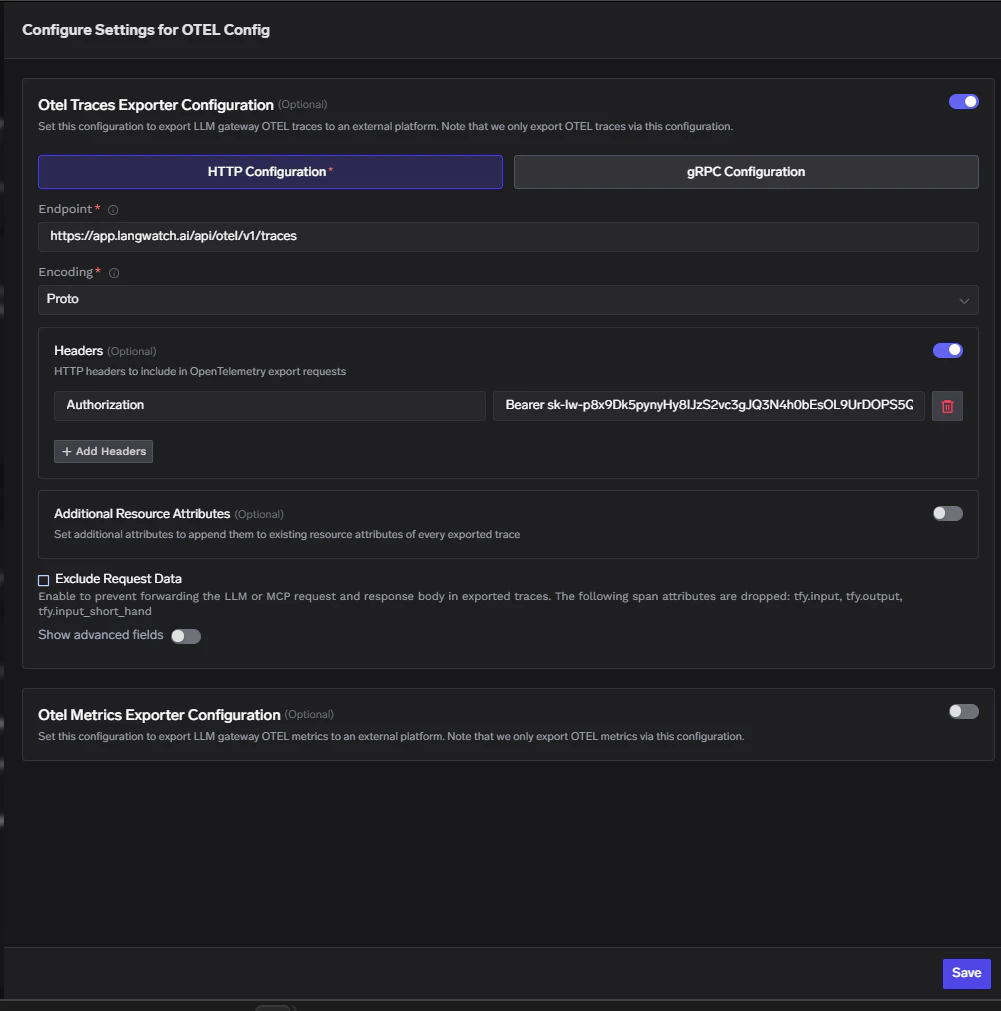
    1. Log in to [app.langwatch.ai](https://app.langwatch.ai).
    2. In the left sidebar go to **Settings**.
    3. Navigate to **API Keys** and click **Create API Key**.
    4. Give it a name (for example `tfy-gateway`) and copy the key.

    <Frame>
      <img src="https://mintcdn.com/truefoundry/oV4Gs2xiqZzXmojM/images/langwatch-api-key.png?fit=max&auto=format&n=oV4Gs2xiqZzXmojM&q=85&s=fd22a45f7128799d29c49d405af2277b" alt="LangWatch Settings page showing API Keys section with a key created for TrueFoundry" width="1024" height="223" data-path="images/langwatch-api-key.png" />
    </Frame>

    <Tip>
      LangWatch API keys are project-scoped. Make sure you are in the correct project before creating the key, as traces will be routed to that project.
    </Tip>
  </Step>

  <Step title="Configure OTEL Export in TrueFoundry">
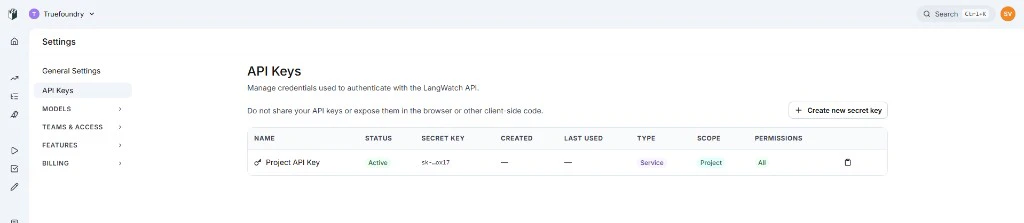
    1. Go to **AI Gateway** → **Controls** → **Settings** in the TrueFoundry dashboard.
    2. Scroll down to the **OTEL Config** section and click the edit (✏️) button.

    <Frame>
      <img src="https://mintcdn.com/truefoundry/oV4Gs2xiqZzXmojM/images/langwatch-tfy-otel-nav.png?fit=max&auto=format&n=oV4Gs2xiqZzXmojM&q=85&s=26f6f9f2dadf5378c3bcec57217fc4a2" alt="TrueFoundry AI Gateway Settings page showing the OTEL Config section" width="1024" height="538" data-path="images/langwatch-tfy-otel-nav.png" />
    </Frame>

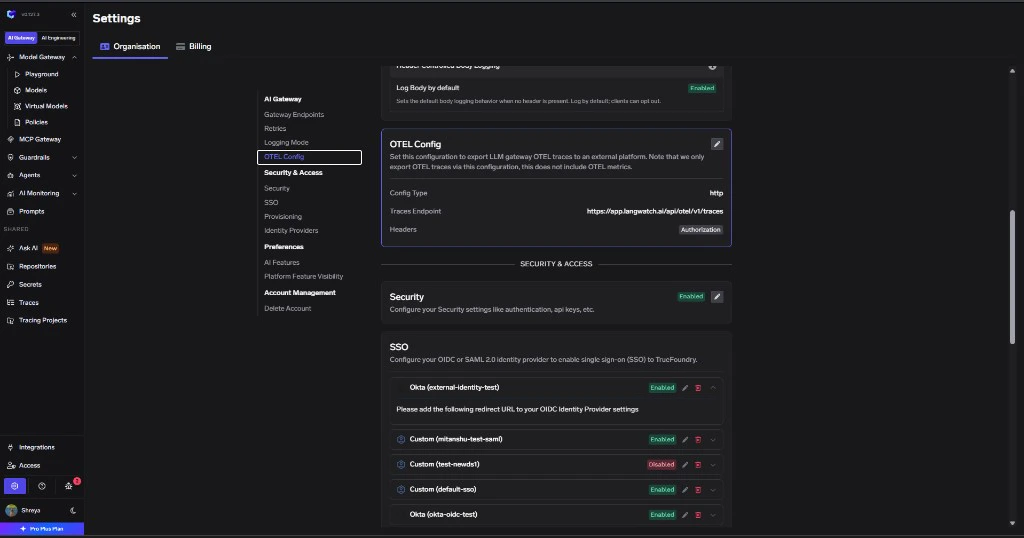
    3. Enable the **Otel Traces Exporter Configuration** toggle and fill in:

    <table>
      <thead>
        <tr><th>Field</th><th>Value</th></tr>
      </thead>

      <tbody>
        <tr><td>Toggle</td><td>Enabled</td></tr>
        <tr><td>Protocol</td><td>HTTP Configuration</td></tr>
        <tr><td>Endpoint</td><td>[https://app.langwatch.ai/api/otel/v1/traces](https://app.langwatch.ai/api/otel/v1/traces)</td></tr>
        <tr><td>Encoding</td><td>Proto</td></tr>
        <tr><td>Header Key</td><td>Authorization</td></tr>
        <tr><td>Header Value</td><td>Bearer \<your-langwatch-api-key></td></tr>
      </tbody>
    </table>

    <Frame>
      <img src="https://mintcdn.com/truefoundry/oV4Gs2xiqZzXmojM/images/langwatch-traces-config.png?fit=max&auto=format&n=oV4Gs2xiqZzXmojM&q=85&s=f8e389796714ecd066722a4a567ba4a3" alt="TrueFoundry OTEL Traces Exporter Configuration showing LangWatch endpoint and Authorization header" width="1001" height="1011" data-path="images/langwatch-traces-config.png" />
    </Frame>

    4. Click **Save** to apply the configuration.
    <Note>
      LangWatch does not currently support OTLP metrics ingestion — only configure the Traces Exporter. Leave the Otel Metrics Exporter Configuration disabled.
    </Note>
  </Step>

  <Step title="Verify the Integration">
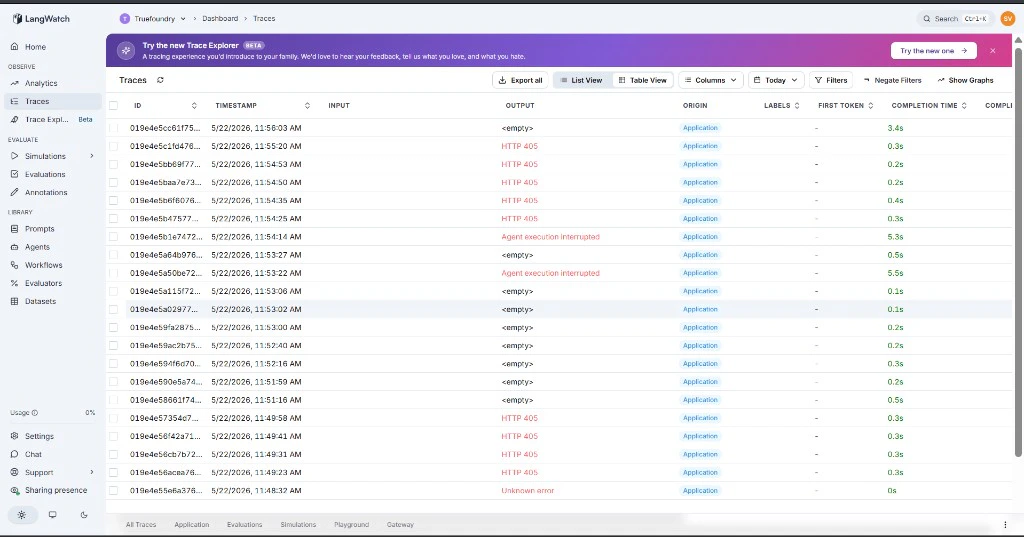
    1. Make a request through the TrueFoundry AI Gateway (for example from the Playground).
    2. Log into [app.langwatch.ai](https://app.langwatch.ai) and click **Traces** in the left sidebar.
    3. Confirm traces from `tfy-llm-gateway` are appearing with timestamps matching your test request.

    <Frame>
      <img src="https://mintcdn.com/truefoundry/oV4Gs2xiqZzXmojM/images/langwatch-traces.png?fit=max&auto=format&n=oV4Gs2xiqZzXmojM&q=85&s=4683d87b7153ad7267c36af3147cc5ea" alt="LangWatch Traces page showing LLM call traces from TrueFoundry AI Gateway" width="1024" height="537" data-path="images/langwatch-traces.png" />
    </Frame>

    <Tip>
      Traces may show `&lt;empty&gt;` in the Input and Output columns initially. This is because LangWatch requires specific `gen_ai.*` span attributes to populate these fields. The traces are ingested correctly — click on any trace to view the full span attributes including `tfy.input` and `tfy.output`.
    </Tip>
  </Step>
</Steps>

## Configuration Reference

<table>
  <thead>
    <tr><th>Configuration</th><th>Value</th></tr>
  </thead>

  <tbody>
    <tr><td>Traces Endpoint</td><td>[https://app.langwatch.ai/api/otel/v1/traces](https://app.langwatch.ai/api/otel/v1/traces)</td></tr>
    <tr><td>Metrics Endpoint</td><td>Not supported</td></tr>
    <tr><td>Protocol</td><td>HTTP</td></tr>
    <tr><td>Encoding</td><td>Proto</td></tr>
    <tr><td>Auth Header Key</td><td>Authorization</td></tr>
    <tr><td>Auth Header Value</td><td>Bearer \<your-langwatch-api-key></td></tr>
  </tbody>
</table>