> ## Documentation Index
> Fetch the complete documentation index at: https://www.truefoundry.com/llms.txt
> Use this file to discover all available pages before exploring further.
# Adding Gemini Models in Google Vertex
> Add Gemini models from Google Vertex to TrueFoundry AI Gateway with region and access control settings.
This guide walks you through the steps to add Gemini models in Google Vertex using the TrueFoundry platform, along with configuring access controls.
## Adding Gemini Models
### 1. Navigate to the AI Gateway
* In the **TrueFoundry Dashboard**, go to **AI Gateway** → **Models**
* Select **Google Vertex** as your model provider
### 2. Select or Create a Provider Account
* Choose an existing **Vertex Provider Account**, or click [**Create New**](https://docs.truefoundry.com/gateway/google-vertex) to set up a new one
* This account will be used to access and manage your Gemini models
### 3. Choose a Gemini Model
You can add a Gemini model in one of two ways:
**3.1 Select from Available Models**
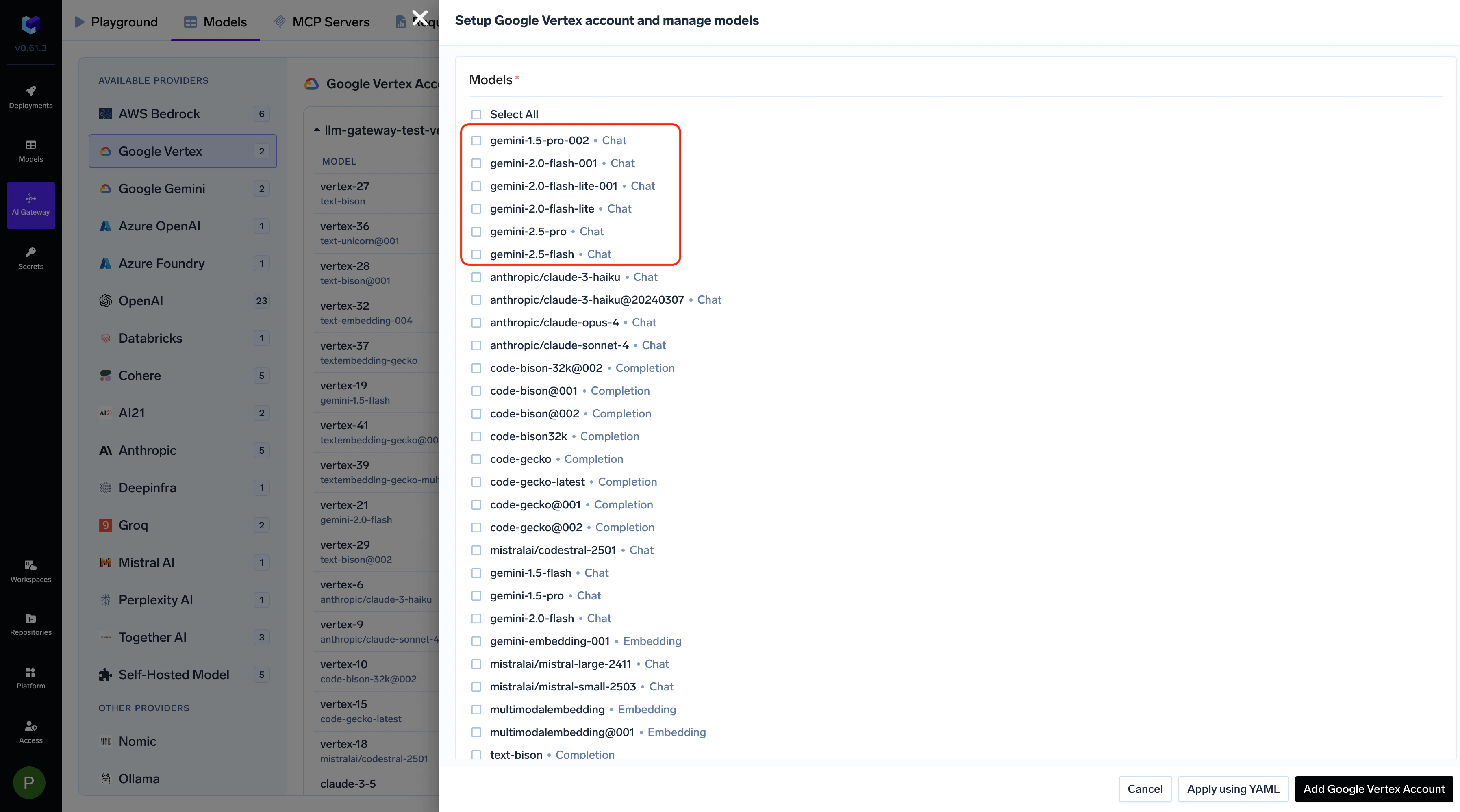 **3.2 Add a Model Manually**
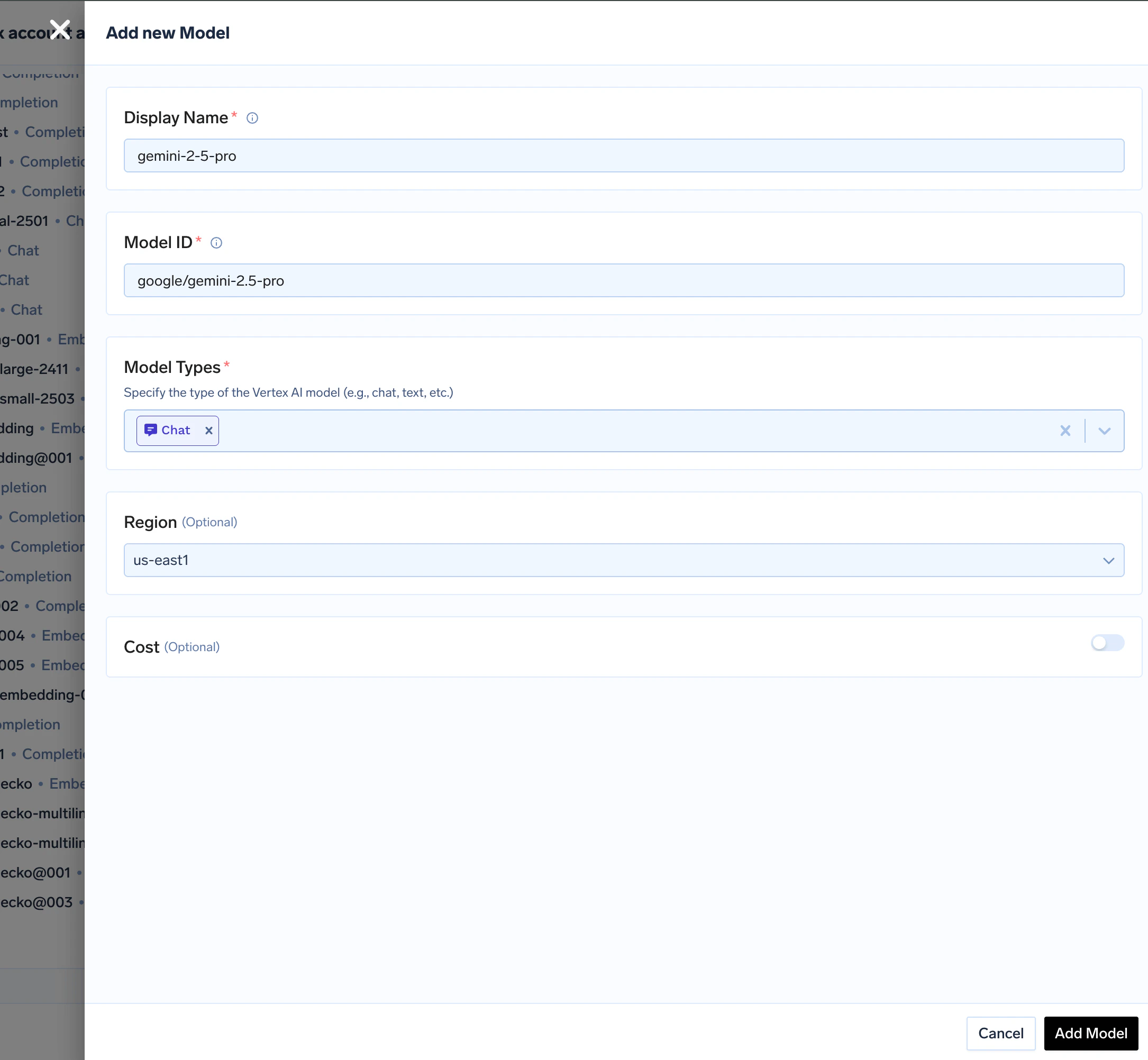
1. Click the **Add Model** button located at the bottom of the list
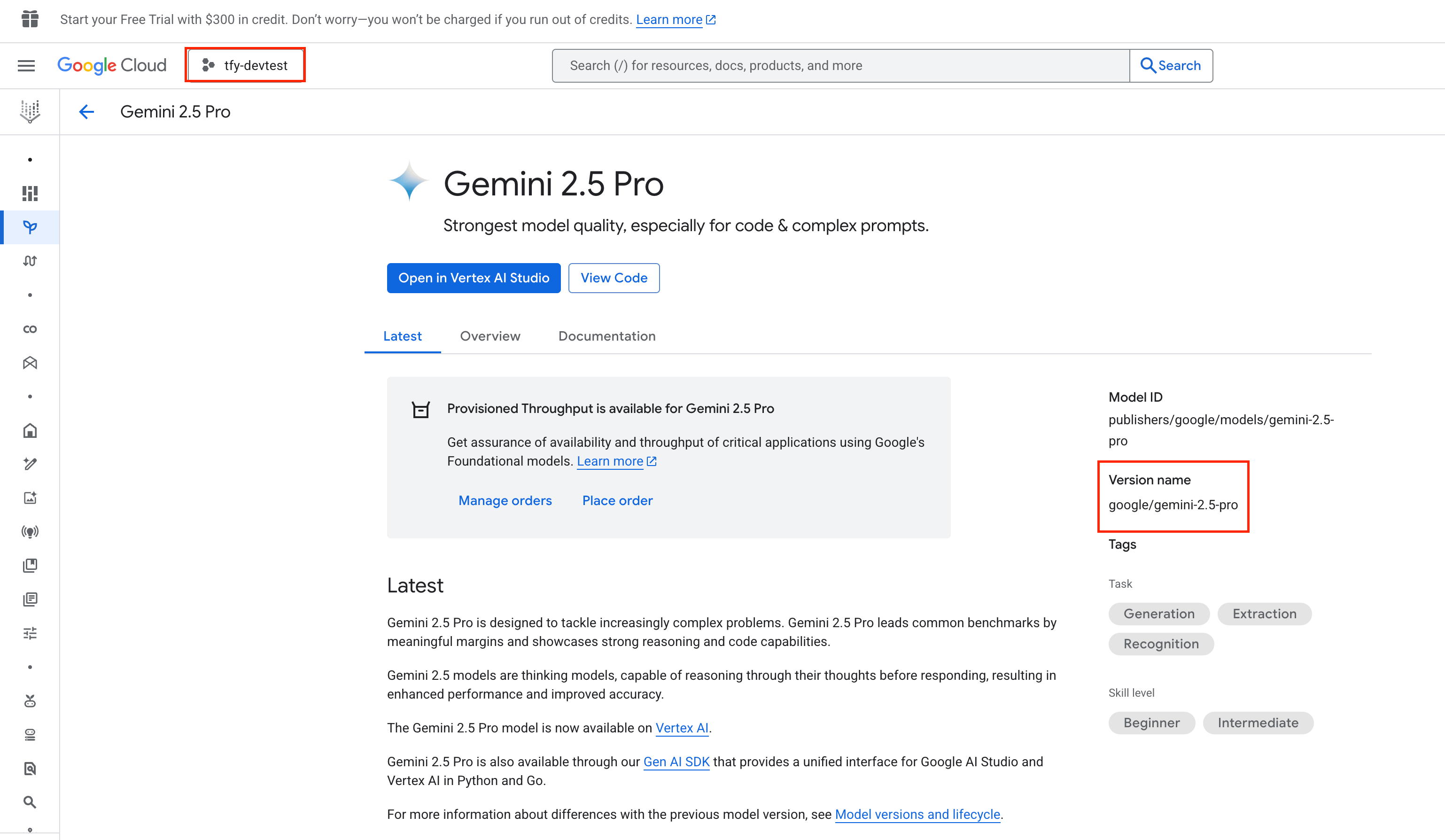
While adding Gemini Models, you need to provide the model ID in the `/` format. For example, `google/gemini-2.5-pro`.
**3.2 Add a Model Manually**
1. Click the **Add Model** button located at the bottom of the list
While adding Gemini Models, you need to provide the model ID in the `/` format. For example, `google/gemini-2.5-pro`.
 2. You can find the Model ID of model in Google Console
 ### 4. Configure Model Settings
* When adding a model manually, you can specify additional settings such as the **Region**
The Region is optional. If left blank, it will inherit the default region specified during Provider Account creation. Use this field only if you want to override the default region.
### 4. Configure Model Settings
* When adding a model manually, you can specify additional settings such as the **Region**
The Region is optional. If left blank, it will inherit the default region specified during Provider Account creation. Use this field only if you want to override the default region.