> ## Documentation Index
> Fetch the complete documentation index at: https://www.truefoundry.com/llms.txt
> Use this file to discover all available pages before exploring further.
# Claude Desktop & Cowork
> Connect Claude Desktop (Cowork on third-party inference) to the TrueFoundry AI Gateway.
[Claude Desktop](https://claude.com/download) can run in **Cowork on third-party (3P)** mode: the app routes inference to a gateway that implements the Anthropic [Messages API](https://docs.claude.com/en/api/messages) instead of signing in to claude.ai. The TrueFoundry AI Gateway is compatible with this mode.
For more details, see Anthropic’s [Installation and setup](https://claude.com/docs/cowork/3p/installation), [Configuration reference](https://claude.com/docs/cowork/3p/configuration), [Using an LLM gateway](https://claude.com/docs/cowork/3p/gateway), and the Help Center article [Install and configure Claude Cowork with third-party platforms](https://support.claude.com/en/articles/14680741-install-and-configure-claude-cowork-with-third-party-platforms).
There are two ways to point Claude Desktop at the AI Gateway. The **per-user UI** below (Developer Mode → Configure third-party inference) is best for a single machine or a quick trial — but each user configures it and can change or remove it. To enforce it across a fleet, use **[MDM managed preferences](#enforce-fleet-wide-via-mdm-managed-preferences)**, which push the AI Gateway configuration into the `com.anthropic.claudefordesktop` domain and lock it down — the Claude Desktop equivalent of pushing `managed-settings.json` for [Claude Code](/docs/ai-gateway/claude-code).
## Prerequisites
Before you configure Claude Desktop, ensure you have:
1. **TrueFoundry account** — Create a [TrueFoundry account](https://www.truefoundry.com/register) and follow [Gateway quick start](/docs/ai-gateway/quick-start). You need your gateway base URL (see [Gateway base URL](/docs/ai-gateway/quick-start#gateway-base-url)) and a TrueFoundry API key.
2. **Models on the AI Gateway** — Add the Claude models you plan to use via TrueFoundry (Anthropic direct, Bedrock, or Vertex). See [Anthropic model integration](/docs/ai-gateway/anthropic). For Cowork, include **Opus**, **Sonnet**, and **Haiku** so primary chats and sub-agents can resolve cleanly (details below).
3. **Claude Desktop** — Install from [claude.com/download](https://claude.com/download). For manual setup, launch the app but **do not** sign in until you have opened the configuration window (Anthropic recommends staying on the login screen).
## Enable Developer Mode
The third-party inference UI is behind Developer Mode.
**macOS:** Menu bar → **Help** → **Troubleshooting** → **Enable Developer Mode**.
**Windows:** Application menu (top-left on the login screen) → **Help** → **Troubleshooting** → **Enable Developer Mode**.
## Open the configuration window
**Developer** → **Configure third-party inference**.
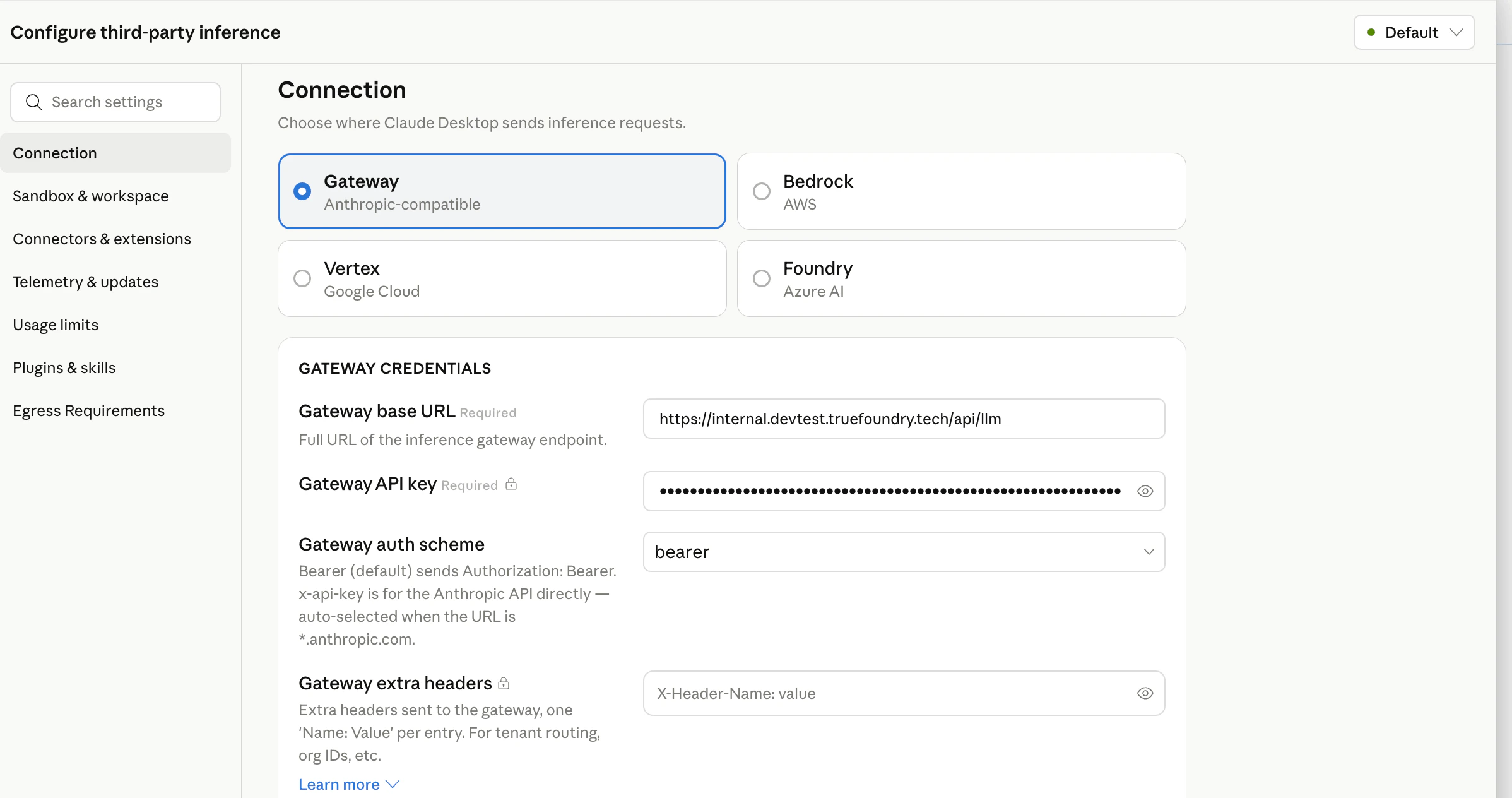
You should see a sidebar with sections such as **Connection**, **Sandbox & workspace**, **Connectors & extensions**, and others. Work through **Connection** first, then **Identity & Models** as needed.
## Connection — point Claude Desktop at TrueFoundry
1. Under **Connection**, choose **Gateway** (Anthropic-compatible).
2. Set **Gateway base URL** to your TrueFoundry AI Gateway URL.
3. Set **Gateway API key** to your TrueFoundry API key.
4. Set **Gateway auth scheme** to **`bearer`** (sends `Authorization: Bearer `). Use **`x-api-key`** only if your deployment expects that header instead.
5. **Gateway extra headers** (optional) — one `Name: Value` per line for tenant routing or metadata, for example `X-TFY-METADATA: {"team":"platform"}`.
 ## Identity & Models
Per Anthropic’s configuration docs, the model list for **`gateway`** inference is **optional**: when you leave it empty, Cowork calls the AI Gateway’s **`GET /v1/models`** endpoint and builds the picker from the response. The TrueFoundry AI Gateway exposes this endpoint, so you can rely on auto-discovery.
**It is still recommended to set the model list explicitly.** When you configure it, the picker shows **exactly** the models you list instead of everything `/v1/models` returns. That helps you:
* **Pin Haiku** — Cowork’s built-in [Explore sub-agent](https://docs.claude.com/en/docs/claude-code/sub-agents) is configured to use Haiku for fast, read-only work. User-dispatched sub-agents in Cowork have also been observed to route through Haiku ([anthropics/claude-code#47488](https://github.com/anthropics/claude-code/issues/47488)). If discovery returns **no** Haiku id or **several** ambiguous Haiku variants, sub-agent calls can fail or behave unpredictably. Listing `your-account/claude-haiku-4-5` (or your org’s equivalent) removes that ambiguity.
* **Shorten the picker when discovery is noisy** — `/v1/models` may list many ids. An explicit list is optional but handy when you want Cowork users to see only the models you intend for this deployment.
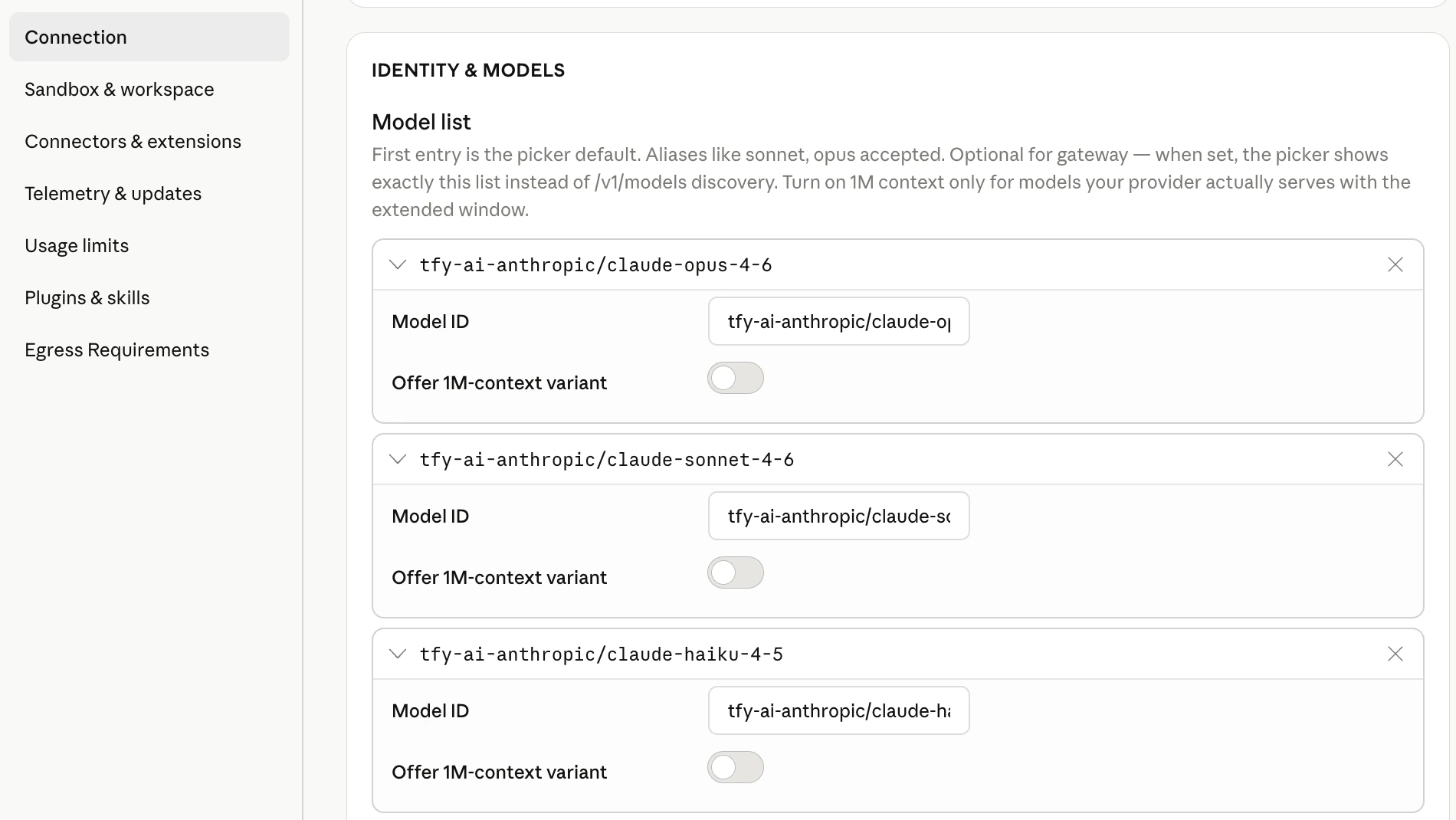
Add each model as `provider-account/model-id` (same strings you use in the TrueFoundry playground). Example (replace `tfy-ai-anthropic` with your Anthropic model account name in TrueFoundry):
```json theme={"dark"}
[
"tfy-ai-anthropic/claude-opus-4-6",
"tfy-ai-anthropic/claude-sonnet-4-6",
"tfy-ai-anthropic/claude-haiku-4-5"
]
```
The **first** entry is the default in the model picker.
## Identity & Models
Per Anthropic’s configuration docs, the model list for **`gateway`** inference is **optional**: when you leave it empty, Cowork calls the AI Gateway’s **`GET /v1/models`** endpoint and builds the picker from the response. The TrueFoundry AI Gateway exposes this endpoint, so you can rely on auto-discovery.
**It is still recommended to set the model list explicitly.** When you configure it, the picker shows **exactly** the models you list instead of everything `/v1/models` returns. That helps you:
* **Pin Haiku** — Cowork’s built-in [Explore sub-agent](https://docs.claude.com/en/docs/claude-code/sub-agents) is configured to use Haiku for fast, read-only work. User-dispatched sub-agents in Cowork have also been observed to route through Haiku ([anthropics/claude-code#47488](https://github.com/anthropics/claude-code/issues/47488)). If discovery returns **no** Haiku id or **several** ambiguous Haiku variants, sub-agent calls can fail or behave unpredictably. Listing `your-account/claude-haiku-4-5` (or your org’s equivalent) removes that ambiguity.
* **Shorten the picker when discovery is noisy** — `/v1/models` may list many ids. An explicit list is optional but handy when you want Cowork users to see only the models you intend for this deployment.
Add each model as `provider-account/model-id` (same strings you use in the TrueFoundry playground). Example (replace `tfy-ai-anthropic` with your Anthropic model account name in TrueFoundry):
```json theme={"dark"}
[
"tfy-ai-anthropic/claude-opus-4-6",
"tfy-ai-anthropic/claude-sonnet-4-6",
"tfy-ai-anthropic/claude-haiku-4-5"
]
```
The **first** entry is the default in the model picker.
 ## Apply locally and relaunch
Click **Apply locally**. Claude Desktop writes the configuration and relaunches. On the sign-in screen you should see the option to start in **Cowork on 3P** using the profile you just built.
## Enforce fleet-wide via MDM (managed preferences)
The per-user UI above is convenient but not enforceable. For managed fleets, Claude Desktop reads **Cowork on 3P** configuration from OS-native **managed preferences** in the `com.anthropic.claudefordesktop` domain — the same class of control as pushing `managed-settings.json` for Claude Code. Push these keys via your MDM (Jamf, Kandji, Mosyle, Intune, Group Policy) or write and lock them with a script.
**Config locations**
| OS | Path |
| ------- | -------------------------------------------------------------------------- |
| macOS | `/Library/Managed Preferences//com.anthropic.claudefordesktop.plist` |
| Windows | `HKLM\SOFTWARE\Policies\Claude` |
| Linux | Not supported (Claude Desktop 3P does not run on Linux) |
**Keys** — every value is stored as a **string**; arrays and objects are **JSON-encoded strings** (see Anthropic's [Configuration reference](https://claude.com/docs/cowork/3p/configuration)).
| Key | Value |
| ---------------------------- | --------------------------------------------------------------------------------------------------------------------------------------- |
| `inferenceProvider` | `gateway` — activates third-party gateway mode |
| `inferenceGatewayBaseUrl` | Your TrueFoundry AI Gateway base URL |
| `inferenceGatewayAuthScheme` | `bearer` (sends `Authorization: Bearer …`) or `x-api-key` |
| `inferenceGatewayApiKey` | Your TrueFoundry API key / token |
| `inferenceCustomHeaders` | JSON object of **extra headers** on every request — e.g. tenant/metadata routing, or carrying the token in a custom header |
| `modelDiscoveryEnabled` | `false` to pin the picker to `inferenceModels` and stop the app calling the AI Gateway's `GET /v1/models` |
| `inferenceModels` | JSON array pinning the model picker (recommended). Set `modelDiscoveryEnabled` to `false` alongside it so only these models are offered |
**Custom headers.** `inferenceCustomHeaders` is a JSON object attached to every inference request — use it for tenant routing or metadata (for example `X-TFY-METADATA`), or to carry the credential in a custom header such as `X-TFY-API-KEY` (the same header Claude Code sends via `ANTHROPIC_CUSTOM_HEADERS`). Any header emitted by a credential helper merges over these.
Example macOS plist:
```xml theme={"dark"}
inferenceProvider
gateway
inferenceGatewayBaseUrl
https://gateway.example.truefoundry.com/api/llm
inferenceGatewayAuthScheme
bearer
inferenceGatewayApiKey
YOUR_TFY_API_KEY
inferenceCustomHeaders
{"X-TFY-METADATA":"{\"team\":\"platform\"}"}
modelDiscoveryEnabled
false
inferenceModels
[{"name":"tfy-ai-anthropic/claude-opus-4-6","anthropicFamilyTier":"opus","isFamilyDefault":true}]
```
Claude Desktop loads managed preferences **at launch**, so restart the app after the profile lands. Confirm what it picked up with **Help → Troubleshooting → Copy Managed Configuration Report** (secrets redacted).
TrueFoundry ships **[`tfy-local-ai-setup`](https://github.com/truefoundry/tfy-local-ai-setup)** to automate this end-to-end: it runs the device-login flow as the signed-in user, writes the managed preferences above (with the token in the `X-TFY-API-KEY` header), immutably locks the file, and refreshes on a schedule. Run it with `--claude-desktop` (and `--desktop-header 'Name: Value'` for extra custom headers). The same binary also manages Claude Code and Codex — see [Govern all AI traffic through the AI Gateway](/docs/ai-gateway/govern-traffic-through-ai-gateway). It only configures tools that are actually installed: an explicit flag for a tool that isn't present is skipped with a warning, and a machine with none of the three is a clean no-op (no login prompt) — so you can safely push all flags to your whole fleet.
## Verify the integration
1. Start a Cowork session and send a short test message.
2. In TrueFoundry, open **AI Gateway** → **Analytics** (see [Analytics overview](/docs/ai-gateway/analytics-overview)) and confirm requests appear for your API key and chosen model.
3. For configuration diagnostics, use **Help** → **Troubleshooting** → **Copy Managed Configuration Report** — it summarizes detected keys and whether gateway credentials validated (secrets redacted).
## Code tab and Claude Code CLI
The **Code** tab inside Claude Desktop uses **Claude Code** on the host. Some Cowork settings do not yet mirror one-to-one into Code-tab sessions. For terminal or VS Code workflows with environment variables and `settings.json`, follow [Claude Code](/docs/ai-gateway/claude-code) and [Claude Code Max](/docs/ai-gateway/claude-code-max).
## References
* [Cowork on 3P — Installation and setup](https://claude.com/docs/cowork/3p/installation)
* [Cowork on 3P — Configuration reference](https://claude.com/docs/cowork/3p/configuration)
* [Cowork on 3P — Using an LLM gateway](https://claude.com/docs/cowork/3p/gateway)
* [Install and configure Claude Cowork with third-party platforms](https://support.claude.com/en/articles/14680741-install-and-configure-claude-cowork-with-third-party-platforms)
## Apply locally and relaunch
Click **Apply locally**. Claude Desktop writes the configuration and relaunches. On the sign-in screen you should see the option to start in **Cowork on 3P** using the profile you just built.
## Enforce fleet-wide via MDM (managed preferences)
The per-user UI above is convenient but not enforceable. For managed fleets, Claude Desktop reads **Cowork on 3P** configuration from OS-native **managed preferences** in the `com.anthropic.claudefordesktop` domain — the same class of control as pushing `managed-settings.json` for Claude Code. Push these keys via your MDM (Jamf, Kandji, Mosyle, Intune, Group Policy) or write and lock them with a script.
**Config locations**
| OS | Path |
| ------- | -------------------------------------------------------------------------- |
| macOS | `/Library/Managed Preferences//com.anthropic.claudefordesktop.plist` |
| Windows | `HKLM\SOFTWARE\Policies\Claude` |
| Linux | Not supported (Claude Desktop 3P does not run on Linux) |
**Keys** — every value is stored as a **string**; arrays and objects are **JSON-encoded strings** (see Anthropic's [Configuration reference](https://claude.com/docs/cowork/3p/configuration)).
| Key | Value |
| ---------------------------- | --------------------------------------------------------------------------------------------------------------------------------------- |
| `inferenceProvider` | `gateway` — activates third-party gateway mode |
| `inferenceGatewayBaseUrl` | Your TrueFoundry AI Gateway base URL |
| `inferenceGatewayAuthScheme` | `bearer` (sends `Authorization: Bearer …`) or `x-api-key` |
| `inferenceGatewayApiKey` | Your TrueFoundry API key / token |
| `inferenceCustomHeaders` | JSON object of **extra headers** on every request — e.g. tenant/metadata routing, or carrying the token in a custom header |
| `modelDiscoveryEnabled` | `false` to pin the picker to `inferenceModels` and stop the app calling the AI Gateway's `GET /v1/models` |
| `inferenceModels` | JSON array pinning the model picker (recommended). Set `modelDiscoveryEnabled` to `false` alongside it so only these models are offered |
**Custom headers.** `inferenceCustomHeaders` is a JSON object attached to every inference request — use it for tenant routing or metadata (for example `X-TFY-METADATA`), or to carry the credential in a custom header such as `X-TFY-API-KEY` (the same header Claude Code sends via `ANTHROPIC_CUSTOM_HEADERS`). Any header emitted by a credential helper merges over these.
Example macOS plist:
```xml theme={"dark"}
inferenceProvider
gateway
inferenceGatewayBaseUrl
https://gateway.example.truefoundry.com/api/llm
inferenceGatewayAuthScheme
bearer
inferenceGatewayApiKey
YOUR_TFY_API_KEY
inferenceCustomHeaders
{"X-TFY-METADATA":"{\"team\":\"platform\"}"}
modelDiscoveryEnabled
false
inferenceModels
[{"name":"tfy-ai-anthropic/claude-opus-4-6","anthropicFamilyTier":"opus","isFamilyDefault":true}]
```
Claude Desktop loads managed preferences **at launch**, so restart the app after the profile lands. Confirm what it picked up with **Help → Troubleshooting → Copy Managed Configuration Report** (secrets redacted).
TrueFoundry ships **[`tfy-local-ai-setup`](https://github.com/truefoundry/tfy-local-ai-setup)** to automate this end-to-end: it runs the device-login flow as the signed-in user, writes the managed preferences above (with the token in the `X-TFY-API-KEY` header), immutably locks the file, and refreshes on a schedule. Run it with `--claude-desktop` (and `--desktop-header 'Name: Value'` for extra custom headers). The same binary also manages Claude Code and Codex — see [Govern all AI traffic through the AI Gateway](/docs/ai-gateway/govern-traffic-through-ai-gateway). It only configures tools that are actually installed: an explicit flag for a tool that isn't present is skipped with a warning, and a machine with none of the three is a clean no-op (no login prompt) — so you can safely push all flags to your whole fleet.
## Verify the integration
1. Start a Cowork session and send a short test message.
2. In TrueFoundry, open **AI Gateway** → **Analytics** (see [Analytics overview](/docs/ai-gateway/analytics-overview)) and confirm requests appear for your API key and chosen model.
3. For configuration diagnostics, use **Help** → **Troubleshooting** → **Copy Managed Configuration Report** — it summarizes detected keys and whether gateway credentials validated (secrets redacted).
## Code tab and Claude Code CLI
The **Code** tab inside Claude Desktop uses **Claude Code** on the host. Some Cowork settings do not yet mirror one-to-one into Code-tab sessions. For terminal or VS Code workflows with environment variables and `settings.json`, follow [Claude Code](/docs/ai-gateway/claude-code) and [Claude Code Max](/docs/ai-gateway/claude-code-max).
## References
* [Cowork on 3P — Installation and setup](https://claude.com/docs/cowork/3p/installation)
* [Cowork on 3P — Configuration reference](https://claude.com/docs/cowork/3p/configuration)
* [Cowork on 3P — Using an LLM gateway](https://claude.com/docs/cowork/3p/gateway)
* [Install and configure Claude Cowork with third-party platforms](https://support.claude.com/en/articles/14680741-install-and-configure-claude-cowork-with-third-party-platforms)