> ## Documentation Index
> Fetch the complete documentation index at: https://www.truefoundry.com/llms.txt
> Use this file to discover all available pages before exploring further.
# Cartesia
> Add and configure Cartesia Models in TrueFoundry's AI Gateway
### Adding Models
Add Cartesia models to the AI Gateway and set up access in three steps.
In the TrueFoundry dashboard, go to **AI Gateway** → **Models** and select **Cartesia**.
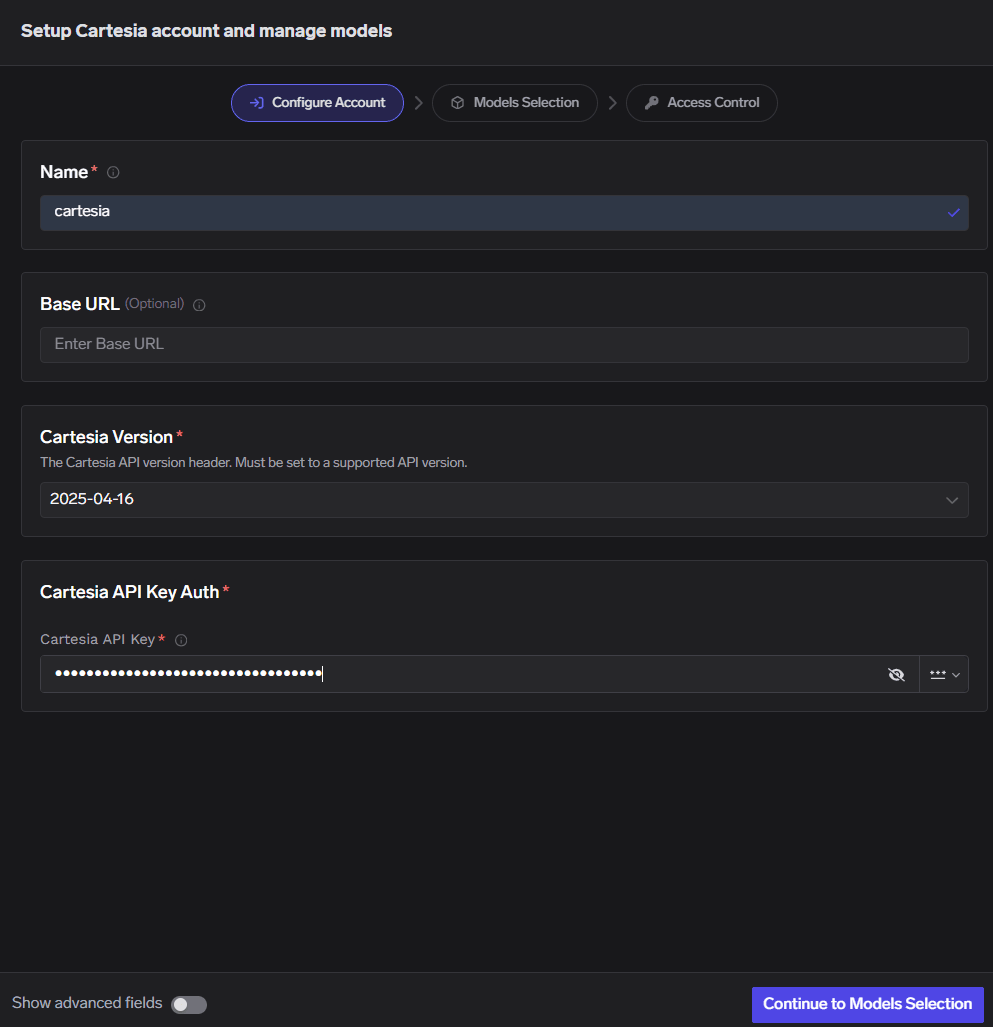
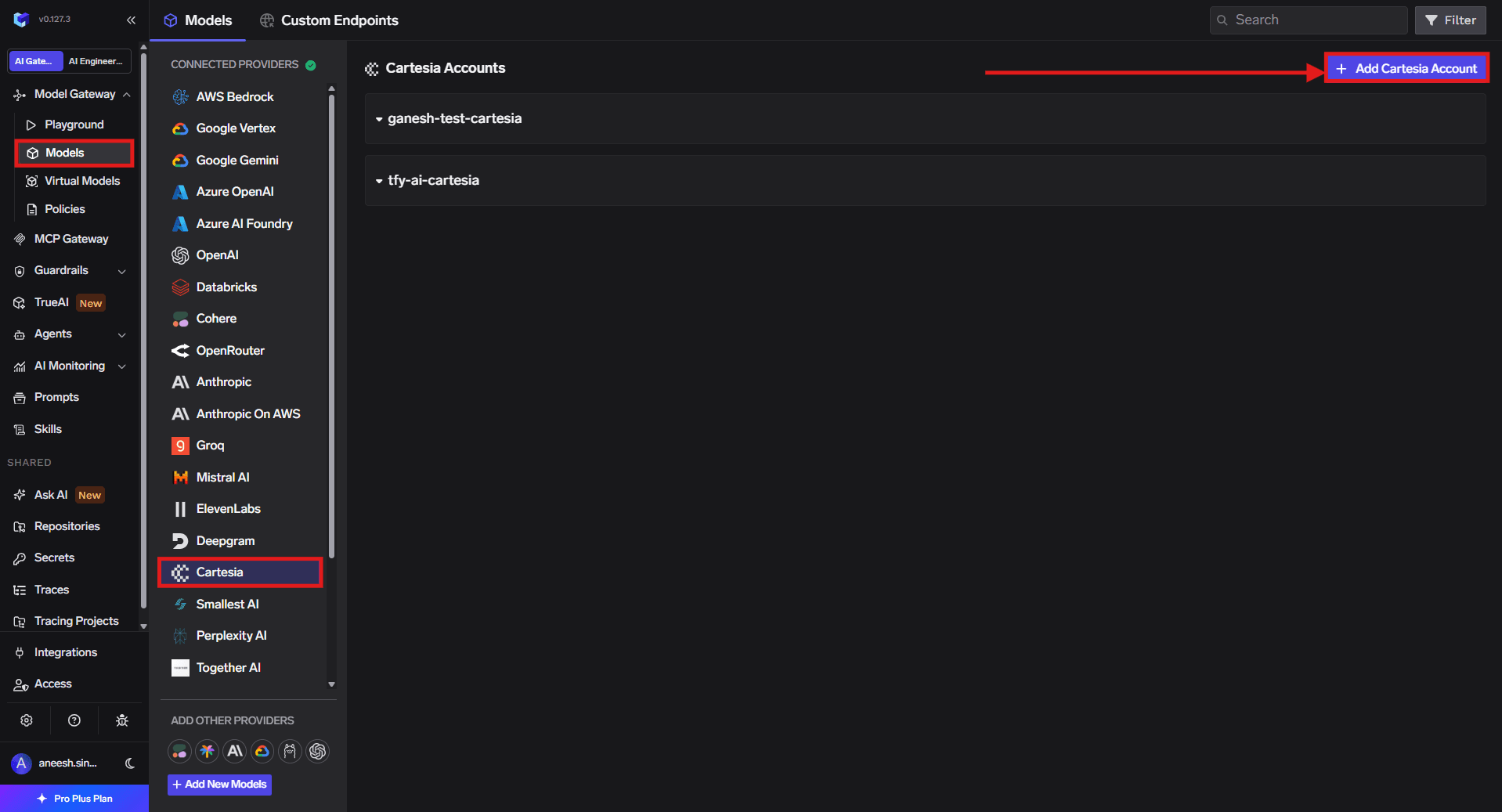 Click **Add Cartesia Account**. Enter a unique account name and your Cartesia **API Key**. Optionally add collaborators so other users or teams can use this account. See [Gateway access control](/docs/ai-gateway/gateway-access-control) for details.
 Click **+ Add Model** and fill in the **Display name**, **Model ID**, and **Model type**.
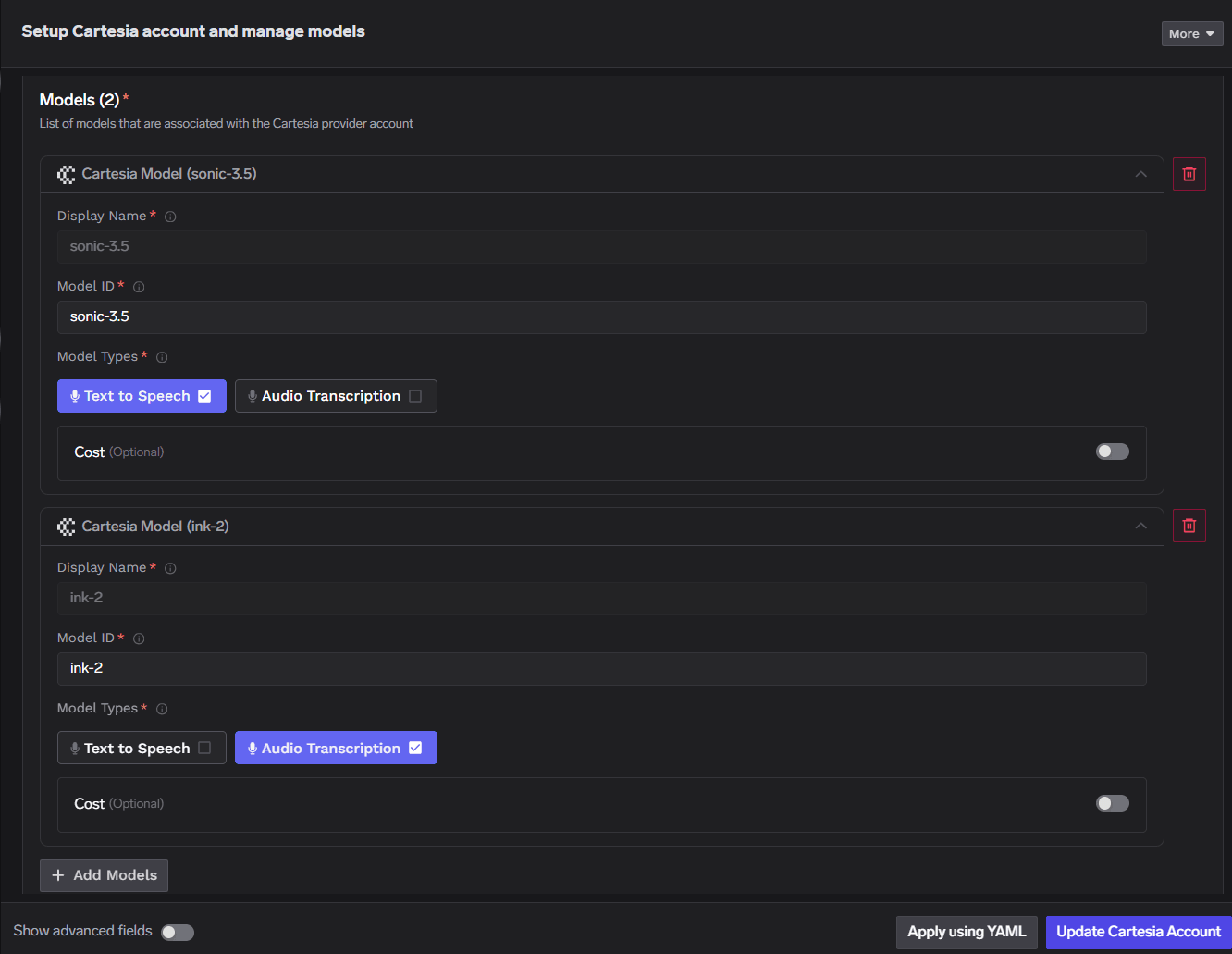 For Cartesia, the **Model ID** and **Display name** must be identical.
### Inference
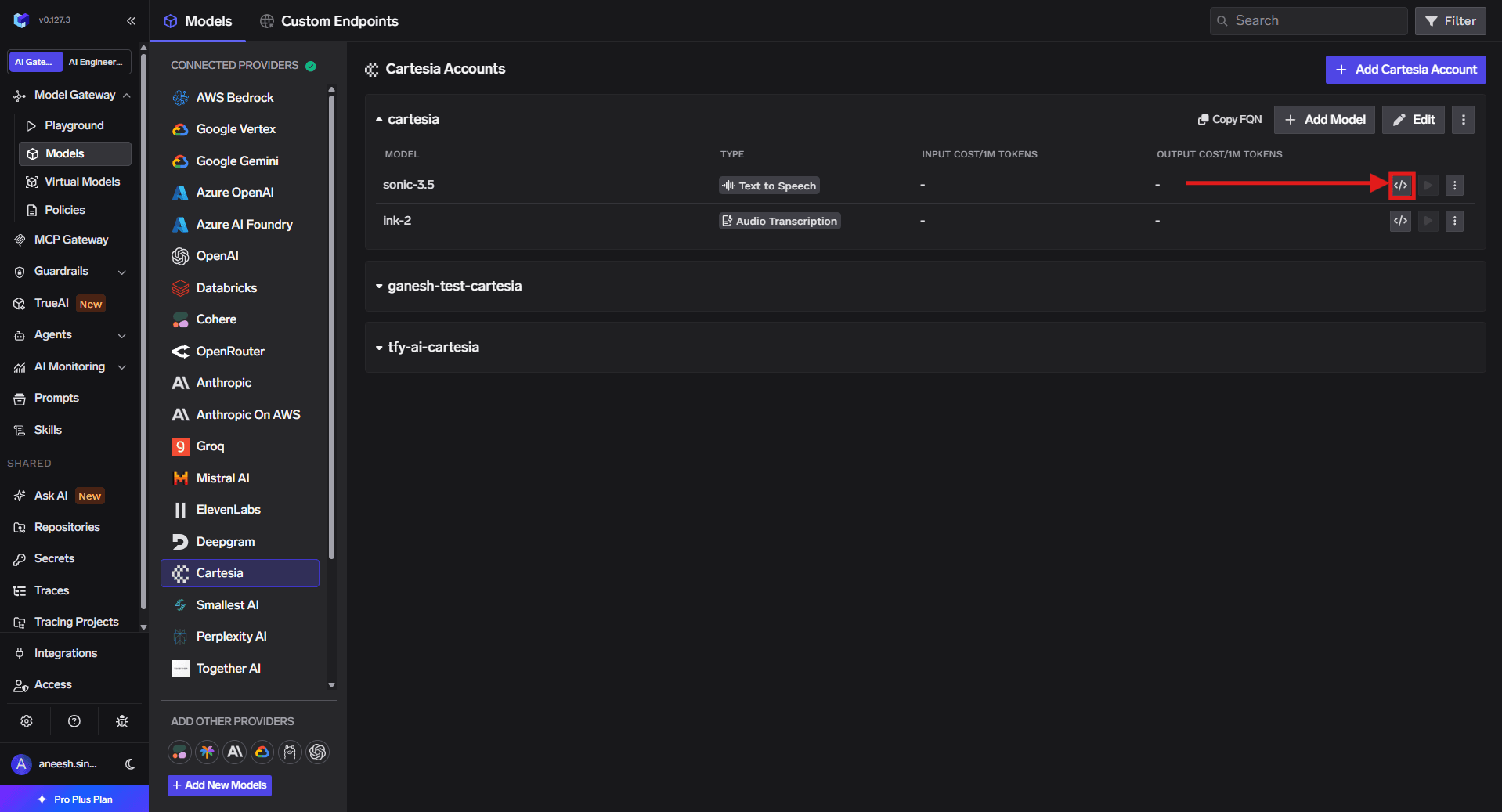
Once models are added, use the **Cartesia Native SDK** to call TTS and STT endpoints.
For Cartesia, the **Model ID** and **Display name** must be identical.
### Inference
Once models are added, use the **Cartesia Native SDK** to call TTS and STT endpoints.