> ## Documentation Index
> Fetch the complete documentation index at: https://www.truefoundry.com/llms.txt
> Use this file to discover all available pages before exploring further.
# Budget Limiting
> Set and enforce cost boundaries across teams, users, and models to prevent runaway costs and maintain financial control
Budget limiting helps you control spending on LLM workloads by setting cost boundaries per team, user, model, or virtual account. You can automatically block requests when limits are exceeded, or run in audit mode to monitor spending before enforcing hard limits.
## How Budget Limiting Works
Budget limiting consists of an **ordered list of rules**. Each rule defines *which requests* it applies to and *how much* they can spend. When a request comes in, the gateway evaluates it against the rules from top to bottom.
**Two things happen during evaluation:**
1. **Budget tracking for all matching rules.** If a request matches multiple rules, the cost is counted against *every* matching rule.
2. **The first matching rule controls allow/block.** The first rule whose conditions match the request decides whether it goes through or is rejected.
**Key distinction:** The *allow/block decision* comes from the **first** matching rule, but *budget tracking* happens for **every** matching rule. This is what makes layered budget controls possible.
### Why Rule Order Matters
Because the first matching rule controls the allow/block decision, the **order of rules determines priority**. Place higher-priority rules (overrides, exceptions) above lower-priority rules (general defaults).
**Example:** You want every developer to have a \$10/day budget, but the ML team should get \$100/day. Place the ML team rule *above* the default rule. When an ML engineer makes a request, the \$100 limit applies (first match). When any other developer makes a request, the \$10 limit applies. In both cases, the cost is tracked against *all* matching rules.
## Setting Up Budget Rules
To configure budget limiting, navigate to **AI Gateway** → **Policies** → **Budget Limiting** in the TrueFoundry dashboard.
Click **Add New Budget Limiting Rule** to create a rule. The form has the following fields:
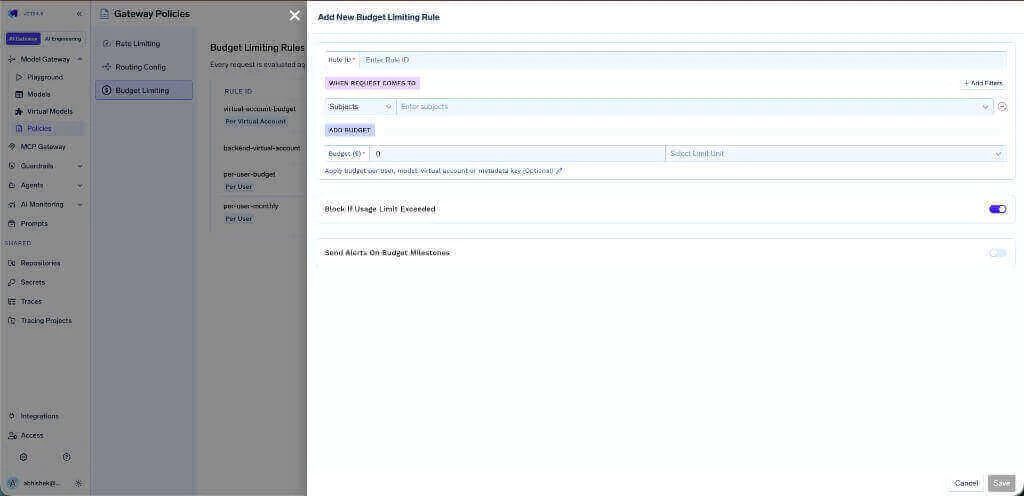 ### Rule ID
A unique identifier for the rule. This is used in logs, metrics, and API responses to identify which rule acted on a request. Choose a descriptive name like `per-user-daily` or `ml-team-budget`.
### When Request Comes To (Filters)
Defines which requests this rule applies to. You can filter by one or more of the following. All selected filters use **AND** logic — a request must match all filters to be matched by the rule.
| Filter | Description | Example |
| ------------ | ----------------------------------------------------------- | ----------------------------------------------------------------------- |
| **Subjects** | Users, teams, or virtual accounts | `user:alice@example.com`, `team:engineering`, `virtualaccount:acct_123` |
| **Models** | Specific model names | `openai-main/gpt-4`, `anthropic-main/claude-3` |
| **Metadata** | Custom key-value pairs sent via the `X-TFY-METADATA` header | `environment: production`, `project_id: proj-123` |
Use the **+ Add Filters** button to add models or metadata filters alongside subjects.
If you leave all filters empty (no subjects, no models, no metadata), the rule matches **every request**. This is useful for setting default budgets that apply to everyone.
### Budget
Set the spending limit and time period:
* **Budget (\$):** The dollar amount for the budget limit.
* **Limit Unit:** The time period over which the budget applies. Choose from:
* **Cost per day** — resets at UTC midnight
* **Cost per week** — resets on Monday at UTC midnight
* **Cost per month** — resets on the 1st of each month at UTC midnight
**Budget tracking starts from rule creation, not from the beginning of the period.**
When you create a budget rule, the usage counter starts at \$0 from that moment — regardless of how much was spent earlier in the current day, week, or month. Prior spending is **not** retroactively counted.
**Example:** You create a \$1,000/month rule for a developer on January 15th. Even if that developer already spent \$1,000 between January 1st and 14th, the budget will show \$0 used on the 15th. Only costs incurred **after** the rule was created count toward the budget.
This means you should **not** compare your overall monthly spend (from analytics or billing) against a budget rule that was created mid-period. The budget rule's usage will always be lower because it only tracks costs from its creation date onward. After the first full period resets (e.g., the 1st of the next month for monthly budgets), the budget will track the complete period as expected.
### Apply Budget Per (Optional)
By default, a single budget is shared across all requests matching the rule. For example, a \$100/day rule with a `team:engineering` filter means the entire team shares a single \$100 pool.
To create **separate budgets for each individual** within the matching group, use the "Apply budget per" option. Available values:
| Value | Effect |
| ------------------- | ----------------------------------------------------------------------------------------- |
| **User** | Each user gets their own budget (e.g., Alice has \$100/day, Bob has a separate \$100/day) |
| **Model** | Each model gets its own budget |
| **Virtual Account** | Each virtual account gets its own budget |
| **Metadata key** | Each unique value of a metadata key gets its own budget (e.g., per `project_id`) |
You can select only **one** "Apply budget per" value per rule.
### Block If Usage Limit Exceeded
Controls whether the rule **enforces** the budget or runs in **audit mode**. In YAML, this is the [`audit_mode`](#yaml-configuration) field (with inverted semantics — toggle ON corresponds to `audit_mode: false`).
* **ON (default) — Enforcement mode:** Requests are rejected with a budget-exceeded error once usage crosses the limit.
* **OFF — Audit mode:** Requests are allowed through even when the budget has been exceeded.
### Rule ID
A unique identifier for the rule. This is used in logs, metrics, and API responses to identify which rule acted on a request. Choose a descriptive name like `per-user-daily` or `ml-team-budget`.
### When Request Comes To (Filters)
Defines which requests this rule applies to. You can filter by one or more of the following. All selected filters use **AND** logic — a request must match all filters to be matched by the rule.
| Filter | Description | Example |
| ------------ | ----------------------------------------------------------- | ----------------------------------------------------------------------- |
| **Subjects** | Users, teams, or virtual accounts | `user:alice@example.com`, `team:engineering`, `virtualaccount:acct_123` |
| **Models** | Specific model names | `openai-main/gpt-4`, `anthropic-main/claude-3` |
| **Metadata** | Custom key-value pairs sent via the `X-TFY-METADATA` header | `environment: production`, `project_id: proj-123` |
Use the **+ Add Filters** button to add models or metadata filters alongside subjects.
If you leave all filters empty (no subjects, no models, no metadata), the rule matches **every request**. This is useful for setting default budgets that apply to everyone.
### Budget
Set the spending limit and time period:
* **Budget (\$):** The dollar amount for the budget limit.
* **Limit Unit:** The time period over which the budget applies. Choose from:
* **Cost per day** — resets at UTC midnight
* **Cost per week** — resets on Monday at UTC midnight
* **Cost per month** — resets on the 1st of each month at UTC midnight
**Budget tracking starts from rule creation, not from the beginning of the period.**
When you create a budget rule, the usage counter starts at \$0 from that moment — regardless of how much was spent earlier in the current day, week, or month. Prior spending is **not** retroactively counted.
**Example:** You create a \$1,000/month rule for a developer on January 15th. Even if that developer already spent \$1,000 between January 1st and 14th, the budget will show \$0 used on the 15th. Only costs incurred **after** the rule was created count toward the budget.
This means you should **not** compare your overall monthly spend (from analytics or billing) against a budget rule that was created mid-period. The budget rule's usage will always be lower because it only tracks costs from its creation date onward. After the first full period resets (e.g., the 1st of the next month for monthly budgets), the budget will track the complete period as expected.
### Apply Budget Per (Optional)
By default, a single budget is shared across all requests matching the rule. For example, a \$100/day rule with a `team:engineering` filter means the entire team shares a single \$100 pool.
To create **separate budgets for each individual** within the matching group, use the "Apply budget per" option. Available values:
| Value | Effect |
| ------------------- | ----------------------------------------------------------------------------------------- |
| **User** | Each user gets their own budget (e.g., Alice has \$100/day, Bob has a separate \$100/day) |
| **Model** | Each model gets its own budget |
| **Virtual Account** | Each virtual account gets its own budget |
| **Metadata key** | Each unique value of a metadata key gets its own budget (e.g., per `project_id`) |
You can select only **one** "Apply budget per" value per rule.
### Block If Usage Limit Exceeded
Controls whether the rule **enforces** the budget or runs in **audit mode**. In YAML, this is the [`audit_mode`](#yaml-configuration) field (with inverted semantics — toggle ON corresponds to `audit_mode: false`).
* **ON (default) — Enforcement mode:** Requests are rejected with a budget-exceeded error once usage crosses the limit.
* **OFF — Audit mode:** Requests are allowed through even when the budget has been exceeded.
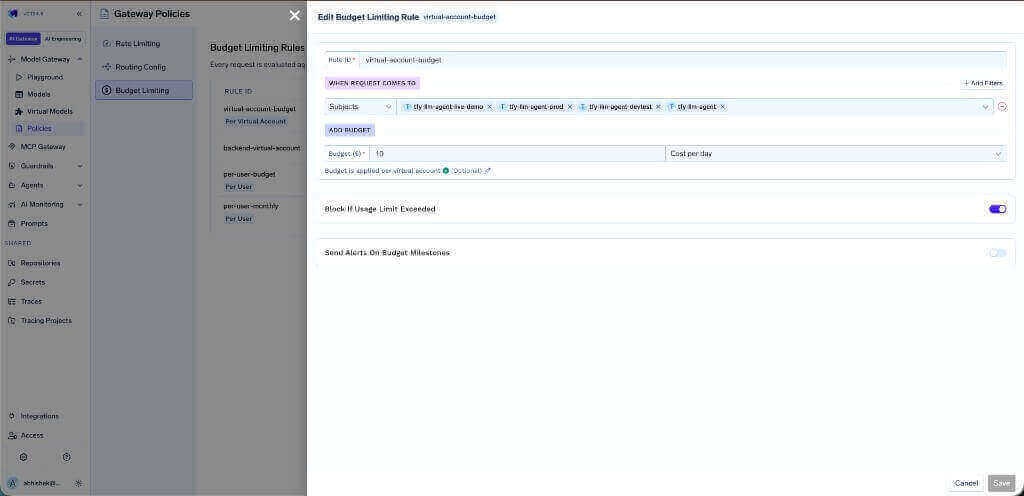 #### What audit mode preserves
Audit mode only changes the allow/block decision. Everything else continues to behave exactly as in enforcement mode:
* **Usage tracking** — the rule's counter increments on every matching request, so the dashboard reflects real spend.
* **Milestone alerts** — alerts at 75%, 90%, 95%, and 100% still fire on the configured notification channels when thresholds are crossed.
* **Layered evaluation** — the rule still participates in [tracking for all matching rules](#how-budget-limiting-works), and it still acts as the first matching rule for downstream rule order.
The only thing audit mode disables is the rejection of requests that exceed the limit.
#### When to use audit mode
Audit mode is designed for low-risk rollouts and observability:
* **Validating a new budget before enforcing.** Deploy the rule in audit mode first, watch real traffic for a full budget period, and confirm the limit is calibrated correctly before switching to enforcement.
* **Establishing a spend baseline.** When you don't yet know what a reasonable cap is, run a deliberately tight rule in audit mode to see how often real traffic would exceed it.
* **Soft governance on critical paths.** When visibility (alerts, dashboards) matters more than hard cutoffs — for example, a new model rollout where blocking would impact an SLA.
When you're ready to enforce, simply toggle **Block If Usage Limit Exceeded** to ON (or set `audit_mode: false` in YAML). All other fields — limits, filters, alerts, and accumulated usage — carry over unchanged; only the allow/block behavior switches.
### Send Alerts On Budget Milestones
Configure notifications when budget usage crosses specified thresholds. Select the percentage thresholds (75%, 90%, 95%, 100%) and choose a notification channel (email, Slack webhook, or Slack bot).
**Available thresholds:** `75%`, `90%`, `95%`, `100%`
Each threshold triggers **once per budget period**. When a new period starts (day/week/month), alerts reset and can be sent again. Alerts are checked every 20 minutes.
**Notification channels:**
* **Email** — Send alerts to one or more email addresses via a configured email notification channel
* **Slack Webhook** — Send alerts to a Slack channel via a webhook notification channel
* **Slack Bot** — Send alerts to specific Slack channels via a bot notification channel
#### What audit mode preserves
Audit mode only changes the allow/block decision. Everything else continues to behave exactly as in enforcement mode:
* **Usage tracking** — the rule's counter increments on every matching request, so the dashboard reflects real spend.
* **Milestone alerts** — alerts at 75%, 90%, 95%, and 100% still fire on the configured notification channels when thresholds are crossed.
* **Layered evaluation** — the rule still participates in [tracking for all matching rules](#how-budget-limiting-works), and it still acts as the first matching rule for downstream rule order.
The only thing audit mode disables is the rejection of requests that exceed the limit.
#### When to use audit mode
Audit mode is designed for low-risk rollouts and observability:
* **Validating a new budget before enforcing.** Deploy the rule in audit mode first, watch real traffic for a full budget period, and confirm the limit is calibrated correctly before switching to enforcement.
* **Establishing a spend baseline.** When you don't yet know what a reasonable cap is, run a deliberately tight rule in audit mode to see how often real traffic would exceed it.
* **Soft governance on critical paths.** When visibility (alerts, dashboards) matters more than hard cutoffs — for example, a new model rollout where blocking would impact an SLA.
When you're ready to enforce, simply toggle **Block If Usage Limit Exceeded** to ON (or set `audit_mode: false` in YAML). All other fields — limits, filters, alerts, and accumulated usage — carry over unchanged; only the allow/block behavior switches.
### Send Alerts On Budget Milestones
Configure notifications when budget usage crosses specified thresholds. Select the percentage thresholds (75%, 90%, 95%, 100%) and choose a notification channel (email, Slack webhook, or Slack bot).
**Available thresholds:** `75%`, `90%`, `95%`, `100%`
Each threshold triggers **once per budget period**. When a new period starts (day/week/month), alerts reset and can be sent again. Alerts are checked every 20 minutes.
**Notification channels:**
* **Email** — Send alerts to one or more email addresses via a configured email notification channel
* **Slack Webhook** — Send alerts to a Slack channel via a webhook notification channel
* **Slack Bot** — Send alerts to specific Slack channels via a bot notification channel
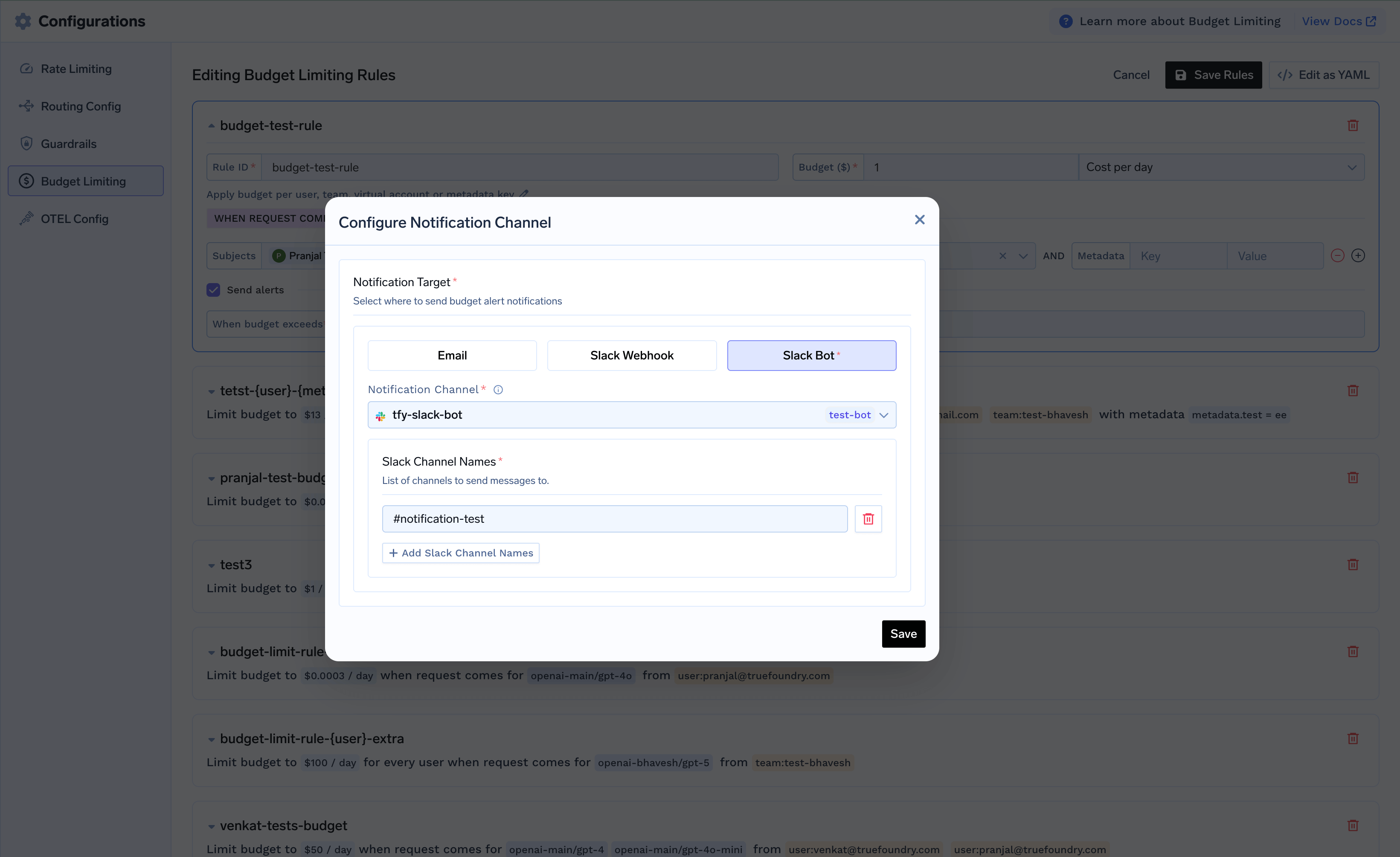 **Threshold selection examples:**
* `75%, 90%, 100%` — Early warning, critical, and limit reached
* `90%, 95%, 100%` — Focus on critical alerts only
* `100%` — Only alert when limit is reached
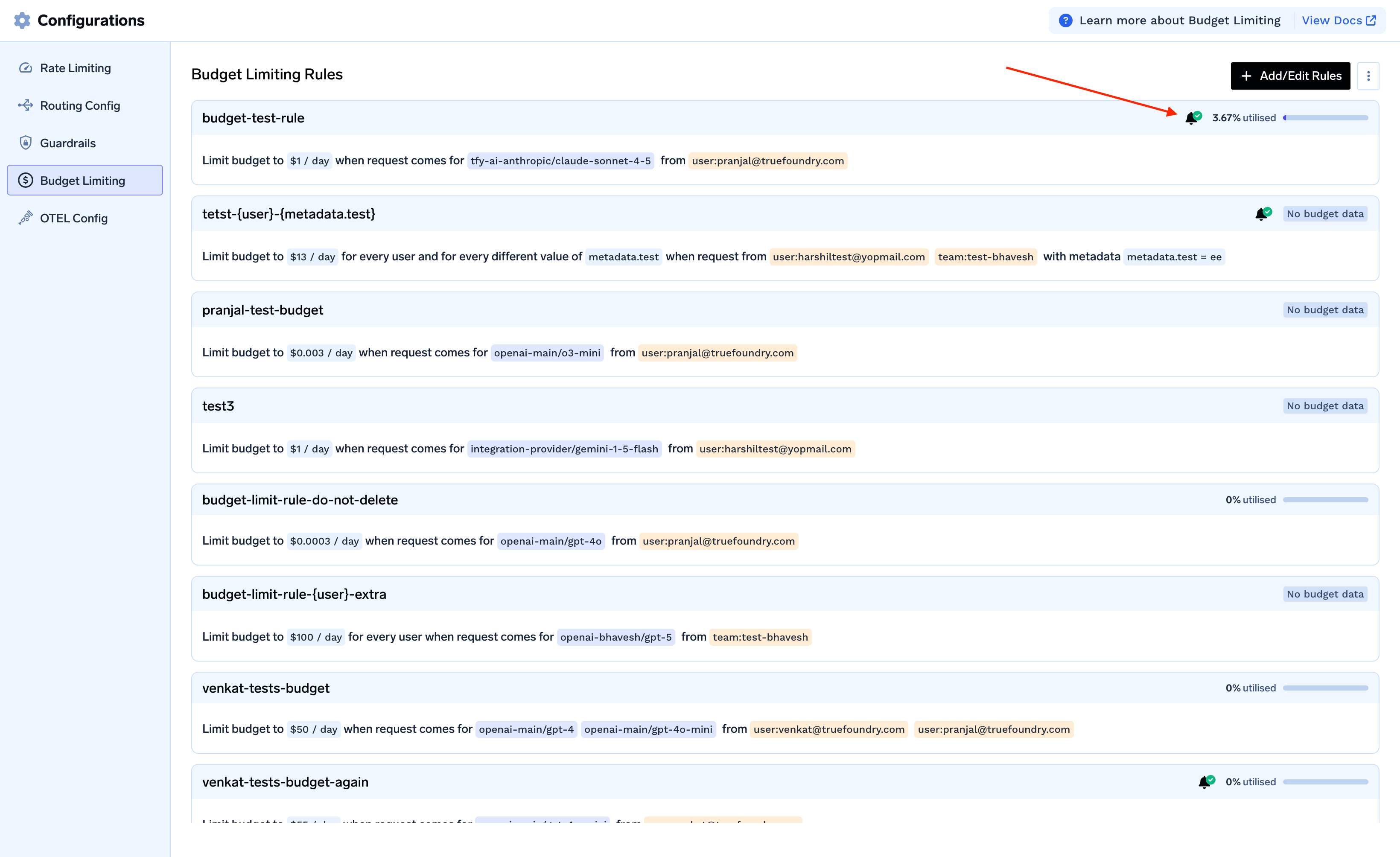
## Viewing Budget Usage
You can monitor budget usage directly on the budget configuration page. Each rule card displays:
* Current usage amount and percentage
* Budget limit and remaining budget
* Period start time (when the current budget period began)
For rules with "Apply budget per", you can see usage breakdown for each individual entity.
If the usage shown on a budget rule seems lower than what you see in analytics or billing, check when the rule was created. For newly created rules, the "Period start time" reflects the rule's creation date — not the beginning of the calendar period. The usage numbers will align with the full period after the first reset (UTC midnight for daily, Monday for weekly, or the 1st of the month for monthly budgets).
**Threshold selection examples:**
* `75%, 90%, 100%` — Early warning, critical, and limit reached
* `90%, 95%, 100%` — Focus on critical alerts only
* `100%` — Only alert when limit is reached
## Viewing Budget Usage
You can monitor budget usage directly on the budget configuration page. Each rule card displays:
* Current usage amount and percentage
* Budget limit and remaining budget
* Period start time (when the current budget period began)
For rules with "Apply budget per", you can see usage breakdown for each individual entity.
If the usage shown on a budget rule seems lower than what you see in analytics or billing, check when the rule was created. For newly created rules, the "Period start time" reflects the rule's creation date — not the beginning of the calendar period. The usage numbers will align with the full period after the first reset (UTC midnight for daily, Monday for weekly, or the 1st of the month for monthly budgets).
 ## Practical Examples
Give every developer a \$10/day budget, but allow the ML team \$100/day. Place the override rule above the default.
| Order | Rule ID | Filter | Budget | Per |
| ----- | -------------------- | ------------------------------- | --------- | ---- |
| 1 | `ml-team-budget` | Subjects: `team:ml-engineering` | \$100/day | User |
| 2 | `default-dev-budget` | *(no filter — matches all)* | \$10/day | User |
**How it works:**
* ML team member → matched by rule 1 (first match, \$100 limit applies). Budget is also tracked against rule 2.
* Any other developer → rule 1 doesn't match, rule 2 matches (\$10 limit applies).
Cap total GPT-4 spending at \$500/month, while giving each user a \$10/day limit.
| Order | Rule ID | Filter | Budget | Per |
| ----- | ------------------ | --------------------------- | ----------- | ---------- |
| 1 | `per-user-daily` | *(no filter)* | \$10/day | User |
| 2 | `gpt4-monthly-cap` | Models: `openai-main/gpt-4` | \$500/month | *(shared)* |
**How it works:**
* A user calls GPT-4 → cost is tracked against **both** the per-user budget and the model-wide budget. The per-user rule controls allow/block.
* The model-wide cap acts as a safety net — even if individual users are within their limits, total GPT-4 spending is capped at \$500/month.
Set spending limits per virtual account (useful when multiple teams or applications share the gateway).
| Order | Rule ID | Filter | Budget | Per |
| ----- | ------------------ | ------------- | ----------- | --------------- |
| 1 | `va-weekly-budget` | *(no filter)* | \$1000/week | Virtual Account |
Each virtual account gets an independent \$1000/week budget, tracked separately.
Track spending per project by using metadata sent in the `X-TFY-METADATA` header.
| Order | Rule ID | Filter | Budget | Per |
| ----- | ---------------------- | ------------- | --------- | --------------------- |
| 1 | `project-daily-budget` | *(no filter)* | \$100/day | `metadata.project_id` |
Each unique `project_id` value gets its own \$100/day budget. Requests must include the header:
```
X-TFY-METADATA: {"project_id": "proj-123"}
```
## YAML Configuration
Budget rules configured via the UI can be exported as YAML. This is useful for version control, programmatic management, or copying configurations across environments.
```yaml theme={"dark"}
name: budget-limiting-config
type: gateway-budget-config
rules:
- id: 'rule-id'
when:
subjects: ['user:alice@example.com', 'team:engineering']
models: ['openai-main/gpt-4']
metadata:
environment: 'production'
limit_to: 100
unit: cost_per_day
budget_applies_per: ['user']
audit_mode: false
alerts:
thresholds: [75, 90, 100]
notification_target:
- type: email
notification_channel: 'my-email-channel'
to_emails: ['admin@example.com']
```
**Field reference:**
| Field | Description |
| ---------------------------- | ----------------------------------------------------------------------------------------------------------------------------------- |
| `id` | Unique rule identifier |
| `when.subjects` | List of users, teams, or virtual accounts to match |
| `when.models` | List of model names to match |
| `when.metadata` | Key-value pairs to match against request metadata |
| `limit_to` | Budget amount in dollars |
| `unit` | `cost_per_day`, `cost_per_week`, or `cost_per_month` |
| `budget_applies_per` | Optional. `['user']`, `['model']`, `['virtualaccount']`, or `['metadata.']` |
| `audit_mode` | `false` (enforcement — block when budget is exceeded) or `true` (audit mode — track and alert but don't block). Defaults to `false` |
| `alerts.thresholds` | List of percentage thresholds: `75`, `90`, `95`, `100` |
| `alerts.notification_target` | Notification channel configuration (email, slack-webhook, or slack-bot) |
```yaml theme={"dark"}
name: layered-budget-config
type: gateway-budget-config
rules:
# Priority 1: Power users get a higher per-user limit
- id: 'power-user-daily'
when:
subjects: ['team:ml-engineering', 'user:alice@example.com']
limit_to: 100
unit: cost_per_day
budget_applies_per: ['user']
# Priority 2: Default per-user limit for everyone else
- id: 'default-user-daily'
when: {}
limit_to: 10
unit: cost_per_day
budget_applies_per: ['user']
# Model-wide cap (tracked for all GPT-4 requests)
- id: 'gpt4-monthly-cap'
when:
models: ['openai-main/gpt-4']
limit_to: 500
unit: cost_per_month
```
```yaml theme={"dark"}
name: budget-with-alerts
type: gateway-budget-config
rules:
- id: 'team-monthly-budget'
when:
subjects: ['team:engineering']
limit_to: 5000
unit: cost_per_month
alerts:
thresholds: [75, 90, 100]
notification_target:
- type: email
notification_channel: 'team-alerts-channel'
to_emails: ['team-lead@example.com']
- id: 'user-daily-budget'
when: {}
limit_to: 100
unit: cost_per_day
budget_applies_per: ['user']
alerts:
thresholds: [90, 95, 100]
notification_target:
- type: slack-bot
notification_channel: 'budget-alerts-channel'
channels: ['#engineering-alerts']
```
```yaml theme={"dark"}
name: comprehensive-budget-config
type: gateway-budget-config
rules:
- id: 'bob-gpt4-daily'
when:
subjects: ['user:bob@example.com']
models: ['openai-main/gpt-4']
limit_to: 50
unit: cost_per_day
- id: 'backend-team-monthly'
when:
subjects: ['team:backend']
limit_to: 2000
unit: cost_per_month
alerts:
thresholds: [75, 90, 100]
notification_target:
- type: email
notification_channel: 'team-alerts'
to_emails: ['backend-lead@example.com']
- id: 'per-user-daily'
when: {}
limit_to: 500
unit: cost_per_day
budget_applies_per: ['user']
- id: 'per-model-weekly'
when: {}
limit_to: 1000
unit: cost_per_week
budget_applies_per: ['model']
- id: 'project-daily'
when:
metadata:
environment: 'production'
limit_to: 200
unit: cost_per_day
budget_applies_per: ['metadata.project_id']
alerts:
thresholds: [90, 100]
notification_target:
- type: slack-webhook
notification_channel: 'prod-alerts-channel'
```
## Practical Examples
Give every developer a \$10/day budget, but allow the ML team \$100/day. Place the override rule above the default.
| Order | Rule ID | Filter | Budget | Per |
| ----- | -------------------- | ------------------------------- | --------- | ---- |
| 1 | `ml-team-budget` | Subjects: `team:ml-engineering` | \$100/day | User |
| 2 | `default-dev-budget` | *(no filter — matches all)* | \$10/day | User |
**How it works:**
* ML team member → matched by rule 1 (first match, \$100 limit applies). Budget is also tracked against rule 2.
* Any other developer → rule 1 doesn't match, rule 2 matches (\$10 limit applies).
Cap total GPT-4 spending at \$500/month, while giving each user a \$10/day limit.
| Order | Rule ID | Filter | Budget | Per |
| ----- | ------------------ | --------------------------- | ----------- | ---------- |
| 1 | `per-user-daily` | *(no filter)* | \$10/day | User |
| 2 | `gpt4-monthly-cap` | Models: `openai-main/gpt-4` | \$500/month | *(shared)* |
**How it works:**
* A user calls GPT-4 → cost is tracked against **both** the per-user budget and the model-wide budget. The per-user rule controls allow/block.
* The model-wide cap acts as a safety net — even if individual users are within their limits, total GPT-4 spending is capped at \$500/month.
Set spending limits per virtual account (useful when multiple teams or applications share the gateway).
| Order | Rule ID | Filter | Budget | Per |
| ----- | ------------------ | ------------- | ----------- | --------------- |
| 1 | `va-weekly-budget` | *(no filter)* | \$1000/week | Virtual Account |
Each virtual account gets an independent \$1000/week budget, tracked separately.
Track spending per project by using metadata sent in the `X-TFY-METADATA` header.
| Order | Rule ID | Filter | Budget | Per |
| ----- | ---------------------- | ------------- | --------- | --------------------- |
| 1 | `project-daily-budget` | *(no filter)* | \$100/day | `metadata.project_id` |
Each unique `project_id` value gets its own \$100/day budget. Requests must include the header:
```
X-TFY-METADATA: {"project_id": "proj-123"}
```
## YAML Configuration
Budget rules configured via the UI can be exported as YAML. This is useful for version control, programmatic management, or copying configurations across environments.
```yaml theme={"dark"}
name: budget-limiting-config
type: gateway-budget-config
rules:
- id: 'rule-id'
when:
subjects: ['user:alice@example.com', 'team:engineering']
models: ['openai-main/gpt-4']
metadata:
environment: 'production'
limit_to: 100
unit: cost_per_day
budget_applies_per: ['user']
audit_mode: false
alerts:
thresholds: [75, 90, 100]
notification_target:
- type: email
notification_channel: 'my-email-channel'
to_emails: ['admin@example.com']
```
**Field reference:**
| Field | Description |
| ---------------------------- | ----------------------------------------------------------------------------------------------------------------------------------- |
| `id` | Unique rule identifier |
| `when.subjects` | List of users, teams, or virtual accounts to match |
| `when.models` | List of model names to match |
| `when.metadata` | Key-value pairs to match against request metadata |
| `limit_to` | Budget amount in dollars |
| `unit` | `cost_per_day`, `cost_per_week`, or `cost_per_month` |
| `budget_applies_per` | Optional. `['user']`, `['model']`, `['virtualaccount']`, or `['metadata.']` |
| `audit_mode` | `false` (enforcement — block when budget is exceeded) or `true` (audit mode — track and alert but don't block). Defaults to `false` |
| `alerts.thresholds` | List of percentage thresholds: `75`, `90`, `95`, `100` |
| `alerts.notification_target` | Notification channel configuration (email, slack-webhook, or slack-bot) |
```yaml theme={"dark"}
name: layered-budget-config
type: gateway-budget-config
rules:
# Priority 1: Power users get a higher per-user limit
- id: 'power-user-daily'
when:
subjects: ['team:ml-engineering', 'user:alice@example.com']
limit_to: 100
unit: cost_per_day
budget_applies_per: ['user']
# Priority 2: Default per-user limit for everyone else
- id: 'default-user-daily'
when: {}
limit_to: 10
unit: cost_per_day
budget_applies_per: ['user']
# Model-wide cap (tracked for all GPT-4 requests)
- id: 'gpt4-monthly-cap'
when:
models: ['openai-main/gpt-4']
limit_to: 500
unit: cost_per_month
```
```yaml theme={"dark"}
name: budget-with-alerts
type: gateway-budget-config
rules:
- id: 'team-monthly-budget'
when:
subjects: ['team:engineering']
limit_to: 5000
unit: cost_per_month
alerts:
thresholds: [75, 90, 100]
notification_target:
- type: email
notification_channel: 'team-alerts-channel'
to_emails: ['team-lead@example.com']
- id: 'user-daily-budget'
when: {}
limit_to: 100
unit: cost_per_day
budget_applies_per: ['user']
alerts:
thresholds: [90, 95, 100]
notification_target:
- type: slack-bot
notification_channel: 'budget-alerts-channel'
channels: ['#engineering-alerts']
```
```yaml theme={"dark"}
name: comprehensive-budget-config
type: gateway-budget-config
rules:
- id: 'bob-gpt4-daily'
when:
subjects: ['user:bob@example.com']
models: ['openai-main/gpt-4']
limit_to: 50
unit: cost_per_day
- id: 'backend-team-monthly'
when:
subjects: ['team:backend']
limit_to: 2000
unit: cost_per_month
alerts:
thresholds: [75, 90, 100]
notification_target:
- type: email
notification_channel: 'team-alerts'
to_emails: ['backend-lead@example.com']
- id: 'per-user-daily'
when: {}
limit_to: 500
unit: cost_per_day
budget_applies_per: ['user']
- id: 'per-model-weekly'
when: {}
limit_to: 1000
unit: cost_per_week
budget_applies_per: ['model']
- id: 'project-daily'
when:
metadata:
environment: 'production'
limit_to: 200
unit: cost_per_day
budget_applies_per: ['metadata.project_id']
alerts:
thresholds: [90, 100]
notification_target:
- type: slack-webhook
notification_channel: 'prod-alerts-channel'
```