> ## Documentation Index
> Fetch the complete documentation index at: https://www.truefoundry.com/llms.txt
> Use this file to discover all available pages before exploring further.
# Azure Content Safety Guardrail Integration
> Configure Azure Content Safety with the TrueFoundry AI Gateway.
This guide explains how to integrate [Azure Content Safety Guardrail](https://azure.microsoft.com/en-us/products/ai-services/ai-content-safety) with TrueFoundry to enhance the safety and compliance of your LLM applications.
## What is Azure Content Safety?
Azure Content Safety is Microsoft's cloud-based content moderation service that helps detect and filter harmful content across text, images, and other media.
### Key Features of Azure Content Safety
1. **Multi-Modal Content Analysis**: Azure Content Safety analyzes both text and image content for harmful material including hate speech, violence, sexual content, and self-harm. The service uses advanced [Azure AI models](https://azure.microsoft.com/en-us/products/ai-services/ai-content-safety/) to provide comprehensive content moderation across multiple content types and languages with high accuracy and low latency.
2. **Customizable Severity Thresholds**: Fine-tune content moderation sensitivity with configurable severity levels for different content categories. Organizations can set custom thresholds based on their specific requirements, allowing for flexible policy enforcement that balances safety with user experience across different use cases and demographics.
## How to setup Azure Content Safety on Azure
Navigate to [Azure Portal](https://portal.azure.com/) and sign in with your Azure credentials.
Select **Create a resource** in the top left corner of the Azure Portal.
Choose **Azure AI Content Safety** from the list of resources, then select **Create**.
* **Subscription**: Choose your Azure subscription.
* **Resource group**: Select an existing resource group or create a new one.
* **Instance details**:
* **Region**: Select the region (e.g., East US) where you want your resource to be hosted.
* **Name**: Enter a unique name for your Content Safety resource.
* **Pricing tier**: Choose the appropriate pricing tier for your needs.
Select **Create** to provision your Azure Content Safety resource. The creation process may take several minutes.
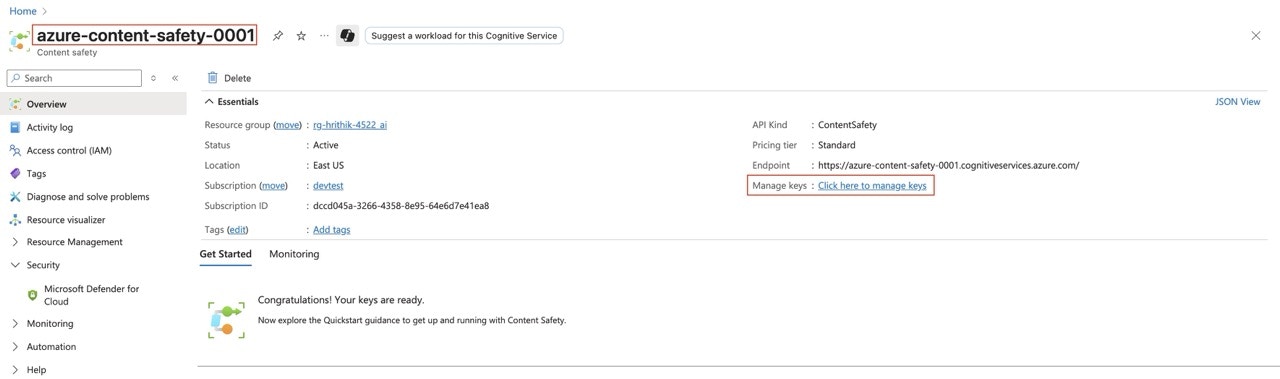
Once your resource is created, navigate to the **Overview** section in the Azure Portal. Here, you will see the **Manage Keys** and **Resource Name** displayed, it will be used later when configuring the integration in TrueFoundry.
 ### Adding Azure Content Safety Guardrail Integration
To add Azure Content Safety Guardrail to your TrueFoundry setup, follow these steps:
**Fill in the Guardrails Group Form**
* **Name**: Enter a name for your guardrails group.
* **Collaborators**: Add collaborators who will have access to this group.
* **Azure Content Safety Guardrail Config**:
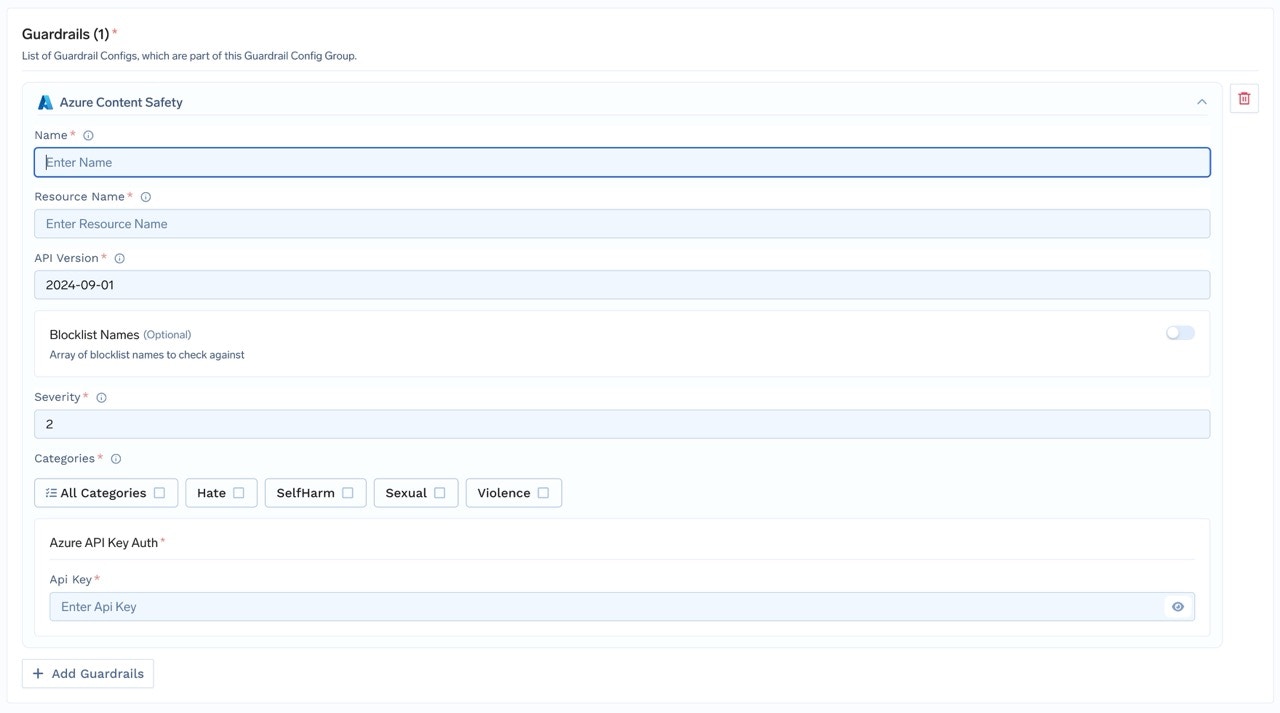
* **Name**: Enter a name for the Azure Content Safety Guardrail configuration.
* **Resource Name**: The unique name of your Azure resource (e.g., the Azure Cognitive Services or Azure AI resource) that provides the content safety capability. You can find this in the Azure portal under the resource's overview page. This is required to authenticate and route requests to the correct Azure service instance.
* **API Version**: The version of the Azure Content Safety API to use. (Default: `2024-09-01`)
* **Blocklist Name** (Optional): The name of the blocklist to use.
* **Severity**: The severity threshold to use for blocking content. (Default: `2`)
* **Categories**: The categories of content to check against.
* **Azure Authentication Data**:
* **API Key**: The API key for the Azure Content Safety Guardrail service.
This key is required to authenticate requests to Azure's Content Safety Guardrail API. You can obtain it from the Azure portal by navigating to your Cognitive Services or Azure AI resource, then selecting "Keys and Endpoint" in the resource menu. Ensure you keep this key secure, as it grants access to your Azure resource.
As an alternative to API keys, you can authenticate via Microsoft Entra ID using [certificate-based authentication](/docs/ai-gateway/azure-entra-certificate-auth), [client secret based authentication](/docs/ai-gateway/azure-entra-client-secret-auth), or [workload identity federation](/docs/ai-gateway/azure-entra-wif-auth).
### Adding Azure Content Safety Guardrail Integration
To add Azure Content Safety Guardrail to your TrueFoundry setup, follow these steps:
**Fill in the Guardrails Group Form**
* **Name**: Enter a name for your guardrails group.
* **Collaborators**: Add collaborators who will have access to this group.
* **Azure Content Safety Guardrail Config**:
* **Name**: Enter a name for the Azure Content Safety Guardrail configuration.
* **Resource Name**: The unique name of your Azure resource (e.g., the Azure Cognitive Services or Azure AI resource) that provides the content safety capability. You can find this in the Azure portal under the resource's overview page. This is required to authenticate and route requests to the correct Azure service instance.
* **API Version**: The version of the Azure Content Safety API to use. (Default: `2024-09-01`)
* **Blocklist Name** (Optional): The name of the blocklist to use.
* **Severity**: The severity threshold to use for blocking content. (Default: `2`)
* **Categories**: The categories of content to check against.
* **Azure Authentication Data**:
* **API Key**: The API key for the Azure Content Safety Guardrail service.
This key is required to authenticate requests to Azure's Content Safety Guardrail API. You can obtain it from the Azure portal by navigating to your Cognitive Services or Azure AI resource, then selecting "Keys and Endpoint" in the resource menu. Ensure you keep this key secure, as it grants access to your Azure resource.
As an alternative to API keys, you can authenticate via Microsoft Entra ID using [certificate-based authentication](/docs/ai-gateway/azure-entra-certificate-auth), [client secret based authentication](/docs/ai-gateway/azure-entra-client-secret-auth), or [workload identity federation](/docs/ai-gateway/azure-entra-wif-auth).
 ### How Azure Content Safety Guardrail Works
When you integrate Azure Content Safety Guardrail with TrueFoundry, the system sends the last message to the Azure Content Safety Guardrail API and receives a response that indicates whether the content violates any configured policies.
#### Response Structure
The Azure Content Safety Guardrail API returns a response with the following structure:
This is an example response from Azure Content Safety Guardrail, where content safety is detected and anonymized (redacted) in the output.
```json lines theme={"dark"}
{
"blocklistsMatch": [],
"categoriesAnalysis": [
{
"category": "Hate",
"severity": 2
},
{
"category": "SelfHarm",
"severity": 1
},
{
"category": "Sexual",
"severity": 3
},
{
"category": "Violence",
"severity": 0
}
]
}
```
#### Validation Logic
TrueFoundry relies on the Azure Content Safety Guardrail response to determine content safety:
* TrueFoundry uses a configurable severity threshold to determine if content should be blocked.
* If any category in the Azure Content Safety Guardrail response has a severity equal to or greater than the configured threshold, the content will be blocked.
* If all detected severities are below the threshold, the content will be passed through as is.
* TrueFoundry AI Gateway will respond with an error or block the content if the severity threshold is met or exceeded.
### How Azure Content Safety Guardrail Works
When you integrate Azure Content Safety Guardrail with TrueFoundry, the system sends the last message to the Azure Content Safety Guardrail API and receives a response that indicates whether the content violates any configured policies.
#### Response Structure
The Azure Content Safety Guardrail API returns a response with the following structure:
This is an example response from Azure Content Safety Guardrail, where content safety is detected and anonymized (redacted) in the output.
```json lines theme={"dark"}
{
"blocklistsMatch": [],
"categoriesAnalysis": [
{
"category": "Hate",
"severity": 2
},
{
"category": "SelfHarm",
"severity": 1
},
{
"category": "Sexual",
"severity": 3
},
{
"category": "Violence",
"severity": 0
}
]
}
```
#### Validation Logic
TrueFoundry relies on the Azure Content Safety Guardrail response to determine content safety:
* TrueFoundry uses a configurable severity threshold to determine if content should be blocked.
* If any category in the Azure Content Safety Guardrail response has a severity equal to or greater than the configured threshold, the content will be blocked.
* If all detected severities are below the threshold, the content will be passed through as is.
* TrueFoundry AI Gateway will respond with an error or block the content if the severity threshold is met or exceeded.