> ## Documentation Index
> Fetch the complete documentation index at: https://www.truefoundry.com/llms.txt
> Use this file to discover all available pages before exploring further.

# Axiom

> Learn how to export LLM Gateway traces and metrics to Axiom using OpenTelemetry integration.

This guide provides instructions for integrating [Axiom](https://axiom.co) with the TrueFoundry AI Gateway to export OpenTelemetry traces and metrics.

## What is Axiom?

Axiom is a serverless observability and log analytics platform built for timestamped event data at scale. It accepts logs, traces, and metrics through standard OTLP endpoints and stores them in its proprietary EventDB architecture, enabling sub-second query latency on petabyte-scale datasets. Teams query and visualize this data using Axiom Processing Language (APL) or the point-and-click query builder in the Axiom Console.

### Key Features of Axiom

* **[OpenTelemetry Native Ingestion](https://axiom.co/docs/send-data/opentelemetry)**: Accepts traces, logs, and metrics over OTLP/HTTP with API token authentication and dataset routing via request headers.
* **[Axiom Processing Language (APL)](https://axiom.co/docs/apl/introduction)**: A powerful query language for filtering, aggregating, and summarizing event data across logs and traces in a unified interface.
* **[Datasets](https://axiom.co/docs/reference/datasets)**: Namespaced containers for event data. Each OTel signal (traces, metrics, logs) is routed to a dedicated dataset via the `X-Axiom-Dataset` header.
* **[Dashboards and Alerts](https://axiom.co/docs/dashboards/overview)**: Build visualizations and threshold-based alerts directly on top of ingested trace and metric data.

## Prerequisites

Before integrating Axiom with TrueFoundry, ensure you have:

1. **TrueFoundry Account**: Create a [TrueFoundry account](https://www.truefoundry.com/register) and follow the instructions in our [Gateway Quick Start Guide](https://docs.truefoundry.com/gateway/quick-start).
2. **Axiom Account**: Sign up at [app.axiom.co](https://app.axiom.co). A free tier is available with 0.5 TB of storage.
3. **Axiom Dataset**: Create at least one dataset in Axiom for traces. When creating the dataset select **Events** as the type (not Metrics). Optionally create a second dataset for metrics.
4. **Axiom API Token**: Create an API token with **Ingest** permission scoped to your dataset.

## Understanding the Axiom Endpoint

Axiom uses a single fixed base URL for all OTLP ingestion: `https://api.axiom.co`. The signal path is appended to this base:

* Traces: `https://api.axiom.co/v1/traces`
* Metrics: `https://api.axiom.co/v1/metrics`
* Logs: `https://api.axiom.co/v1/logs`

Dataset routing is controlled by the `X-Axiom-Dataset` header on every request — not by the URL. This means traces and metrics can go to different datasets by using different header values in each exporter config.

## Integration Steps

<Steps>
  <Step title="Create a Dataset and API Token in Axiom">
    1. Log in to [app.axiom.co](https://app.axiom.co).
    2. In the left sidebar click **Datasets** then click **New Dataset**.
    3. Name the dataset (for example `tfy-gateway-traces`), select **Events** as the type, and click **Create**.
    4. If you also want to export metrics, create a second dataset (for example `tfy-gateway-metrics`) and select **Metrics** as the type.
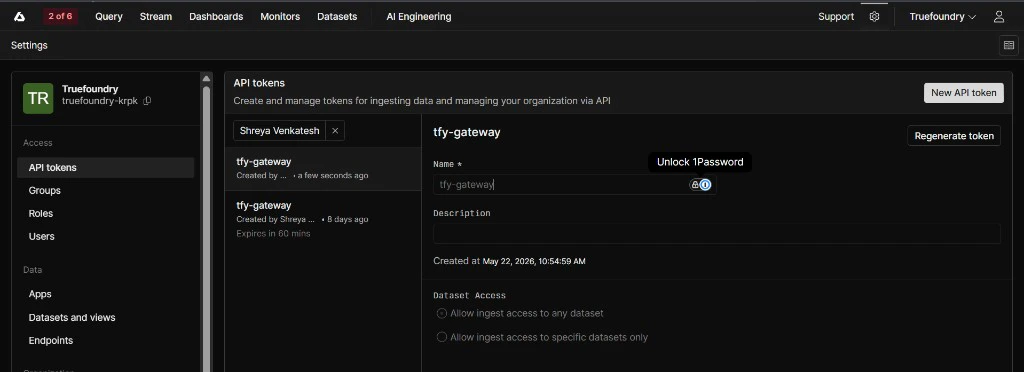
    5. Go to **Settings** → **API Tokens** and click **New API Token**.
    6. Give the token a name (for example `tfy-gateway`), select **Ingest** as the permission, and scope it to the dataset(s) you just created.
    7. Click **Create** and copy the token immediately — Axiom will not show it again.

    <Frame>
      <img src="https://mintcdn.com/truefoundry/kQo_sRYNlysG_ahf/images/axiom-api-token.png?fit=max&auto=format&n=kQo_sRYNlysG_ahf&q=85&s=24552315b59113759aeb2f674b50f66c" alt="Axiom Settings page showing API Tokens tab with a token created for TrueFoundry ingestion" width="1024" height="372" data-path="images/axiom-api-token.png" />
    </Frame>

    <Tip>
      API tokens in Axiom start with `xaat-`. If your token does not start with this prefix it may be a personal token, which also works but is not recommended for production use.
    </Tip>
  </Step>

  <Step title="Configure OTEL Export in TrueFoundry">
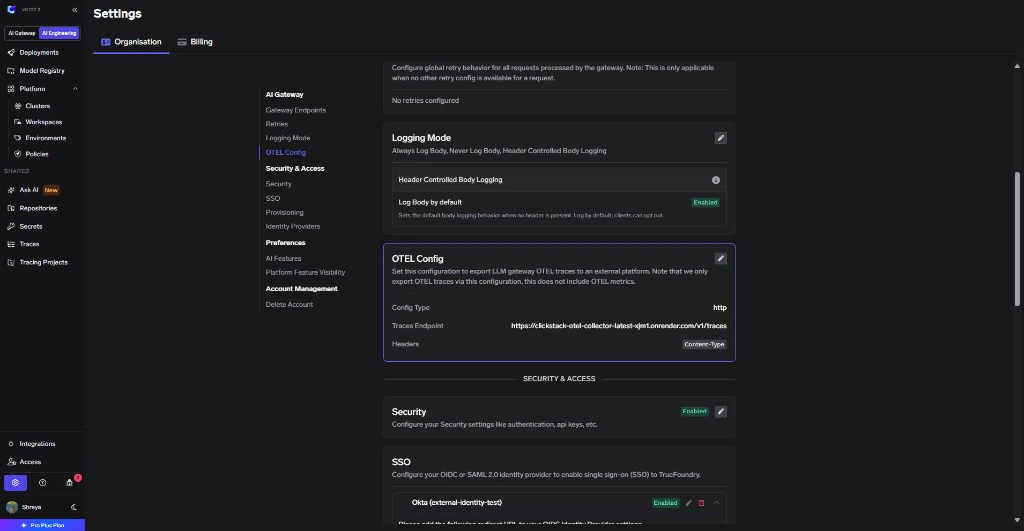
    1. Go to **AI Gateway** → **Controls** → **Settings** in the TrueFoundry dashboard.
    2. Scroll down to the **OTEL Config** section and click the edit (✏️) button.

    <Frame>
      <img src="https://mintcdn.com/truefoundry/ojX_TD-ri5nMc0oG/images/tfy-otel-nav.png?fit=max&auto=format&n=ojX_TD-ri5nMc0oG&q=85&s=fe4df4c46547722fca08afa1152a796e" alt="TrueFoundry AI Gateway Settings page showing the OTEL Config section" width="1024" height="531" data-path="images/tfy-otel-nav.png" />
    </Frame>

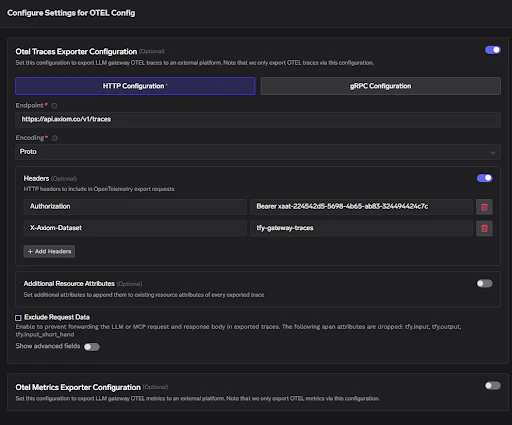
    3. Enable the **Otel Traces Exporter Configuration** toggle and fill in:

    <table>
      <thead>
        <tr><th>Field</th><th>Value</th></tr>
      </thead>

      <tbody>
        <tr><td>Toggle</td><td>Enabled</td></tr>
        <tr><td>Protocol</td><td>HTTP Configuration</td></tr>
        <tr><td>Endpoint</td><td>[https://api.axiom.co/v1/traces](https://api.axiom.co/v1/traces)</td></tr>
        <tr><td>Encoding</td><td>Proto</td></tr>
        <tr><td>Header Key 1</td><td>Authorization</td></tr>
        <tr><td>Header Value 1</td><td>Bearer \<your-axiom-api-token></td></tr>
        <tr><td>Header Key 2</td><td>X-Axiom-Dataset</td></tr>
        <tr><td>Header Value 2</td><td>tfy-gateway-traces (or your dataset name)</td></tr>
      </tbody>
    </table>

    <Frame>
      <img src="https://mintcdn.com/truefoundry/ojX_TD-ri5nMc0oG/images/tfy-traces-config.png?fit=max&auto=format&n=ojX_TD-ri5nMc0oG&q=85&s=7ffa7ce2c4483a3d6c3caa5c1aa87241" alt="TrueFoundry OTEL Traces Exporter Configuration showing Axiom endpoint and headers" width="512" height="425" data-path="images/tfy-traces-config.png" />
    </Frame>

    4. Enable the **Otel Metrics Exporter Configuration** toggle and fill in:

    <table>
      <thead>
        <tr><th>Field</th><th>Value</th></tr>
      </thead>

      <tbody>
        <tr><td>Toggle</td><td>Enabled</td></tr>
        <tr><td>Protocol</td><td>HTTP Configuration</td></tr>
        <tr><td>Endpoint</td><td>[https://api.axiom.co/v1/metrics](https://api.axiom.co/v1/metrics)</td></tr>
        <tr><td>Encoding</td><td>Proto</td></tr>
        <tr><td>Header Key 1</td><td>Authorization</td></tr>
        <tr><td>Header Value 1</td><td>Bearer \<your-axiom-api-token></td></tr>
        <tr><td>Header Key 2</td><td>X-Axiom-Dataset</td></tr>
        <tr><td>Header Value 2</td><td>tfy-gateway-metrics (or your metrics dataset name)</td></tr>
      </tbody>
    </table>

    5. Click **Save** to apply the configuration.

    <Note>
      Axiom requires two headers for every exporter: the `Authorization` header with your Bearer token and the `X-Axiom-Dataset` header with the target dataset name. If the `X-Axiom-Dataset` header is missing, Axiom will reject the request. Traces and metrics can be routed to different datasets by using different dataset names in each exporter's config.
    </Note>
  </Step>

  <Step title="Verify the Integration">
    1. Make a request through the TrueFoundry AI Gateway (for example from the Playground).
    2. Log into [app.axiom.co](https://app.axiom.co) and click **Stream** in the top navigation.
    3. Select your traces dataset (`tfy-gateway-traces`) from the dataset selector.
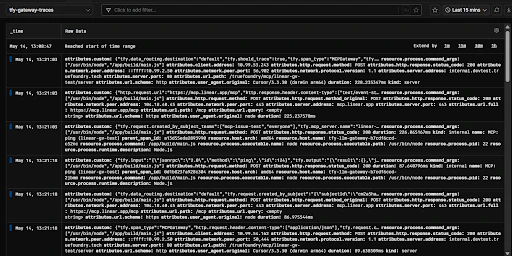
    4. Click **Run** — you should see spans from `tfy-llm-gateway` appearing with attributes like `service.name`, `tfy.input`, `tfy.output`, and standard `gen_ai.*` fields.

    <Frame>
      <img src="https://mintcdn.com/truefoundry/kQo_sRYNlysG_ahf/images/axiom-traces.png?fit=max&auto=format&n=kQo_sRYNlysG_ahf&q=85&s=57c28470a14805f604fed67af178207a" alt="Axiom Stream view showing LLM call traces from TrueFoundry AI Gateway with gen_ai attributes" width="512" height="256" data-path="images/axiom-traces.png" />
    </Frame>

    5. To verify metrics, switch the dataset selector to your metrics dataset (`tfy-gateway-metrics`) and click **Run**. Metrics appear in the same Stream view — no separate metrics dashboard is needed.

    <Tip>
      If no data appears after a minute, check that the TrueFoundry gateway pod was restarted after saving the OTEL config. OTEL exporter settings take effect only after the gateway pod restarts.
    </Tip>
  </Step>
</Steps>

## Configuration Reference

<table>
  <thead>
    <tr><th>Configuration</th><th>Value</th></tr>
  </thead>

  <tbody>
    <tr><td>Traces Endpoint</td><td>[https://api.axiom.co/v1/traces](https://api.axiom.co/v1/traces)</td></tr>
    <tr><td>Metrics Endpoint</td><td>[https://api.axiom.co/v1/metrics](https://api.axiom.co/v1/metrics)</td></tr>
    <tr><td>Protocol</td><td>HTTP</td></tr>
    <tr><td>Encoding</td><td>Proto</td></tr>
    <tr><td>Auth Header Key</td><td>Authorization</td></tr>
    <tr><td>Auth Header Value</td><td>Bearer \<your-axiom-api-token></td></tr>
    <tr><td>Dataset Header Key</td><td>X-Axiom-Dataset</td></tr>
    <tr><td>Dataset Header Value</td><td>Your Axiom dataset name</td></tr>
  </tbody>
</table>