> ## Documentation Index
> Fetch the complete documentation index at: https://www.truefoundry.com/llms.txt
> Use this file to discover all available pages before exploring further.
# Arize
> Learn how to export LLM Gateway traces to Arize using OpenTelemetry integration.
This guide provides instructions for integrating [Arize](https://arize.com/) with the TrueFoundry AI Gateway to export OpenTelemetry traces.
## What is Arize?
Arize is an AI observability and evaluation platform that helps teams trace, monitor, and improve AI applications in production. It provides comprehensive tools for development, evaluation, and observability across LLM and agent workflows.
### Key Features of Arize
* **[Open Standard Tracing](https://docs.arize.com/arize)**: Trace agents and frameworks with speed and flexibility — powered by OpenTelemetry
* **[LLM Evaluation](https://docs.arize.com/arize)**: Evaluate prompts and agent actions at scale with LLM-as-a-Judge and human annotation workflows
* **[Real-time Monitoring](https://docs.arize.com/arize)**: Monitor AI in production with dashboards, alerting, and anomaly detection
## Prerequisites
Before integrating Arize with TrueFoundry, ensure you have:
1. **TrueFoundry Account**: Create a [TrueFoundry account](https://www.truefoundry.com/register) and follow the instructions in our [Gateway Quick Start Guide](https://docs.truefoundry.com/docs/ai-gateway/quick-start)
2. **Arize Account**: Sign up for an [Arize account](https://app.arize.com/auth/join)
3. **Arize API Key and Space ID**: Obtain your API key and Space ID from the Arize platform
## Integration Guide
TrueFoundry AI Gateway supports exporting OpenTelemetry (OTEL) traces to external platforms like Arize. This allows you to leverage Arize's tracing, evaluation, and monitoring features while using TrueFoundry for unified LLM access.
### Step 1: Get Your Arize API Key and Space ID
1. Log in to your [Arize dashboard](https://app.arize.com/)
2. Navigate to **Settings** → **Service Keys** -> **New API Key**
3. While creating **API Key** make sure to select **Space Role** as **Member** (`Member` role will have write access)
4. Copy your **API Key** (e.g., `ak-5849b020-6ee5-4294-...`)
5. Copy your **Space ID** (e.g., `U3BhY2U6MzM5NjU6c1htag==`)
### Step 2: Configure OTEL Export in TrueFoundry
Navigate to the TrueFoundry AI Gateway OTEL configuration:
1. Go to **AI Gateway** → **Controls** → **Settings** in the TrueFoundry dashboard
2. Scroll down to the **OTEL Config** section
3. Click the edit button to configure the OTEL exporter
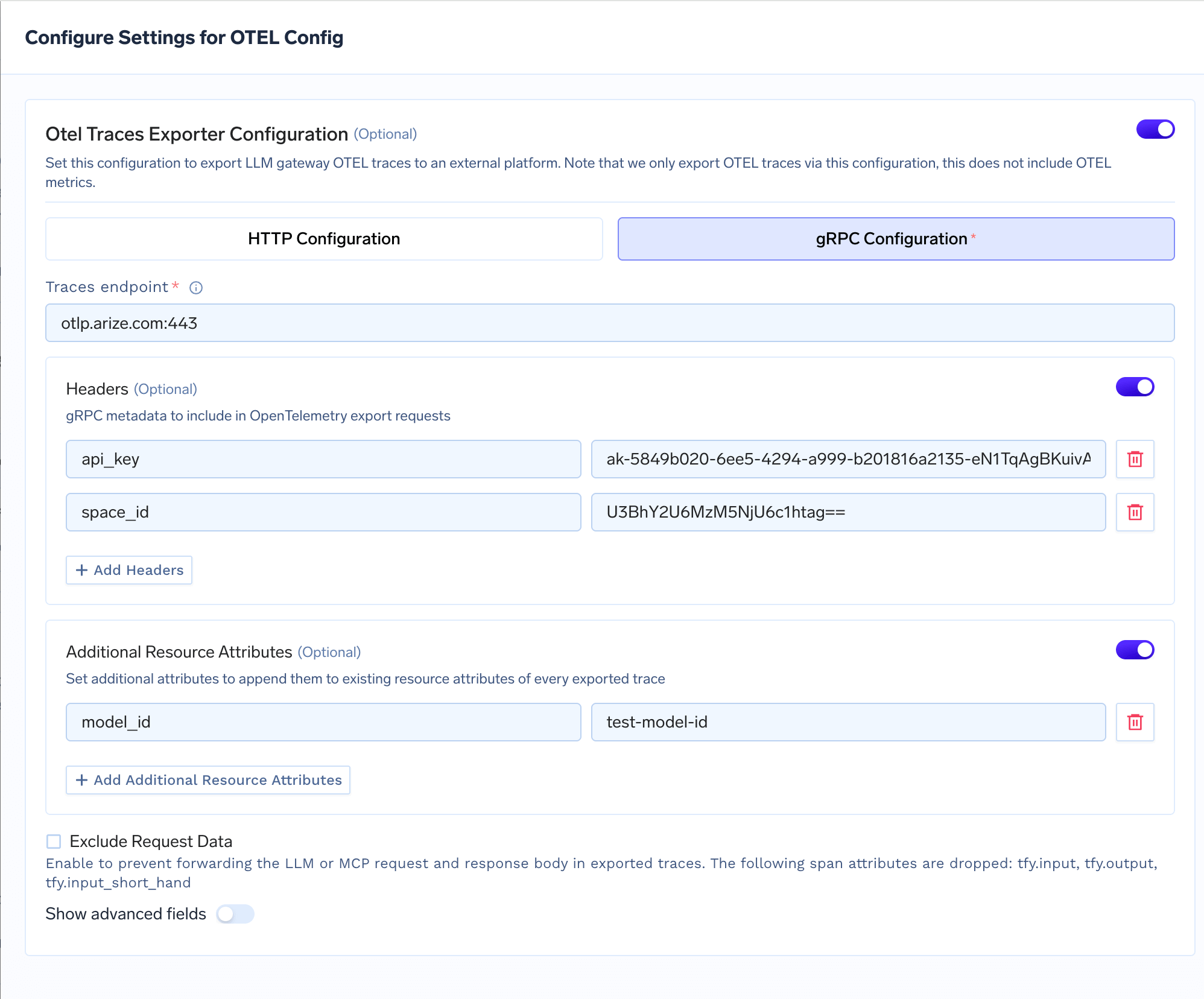
### Step 3: Configure Arize Endpoint
Enable the OTEL Traces Exporter and fill in the following configuration:
| Field | Value |
| ------------------- | -------------------- |
| **Config Type** | `gRPC` |
| **Traces endpoint** | `otlp.arize.com:443` |
### Step 4: Add Required Headers
Click **+ Add Headers** and configure the following gRPC metadata headers:
| Header | Value |
| ---------- | --------------------------------- |
| `api_key` | Your Arize API Key (from Step 1) |
| `space_id` | Your Arize Space ID (from Step 1) |
### Step 5: (Optional) Add Resource Attributes
You can add **Additional Resource Attributes** to enrich your exported traces with custom metadata. A common attribute to set is `model_id`, which helps identify and filter traces by model in the Arize dashboard.
| Attribute | Value |
| ---------- | ------------------------------------------------- |
| `model_id` | Your model identifier (e.g., `gpt-4o-production`) |
Click **+ Add Additional Resource Attributes** to add more attributes as needed.
 ### Step 6: Save Configuration
Click **Save** to apply the OTEL export configuration. All LLM traces from the TrueFoundry AI Gateway will now be automatically exported to Arize.
### Step 7: View Traces in Arize
After making LLM requests through TrueFoundry AI Gateway, log in to your Arize dashboard to view the traces:
1. Navigate to **Traces** in the Arize dashboard
2. Look for traces from the `tfy-llm-gateway` service
3. Explore the traces including:
* **Trace Visualization**: End-to-end trace waterfall with span details
* **LLM Span Details**: Token usage, latency, input/output content, and model metadata
* **Performance Metrics**: Latency distribution, error rates, and throughput analysis
## Configuration Options
### Exclude Request Data
Enable the **Exclude Request Data** checkbox to prevent forwarding LLM or MCP request and response bodies in exported traces. When enabled, the following span attributes are dropped: `tfy.input`, `tfy.output`, `tfy.input_short_hand`. This is useful when you need to comply with data privacy requirements and avoid sending sensitive prompt or response content to external platforms.
### Additional Resource Attributes
You can configure **Additional Resource Attributes** to append custom attributes to every exported trace. This is useful for adding environment-specific metadata or organizational tags that help with filtering and grouping in Arize.
Common attributes to consider:
| Attribute | Description |
| --------------- | ---------------------------------------------------------------- |
| `model_id` | Identifier for the model, used to group traces by model in Arize |
| `model_version` | Version of the model for A/B testing and comparison |
### Step 6: Save Configuration
Click **Save** to apply the OTEL export configuration. All LLM traces from the TrueFoundry AI Gateway will now be automatically exported to Arize.
### Step 7: View Traces in Arize
After making LLM requests through TrueFoundry AI Gateway, log in to your Arize dashboard to view the traces:
1. Navigate to **Traces** in the Arize dashboard
2. Look for traces from the `tfy-llm-gateway` service
3. Explore the traces including:
* **Trace Visualization**: End-to-end trace waterfall with span details
* **LLM Span Details**: Token usage, latency, input/output content, and model metadata
* **Performance Metrics**: Latency distribution, error rates, and throughput analysis
## Configuration Options
### Exclude Request Data
Enable the **Exclude Request Data** checkbox to prevent forwarding LLM or MCP request and response bodies in exported traces. When enabled, the following span attributes are dropped: `tfy.input`, `tfy.output`, `tfy.input_short_hand`. This is useful when you need to comply with data privacy requirements and avoid sending sensitive prompt or response content to external platforms.
### Additional Resource Attributes
You can configure **Additional Resource Attributes** to append custom attributes to every exported trace. This is useful for adding environment-specific metadata or organizational tags that help with filtering and grouping in Arize.
Common attributes to consider:
| Attribute | Description |
| --------------- | ---------------------------------------------------------------- |
| `model_id` | Identifier for the model, used to group traces by model in Arize |
| `model_version` | Version of the model for A/B testing and comparison |