> ## Documentation Index
> Fetch the complete documentation index at: https://www.truefoundry.com/llms.txt
> Use this file to discover all available pages before exploring further.
# Getting Started
> Build, test, and publish an agent on TrueFoundry Agent Harness using the Playground — pick a model, attach MCP tools and skills, then save and share.
TrueFoundry Agent Harness is available on **SaaS** only.
Build agents natively on TrueFoundry. You bring the intent — TrueFoundry handles everything else.
Connect any LLM available through TrueFoundry's AI Gateway. Switch models without rewriting your agent.
Attach versioned `SKILL.md` instructions from the Skills Registry. The agent loads the right skill at runtime — no prompt bloat.
Plug in any MCP server to give your agent tools — web search, APIs, databases, file access, and more.
Agents run in a secure execution environment. Code execution, file operations, and external calls are sandboxed by default.
TrueFoundry manages the platform problems so you don't have to: context window management, tool call orchestration, conversation history, system prompt handling, and multi-turn state. You focus on building and shipping.
***
## Agent Playground
Navigate to **Agents > Playground** in the sidebar to open the Playground directly — no registry step required. The Playground is where you build, configure, and test your agent interactively.
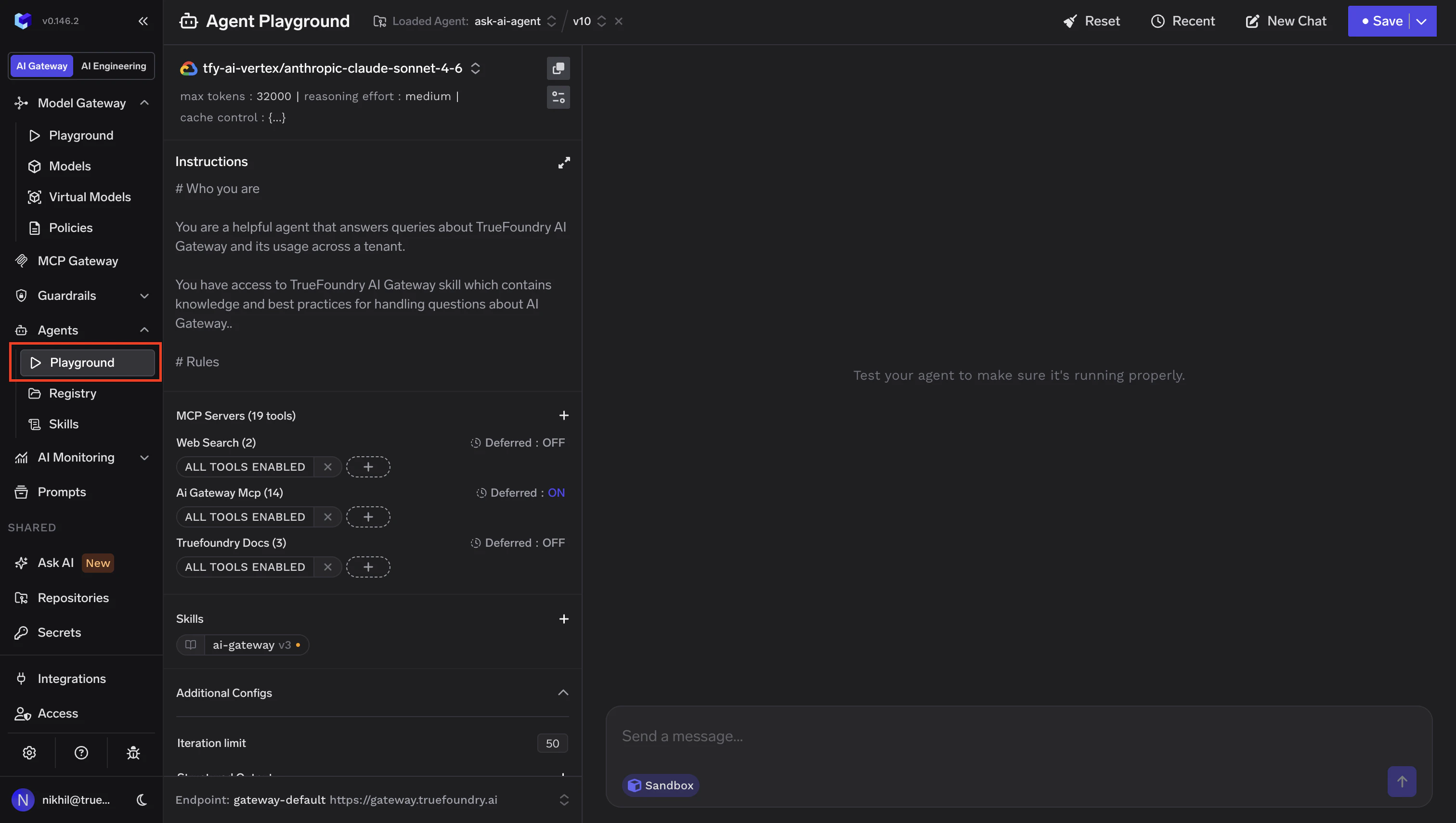 Choose any model available through AI Gateway.
Add a system prompt that defines the agent's behavior, persona, and constraints.
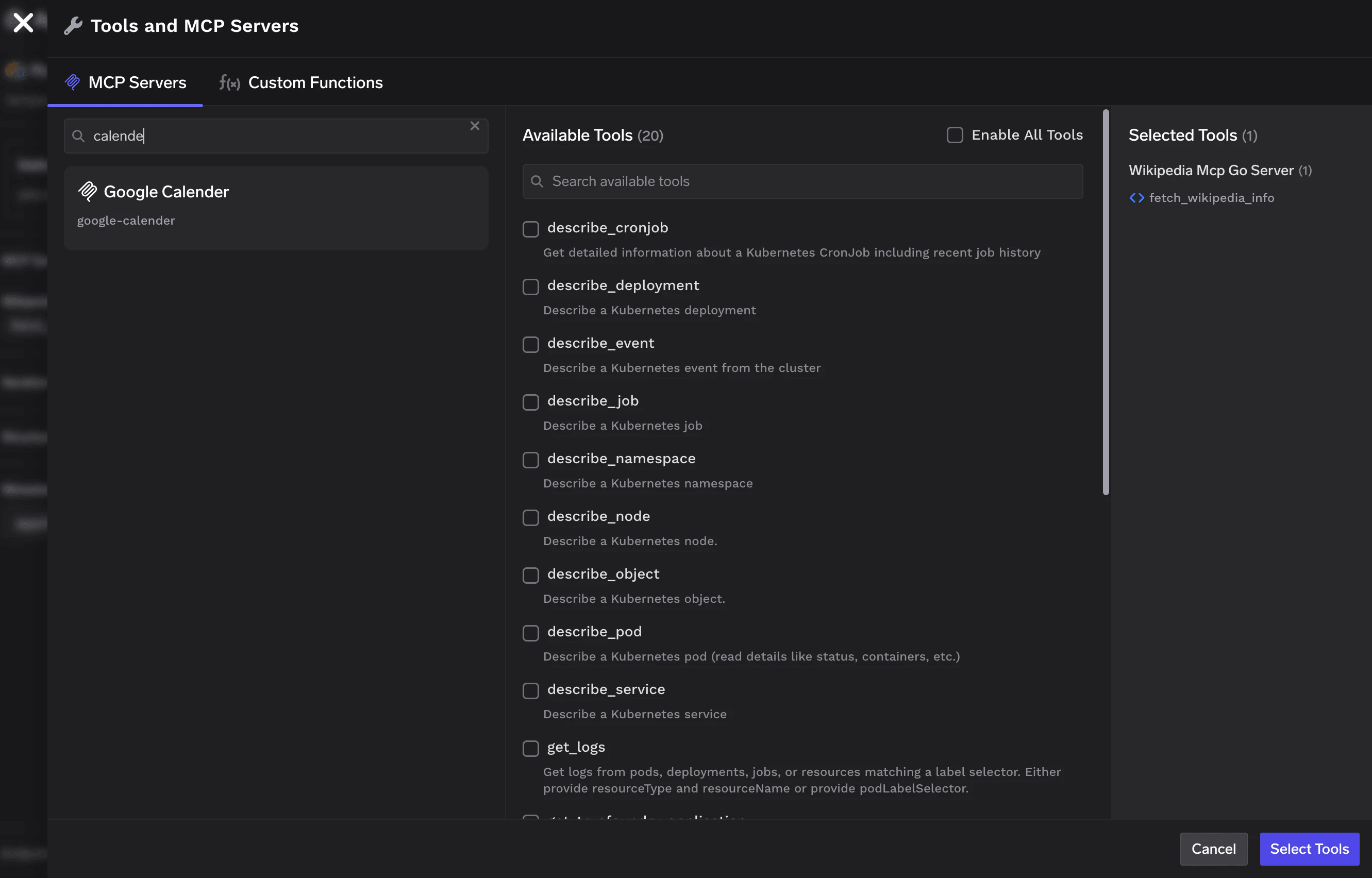
Click the **+** next to **MCP Servers** to open the tool selection dialog. Search for MCP servers, browse available tools, and select the ones your agent needs.
Choose any model available through AI Gateway.
Add a system prompt that defines the agent's behavior, persona, and constraints.
Click the **+** next to **MCP Servers** to open the tool selection dialog. Search for MCP servers, browse available tools, and select the ones your agent needs.
 Click the **+** next to **Skills** to open the Skills selector. It lists every skill you have access to, grouped by Repository. Each row has a version dropdown — defaults to the latest, but you can pin any older version.
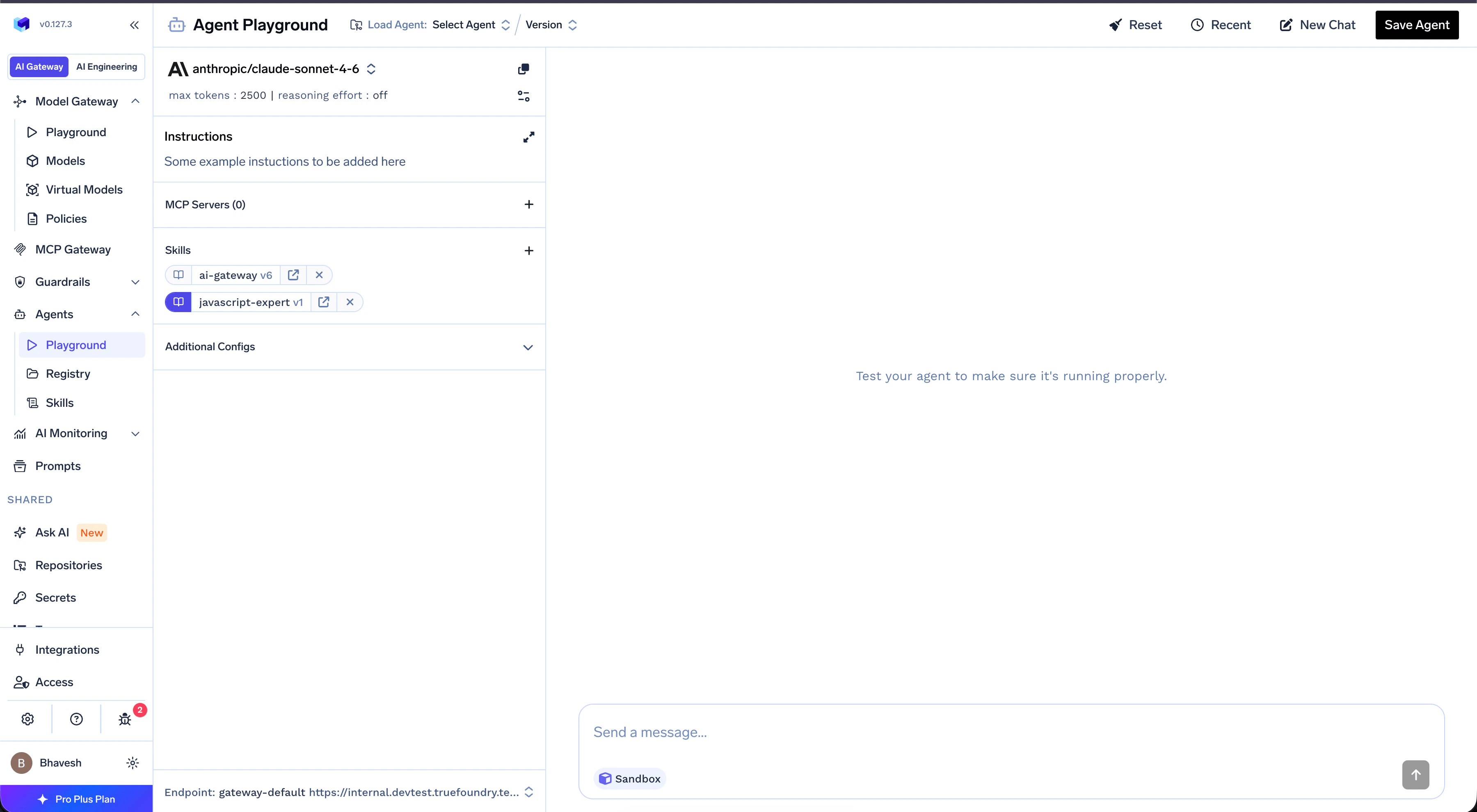 Check the skills you want. Each selected skill has a **Preload SKILL.md** toggle:
| Mode | Behavior |
| ----------------- | ----------------------------------------------------------------------------------------------------------------------------------------- |
| **Off (default)** | Only the skill's `name` and `description` are exposed upfront. The body is loaded on demand when the agent decides the skill is relevant. |
| **On** | The full `SKILL.md` body is injected upfront. Higher context cost, but no extra step at runtime. |
Turn preload **on** for short, always-relevant skills. Leave it **off** for long, situational skills that only fire occasionally.
Two skills cannot share the same `name` within a single agent, even across different Repositories. The selector greys out conflicting skills and shows a tooltip — pick one or use a differently named copy.
Skills require the agent's **Sandbox** to be enabled. Access is inherited from the skill's parent [Repository](/docs/platform/repositories) — end-users invoking a saved agent get implicit access to all skills attached at save time.
Use the chat interface to test the agent. Adjust the prompt, switch models, or add more tools until the agent behaves as expected.
### Saving the Agent
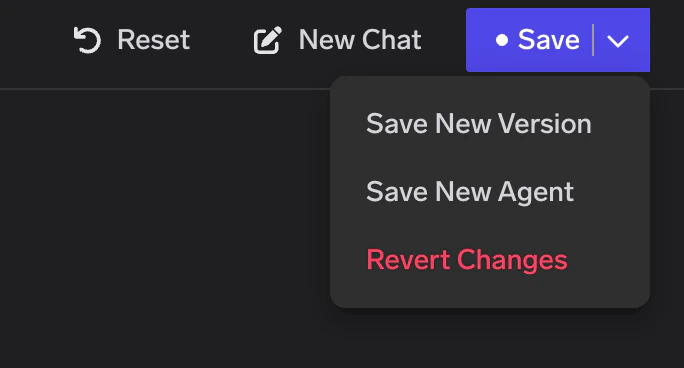
Once you're satisfied with the agent's behavior, click **Save Agent** in the top-right corner. The dropdown gives you two options:
* **Save New Version** — Update an existing agent with your changes.
* **Save New Agent** — Create a brand-new agent from the current configuration.
Check the skills you want. Each selected skill has a **Preload SKILL.md** toggle:
| Mode | Behavior |
| ----------------- | ----------------------------------------------------------------------------------------------------------------------------------------- |
| **Off (default)** | Only the skill's `name` and `description` are exposed upfront. The body is loaded on demand when the agent decides the skill is relevant. |
| **On** | The full `SKILL.md` body is injected upfront. Higher context cost, but no extra step at runtime. |
Turn preload **on** for short, always-relevant skills. Leave it **off** for long, situational skills that only fire occasionally.
Two skills cannot share the same `name` within a single agent, even across different Repositories. The selector greys out conflicting skills and shows a tooltip — pick one or use a differently named copy.
Skills require the agent's **Sandbox** to be enabled. Access is inherited from the skill's parent [Repository](/docs/platform/repositories) — end-users invoking a saved agent get implicit access to all skills attached at save time.
Use the chat interface to test the agent. Adjust the prompt, switch models, or add more tools until the agent behaves as expected.
### Saving the Agent
Once you're satisfied with the agent's behavior, click **Save Agent** in the top-right corner. The dropdown gives you two options:
* **Save New Version** — Update an existing agent with your changes.
* **Save New Agent** — Create a brand-new agent from the current configuration.
 ***
## Saved Agent
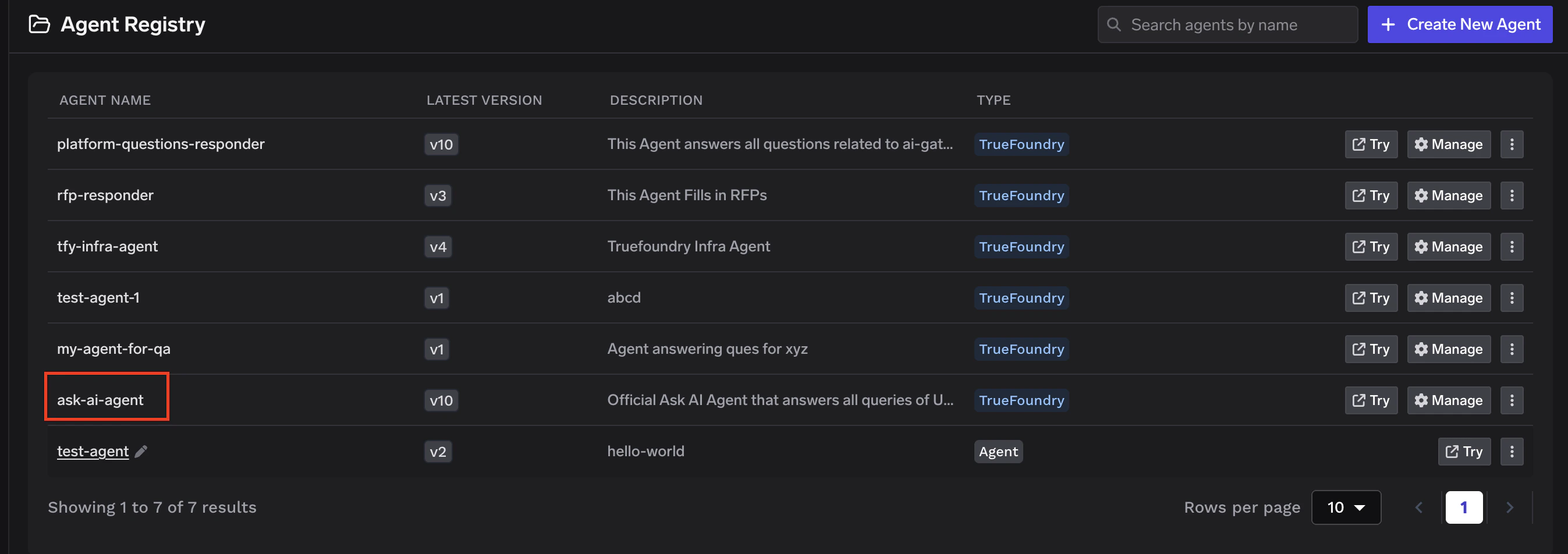
Once saved, your agent appears in the **Agent Registry**. Click the agent name to open its detail page.
***
## Saved Agent
Once saved, your agent appears in the **Agent Registry**. Click the agent name to open its detail page.
 The detail page has three tabs: **Overview**, **Agent Runs**, and **Use in Code**.
### Overview
The Overview tab shows the full agent configuration at a glance — model, model parameters, execution settings (sandbox, iteration limit, response format), system instructions, connected MCP tools, and attached skills.
The detail page has three tabs: **Overview**, **Agent Runs**, and **Use in Code**.
### Overview
The Overview tab shows the full agent configuration at a glance — model, model parameters, execution settings (sandbox, iteration limit, response format), system instructions, connected MCP tools, and attached skills.
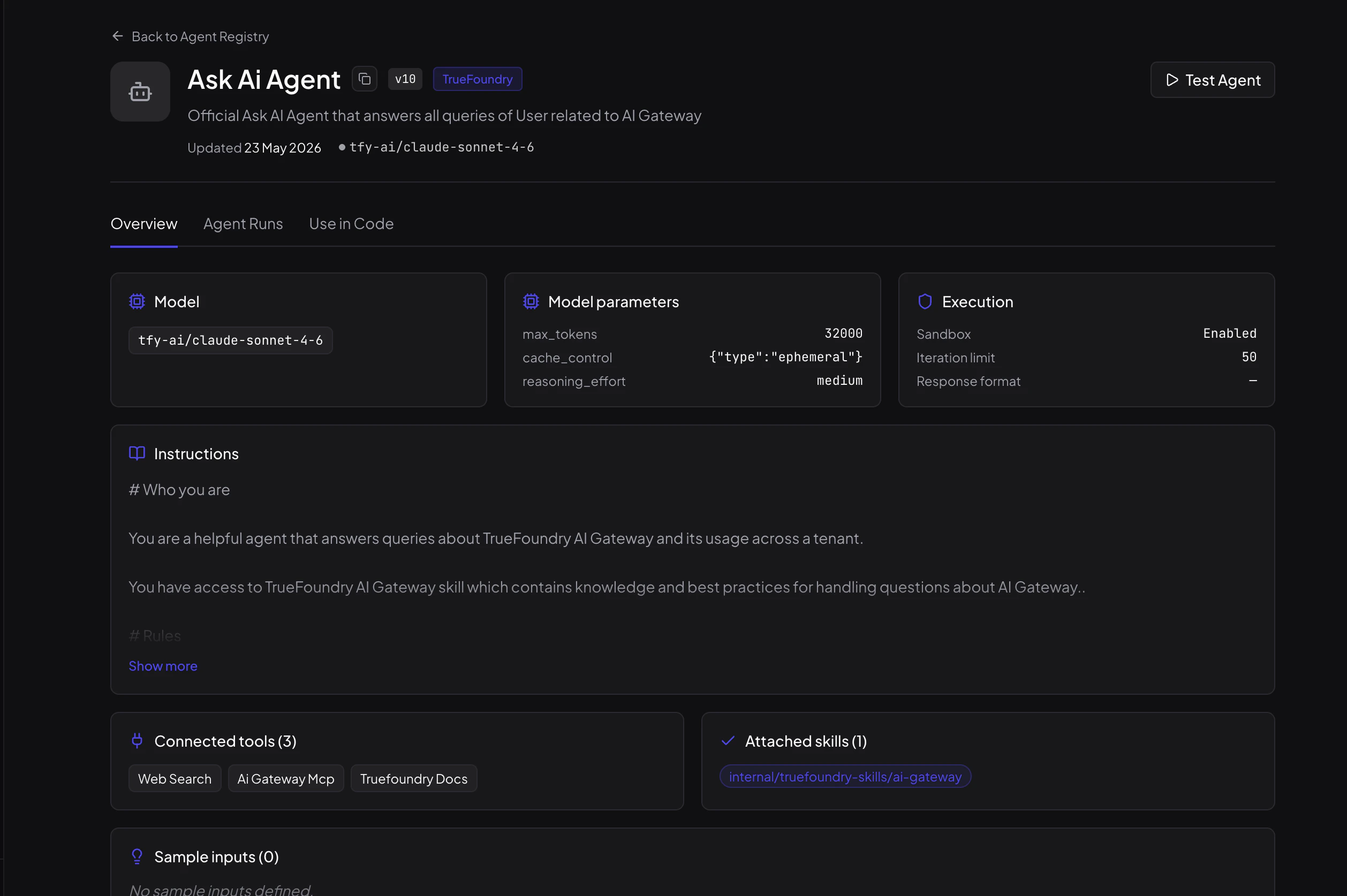 Click **Test Agent** to reopen the agent in the Playground for further iteration. To edit the agent's name, description, tags, or collaborator permissions, click **Manage** from the registry row.
### Agent Runs
The **Agent Runs** tab gives you a single place to see every execution of this specific agent. Unlike the global AI Monitoring view, this is scoped to the agent — so you can understand exactly how it is being used and by whom.
Click **Test Agent** to reopen the agent in the Playground for further iteration. To edit the agent's name, description, tags, or collaborator permissions, click **Manage** from the registry row.
### Agent Runs
The **Agent Runs** tab gives you a single place to see every execution of this specific agent. Unlike the global AI Monitoring view, this is scoped to the agent — so you can understand exactly how it is being used and by whom.
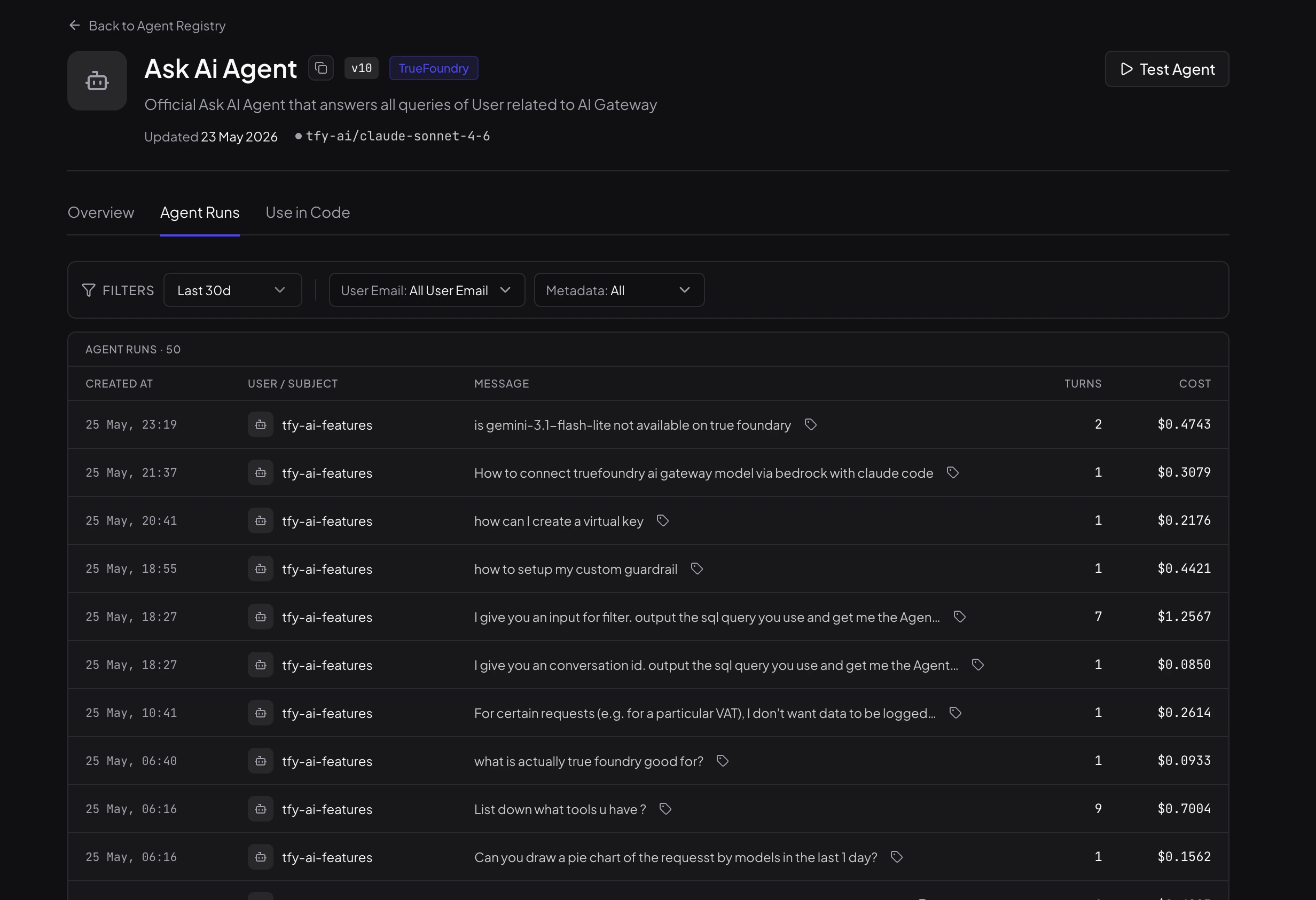 From this view you can:
* **See who is using the agent** — each run shows the user or virtual account that invoked it.
* **Filter runs** — narrow down by time range, user email, or any custom metadata passed at invocation time.
* **Gauge cost and complexity** — turn count and dollar cost are visible per run without opening anything.
Click any row to drill into that run. The detail panel shows the full conversation — every user message and assistant response in sequence — along with total turns, cost, and token usage at the top.
From this view you can:
* **See who is using the agent** — each run shows the user or virtual account that invoked it.
* **Filter runs** — narrow down by time range, user email, or any custom metadata passed at invocation time.
* **Gauge cost and complexity** — turn count and dollar cost are visible per run without opening anything.
Click any row to drill into that run. The detail panel shows the full conversation — every user message and assistant response in sequence — along with total turns, cost, and token usage at the top.
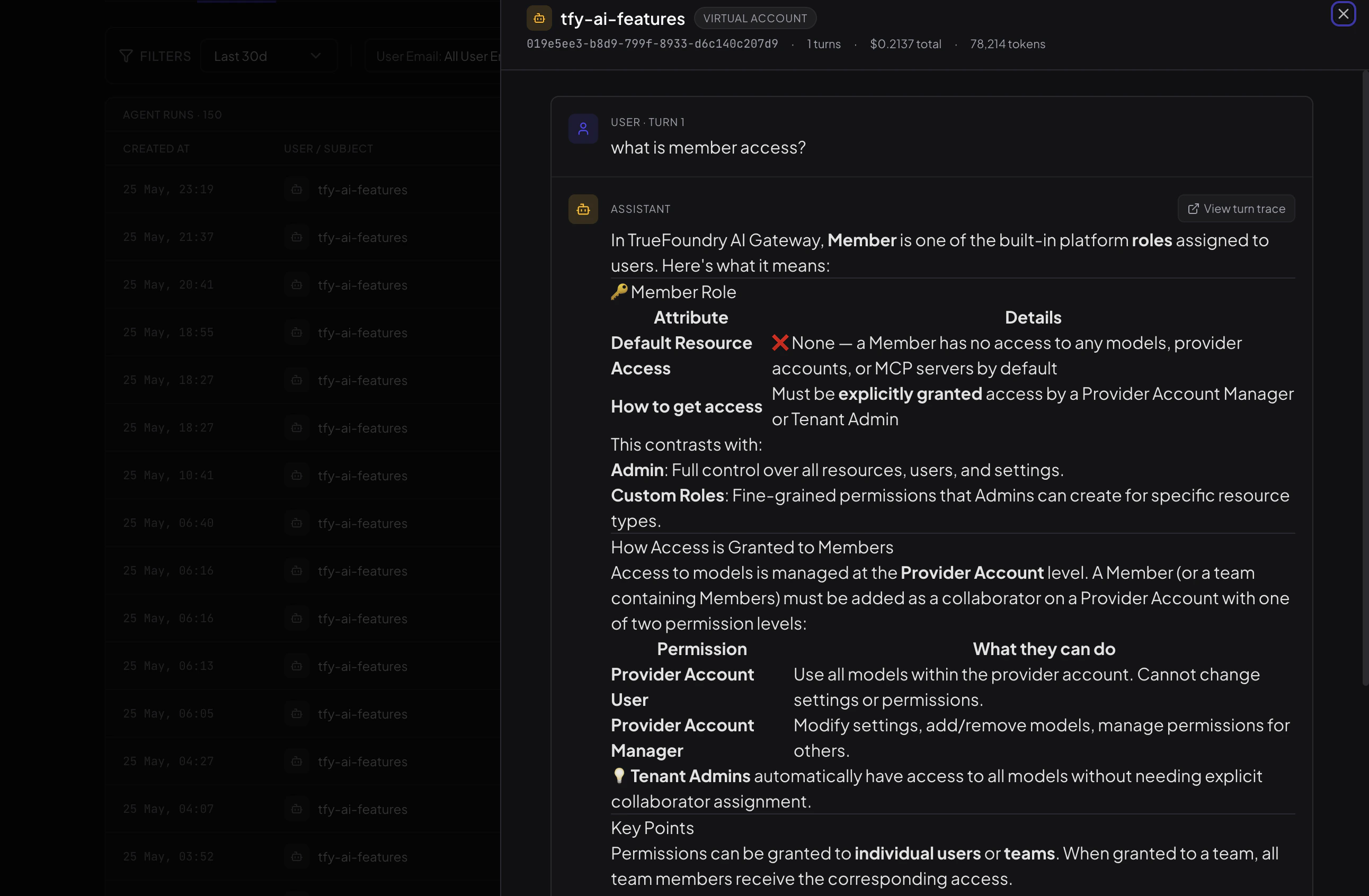 Each assistant turn has a **View turn trace** link that opens the corresponding span in AI Monitoring, so you can debug tool calls, reasoning steps, or latency issues without leaving the context of the run.
### Use in Code
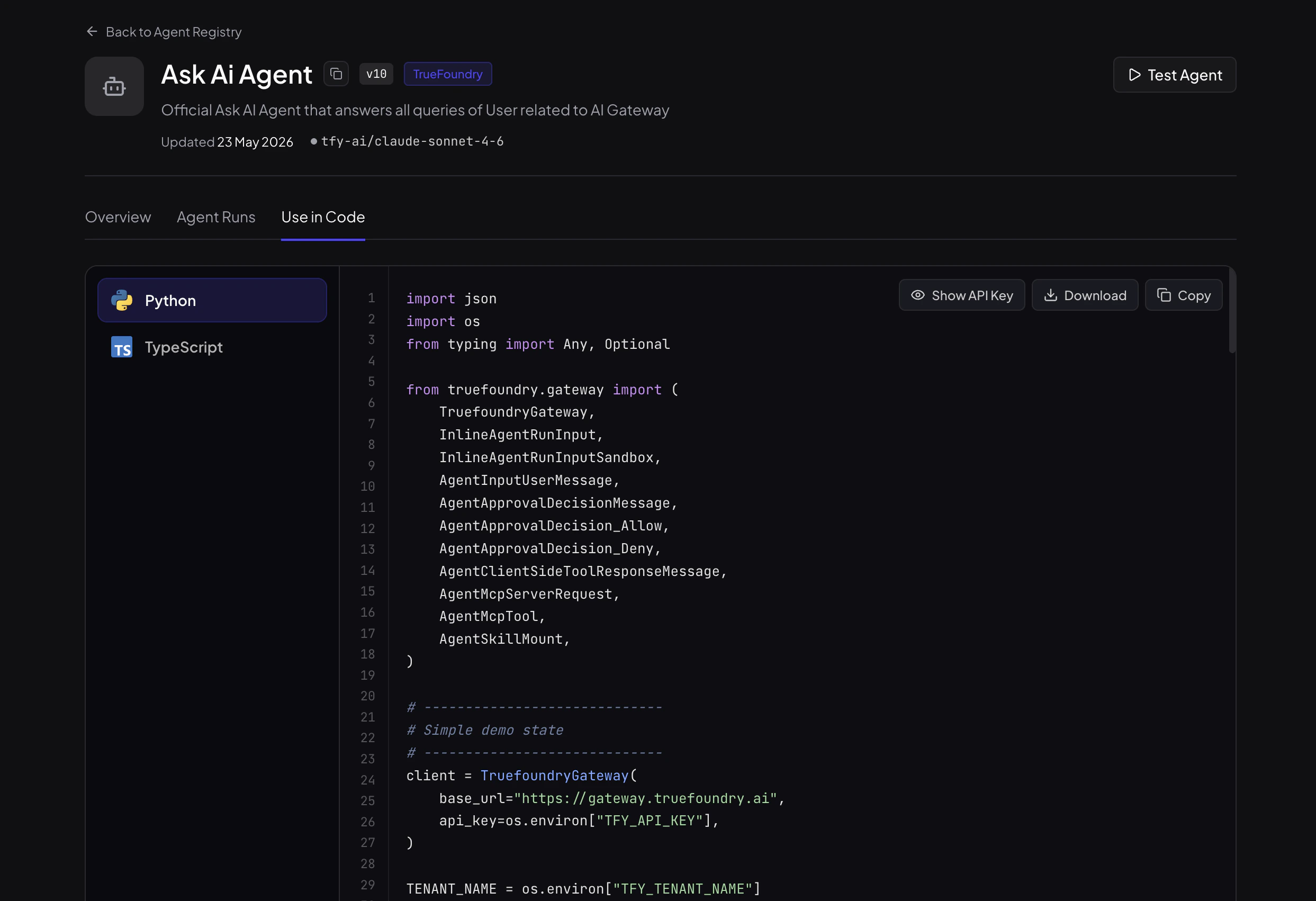
If you want to integrate this agent into your application or automate it from a pipeline, the **Use in Code** tab has ready-to-copy Python and TypeScript snippets generated for this specific agent.
Each assistant turn has a **View turn trace** link that opens the corresponding span in AI Monitoring, so you can debug tool calls, reasoning steps, or latency issues without leaving the context of the run.
### Use in Code
If you want to integrate this agent into your application or automate it from a pipeline, the **Use in Code** tab has ready-to-copy Python and TypeScript snippets generated for this specific agent.
 For the full SDK guide, authentication setup, and streaming tutorial, see [Create and use agents via SDK](/docs/agent-platform/agent-harness/sdk/overview).