> ## Documentation Index
> Fetch the complete documentation index at: https://www.truefoundry.com/llms.txt
> Use this file to discover all available pages before exploring further.
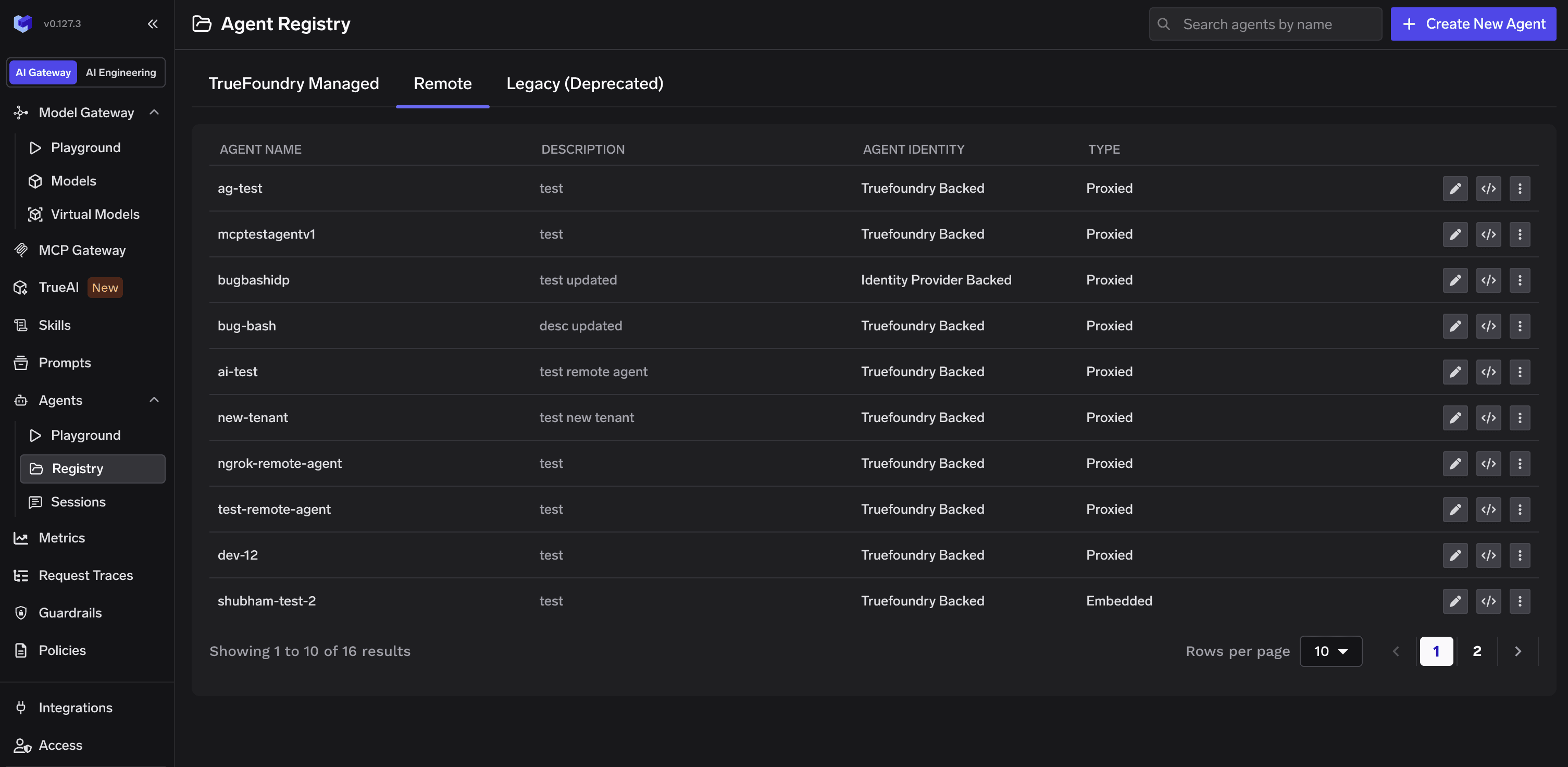
# Agent Registry
> The system of record for every agent in your organization — what a registry entry carries, and the full walkthrough for registering an agent.
The Agent Registry is TrueFoundry's implementation of the [register-and-own pillar](/docs/agent-platform/agent-governance/governance-blueprint#2-register-and-own-registration-is-the-enforcement-point) of the governance blueprint: one place where every agent in your organization is registered, discovered, accessed, and governed. Whatever the agent is built on — Bedrock, Vertex AI, LangGraph, a custom HTTP service, an A2A agent, or a copilot embedded in a SaaS product — it enters governance by being registered here, without moving or rewriting anything.
 ## What a registry entry carries
Registration is not documentation — it is what makes the rest of governance enforceable. Each entry gives the agent the attributes the [blueprint](/docs/agent-platform/agent-governance/governance-blueprint#2-register-and-own-registration-is-the-enforcement-point) requires:
| Attribute | In TrueFoundry |
| ----------------------- | ------------------------------------------------------------------------------------------------------------------------------------------------------------------------------------ |
| **Verifiable identity** | Every registered agent gets exactly one [Agent Identity](/docs/ai-gateway/agents/agent-identity) — TrueFoundry-backed or identity provider-backed — created as part of registration. |
| **Accountable owner** | The **Owner** team set on the Access Control step, separate from the grants that control who can *use* the agent. |
| **Defined authority** | Collaborator grants: who may invoke the agent, whom it may act for, and which MCP servers and models it may reach. |
| **Routing** | Whether the Agent Gateway proxies inbound calls to the agent, or the registration is governance-only. |
Because the gateways deny callers that present no registered identity, the registry doubles as the **enforcement point**: nothing acts anonymously, and the inventory is complete by construction.
**Coming soon — agent discovery.** The registry is being extended with the [discover pillar](/docs/agent-platform/agent-governance/governance-blueprint#1-discover-you-cant-govern-what-you-cant-see): continuous scanning of gateway traffic, cloud platforms, and identity providers to surface agents that exist but are not registered, as a triage queue feeding into registration. See [what's coming soon](/docs/agent-platform/agent-governance/truefoundry-implementation#coming-soon).
## Concepts
Three ideas the registration flow is built around — the product counterparts of the section's [key concepts](/docs/agent-platform/agent-governance/key-concepts).
Every agent has an **identity**: the credential it presents whenever it reaches the Agent
Gateway or the MCP Gateway. The Gateway resolves that credential to *this* agent and enforces the
permissions granted to it — no matter which layer the call lands on.
There are two kinds of identity:
* **TrueFoundry-backed** — TrueFoundry issues and signs the agent's token. Simplest option, and
the right default for agents you build and run yourself. See the
[TrueFoundry as identity broker scenario](/docs/agent-platform/agent-governance/scenarios/truefoundry-identity-broker).
* **Identity provider-backed** — the agent authenticates with a token from your own identity provider
(Okta, Entra, any OIDC provider, or a SPIFFE/SPIRE OIDC endpoint). You map specific claim values to
the agent so an incoming token resolves to it. This unlocks ID-JAG / On-Behalf-Of (OBO) delegation —
see the [Okta](/docs/agent-platform/agent-governance/scenarios/okta),
[Entra](/docs/agent-platform/agent-governance/scenarios/microsoft-entra), and
[SPIFFE](/docs/agent-platform/agent-governance/scenarios/spiffe) scenarios.
The **Config** step decides whether the Agent Gateway sits in front of your agent:
* **Proxy via Gateway** (default) — callers hit a TrueFoundry Gateway URL; the Gateway
authenticates the caller, enforces policies and guardrails, then forwards the request to your
agent's real endpoint. You provide that endpoint URL.
* **Embedded — no callable URL** — the agent is registered for **governance only**: it appears in
the registry, has an identity, and can be granted access to MCP servers, but TrueFoundry does not
proxy inbound calls to it. No URL required. This is how copilots embedded in third-party products
are governed — their *outbound* calls still pass through the gateways.
Collaborators grant access to the agent. A collaborator can be a **user**, a **team**, or
another **agent**, with one of two roles:
* **Agent Manager** — can edit the agent.
* **Agent Access** — can invoke the agent, and be acted for by it.
The same list therefore defines both sides of delegation — see
[who the agent can act for](/docs/ai-gateway/agents/agent-identity#who-the-agent-can-act-for).
## Registering an agent
On the Agent Registry page, click **Create New Agent** and select **Integrate a Remote Agent**.
## What a registry entry carries
Registration is not documentation — it is what makes the rest of governance enforceable. Each entry gives the agent the attributes the [blueprint](/docs/agent-platform/agent-governance/governance-blueprint#2-register-and-own-registration-is-the-enforcement-point) requires:
| Attribute | In TrueFoundry |
| ----------------------- | ------------------------------------------------------------------------------------------------------------------------------------------------------------------------------------ |
| **Verifiable identity** | Every registered agent gets exactly one [Agent Identity](/docs/ai-gateway/agents/agent-identity) — TrueFoundry-backed or identity provider-backed — created as part of registration. |
| **Accountable owner** | The **Owner** team set on the Access Control step, separate from the grants that control who can *use* the agent. |
| **Defined authority** | Collaborator grants: who may invoke the agent, whom it may act for, and which MCP servers and models it may reach. |
| **Routing** | Whether the Agent Gateway proxies inbound calls to the agent, or the registration is governance-only. |
Because the gateways deny callers that present no registered identity, the registry doubles as the **enforcement point**: nothing acts anonymously, and the inventory is complete by construction.
**Coming soon — agent discovery.** The registry is being extended with the [discover pillar](/docs/agent-platform/agent-governance/governance-blueprint#1-discover-you-cant-govern-what-you-cant-see): continuous scanning of gateway traffic, cloud platforms, and identity providers to surface agents that exist but are not registered, as a triage queue feeding into registration. See [what's coming soon](/docs/agent-platform/agent-governance/truefoundry-implementation#coming-soon).
## Concepts
Three ideas the registration flow is built around — the product counterparts of the section's [key concepts](/docs/agent-platform/agent-governance/key-concepts).
Every agent has an **identity**: the credential it presents whenever it reaches the Agent
Gateway or the MCP Gateway. The Gateway resolves that credential to *this* agent and enforces the
permissions granted to it — no matter which layer the call lands on.
There are two kinds of identity:
* **TrueFoundry-backed** — TrueFoundry issues and signs the agent's token. Simplest option, and
the right default for agents you build and run yourself. See the
[TrueFoundry as identity broker scenario](/docs/agent-platform/agent-governance/scenarios/truefoundry-identity-broker).
* **Identity provider-backed** — the agent authenticates with a token from your own identity provider
(Okta, Entra, any OIDC provider, or a SPIFFE/SPIRE OIDC endpoint). You map specific claim values to
the agent so an incoming token resolves to it. This unlocks ID-JAG / On-Behalf-Of (OBO) delegation —
see the [Okta](/docs/agent-platform/agent-governance/scenarios/okta),
[Entra](/docs/agent-platform/agent-governance/scenarios/microsoft-entra), and
[SPIFFE](/docs/agent-platform/agent-governance/scenarios/spiffe) scenarios.
The **Config** step decides whether the Agent Gateway sits in front of your agent:
* **Proxy via Gateway** (default) — callers hit a TrueFoundry Gateway URL; the Gateway
authenticates the caller, enforces policies and guardrails, then forwards the request to your
agent's real endpoint. You provide that endpoint URL.
* **Embedded — no callable URL** — the agent is registered for **governance only**: it appears in
the registry, has an identity, and can be granted access to MCP servers, but TrueFoundry does not
proxy inbound calls to it. No URL required. This is how copilots embedded in third-party products
are governed — their *outbound* calls still pass through the gateways.
Collaborators grant access to the agent. A collaborator can be a **user**, a **team**, or
another **agent**, with one of two roles:
* **Agent Manager** — can edit the agent.
* **Agent Access** — can invoke the agent, and be acted for by it.
The same list therefore defines both sides of delegation — see
[who the agent can act for](/docs/ai-gateway/agents/agent-identity#who-the-agent-can-act-for).
## Registering an agent
On the Agent Registry page, click **Create New Agent** and select **Integrate a Remote Agent**.

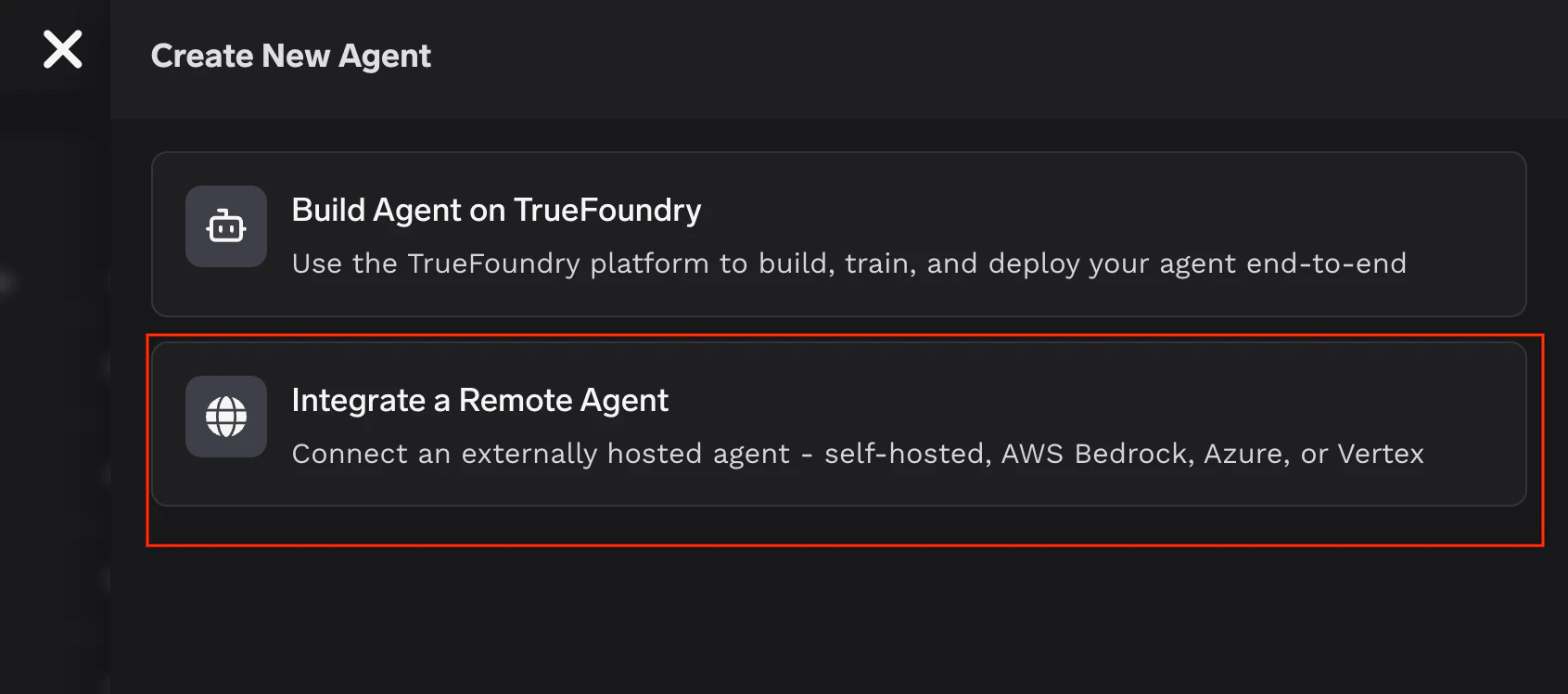 Registration is a four-step wizard: **Metadata → Agent Identity → Config → Access Control**. Each step
is described below. You can also register the agent as YAML with **Apply using YAML** at any step.
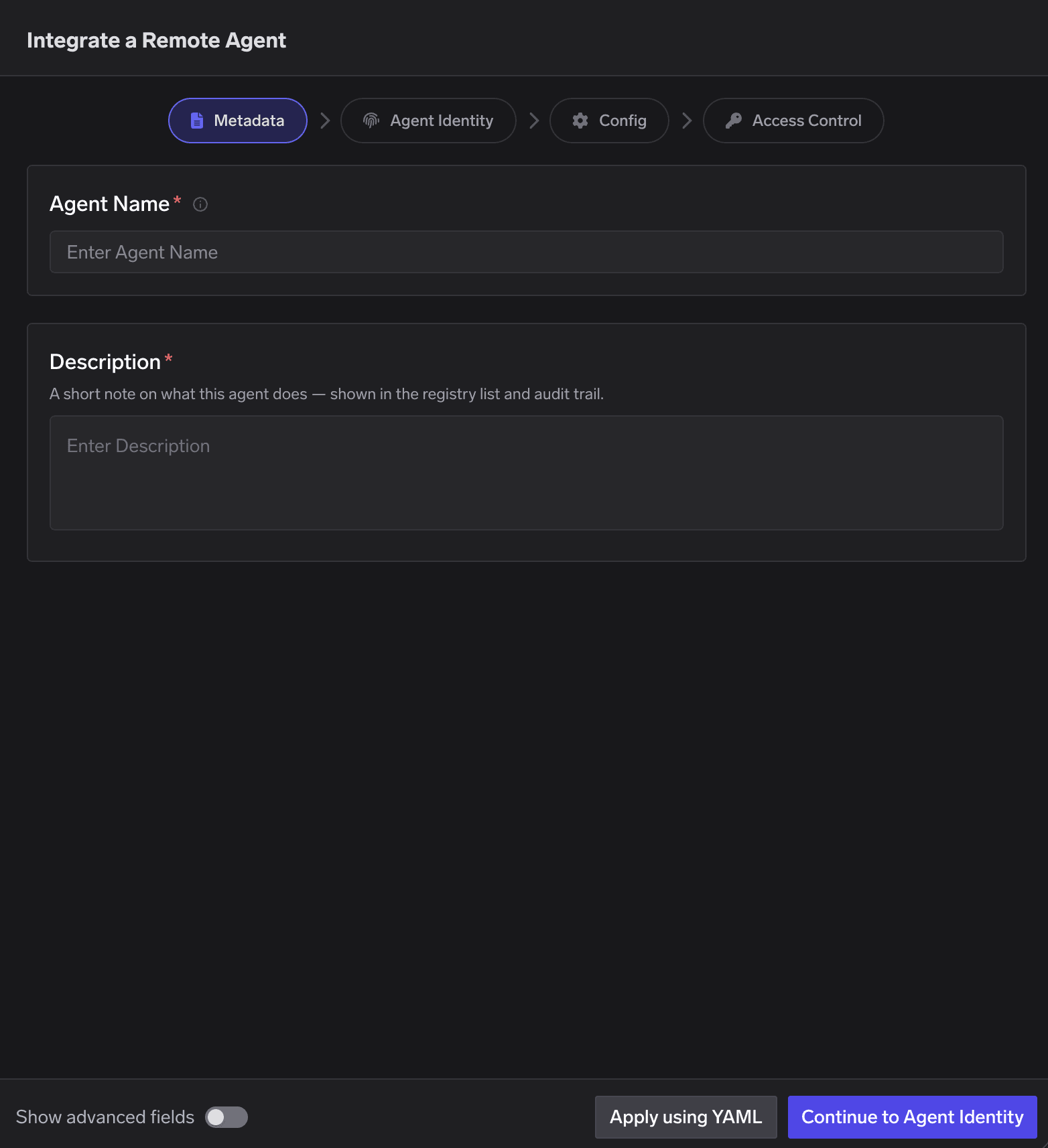
### Step 1 — Metadata
Basic information about the agent.
| Field | Required | Description |
| --------------- | -------- | -------------------------------------------------------------------------------------- |
| **Agent Name** | Yes | Unique across your organization; used as the reference key in policies and YAML specs. |
| **Description** | Yes | A short note on what this agent does — shown in the registry list and audit trail. |
Registration is a four-step wizard: **Metadata → Agent Identity → Config → Access Control**. Each step
is described below. You can also register the agent as YAML with **Apply using YAML** at any step.
### Step 1 — Metadata
Basic information about the agent.
| Field | Required | Description |
| --------------- | -------- | -------------------------------------------------------------------------------------- |
| **Agent Name** | Yes | Unique across your organization; used as the reference key in policies and YAML specs. |
| **Description** | Yes | A short note on what this agent does — shown in the registry list and audit trail. |
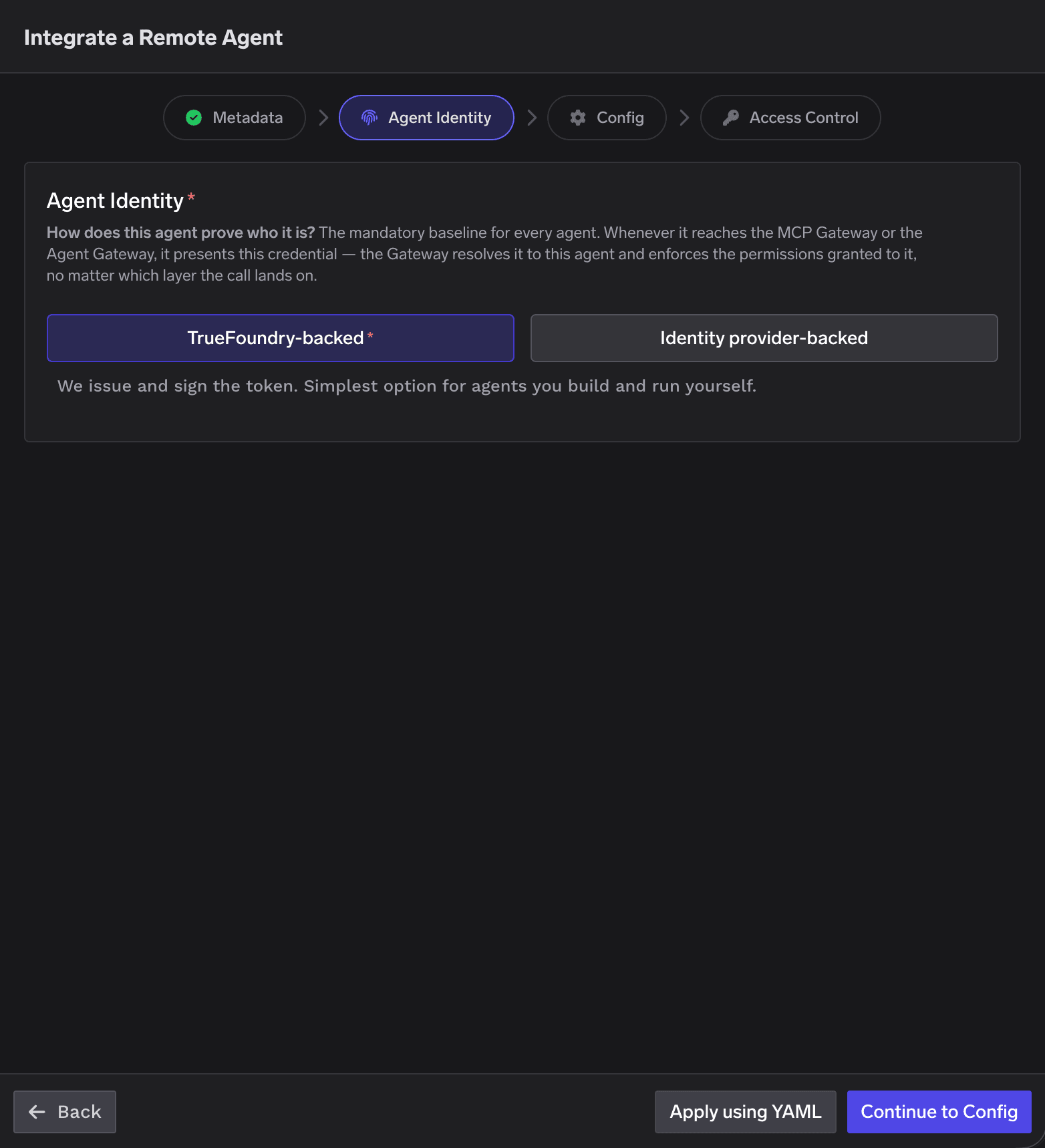
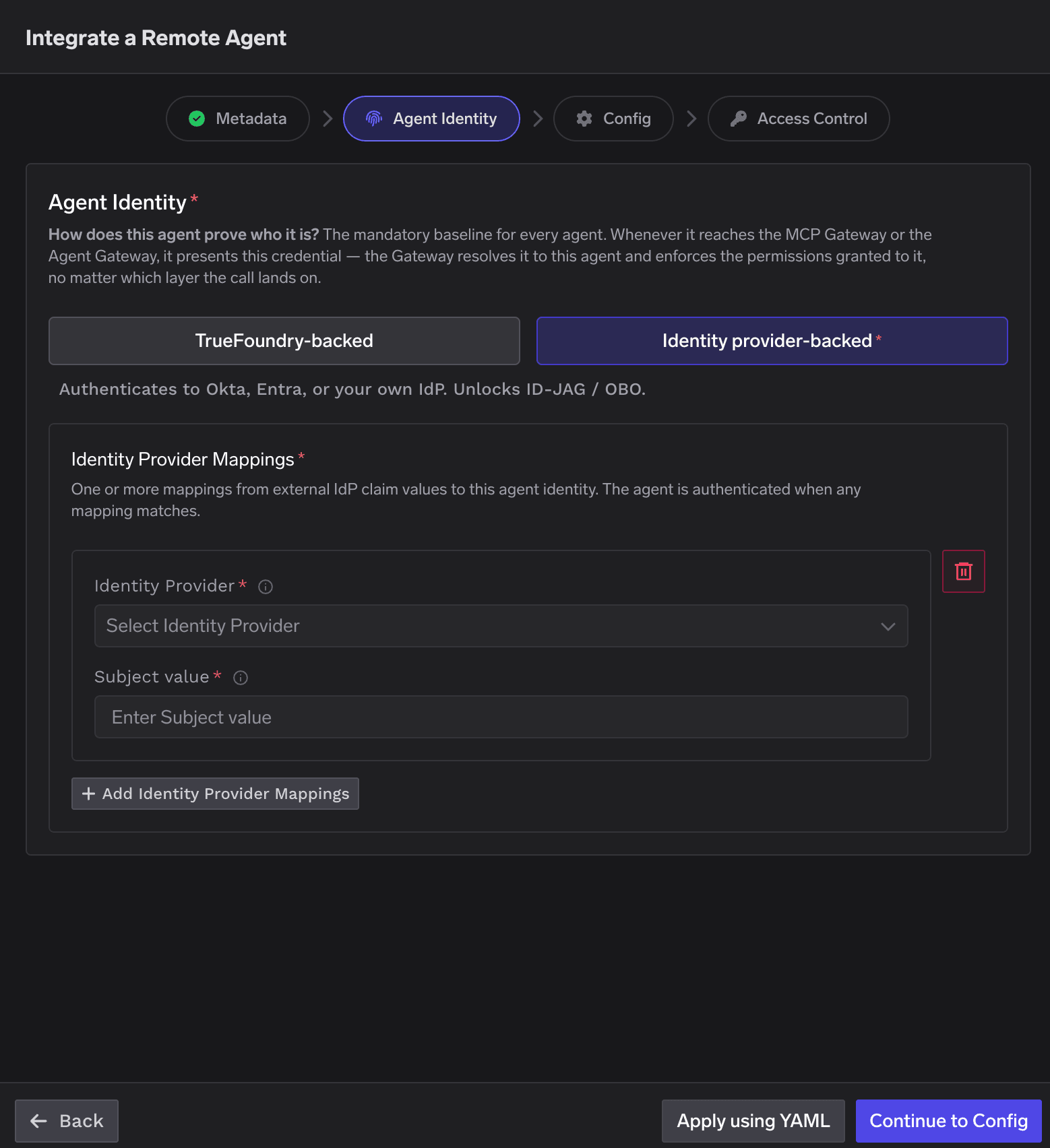
 ### Step 2 — Agent Identity
Choose **how the agent proves who it is** — the mandatory baseline for every agent. Whenever the agent
reaches the MCP Gateway or the Agent Gateway, it presents this credential; the Gateway resolves it to
this agent and enforces the permissions granted to it, no matter which layer the call lands on.
TrueFoundry issues and signs the agent's token. This is the simplest option for agents you build
and run yourself — there is nothing else to configure. After the agent is created, fetch the token
from its **⋮ → Get Token** menu (see [Getting and using the agent's token](#getting-and-using-the-agents-token)).
### Step 2 — Agent Identity
Choose **how the agent proves who it is** — the mandatory baseline for every agent. Whenever the agent
reaches the MCP Gateway or the Agent Gateway, it presents this credential; the Gateway resolves it to
this agent and enforces the permissions granted to it, no matter which layer the call lands on.
TrueFoundry issues and signs the agent's token. This is the simplest option for agents you build
and run yourself — there is nothing else to configure. After the agent is created, fetch the token
from its **⋮ → Get Token** menu (see [Getting and using the agent's token](#getting-and-using-the-agents-token)).
 The agent authenticates with a token from your own identity provider (Okta, Entra, or any OIDC provider) —
unlocking ID-JAG / OBO. Add one or more **Identity Provider Mappings**; the agent is authenticated
when any mapping matches.
| Field | Required | Description |
| --------------------- | -------- | -------------------------------------------------------------------------------------------------------- |
| **Identity Provider** | Yes | The identity provider to trust. Must already be configured under **Platform → Identity Providers**. |
| **Subject value** | Yes | The claim value that must appear in an incoming identity provider token for it to resolve to this agent. |
Use **+ Add Identity Provider Mappings** to add more than one. See the
[identity provider scenarios](/docs/agent-platform/agent-governance/scenarios/truefoundry-identity-broker)
for the end-to-end flow per provider.
The agent authenticates with a token from your own identity provider (Okta, Entra, or any OIDC provider) —
unlocking ID-JAG / OBO. Add one or more **Identity Provider Mappings**; the agent is authenticated
when any mapping matches.
| Field | Required | Description |
| --------------------- | -------- | -------------------------------------------------------------------------------------------------------- |
| **Identity Provider** | Yes | The identity provider to trust. Must already be configured under **Platform → Identity Providers**. |
| **Subject value** | Yes | The claim value that must appear in an incoming identity provider token for it to resolve to this agent. |
Use **+ Add Identity Provider Mappings** to add more than one. See the
[identity provider scenarios](/docs/agent-platform/agent-governance/scenarios/truefoundry-identity-broker)
for the end-to-end flow per provider.
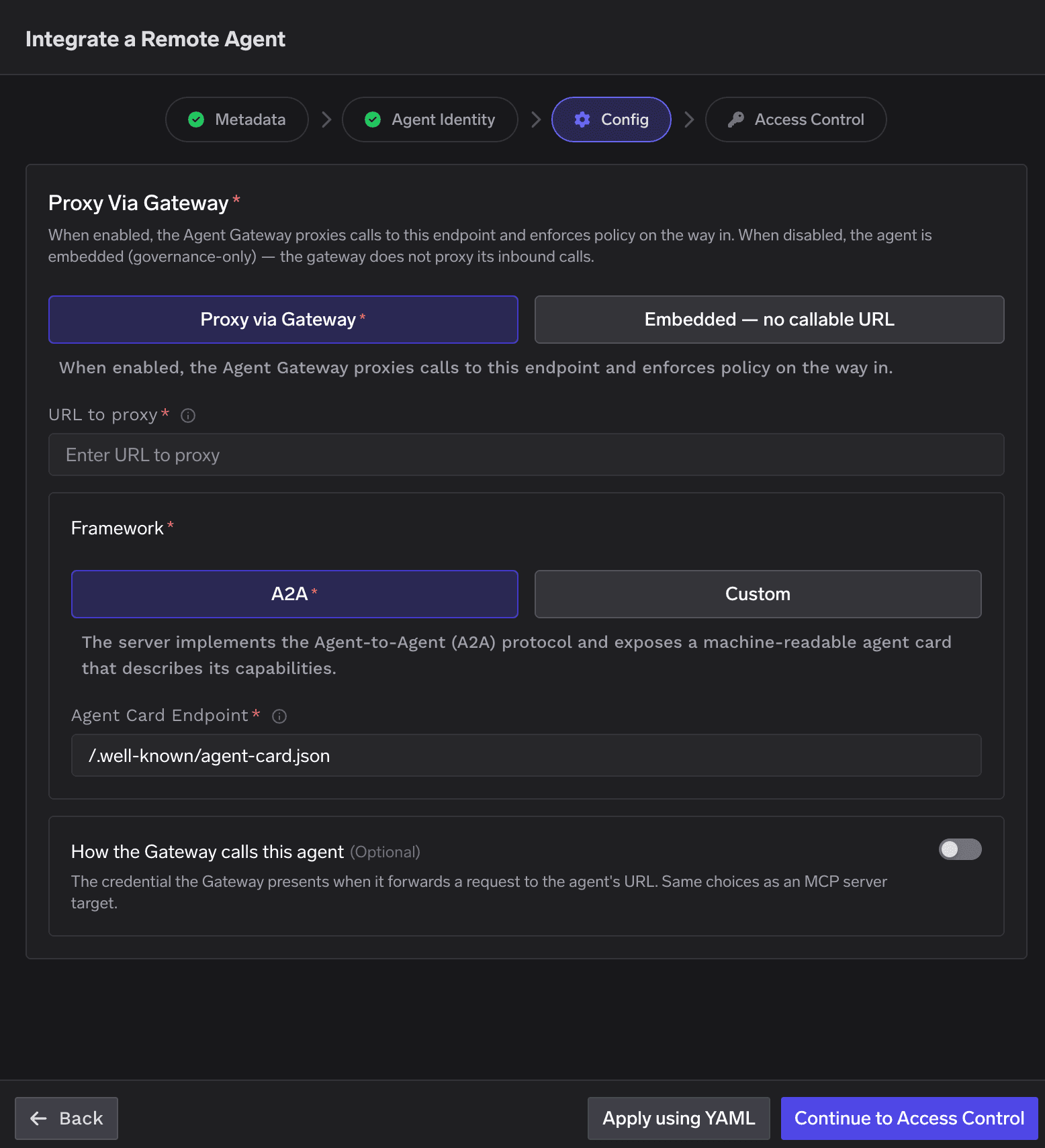
 ### Step 3 — Config
Decides whether the Agent Gateway sits in front of the agent.
The Agent Gateway proxies calls to the agent's endpoint and enforces policy on the way in.
* **URL to proxy** *(required)* — the agent's endpoint; the Gateway forwards inbound requests here.
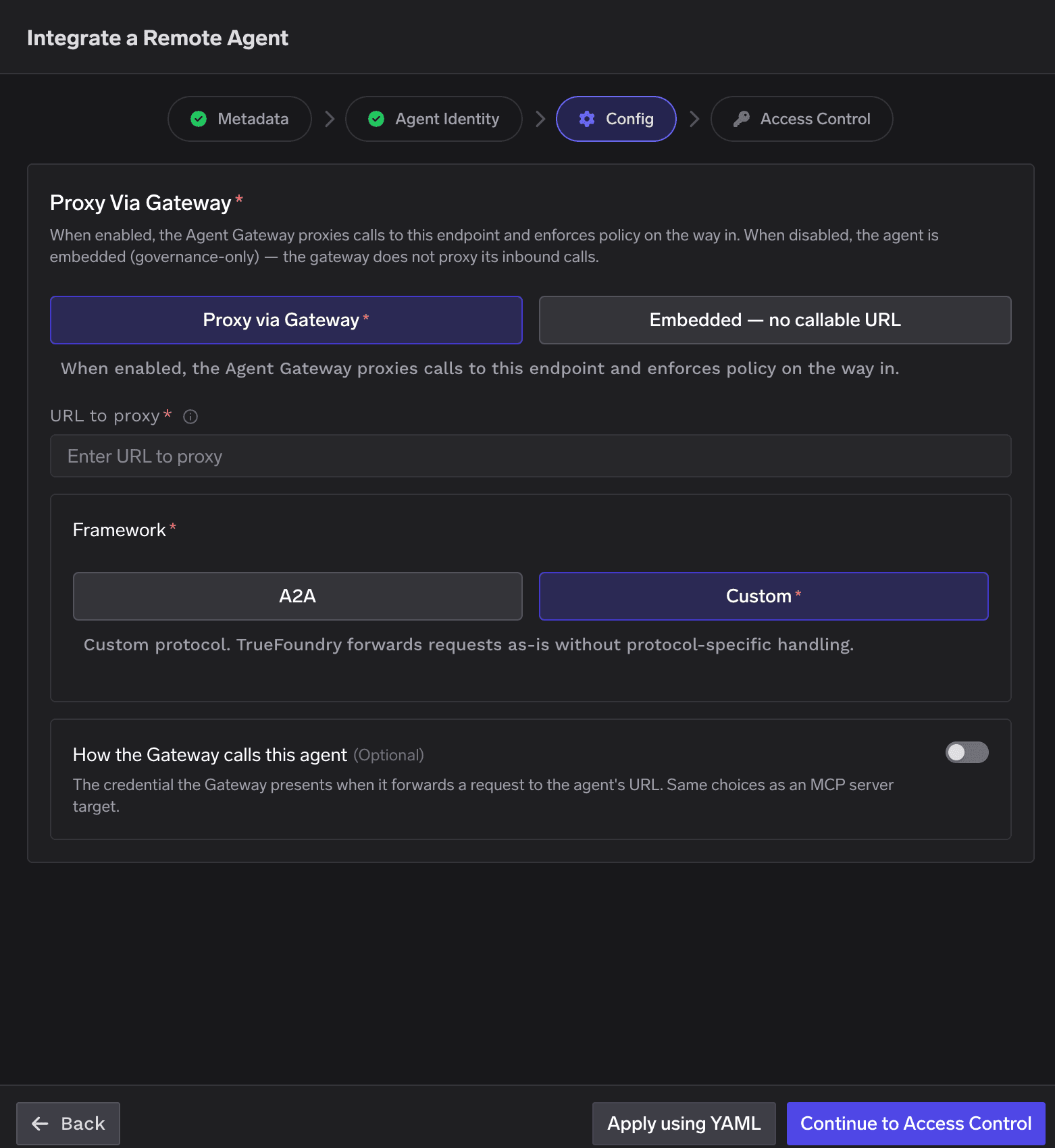
* **Framework** — the protocol the agent speaks:
* **A2A** — the server implements the [Agent-to-Agent (A2A) protocol](https://google.github.io/A2A/)
and exposes a machine-readable agent card. Set the **Agent Card Endpoint**
(default `/.well-known/agent-card.json`).
* **Custom** — any other HTTP-based agent API. TrueFoundry forwards requests as-is, with no
protocol-specific handling.
* **How the Gateway calls this agent** *(optional)* — the credential the Gateway presents when it
forwards a request to the agent's URL. Same choices as an MCP server target (e.g. header auth or
token passthrough).
### Step 3 — Config
Decides whether the Agent Gateway sits in front of the agent.
The Agent Gateway proxies calls to the agent's endpoint and enforces policy on the way in.
* **URL to proxy** *(required)* — the agent's endpoint; the Gateway forwards inbound requests here.
* **Framework** — the protocol the agent speaks:
* **A2A** — the server implements the [Agent-to-Agent (A2A) protocol](https://google.github.io/A2A/)
and exposes a machine-readable agent card. Set the **Agent Card Endpoint**
(default `/.well-known/agent-card.json`).
* **Custom** — any other HTTP-based agent API. TrueFoundry forwards requests as-is, with no
protocol-specific handling.
* **How the Gateway calls this agent** *(optional)* — the credential the Gateway presents when it
forwards a request to the agent's URL. Same choices as an MCP server target (e.g. header auth or
token passthrough).
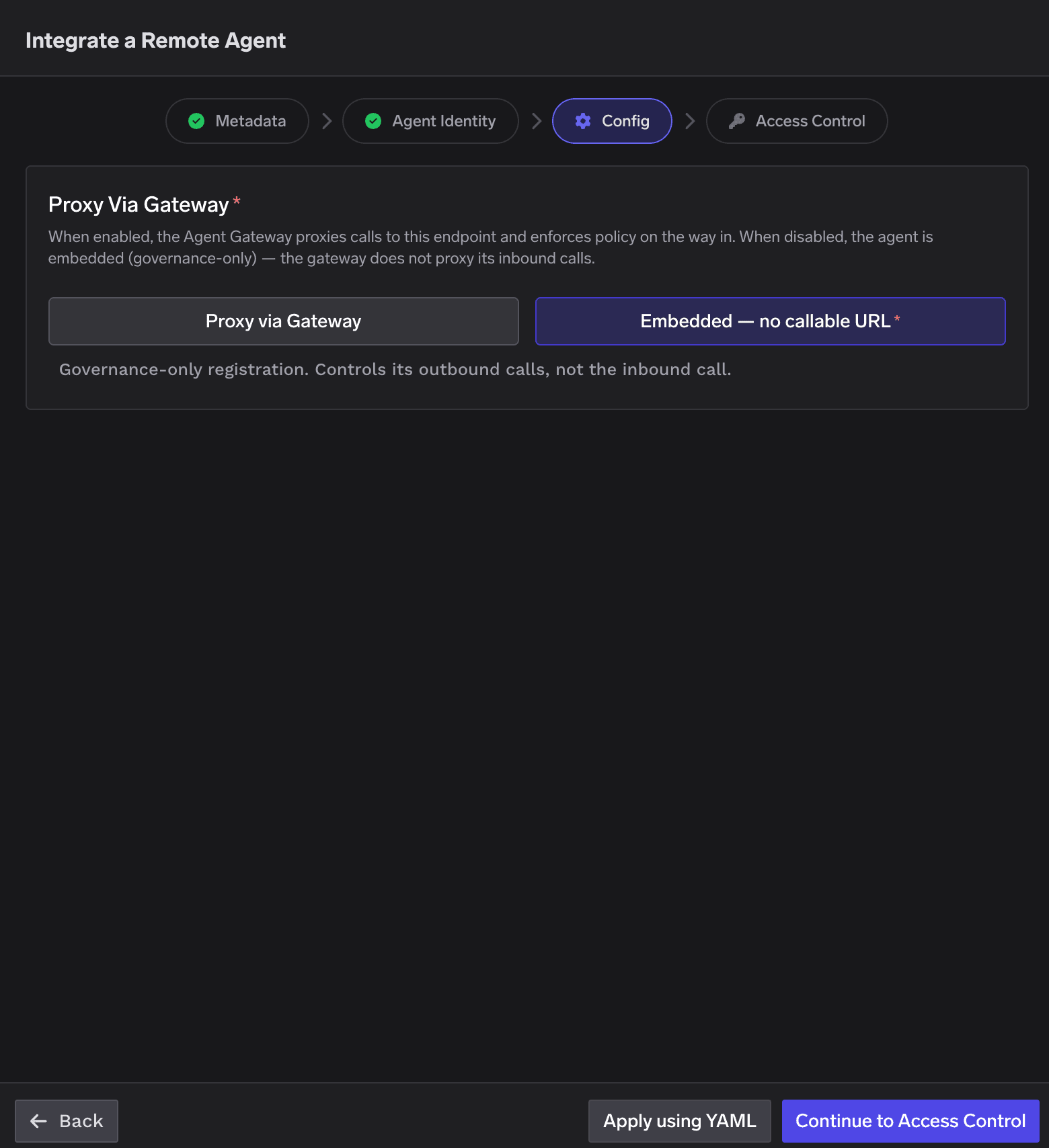
 Governance-only registration. The agent appears in the registry, has an identity, and can be
granted access to resources, but the Gateway does **not** proxy inbound calls to it — there is no
URL. This governs the agent's outbound calls, not the inbound call.
Governance-only registration. The agent appears in the registry, has an identity, and can be
granted access to resources, but the Gateway does **not** proxy inbound calls to it — there is no
URL. This governs the agent's outbound calls, not the inbound call.
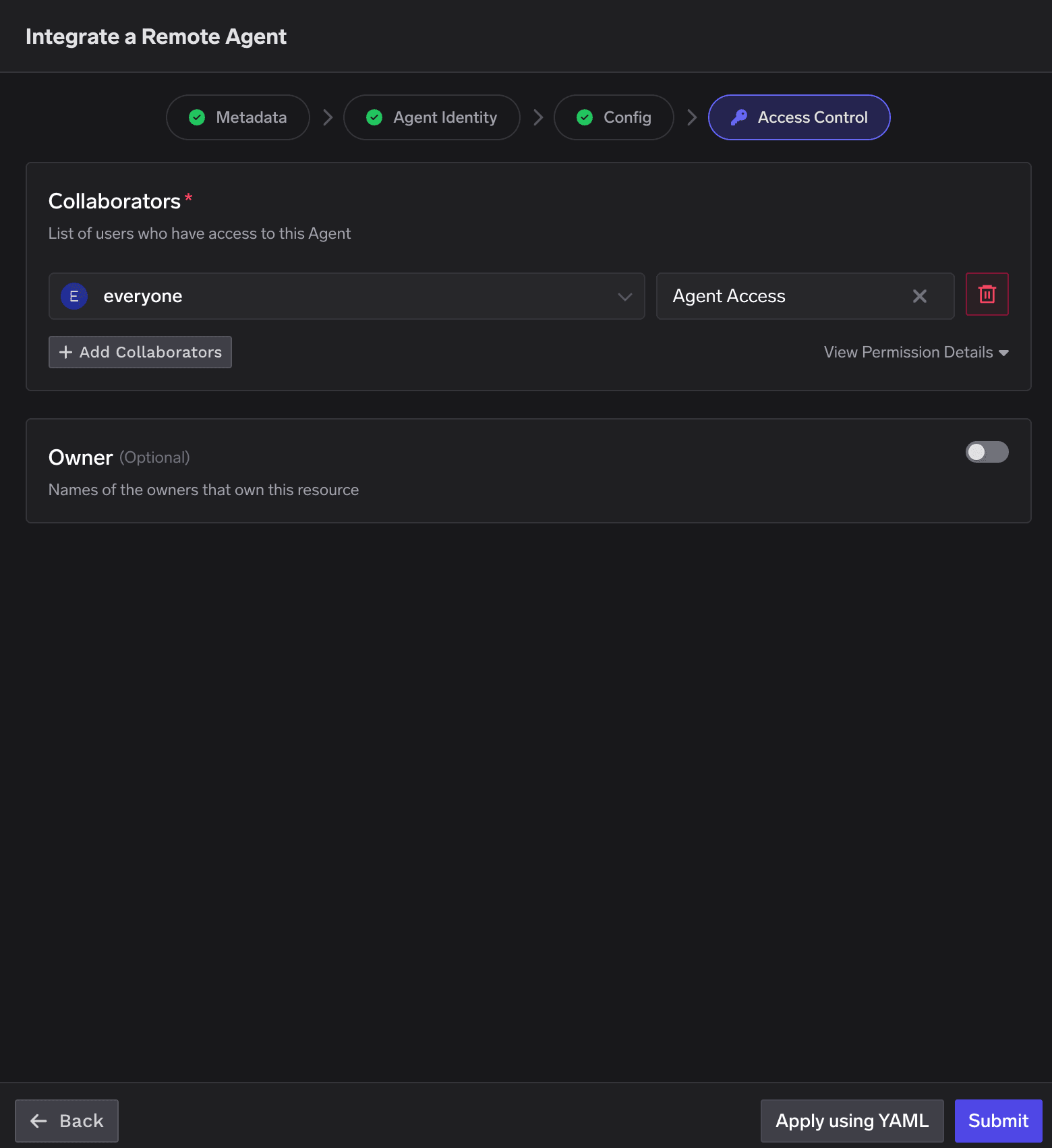
 ### Step 4 — Access Control
Grant access to the agent and, optionally, set an owning team.
* **Collaborators** *(required)* — the list of subjects that have access to this agent. A collaborator
can be a **user**, a **team**, or another **agent**, each with one of two roles.
* **Owner** *(optional)* — off by default. When enabled, you **must** select a **team** that owns this
agent. Ownership is a governance attribute and is separate from the collaborator grants that control
who can *use* the agent — it is the accountability anchor the
[blueprint](/docs/agent-platform/agent-governance/governance-blueprint#2-register-and-own-registration-is-the-enforcement-point) requires.
### Step 4 — Access Control
Grant access to the agent and, optionally, set an owning team.
* **Collaborators** *(required)* — the list of subjects that have access to this agent. A collaborator
can be a **user**, a **team**, or another **agent**, each with one of two roles.
* **Owner** *(optional)* — off by default. When enabled, you **must** select a **team** that owns this
agent. Ownership is a governance attribute and is separate from the collaborator grants that control
who can *use* the agent — it is the accountability anchor the
[blueprint](/docs/agent-platform/agent-governance/governance-blueprint#2-register-and-own-registration-is-the-enforcement-point) requires.
 #### Collaborator roles
| Role | Grants | Use for |
| ----------------- | ----------------------------------------------------------- | ------------------------------------------ |
| **Agent Manager** | View **and** edit the agent (`READ_AGENT` + `MANAGE_AGENT`) | People who own or maintain the agent. |
| **Agent Access** | View / invoke the agent (`READ_AGENT`) | Consumers who only need to call the agent. |
#### Granting and revoking access
Access is **allow-list based** — there is no separate "deny" setting. A subject can reach the agent
**only if** it is added as a collaborator; to deny access, don't add it (or remove it).
* **Give a user or team access** — add them as a collaborator with **Agent Access** (invoke only) or
**Agent Manager** (invoke + edit).
* **Give another agent access** — add the agent as a collaborator (subject `agent:`). That
agent can then call this one through the Gateway under its own identity.
* **Give everyone in the tenant access** — add the built-in **everyone** team as a collaborator
(it appears by default with **Agent Access**). Remove it to restrict the agent to specific subjects.
* **Remove / deny access** — delete the collaborator row (the trash icon). Once the grant is gone, the
Gateway returns `403 – not authorized` when that subject tries to reach the agent. Not adding a
subject in the first place has the same effect.
Scope **Agent Access** to the teams that actually use the agent. Because the same grant also decides
whom the agent may **act for**, granting it to `everyone` gives the agent tenant-wide delegation reach —
convenient for getting started, and wider than most agents need.
Collaborator grants are stored on the agent's identity, so they are enforced wherever the agent's call
lands — at the **Agent Gateway** when someone invokes this agent, and at the **MCP Gateway** when this
agent (as a collaborator elsewhere) calls an MCP server.
Click **Submit** to register the agent.
### Registration fields reference
| Step | Field | Required | Description |
| -------------- | ----------------------------------------- | ----------------------------- | -------------------------------------------------------------------------------- |
| Metadata | **Agent Name** | Yes | Unique identifier for the agent within your organization. |
| Metadata | **Description** | Yes | Short description of the agent's purpose. |
| Agent Identity | **Identity type** | Yes | `TrueFoundry-backed` or `Identity provider-backed`. |
| Agent Identity | **Identity Provider** + **Subject value** | identity provider-backed only | One or more mappings that resolve an identity provider token to this agent. |
| Config | **Proxy via Gateway / Embedded** | Yes | Proxy inbound calls through the Gateway, or register governance-only (Embedded). |
| Config | **URL to proxy** | When proxying | The endpoint where the agent is reachable. |
| Config | **Framework** | When proxying | `A2A` (with Agent Card Endpoint) or `Custom`. |
| Config | **How the Gateway calls this agent** | No | Outbound auth the Gateway presents to the agent. |
| Access Control | **Collaborators** | Yes | Users, teams, or agents with `Agent Manager` or `Agent Access`. |
| Access Control | **Owner** | No | Owning team; required only if the Owner toggle is enabled. |
***
## Getting and using the agent's token
The token **is** the agent's identity. Your agent presents it as a bearer credential when it calls
resources through TrueFoundry — the **MCP servers** and **models** you've made it a collaborator on
(see [Letting the agent use MCP servers and models](#letting-the-agent-use-mcp-servers-and-models)),
or another agent it has access to. On each call the Gateway validates the token, resolves it to this
agent, and allows the call only if the agent has been granted access to that specific resource.
How the agent obtains that token depends on the identity type you chose in Step 2.
TrueFoundry issues and signs the token, but it is **not** shown at creation time. Fetch it from
the agent's row in the Agent Registry: open the **three-dots (⋮) menu** and click **Get Token**.
#### Collaborator roles
| Role | Grants | Use for |
| ----------------- | ----------------------------------------------------------- | ------------------------------------------ |
| **Agent Manager** | View **and** edit the agent (`READ_AGENT` + `MANAGE_AGENT`) | People who own or maintain the agent. |
| **Agent Access** | View / invoke the agent (`READ_AGENT`) | Consumers who only need to call the agent. |
#### Granting and revoking access
Access is **allow-list based** — there is no separate "deny" setting. A subject can reach the agent
**only if** it is added as a collaborator; to deny access, don't add it (or remove it).
* **Give a user or team access** — add them as a collaborator with **Agent Access** (invoke only) or
**Agent Manager** (invoke + edit).
* **Give another agent access** — add the agent as a collaborator (subject `agent:`). That
agent can then call this one through the Gateway under its own identity.
* **Give everyone in the tenant access** — add the built-in **everyone** team as a collaborator
(it appears by default with **Agent Access**). Remove it to restrict the agent to specific subjects.
* **Remove / deny access** — delete the collaborator row (the trash icon). Once the grant is gone, the
Gateway returns `403 – not authorized` when that subject tries to reach the agent. Not adding a
subject in the first place has the same effect.
Scope **Agent Access** to the teams that actually use the agent. Because the same grant also decides
whom the agent may **act for**, granting it to `everyone` gives the agent tenant-wide delegation reach —
convenient for getting started, and wider than most agents need.
Collaborator grants are stored on the agent's identity, so they are enforced wherever the agent's call
lands — at the **Agent Gateway** when someone invokes this agent, and at the **MCP Gateway** when this
agent (as a collaborator elsewhere) calls an MCP server.
Click **Submit** to register the agent.
### Registration fields reference
| Step | Field | Required | Description |
| -------------- | ----------------------------------------- | ----------------------------- | -------------------------------------------------------------------------------- |
| Metadata | **Agent Name** | Yes | Unique identifier for the agent within your organization. |
| Metadata | **Description** | Yes | Short description of the agent's purpose. |
| Agent Identity | **Identity type** | Yes | `TrueFoundry-backed` or `Identity provider-backed`. |
| Agent Identity | **Identity Provider** + **Subject value** | identity provider-backed only | One or more mappings that resolve an identity provider token to this agent. |
| Config | **Proxy via Gateway / Embedded** | Yes | Proxy inbound calls through the Gateway, or register governance-only (Embedded). |
| Config | **URL to proxy** | When proxying | The endpoint where the agent is reachable. |
| Config | **Framework** | When proxying | `A2A` (with Agent Card Endpoint) or `Custom`. |
| Config | **How the Gateway calls this agent** | No | Outbound auth the Gateway presents to the agent. |
| Access Control | **Collaborators** | Yes | Users, teams, or agents with `Agent Manager` or `Agent Access`. |
| Access Control | **Owner** | No | Owning team; required only if the Owner toggle is enabled. |
***
## Getting and using the agent's token
The token **is** the agent's identity. Your agent presents it as a bearer credential when it calls
resources through TrueFoundry — the **MCP servers** and **models** you've made it a collaborator on
(see [Letting the agent use MCP servers and models](#letting-the-agent-use-mcp-servers-and-models)),
or another agent it has access to. On each call the Gateway validates the token, resolves it to this
agent, and allows the call only if the agent has been granted access to that specific resource.
How the agent obtains that token depends on the identity type you chose in Step 2.
TrueFoundry issues and signs the token, but it is **not** shown at creation time. Fetch it from
the agent's row in the Agent Registry: open the **three-dots (⋮) menu** and click **Get Token**.
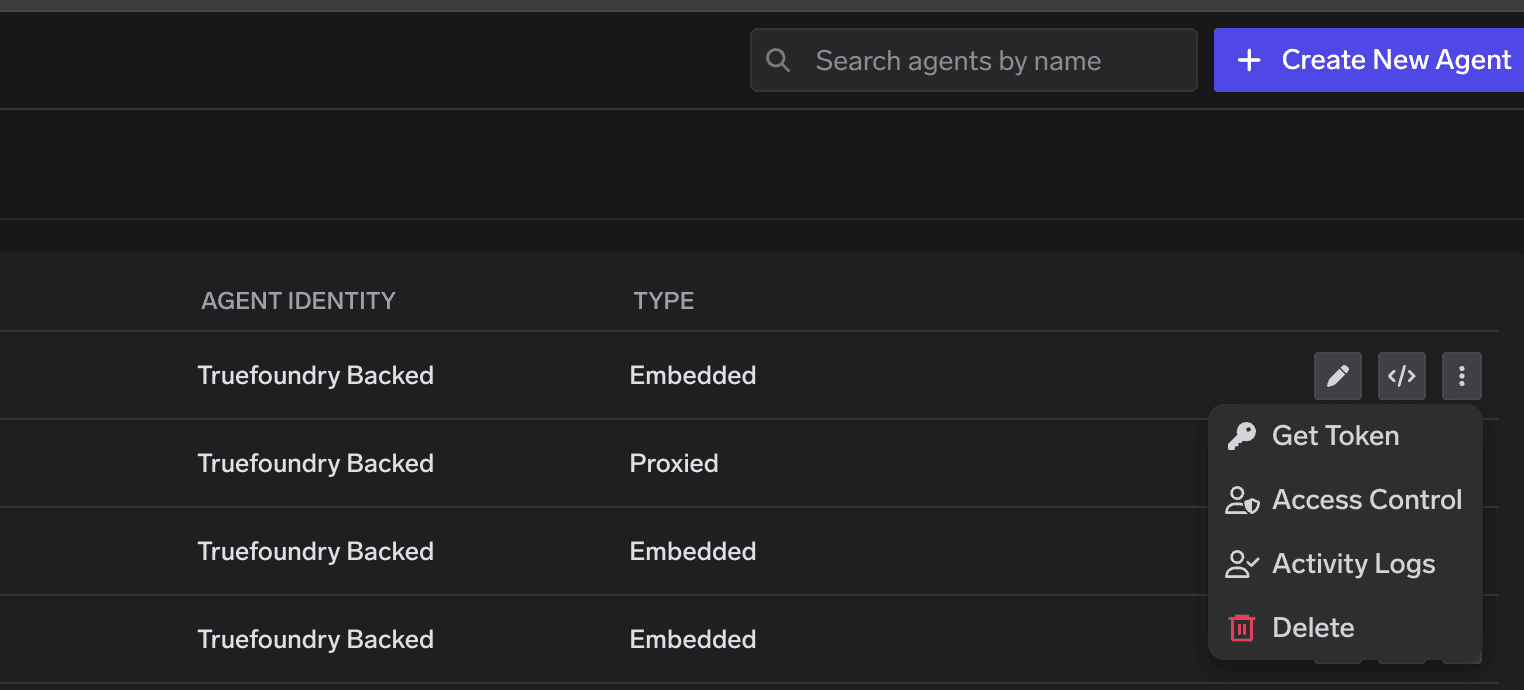 On the agent's row, open the **⋮** menu and choose **Get Token**. A TrueFoundry-signed token is
generated on demand (or the current valid one is returned if it already exists). Copy it and
store it securely.
Your agent sends the token as `Authorization: Bearer ` when it calls an MCP server
(via the MCP Gateway) or another agent (via the Agent Gateway). The Gateway validates it,
resolves it to this agent, and allows the call if this agent is a collaborator on that
resource — otherwise it returns `403`.
Use **Get Token** again at any time to retrieve the current token; a fresh one is issued if the
stored one has expired.
There is **no** TrueFoundry-issued token and **no Get Token** option — the agent authenticates with
a token from **your own identity provider** (the one you mapped in Step 2).
The agent gets an access token from your configured identity provider (Okta, Entra, or any OIDC provider) —
e.g. via client-credentials or an OBO / token-exchange flow. The token must carry the claim
value you set as the **Subject value** in the identity provider mapping.
The agent sends that identity provider token as `Authorization: Bearer ` when it calls an MCP server
or another agent. The Gateway validates it against the configured identity provider, reads the
mapped claim, resolves it to this agent, and allows the call if this agent is a collaborator on
that resource.
See the [identity provider scenarios](/docs/agent-platform/agent-governance/scenarios/okta)
for the full end-to-end flow per provider.
The agent identity token authenticates the agent itself. Keep it out of source control and out of
anything the model can read back — an agent that can be prompted into disclosing its own token can be
impersonated. To act **on behalf of a user**, the agent passes the user's token in `Authorization` and
its own token in `x-tfy-agent-authorization` — see
[passing the identity in your code](/docs/ai-gateway/agents/agent-identity#passing-the-identity-in-your-code).
***
## Letting the agent use MCP servers and models
The agent's identity is not just for invoking the agent — it's also what lets the agent **reach other
resources**. To allow this agent to call an MCP server or use a model, add it as a **collaborator** on
that resource. This is the same collaborator model used everywhere else; the agent simply appears
alongside users and teams in the picker.
Go to the MCP server (or the model's provider account) you want the agent to use, and open its
**Collaborators** / Access Control section.
In the subject picker, switch to the **Agents** tab and select this agent (the subject is
`agent:`). Choose the role that fits:
* On an **MCP server** — a role that grants **use** of the server (so the agent can call its tools).
* On a **model / provider account** — a role that grants **use** of the integration (so the agent
can call the model).
On the agent's row, open the **⋮** menu and choose **Get Token**. A TrueFoundry-signed token is
generated on demand (or the current valid one is returned if it already exists). Copy it and
store it securely.
Your agent sends the token as `Authorization: Bearer ` when it calls an MCP server
(via the MCP Gateway) or another agent (via the Agent Gateway). The Gateway validates it,
resolves it to this agent, and allows the call if this agent is a collaborator on that
resource — otherwise it returns `403`.
Use **Get Token** again at any time to retrieve the current token; a fresh one is issued if the
stored one has expired.
There is **no** TrueFoundry-issued token and **no Get Token** option — the agent authenticates with
a token from **your own identity provider** (the one you mapped in Step 2).
The agent gets an access token from your configured identity provider (Okta, Entra, or any OIDC provider) —
e.g. via client-credentials or an OBO / token-exchange flow. The token must carry the claim
value you set as the **Subject value** in the identity provider mapping.
The agent sends that identity provider token as `Authorization: Bearer ` when it calls an MCP server
or another agent. The Gateway validates it against the configured identity provider, reads the
mapped claim, resolves it to this agent, and allows the call if this agent is a collaborator on
that resource.
See the [identity provider scenarios](/docs/agent-platform/agent-governance/scenarios/okta)
for the full end-to-end flow per provider.
The agent identity token authenticates the agent itself. Keep it out of source control and out of
anything the model can read back — an agent that can be prompted into disclosing its own token can be
impersonated. To act **on behalf of a user**, the agent passes the user's token in `Authorization` and
its own token in `x-tfy-agent-authorization` — see
[passing the identity in your code](/docs/ai-gateway/agents/agent-identity#passing-the-identity-in-your-code).
***
## Letting the agent use MCP servers and models
The agent's identity is not just for invoking the agent — it's also what lets the agent **reach other
resources**. To allow this agent to call an MCP server or use a model, add it as a **collaborator** on
that resource. This is the same collaborator model used everywhere else; the agent simply appears
alongside users and teams in the picker.
Go to the MCP server (or the model's provider account) you want the agent to use, and open its
**Collaborators** / Access Control section.
In the subject picker, switch to the **Agents** tab and select this agent (the subject is
`agent:`). Choose the role that fits:
* On an **MCP server** — a role that grants **use** of the server (so the agent can call its tools).
* On a **model / provider account** — a role that grants **use** of the integration (so the agent
can call the model).
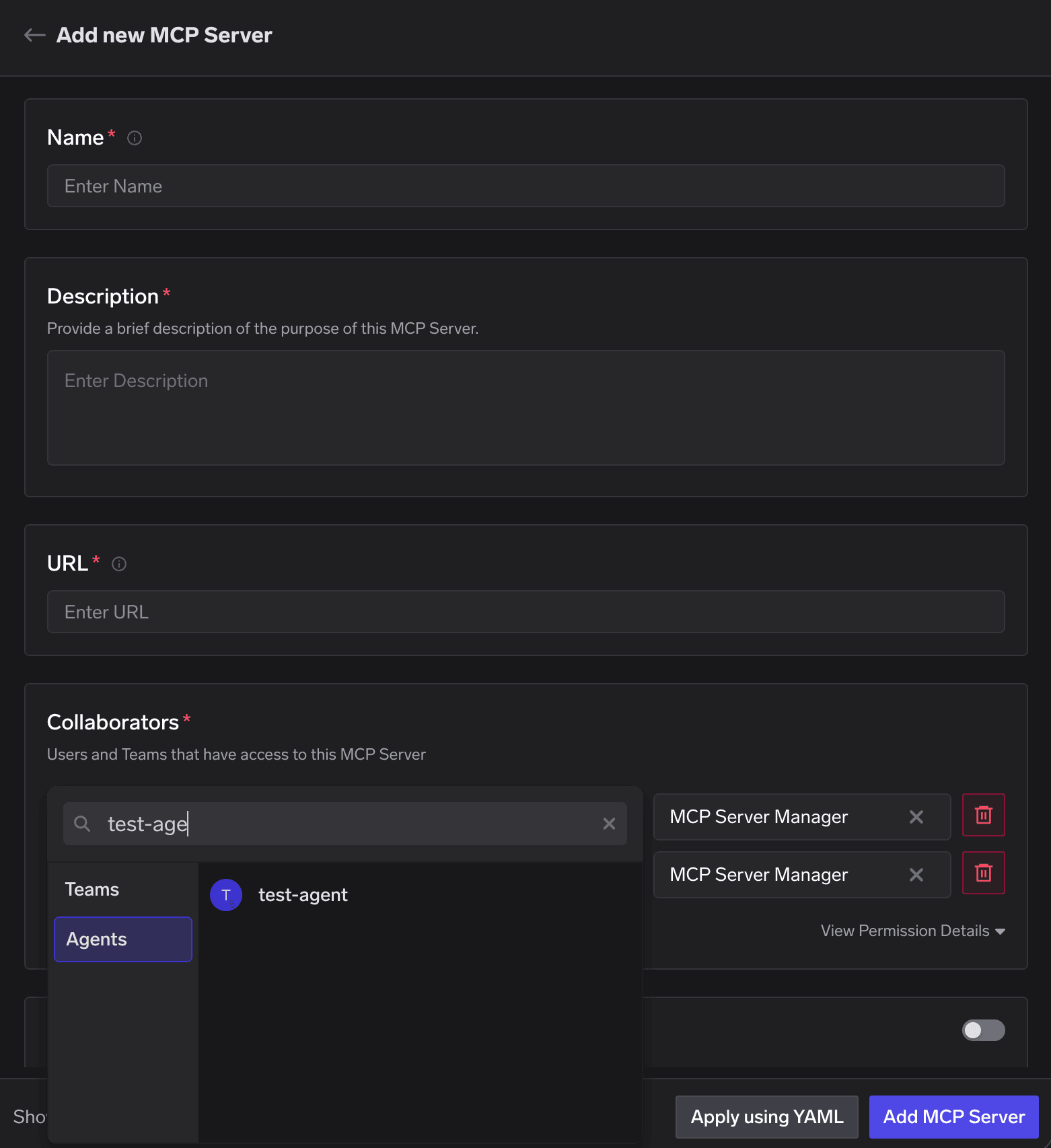 Once saved, the grant is stored on the agent's identity. When the agent presents its token
(TrueFoundry-backed or identity provider-backed) to the Gateway, the Gateway resolves it to this agent and
allows the call to that MCP server or model.
Access is allow-list based, exactly like [agent access control](#step-4--access-control): the agent
can reach a resource **only if** it is a collaborator on that resource. Remove the collaborator to
revoke access — the Gateway then returns `403 – not authorized` for that agent.
To restrict an agent to a **subset of a server's tools**, curate that subset as a
[Virtual MCP Server](/docs/ai-gateway/mcp/virtual-mcp-server) and grant the agent access to that
instead of the full server. Per-agent tool scoping on the grant itself is
[coming soon](/docs/agent-platform/agent-governance/truefoundry-implementation#coming-soon).
### Which MCP server auth types an agent can use
Being a collaborator settles **authorization** — whether the agent is allowed to use the server. It
does not by itself provide **credentials** for the upstream service. Whether an agent can complete the
call therefore depends on how the MCP server authenticates:
| MCP server auth | Works with an agent token | Why |
| ------------------------------- | ------------------------- | ------------------------------------------------------------------------------------ |
| No auth | Yes | Nothing to present upstream. |
| TrueFoundry-managed | Yes | TrueFoundry manages the upstream credential centrally. |
| Shared / global header | Yes | One credential is shared by every caller, so it is not tied to a person. |
| Token passthrough | Yes | The Gateway forwards the caller's TrueFoundry credential. |
| OAuth2 — **client credentials** | Yes | App-to-app grant; the token belongs to the application, not a user. |
| OAuth2 — **authorization code** | No | Interactive grant: it requires a person to sign in at the provider's consent screen. |
An agent cannot complete an **OAuth2 authorization-code** flow — there is no human to approve the
consent screen, and the resulting token would belong to that person rather than the agent. Calling
such a server with an agent token returns `MCP server authentication required`, even when the agent is
a collaborator. If you need an agent to reach a provider like this, configure the MCP server with
**client credentials** instead where the provider supports it.
***
## Calling the agent
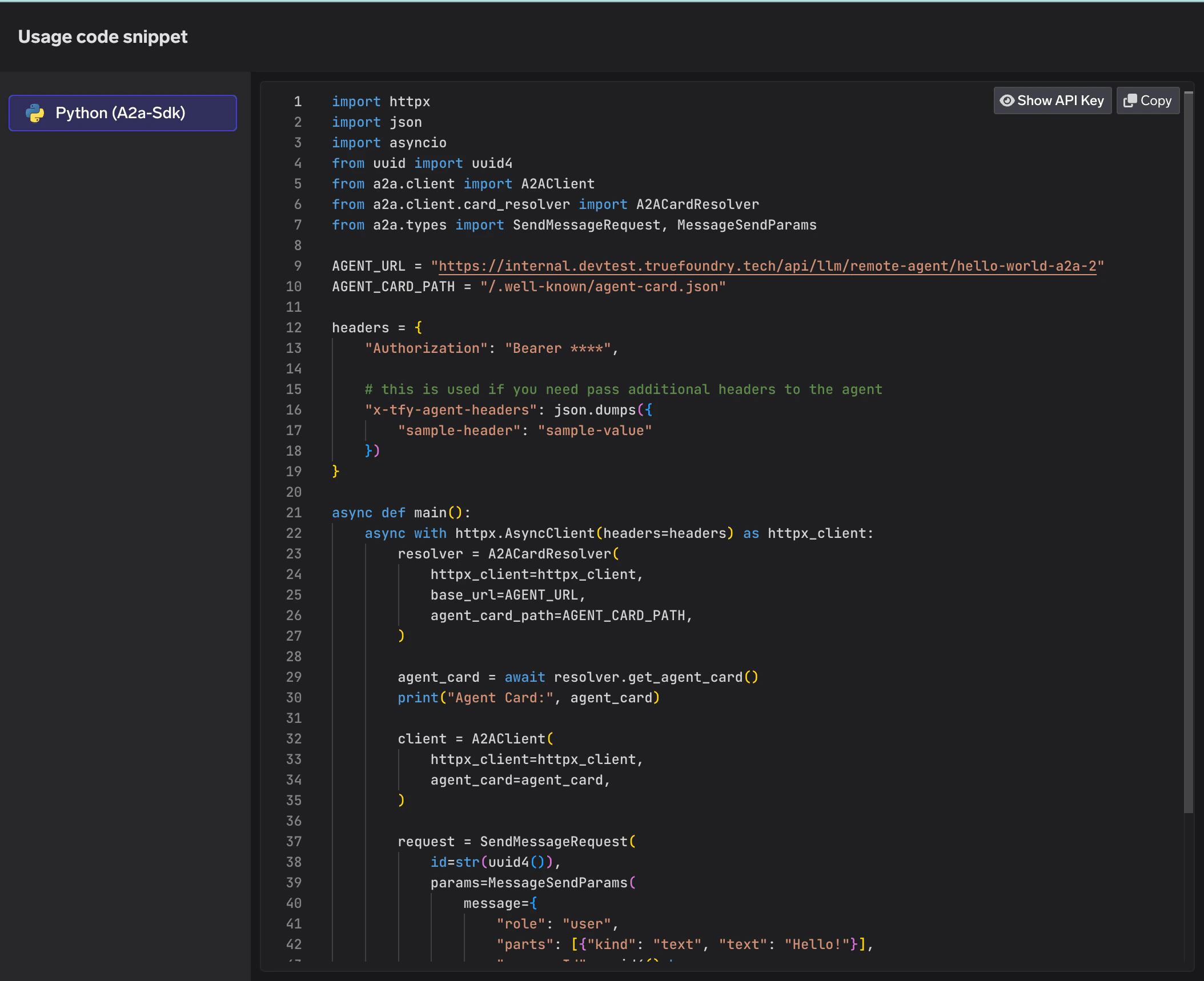
Once registered and proxied, the agent is reachable through the Agent Gateway. On the Agent Registry
page, click the **code snippet** button on the agent to get a ready-to-use snippet.
Once saved, the grant is stored on the agent's identity. When the agent presents its token
(TrueFoundry-backed or identity provider-backed) to the Gateway, the Gateway resolves it to this agent and
allows the call to that MCP server or model.
Access is allow-list based, exactly like [agent access control](#step-4--access-control): the agent
can reach a resource **only if** it is a collaborator on that resource. Remove the collaborator to
revoke access — the Gateway then returns `403 – not authorized` for that agent.
To restrict an agent to a **subset of a server's tools**, curate that subset as a
[Virtual MCP Server](/docs/ai-gateway/mcp/virtual-mcp-server) and grant the agent access to that
instead of the full server. Per-agent tool scoping on the grant itself is
[coming soon](/docs/agent-platform/agent-governance/truefoundry-implementation#coming-soon).
### Which MCP server auth types an agent can use
Being a collaborator settles **authorization** — whether the agent is allowed to use the server. It
does not by itself provide **credentials** for the upstream service. Whether an agent can complete the
call therefore depends on how the MCP server authenticates:
| MCP server auth | Works with an agent token | Why |
| ------------------------------- | ------------------------- | ------------------------------------------------------------------------------------ |
| No auth | Yes | Nothing to present upstream. |
| TrueFoundry-managed | Yes | TrueFoundry manages the upstream credential centrally. |
| Shared / global header | Yes | One credential is shared by every caller, so it is not tied to a person. |
| Token passthrough | Yes | The Gateway forwards the caller's TrueFoundry credential. |
| OAuth2 — **client credentials** | Yes | App-to-app grant; the token belongs to the application, not a user. |
| OAuth2 — **authorization code** | No | Interactive grant: it requires a person to sign in at the provider's consent screen. |
An agent cannot complete an **OAuth2 authorization-code** flow — there is no human to approve the
consent screen, and the resulting token would belong to that person rather than the agent. Calling
such a server with an agent token returns `MCP server authentication required`, even when the agent is
a collaborator. If you need an agent to reach a provider like this, configure the MCP server with
**client credentials** instead where the provider supports it.
***
## Calling the agent
Once registered and proxied, the agent is reachable through the Agent Gateway. On the Agent Registry
page, click the **code snippet** button on the agent to get a ready-to-use snippet.
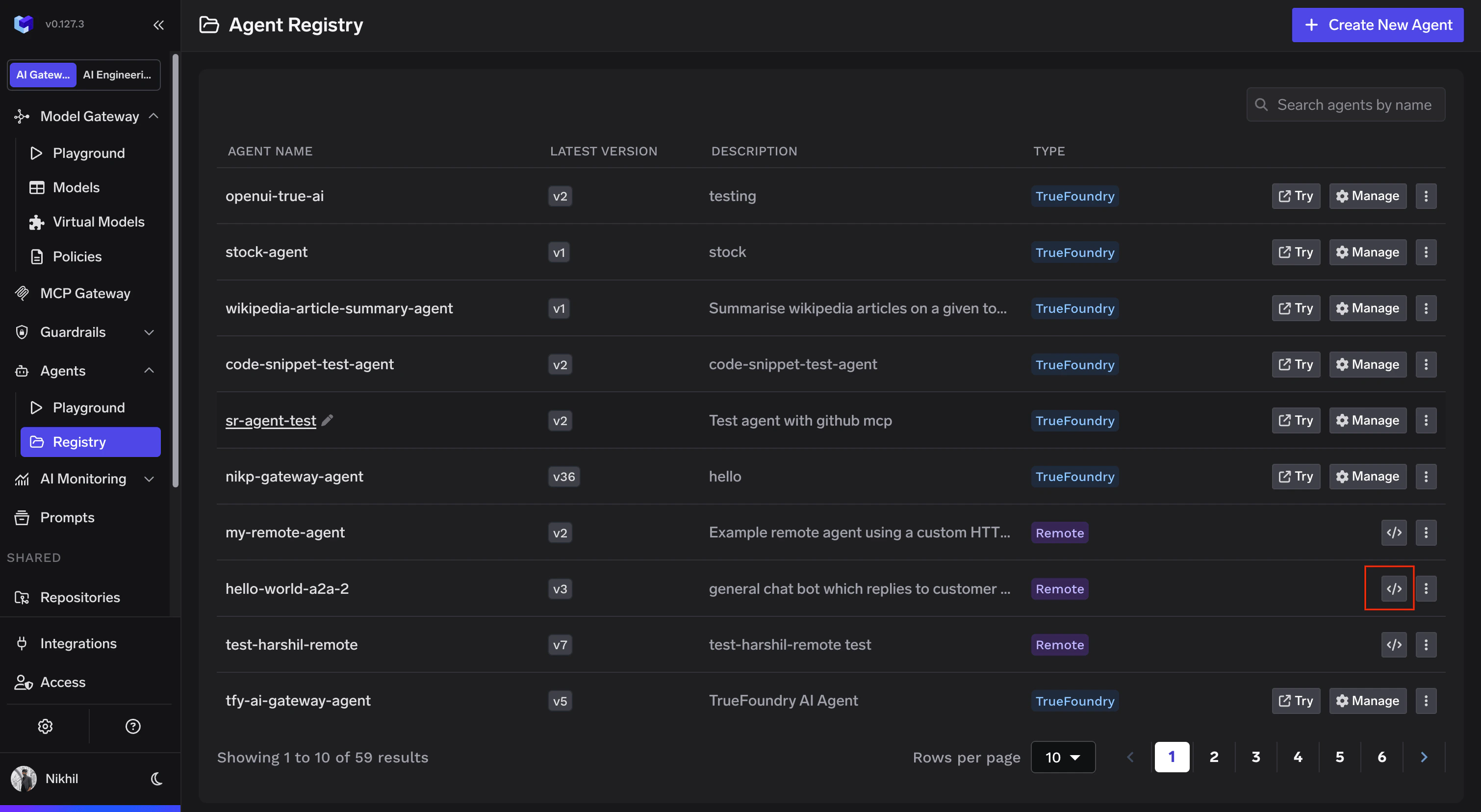 For A2A agents, the generated snippet handles agent card resolution, client setup, and message
exchange — all routed through TrueFoundry's proxy with your configured authentication. The caller
presents its own credential (a user token, or an agent's identity token); the Gateway authenticates
it, applies policy, then forwards to the agent's endpoint.
For A2A agents, the generated snippet handles agent card resolution, client setup, and message
exchange — all routed through TrueFoundry's proxy with your configured authentication. The caller
presents its own credential (a user token, or an agent's identity token); the Gateway authenticates
it, applies policy, then forwards to the agent's endpoint.
 An **Embedded** agent (governance-only, no callable URL) is not called through TrueFoundry — it has an
identity and appears in the registry for discovery and access control, but there is no Gateway
endpoint to invoke.
## Next
* [Agent Identity](/docs/ai-gateway/agents/agent-identity) — how the identity works, delegation, and passing it in your code.
* [Guardrails for Agents](/docs/agent-platform/agent-governance/agent-guardrails) — inspecting what agents send and receive at every hop.
* [Agent Observability](/docs/agent-platform/agent-governance/agent-observability) — metrics, traces, and the audit trail for every registered agent.
An **Embedded** agent (governance-only, no callable URL) is not called through TrueFoundry — it has an
identity and appears in the registry for discovery and access control, but there is no Gateway
endpoint to invoke.
## Next
* [Agent Identity](/docs/ai-gateway/agents/agent-identity) — how the identity works, delegation, and passing it in your code.
* [Guardrails for Agents](/docs/agent-platform/agent-governance/agent-guardrails) — inspecting what agents send and receive at every hop.
* [Agent Observability](/docs/agent-platform/agent-governance/agent-observability) — metrics, traces, and the audit trail for every registered agent.